


Hassle free, 2-Year Warranty
Fast, Free Shipping on Orders $35+
Lifetime Technical Support
30-Day Money Back Guarantee
Plugable USB-C to 2.5 Gbps Ethernet Adapter with 100W USB-C Charging
$29.95 USD
SKU: USBC-E2500PDAmazon Rating : (89 Reviews)
Features
- USB-C to Ethernet Adapter— Get secure, high-speed 2.5Gbps Ethernet and 100W Power Delivery for charging through a single USB Type-C port. Plug-and-play, and travel-ready
- Ultra-Fast Internet Speeds— Recognized by MacWorld as the "Best simple, budget adapter for 2.5GbE," this adapter converts Thunderbolt, USB4, or USB-C to 2.5Gbps Ethernet for rapid downloads and secure connectivity
- 100W Charging— Type-C USB to Ethernet adapter supports up to 100W pass-through charging so you can charge and connect through one USB-C port, just plug the USB-C charging cord that you already have into the adapter. A charger isn’t included or needed to use this USBC to Ethernet adapter
- Compatibility— USB-C Ethernet adapter works with Thunderbolt, USB4, and USB-C enabled computers running Windows 10 or later, M1-M5 and Neo MacBooks with macOS 11+, and ChromeOS, or mobile devices like iPhone 15 / 16 Pro / Pro Max
- 2-Year Coverage, Lifetime Support— Every Plugable product, including this USB C to ethernet adapter, is covered against defects for 2 years and comes with lifetime support. If you ever have questions, contact our North American-based team - even before purchase
For volume orders or business inquiries contact sales@plugable.com





Ethernet and Charging Through a Single Port
The 2.5Gbps USB-C Ethernet Adapter for laptop and other devices with 100W Power Delivery (USBC-E2500PD) gives you access to ultra-fast ethernet connection speeds and powerful pass-through charging through a single Thunderbolt, USB4, or PD capable USB-C port.
Offering a 2.5Gbps Ethernet connection, it ensures your online activities are faster and more reliable than ever, perfect for streaming, gaming, and working. The innovative design of this Ethernet USB C adapter integrates 100W Power Delivery pass-through, allowing you to charge your laptop at full speed with your existing USB-C charging cable, all while maintaining a stable internet connection. It should be noted that a charging cord isn’t included or required as this adapter can provide Ethernet connectivity runs on bus power—so it can get its power from your computer too.
This compact, travel-friendly plug-and-play USB C network adapter Ethernet requires no additional driver installation, so it’s a hassle-free addition to your tech toolkit. For work, play, or anything in between, this adapter simplifies your connectivity and charging needs in one sleek, efficient package.


A: Yes, some smartphones such as the iPhone 15 or Google Pixel can charge and establish an Ethernet connection.
A: The Realtek RTL8156B is used in this Ethernet adapter.
A: USB-C devices which charge using their USB-C port generally support Power Delivery. Alternatively, a small plug icon next to your USB-C port may indicate it supports PD. If you’re unsure, please consult the documentation from your device manufacturer.
A: 2.5Gbps (also known as 2.5GBase-T) requires that the entire link from the USBC-E2500PD and other devices supports this speed. If any part of the connection does not support 2.5Gbps, the link speed will be limited by the slowest device in the chain.
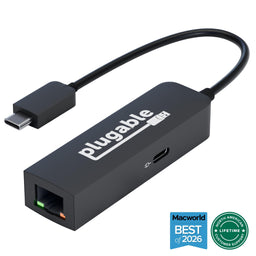 |
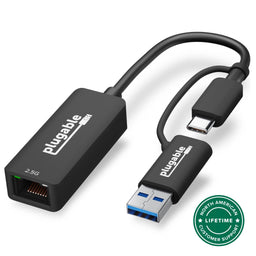 |
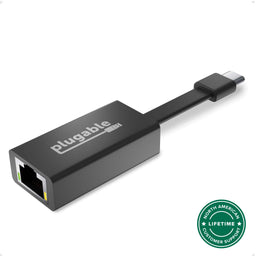 |
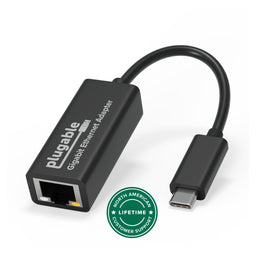 |
 |
|
|---|---|---|---|---|---|
Connection to Host |
USB-C |
USB-A, USB-C |
USB-C |
USB-C |
USB-A |
Thunderbolt Compatible |
X |
||||
Link Rates |
10/100/1000/2500Mbps |
10/100/1000/2500Mbps |
10/100/1000Mbps |
10/100/1000Mbps |
10/100/1000Mbps |
2.5Gbps Ethernet |
X |
X |
X |
||
Pass-through Charging |
Up to 100W |
X |
X |
X |
X |
Filter Help Articles and Frequent Questions by Category
Choose one or more filters within each category to narrow down the articles. Each selection will result in only displaying articles that include all of your choices.
Articles
Well how about that, it looks like we don't have any articles matching your filters! Try removing one of your choices or clear the filters to show all articles.
You can always contact support if you need help too!
Why can't I drive two external extended displays with my Google Pixel phone?
Google Pixel phones support USB-C DisplayPort Alternate Mode for wired video output, but due to Android OS limitations, they cannot produce two extended external displays using MST, DisplayLink, or Thunderbolt docking technologies. This is a platform constraint, not a hardware or dock issue.
Understanding the Limitation
Google Pixel phones are limited by the Android operating system’s handling of external displays. While many Pixel models (such as the Pixel 7 and Pixel 8 series) support USB-C DisplayPort Alternate Mode, they can only output to a single external display at a time. Android is designed primarily for screen mirroring, and extended display support is extremely limited across Android phones.
Key Point:
Android OS currently restricts Pixel phones to one external display, regardless of the dock or adapter used.
Dock Behavior with Pixel Phones
MST Docks (e.g., Plugable UD-MSTH2)
MST (Multi-Stream Transport) requires the host device to support splitting one DisplayPort signal into multiple independent video streams. While common on Windows and many Chromebooks, Pixel phones do not support MST for extended displays.
When using an MST dock, a Pixel phone will:
- Output to one external display only, or
- Mirror the same content to two connected monitors
- Dual extended desktops are not supported
DisplayLink Docks
DisplayLink technology works on Android through a companion app (e.g., DisplayLink Presenter). However:
- Android only supports a single external display via DisplayLink
- DisplayLink docks cannot be used to achieve multiple extended monitors from a Pixel device
- DisplayLink is not recommended for dual display use on Android
Thunderbolt Docks
Google Pixel phones are not Thunderbolt-certified hosts. When connected to a Thunderbolt dock:
- They revert to basic USB-C DisplayPort Alternate Mode
- Only a single mirrored display is possible
Visual Summary
| Dock Type | Extended Displays | Mirroring | Notes |
|---|---|---|---|
| MST Dock | ❌ | ✅ | No MST support on Android |
| DisplayLink Dock | ❌ | ✅ | Requires DisplayLink app |
| Thunderbolt Dock | ❌ | ✅ | Functions as USB-C only |
Recommended Alternatives
If your goal is to use two independent external displays, consider the following instead:
- Windows laptops with DisplayPort MST support
- Chromebooks that support MST
Frequently Asked Questions
Q: Can I extend my Pixel’s screen to two monitors using any method?
A: No. As of now, Android does not support multiple extended displays. Only mirroring to one display is possible.
Q: Does DisplayLink allow multiple displays on Android?
A: No. Even with DisplayLink’s Android app, you are limited to one external display.
Q: Why do Windows and ChromeOS devices work with MST but not Android?
A: Android lacks support for DisplayPort MST and advanced GPU capabilities required for multiple display outputs. This is a software/platform-level limitation.
Conclusion
While Google Pixel phones are capable of driving a single external display, dual extended monitors are not possible due to Android OS restrictions. This applies across all dock types, including MST, DisplayLink, and Thunderbolt. For users requiring robust multi-display setups, we recommend using a Windows or Chromebook device that supports MST alongside a compatible docking station like the Plugable UD-MSTH2.
If you have any questions or need help selecting a compatible dock, reach out to our support team at support@plugable.com.
Is my ethernet adapter compatible with iPhone?
Our Plugable ethernet adapters are compatible with USB-C iPhone 15 and 16 / Pro / Pro Max running iOS 17 or newer. Our ethernet adapters are plug-and-play on iPhone, and ethernet connection is identified in the iOS settings app.
These following ethernet adapters from Plugable have been tested and verified to work with iPhone:
Understanding and Troubleshooting Network Performance
How Do I Benchmark and Troubleshoot Network Adapter Performance Using iPerf?
Problem Summary
Network adapter performance issues or unexpected speed throttling are commonly caused by local network bottlenecks, driver configurations, VPN services, or Wi-Fi priority settings rather than adapter hardware defects. Establishing a direct point-to-point connection and running an iPerf benchmark isolates network bottlenecks and confirms whether the adapter is achieving its rated throughput.
Isolating the Issue
We recommend starting by isolating the issue to the lowest OSI layer and working up. The Open Systems Interconnection (OSI) model is a framework for understanding network communications and is divided into seven layers:
- Physical - This is the physical adapters, wires between two points. It can be thought of as each discrete component for example a USB to Ethernet adapter, or Ethernet cable.
- Data Link Layer - This layer handles the direct communications between devices, using the hardware MAC Address. Communications at this layer are blocked by a router. (MAC address) hardware: Ethernet switch
- Network Layer - This layer includes the IP address and allows for transmitting data between routed networks. (IPv4, IPv6) hardware: Router.
- Transport Layer - This layer handles the end-to-end message delivery, and optionally error recovery and flow control, and operates in software. (TCP, UDP). For our purposes this as high as Plugable products really interact, the three next layers are independent of our products.
- Session Layer - Opens, manages, and closes sessions between applications.
- Presentation Layer - This includes SSL/TLS encryption, data formats like JPEG or PNG
- Application Layer - This is the interaction layer for most users and applications, including web pages: HTML, JavaScript etc content.
Physical
When you receive no network connection at all, try a different Ethernet cable, Ethernet switch port, or bypass any devices and connections between the computer's network port and the Ethernet switch. Intermediary devices and connections (like keystone wall sockets, IP telephony systems, etc) can cause reduced network reliability. Check for the Ethernet port Link and Activity LEDs on both the computer's Ethernet adapter, and the switch port.
Data Link and Network
For simplicity these can be combined for testing, check to see if the system is receiving an IP address with terminal commands like ipconfig /all in Windows, or ip -a -br -4 in Linux. We can also check for local network connectivity by "pinging" a local resource like the router ping 192.168.1.1 where "192.168.1.1" is the IP address of the router - this will depend on your specific network configuration.
For performance related issues testing the local network, that is devices connected by one or more Ethernet switches, or even directly connected Ethernet port to Ethernet port is the first step in narrowing down an internet slowdown, to determine if the issue is between the computer and router, or between the router and internet service provider.
Local network performance testing can take a couple of forms, the most common is a utility like iPerf3 that is specifically designed for testing or benchmark a network connection. iPerf3 is designed specifically for Linux and Unix-like operating systems, it has been ported by 3rd parties to both Windows and macOS but has some limitations.
iPerf 3 Basic Benchmark
Testing with iPerf3 requires two computers - a server and a client. Generally we recommend a Linux system for the server, this will be more stable and provide more testing options, however a Windows or macOS server may also be used for basic testing. The client computer can also be Linux, Windows, or macOS, again with some limitations for non-Linux clients that shouldn't impact this this testing.
Installing iPerf3
For Linux install iPerf3 from your package manager: for Fedora (Redhat based distributions): sudo dnf -y install iperf3, or for Ubuntu (Debian based): sudo apt update && sudo apt install iperf3.
For Windows iPerf3 has been maintained by a 3rd party on GitHub and can be downloaded by selecting the Releases on the right column.
For macOS the easiest installation is through homebrew: brew install iperf3.
Configure the Server
Connect the computer to the network - or directly to the client computer - direct connections are not covered here but you can look up how to manually set IP addresses on both computers. Then look up the IP address assigned to the server open a terminal and run the following command
- Windows:
ipconfig /all - Linux:
ip -br -4 addr - Mac: You will need to look up the IP address through the macOS Apple Menu > System Settings > Network settings menu
The server simply needs to run iPerf3 with the -s argument. Open a terminal and navigate to the iPerf3 executable (Windows - for Linux and macOS after installation iPerf3 will be in the PATH), and run the program
- Windows:
iperf3.exe -s - Linux/mac:
iperf3 -s
Running a test
The most basic tests iPerf3 offers are 10-second upload or download tests, however there are many configuration options available to us. Open a terminal and navigate to the iPerf3 executable (Windows - for Linux and macOS after installation iPerf3 will be in the PATH), and run the program:
- Windows:
iperf3.exe -c Server_IP - Linux/mac:
iperf3 -c Server_IP
This will start an upload test to the server and print the result after each second, and a summary result to the terminal.
We can similarly start a download test by adding the -R reverse direction flag with the following:
- Windows:
iperf3.exe -c Server_IP -R - Linux/mac:
iperf3 -c Server_IP -R
Here is the example output of a download test from a local server at 192.168.1.250.
Connecting to host 192.168.1.250, port 5201
Reverse mode, remote host 192.168.1.250 is sending
[  5] local 192.168.1.90 port 39982 connected to 192.168.1.250 port 5201
[ ID] Interval           Transfer     Bitrate
[  5]   0.00-1.00   sec   112 MBytes   935 Mbits/sec
[  5]   1.00-2.00   sec   112 MBytes   936 Mbits/sec
[  5]   2.00-3.00   sec   112 MBytes   937 Mbits/sec
[  5]   3.00-4.00   sec   112 MBytes   936 Mbits/sec
[  5]   4.00-5.00   sec   112 MBytes   936 Mbits/sec
[  5]   5.00-6.00   sec   112 MBytes   936 Mbits/sec
[  5]   6.00-7.00   sec   112 MBytes   937 Mbits/sec
[  5]   7.00-8.00   sec   112 MBytes   936 Mbits/sec
[  5]   8.00-9.00   sec   112 MBytes   936 Mbits/sec
[  5]   9.00-10.00  sec   112 MBytes   936 Mbits/sec
- - - - - - - - - - - - - - - - - - - - - - - - -
[ ID] Interval           Transfer     Bitrate         Retr
[  5]   0.00-10.04  sec  1.09 GBytes   935 Mbits/sec    0             sender
[  5]   0.00-10.00  sec  1.09 GBytes   936 Mbits/sec                  receiver

iperf Done.
Each line shows the amount of data and average speed within a 1-second interval, this is great for catching intermittent issues, brief or transient slowdowns etc.
The summary (below the dashed lines) shows the Bitrate at 935 or 936 Mbits/second - measured by the client and serve respectively, with zero Retr (Re-transmits) from the client. This is pretty typical for a gigabit Ethernet connection (1000Mbps) through a home network (in this case two Ethernet switches).
Longer tests can be run by specifying the number of seconds: -t SECONDS where SECONDS is the time in seconds, for example 600 for 10 minutes. Additional settings and options can be found in the iPerf3 documentation and manual.
What does iPerf3 tell us?
iPerf3 tests the network bandwidth between two computers, by default this uses TCP (up to OSI Layer 4), for a local network segment. If the network performance between the client and server meets the expected bandwidth then performance issues are most likely outside of this scope. Internet speed testing can test the performance from the local network to the internet resource, however internet speeds will generally be less stable than local network speeds, many ISPs (Internet Service Providers) use shared bandwidth for multiple customers which can create slow times of day (for example when people start getting home from school/work), and may have asynchronous upload and download speeds. When comparing internet speed test results we recommend keeping your internet service expectations in mind.
For internet speed tests there are many options from different providers, these generally all operate through the web browser, introducing potential slowdowns from browser extensions and configuration, VPN (Virtual Private Network) connections and more. Here are some of the more common internet-based speed tests we see.
If benchmark speeds remain significantly lower than expected or the test fails to run, verify that both host computers support the targeted Ethernet link rates, test with a Cat 6a or better Ethernet cable, and temporarily disable security software that may filter local network traffic. If performance issues continue, contact Plugable support at support@plugable.com with your product model, host system specifications, and iPerf test results or PlugDebug diagnostic logs.
Applicable To
- Plugable products with Ethernet ports, or Plugable Ethernet adapters
- Systems running Windows, macOS, or Linux
If you have any questions please feel free to contact us at support@plugable.com and we'll be happy to help!
Network Adapter Prioritization on Windows
When multiple network adapters are active on a Windows PC, Windows may not automatically prioritize a wired Ethernet connection over Wi-Fi, which can affect network speed and stability. Manually adjusting the network adapter metric in Windows forces traffic through the preferred adapter.
Instructions
- Press Windows Key () + X (or right-click the Start Menu button) and choose Network Connections.
- Select Change Adapter Options.
- Right-click the network adapter you wish to set to highest priority and select Properties.
- Double-click Internet Protocol Version 4 (TCP/IPv4).
- On the General tab, click the Advanced button.
- Uncheck Automatic metric.
- Enter a number in the Interface metric field, where lower numbers designate higher priority.
- Click OK on all open dialog windows to accept the changes.
Expected Result
The designated network adapter will take priority over other connected network interfaces, routing primary network traffic through the preferred connection.
If the Issue Persists
If you have any questions please feel free to contact us at support@plugable.com and we'll be happy to help!
Network Prioritization - How to Set Service Order on macOS
If you find that your Plugable Ethernet adapter or docking station is not connecting to the internet or is experiencing slower than expected speeds on your Mac, it may be related the macOS Network Service Order. This is a list of the network connections available to the computer setting the priority for network connections.
macOS attempts to connect to the internet using the network service at the top of your list first. If a wireless network is listed above your Plugable Ethernet adapter, this often leads to users unknowingly using a slower wireless connection when they intended to use a wired one.
To ensure you are getting the full speed and stability of your wired connection, you must prioritize the Plugable Ethernet adapter above Wi-Fi. Normally wired network connections take priority, however if priority has been modified in the past it can affect newly connected devices.
Set the order of network services
Navigate through these steps to Set Service Order:
- Click the Apple Menu in the top-left corner of your screen and select System Settings.
- In the sidebar, click Network.
- Look for the Action Menu (a circle with three dots ...) located at the bottom right of the main window area.
- Click the three dots and select Set Service Order.…
- A list will appear showing all your network interfaces. Click and drag your Ethernet Adapter (often named "USB 10/100/1G/2.5G LAN" or “Plugable Docking Station”) to the very top of the list, above Wi-Fi.
- Click OK to save your changes.
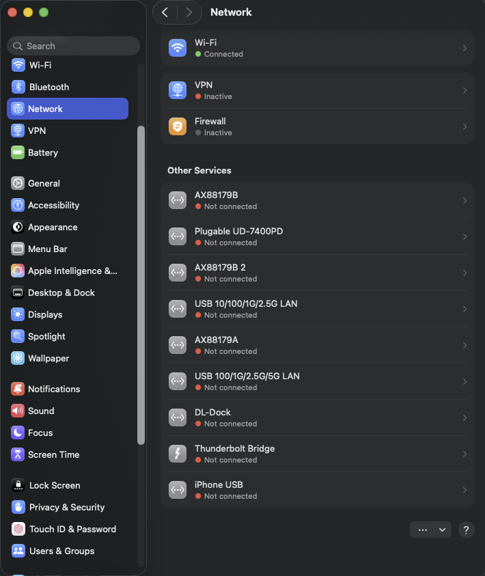
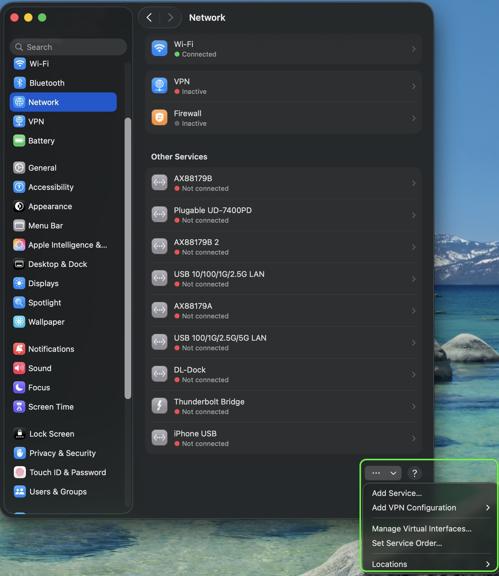
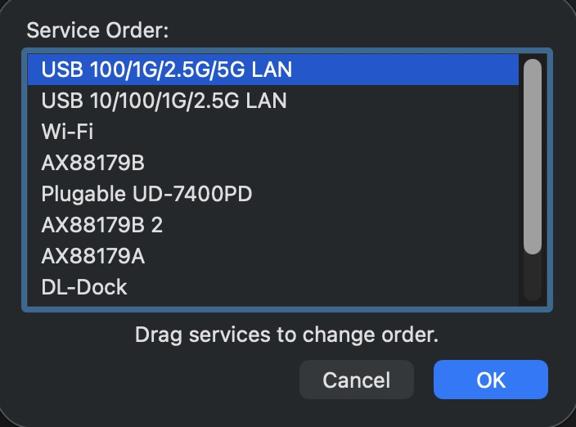
Your network traffic will now automatically prioritize the wired connection, ensuring you receive the best possible speeds and stability from your Plugable adapter.
If you have any questions please feel free to contact us at support@plugable.com and we'll be happy to help!
My Plugable product with wired Ethernet is no longer working on macOS. What can I do?
Please Note
The below guide is an advanced troubleshooting step, and we do not recommend doing so unless you are comfortable manually altering files on your Apple product running macOS. You may not be able to perform the below troubleshooting step if you are unable to execute administrative credentials on your laptop. Please reach out to our support first if you do not wish to attempt the below instructions. You can do so at plugable.com/support
How to delete a specific Ethernet adapter from your Network devices on macOS
- Click on the Apple logo in the top left corner of your primary monitor, and select ‘System Preferences’
- Next select ‘Network’ in the ‘System Preferences' window.
- In the now visible list, please select the Plugable Ethernet, or Thunderbolt Ethernet device that may not be working as expected.
- Once selected click on the minus button in the bottom left of the network window.
- Click on Apply in the bottom right.
- Next click on the plus button in the bottom left of the network window, and add the previously removed device.
- Click on Apply in the bottom right.
- Test to see if this has resolved the unexpected behavior, and assure that your Ethernet is now working.
- If this does not resolve the problem, please proceed to the next section (As noted previously the next section is for advanced users only!)
Manually erase your macOS Network Settings to fully reset the Network configuration
(Advanced! Click to reveal)
- Open the ‘Finder’ app, then in the ‘Go’ menu at the top of your screen select ‘Computer’
- Click on ‘Macintosh HD’ then Library, Preferences, SystemConfiguration
- Copy the file named ‘NetworkInterfaces.plist’ to your desktop as a backup of your current configuration.
- Delete the original version of the ‘NetworkInterfaces.plist’ located in the SystemConfiguration directory.
- Restart your Mac
- Login to your Mac, and return to System Preferences → Network
- If the list is now empty, please re-add the Plugable or Thunderbolt network adapter by clicking on the plus button in the bottom left of the Network window. Once done click on 'Apply'.
- Test to see if this has resolved the unexpected network behavior
I am still unable to get my Ethernet connection working on my Mac
If this is the case please reach out to our support team. When you do please include a diagnostic log gathered using our PlugDebug tool (instructions are provided on the PlugDebug page). If you are not able to gather the PlugDebug diagnostics do not worry we are still here to help! Please reach out to our support team at support@plugable.com or plugable.com/support with a detailed description of your problem, and the model of Plugable product you are using.
What is USB PD Pass-Through?
USB Power Delivery (USB PD) pass-through allows a compatible USB-C hub or dock to receive power from an external USB-C charger and supply some of that power to a connected computer. The hub or dock reserves power for its own operation, so the computer may receive less than the charger's rated output.
How Pass-Through Power Works
The charger connects to the hub or dock's designated PD input, and the hub or dock connects to a computer that supports charging through its USB-C port. The devices negotiate a supported power level. How much reaches the computer depends on the charger, cable, hub or dock, computer, and connected devices.
Example
The Plugable USBC-6950PDZ accepts up to 100W from a compatible USB-C charger and can provide up to 82W to the connected computer. These are two different ratings. A lower-wattage charger leaves less power available for the dock and computer to share.
Important Notes
- A 100W PD input rating does not mean the computer receives 100W. Check the maximum host charging output for the specific product.
- If the computer requires more power than the setup can provide, charging may be slow or the battery may discharge under heavy use.
- USB PD specifications allow up to 240W with compatible equipment. That is a specification maximum, not a capability shared by every USB-C product.
Need Assistance?
If you are unsure how much power a Plugable product can supply to your computer, contact support@plugable.com with the Plugable model, computer model, and charger wattage.
Can I Leave My Notebook Computer Connected to a Charging Dock Overnight, or Should I Discharge and Recharge the Notebook Battery Regularly?
Yes. Modern notebook computers can safely remain connected to a charging dock for extended periods without damaging the battery or requiring regular discharge and recharge cycles. Leaving the laptop connected is functionally equivalent to leaving it connected to the manufacturer's original power adapter.
Why Modern Laptops Do Not Require Battery Cycling
Lithium-ion (Li-ion) batteries are used in a wide range of consumer electronics, including notebook computers, cell phones, electric vehicles, power tools, and wireless earbuds. They offer fast charging, high-current discharge, a relatively long service life, and a comparatively low cost.
The lifespan of a rechargeable battery depends on factors such as age, temperature history, charging patterns, chemical composition, and usage. For example, batteries stored at 100% charge generally degrade faster than those stored at around 50%, which is why many consumer electronics arrive with a partial charge.
Although Li-ion batteries are consumable components, they’re typically not user-serviceable in modern computers, phones, and tablets. These devices include built-in charging and protection circuits that prevent overcharging and monitor factors such as battery temperature, voltage, current draw, and overall health. Charging systems can range from simple preset charging rates to advanced software-controlled management designed to balance charging speed with battery longevity.
Modern notebook computers can remain connected to their original power adapter or a compatible docking station for extended periods and don’t benefit from regular discharge and recharge cycles. Plugable docking stations with charging capability use USB Type-C Power Delivery, a negotiated protocol that allows the computer to request only the power and voltage it requires. Together with the computer’s built-in battery management system, this helps maintain the battery appropriately while connected to power. Disconnecting power simply forces the laptop to operate from its battery, which may trigger reduced-power modes that can affect system performance and connected devices.
Legacy Laptop Battery Behavior
Older laptops from the 1990s and early 2000s, some consumer electronics, and many rechargeable AA and AAA batteries used Nickel-Cadmium (NiCad) or Nickel-Metal Hydride (NiMH) technology. These batteries generally charged and discharged more slowly than lithium-ion batteries and used relatively simple charge controllers. Some could also be trickle-charged using a continuous, very low current.
Because these older batteries often lacked smart charging controllers, manufacturers sometimes recommended “training” them by fully charging and discharging the battery periodically, including two or three full cycles when a laptop was new. Modern lithium-ion batteries don’t have this requirement and don’t benefit from periodic manual discharging.
Applicable To
Plugable docking stations with USB Power Delivery (PD)
How To - Set a Network to Private or Public in Windows 10 & 11
The Windows Firewall may block some networking features when the local network is not set to Private. This article will describe the process for setting the local network, either wired Ethernet or Wi-Fi to be a Private network.
Windows 11
1 - Connect the computer to the network, either wired or wireless
2 - Open the Windows Settings: right-click on the Start Menu and select Settings from the pop-up menu
3 - On the left column select Network & internet
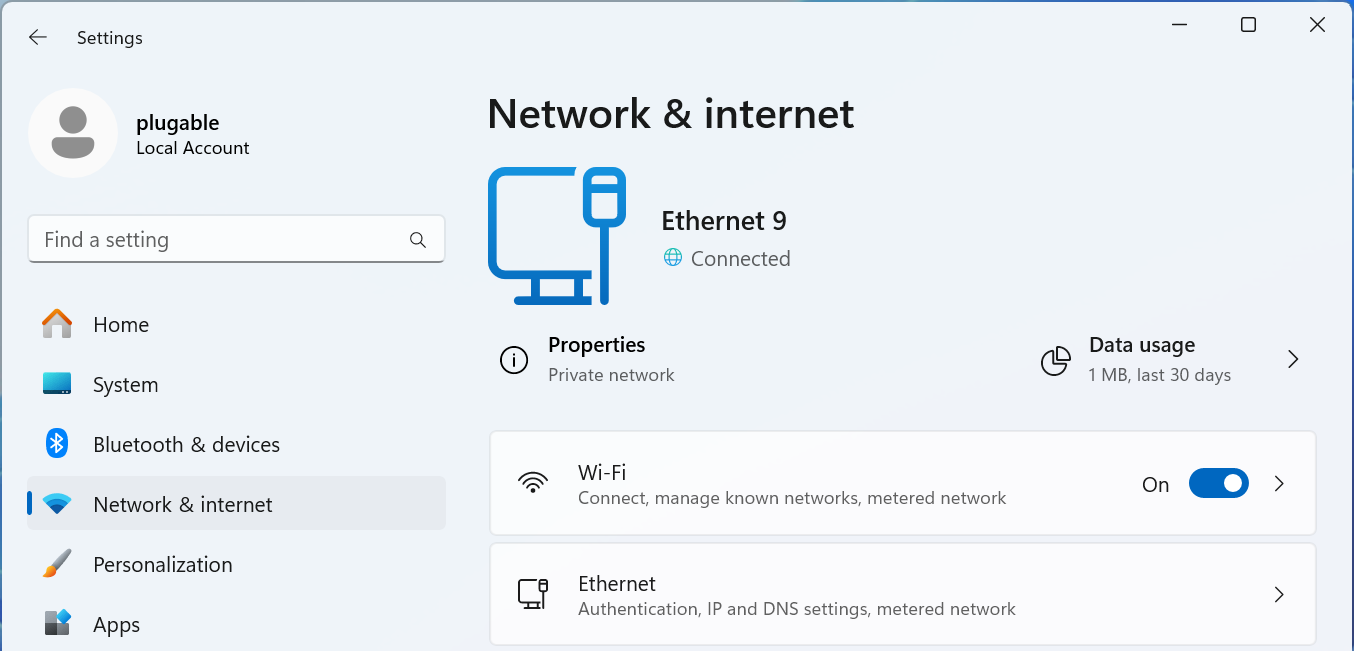
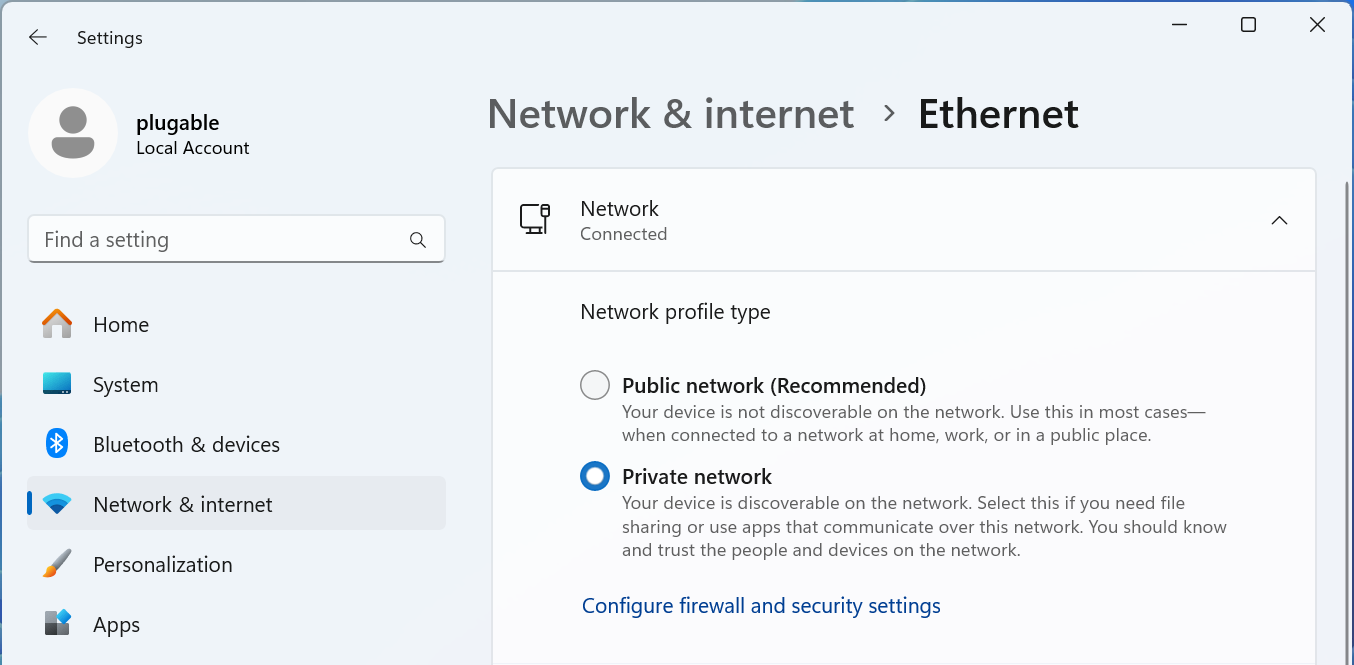
For Wired Networks
4 - Select the Ethernet option
5 - The connected network should be expanded, if not click on Network Connected to expand the section
6 - Select the Network profile type either Public network or Private network to suite your needs
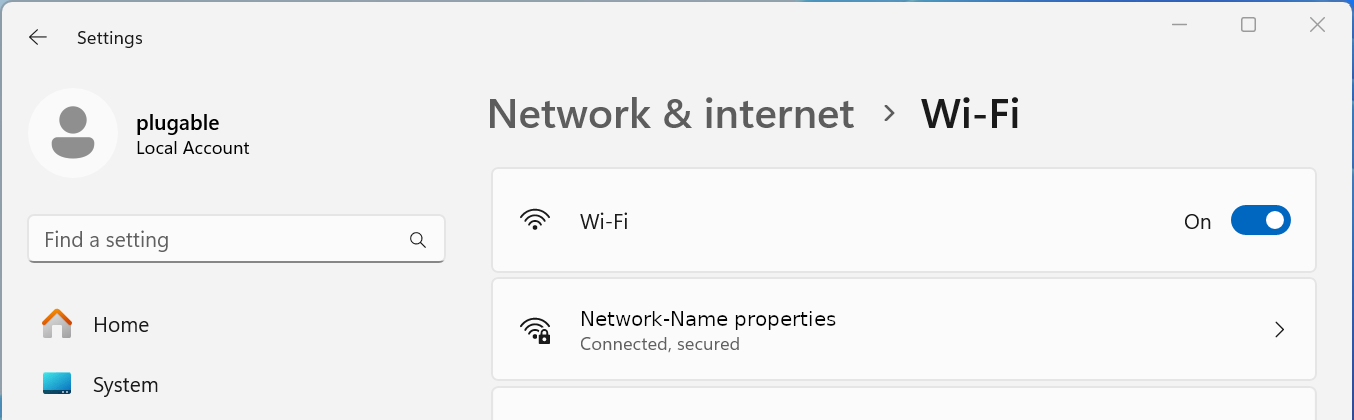
For Wi-Fi Networks
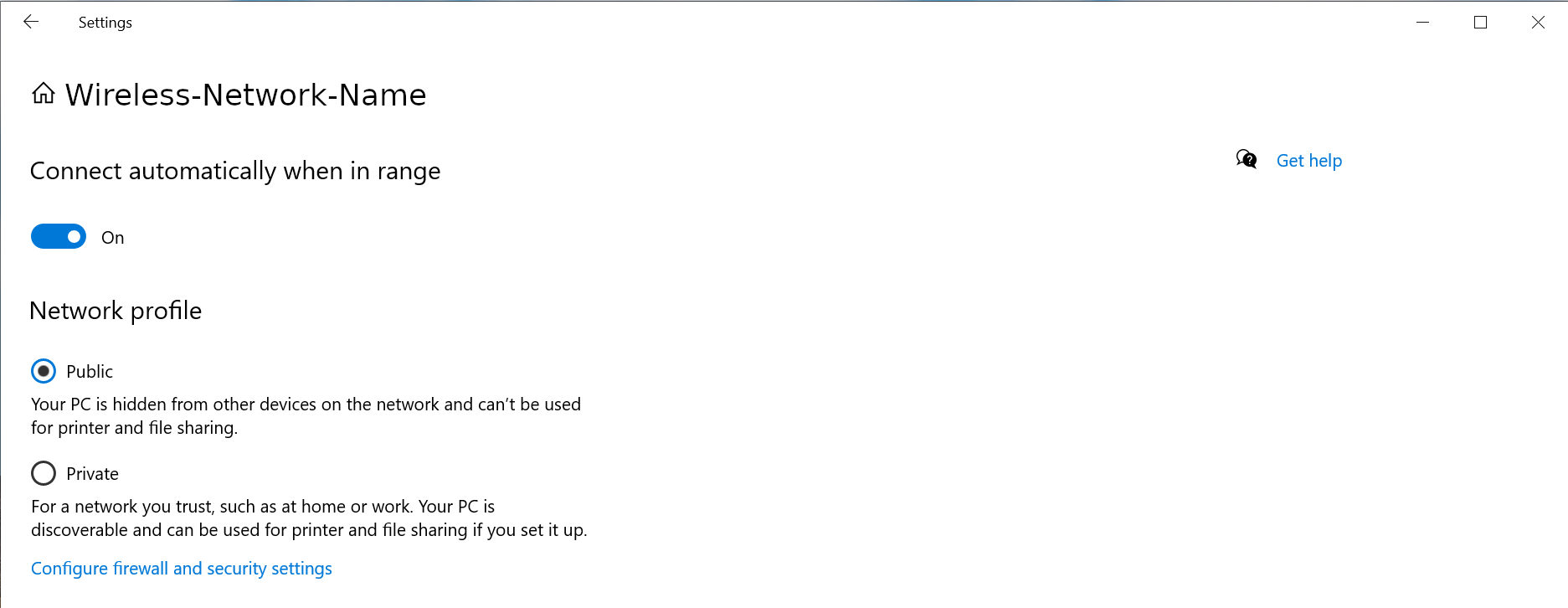
4 - Select the Wi-Fi option
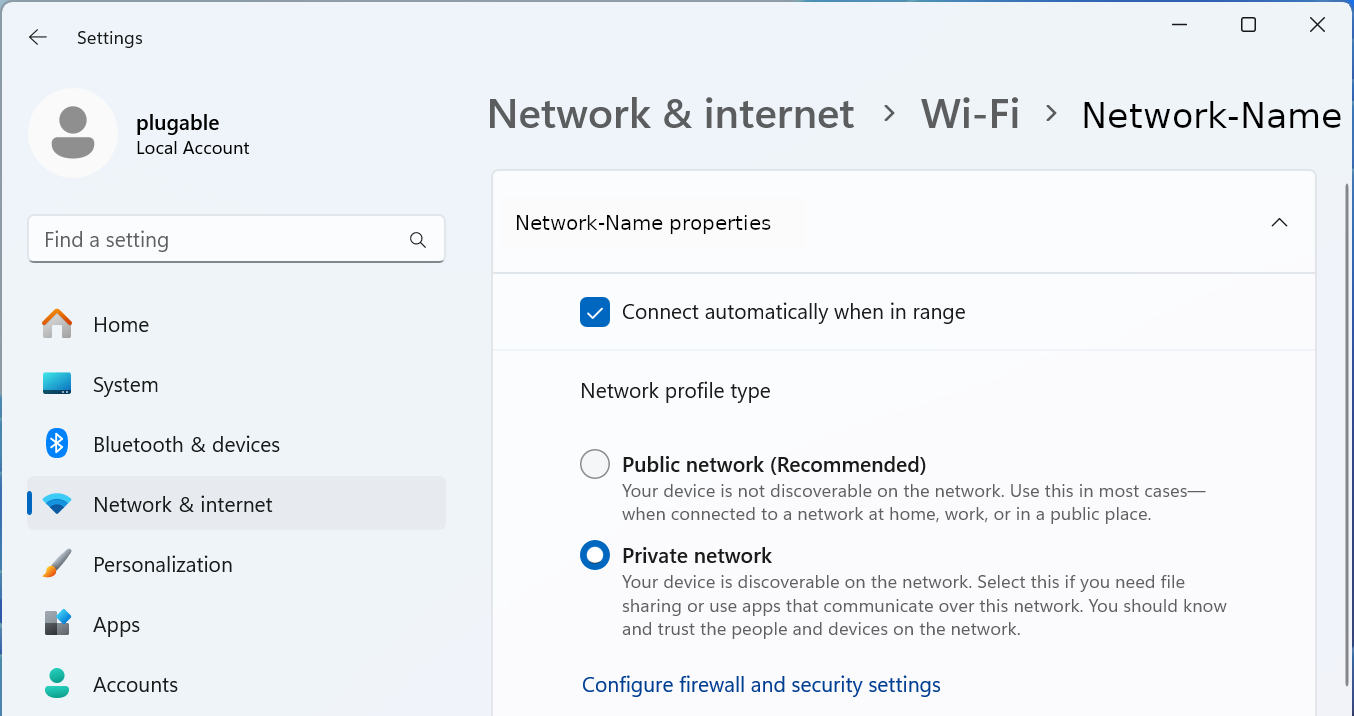
5 - Select your Wi-Fi network name properties
6 - Select the Network profile type either Public network or Private network to suite your needs
Windows 10
1 - Connect the computer to the network, either wired or wireless
2 - Open the Windows Settings - right-click on the Start Menu and select Settings from the pop-up menu
3 - Select Network & Internet fro the bottom section
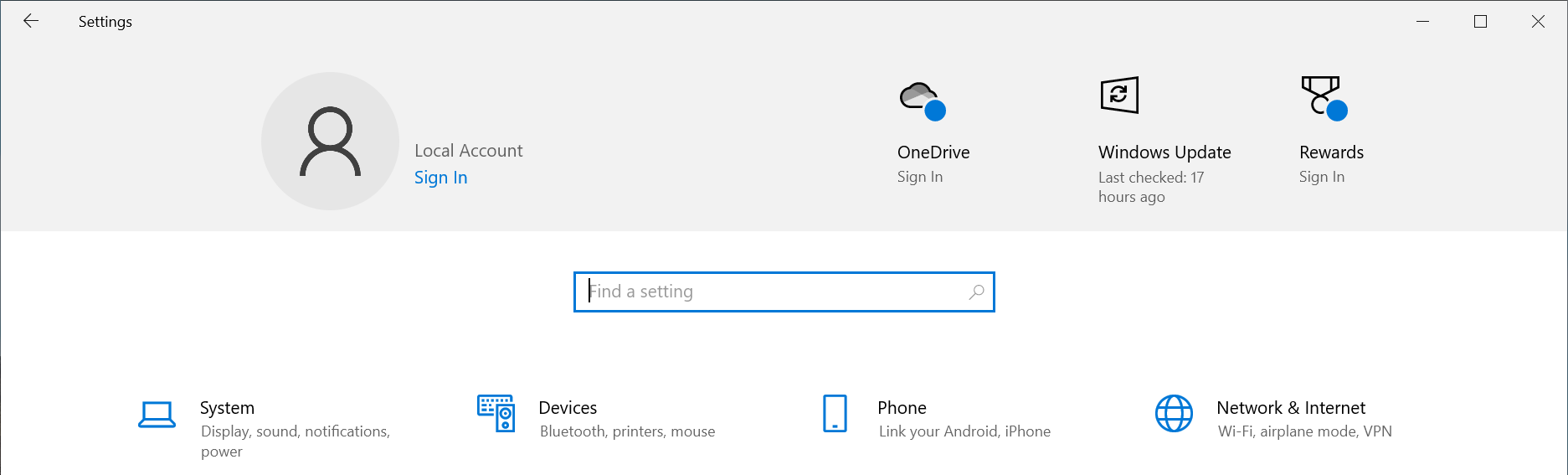
4 - Select the Ethernet option from the left pane
5 - Select the Connected network from the right pane
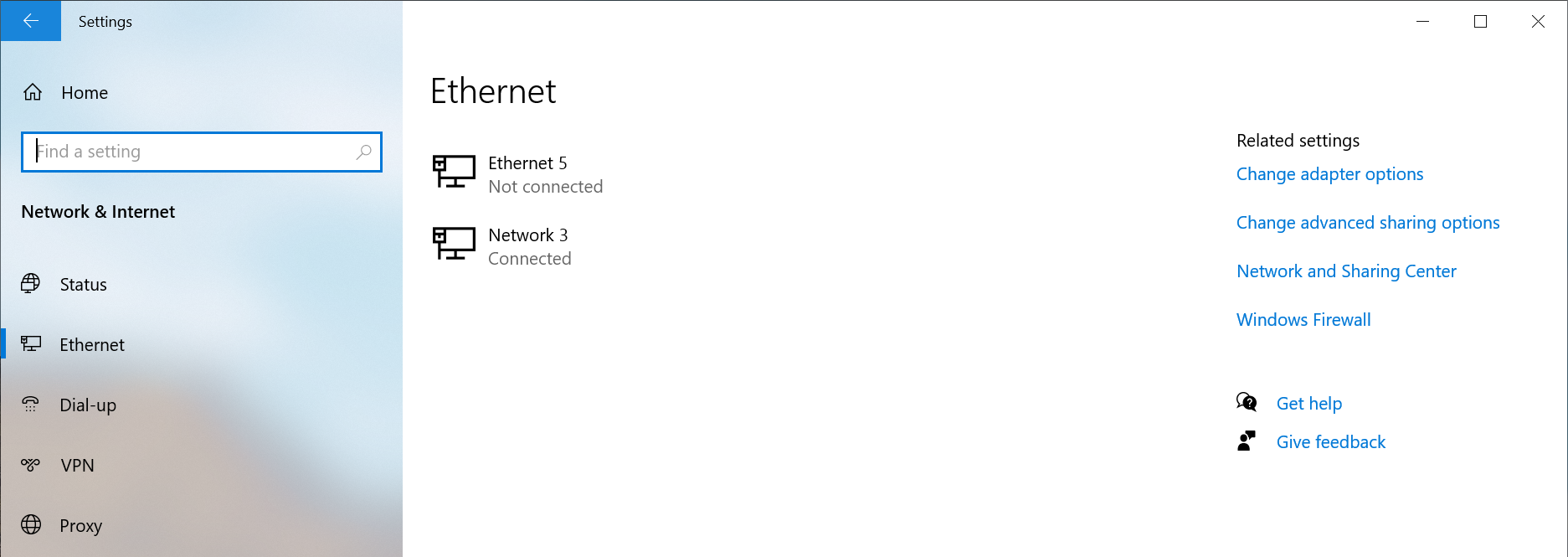
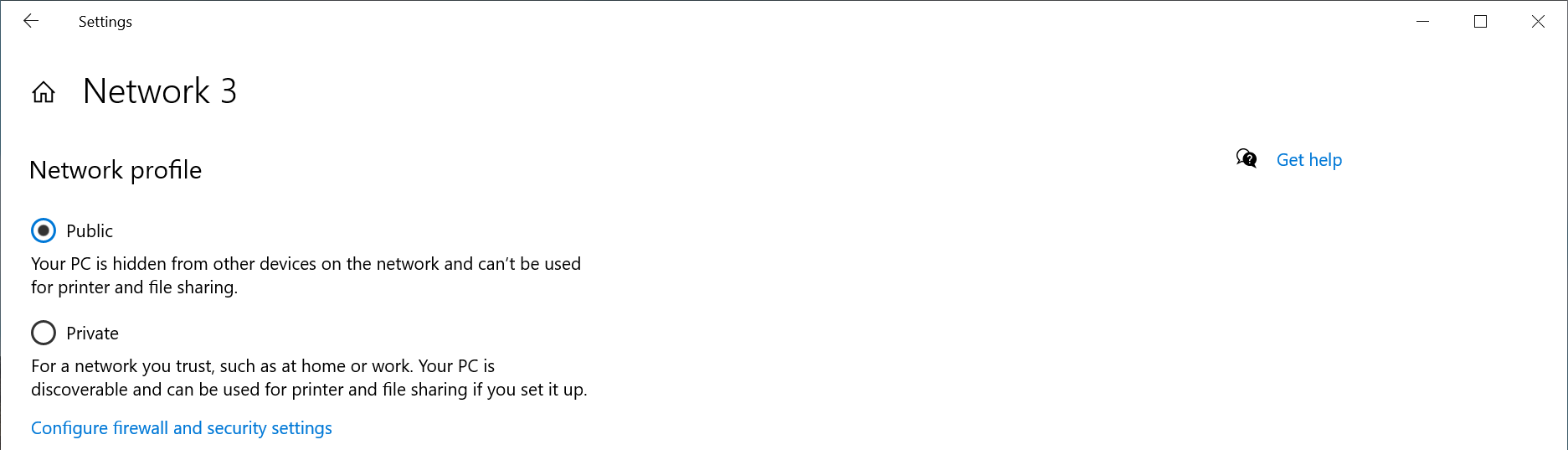
6 - Select the Network profile type either Public network or Private network to suite your needs
Windows PowerShell
If the option does not show up in the Windows Settings GUI, for example if the network is not connected to the internet, or if you prefer to use the terminal.
1 - Open a new terminal: Right-click on the Start Menu and select Terminal
2 - Run the following command to list the available networks
Get-NetConnectionProfile
PS C:\Users\plugable> Get-NetConnectionProfile
Name                     : Network
InterfaceAlias           : Ethernet Instance 0
InterfaceIndex           : 7
NetworkCategory          : Private
DomainAuthenticationKind : None
IPv4Connectivity         : Internet
IPv6Connectivity         : NoTraffic
3 - Run the following command to set the network to Private
Set-NetConnectionProfile -Name Network -NetworkCategory Private
Where Network is the network name from step #2 and Private can be either Public or Private
If you have any questions please feel free to contact us at support@plugable.com and we'll be happy to help!
Maximizing 2.5Gbps Ethernet Performance
To maximize 2.5Gbps Ethernet performance, upgrade your network infrastructure—including switches, routers, and cabling—to support multi-gigabit speeds. Performance can be further optimized by keeping device drivers and firmware up to date, fine-tuning Network Interface Card (NIC) settings such as jumbo frames and flow control, and segmenting network traffic to prevent slower devices from creating bottlenecks.
How to Maximize 2.5Gbps Ethernet Performance
Upgrade Network Infrastructure for Compatibility
- Ensure switches and routers support 2.5Gbps or 5Gbps Ethernet, as older 1Gbps hardware creates a performance bottleneck between local devices.
- If your internet speed is 1Gbps or lower, upgrading the router is unnecessary as long as all local devices needing higher speeds connect to the same 2.5Gbps or faster switch.
- Use high-quality Ethernet cables. While Cat 5e works for 2.5Gbps over short distances, Cat 6, Cat 6a, or Cat 7 cables are recommended for longer runs and 5Gbps connections.
Optimize Device Connections and Settings
Adjust Network Interface Card (NIC) parameters for optimal efficiency:
- Jumbo frames reduce CPU overhead during high-bandwidth tasks (such as home server video transcoding and streaming) by setting frame sizes above 1,500 bytes. They must be supported and enabled on both endpoints and all intermediate hardware, and are best used on short point-to-point networks.
- Flow control enables a receiving system to transmit pause requests to a transmitting system to prevent data loss when multiple computers communicate with the same server. Flow control can be disabled on direct point-to-point connections where both systems handle full-speed data.
- Quality of Service (QoS) serves as an alternative to flow control but requires managed switches and complex setup, making it less practical for home or small office networks.
Update drivers and firmware regularly for network adapters, switches, and routers to resolve compatibility issues, improve performance, and patch security vulnerabilities. Drivers for Plugable devices can be found on individual product pages under the Downloads tab.
Alternative Options for Mixed-Speed Networks
- Segment network traffic if the environment contains devices with varying link speeds (1Gbps, 2.5Gbps, 5Gbps, and 10Gbps) to prevent slower devices from reducing overall network performance.
- Create physical network segments by using separate Gigabit and 2.5Gbps/5Gbps switches, then bridging the switches together.
- Create virtual network segments by configuring Virtual LANs (VLANs) on a managed switch to reserve multi-gigabit connections for high-bandwidth tasks while routing lower-speed devices through secondary Gigabit ports.
Applicable To
- Plugable 2.5Gbps and 5Gbps Ethernet adapters and docking stations
- Plugable USB-C Hub 10-in-1 with 4K 144Hz HDMI, 2.5Gbps Ethernet, 140W Pass-Through Charging (https://plugable.com/products/usbc-10in1e)
- Plugable USB-C Triple Monitor Docking Station for Windows, 100W Laptop Charging (https://plugable.com/products/ud-msth3)
- Plugable USB-C 5-Display Docking Station with HDMI 2.1 and 140W charging (https://plugable.com/products/ud-7400pd)
- Plugable Thunderbolt 4 16-in-1 Docking Station for MacBook Air/Pro (https://plugable.com/products/tbt4-udz)
- Plugable Thunderbolt 4 & USB4 HDMI Docking Station with 96W Charging (https://plugable.com/products/tbt4-udx1)
- Plugable Thunderbolt 5 AI eGPU Enclosure (https://plugable.com/products/tbt5-ai)
- Plugable Thunderbolt 5 Docking Station with Dual HDMI 2.1, 140W Laptop Charging (https://plugable.com/products/tbt-udh2)
- Plugable Thunderbolt 5 Dock with 3x Thunderbolt 5 Ports, 140W Laptop Charging (https://plugable.com/products/tbt-udt3)
- Multi-Gigabit Ethernet networks (2.5Gbps and 5Gbps)
- Plugable USB-C and USB to 2.5Gbps Ethernet Adapter (https://plugable.com/products/usbc-e2500)
- Plugable USB-C to 2.5 Gbps Ethernet Adapter with 100W USB-C Charging (https://plugable.com/products/usbc-e2500pd)
- Plugable USB-C to 5Gbps Ethernet Adapter (https://plugable.com/products/usbc-e5000)
If you have any questions please feel free to contact us at support@plugable.com and we'll be happy to help!
Is this safe to use if my computer doesn't support USB-C Power Delivery?
USB-C Power Delivery (PD) is negotiated between the power-sourcing equipment (e.g., a dock or multiport hub) and the connected host device. During this negotiation, the device offering power communicates its capabilities, and the host determines whether it can accept the power. If the host does not support Power Delivery, no power will be sent to the computer over the USB-C connection. This will allow you to take advantage of other capabilities such as data transfer or video output without risking damage to the computer.
How Can I Check the Ethernet Adapter Link Rate on my Mac?
Apple's macOS Network Settings can identify the network link rate - this isn't necessarily the Internet speed, but the link rate negotiated between the computer's Ethernet adapter and the first network switch.
How is the link rate helpful?
When troubleshooting a network performance issue, or when purchasing new network equipment it can help to ensure the computer, Ethernet adapter, and Ethernet switch are negotiating the correct data rate.
In this example, we will be analyzing our USBC-E2500, which is a 2.5Gbps Ethernet adapter. This method applies to all of our Ethernet adapters, such as:
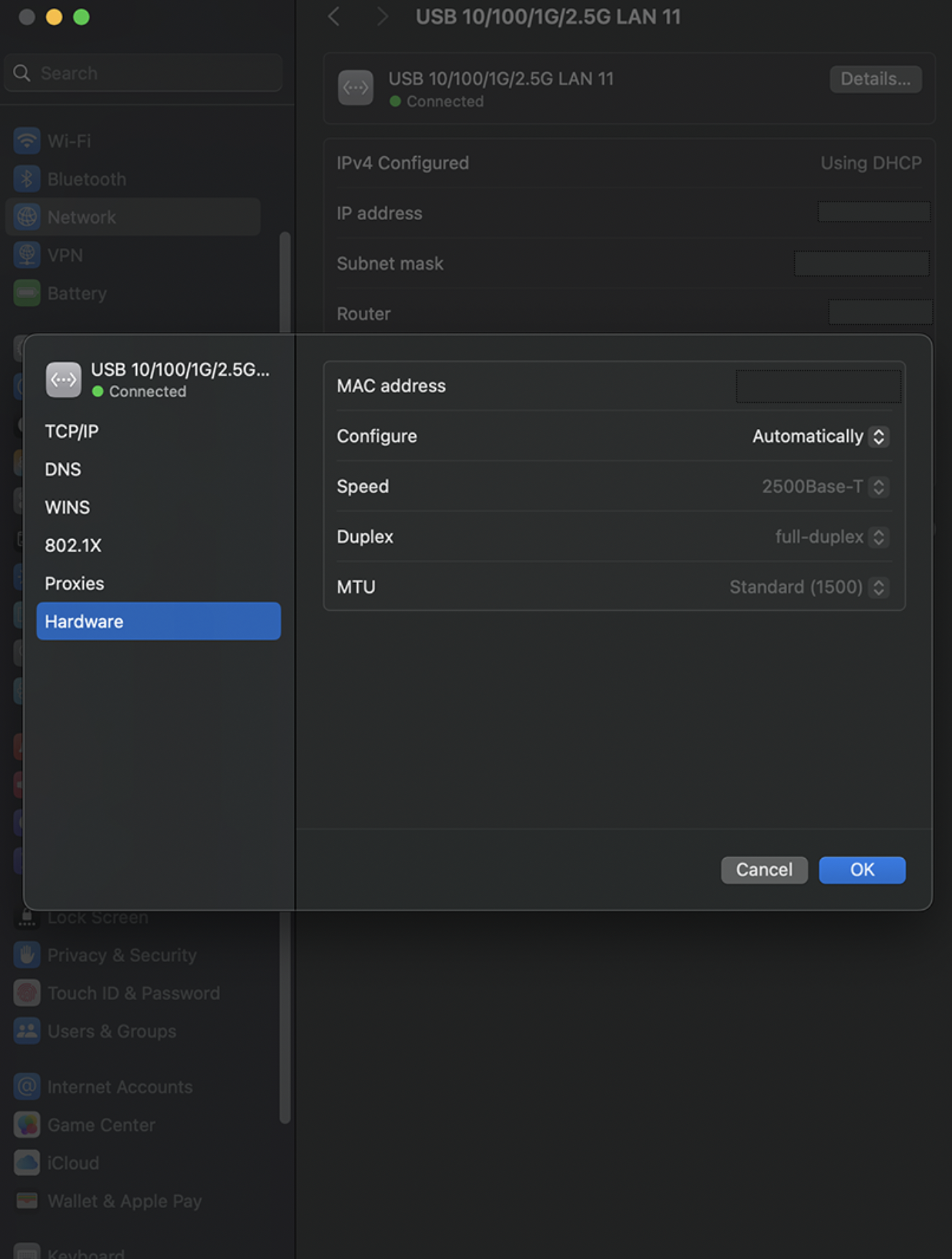
Open the Apple Menu and select System Settings from the drop-down menu, then Network from the left column. Select the entry named “USB 10/100/1G/2.5G LAN” with the Green - Connected icon. Expand the Details button, and go to Hardware.
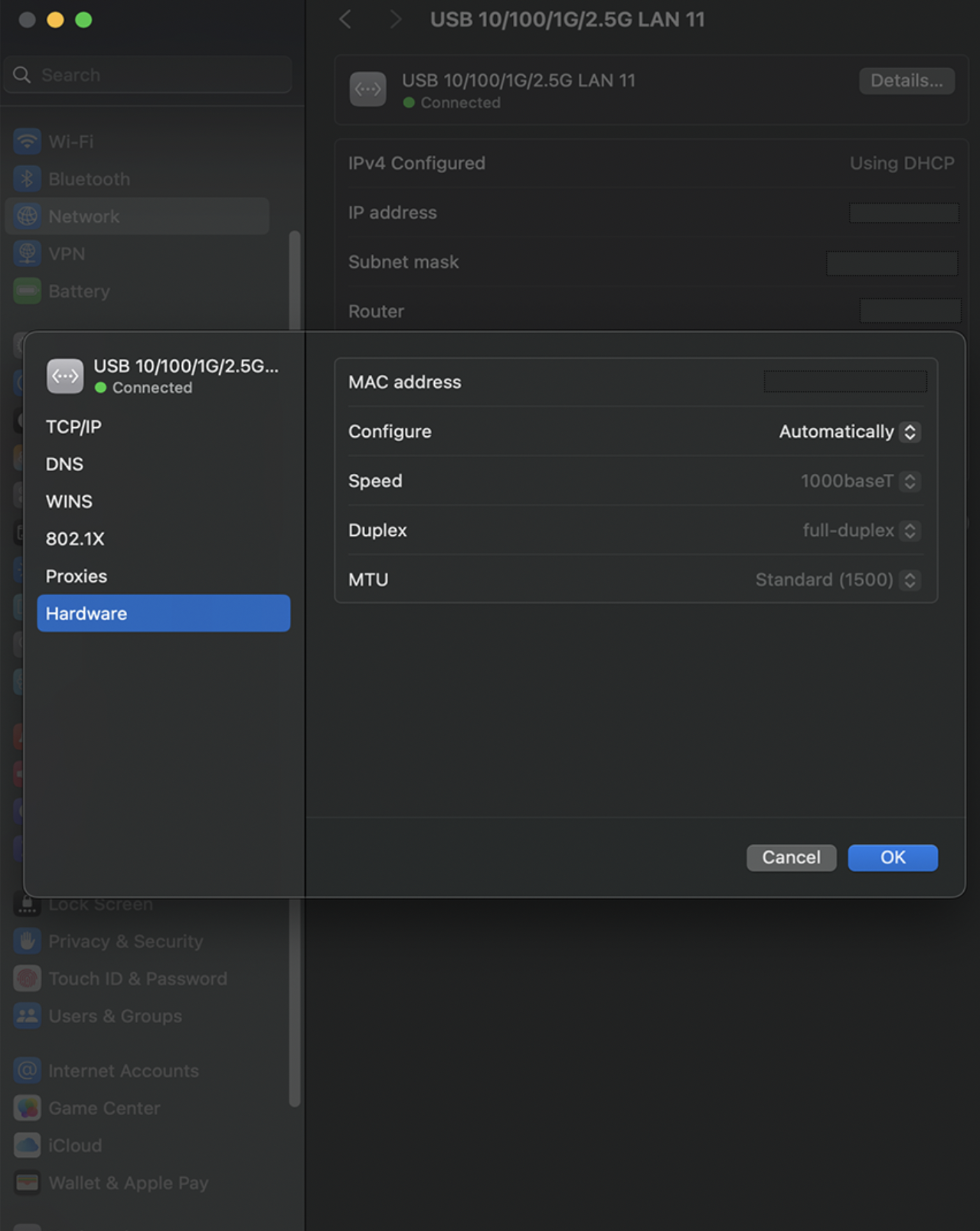
In the field that says Speed, you should see 2500Base-T if the Ethernet adapter is connected to a 2.5G Ethernet LAN port on your router. If you see 1000Base-T, this means the adapter is connected to a 1G Ethernet LAN port. If you are expecting faster network speeds, please see your router's documentation on its multi-gig LAN port.
If you have any questions please feel free to contact us at support@plugable.com and we'll be happy to help!
Understanding Power Delivery vs. Pass-Through Power Delivery
Power Delivery (PD) docking stations use their own included power adapter to directly charge your connected laptop while simultaneously powering peripherals. In contrast, Pass-Through Power Delivery hubs do not generate their own power; they require you to plug a separate charger (like your laptop's original power adapter) into the hub, which then passes the power through to your computer.
How Power Delivery (PD) Works
USB Power Delivery (PD) is a fast-charging standard that allows devices to dynamically negotiate power levels to ensure efficient charging. Docking stations with dedicated PD support come with their own AC to DC power adapter, enabling high power transfer directly to laptops, tablets, and smartphones. An example is the Plugable UD-7400PD, which provides its own power to deliver up to 140W of charge to the host while supporting five external displays.
How Pass-Through Power Delivery Works
A hub with pass-through charging relies entirely on an external USB-C power adapter (such as your laptop's original USB-C PD charger) being plugged directly into it. The hub allocates a portion of this incoming power (typically around 7.5W to 15W) to run its own functionality (like data transfer and peripheral connections) and sends the remaining power to the connected laptop. Because of this operating requirement, the total wattage reaching the laptop will be slightly reduced compared to plugging the charger directly into the computer. Examples include the Plugable USBC-9IN1E (up to 140W pass-through) and the USBC-4IN1 (up to 100W pass-through).
How to Choose the Right Option
If you need an all-in-one docking station that can directly charge your laptop without needing extra cables, look for one with dedicated Power Delivery support. If your laptop already has a high-wattage charger and you want to maintain power while expanding connectivity (often ideal for portable setups), a pass-through PD hub may be a better choice. If you have any questions or would like a recommendation for your specific setup, feel free to reach out to our support team at support@plugable.com.
Applicable To
USB-C and Thunderbolt docking stations or hubs with PD
USB-C vs. Thunderbolt: Understanding the Differences
While USB-C and Thunderbolt share the same physical rounded rectangle connector they operate in fundamentally different ways.
The Main Differences Aren't Physical
USB 3 at 5Gbps and 10Gbps with Type-C - often simplified to USB-C - is both the hardware connector standard, and the included data types: USB 5Gbps or 10Gbps data rates, as well as optionally DisplayPort Alternate Mode video and USB Power Delivery for powering and charging both host computers, and downstream devices.
Thunderbolt, specifically Thunderbolt 3 and newer and USB4 use the same physical USB Type-C port, and support a backwards compatibility with USB-C devices, however the signaling and data structure is completely different. Both Thunderbolt and USB4 operate at between four to sixteen times the speed of USB 3. While USB offers optional display and charging, these are mandatory for Thunderbolt hosts. The way display data is transmitted is also different.
DisplayPort Alternate Mode for USB 3 occupies two or four of the physical data lanes in the USB Type-C connector and cable. Tunneled DisplayPort video in Thunderbolt (and USB4) packetizes the DisplayPort video data and transmits it within Thunderbolt/USB4 data packets. Tunneled DisplayPort allows for more native DisplayPort streams enabling multiple external displays at higher resolutions and refresh rates.
Power Delivery is the USB Type-C (as in the port) charging and power standard - this allows a power source and device to negotiate a voltage and maximum amperage both devices can support. For example a phone might negotiate a 9V 3A charge rate which is close to optimal for a phone size battery, while a notebook computer is more likely to negotiate 20V 5A both for improved battery charging and to power the system under moderate to heavy workloads.
Why USB-C and Thunderbolt Capabilities Differ
USB Type-C is a connector standard where features such as video output (DisplayPort Alt Mode) and USB Power Delivery (PD) are optional and depend on the host device manufacturer. In contrast, Thunderbolt sets mandatory performance and hardware requirements across data, video, and power protocols.
- USB 3.0 / 3.1 Gen 1: Up to 5Gbps data transfer speed.
- USB 3.2 Gen 2: Up to 10Gbps data transfer speed.
- USB 3.2 Gen 2x2: Up to 20Gbps data transfer speed. This is very rarely implemented and most computers do not support it.
- Thunderbolt 3: Up to 40Gbps data transfer speed, supports dual DisplayPort 1.2 enabling two 4K or a single 5K displays, USB, DisplayPort, PCIe over a single cable, and up to 100W Power Delivery.
- USB4: Up to 40Gbps data transfer speed, supports DisplayPort 1.4 either one or two external displays, PCIe, and optional Thunderbolt 3 compatibility, USB 3.2 Gen 2 10Gbps, and Power Delivery.
- Thunderbolt 4: Up to 40Gbps data transfer speed, supports dual 4K or single 8K displays, USB4 compatibility, USB 3.2 Gen 2 10Gbps, and Power Delivery.
- Thunderbolt 5: Up to 80Gbps bi-directional bandwidth (DisplayPort up to 120Gbps using Bandwidth Boost), supports dual 6K or single high-refresh-rate 8K displays, PCIe, and backward compatibility with Thunderbolt 4 and USB4, USB 3.2 Gen 2 10Gbps.
Effectively each tier from this list supports all of the features of the tier above as well as some new features. Thunderbolt 4 is Intel's implementation of USB4 with all optional features enabled.
How to Identify Ports and Ensure Compatibility
- Port Identification: Thunderbolt ports are usually marked with a lightning bolt symbol with a downward pointing triangle at the bottom point, this should be next to the port, while USB-C ports may be unmarked or feature symbols indicating power delivery (a simple lightning bolt is common) or DisplayPort capabilities ("DP" logo is often used). Always refer to device technical specifications for confirmation.
- Connecting Thunderbolt Devices to USB-C Ports: Thunderbolt 3, 4, or 5 devices connected to standard USB-C ports typically operate at reduced capabilities, such as lower speeds or fewer display outputs.
- Connecting USB-C Devices to Thunderbolt Ports: USB-C devices connected to Thunderbolt ports function normally, but cannot take advantage of full Thunderbolt features.
Applicable To
- Plugable docking stations, hubs, and video adapters
- USB-C standards (USB 3.0, 3.1 Gen 1, 3.2 Gen 2, 3.2 Gen 2x2, USB4)
- Thunderbolt standards (Thunderbolt 3, Thunderbolt 4, Thunderbolt 5)
If you have any questions please feel free to contact us at support@plugable.com and we'll be happy to help!
Can I connect this product to a computer's Thunderbolt/Thunderbolt 2 port?
Many users assume that USB-C devices can work with older Thunderbolt 2 Macs if they use a Thunderbolt 3 to Thunderbolt 2 adapter, such as the one made by Apple. However, this is not the case. These adapters are specifically designed to support Thunderbolt devices only - not standard USB-C peripherals.
While Thunderbolt 3 and USB-C share the same connector type, they use different underlying data protocols. Non-Thunderbolt USB-C devices, rely on USB standards for data and power. The Thunderbolt 3 to Thunderbolt 2 adapter does not carry USB signals; it only passes Thunderbolt data. Because of this, plugging a USB-C device into a Thunderbolt 2 Mac using this adapter will not work - the computer will not detect or communicate with the device.
If you need to connect peripherals to a Thunderbolt 2 system, we recommend using a USB-A dock or hub (if available on your system). This ensures compatibility without relying on unsupported adapter chains.
In short, even though the connectors may fit, USB-C devices are not compatible with Thunderbolt 2 Macs via Thunderbolt adapters - only Thunderbolt devices will work in that setup.
Choosing the Best Network Adapter for Your Needs
If you're looking to upgrade your wired or wireless network speed and internet connection with a Plugable USB network adapter, you’ll want to make sure you pick the right one for your setup. The three key factors to consider are:
- The type of network you are connecting to: Wired or Wireless (Wi-Fi)
- The type of USB port on your computer (USB-A, USB-C, or Thunderbolt)
- The Ethernet speed you need (Gigabit, 2.5 Gigabit, 5Gbps, or Wi-Fi)
This guide will help you quickly determine which Plugable adapter best fits your needs.
Step 1: Identify Your USB Port Type
Different Plugable adapters are designed for different USB connections. Here's how to find out what type of USB port your computer has:
- USB-A Port (Rectangular Shape) – Found on most older and some newer PCs and laptops. If your device has standard USB ports, you'll want an adapter with a USB-A connector.
- USB-C Port (Small, Oval Shape) – Found on modern laptops, tablets, and some desktops. If your computer has a USB-C or Thunderbolt 3/4 port, a USB-C adapter is a better choice.
- Thunderbolt 3 or 4 – Thunderbolt ports support USB-C accessories, so any Plugable USB-C Ethernet adapter will work.
💡 Not sure which ports your computer has? Check the manufacturer's website or look for an icon next to the port: a Lightning bolt indicates Thunderbolt ( or charging ) while a USB logo will indicate the USB version.
Step 2: Determine the Ethernet Speed You Need
Your network speed is influenced by both your internet plan and the devices on your network. Choose an adapter based on the speed you want to achieve:
| Network Speed | Best Use Cases | Recommended Plugable Adapter |
|---|---|---|
| 100Mbps (Fast Ethernet) | Basic browsing, emails, and light streaming | USB2-E (USB-A, 100Mbps) |
| 1Gbps (Gigabit Ethernet) | Streaming, gaming, and large file transfers |
USB3-E1000 (USB-A, 1Gbps) or USBC-E1000 (USB-C, 1Gbps) |
| 2.5Gbps and 5Gbps (Multi-Gig Ethernet) | High-speed networks, NAS, 4K+ streaming |
USBC-E2500 (USB-C, 2.5Gbps) or USBC-E5000 (USB-C, 5Gbps) |
| Wi-Fi (802.11N or Wi-Fi 4) | Adding Wi-Fi 4 to older notebook and desktop computers | USB-WIFINT (USB-A Wi-Fi 4 150Mbps) |
💡 Check your router’s specifications to see if it supports higher speeds like 2.5Gbps before choosing a multi-gig adapter.
Step 3: Choose the Right Adapter for Your System
Now that you know your USB port type and Ethernet speed requirements, here’s a quick guide to help you select the right Plugable adapter. The best bet is to meet or exceed the internet service provider’s rated speed, or for local file transfers the speed of the other systems on the network. For example, say your ISP provides a 2Gbps internet connection, then a 2.5Gbps or 5Gbps Ethernet adapter will be a good fit, while a 1Gbps adapter will still enable internet connectivity, the maximum data rate would be limited to 50% that of the rated internet speed.
For USB-A Computers
✅ Need basic 100Mbps Ethernet? → Choose the USB2-E100
✅ Need Gigabit speeds? → Choose the USB3-E1000
✅ Need Wireless Connectivity → Choose the USB-WIFINT
For USB-C or Thunderbolt 3/4 Computers
✅ Need Gigabit speeds? → Choose the USBC-E1000
✅ Need 2.5Gbps speeds? → Choose the USBC-E2500
✅ Need 5Gbps speeds? → Choose the USBC-E5000
Frequently Asked Questions (FAQs)
Q: Can I use a USB 3.0 Ethernet adapter in a USB 2.0 port?
A: Yes, but it will be limited to USB 2.0 speeds, which may affect performance.
Q: Will these adapters work with macOS, Windows, and Linux?
A: For the most part yes, except for our USB-WIFINT relies on proprietary drivers and is not recommended for macOS, Linux, or ChromeOS systems
Q: Does a faster Ethernet adapter make my internet speed faster?
A: Only if your internet service provider (ISP) plan supports higher speeds. A 2.5Gbps adapter won’t improve speeds on a 1Gbps internet connection.
Q: Can I use a USB-C adapter with a USB-A computer using an adapter?
A: It depends. Some USB-C to USB-A adapters may work, but some are limited to USB 2.0 data rates and can affect the network performance. When possible we recommend using a native USB-A Ethernet adapter for most reliable performance.
Conclusion
Picking the right Plugable USB to Ethernet adapter comes down to knowing your USB port type and the speed you need. Whether you’re looking for a basic 100Mbps connection or blazing-fast 5Gbps speeds, Plugable has an adapter to keep you connected.
Still have questions? Reach out to Plugable’s support team via email at support@plugable.com for help choosing the best adapter for your setup!
How To - Set a Custom MAC Address in Windows
What is the MAC address?
The MAC address (Medium Access Control address) is a unique network address for each Network Interface Controller to identify the hardware on the network segment. The address is generally expressed as six hexadecimal digits, sometimes separated by a '-', ':', or without a separator.
The MAC address is assigned by the hardware manufacturer during production, however many network controllers allow the operating system (via the drivers) to override the MAC address, this is handled at the operating system level and does not change the address stored in the adapter.
The first three octets (first three hexadecimal values, six characters) identify the network hardware manufacturer while the last three octets should be unique within each hardware manufacturer's product line. For example Plugable's MAC addresses all begin with "8CAE4C", with lower values typically representing older companies, "000000" belongs to Xerox for example, some companies have multiple ranges of MAC addresses.
Why it can be useful to override the manufacturer's address?
Setting a custom MAC address can provide anonymity when connecting to public networks. It can also be used by an IT Network Administrator to provide specific access rights to computers based on the connection.
It can also be useful for Network Administrators for testing, troubleshooting, and maintenance to simulate different devices without having access to that specific device.
Changing the Mac Address in Windows
The MAC address can be manually set from the Device Manager:
1. Right-click on the Start Menu and select Device Manager from the pop-up window
2. Expand the Network adapters section and double-click on the network adapter to be modified
3. From the network adapter properties pop-up window, select the Advanced tab
4. Under the Property: category, scroll down to and select "Network Address"
5. In the Value: field, enter the new MAC Address in hexadecimal format, the field has a maximum of 12 characters so do not use any separators between octets
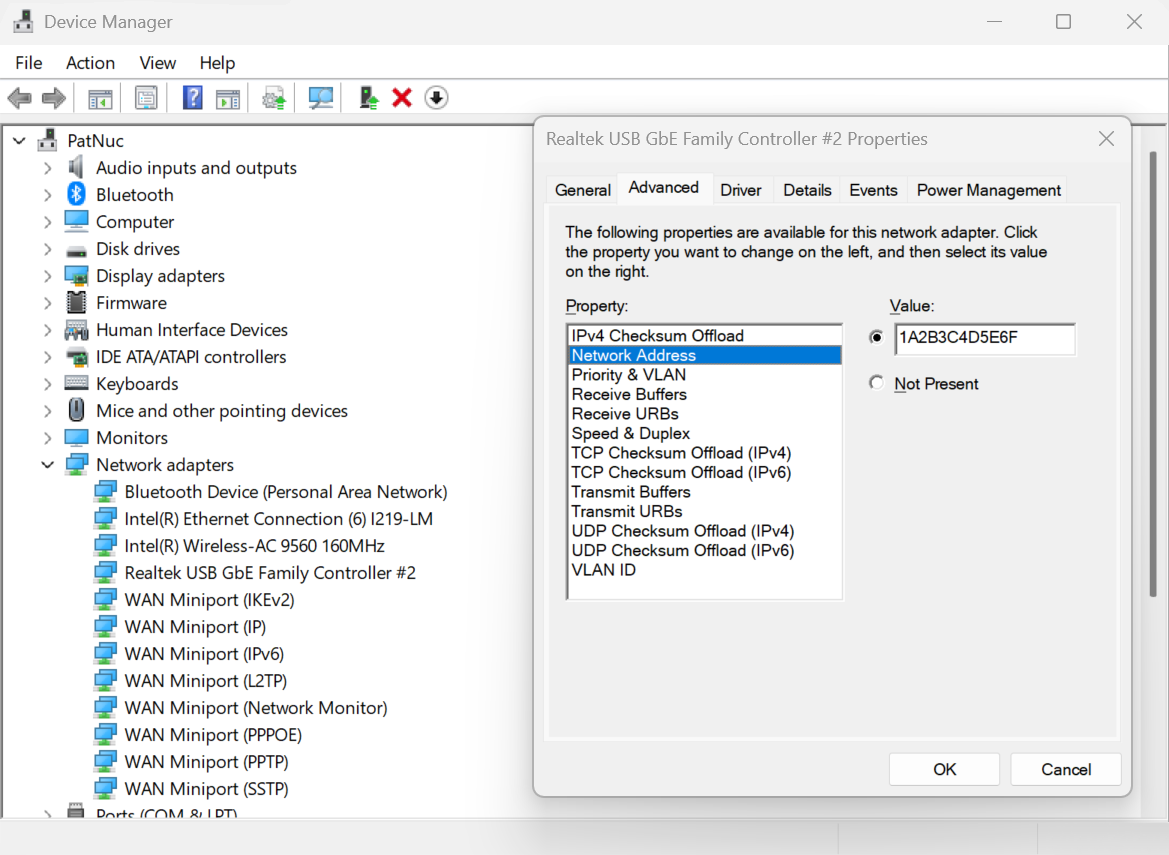
6. Select the OK button to proceed
You can also check the MAC Address from the command line
1. Right-click on the Start Menu and select Terminal or Windows PowerShell
2. Type in the following command ipconfig /all or ipconfig /all | findstr C:/"Physical Address" to filter just the Physical Address lines.
3. Scroll through the output to find the target network adapter and Physical Address
If you have any questions, please feel free to contact our support team via email at support@plugable.com and we will be happy to help!
How To - Set a Custom MAC Address in Linux
What is the MAC address?
The MAC address (Medium Access Control address) is a unique network address for each Network Interface Controller to identify the hardware on the network segment. The address is generally expressed as six hexadecimal digits, sometimes separated by a '-', ':', or without a separator.
The MAC address is assigned by the hardware manufacturer during production, however many network controllers allow the operating system (via the drivers) to override the MAC address, this is handled at the operating system level and does not change the address stored in the adapter.
The first three octets (first three hexadecimal values, six characters) identify the network hardware manufacturer while the last three octets should be unique within each hardware manufacturer's product line. For example Plugable's MAC addresses all begin with "8CAE4C", with lower values typically representing older companies, "000000" belongs to Xerox for example, some companies have multiple ranges of MAC addresses.
Why it can be useful to override the manufacturer's address?
Setting a custom MAC address can provide anonymity when connecting to public networks. It can also be used by an IT Network Administrator to provide specific access rights to computers based on the connection.
It can also be useful for Network Administrators for testing, troubleshooting, and maintenance to simulate different devices without having access to that specific device.
Checking the MAC Address in Linux
The MAC Address can be checked from the terminal:
1. Open a bash shell
2. Read the address from the /sys directory:
cat /sys/class/net//address
or from the ip command to print out all of the hardware MAC Addresses
ip -o link | awk '$2 != "lo:" {print $2, $17}'Changing the MAC Address in Linux
Temporary change until system reboot
1. Open a bash shell
2. Run the following command to set the MAC Address for a specific network device.
sudo ip link set dev <devicename> down
sudo ip link set dev <devicename> address <mac address>
sudo ip link set dev <devicename> up
3. Confirm the new MAC address
Permanently change the MAC Address
This can depend on your distribution specific network services and settings. This example will create a new systemd unit file to change the MAC Address on startup.
1. Open a bash shell
2. Create a new systemd unit file "/etc/systemd/system/changemac@.service with the following contents the mac address should be colon separated:
[Unit]
Description=Change MAC Address %i
Wants=network-pre.target
Before=network-pre.target

[Service]
Type=oneshot
ExecStart=/usr/bin/ip link set dev %i down
ExecStart=/usr/bin/ip link set dev %i address <mac address>
ExecStart=/usr/bin/ip link set dev %i up
RemainAfterExit=yes
User=root

[Install]
wantedBy=multi-user.target
3. Enable the service with the following command
sudo systemctl enable --now changemac@<interface_name>
4. Reboot the computer, the MAC address should be set to the new address
If you have any questions, please feel free to contact our support team via email at support@plugable.com and we will be happy to help!
Why does my MacBook battery only charge to 80 percent?
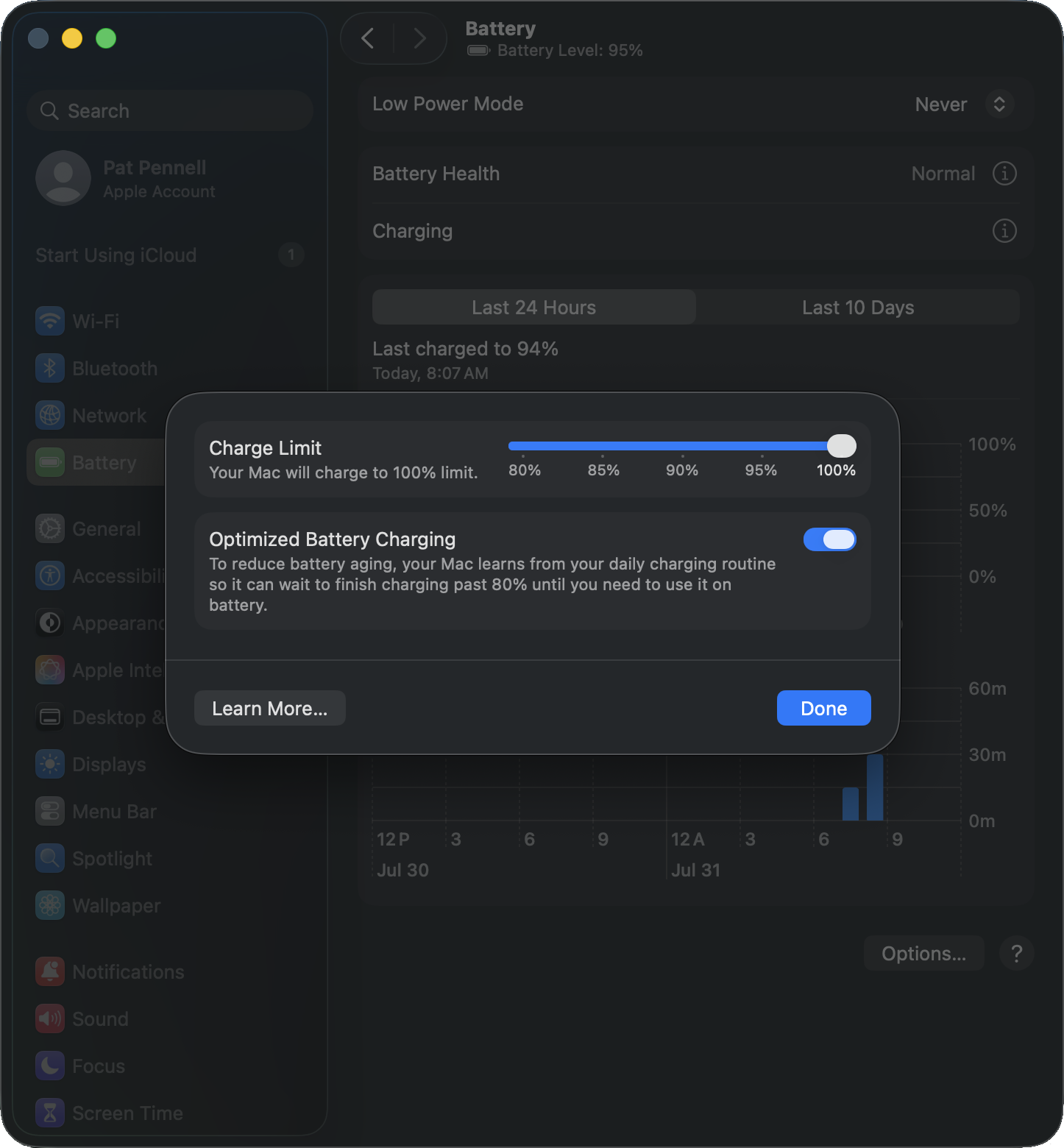
If you routinely discharge your MacBook battery and fully recharge the battery often, macOS may set a battery charge limit to 80% to "reduce battery aging". In most cases this is a good option to have, however if you need the battery to be fully charged this setting can be disabled.
Disable the battery charge limiter
- Select System Settings the Apple menu
- Select Battery from the left column in System Settings
- Select the Info button ("I" inside a circle) on the Charging line near the top of the right panel
- Toggle off the Optimize Battery Charging option
A bit more detail
Time
Lithium-Ion batteries used in modern notebook computers are significantly more reliable and predictable than previous battery technologies, however like all batteries they both degrade over time regardless of use.
All battery technologies will begin to degrade after production, when in storage, or in active use. When storing a Lithium-Ion battery normally it is recommended to partially discharge the battery to help minimize degradation in storage.
Cycles
Battery life spans are often described in discharge/charge cycles, by limiting the top-end charge (often limiting the charge to 80%) system manufacturers seek to reduce the degradation with each charge cycle. One method is to simply over-spec the battery and set the operating system's 100% threshold to 80% of the battery's maximum capacity, this has the added benefit that over time as the battery degrades the charge controller could allocate more of the top-end charge potential to shift the reported 100% capacity maintaining the same power capacity over a longer period of time. Apple doesn't seem to use this approach, instead using the full capacity of the battery and implementing the battery charge limiter to help maintain that full capacity.
Apple macOS has a battery health report in the System Settings > Battery panel there is an info button for Battery Health which shows the Battery Condition and Maximum Capacity.
Our recommendation
We recommend sticking with the system's default battery charge settings, unless you specifically need to charge the battery to 100%.
The default setting helps to maintain the battery lifespan of the system, however could cause reduced work time while on battery. Batteries are no longer a user serviceable component of MacBook or most modern notebook computers, increasing the cost of battery replacement in both time and labor fees compared to older systems where batteries could easily be removed with one or two locking latches/levers.
If you have any questions please feel free to contact us at support@plugable.com and we'll be happy to help!
What do the LEDs Indicate?
Many of Plugable's products have LED indicators, some are common across many devices like Ethernet port LEDs, while others may be specific to an individual product.
Common LED behaviors
Ethernet port LEDs
Ethernet ports generally have two LEDs, one (generally green) indicates a "Link" while the other (generally amber) flashes off indicating network transfer or "Activity".
Power LEDs
Many of our products have a single power LED indicating the device is powered on or receiving power, however in some cases this LED may only illuminate when the device also has a data connection to the host computer.
More Details
For all of our products we are updating our Specifications page to include additional details. For example with the Plugable USB Type-C Triple HDMI Docking Station UD-3900PDZ under the "LEDs" section we provide the following details:

Additionally, any products with more advanced LED behavior will be documented in the Get Started tab.
Legacy Products
For many of our legacy products the LED behavior was documented in separate KB articles, we are in the process of updating these to link here to provide additional details and context, so even if you found this from a different product hopefully this will help to answer your questions about our products!
If you have any questions please feel free to contact us at support@plugable.com and we'll be happy to help!


