


Hassle free, 90-Day Warranty
Fast, Free Shipping on Orders $35+
Lifetime Technical Support
30-Day Money Back Guarantee
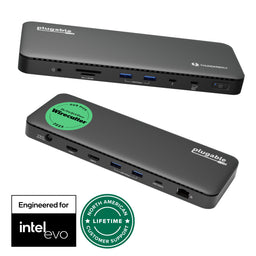
Plugable Thunderbolt 4 Dock for 4K Dual Monitors or Single 8K, 100W Laptop Charging (B-Stock)
$279.99
$169.99
USD
SKU: TBT4-UD5-BSTOCKFeatures
- Thunderbolt Certified & Award-Winning Performance— Officially recognized as the Best Thunderbolt Dock 2025 by Wirecutter, this Thunderbolt docking station is Intel Evo certified. With 13 high-performance ports, dual 4K 60Hz HDMI, 100W Power Delivery (96W Certified), and 40Gbps Thunderbolt 4 speed.
- Dual 4K or Single 8K Display Support— This Thunderbolt 4 laptop docking station connects two 4K 60 Hz HDMI displays or one 8K monitor when used with Thunderbolt 4, Thunderbolt 5, or USB4 laptops. Thunderbolt 3 and non-Thunderbolt USB-C ports can only output a single external display. On macOS, base M1 and M2 systems support a single external display. Base M3 supports dual display in clamshell mode.
- Thunderbolt 4 Performance— This premium Thunderbolt dock delivers ultra-fast 40Gbps speeds, 15W charging via the downstream Thunderbolt 4 port, and robust performance for USB-C peripherals, high-speed storage, and dual displays.
- Compatibility— A top-tier Mac docking station and perfect for modern setups. This USB C dock works seamlessly with Thunderbolt 4, Thunderbolt 5, or USB4 systems running Windows 10+. On macOS, dual display is only supported on M4, M5 M3 Pro/Max, M2 Pro/Max and M1 Pro/Max models, as well as base M3 models in clamshell mode. Single display is supported on Windows Thunderbolt 3 and non-Thunderbolt USB-C ports, as well as base M1 and M2 MacBooks
- Comprehensive 13-Port Design— 2× HDMI, 1× Thunderbolt 4 downstream (40Gbps, 15W charging, 8K), 4× USB (10Gbps and 5Gbps), 1× USB-C (10Gbps), SD/microSD, audio combo jack, Gigabit Ethernet, and K-lock slot. Plugable quality testing ensures long-term reliability.
- 90-Day Warranty— All Plugable B-Stock products are covered by a 90-day limited warranty against any defects in materials or workmanship.
For volume orders or business inquiries contact sales@plugable.com
Free 3-Day Continental U.S. Shipping When Buying Direct!


| Dual 4K or Single 8K | This Thunderbolt 4 docking station can support up to 2x 4K displays via HDMI, or a single 8K display on the downstream Thunderbolt 4 port. Increase your productivity with this docking station dual monitor solution. Display support is dependent on host video capabilities over USB-C. |
| Downstream Thunderbolt 4 Port | Equipped with a downstream Thunderbolt 4 port that supports up to 40Gbps bandwidth. Use it to connect USB-C and Thunderbolt peripherals such as external drives, USB-C monitors, AI enclosures, and external GPUs (eGPU). |
| Do It All with 13 Ports | The TBT4-UD5 has all the ports you need: 2x HDMI, 1x Downstream Thunderbolt 4 (40Gbps), 4x USB (2x 10Gbps, 2x 5Gbps), 1x USB-C (10Gbps), SD and microSD Card Slots, Combo Audio Jack, Gigabit Ethernet (1Gbps*) *Actual Ethernet port speed determined by OS version and host model. |
| 100W Power Delivery | With 100W of USB Power Delivery (96W Certified), you can be sure that your laptop stays charged all throughout the day. If your laptop needs less power, the docking station adjusts and only sends the optimal wattage, ensuring battery health. |
| Laptop Compatibility | Driverless support for 2x displays on Windows 10+ laptops with Thunderbolt 4, Thunderbolt 5, or USB4 ports. On Mac, 2x displays are supported on M5, M4 and other M-series Pro/Max processors. 2x displays are only supported on base M3 models in clamshell mode. Single display is supported on Windows Thunderbolt 3 and non-Thunderbolt USB-C ports, as well as base M1 and M2 MacBooks. |
A: Macs with ‘base’ M1, M2, or M3 processors will support only one external display. Macs with M1 Pro, M1 Max, M2 Pro, M2 Max, M3 Pro, M3 Max, and all M4 and M5 processors will support two external displays.
A: Ensure your computer has a Thunderbolt 5, Thunderbolt 4 port, or USB4 port that is running Windows 10+ or macOS 11+ or later. Note, Thunderbolt 3 and USB-C only hosts, as well as base M1/M2/M3 MacBooks will support 1 display.
A: Downstream Thunderbolt ports maximize device flexibility. With a Thunderbolt 4 host, they support Thunderbolt 4, 3, and USB-C connections. When connected to a Thunderbolt 5 host, the downstream port is limited to Thunderbolt 4 speeds.
A: This dock provides up to 100W Power Delivery (96W Certified) to charge compatible hosts. Laptops with a high power draw such as gaming / performance laptops may not properly charge.
A: The TBT4-UD5 is 2.3 x 22.5 x 8.5 cm, or 0.9 x 8.9 x 3.3 inches. It weighs 365 grams or 12.9 oz.
 |
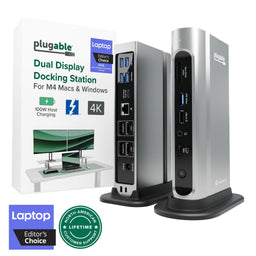 |
 |
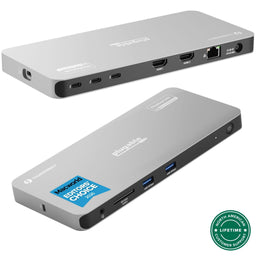 |
|
|---|---|---|---|---|
Laptop Compatibility |
USB4, Thunderbolt 4 |
USB4, Thunderbolt 4 |
USB4, Thunderbolt 4 |
USB4, Thunderbolt 4, USB-C |
Laptop Charging |
100W (96W Certified) |
100W (98W Certified) |
100W (96W Certified) |
100W (96W Certified) |
Max # of Displays |
Up to 2x |
4x *Thunderbolt 4 Windows |
Up to 2x |
Up to 4x |
Downstream Thunderbolt Ports |
1 |
N/A |
2 |
3 |
# of Ports |
13 |
16 |
11 |
11 |
Ethernet |
1.0 Gigabit |
2.5 Gigabit |
2.5 Gigabit |
1.0 Gigabit |
Media Card Reader |
Full-size SD and microSD |
Full-size SD and microSD |
Full-size SD |
Full-size SD |
Orientation |
Horizontal |
Vertical or Horizontal |
Horizontal |
Horizontal |
Get Started
Important Note for Thunderbolt 3 and Thunderbolt 4 Windows systems
Thunderbolt 3 & 4 include advanced security features to help keep your system safe. On Windows systems, Thunderbolt devices must be authenticated ("approved") when they are attached to a Thunderbolt 3 or 4 host system for the first time. If not approved, devices attached to the docking station will not function. Please note that for some newer Windows hosts this may be done automatically via Secure Connect and require no user intervention.
Important Note for Apple Silicon Macs with macOS 13+
For macOS 13+ on Apple Silicon based Macs, macOS now requires approval to allow USB and Thunderbolt communication with the host system before the dock will function. By default macOS will ask every time a new device is connected, however, this behavior can be changed by going to: System Settings-> Security & Privacy -> Security -> Allow accessories to connect and choosing the Ask for New Accessories option (so that the Mac will only ask for new devices that are attached instead of every time).
To connect the TBT4-UD5
Connect the included power adapter to both the TBT4-UD5 Thunderbolt 4 docking station and to a known-working electrical power outlet. Once connected to an electrical power source, the dock will power on automatically. Once powered on, the LED on the power button should be orange. If the LED is not orange, simply press the power button to turn on the dock.

Connect one end of the included Thunderbolt 4 cable to the Thunderbolt 4 host port (with the computer icon) located on the front of the docking station, and then connect the opposite end of the cable to the Thunderbolt 3/Thunderbolt 4/USB4/USB-C port of your host system. Once connected to a compatible host computer, the LED on the power button should change from orange in color to blue in color.

Windows: Approve the new device with the Thunderbolt Control Center utility on your system if needed. Click here for more information.
Mac: Approve the new device when prompted by macOS, optionally changing this behavior in the macOS System Settings. Click here for more information.
Questions? We're here to help! Please reach out to us at support@plugable.com


