


Hassle free, 2-Year Warranty
Fast, Free Shipping on Orders $35+
Lifetime Technical Support
30-Day Money Back Guarantee
Plugable Thunderbolt 4 Docking Station for 4K Quad Monitors, 100W Laptop Charging
$319.99 USD
SKU: TBT-6950PDAmazon Rating : (151 Reviews)
Features
- Why Choose This Dock— The MacWorld Editors' Choice winning Plugable Quad Display Dock is a productivity powerhouse with up to 4 displays on PC and Mac, 100W (96W certified) host charging, 4x 40Gbps Thunderbolt ports, and high-speed USB ports, HDMI, Gigabit Ethernet, and an SD Card slot.
- Quad Display— Featuring the power of Thunderbolt and the flexibility of DisplayLink technology, connect up to 4 displays (2x HDMI, 2x Thunderbolt). All four displays up to 4K or a single 8K display (Thunderbolt/USB-C display output capabilities determined by the host system).
- DisplayLink Setup— The two HDMI outputs use DisplayLink technology and require the DisplayLink software application. Installation is typically automatic on Windows; macOS requires a one-time manual installation. Thunderbolt connected displays use native video and do not require DisplayLink.
- Thunderbolt 4 Dock— This Plugable docking station features 1x 40Gbps Thunderbolt port that connects the dock to your computer and offers up to 96W laptop charging, and 3x 40Gbps Thunderbolt ports for data, video, and 15W charging for your connected Thunderbolt, USB4, and USB-C devices.
- Works With— This certified Thunderbolt dock works with Windows 10 and newer, macOS 14+, and ChromeOS 100+ computers with a Thunderbolt, USB4, or full-featured USB-C port. Most Thunderbolt 4 Windows, and Mac computers will support up to 4x extended displays (Base model M3 Macs need to be in “clamshell mode” for 4x displays). ChromeOS and base model M1, M2 Macs will support 3x extended displays.
- Lifetime Support— Every Plugable product, including this Thunderbolt docking station, comes with lifetime support. If you ever have questions, contact our North American-based team - even before purchase.
For volume orders or business inquiries contact sales@plugable.com
Free 3-Day Continental U.S. Shipping When Buying Direct!


Tech Specs
| Quad Display Support | Up to four 4K 60Hz displays via a combination of HDMI and USB-C connections. Thunderbolt 4 ports provide a true plug-and-play experience with no drivers needed, while HDMI ports use DisplayLink technology and require drivers for Windows and macOS |
| Powerful host charging | Provides up to 96W of power to charge the host computer |
| Downstream Thunderbolt port | Three downstream Thunderbolt ports provide up to 40Gbps of bandwidth for peripherals |
| Media Card Reader | Full size SD card reader means that no external adapters or dongles are required |
| Broad compatibility | Hybrid docking station combining the power of the Intel Goshen Ridge chipset and the DisplayLink DL-6950 chipset |
A: A computer that has a Thunderbolt 4 port or USB4 port that is running Windows 10 or later or macOS 11 or later should be compatible with the Plugable TBT-6950PD docking station. Computers that do not meet these requirements are not supported.
A: Yes, a DisplayLink software application must be installed on a Windows or Mac computer in order for the dock’s HDMI video outputs to function. This process is typically automatic on Windows, but must be manually installed on macOS.
A: Mac laptops with ‘base’ M1, M2, or M3 processors will only support up to three external displays. Macs with M1 Pro, M1 Max, M2 Pro, M2 Max, M3 Pro, M3 Max, 'base' M4, M4 Pro, and M4 Max processors will support up to four external displays.
A: Monitors up to 3840x2160 resolution at a 60Hz refresh rate with HDMI or USB-C video inputs are supported. USB-C video adapters (purchased separately) can also be used if needed.
A: The dock’s aluminum enclosure is designed to act as a heatsink in order to dissipate heat generated inside of the unit. This is normal, and the device has been 3rd-party tested to the UL 62368-1 standard for safe operation and temperatures.
Filter Help Articles and Frequent Questions by Category
Choose one or more filters within each category to narrow down the articles. Each selection will result in only displaying articles that include all of your choices.
Articles
Well how about that, it looks like we don't have any articles matching your filters! Try removing one of your choices or clear the filters to show all articles.
You can always contact support if you need help too!
Why Do My DisplayLink Connected Monitors Show a Black Screen with Only the Mouse Cursor Visible?
Applicable To
- Plugable DisplayLink-based docking stations and USB graphics adapters
Problem Summary
DisplayLink relies on the computer’s graphics processor to render the Windows desktop before transmitting it to the connected monitors over USB. On some desktop computers, if the graphics processor does not detect a directly connected monitor, the DisplayLink monitors may show a black screen with only the mouse cursor visible.
This is especially common in KVM-style setups where all monitors are connected to a DisplayLink dock that is switched between two computers using a USB Sharing Switch, such as USB3-SWITCH2.
Troubleshooting Steps
- Ensure the DisplayLink driver is the latest version available from Plugable. To update the driver, please use the steps for your operating system:
- On Windows, install the latest graphics driver available from the computer or graphics card manufacturer’s support page.
- On macOS, install the latest available macOS updates. Graphics driver updates are included with macOS rather than distributed separately.
What does the single indicator light on the front of the TBT-6950PD mean?
When the TBT-6950PD is connected to an electrical power source and powered on, there will be a small solid white power indicator light present on the front of the unit.
Does the TBT-6950PD charge my computer, and if so, at what rate?
The TBT-UD6950PD can provide up to 96W of power to charge a compatible host computer.
How many external displays can I connect to the TBT-6950PD, and what technologies are used to drive each display?
The TBT-6950PD docking station can drive up to a maximum of four external displays, using a combination of two different technologies.
The dock provides two HDMI video outputs driven by DisplayLink technology. DisplayLink technology is compatible with almost all modern Windows and macOS computers. The result is that both HDMI outputs will function so long as the required DisplayLink software is installed on the host computer.
The dock also provides three 'downstream' Thunderbolt ports, driven by the Intel Goshen Ridge Thunderbolt chipset. The capability of these ports in regard to video output is ultimately determined by the capabilities of the host computer.
When using a host computer that supports two external displays via Thunderbolt, it will be possible to connect up to two additional displays to the dock's downstream Thunderbolt ports by using either USB Type-C cables or USB Type-C to video adapters.
When using a host computer that supports one external display via Thunderbolt or USB Type-C, it will be possible to connect one additional display to the dock's downstream Thunderbolt ports by using either a USB Type-C cable or a USB Type-C to video adapter.
All of this together means that when used with a host computer that supports two external displays via Thunderbolt, it is possible to use a total of four external displays via the TBT-6950PD.
When used with a host computer that supports only one external display via Thunderbolt or USB Type-C, it will be possible to use a total of three external displays via the TBT-6950PD.
For reference:
Thunderbolt 4 host system
When the TBT-6950PD is connected to a computer with a Thunderbolt 4 port, the maximum number of displays that can be connected to the docking station is four.
Thunderbolt 3 host system
Manufacturers have discretion when designing their Thunderbolt 3 systems in regard to how many displays are supported via a single Thunderbolt 3 port. Some Thunderbolt 3 systems support two displays, while other Thunderbolt 3 systems will only support one display.
Thunderbolt 3 systems that support two external displays via their Thunderbolt 3 port will be able to support a maximum of four external displays via the TBT-6950PD.
Thunderbolt 3 systems that support one external display via their Thunderbolt 3 port will be able to support a maximum of three external displays via the TBT-6950PD.
USB Type-C host system
Host systems with only a USB Type-C port will be limited to a maximum of three external displays.
What are the maximum display resolutions and display refresh rates supported when using the TBT-6950PD?
The maximum display resolution supported when using the TBT-6950PD’s HDMI video outputs is 3840x2160, and the maximum refresh rate supported is 60Hz.
Resolutions higher than 3840x2160 and refresh rates higher than 60Hz are not supported.
The maximum resolution and refresh supported when displays are connected to the dock’s downstream Thunderbolt ports using a USB Type-C cable or USB Type-C video adapter will vary and depend on the capabilities of the USB Type-C video adapter, the host system, and the number of displays connected.
Does the TBT-6950PD have any type of media card reader built-in, and if so, what are its specifications?
The TBT-6950PD has one full-size Secure Digital (SD) card reader slot located on the front of the unit. The SD card slot supports the SD 4.0 specification, and the UHS-II standard.
What type of mechanical mechanism does the SD card reader within the TBT-6950PD utilize?
The SD card reader utilizes a ‘friction’ mechanism in order to retain the SD card. To insert a SD card, simply insert the card into the slot until the card stops. The card will remain partially exposed when fully seated. To remove the card, simply pull the card from the slot (note, please be sure to eject the card from within the host operating system when doing so).
What is the transfer rate of the TBT-6950PD’s USB Type-A ports?
The TBT-6950PD has two USB Type-A ports, both located on the front of the unit.
Each USB Type-A port supports a 10Gbps data transfer rate.
Does the TBT-6950PD have a power button, and if so, how is the unit turned on?
The TBT-6950PD has a power button located on the front of the unit. When the unit is connected to an electrical power source, the dock will power on automatically.
The unit can be manually powered off by pressing the power button once. After the unit is manually powered off, it can be manually powered back on by pressing the power button once.
What is the slot/hole located on the left-hand side of the TBT-6590PD?
The slot located are the left-hand side of the TBT-6950PD is an anchor point that can be used for physical security cables (i.e. Kensington locks).
What types of devices can be connected to the TBT-6950PD’s downstream Thunderbolt ports?
You can connect many different types of Thunderbolt and USB-C devices to the three Thunderbolt/USB-C ports on the back of the dock. The type of functionality provided by the three ports on the back of the dock is ultimately determined by the capabilities of the host computer.
To put that another way, if the host computer has Thunderbolt 4 technology built-in, then the three ports on the back of the dock will function as Thunderbolt 4 ports.
If the host computer has Thunderbolt 3 technology built-in, then three ports on the back of the dock will function as Thunderbolt 3 ports.
If the host computer has USB-C technology built-in, then three ports on the back of the dock will function as USB-C ports.
What are the capabilities of the TBT-6950PD’s Ethernet network port?
The TBT-6950PD has a wired Ethernet network port based on the Realtek RTL8211F chipset. The Ethernet port can support up to 1.0Gbps Ethernet when connected to compatible 1.0Gbps Ethernet network infrastructure (both the Ethernet switch and Ethernet cables in use must support 1.0Gbps operation).
Do I need to install any software in order to use the TBT-6950PD?
DisplayLink software must be installed in order for the docking station’s two HDMI video outputs to function. We have installation instructions available here → https://plugable.com/products/tbt-6950pd#nav-get-started
What is the port located on the right-hand side of the TBT-6590PD?
The port located on the right-hand side of the TBT-6950PD is the Thunderbolt 4 host connection port. Connect one end of the included Thunderbolt 4 cable to this port, and the opposite end of the Thunderbolt 4 cable to the Thunderbolt 4 port within your computer.
I just received my TBT-6950PD and tried to set it up, however things are not working as expected. What should I do?
We are sorry things are not working as expected while using your Plugable TBT-6950PD docking station, and we would be happy to help.
In our experience helping others, we have found that most unexpected behavior can be resolved by checking the following items. If the information provided below does not help resolve the issue, please reach out to us directly via support@plugable.com and we will be happy to assist you further.
1. Can you please confirm that you are using only the 1.0 meter long 40Gbps Thunderbolt 4 cable that Plugable originally included in the box with the TBT-6950PD in order to connect the dock to your computer?
The original Plugable Thunderbolt 4 cable has a small white cable 'flag' attached to it that lists the product model name on one side and the cable's specifications on the opposite side, and we have included inline photos of both sides of the cable flag for your reference.
We ask because other cables can sometimes cause problems.
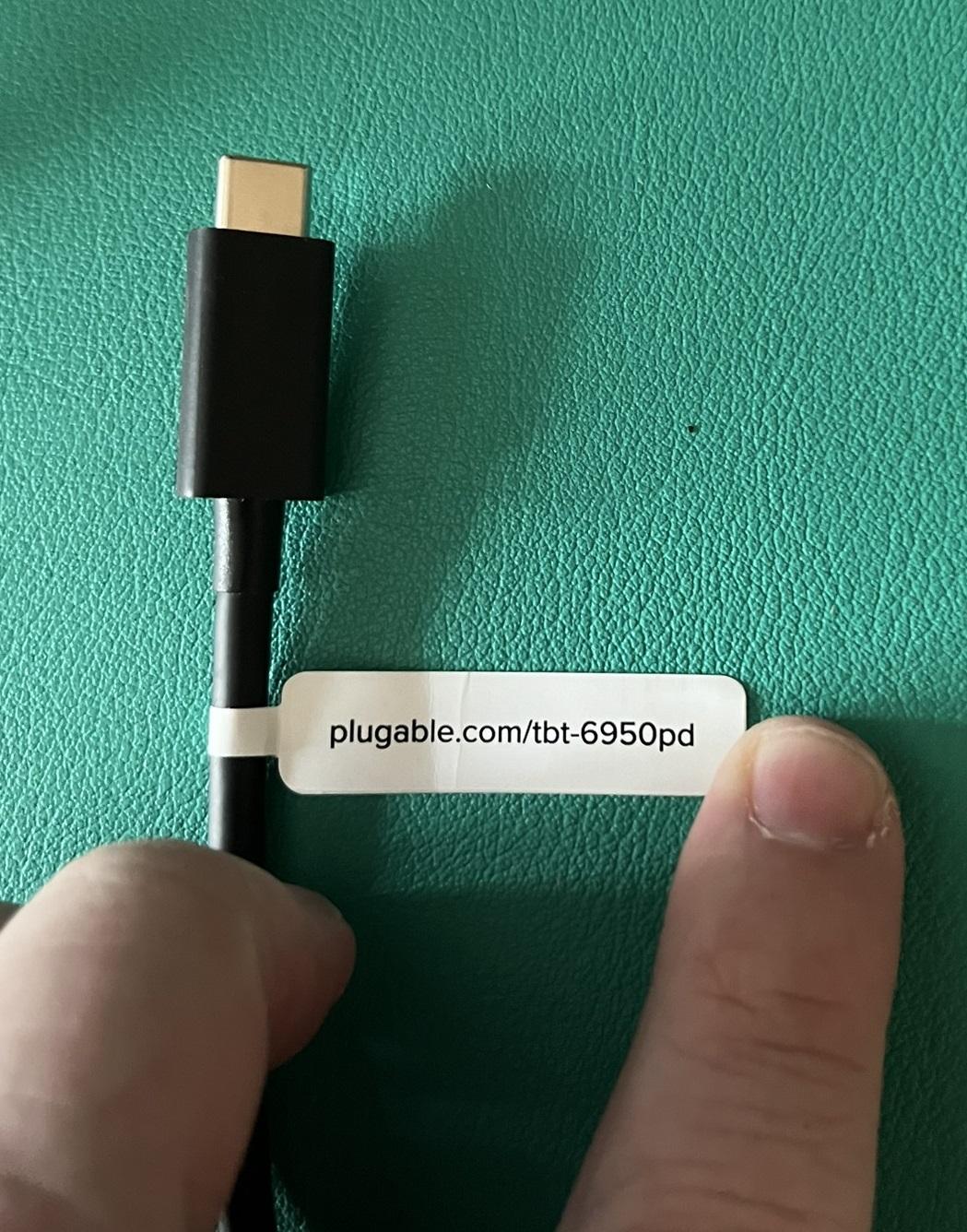
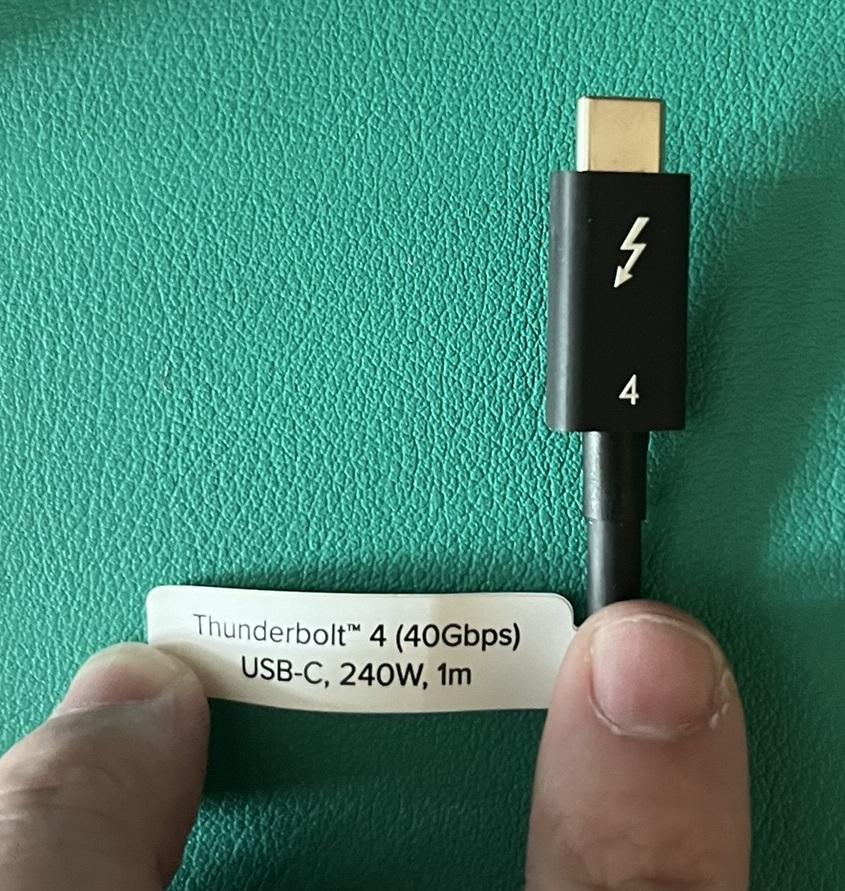
2. Can you please confirm that the Plugable Thunderbolt 4 cable is connected to the single Thunderbolt 4 host connection port located on the right side of the TBT-6950PD unit?
We ask because if the cable is connected to any other port within the docking station, then the docking station will not work as expected.
We have included inline a photo of the side of the dock with the Thunderbolt 4 host connection port highlighted in red, for your reference:
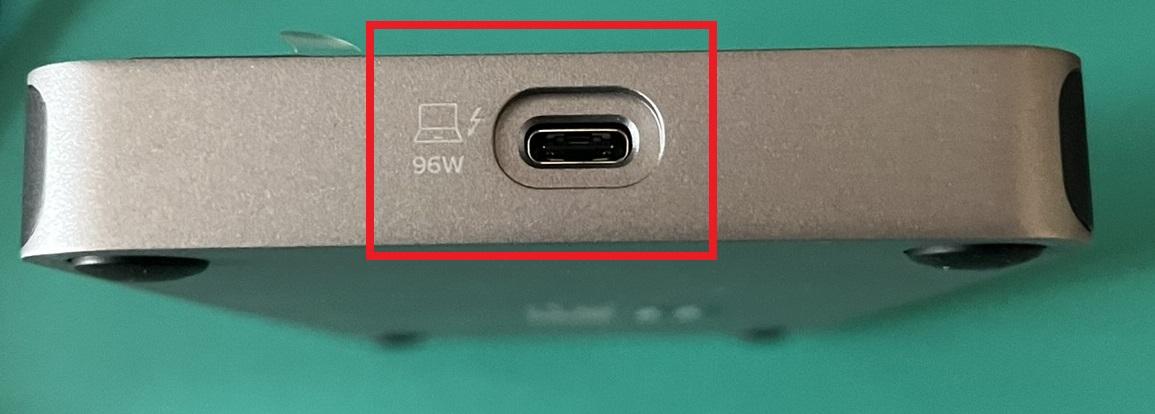
3. For your reference, when the TBT-6950PD is first connected to a known-working power outlet, the dock will power on automatically and there will be a small white indicator light present on the front of the unit, located next to the unit's power button.
Again for your reference, the dock can also be manually powered on and powered off by pressing the power button.
If the dock is not powered on (no light present), please check the following:
A. That the included power adapter is securely connected to the dock’s power input port
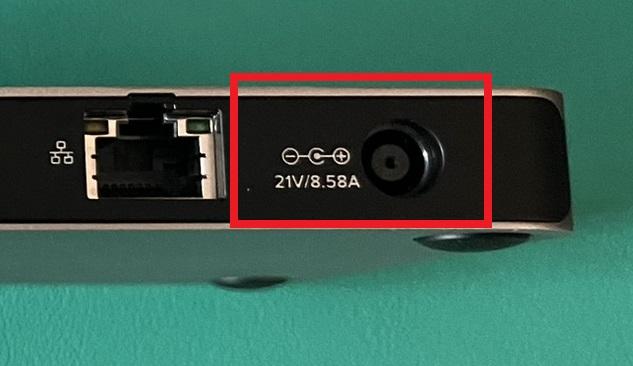
B. That the power cable is securely connected to the power adapter
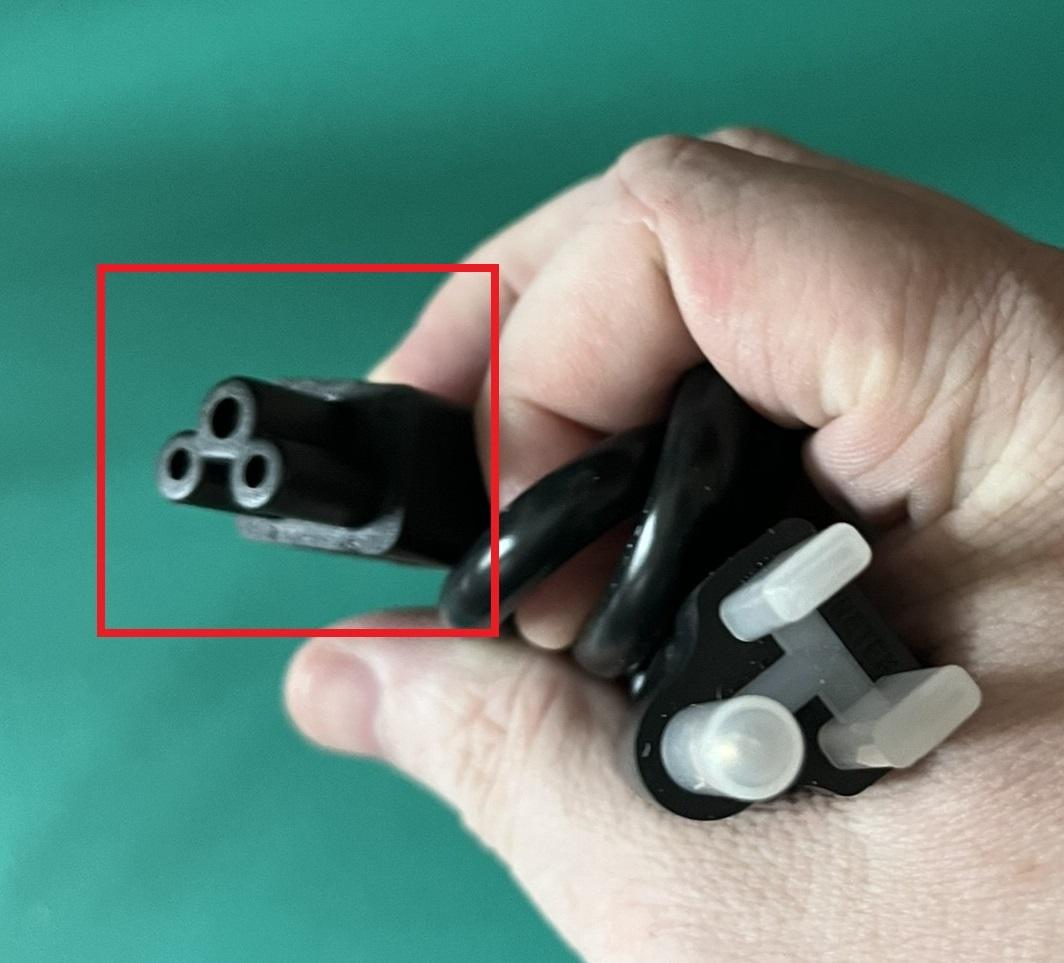
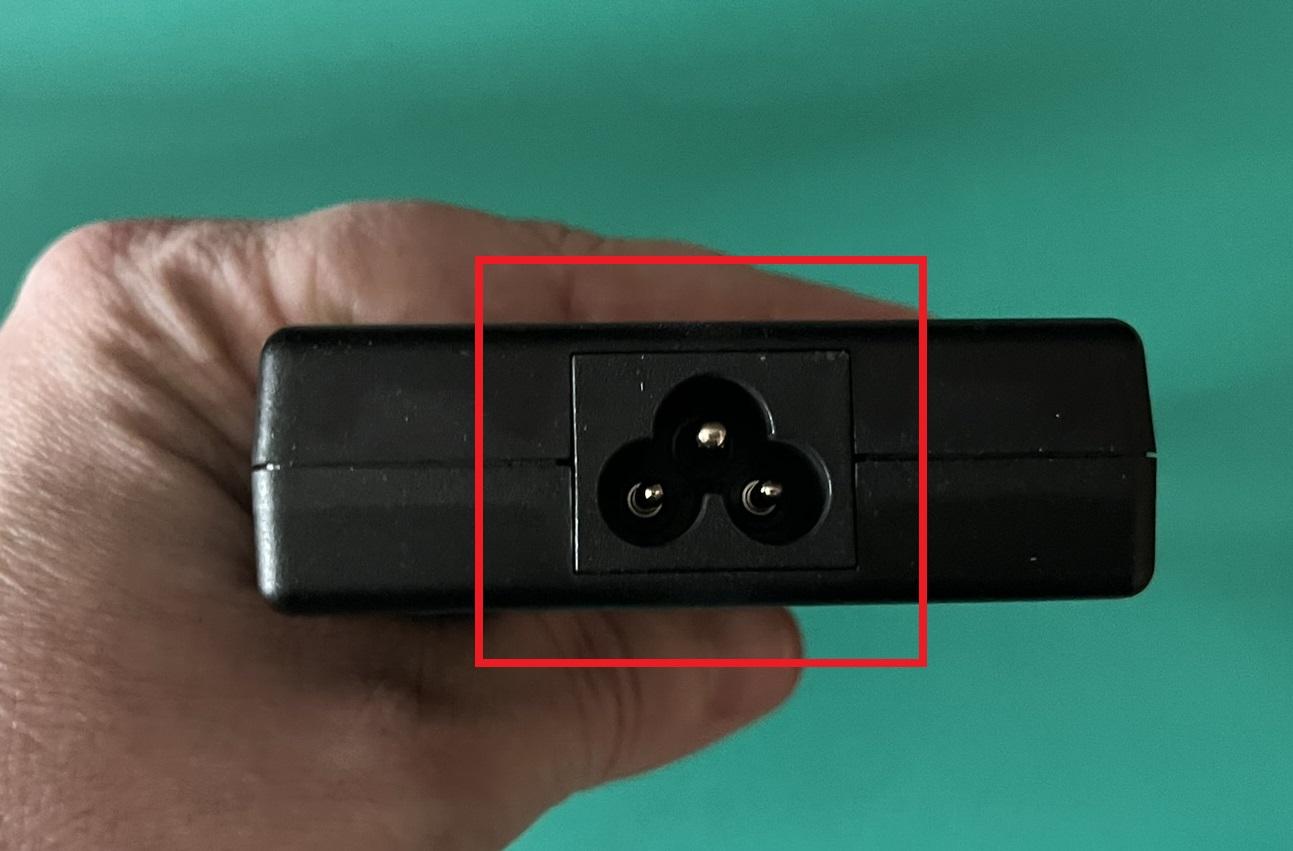
C. That the power cable is securely connected to the electrical power outlet
If the dock is powered on (white light present) but it is not being detected by the computer, please check the following:
A. That the Thunderbolt 4 cable is connected to the single Thunderbolt 4 host connection port on the right side of the dock (see checklist item #2 for more information)
B. That the Thunderbolt 4 cable is securely connected to a Thunderbolt 4 port within the host computer.
4. Can you please confirm that the dock’s required DisplayLink software is installed on your computer? This is important because if the DisplayLink software is not installed, then the dock’s HDMI video output ports will not function.
We have detailed installation instructions available here → https://plugable.com/products/tbt-6950pd#nav-get-started
USB Port Types
USB-A

pietz, CC BY-SA 3.0 , via Wikimedia Commons
This is the standard USB connection that most computers offered prior to the introduction of USB Type-C (USB-C). Even after the introduction of USB Type-C, this is still quite common.
It can provide data transfer rates up to the USB 3.1 Gen 2 (10 gbps) specification depending on the host and device, but does not directly support video in the way that USB-C Alternate Mode does. This limitation makes DisplayLink USB graphics adapters and docking stations ideal on systems that do not have USB-C, or in instances where more displays are needed beyond available video outputs of a PC.
USB-B

Fred the Oyster, CC BY-SA 4.0 , via Wikimedia Commons

IngenieroLoco, CC BY-SA 4.0, via Wikimedia Commons
This type of connection comes in a couple different styles depending on whether USB 3.0 and higher transfer rates are supported (bottom graphic). Usually this type of connection is used to plug into USB devices that do not have a fixed cable connected, such as USB docking stations, USB hubs, printers, and others.
USB Mini-B
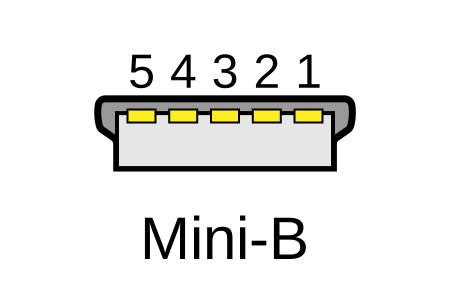
Fred the Oyster, CC BY-SA 4.0 , via Wikimedia Commons
One of the first connectors for charging a smartphone, wireless game controller (such as the Sixaxis and DualShock 3), and other small devices such as external hard drives. Not commonly used today, but is still used in some cases. Most devices using USB Mini B are using USB 2.0, though a USB 3.0 variant does exist. This specification also added USB On-The-Go (OTG) functionality, though it is more commonly implemented with Micro USB.
USB Micro-B

Fred the Oyster, CC BY-SA 4.0, via Wikimedia Commons
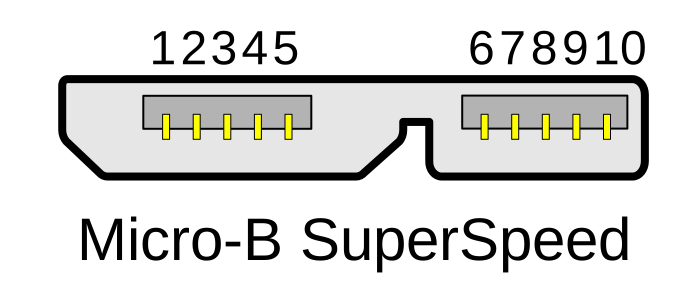
IngenieroLoco, CC BY-SA 4.0 , via Wikimedia Commons
A smaller connector that serves many of the same uses as the Mini B connector, with added optional features such as Mobile High-Definition Link (MHL) to allow devices like smartphones to output video to larger displays without requiring a dedicated port for video output.
The larger variant of USB-B is most commonly used for external hard drives for higher 5Gbps transfer rates.
USB-C, Thunderbolt™ 3, and Thunderbolt™ 4
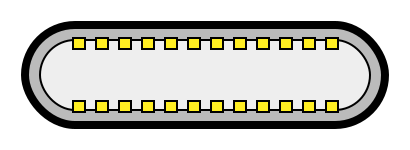
Niridya , CC0, via Wikimedia Commons
The most recent USB connection, USB Type-C (USB-C), represents a major change in what USB can do. The connector is smaller, can be connected in two orientations, is able to carry substantially more power and data, and can directly carry video signals of multiple types (HDMI, DisplayPort, etc.) Intel has also adapted the USB-C connector for use with Thunderbolt 3 and Thunderbolt 4.
It is important to note that while all Thunderbolt 3 and Thunderbolt 4 connections are USB-C, not all USB-C connections can be used with Thunderbolt 3 or Thunderbolt 4 devices.
More details regarding physical USB connections can be found on Wikipedia . The graphics depicted here are adapted from Wikimedia Commons by various artists under the Creative Commons Attribution-Share Alike 3.0 Unported license.
Are Plugable DisplayLink products supported on Windows 11 computers with modern ARM processors such as the Qualcomm Snapdragon X Plus or Elite?
Yes, Plugable DisplayLink based products are supported on Windows 11 computers that have a modern ARM processor such as the Qualcomm Snapdragon X Plus or Elite.
The DisplayLink driver for Windows is native for both the x64 and ARM architectures.
My Plugable DisplayLink-based USB Docking Station or USB Video Adapter Is Not Working As Expected On Mac. Why is this happening?
Introduction
This document covers steps to resolve the most common issues enabling video from Plugable products with DisplayLink technology on Mac. In order to use a Plugable DisplayLink device on Mac, the items listed below are required.
Required Items
1. The DisplayLink Manager Application must be installed on the host Mac
The DisplayLink Manager Application is available to download here
We have detailed installation instructions available at the link below:
macOS Tahoe version 26, macOS Sequoia version 15, macOS Sonoma version 14
2. The DisplayLink Manager Application must be granted the proper security permissions in order to function properly
The DisplayLink Manager application must be granted ‘Screen Recording’ permissions within the macOS ‘Privacy & Security’ settings in order to function. If these permissions are not granted, then the product will not function.
To be clear, no information is actually being recorded. The DisplayLink Application only needs this permission in order to generate the image shown within the displays connected to the product.
The installation instructions provided in Item #1 provide more detail about this process.
3. The DisplayLink Manager Application must be actively running
The DisplayLink Manager Application must be running in order for the product’s video outputs to function.
When the DisplayLink Manager Application is running, there will be a small DisplayLink icon (which looks like two interlocking displays) located within the Apple Menu bar at the top of your screen.
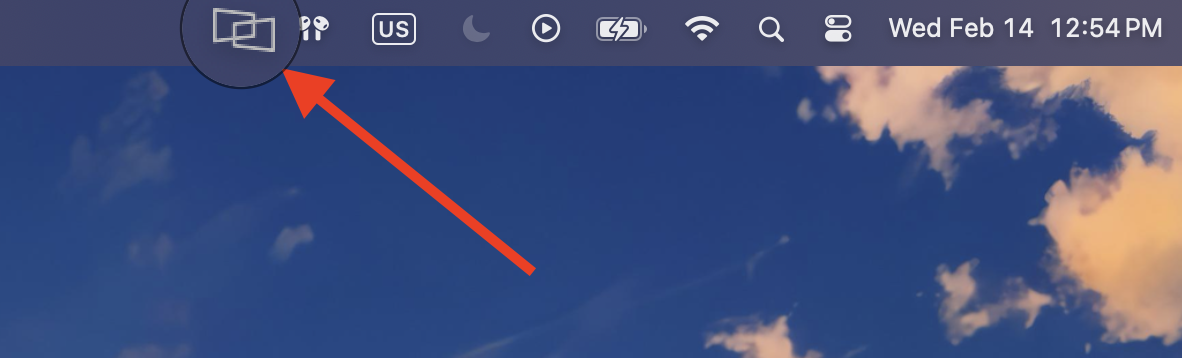
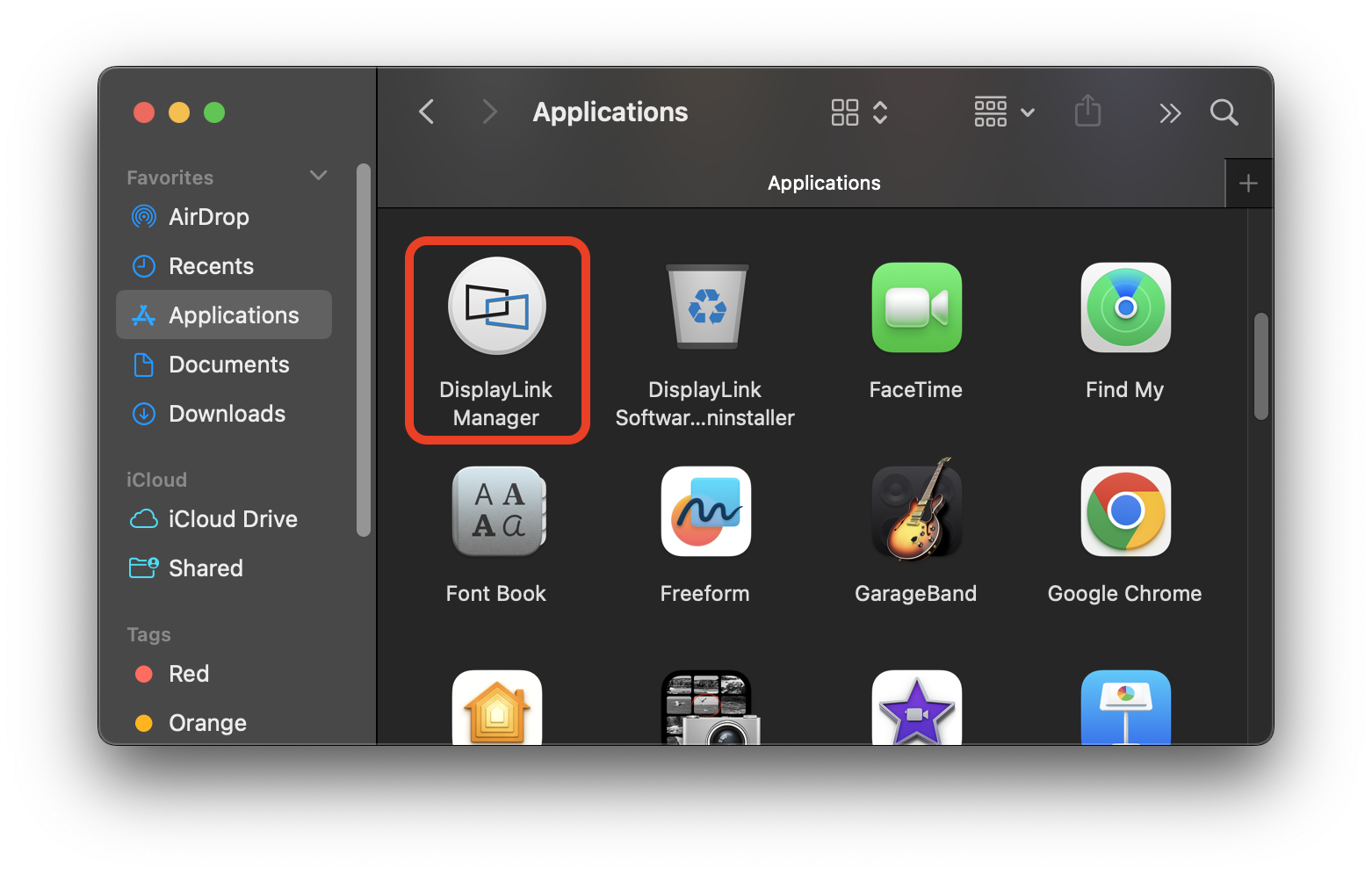
If the DisplayLink Manager Application is not running, please open a new Finder window and navigate to the ‘Applications’ folder and then double click on the ‘DisplayLink Manager’ application icon to start the application.
4. On Apple Silicon MacBooks with macOS Ventura version 13 or later, the Plugable product must be granted permission in order to connect the device to the Mac
For portable Macs with Apple silicon running macOS Ventura version 13 or later, any external USB accessory must first be ‘Allowed’ in order for the device to function. If the device is not ‘Allowed’, then the device will not work.
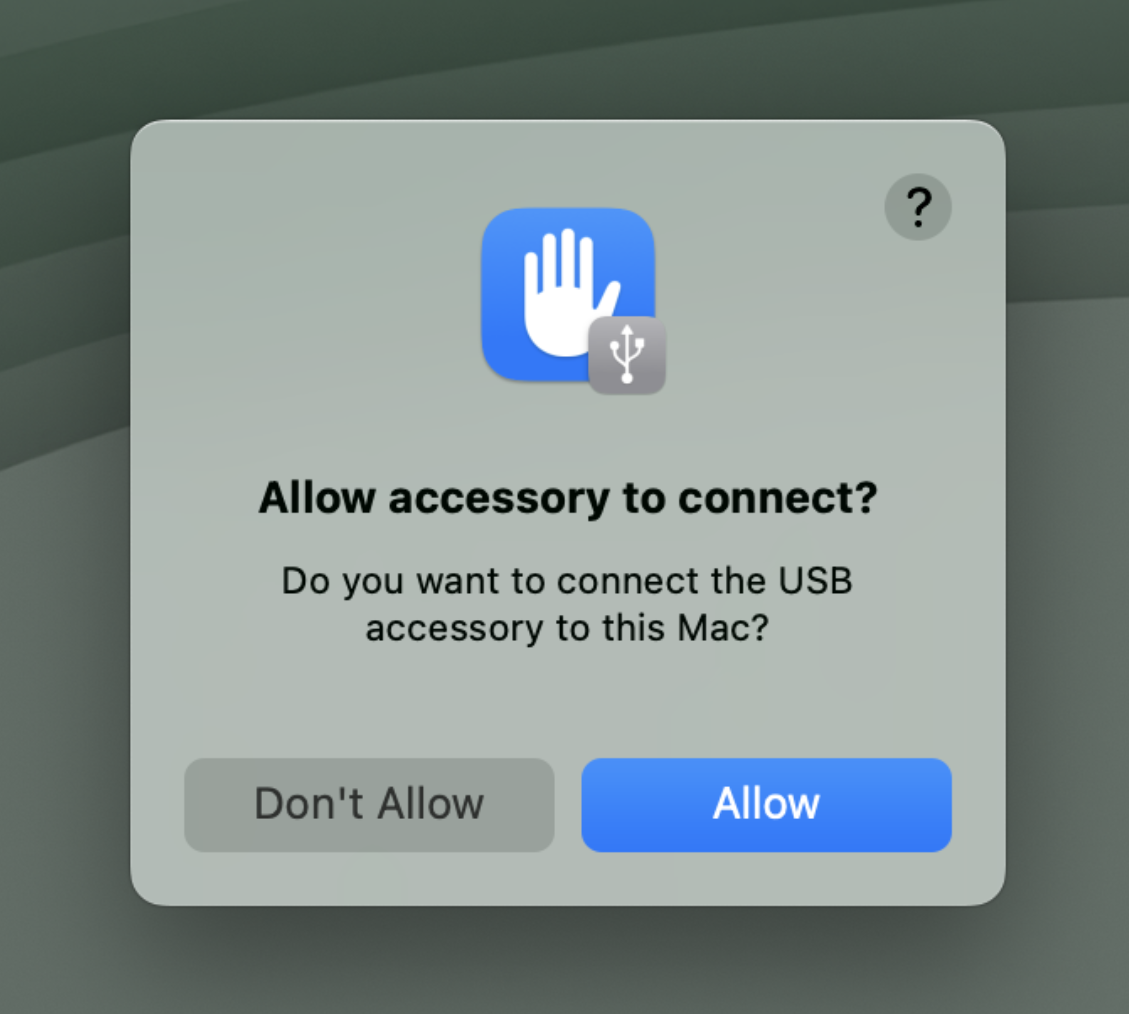
Apple provides more information on this process at the links below:
macOS Tahoe 26 - Connect accessories to your Mac
macOS Sequoia 15 - Connect accessories to your Mac
macOS Sonoma 14 - Allow accessories to connect to Mac
macOS Ventura 13 - Allow accessories to connect to Mac
If you need more help
If all of the items listed above have been completed and your Plugable DisplayLink-based device is still not working as expected with your Mac, please reach out to us directly via support@plugable.com and we will be happy to assist you further.
My DisplayLink-based USB Docking Station or USB Video Adapter stopped working as expected with my Mac computer. What should I do?
Summary
If a Plugable DisplayLink-based USB docking station or USB graphics adapter is not working as expected with a Mac, performing a clean reinstall of the DisplayLink Manager application can help restore the DisplayLink software and connected hardware to a known-good state.
The recommended process is to disconnect and reset the Plugable product, completely remove the existing DisplayLink software, restart the Mac, install the current Plugable-recommended DisplayLink Manager version, and reconnect the product.
Applicable To
This article applies to:
- Plugable DisplayLink-based docking stations
- Plugable DisplayLink-based USB graphics adapters
- Macs using the DisplayLink Manager application
These instructions are specifically for products that use DisplayLink USB graphics technology. They do not apply to Plugable USB-C DisplayPort Alternate Mode, MST, or Thunderbolt-only video products that do not use DisplayLink Manager.
Before You Begin
Save any open work before beginning, as this process requires restarting the Mac.
Keep the Plugable docking station or USB graphics adapter disconnected from the Mac until instructed to reconnect it.
Clean Reinstall DisplayLink Manager
1. Disconnect the Plugable Product
Disconnect the Plugable USB docking station or USB graphics adapter from the Mac.
If the product has an external power adapter, disconnect the power adapter from the product as well. This allows the unit to fully reset.
Keep the Plugable product disconnected until the final step.
2. Run the DisplayLink Installation Cleaner
Download and run the DisplayLink Installation Cleaner for macOS → LINK
If you need additional guidance, see Synaptics' End-User Cleaner Tool for macOS instructions → LINK
Follow the prompts within the cleaner to remove the existing DisplayLink Manager installation and associated components.
3. Restart the Mac
After the DisplayLink Installation Cleaner has completed, restart the Mac using:
Apple menu > Restart
Restart the Mac even if the cleaner does not specifically prompt you to do so.
4. Install the Current Plugable-Recommended DisplayLink Manager Version
Download the DisplayLink Manager version recommended by Plugable for your version of macOS → LINK
Install DisplayLink Manager and complete the required macOS setup and permissions.
Detailed installation instructions for each supported macOS version are available by selecting the INFO button next to the appropriate download on Plugable's DisplayLink Drivers and Software page.
5. Reconnect the Plugable Product
If the Plugable product uses an external power adapter, reconnect power to the product first and allow it to power on.
Then reconnect the Plugable product directly to the Mac.
Confirm that DisplayLink Manager is running and test the connected displays and other device functions.
If the product is still not working as expected, restart the Mac once more with the Plugable product connected.
Need Assistance?
If your Plugable DisplayLink-based product is still not working as expected after completing the clean reinstall process, please contact Plugable Support at support@plugable.com.
- When contacting support, please include:
- Your Plugable product model
- Your Mac model
- Your macOS version
- A description of the issue
- The output from Plugable's PlugDebug diagnostic utility → LINK
My DisplayLink-based USB Docking Station or USB Video Adapter Is Not Working As Expected with a Windows computer
Introduction
When a Plugable DisplayLink-based device is not working as expected with a Windows system, the best practice is to disconnect the device from the host system (and remove it's external power source, if it has one) and perform a 'clean' manual installation of the latest version we recommend of the required DisplayLink software driver in order to help ensure that both are in a good state. The process for doing so is described below. If you're running a Mac computer, please refer to our DisplayLink Manager App for macOS installation guide instead.
DisplayLink 'Clean' installation process
1. Disconnect the Plugable USB docking station or video adapter from the host system.
If the product you are using has an external power adapter (for example a USB docking station), please also disconnect the power adapter from the product so that the unit resets.
Please keep everything disconnected until prompted.
2. Uninstall any and all software with 'DisplayLink' in the title that is present from within the Control Panel Programs and Features (Apps and Features in Windows 10 & 11). Don't worry if these entries are not present or if the process does not work for any reason, just move onto the next step
3. Download and run the DisplayLink Installation Cleaner utility
The link to download is here --> LINK
We also have a short video that demonstrates this process --> LINK
4. Once the cleaning utility has completed, restart the host system (even if not prompted to)
5. Download and install the latest version (that we recommend) of the DisplayLink software driver --> LINK
6. If you disconnected the power adapter from your product in step one, please reconnect it so the device powers on, then reconnect the product to the host system. If the product is still not working as expected, please restart the host system one more time.
If you need additional help
If after having completed this process your Plugable DisplayLink device is still not working as expected, please reach out to us directly via support@plugable.com with the output of our PlugDebug diagnostic utility --> LINK and we will be happy to assist you further.
Why Can I Not Use My Intel, NVIDIA, or AMD Graphics Utility to Manage Monitors Connected to a DisplayLink Dock/USB Graphics Adapter?
The graphical software utilities provided by Intel, NVIDIA, and AMD/ATI are designed to only recognize and work with graphics adapters made by their respective manufacturers. As a result, these utilities will not recognize USB-attached displays connected to a DisplayLink-based docking station or graphics adapter.
How to Manage Connected Displays
It is recommended to use the built-in Windows display management tools instead. For Windows 10 and 11, use the 'Display Settings' application, and for Windows 8.1 and 7, use the 'Screen Resolution' application. You can access these tools by right-clicking an empty space on the Windows desktop and selecting the appropriate option from the context menu.
Alternative Option for Intel Users
Intel offers an updated 'Intel Graphics Command Center' application that can recognize and configure DisplayLink-attached displays to a certain extent. However, some features specific to Intel graphics adapters within this application may still not work on a DisplayLink-attached display.
Applicable To
Plugable DisplayLink-based docking stations and graphics adapters
Why Doesn't the "Display Color Calibration" Tool in Windows Affect the Display(s) Attached to My DisplayLink-Based Docking Station/Video Adapter?
Summary
Windows display color calibration may not affect a monitor connected through a Plugable DisplayLink-based docking station or USB graphics adapter.
DisplayLink software can support gamma-based color correction on certain DisplayLink hardware and outputs, but this functionality is not universally available or enabled across all DisplayLink configurations.
Applicable To
This article applies to:
- Plugable DisplayLink-based docking stations
- Plugable DisplayLink-based USB graphics adapters
- Windows 10 and Windows 11
Answer
Older versions of DisplayLink software did not support software-based gamma color correction. However, DisplayLink added gamma-ramp color correction support beginning with DisplayLink software version 9.0 for certain DisplayLink devices.
Because support depends on the DisplayLink chipset, video output, driver configuration, and software being used, the Windows Display Color Calibration tool may have little or no effect on some DisplayLink-connected displays.
For basic color adjustments such as brightness, contrast, color temperature, or RGB levels, Plugable recommends using the monitor's built-in on-screen display (OSD) controls when available.
For supported DisplayLink hardware, Synaptics provides additional guidance for enabling gamma-ramp color correction in Windows.
Color-Critical Workflows
For workflows that require highly accurate or hardware-calibrated color, such as professional photography, video production, or print color matching, Plugable recommends connecting the color-critical display directly to a native graphics output from the computer whenever possible.
This may include HDMI, DisplayPort, Thunderbolt, or USB-C DisplayPort Alternate Mode, depending on the computer.
Need Assistance?
If you need help determining whether software-based color correction is supported with your Plugable DisplayLink product, please contact Plugable Support at support@plugable.com.
When contacting support, please include:
- Your Plugable product model
- Your computer model
- Your monitor model
- Your Windows version
- How the monitor is connected to the Plugable product
Are Plugable USB Video Adapters or Docking Stations Based on DisplayLink Technology Compatible With Touchscreens?
Summary
Touchscreens that do not require drivers and use the host operating system's built-in USB Human Interface Device (HID) drivers to record touch inputs can be made to work with Plugable products. However, Plugable does not officially support or recommend these configurations due to the underlying complexity of multi-monitor touchscreen setups.
Why Plugable Does Not Support Touchscreens on DisplayLink Devices
Multi-monitor touchscreen environments require the operating system to map touch inputs from a USB HID controller to specific, non-native display outputs. Because DisplayLink uses virtual graphics processing rather than a direct GPU video pipe, input mapping across multiple displays can easily become misaligned or unresponsive, leading to unreliable performance.
How to Set Up Touchscreens with DisplayLink Devices
If you choose to use a driverless USB HID touchscreen, follow these configuration steps:
- Connect the video cable from the touchscreen monitor to a video port on the Plugable DisplayLink device.
- Connect the USB data cable from the touchscreen monitor directly to a USB port on the host computer or docking station to pass touch inputs.
- Access your host operating system's display settings (such as Tablet PC Settings in Windows) to manually calibrate and map touch inputs to the correct display.
Applicable To
- Plugable USB video adapters based on DisplayLink technology
- Plugable docking stations based on DisplayLink technology
- Touchscreens using standard USB Human Interface Device (HID) drivers
If I Add a DisplayLink-Based Docking Station or Graphics Adapter to My System, Will That Prevent My System’s Built-In Video Outputs From Working?
No. Connecting a DisplayLink-based docking station or USB graphics adapter does not disable your computer's built-in video outputs. You can generally use displays connected through those outputs alongside displays connected through DisplayLink.
Applicable To
Compatible Windows and Mac computers used with Plugable DisplayLink-based docks or USB graphics adapters.
How the Displays Work Together
The built-in HDMI, DisplayPort, USB-C, or Thunderbolt video outputs use the computer's native display capabilities. A DisplayLink-based dock or adapter adds USB graphics displays through DisplayLink software. These connections can operate at the same time when the computer, operating system, and products support the chosen setup.
Important Notes
The computer's native display limit still applies to displays connected through its built-in video outputs. DisplayLink displays have their own product and software requirements.
On macOS, DisplayLink Manager must be installed, running, and granted the required screen access permission for DisplayLink-connected displays to work.
The number of displays and achievable performance depend on the computer, operating system, USB connection, adapter or dock, and display configuration.
Need Assistance?
If a built-in video output stops working after connecting a dock or adapter, contact support@plugable.com with your computer model, operating system, Plugable model, each monitor's connection path, and the behavior you observe.
Are Powerline Network Adapters Supported in Conjunction With the Ethernet Port Within My DisplayLink-Based Docking Station or Video Adapter?
The use of Powerline-based network adapters in conjunction with the Ethernet port within our DisplayLink-based docking stations or video adapters is not supported.
Can I Adjust the Brightness of a Display Connected to My DisplayLink-Based Docking Station or Video Adapter via the Windows ‘Display Settings’ Application?
Summary
Windows does not normally provide a brightness control in Display Settings for external monitors connected through a Plugable DisplayLink-based docking station or USB graphics adapter.
To adjust the brightness of an external monitor, use the monitor's built-in controls or on-screen display (OSD).
Applicable To
This article applies to:
- Plugable DisplayLink-based docking stations
- Plugable DisplayLink-based USB graphics adapters
- External monitors connected through DisplayLink on Windows 11 or Windows 10
Answer
The brightness slider available in Settings > System > Display is primarily intended for supported built-in displays, such as a laptop's internal screen.
When using an external monitor connected through a Plugable DisplayLink-based dock or video adapter, Windows may not provide a brightness slider for that display.
To adjust the monitor's brightness:
- Use the physical buttons, joystick, or other controls on the monitor.
- Open the monitor's on-screen display (OSD).
- Locate the Brightness or Picture settings.
- Adjust the brightness to the desired level.
Optional Software-Based Brightness Control
Some monitors support DDC/CI, which allows compatible software to control monitor settings such as brightness and contrast.
DisplayLink supports DDC/CI communication with compatible monitors, so a third-party DDC/CI utility may be able to adjust the brightness of a DisplayLink-connected monitor.
Support depends on the monitor, DisplayLink device, and software being used. Plugable recommends using the monitor's built-in controls when possible.
Need Assistance?
If you are having difficulty adjusting or configuring a display connected through a Plugable DisplayLink-based product, please contact Plugable Support at support@plugable.com.
When contacting support, please include:
- Your Plugable product model
- Your computer model
- Your monitor model
- Your Windows version
- How the monitor is connected to the Plugable product
Can I Use My DisplayLink-Based Docking Station in Conjunction With a KVM (Keyboard, Video and Mouse) Switch?
Summary
Plugable does not recommend or support using a traditional KVM switch with a Plugable DisplayLink-based docking station. Traditional KVM switches are designed to switch a computer's direct video output, keyboard, and mouse between systems. DisplayLink-based docking stations work differently because their video output is generated through USB data and DisplayLink software on the active host computer.
If you need to share a compatible USB 3.0 DisplayLink-based docking station between two computers, the recommended options are to manually move the dock's USB host cable between computers or use the Plugable USB3-SWITCH2 USB 3.0 Sharing Switch. The dock can only be used by one computer at a time.
The USB3-SWITCH2 option applies only to compatible USB 3.0 DisplayLink-based docking stations. It is not compatible with USB-C or Thunderbolt docks and hubs that rely on USB-C Power Delivery, USB-C DisplayPort Alternate Mode, USB4, or Thunderbolt features.
Applicable To
| Product or product type | Compatibility note |
|---|---|
| USB3-SWITCH2 | Recommended Plugable USB sharing switch for compatible USB 3.0 DisplayLink-based docking stations. The active computer is selected manually using the button on the switch. |
| UD-3900 | Example of a USB 3.0 DisplayLink-based docking station that may be used with USB3-SWITCH2 for sharing between two computers. |
| UD-3900H | Example of a USB 3.0 DisplayLink-based docking station that may be used with USB3-SWITCH2 for sharing between two computers. |
| UD-6950Z | Example of a USB 3.0 DisplayLink-based docking station that may be used with USB3-SWITCH2 for sharing between two computers. |
| Other Plugable USB 3.0 DisplayLink-based docks with a standard USB host connection | May be compatible when the dock uses a standard USB data connection to the host and does not require USB-C Power Delivery, USB-C DisplayPort Alternate Mode, USB4, or Thunderbolt features. |
This article does not apply to USB-C or Thunderbolt docking stations and hubs that require USB-C Power Delivery, USB-C DisplayPort Alternate Mode, USB4, or Thunderbolt connectivity. Those products should be connected directly to the computer using the cable and connection type specified for that product.
Answer
Plugable does not recommend or support using a traditional KVM switch with a Plugable DisplayLink-based docking station.
A traditional KVM switch expects each computer to provide a direct video signal, such as HDMI, DisplayPort, DVI, or VGA, along with USB keyboard and mouse input. A DisplayLink-based docking station does not work like a passive video connection. Instead, the computer uses DisplayLink software to send compressed display data over USB to the DisplayLink chipset inside the dock, and the dock then outputs video to the connected monitor or monitors.
Because of this design, placing a traditional KVM switch into the display path or attempting to switch the dock as if it were a normal direct video connection can lead to detection issues, lost displays, incorrect display arrangement, blank screens, or unreliable behavior. This type of setup is not a supported Plugable configuration.
If the goal is to share one compatible USB 3.0 DisplayLink-based docking station between two computers, the better option is to switch the dock's USB connection between the computers. This can be done manually by moving the dock's USB host cable from one computer to the other, or by using the Plugable USB3-SWITCH2 with compatible USB 3.0 DisplayLink-based docks.
Why Traditional KVM Switches Are Not Recommended
DisplayLink video is an indirect display technology. The displays connected to the dock depend on the active host computer, the DisplayLink driver or DisplayLink Manager software, the USB data connection, and the DisplayLink chipset inside the dock.
A traditional video KVM switch generally expects a direct GPU video signal from each computer. This can be a poor match for a DisplayLink dock because the display signal is not coming directly from the computer's HDMI, DisplayPort, DVI, or VGA port. It is being created by the dock after the DisplayLink USB connection has been established.
For that reason, the most reliable way to move a DisplayLink dock between computers is to treat the dock like a USB device: disconnect it from one computer, then connect it to the other computer. USB3-SWITCH2 provides a more convenient way to perform that USB switch for compatible USB 3.0 DisplayLink docks.
Recommended Options
| Goal | Recommended approach |
|---|---|
| Use one compatible USB 3.0 DisplayLink dock with two computers | Use USB3-SWITCH2, or manually move the dock's USB host cable between computers. |
| Use one USB-C or Thunderbolt dock with two computers | Plugable does not currently offer a USB-C or Thunderbolt sharing switch. Connect the dock directly to one computer at a time using the dock's supported host cable. |
| Share only a keyboard and mouse between two computers | Use an appropriate USB sharing switch for the keyboard and mouse. Do not place a USB 2.0 switch in front of a DisplayLink dock or USB graphics adapter. |
| Switch direct video outputs from two computers to one monitor | Use the monitor's input selection feature or a traditional video KVM connected to the computers' native video outputs. This is separate from using a DisplayLink dock. |
Before You Begin
If you plan to use USB3-SWITCH2 with a compatible USB 3.0 DisplayLink-based docking station, confirm the following first:
- The dock is a USB 3.0 DisplayLink-based dock with a standard USB data connection to the host.
- The dock is not a USB-C or Thunderbolt dock that requires USB-C Power Delivery, USB-C DisplayPort Alternate Mode, USB4, or Thunderbolt features.
- Both computers have the required DisplayLink software installed.
- Both computers meet the operating system requirements for the DisplayLink-based dock.
- Each laptop has its own power adapter connected if charging is needed. USB3-SWITCH2 does not charge laptops.
- Only one computer will use the dock at a time. The inactive computer will not have access to the dock, displays, Ethernet, audio, or USB devices connected through the dock.
How to Share a Compatible USB 3.0 DisplayLink Dock Using USB3-SWITCH2
- Install the required DisplayLink software on both computers.
- Connect the Plugable DisplayLink docking station to its power adapter.
- Connect your displays, keyboard, mouse, Ethernet cable, speakers, or other peripherals to the docking station.
- Connect the dock's upstream USB host connection to the shared USB device port on the USB3-SWITCH2.
- Connect each computer to one of the USB3-SWITCH2 host ports using the USB cables included with the switch.
- If either computer only has USB-C ports, use an appropriate USB-C to USB-A adapter on the computer side of the USB3-SWITCH2 connection.
- Connect each laptop to its own charger if charging is required.
- Press the button on the USB3-SWITCH2 to select which computer has control of the dock.
- Wait for the operating system to detect the dock and restore the displays and connected devices.
Switching between computers acts like unplugging the dock from one computer and plugging it into the other. A short delay while the dock, displays, Ethernet, audio, and USB devices reconnect is normal.
Important Notes
- USB3-SWITCH2 is a USB sharing switch, not a traditional video KVM switch.
- The dock can only be controlled by one computer at a time.
- USB3-SWITCH2 does not provide laptop charging. Keep each laptop's normal charger connected if charging is needed.
- USB3-SWITCH2 is not compatible with USB-C or Thunderbolt docks and hubs, even when using adapters.
- Do not switch computers while files are actively being transferred to or from USB storage devices connected through the dock. Switching the active host disconnects USB devices from the previous computer.
- Display arrangement, scaling, resolution, and audio settings are stored by each computer's operating system, not by the dock. Each computer may need to be configured separately after the first connection.
Troubleshooting
1. The dock does not reconnect after switching computers
Wait 10 to 20 seconds after pressing the switch button. If the dock still does not reconnect, confirm that the correct host LED is active on the USB3-SWITCH2, then disconnect and reconnect the dock's USB cable from the switch.
If the issue continues, connect the dock directly to each computer without the USB3-SWITCH2. This helps determine whether the issue is related to the dock, the computer, the USB switch, or the cabling.
2. The displays do not appear on one computer
Confirm that the DisplayLink software is installed and running on that computer. Then test the dock directly connected to the computer. If the dock works when connected directly but not through the USB3-SWITCH2, try a different USB port on the computer and use the shortest practical USB cables.
3. The setup works on one computer but not the other
This usually points to a host-specific issue. Check that the second computer has the required DisplayLink software installed, supports the operating system requirements for the dock, and is connected to a working USB 3.0 or faster port.
4. A USB-C or Thunderbolt dock does not work through USB3-SWITCH2
This is expected. USB3-SWITCH2 does not support USB-C Power Delivery, USB-C DisplayPort Alternate Mode, USB4, or Thunderbolt features. USB-C and Thunderbolt docks that depend on those features should be connected directly to the host computer.
5. The laptop does not charge through the USB3-SWITCH2
USB3-SWITCH2 does not provide laptop charging. If the laptop needs power, connect the laptop's normal charger directly to the laptop or use the charging method recommended for that computer.
6. USB storage devices disconnect when switching computers
Switching the USB3-SWITCH2 disconnects the dock and its attached USB devices from the previously active computer. Eject or safely remove USB storage devices before switching, and do not switch while a file transfer is in progress.
Need Assistance?
If you are unsure whether your Plugable DisplayLink-based dock is compatible with USB3-SWITCH2, or if the dock is not working as expected after following the steps above, contact Plugable Support at support@plugable.com.
Please include the Plugable dock model, the model of the switch or KVM being used, both computer models, both operating system versions, and a brief description of how everything is connected.
For the fastest assistance, please also include the output from Plugable's PlugDebug diagnostic utility from each computer: PlugDebug.
Why Is My Wi-Fi, Wireless Keyboard, or Mouse Lagging When Connected to a DisplayLink USB Docking Station?
Applicable To
Docking Stations based on DisplayLink technology
Problem Summary
Connecting a USB 3.0 device to a laptop system can generate radio frequency interference that affects the performance of the laptop's built-in Wi-Fi adapter or wireless keyboard and mouse receivers.
This behaviour is not specific to Plugable products, and Intel has published a white paper on the topic for those who are curious about the technical details.
Troubleshooting Steps
So now that we know that this can happen with any type of USB 3.0 connection, how do we solve the problem should it occur? Every person’s setup can be a little different so there will never be one definitive solution, but a few simple approaches can solve the problem in most cases:
- Option One—Move the device as far as away from the system as the USB cable will allow. This will try and ‘move’ the signals from both the USB connection and the Wi-Fi physically further apart. As a corollary to this, if the dock is located very close to the Wi-Fi router itself, placing more distance between the two can help.
- Option Two—Switch to a different USB port on the system, preferably one on the opposite side of the laptop. This employs the same approach as option one, in that physically separating the two signals (in this case the physical proximity of the USB connection and the internal Wi-Fi antennas within your system) can help. If your system has both USB 3.0 and USB 2.0 ports, try using the USB 2.0 port first.
- Option Three—Use a USB 2.0 cable, like one used connect to a USB printer, instead of a USB 3.0 cable. All USB 3.0 devices should be backward compatible with a USB 2.0 cable, and when a device is connected at USB 2.0 speeds there is no possibility for the interference.
- Option Four—Switch to using a 5GHz Wi-Fi connection. As the name implies, there are two common sets of frequencies used by most Wi-Fi networks (2.4GHz and 5GHz). If both your wireless router and the wireless network adapter in your system support a 5GHz connection (they both need to, one is not enough), connecting to your Wi-Fi in that manner will prevent the interference from happening due to the two very different frequencies in use.
- Option Five—If using a 5GHz connection is not possible, changing the ‘channel’ of a 2.4 GHz connection can help. Within the 2.4GHz band used for Wi-Fi, there are eleven different channels each using a slightly different frequency. The three most commonly used ones in the United States are channel 1, 6 and 11. Using the manual for your wireless router as a guide, switching channels can potentially help. Ideally you would want to switch the channel to the opposite end of the spectrum for the best results, for example if you are on channel one already try switching to channel eleven or vice-versa
Wireless Mouse or Wireless Keyboard Performance Issues (Radio Frequency Interference)
While the items listed above can help with Wi-Fi interference, there is another type of interference that can sometimes cause problems with wireless keyboards and wireless mice which we refer to as Radio Frequency (RF) interference.
To expand further, the USB wireless receiver 'dongles' used by many wireless keyboards and wireless mice operate within the same 2.4GHz radio frequency range as many Wi-Fi adapters.
If a USB 3.0 connection is generating interference, this can affect the behaviour of a wireless keyboard or wireless mouse. This behaviour typically manifests as inconsistent mouse movement and/or inconsistent or sporadic keystroke registration.
In general there are two methods to mitigate this behaviour should it occur:
- RF Option One—Reconnect the USB wireless receiver 'dongle' to one of the USB Docking Station's USB 2.0 ports (if the dock has USB 2.0 ports), furthest away from the USB 3.0 host connection cable. Moving the USB receiver to a USB 2.0 port typically mitigates this interference.
- RF Option Two—In rarer cases when moving the receiver is not enough or if the product in question does not have a USB 2.0 port, adding a short USB 2.0 extension cable can also help mitigate the behavior. In many cases wireless mice or keyboards include such a cable for this very reason, but if one is not available our USB2-2PORT is a good alternative solution.
If the Issue Persists
In some less common instances on Windows computers, erratic keyboard/mouse behaviour can be related to an issue with Intel Management Engine. We've written about this issue and the workaround that may fix it in another article in our Knowledge Base: My Mouse/Keyboard Is Not Working Well When Connected to the Device
DisplayLink Manager App Installation Instructions for macOS 10.15
Unsure which version of macOS you have installed? Click on the ‘Apple’ icon in the menu bar on your desktop and select ‘About this Mac’. A new window will open and display the system’s macOS version.
Running a newer version of macOS? Refer to our macOS 26 Tahoe, macOS 15 Sequoia, and macOS 14 Sonoma installation guide instead.
How to install the DisplayLink Manager application
1. Download the DisplayLink Manager from our drivers page here: https://plugable.com/pages/displaylink#macos
2. Open the DisplayLink Manager Graphics Connectivity 1.x.pkg
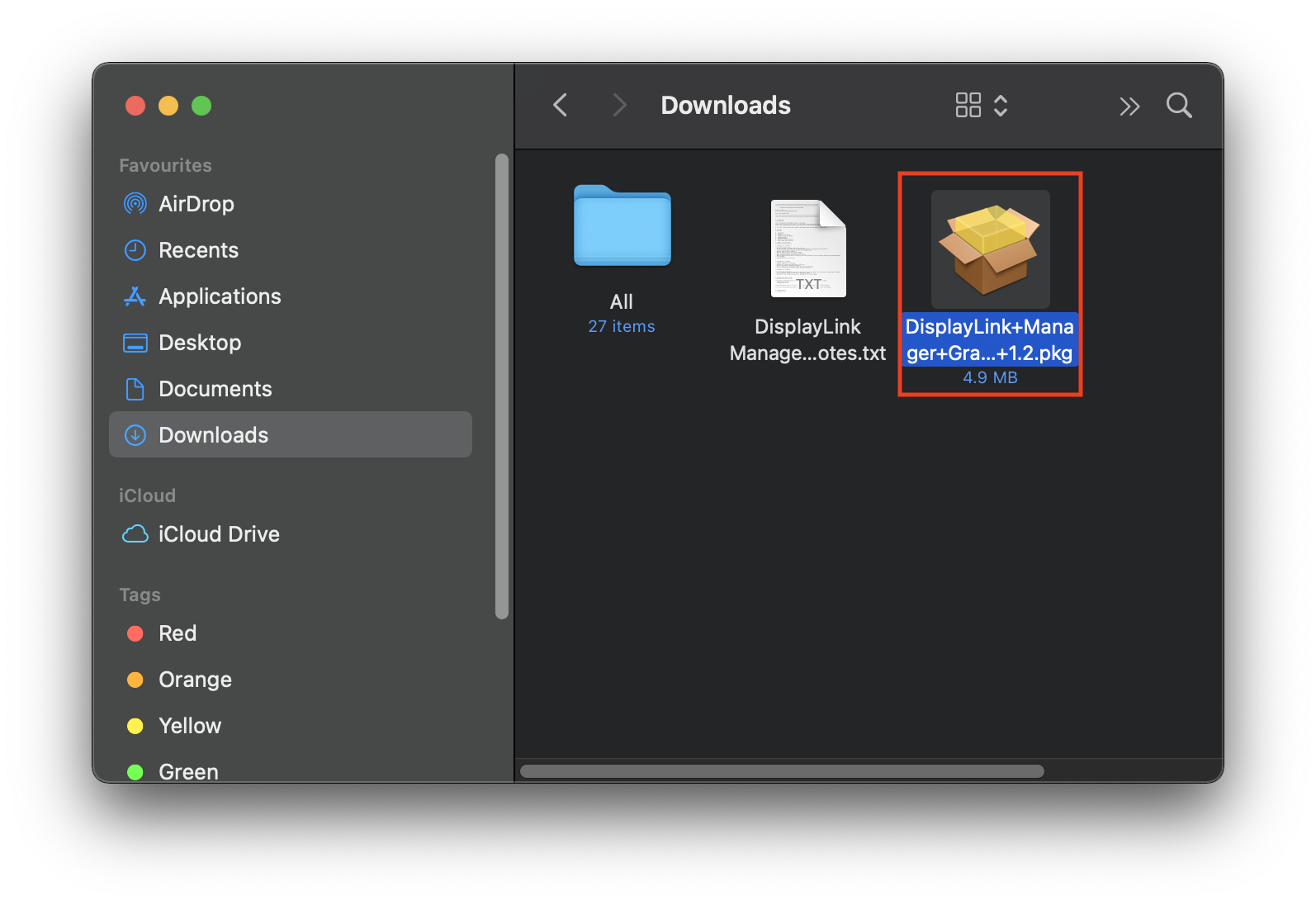
3. Click ‘Continue’ on ‘Introduction’ page
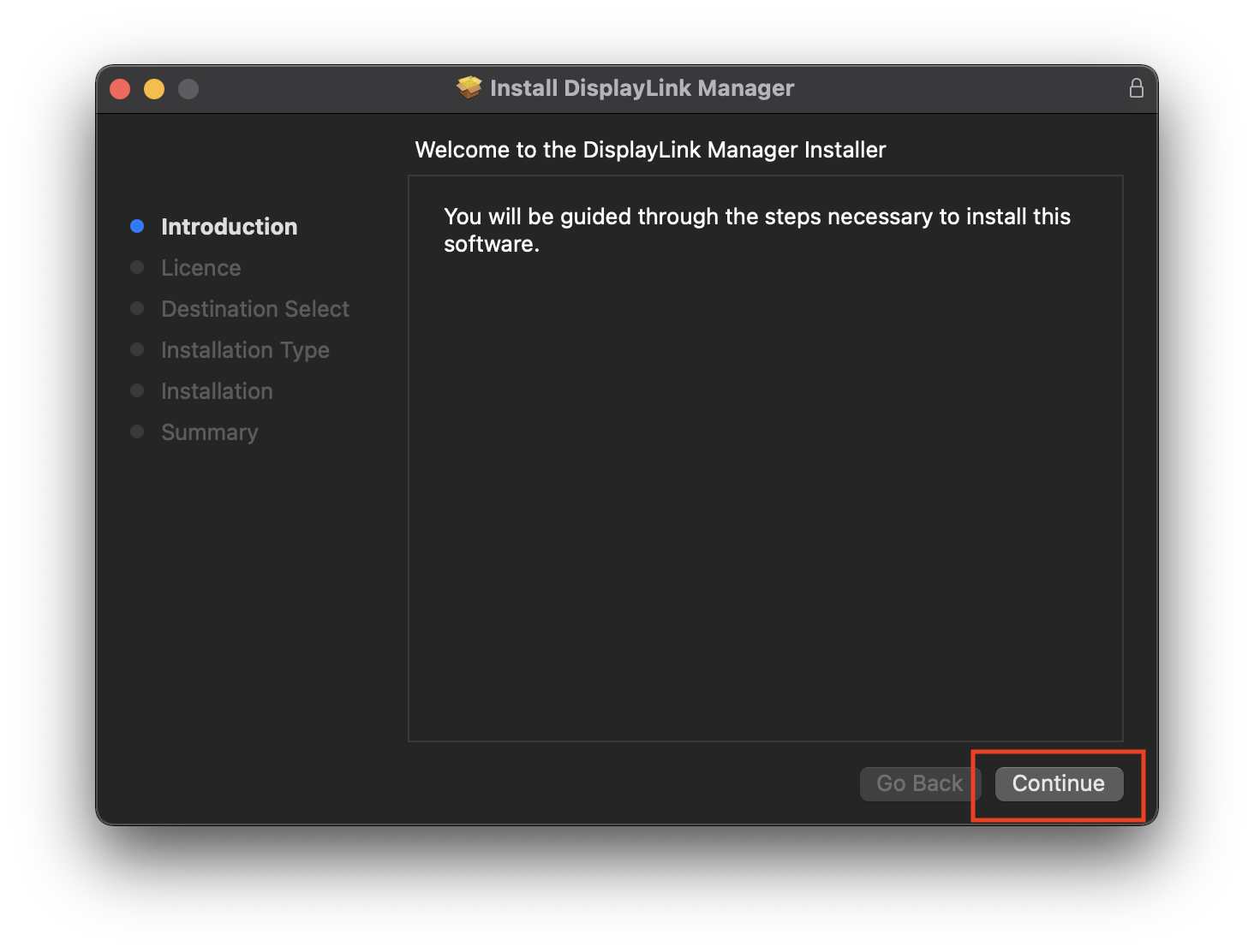
4. Click ‘Continue’ on ‘Licence’ page
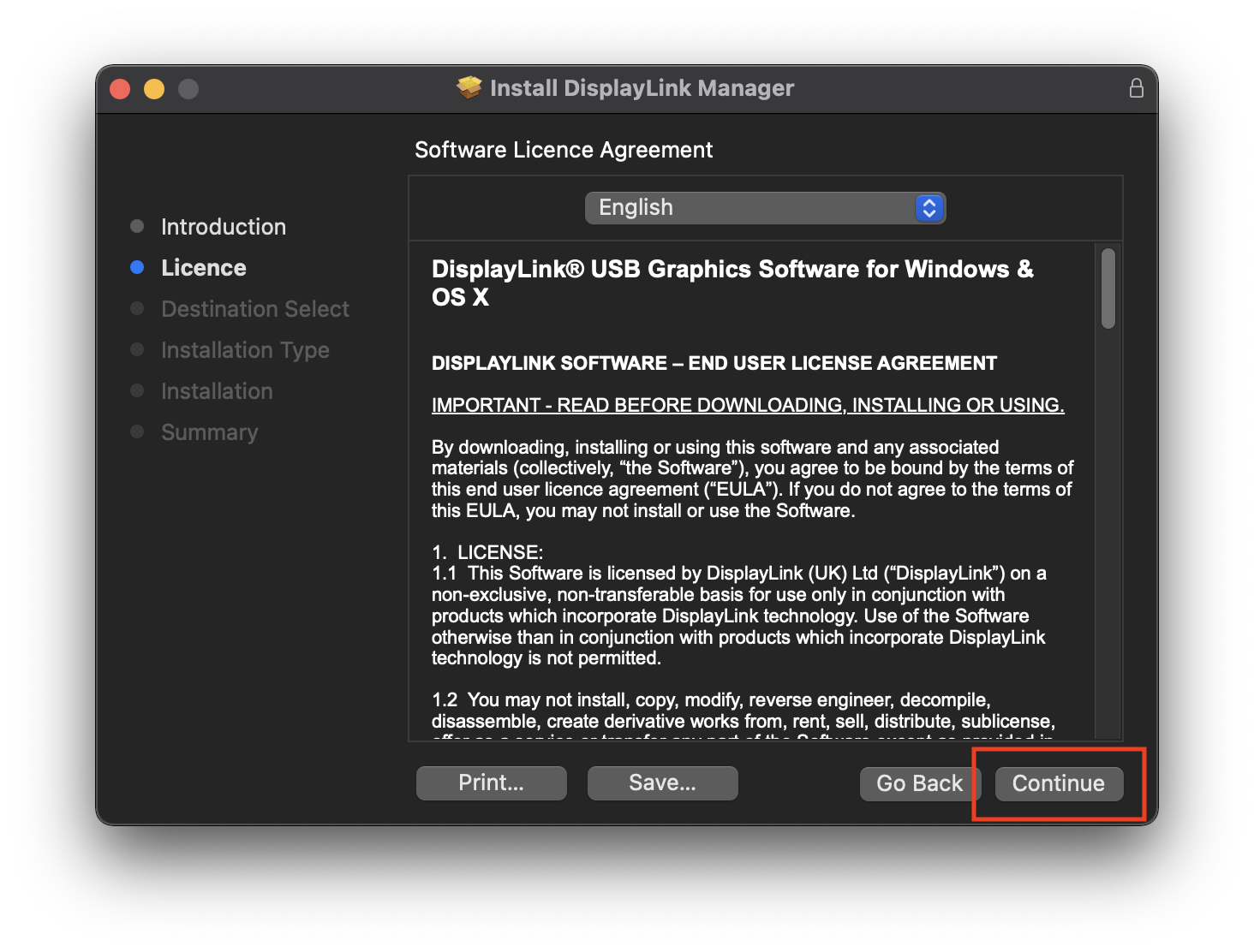
5. Click ‘Agree’ when prompted
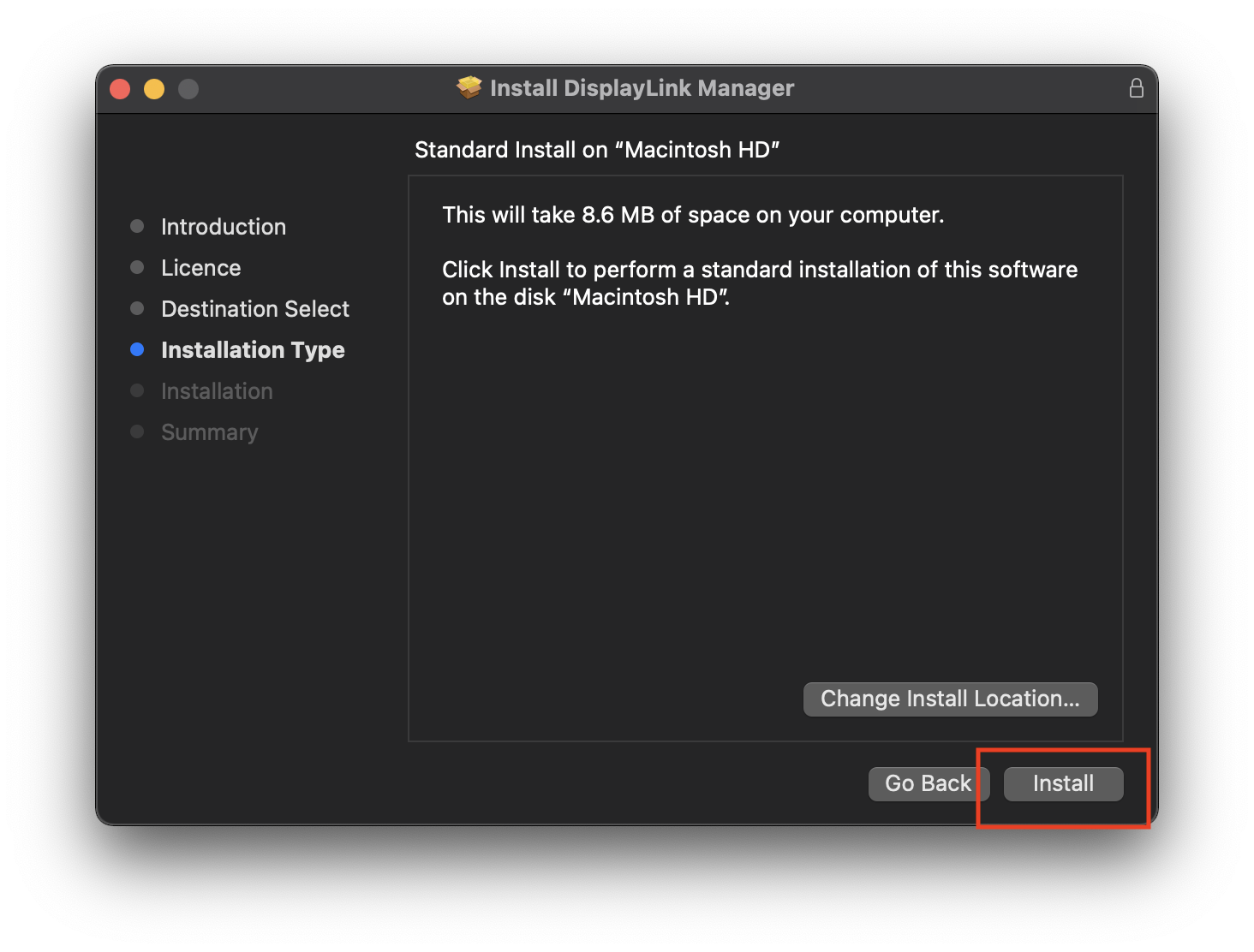
6. Click ‘Install’ on ‘Installation Type’ page
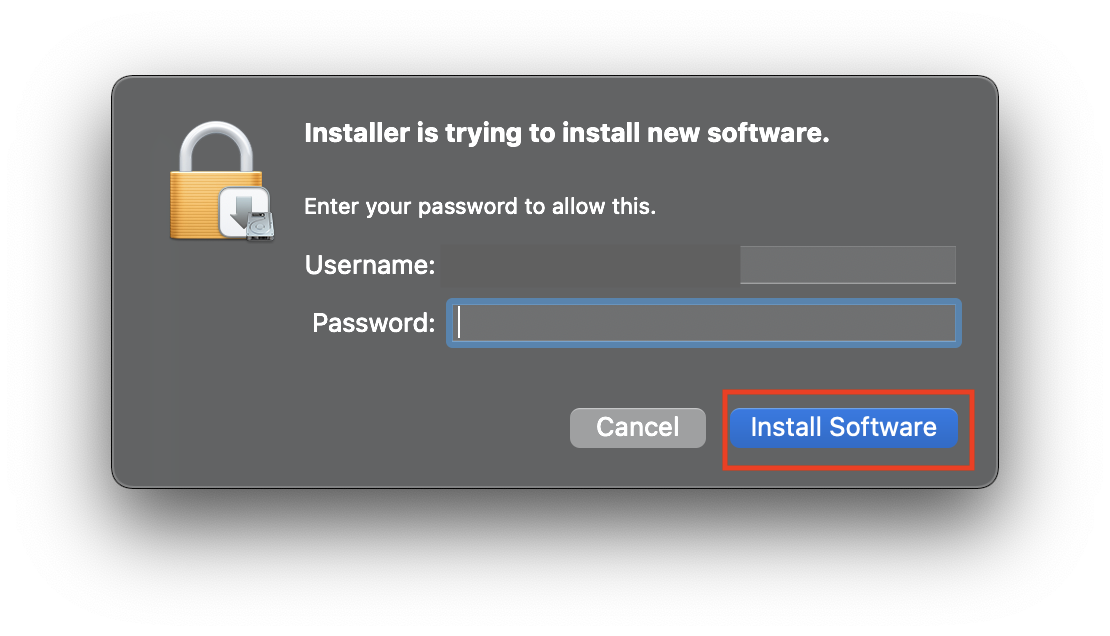
7. Input your password when prompted
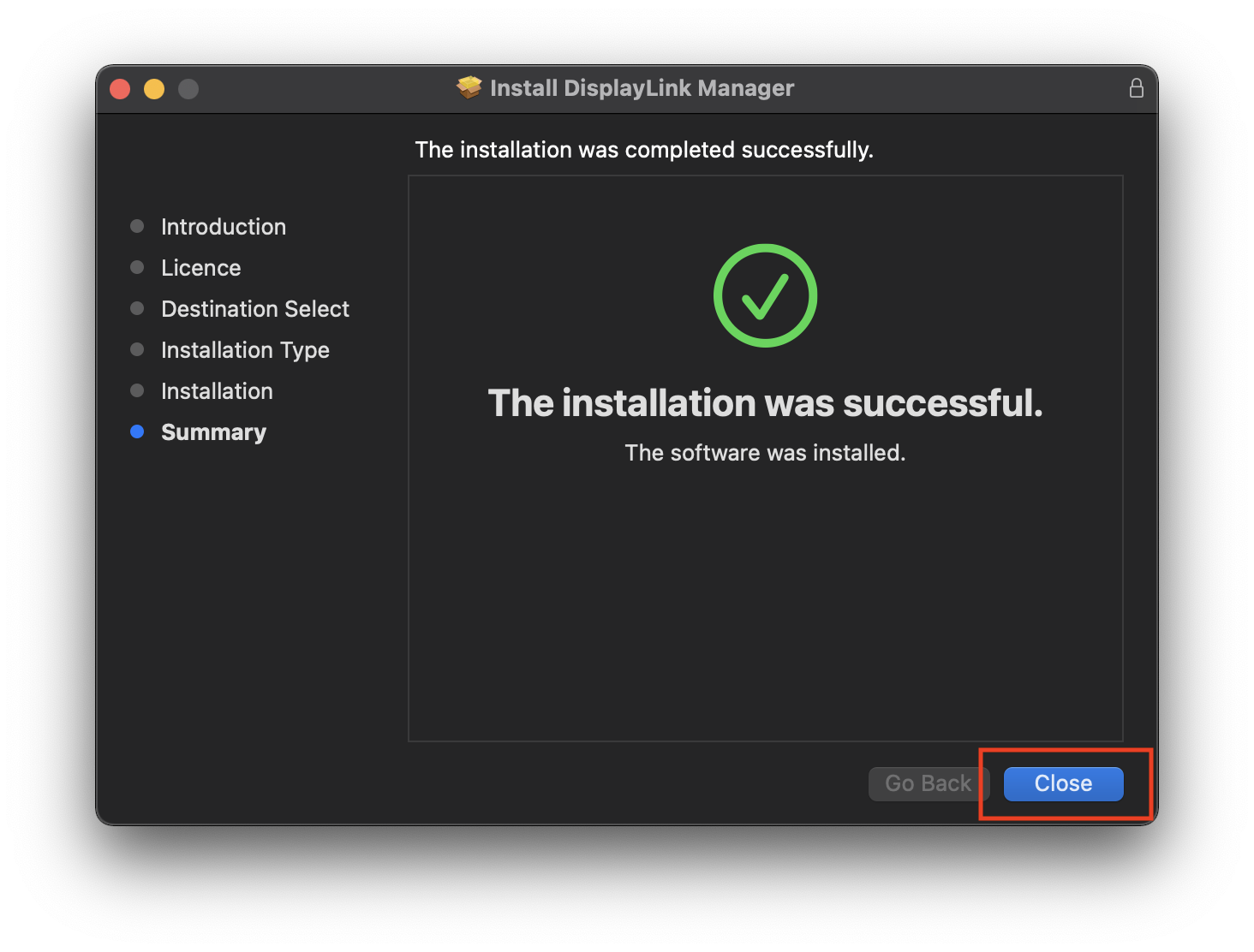
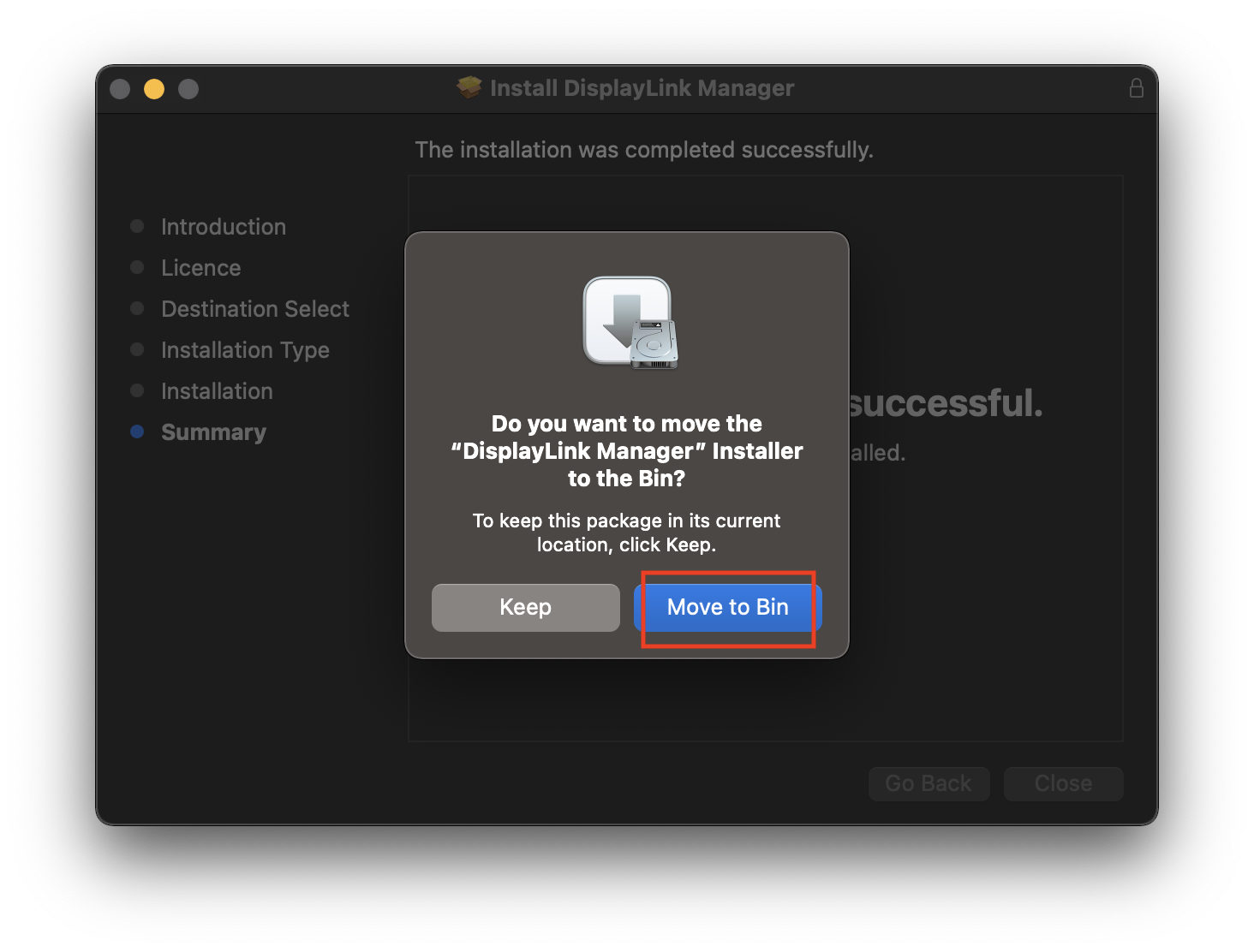
8. When installation finishes click ‘Close’ on ‘Summary’ page
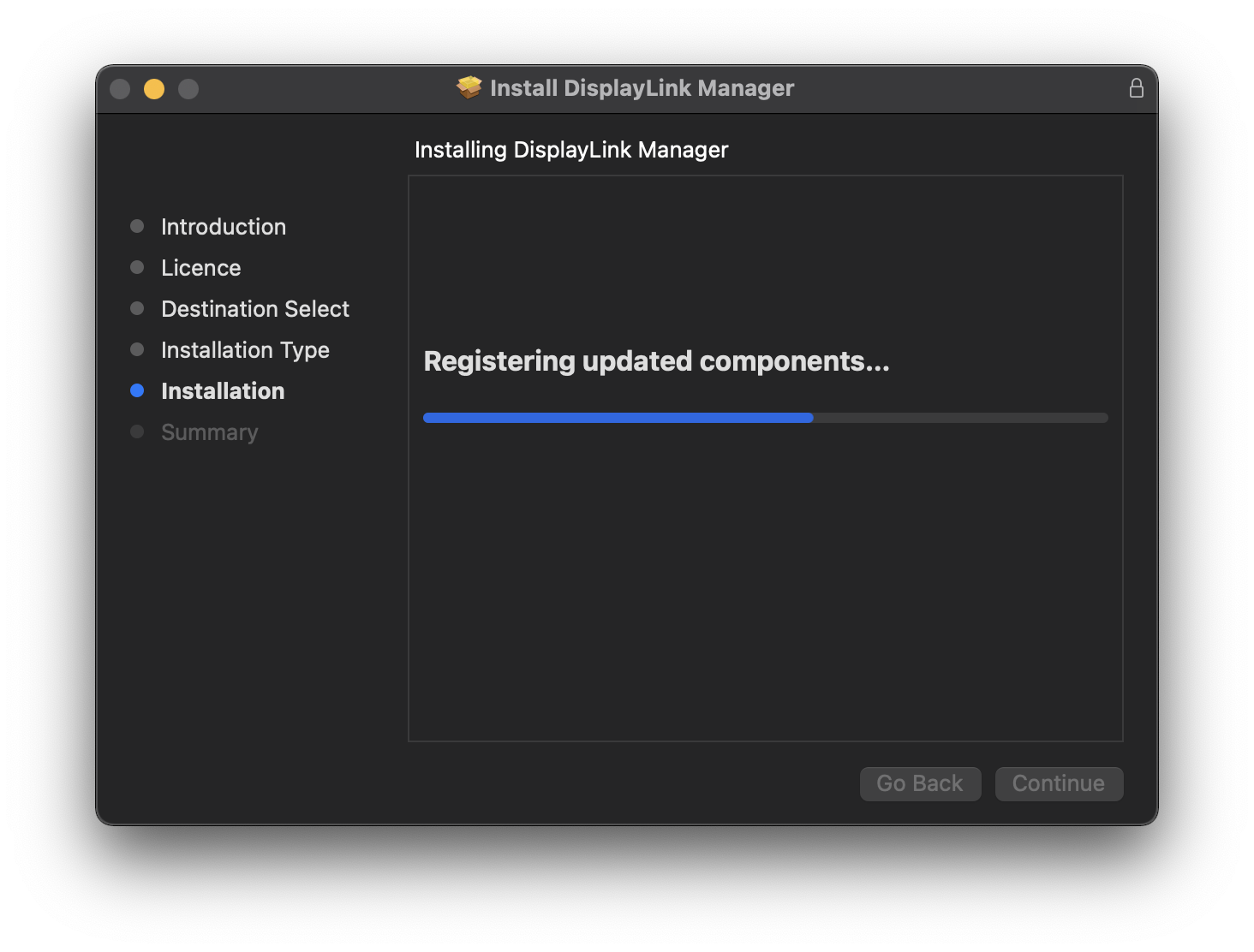
9. Click’ Move to bin’ when prompted
How to use DisplayLink Manager?
The following steps are to be followed once after installing the app.
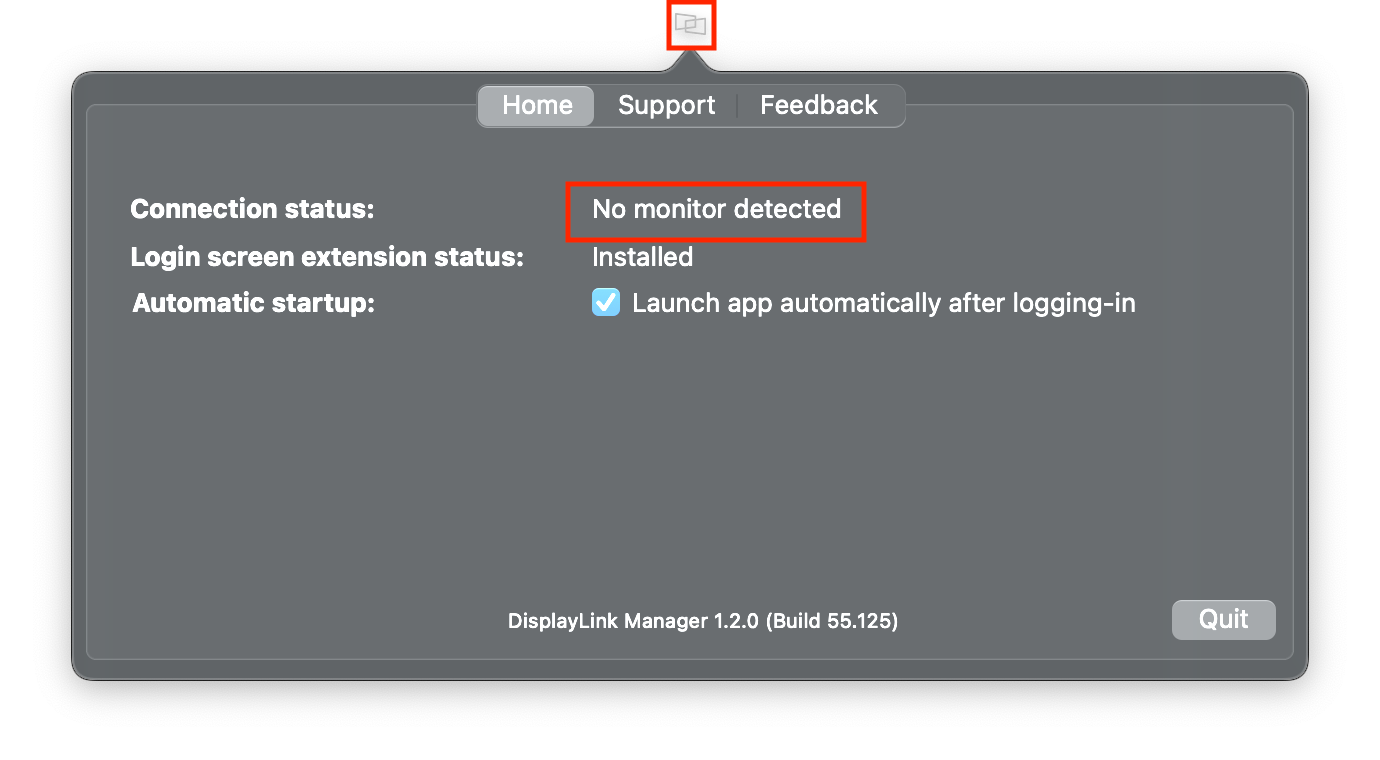
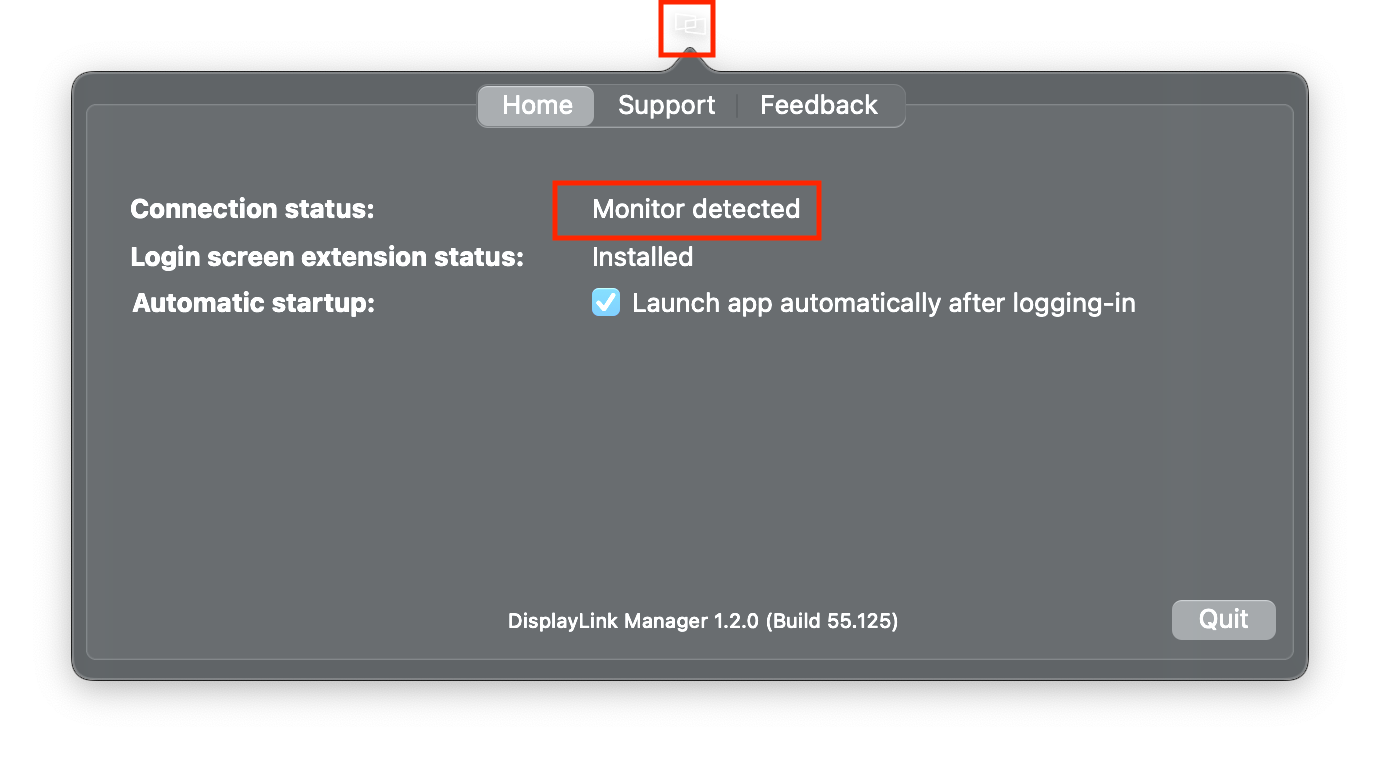
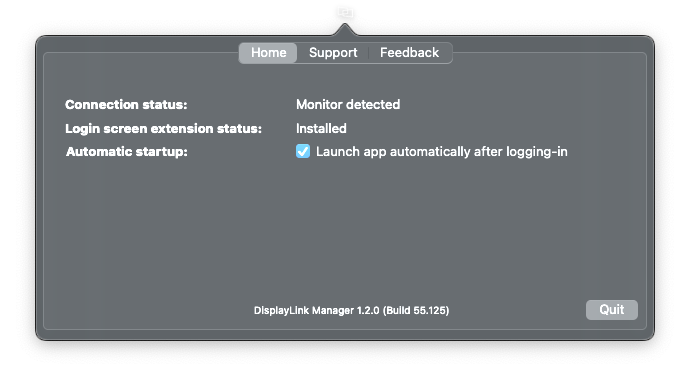
1. After installation, the DisplayLink Manager app will start automatically and the DisplayLink Manager logo will show in the Menu Bar. It will be grey when the dock is disconnected (Connection status will show: No monitor detected) and white when connected (Connection status will show: Monitor detected).
NOTE: The DisplayLink Manager app will only start on its own once after the initial installation. Step 5 shows how to setup the app to always start after logging-in (recommended). Otherwise the app has to be started manually each time (see step 2).
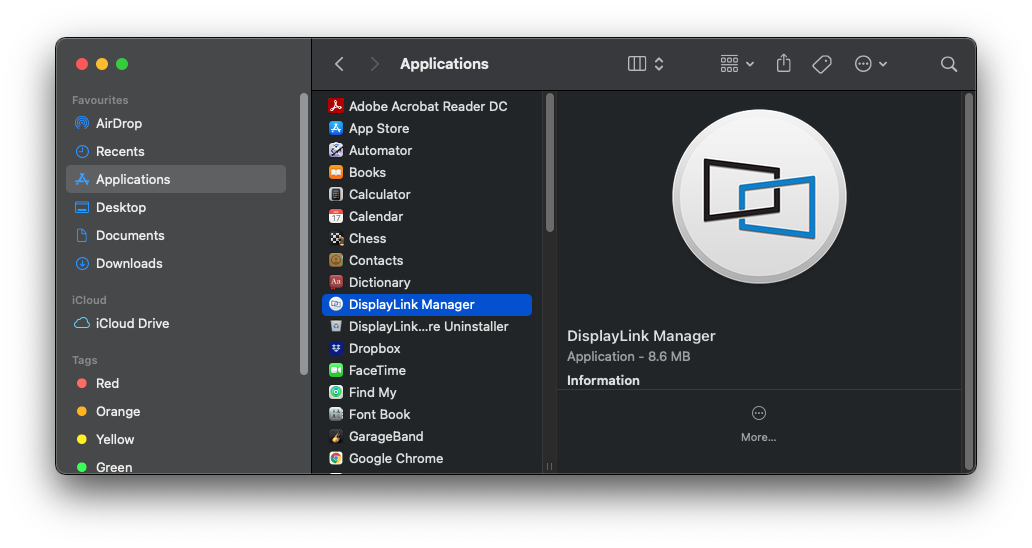
2. In case the app does not show in your Menu Bar, to start it manually, please press ‘command’ + ’space’ and type in DisplayLink Manager, click on the application to open it
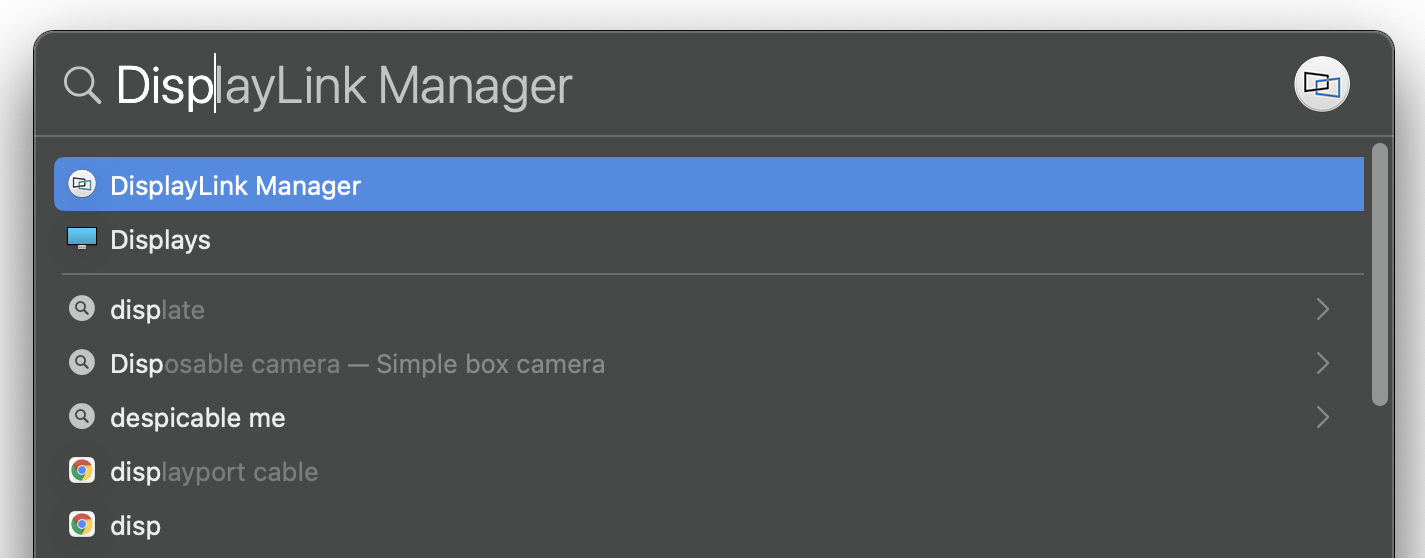
a. Alternatively you can go to the Applications folder in Finder and click on the DisplayLink Manager there
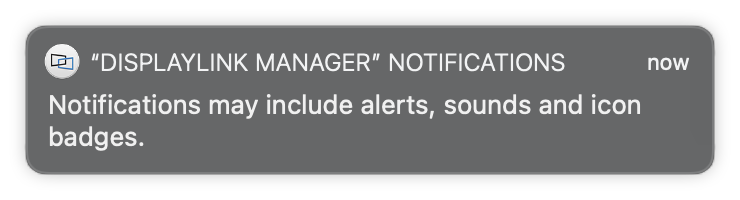
3. When first opened, DisplayLink Manager will ask you to turn on notifications for the app. Click on the notification below when it shows up. It will open a Notifications window.
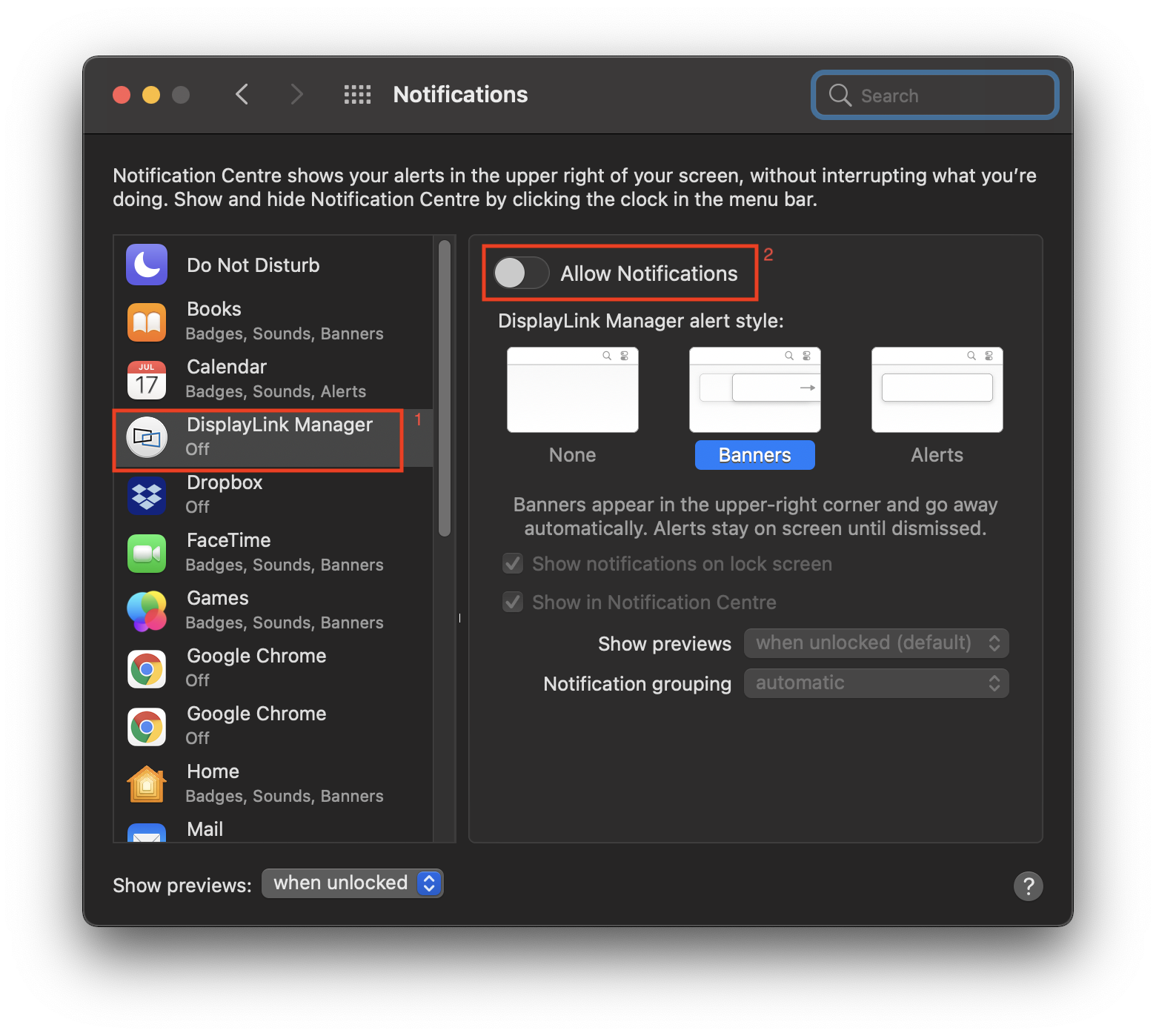
4. Turn on ‘Allow Notifications’ for DisplayLink Manager
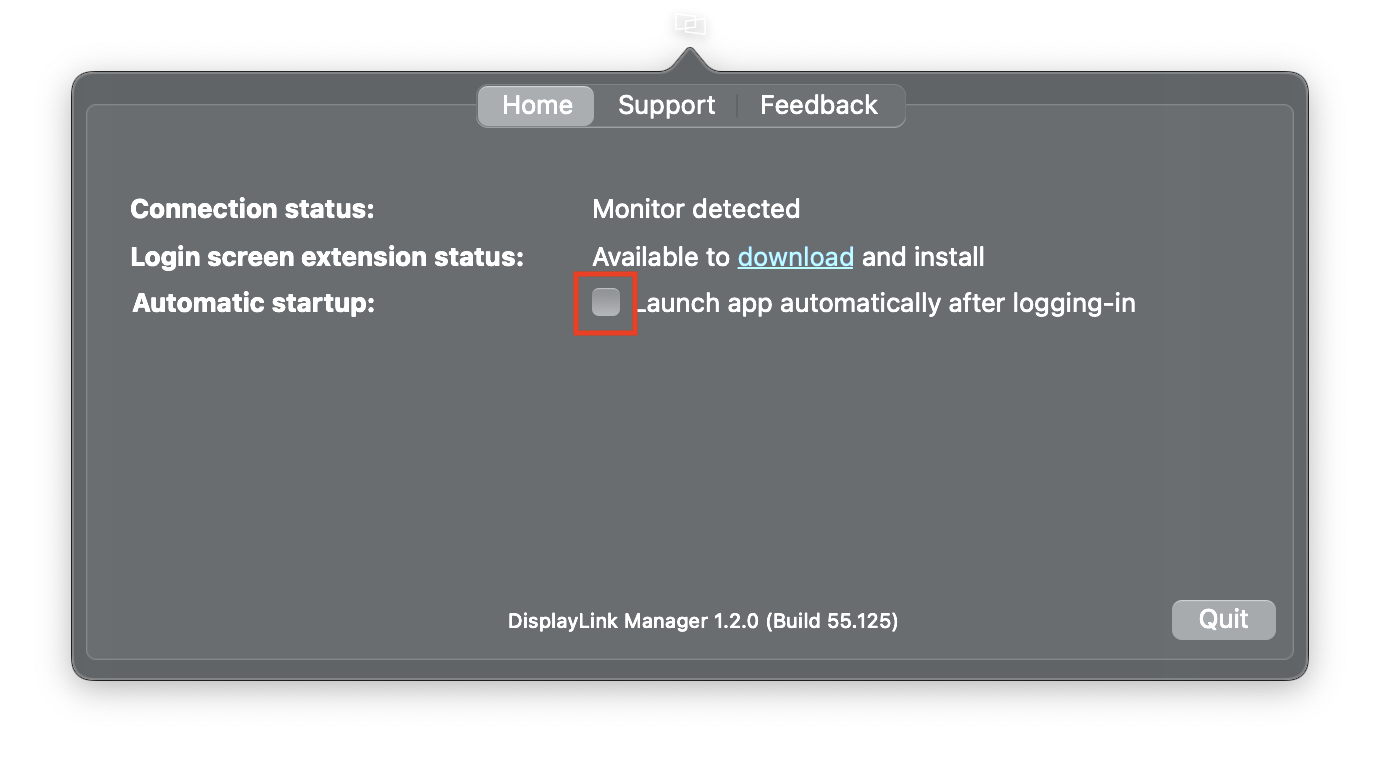
5. Select “Launch automatically after logging-in” for the software to start automatically every time you log-in.
6. Screen Recording
NOTE: From macOS Catalina 10.15, the operating system requires the user to permit "Screen Recording" in order for DisplayLink based devices (like Plugable UD-3900) to work properly. The message is generated by the OS and the screen is not actually being recorded by DisplayLink. Approving it enables the DisplayLink driver to access the pixels it needs to render a mirrored or extended screen and send the pixels over USB from your computer to the DisplayLink display. DisplayLink Manager does not store or record any screen content.
a. If you enabled notifications in step 3 you will see the below message if Screen Recording is switched off
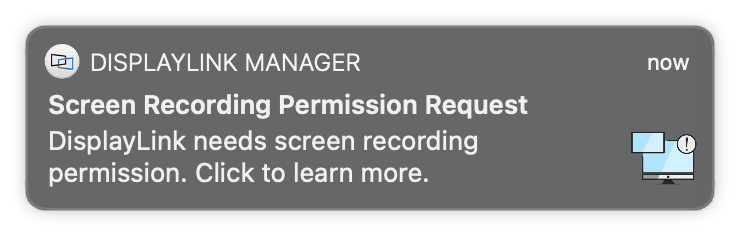
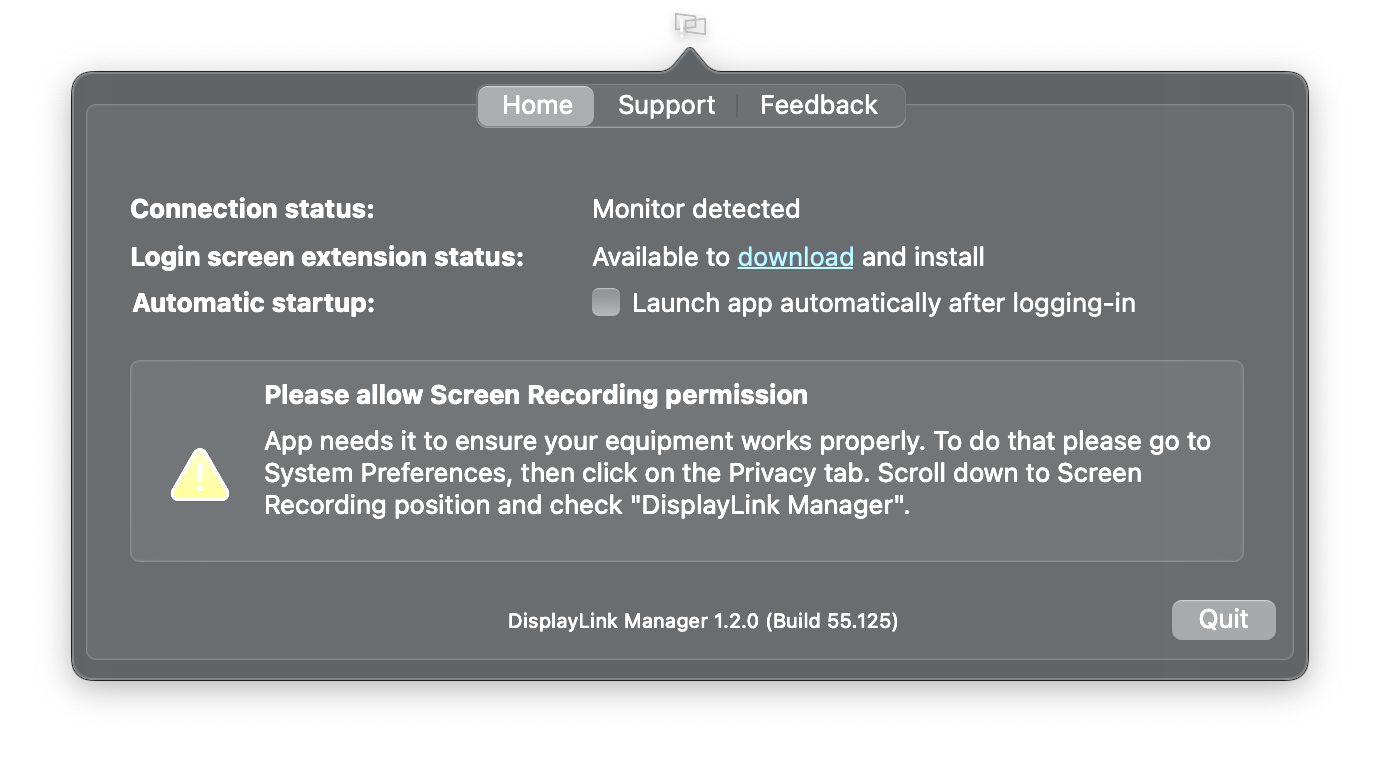
b. This message will also show in the DisplayLink Manager app window and there will be an exclamation mark ‘!’ next to the DisplayLink Manager icon.
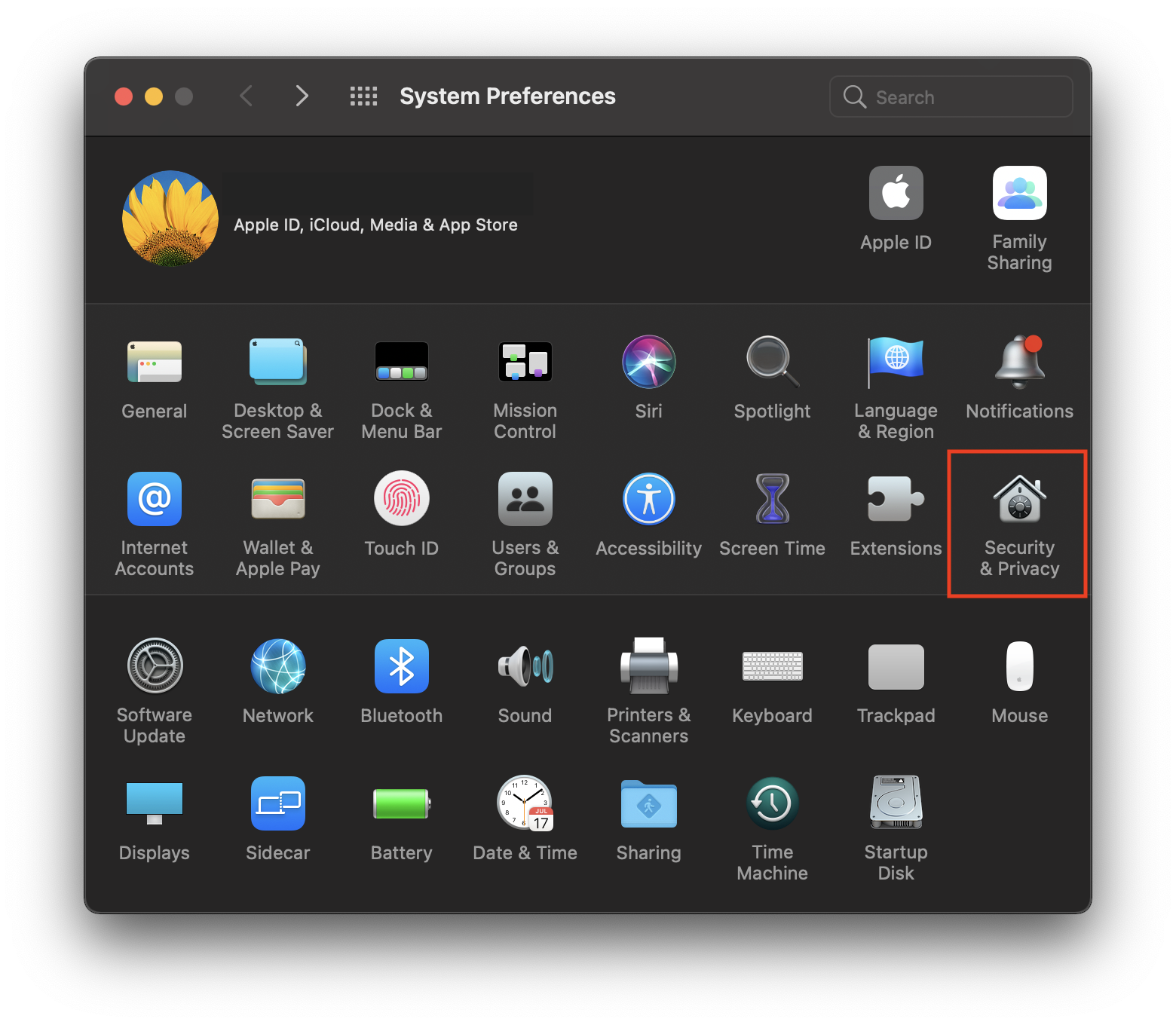
7. To enable “Screen Recording”
a. Go to System Preferences and click on Security & Privacy
b. In the ‘Privacy’ tab scroll down to ‘Screen Recording’ and click on the padlock to make changes
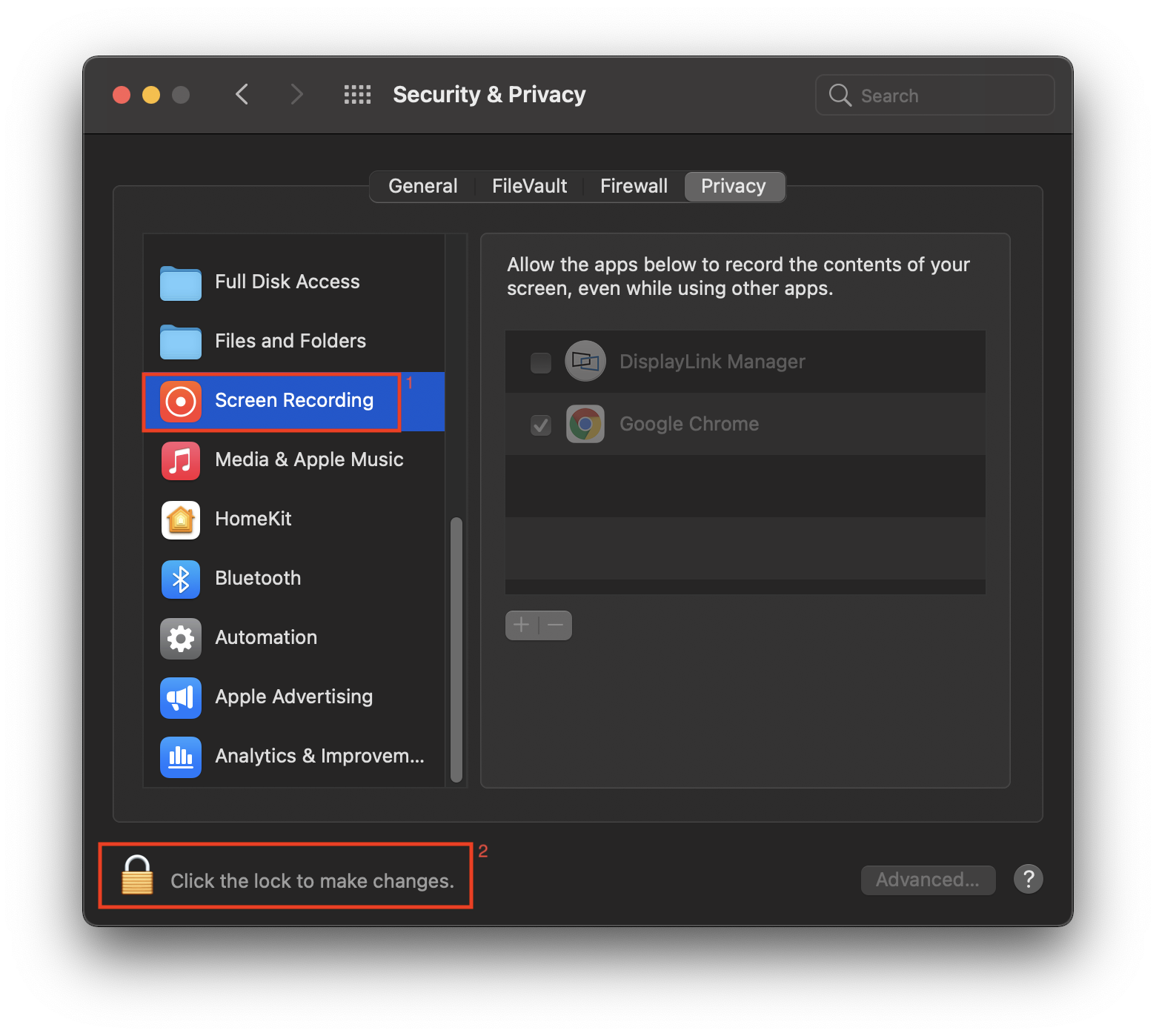
c. Enter password to allow the system to make changes
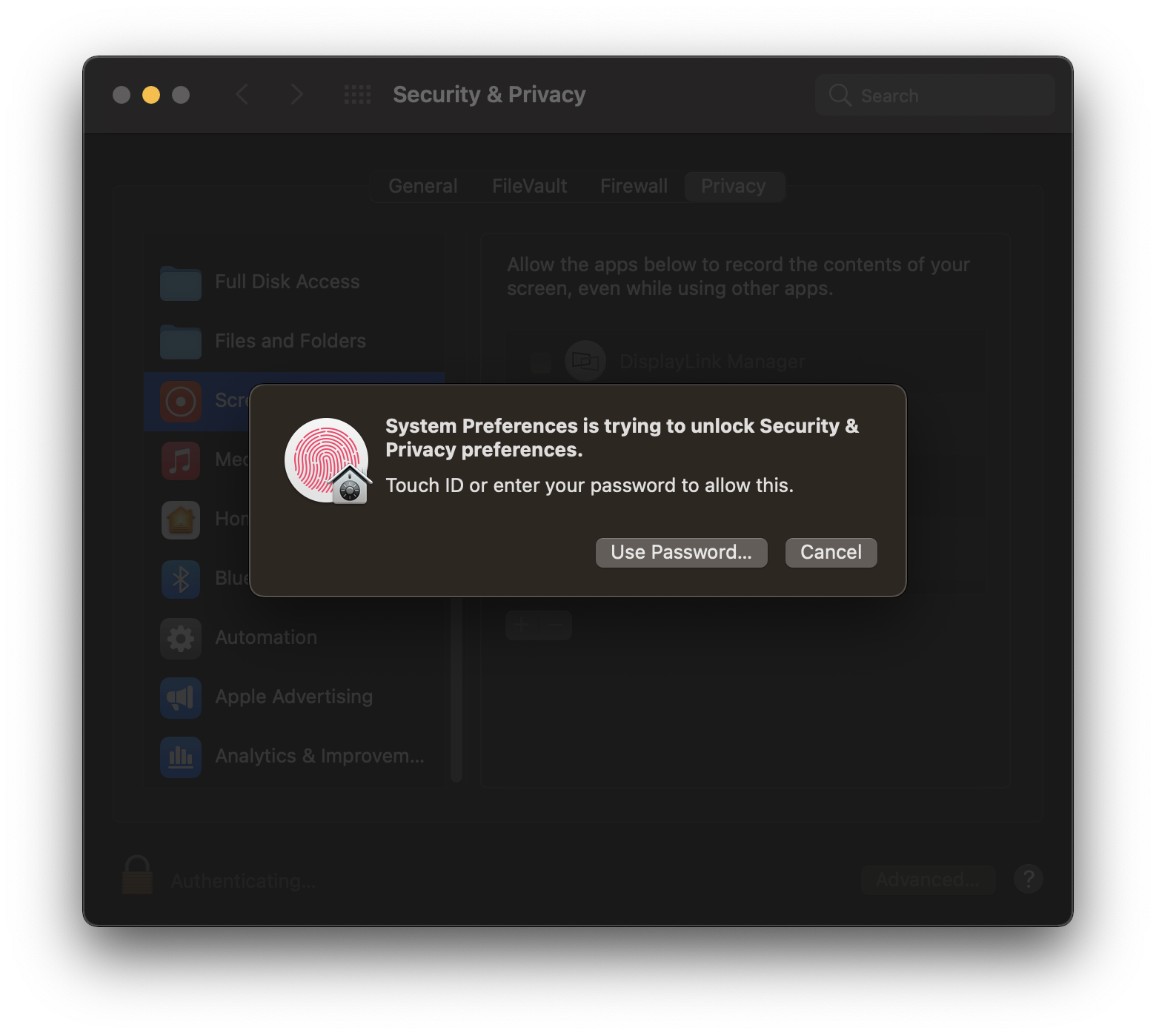
d. Tick the box next to ‘DisplayLink Manager’ and click ‘Quit and reopen’ when prompted.
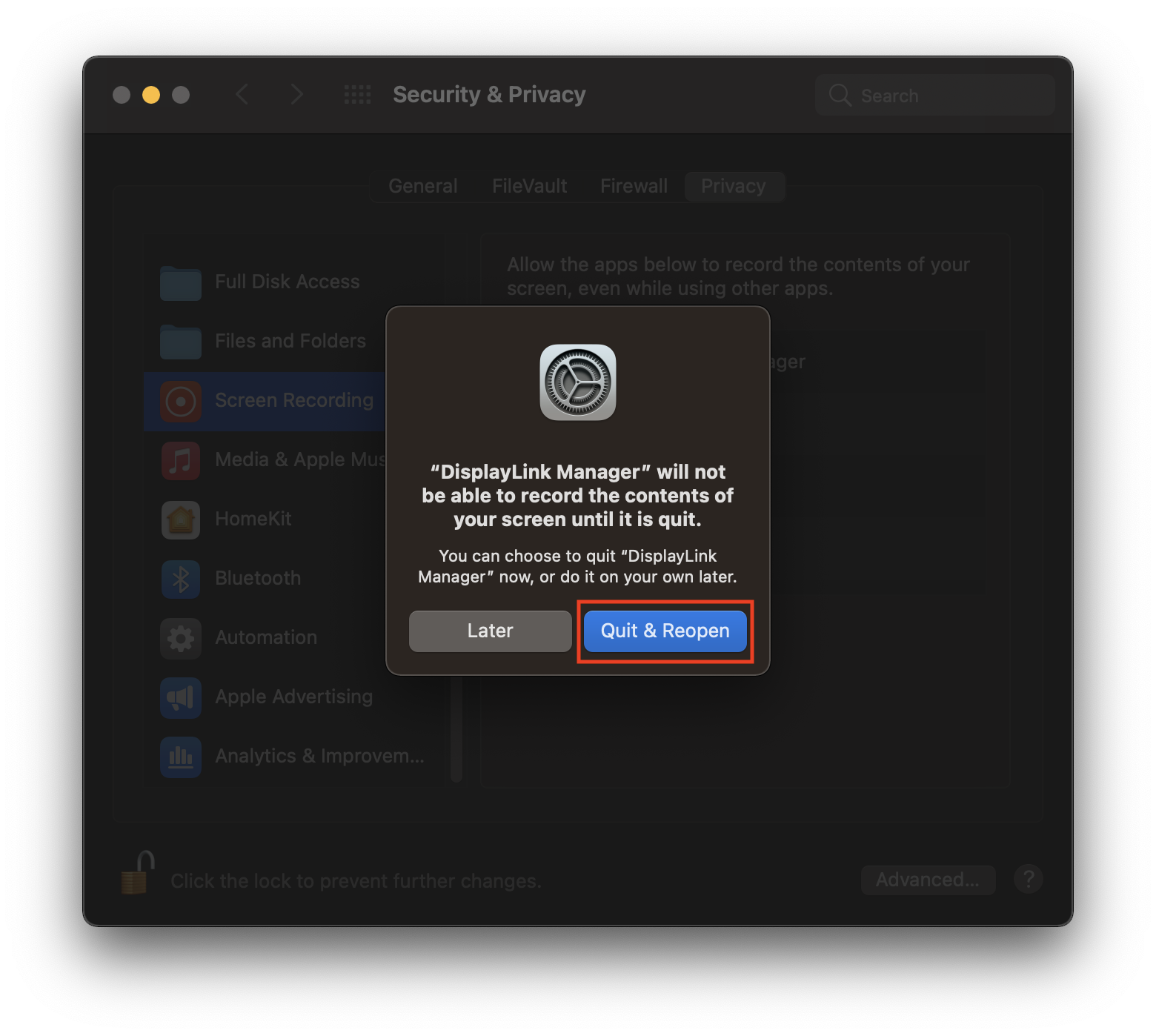
e. Click on a padlock to save the changes.
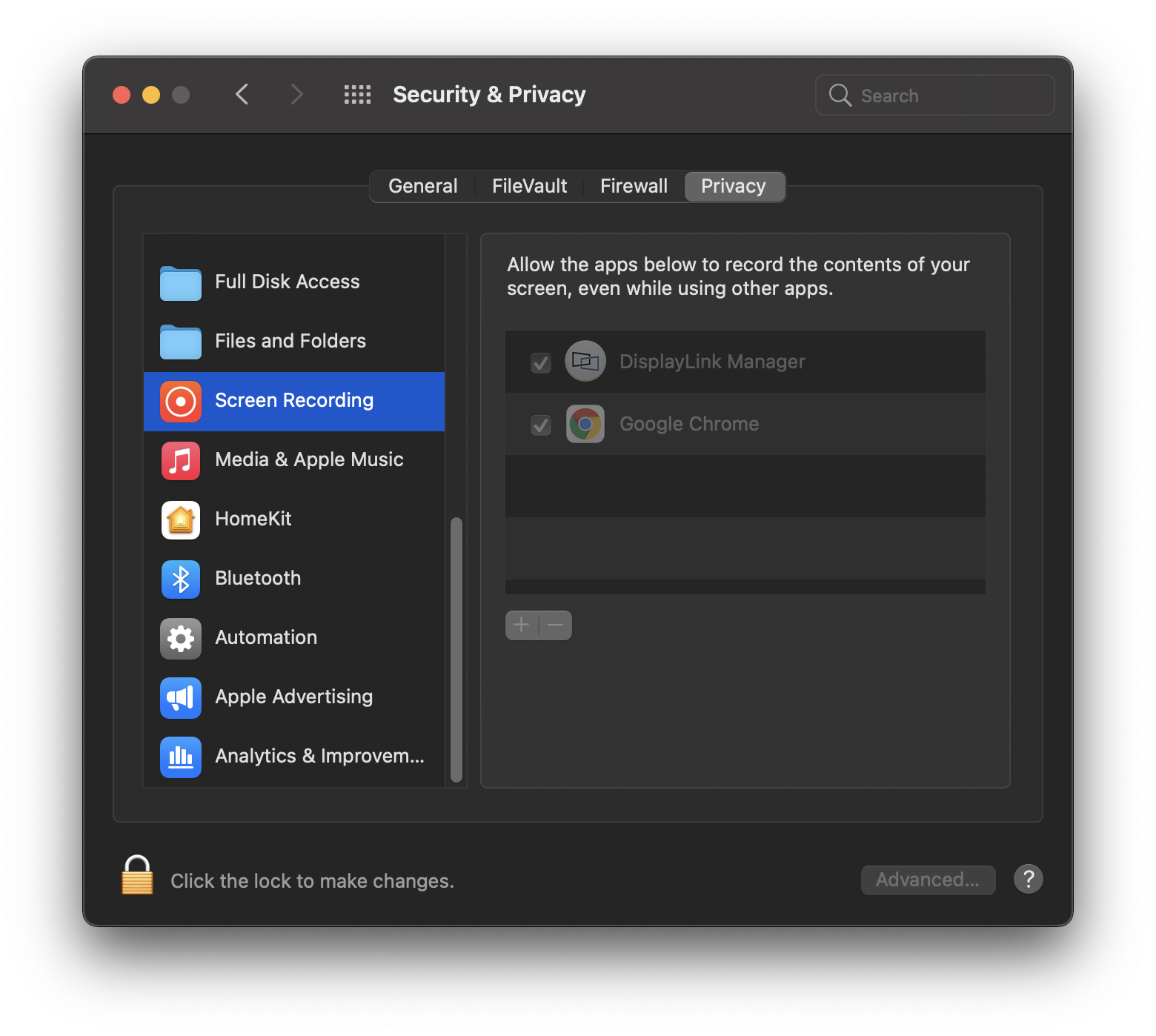
Other functions of the DisplayLink Manager
Login screen extension (Optional)
This enables the external screens to be available on the login screen prior to the app loading after logging into your account.
1. Download the Login Screen Extension from the link available on the front page of the DisplayLink Manager.
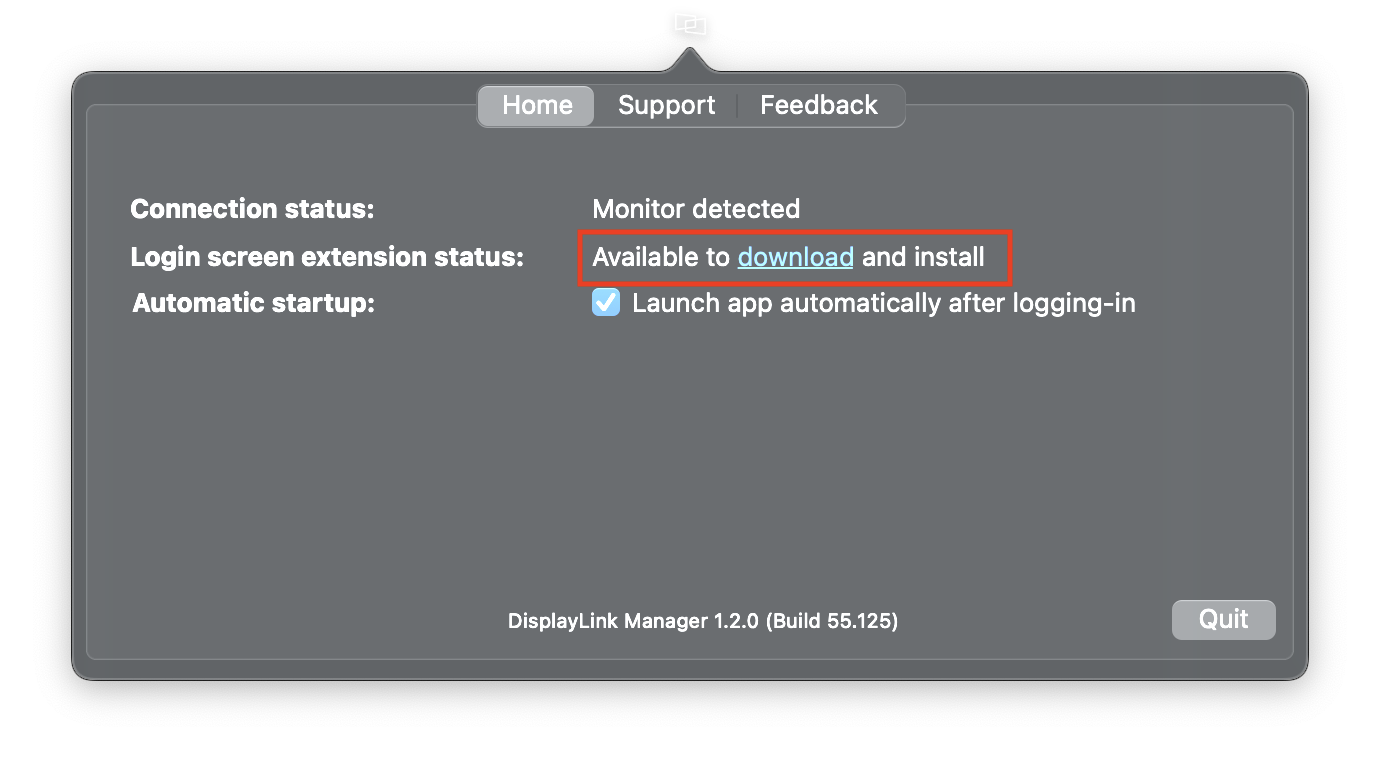
2. Install the extension.
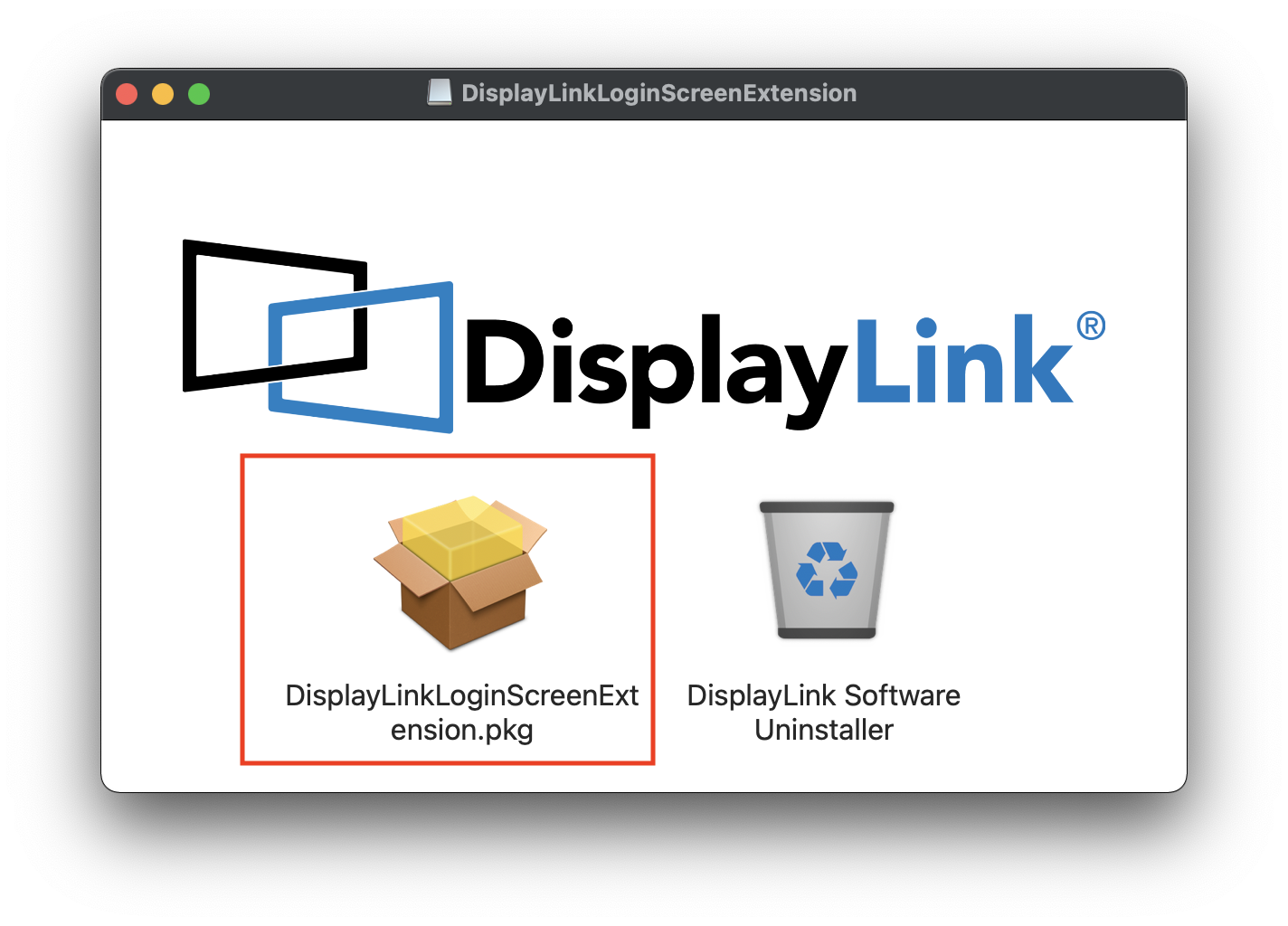
3. Once the installation is complete the extension will show as ‘Installed’
Support
NOTE: Opening a ticket through the Support tab will contact the DisplayLink engineering team in Europe. We recommend contacting support@plugable.com if you have any questions or issues.
DisplayLink Manager App Installation Instructions for macOS 11 or macOS 12
Before you begin
Unsure which version of macOS you have installed on your Mac? Click on the ‘Apple’ icon within the menu bar located at the top of your desktop and select ‘About this Mac’. A new window will open and display the system’s macOS version.
Running a newer version of macOS? Refer to our macOS 26 Tahoe, macOS 15 Sequoia, and macOS 14 Sonoma installation guide instead.
Guided Video Demonstration
For those who prefer, we have a video demonstration of the installation procedure available (an embedded link is below).
For those who prefer, a detailed text-based description of the installation process (including screenshots) is available within the next section.
How to install the DisplayLink Manager application
1. Download the correct version of the DisplayLink Manager Application for your version of macOS from here → Link
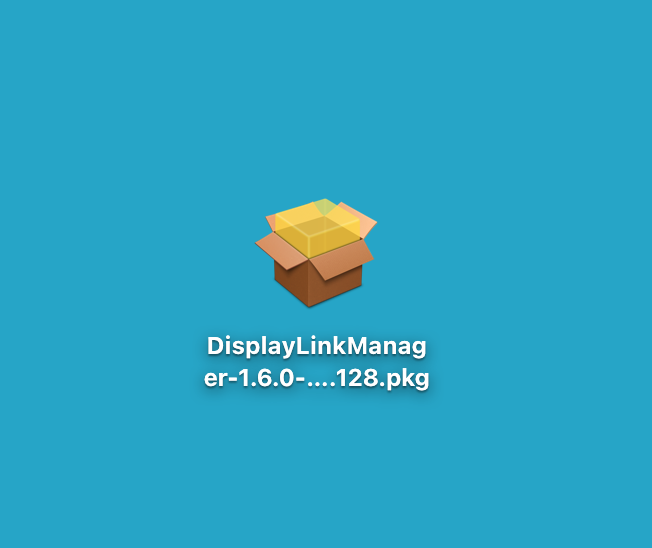
2. Double-click on the file you downloaded to start the application installer:
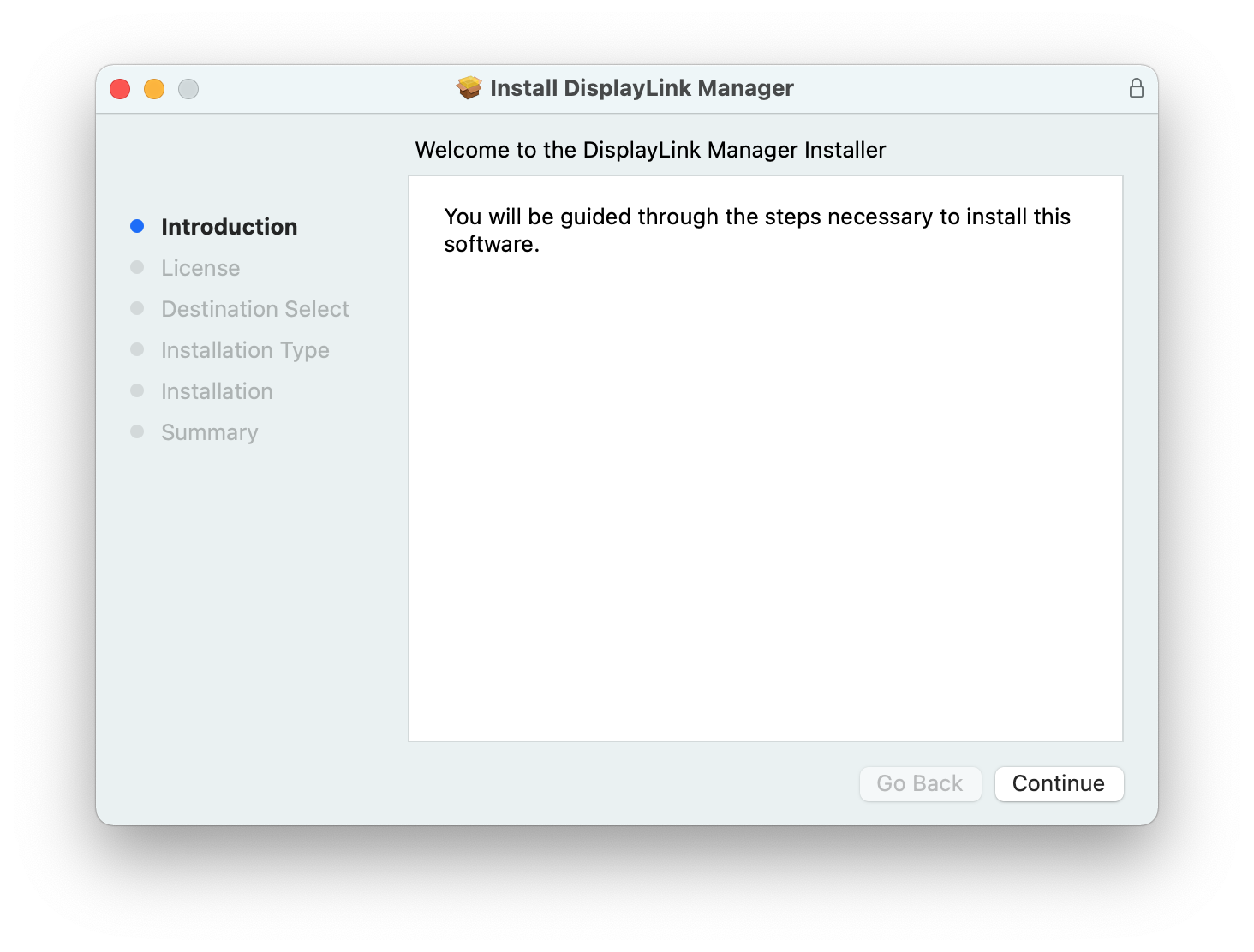
3. From within the ‘Introduction’ section of the application installer, click on the ‘Continue’ button to start the installation process:
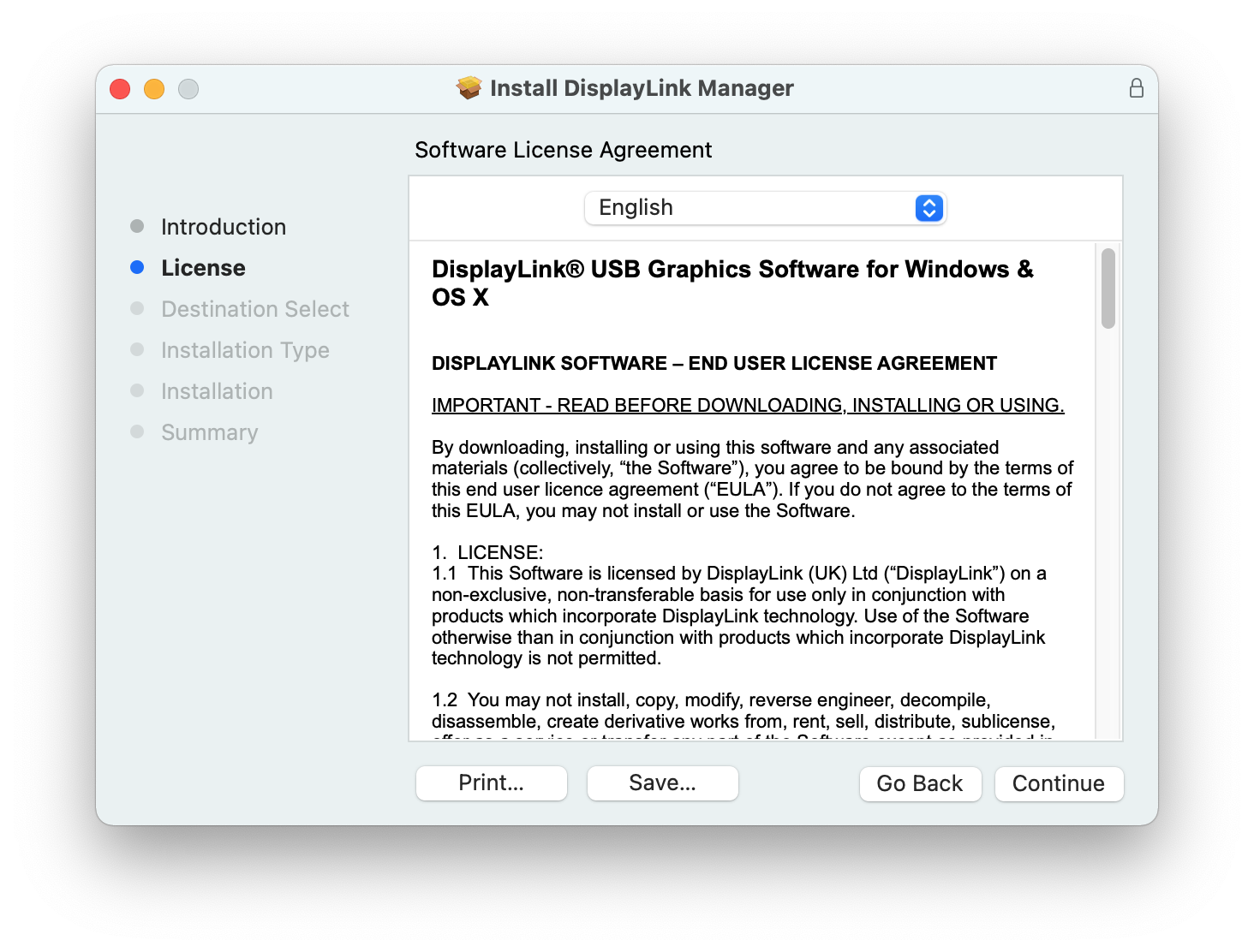
4. After having read the license information from within the ‘License’ section of the application installer, click on the ‘Continue’ button
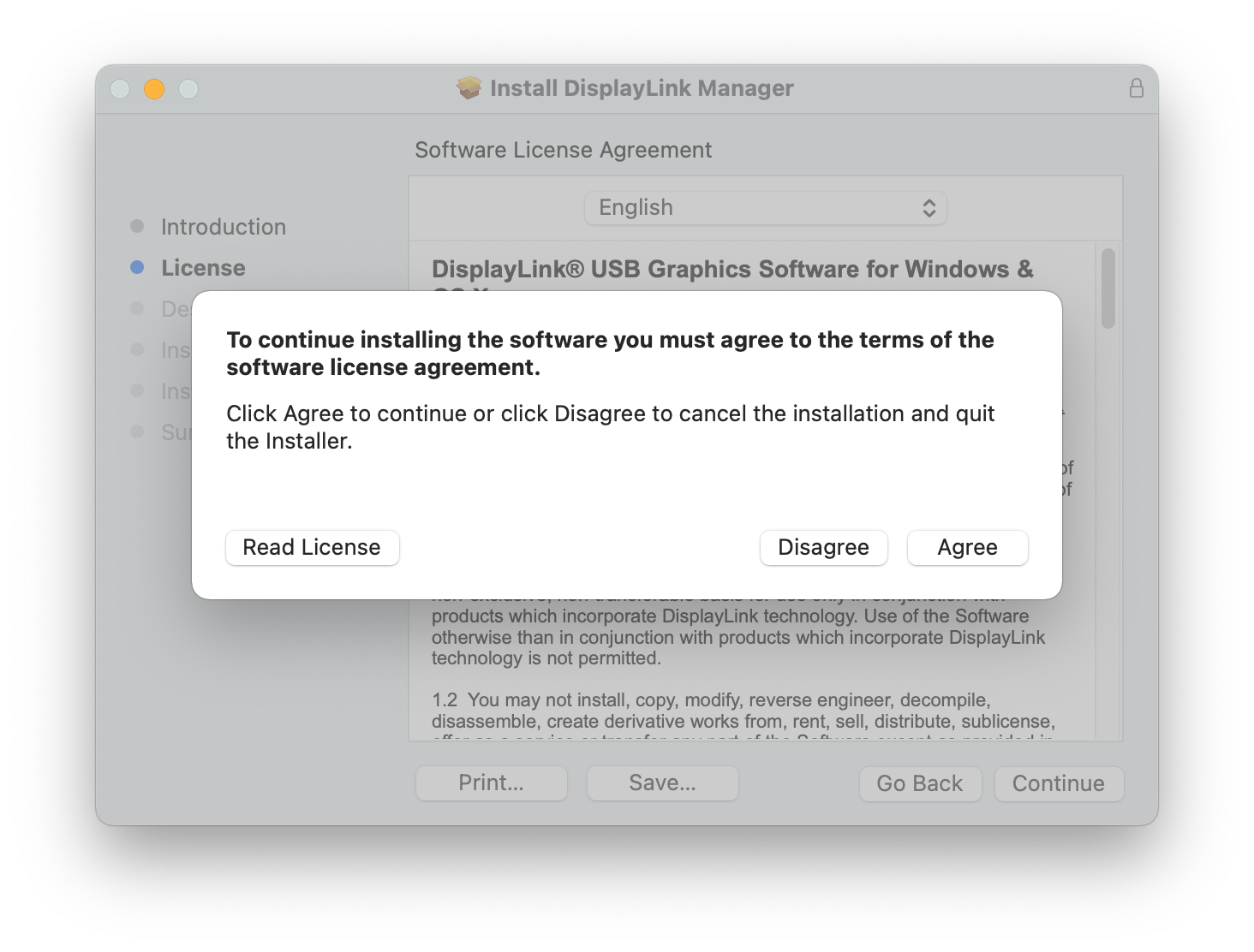
5. Click on the ‘Agree’ button in order to agree to the software license agreement.
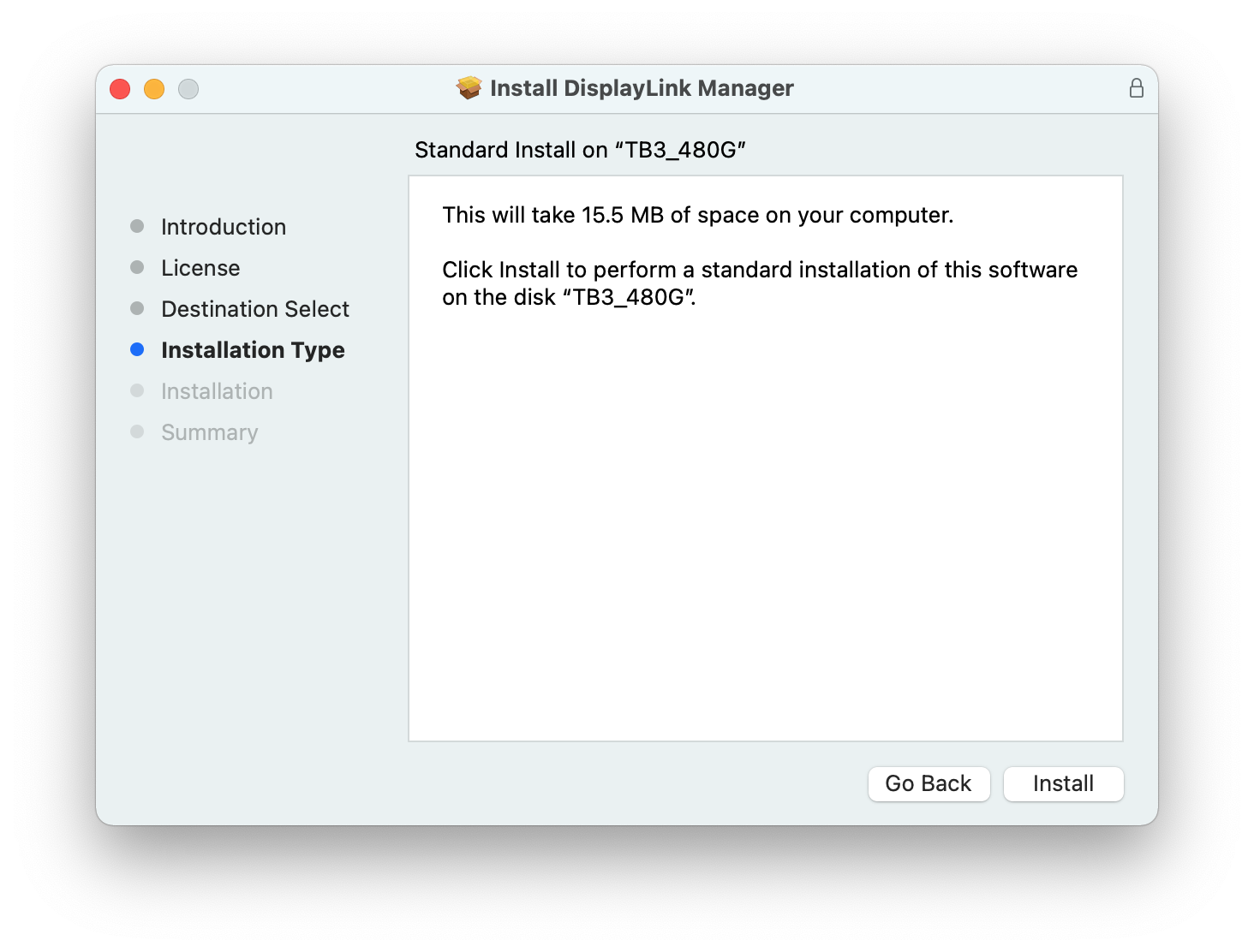
6. From within the ‘Installation Type’ section of the application installer, click on the ‘Install’ button:
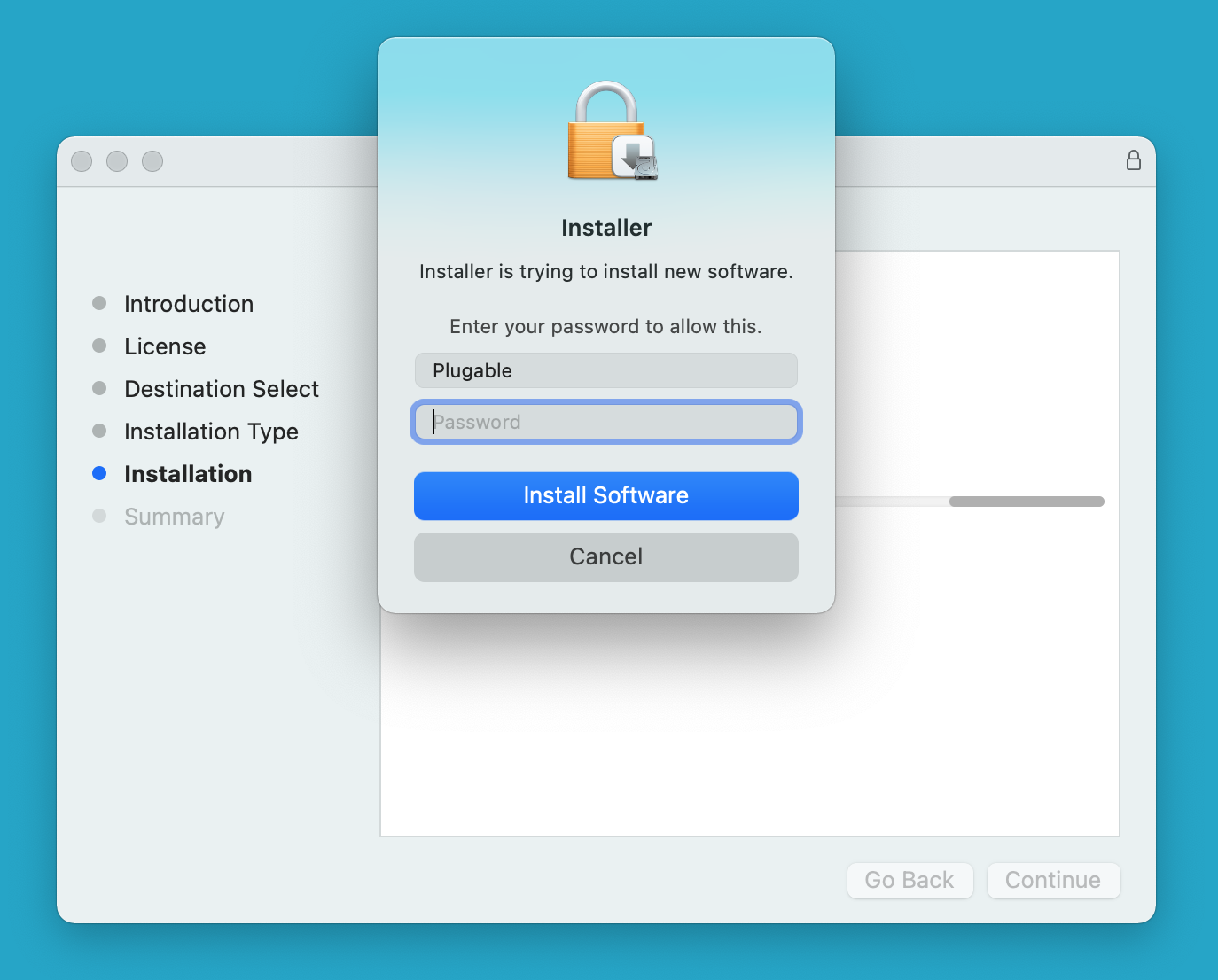
7. When prompted, please enter your system password and click on the ‘Install Software’ button to start the installation. The installation process will begin:
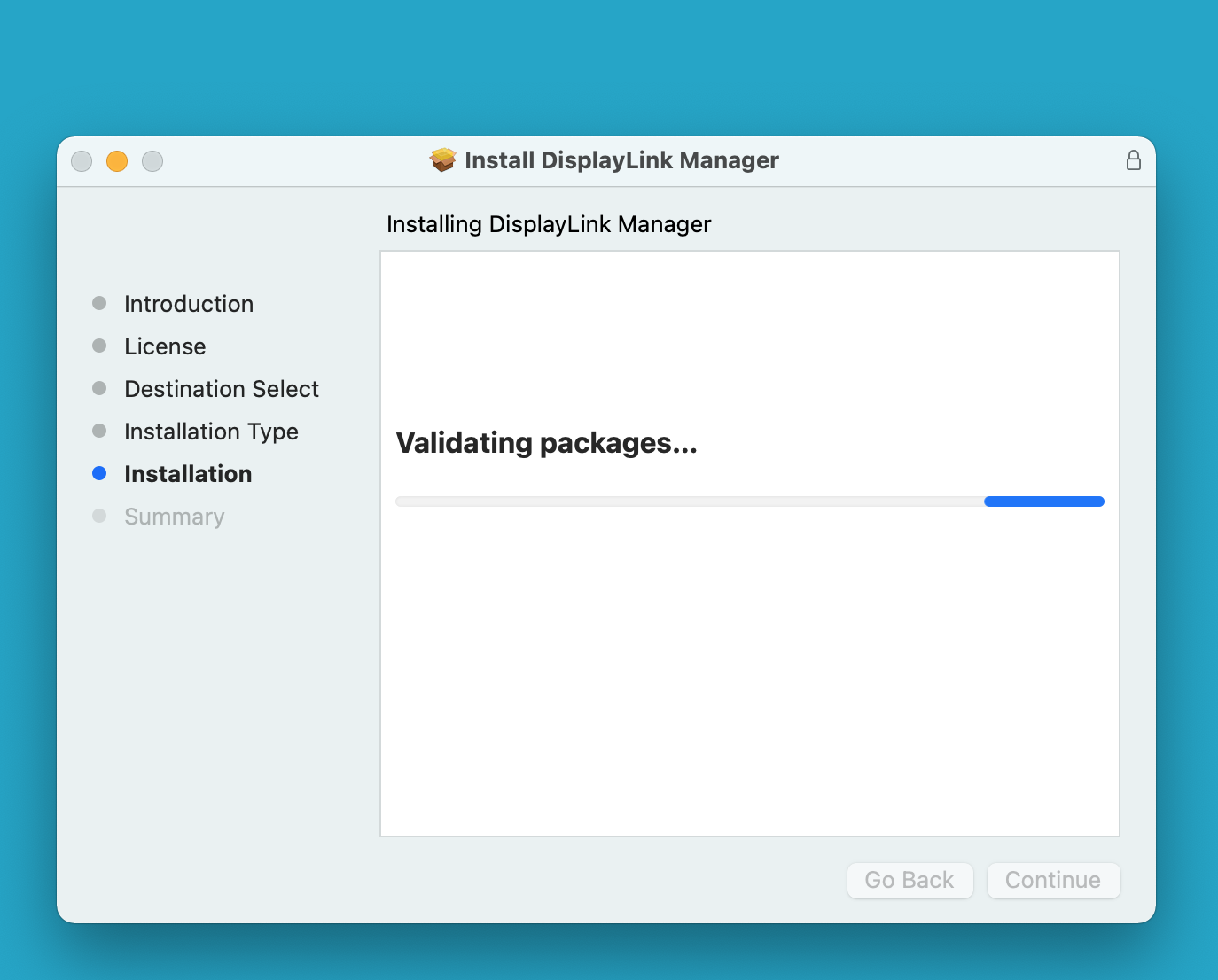
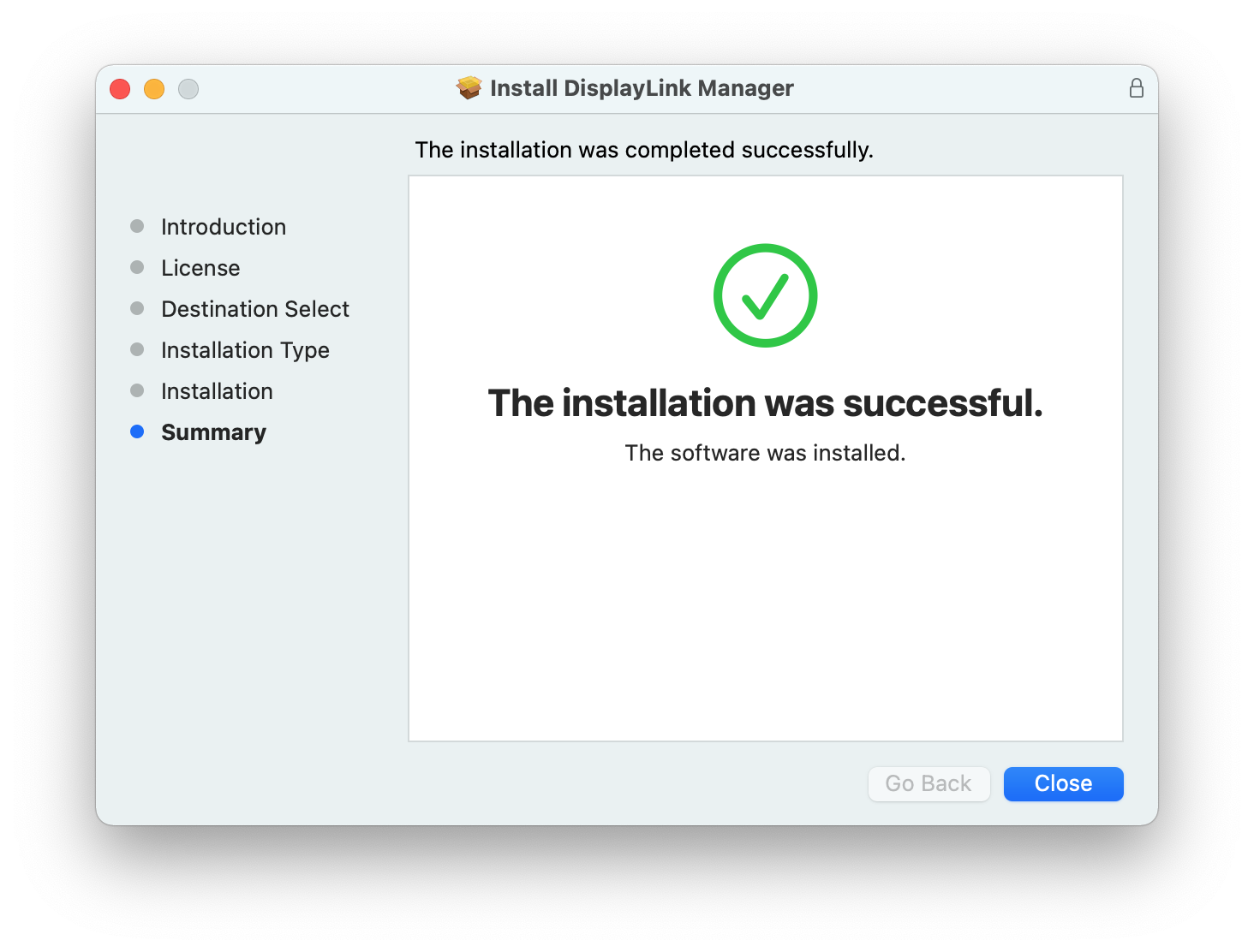
8. The application installer will notify you when the installation process has been completed. Please click on the ‘Close’ button in order to close the application installer.
*** NOTE - If the installation process does not complete successfully, please see this knowledge base article --> LINK for a list of potential causes and possible solutions. ***
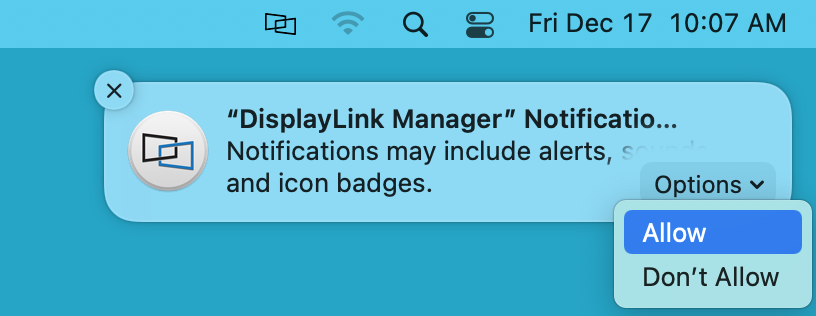
9. You should see a request from the DisplayLink Manager Application to allow the application to display notifications, when necessary. Click on the ‘Options’ button within the request and click the ‘Allow’ option:
10. Once the application installation is complete, please connect your DisplayLink device to your Mac
11. Once the device is connected, macOS will notify you that the ‘DisplayLink Manager’ application would like to record the computer’s screen. Click the ‘Open System Preferences’ button in order to grant this access.
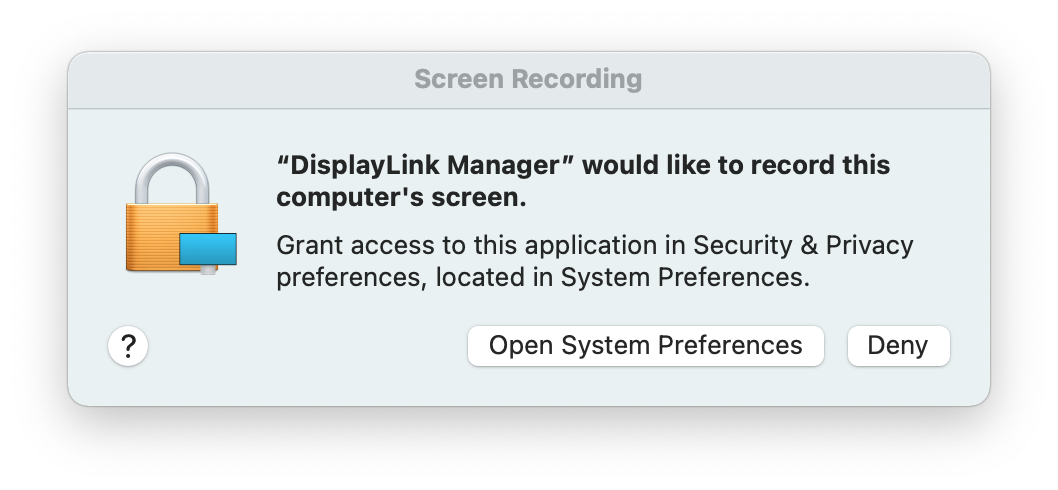
12. The ‘Security & Privacy’ application will open, with the default view showing the ‘Privacy’ tab with the ‘Screen Recording’ option selected by default:
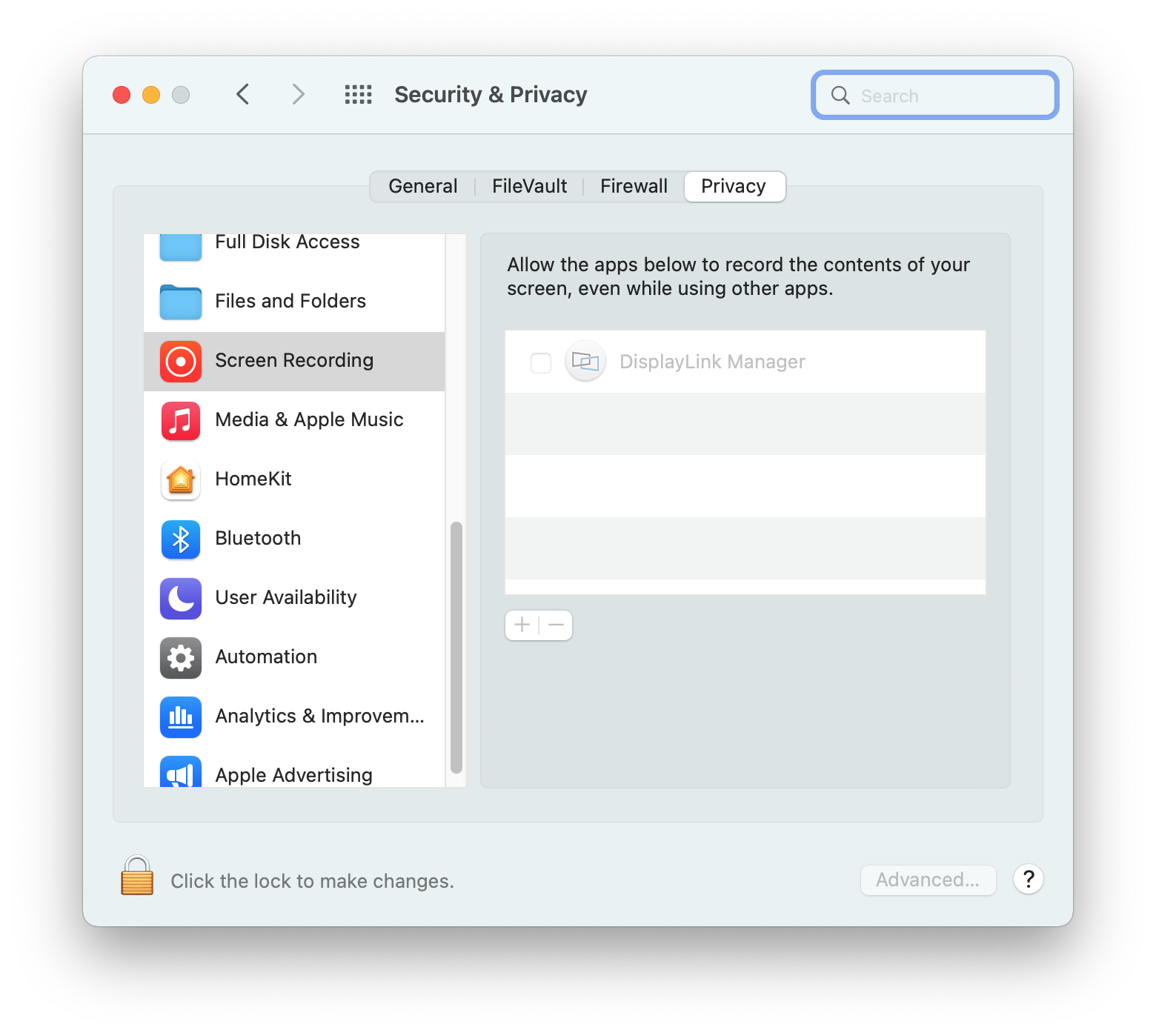
13. Click on the gold padlock at the bottom of the application window to enable changes.
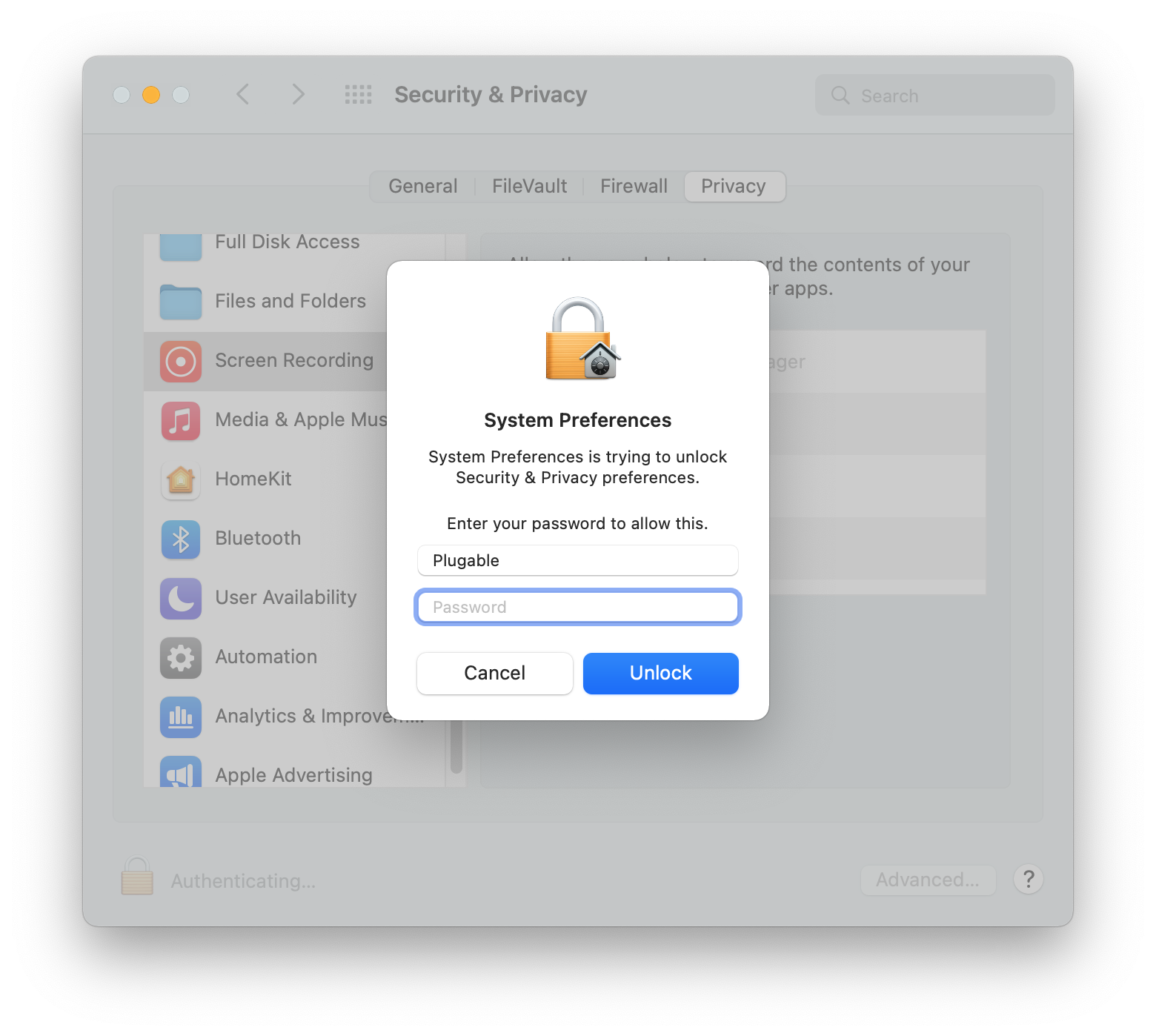
14. If prompted, enter your password and click the ‘Unlock’ button:
15. Click to place a checkmark next to the DisplayLink Manager entry:
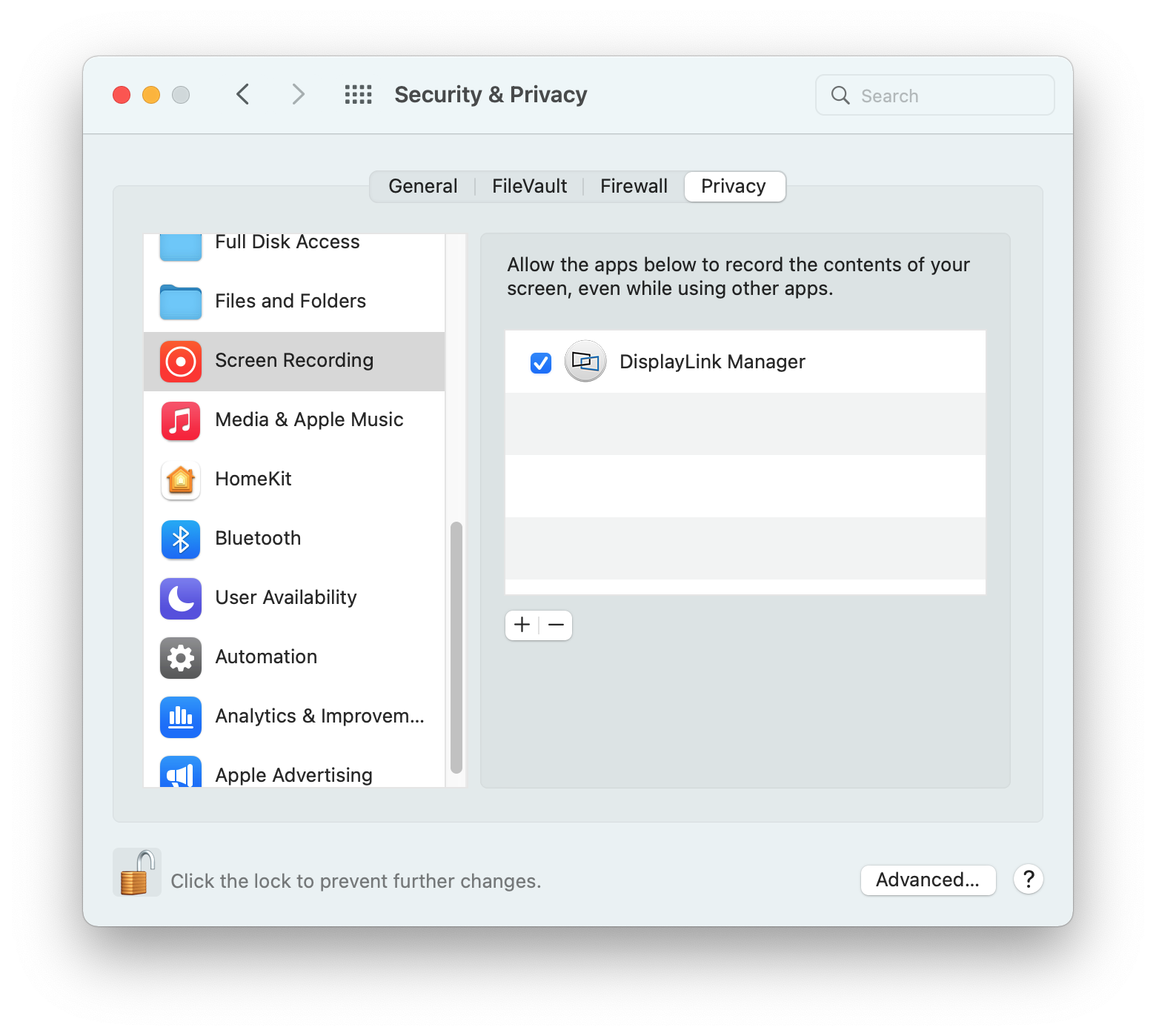
16. You will be prompted to Quit and Reopen the DisplayLink Manager application in order for the change to take effect. Please do so:
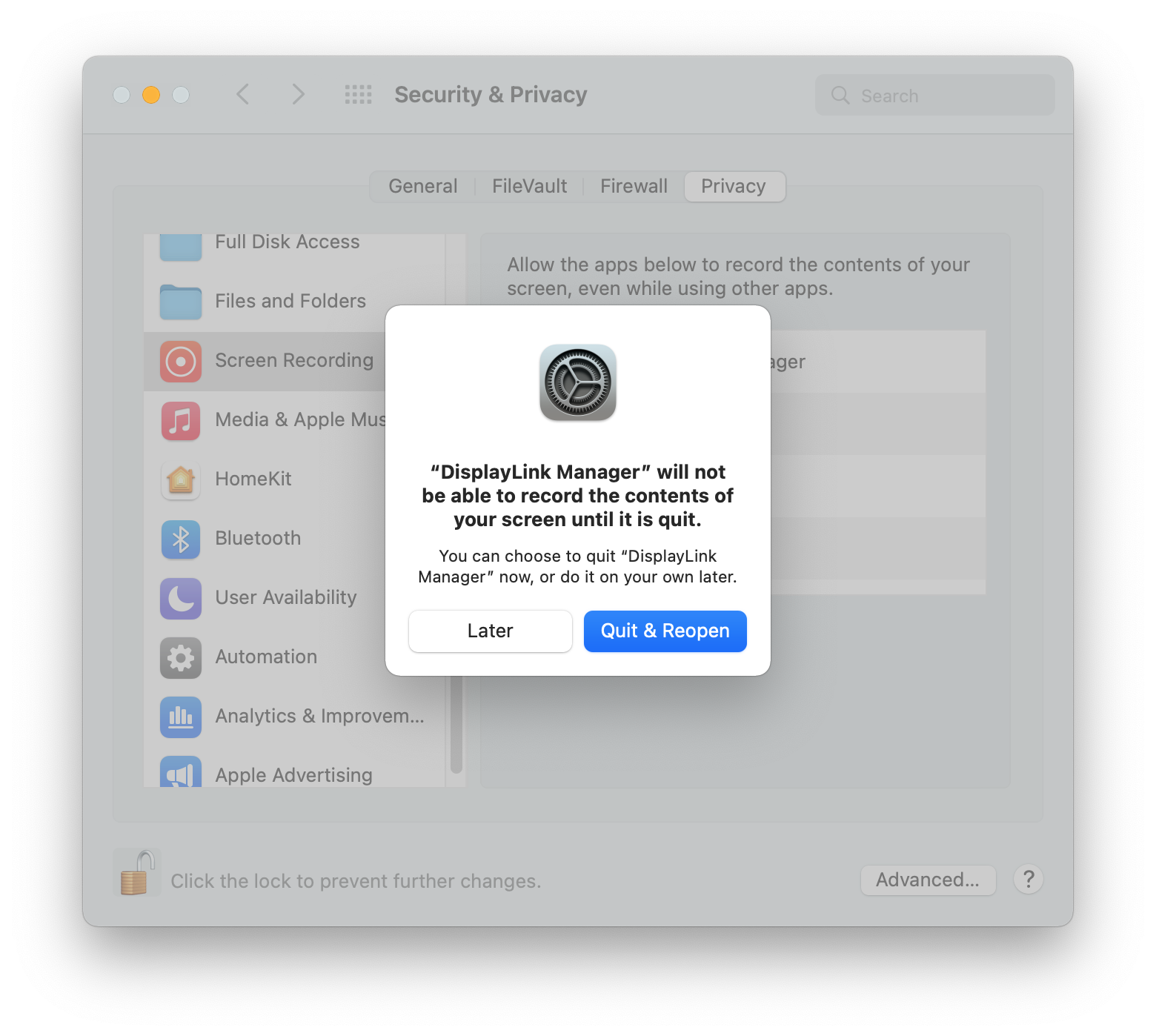
18. Once this change is complete, the displays connected to your DisplayLink-based product will start working automatically.
** Please note - The DisplayLink Manager Application does NOT in fact record or store any information. This permission must be granted in order for the DisplayLink Application to access the information it needs in order to generate the image shown on the DisplayLink-connected displays. **
19. Click on the DisplayLink Manager Application icon that is now present within the Apple Menu bar at the top of your screen. This will reveal the DisplayLink Manager Application status window:
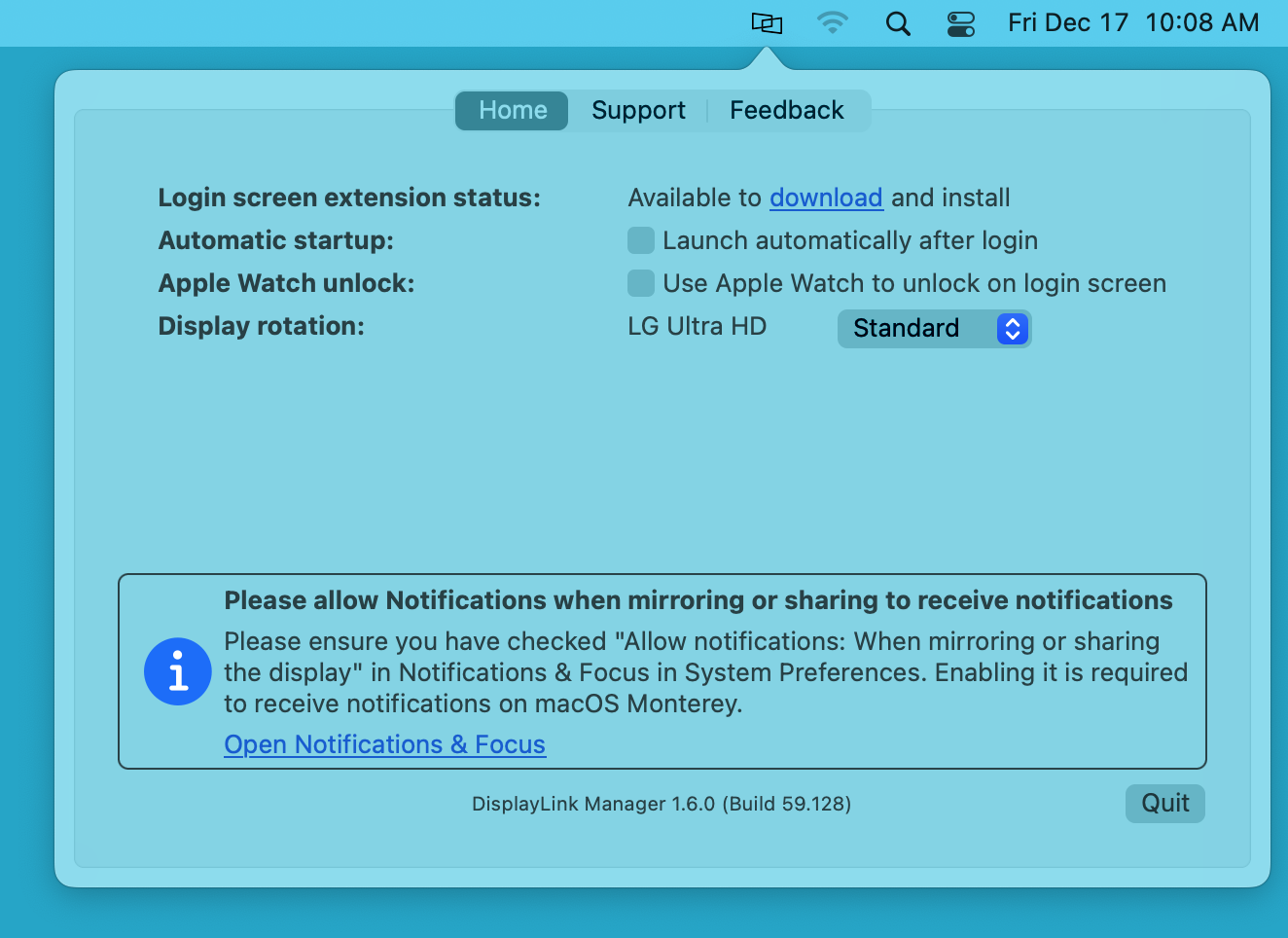
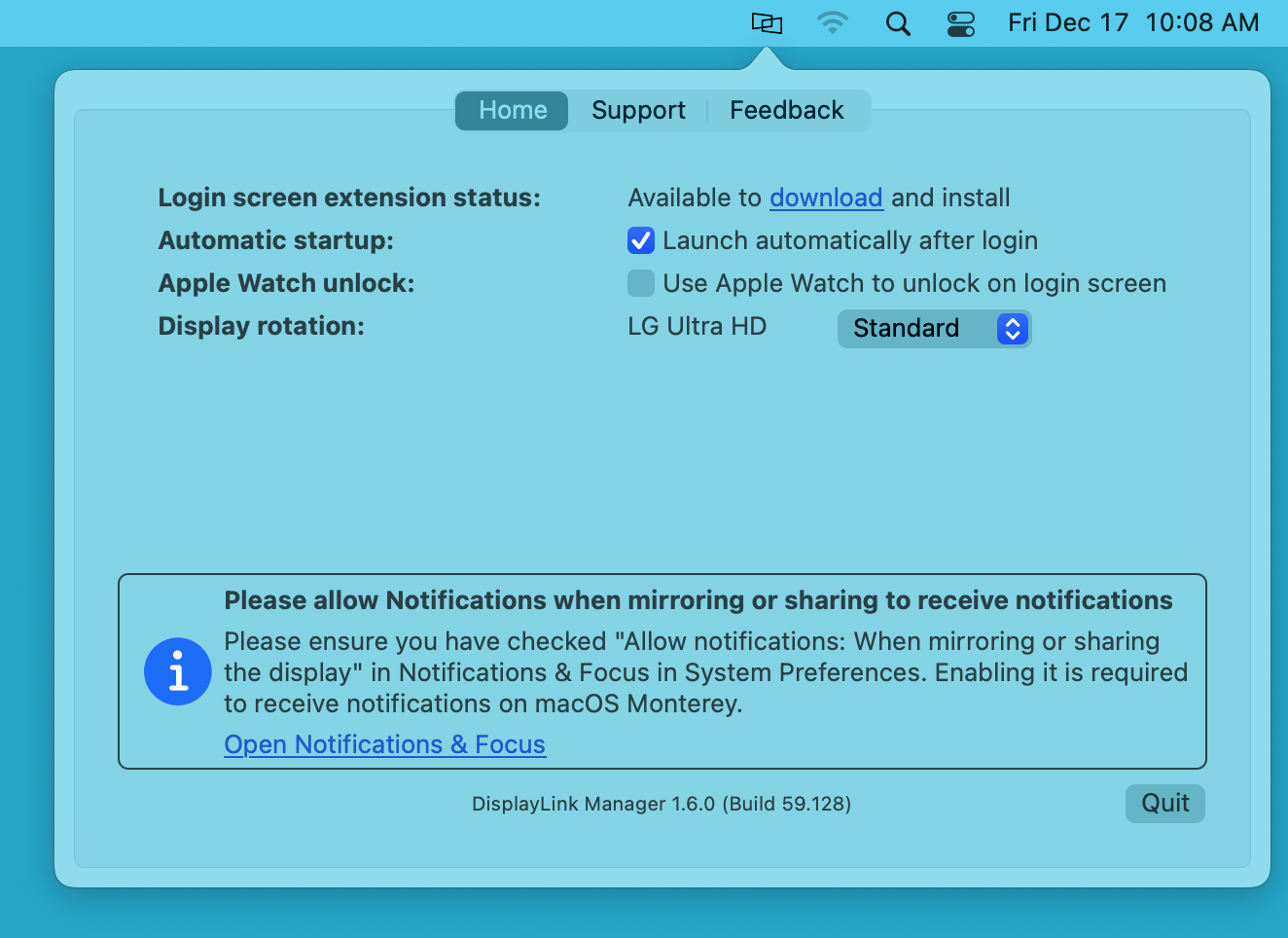
20. Within the DisplayLink Manager Application status window, next to the ‘Automatic startup’ section, click to place a checkmark next to the ‘Launch automatically after login’ option. This ensures that the application will be started each time you start your Mac.
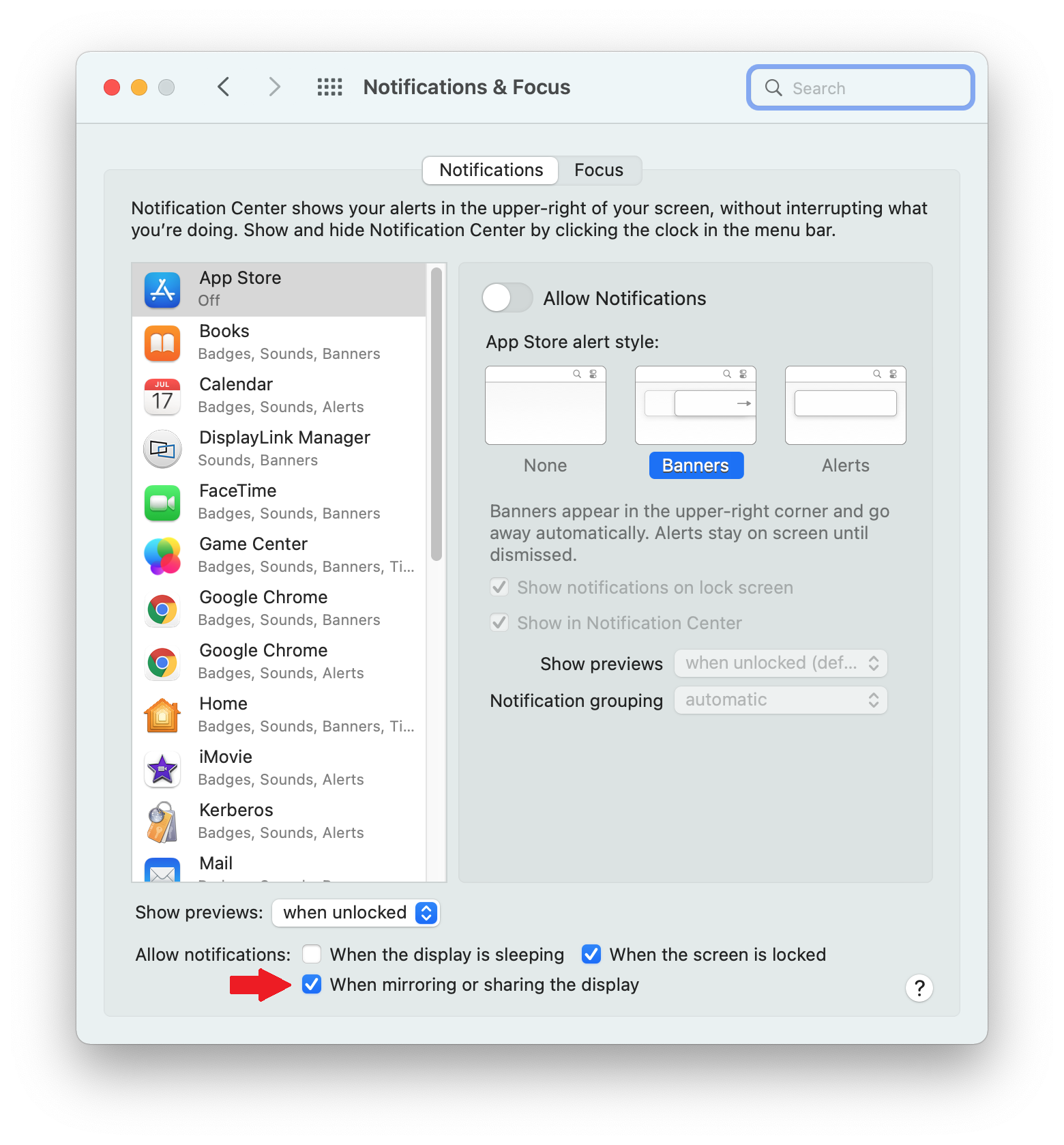
21. In order to receive notifications from macOS while a DisplayLink device is connected to your Mac, you must make a change within the ‘Notifications & Focus’ System Preferences application.
Click on the ‘System Preferences’ icon (which looks like a gear) within the macOS Dock at the bottom of your screen.
Click on the ‘Notifications & Focus’ application icon:
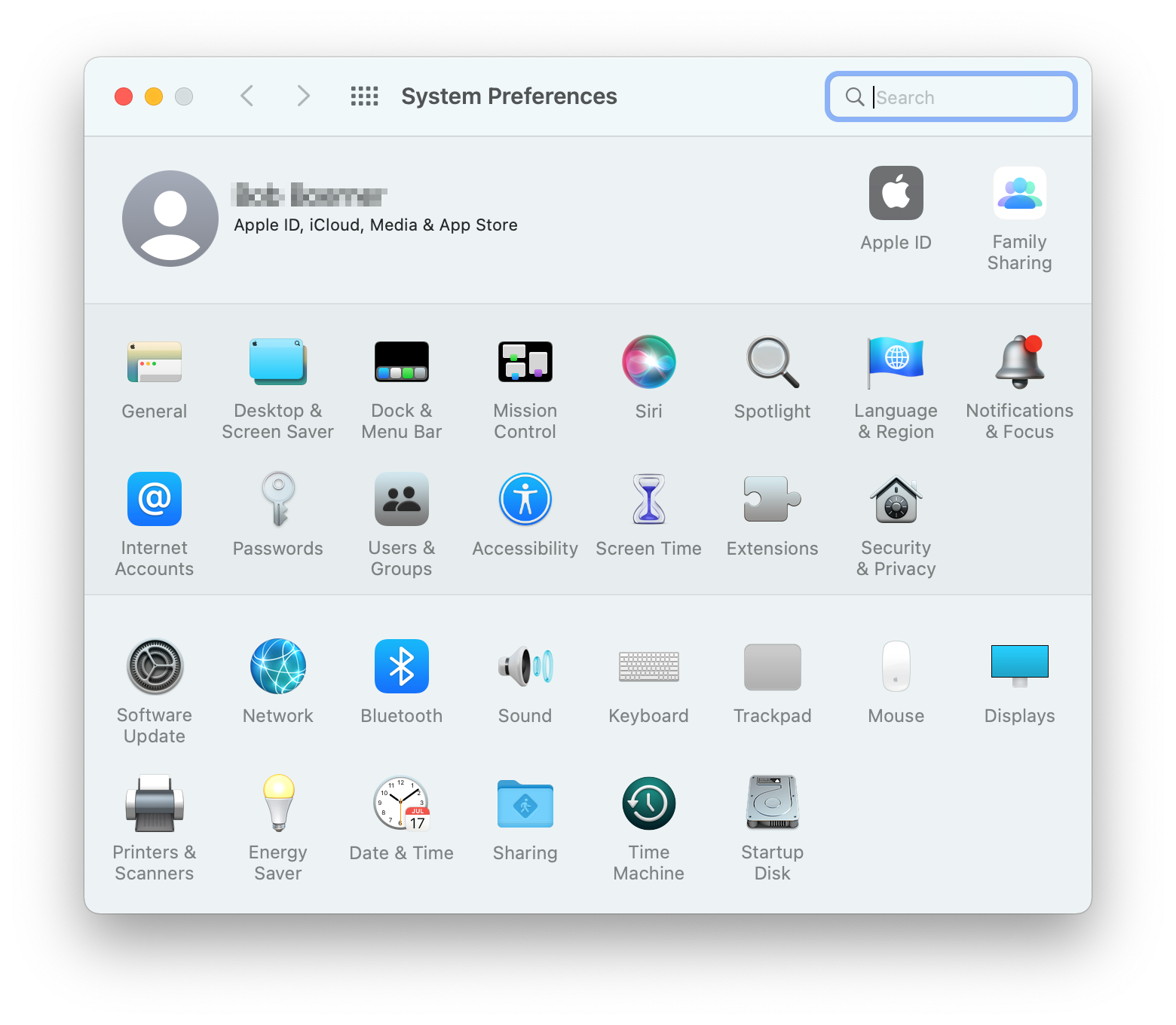
22. Within the ‘Notifications’ tab of the ‘Notifications & Focus’ application, next to the ‘Allow notifications’ label, click to place a checkmark next to the ‘When mirroring or sharing the display’ option. This will allow you to receive notifications from macOS while the DisplayLink device is connected.
23. Once all of the previous steps are done, the installation process is now complete.
How to use DisplayLink Manager for macOS
Once the DisplayLink Manager Application is installed, the application can be accessed via the DisplayLink Manager application status icon located within the Apple Menu Bar at the top of your screen:
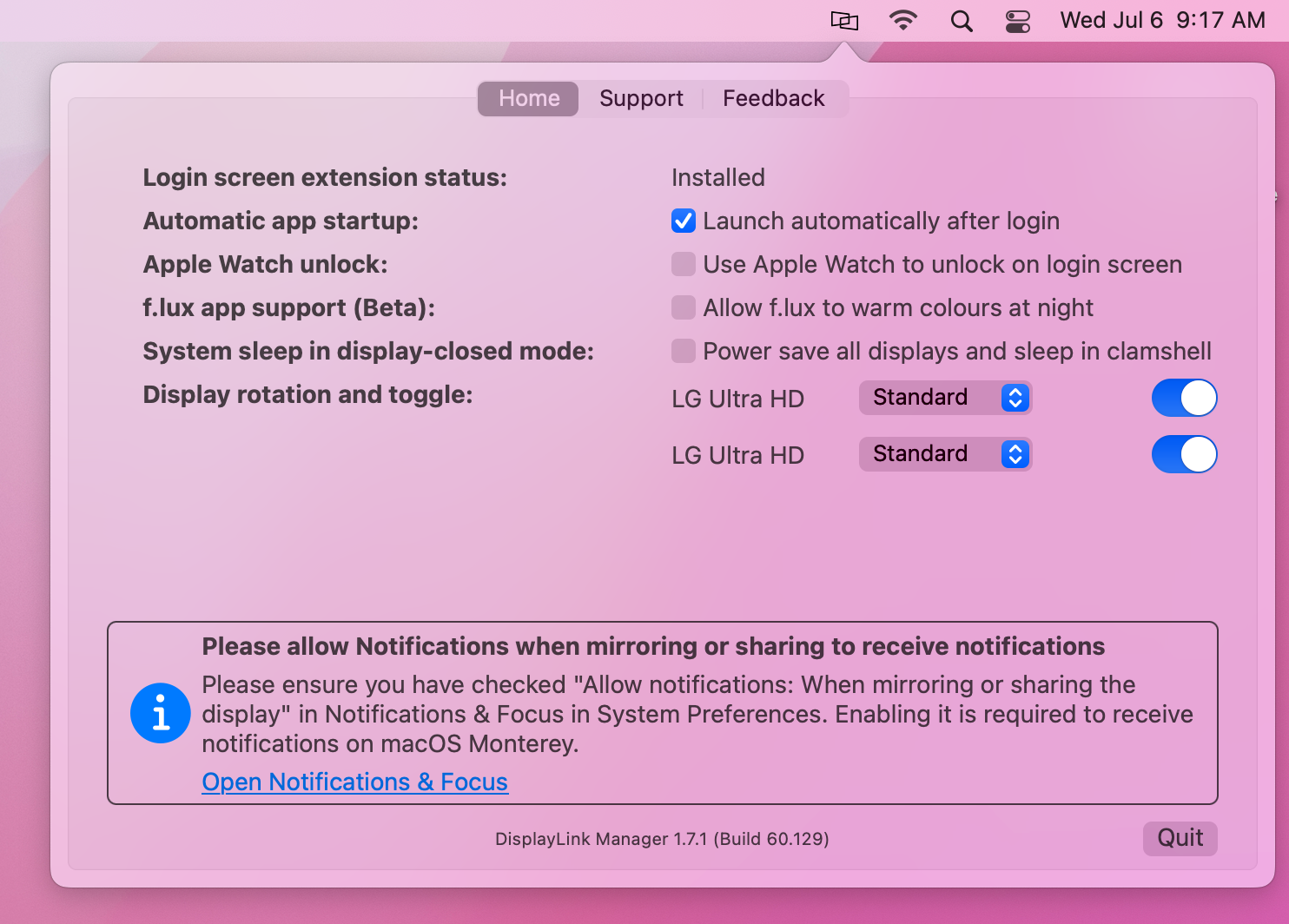
** If the DisplayLink Manager Application status icon is not visible within the Menu Bar, then the application has not been started. Please open a new ‘Finder’ window and navigate to the ‘Applications’ folder. Within the ‘Applications’ folder, double-click on the DisplayLink Application icon in order to start the application. **
Within the ‘Home’ tab of the DisplayLink Manager Application, there are a few different items listed. The items listed will vary depending upon which version of the DisplayLink Manager Application that is installed, and the following list describes the features present in DisplayLink Manager version 1.7.1.
Login Screen Extension
By default, the ‘Login screen extension status:’ section will display, “Available to download and Install”
When an Apple Mac system is first powered on and reaches the login prompt, 3rd-party applications (such as the DisplayLink Manager application) are not yet running. As a result, DisplayLink-connected displays will not function.
Downloading and installing the Login screen extension (available by clicking on the ‘download’ link within DisplayLink Manager) will allow the DisplayLink-connected displays to function prior to logging in.
This is of course an optional feature, and is not required to use DisplayLink devices. However, this option is useful in certain situations, such as when only DisplayLink-connected displays are connected to the host Mac.
Automatic startup
As the name suggests, placing a checkmark next to the ‘Launch automatically after login’ option allows the DisplayLink Application to start automatically each time the system is powered on. We recommend checking this option in the interest of efficiency.
Apple Watch unlock
As the name suggests, placing a checkmark next to the ‘Use Apple Watch to unlock on the login screen’ will allow you to unlock your Mac using an Apple Watch while connected to a DisplayLink device.
Apple has more information on this process here → https://support.apple.com/en-us/HT206995
** Please note that this feature is not compatible with screensavers. To use Apple Watch unlock with your DisplayLink device, you must disable your screensaver. **
f.lux app support (Beta)
There is a 3rd-party application called 'f.lux' --> https://justgetflux.com/ that allows the adjustment of a display's color according to the time of day. If the f.lux application has been installed, placing a checkmark next to the 'f.lux app support (Beta)' option will enable f.lux to change the color of a DisplayLink connected display.
A few important notes about this feature:
A. This functionality is in 'beta' status, as the label suggests. As a result, there may be cases where things may not work as expected when this option is enabled.
B. This functionality is supported with devices based on the DisplayLink DL-3xxx chipset, DL-5xxx chipset, and DL-6xxx chipset. However, it is important to note that on DL-6xxx chipsets this functionality is limited to DisplayPort video outputs only. It is NOT supported on HDMI video outputs via DL-6xxx chipsets.
System sleep in display-closed mode
Mac laptops running macOS 12 Monterey or newer can be used in one of two ways when used in conjunction with a DisplayLink-based product.
The first way is with the laptop lid open, with the laptop's built-in internal display enabled.
The second way is with the laptop lid closed, with the laptop's built-in internal display disabled. This is known as closed display mode or 'clamshell' mode.
In order to enter closed display mode while connected to a DisplayLink-based product, the host Mac must have an external power source connected and an external keyboard and mouse connected.
Placing a checkmark next to 'Power save all displays and sleep in clamshell' changes this behavior, in that closing the laptop lid will cause the host Mac to go to sleep.
This feature is of course optional, and its use is a matter of personal preference.
Display rotation and toggle
The functionality presented within this section of the DisplayLink Manager Application will vary depending upon which type of processor is within the host Mac.
Macs with an Intel processor
When DisplayLink devices are used in conjunction with Apple Mac systems that have an Intel processor, a list of all the DisplayLink-connected displays will appear within this section.
The individual displays can be turned on or off as desired by clicking on the toggle switch next to each display's name. You can differentiate between each display by hovering the mouse pointer over each display name. When doing so, a red identification box will appear within the selected display.
You can rotate the orientation of the DisplayLink-connected displays within the ‘Displays’ macOS System Preferences application.
Macs with an Apple M1 or M2 processor
When DisplayLink devices are used in conjunction with Apple Mac systems that have an Apple M1 or M2 processor, display rotation must be done from within the DisplayLink Manager Application and the host Mac must be running macOS 12 Monterey or later (display rotation is not available on M1 Macs running macOS 11 Big Sur).
Each DisplayLink-connected display attached to the M1 or M2 system will be listed next to the ‘Display rotation’ area. Click on the drop-down selection box and select the appropriate degree of rotation.
If multiple displays are present, you can differentiate between each display by hovering the mouse pointer over each display name. When doing so, a red identification box will appear within the selected display.
Synaptics (the creators of DisplayLink technology) have more information on this feature here --> Link
In addition to the rotation aspect described above, the individual displays can be turned on or off as desired by clicking on the toggle switch next to each display's name. As mentioned above, you can differentiate between each display by hovering the mouse pointer over each display name. When doing so, a red identification box will appear within the selected display.
After updating to macOS 13 my external displays are no longer working
Summary
If the displays connected through a Plugable DisplayLink-based docking station or USB graphics adapter stopped working after upgrading to macOS 13 Ventura, DisplayLink Manager may no longer be running correctly or may no longer have the required macOS Screen Recording permission.
First confirm that DisplayLink Manager is running and has the required permission. If the displays are still not working, perform a clean reinstall using the current Plugable-recommended DisplayLink Manager version for macOS 13.
Applicable To
This article applies to:
- Plugable DisplayLink-based docking stations
- Plugable DisplayLink-based USB graphics adapters
- Macs running macOS 13 Ventura
If you are using macOS 14 Sonoma, macOS 15 Sequoia, macOS 26 Tahoe, or a newer version of macOS, refer to Plugable's current DisplayLink troubleshooting guidance instead.
Answer
DisplayLink-connected displays require the DisplayLink Manager application to be installed, running, and granted the required macOS Screen Recording permission.
A macOS update may require DisplayLink Manager or its permissions to be restored before DisplayLink-connected displays will work again.
1. Confirm DisplayLink Manager Is Running
Open Finder > Applications and launch DisplayLink Manager.
Confirm that the DisplayLink Manager icon appears in the macOS menu bar.
If the displays begin working, no additional steps are required.
2. Check Screen Recording Permission
Open:
Apple menu > System Settings > Privacy & Security > Screen Recording
Confirm that DisplayLink Manager is enabled.
If you enable or change this permission, macOS may require DisplayLink Manager to quit and reopen before the change takes effect.
If the displays are still not working, continue to the clean reinstall procedure below.
Clean Reinstall DisplayLink Manager
1. Disconnect the Plugable Product
Disconnect the Plugable DisplayLink-based docking station or USB graphics adapter from the Mac.
If the product has an external power adapter, disconnect power from the product as well.
2. Remove DisplayLink Manager
Use the DisplayLink Installation Cleaner for macOS to completely remove DisplayLink Manager and its associated components.
For detailed instructions, see:
How to Uninstall DisplayLink Manager Software on macOS
3. Restart the Mac
After the cleanup is complete, restart the Mac using:
Apple menu > Restart
4. Install the Current macOS 13 DisplayLink Manager Version
Download the current Plugable-recommended DisplayLink Manager version for macOS 13 Ventura from Plugable's DisplayLink Drivers and Software page.
Follow Plugable's macOS 13 DisplayLink Manager installation instructions to complete the installation and grant the required macOS permissions.
5. Reconnect the Plugable Product
After installation is complete:
- Reconnect power to the Plugable product, if applicable.
- Reconnect the Plugable product to the Mac.
- Confirm that DisplayLink Manager is running.
- Confirm that the external displays are detected.
Important Note
macOS 13 Ventura is a legacy macOS release. Plugable provides a specific legacy DisplayLink Manager version for macOS 13.
Do not install a DisplayLink Manager version intended only for newer macOS releases. Use the version listed for macOS 13 on Plugable's DisplayLink Drivers and Software page.
Need Assistance?
If your DisplayLink-connected displays are still not working after completing the steps above, please contact Plugable Support at support@plugable.com.
When contacting support, please include:
- Your Plugable product model
- Your Mac model
- Your macOS version
- Your DisplayLink Manager version
- The make and model of the connected displays
- A description of what occurred before the displays stopped working
- The output from Plugable's diagnostic tool, PlugDebug
Why Doesn't Streaming Video Play Correctly When Using a Docking Station With My Mac?
Many streaming video services require High-bandwidth Digital Content Protection (HDCP) enabled devices from the video source all the way to the display. We speak more to HDCP here (https://kb.plugable.com/en_US/docking-stations-and-video/381072-video-hdcp). The DisplayLink hardware and software used to enable multiple external displays with our docking stations requires enabling the "Screen Recording" permissions in macOS, which disables HDCP video playback system-wide.
Why DisplayLink Disables HDCP Video Playback
The DisplayLink software renders the external display and transmits it as USB data to the docking station. Apple does not have a specific security category for USB external displays, so "Screen Recording" is the required setting. This disables HDCP system-wide because there is no differentiation within macOS for the DisplayLink-controlled external displays from the displays controlled by the internal graphics controller.
Working Around HDCP Limitations
To view HDCP-protected content, a DisplayLink-based docking station/video adapter cannot be used to connect any displays. Thunderbolt docks can sometimes be a suitable alternative solution which does support playback of HDCP-protected content.
Keep in mind that the total number of display connections available through a Thunderbolt dock is dependent on your specific Mac model:
Base M1 and M2 Apple Silicon chips natively support only a single external display via Thunderbolt.
Base M3 Apple Silicon chips natively support up to two external displays, but only when the laptop lid is closed.
Base M4 and M5 Apple Silicon chips natively support up to two external displays.
Pro versions of the M1, M2, M3, M4, and M5 chips natively support up to two external displays.
Max versions of the M1, M2, M3, M4, and M5 chips natively support up to four external displays depending on the specific port configuration used.
Please feel free to contact our support team at 'support@plugable.com' if you have any additional questions regarding HDCP compatibility, video playback, or multiple display support with your computer.
Applies to:
Apple Mac computers with external displays connected through:
- Plugable USB-C Triple Display Docking Stations with DisplayLink USB Graphics Technology
- Plugable USB 3.0 Dual Display Docking Stations with DisplayLink USB Graphics Technology
- Plugable USB 3.0 Graphics Adapters with DisplayLink USB Graphics Technology
My external displays blink, flicker, or reset from time to time
External displays connected to our DisplayLink based docking stations or graphics adapters may intermittently "blink" off and on again, flicker, or reset - moving active windows to another display.
Common Causes
For Windows 10 and Windows 11 host computers, the most common cause is out of date graphics hardware drivers, or DisplayLink graphics software. Most Windows computers receive updated graphics drivers through Windows Update, however this often provides significantly out of date drivers, some dating back over two years, that may not be fully compatible with the installed version of Windows.
Graphics controller manufacturers provide the latest graphics drivers from their websites, these generally provide better performance, security, and compatibility than the out of date drivers from Windows Update or the system manufacturer's website.
The exception to the above is for systems with two or more active graphics controllers, for example a laptop computer may have an Intel Graphics Controller built into the processor, as well as an NVIDIA Graphics Controller with the operating system automatically switching between the two graphics controllers based on the applications running on the computer. These systems require a delicate balance between the graphics drivers for the primary and secondary graphics controllers, Windows version, and the DisplayLink software.
Determining your computer's graphics controller
Most hardware manufacturer's provide a single unified driver package for a wide range of graphics controllers, however it is best practice to ensure the drivers are compatible with the hardware. We can look up the graphics controller through Windows "msinfo32.exe" System Information application:
- Open the Start Menu
- Search for "msinfo32" then select the b est match "System Information App"
- Note the "Processor" model details in the "System Summary" section, as some graphics drivers are referenced by the processor model
- In the left pane, expand the section "System Summary > Components" and then select "Display"
- In the right pane note the value for the item "Name", this will be the graphics controller for discrete graphics controller
Updating the Graphics Drivers to the latest version
For systems with Intel Graphics Controllers
Intel uses a unified driver installer for all of their processor graphics from the 6th Generation CPU onward (Intel i-series 6000 and newer).
-
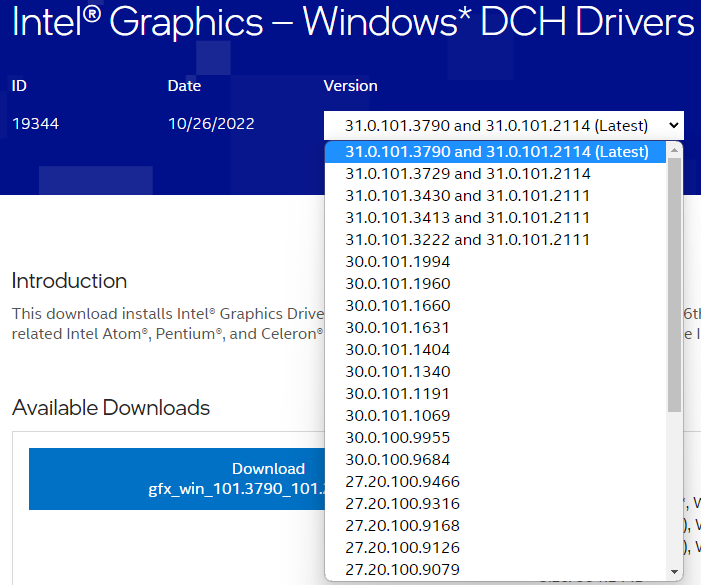
Download the latest Intel Graphics Drivers from Intel's website by selecting the blue "Download" button for the graphics driver ".exe" file (normally the top option). Save this file to the Downloads directory or Desktop
- Save and close any open applications, unplug the docking station or graphics adapter from the computer, and connect the original power supply (for laptop/notebook computers)
- Right-click on the Intel Graphics Driver package and select "Run as Administrator" from the drop down menu
- Allow the installer in the Windows User Account Control pop-up
- Follow the on screen instructions to install the latest graphics drivers
-If there is an error message while updating the graphics drivers with regard to an "OEM" or "System Manufacturer's" driver or that these drivers are incompatible with the computer, Intel provides additional details and steps to remove OEM or legacy drivers from the system - When complete, restart the computer before reconnecting the docking station or graphics adapter
For systems with NVIDIA Graphics Controllers
NVIDIA also uses a unified driver installer for most of their discrete desktop and notebook graphics controllers.
- Locate and download the latest NVIDIA graphics driver using the graphics controller model details from msinfo32, save the file to the Downloads directory or Desktop
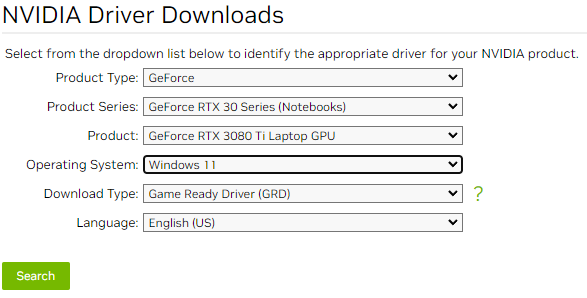
- Save and close any open applications, unplug the docking station or graphics adapter from the computer, and connect the original power supply (for laptop/notebook computers)
- Right-click on the NVIDIA Graphics Driver package and select "Run as Administrator" from the drop down menu
- Allow the installer in the Windows User Account Control pop-up
- Follow the on screen instructions to install the latest graphics driver, select the "Custom" or "Advanced" installation option if available, at the custom installation screen select the option to "Perform a clean installation"
- When complete, restart the computer before reconnecting the docking station or graphics adapter
For systems with AMD Graphics Controllers
AMD also uses a unified driver installer for most of their discrete desktop and notebook graphics controllers.
- Locate and download the latest AMD graphics driver either by selecting the graphics controller or AMD processor with integrated graphics from the lists, or by searching for the specific controller or CPU from msinfo32 in the "Search All Products" drop down menu
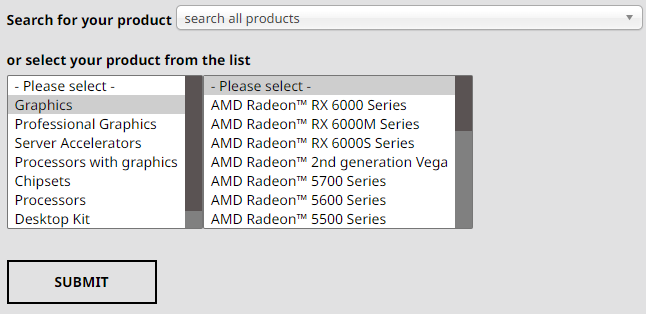
- Save and close any open applications, unplug the docking station or graphics adapter from the computer, and connect the original power supply (for laptop/notebook computers)
- Right-click on the AMD Graphics Driver package and select "Run as Administrator" from the drop down menu
- Allow the installer in the Windows User Account Control pop-up
- Follow the on screen instructions to install the latest graphics driver
- When complete, restart the computer before reconnecting the docking station or graphics adapter
macOS login failure, or WindowServer error when using DisplayLink controlled external displays
Summary
With the release of macOS 13.3.1, we have started to see a few reports of the macOS WindowServer crashing on Apple Silicon-based computers (M1/M2 processors). The crash occurs either at user account login if a DisplayLink-based docking station or USB graphics adapter is connected to the computer; when connecting the DisplayLink-controlled display to the computer after login; or when launching the DisplayLink Manager App with the external display connected to the computer.
We have seen this behavior in the past when macOS's display persistence files have become corrupted or include incompatible display configurations or settings. The fix was to manually remove two display persistence ".plist" files; however, the DisplayLink Support Tool for macOS has an option to reset the display persistence to quickly resolve this behavior. The process is detailed below:
Applicable To
Mac computers using DisplayLink Manager with external displays connected through a Plugable DisplayLink dock or USB graphics adapter.
Before You Begin
Disconnect the DisplayLink dock or adapter from the Mac so you can log in. Save and close open work before resetting the layout because the Mac will need to restart.
- Unplug the DisplayLink controlled external display from the computer and log into the desktop
- Download the DisplayLink Support Tool for macOS
- Select the "DisplayLink Support Tool for macOS6.3.163-EXE.zip" from the downloads to extract the "DisplayLink Information.app" to the Downloads directory, a Finder window should open showing the extracted file
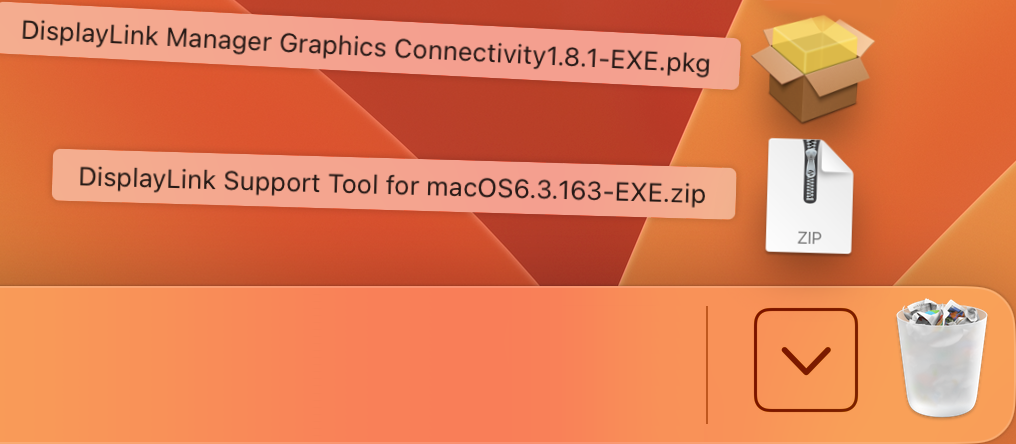
- Double-click on the "DisplayLink Information.app" from the Downloads folder to start the tool
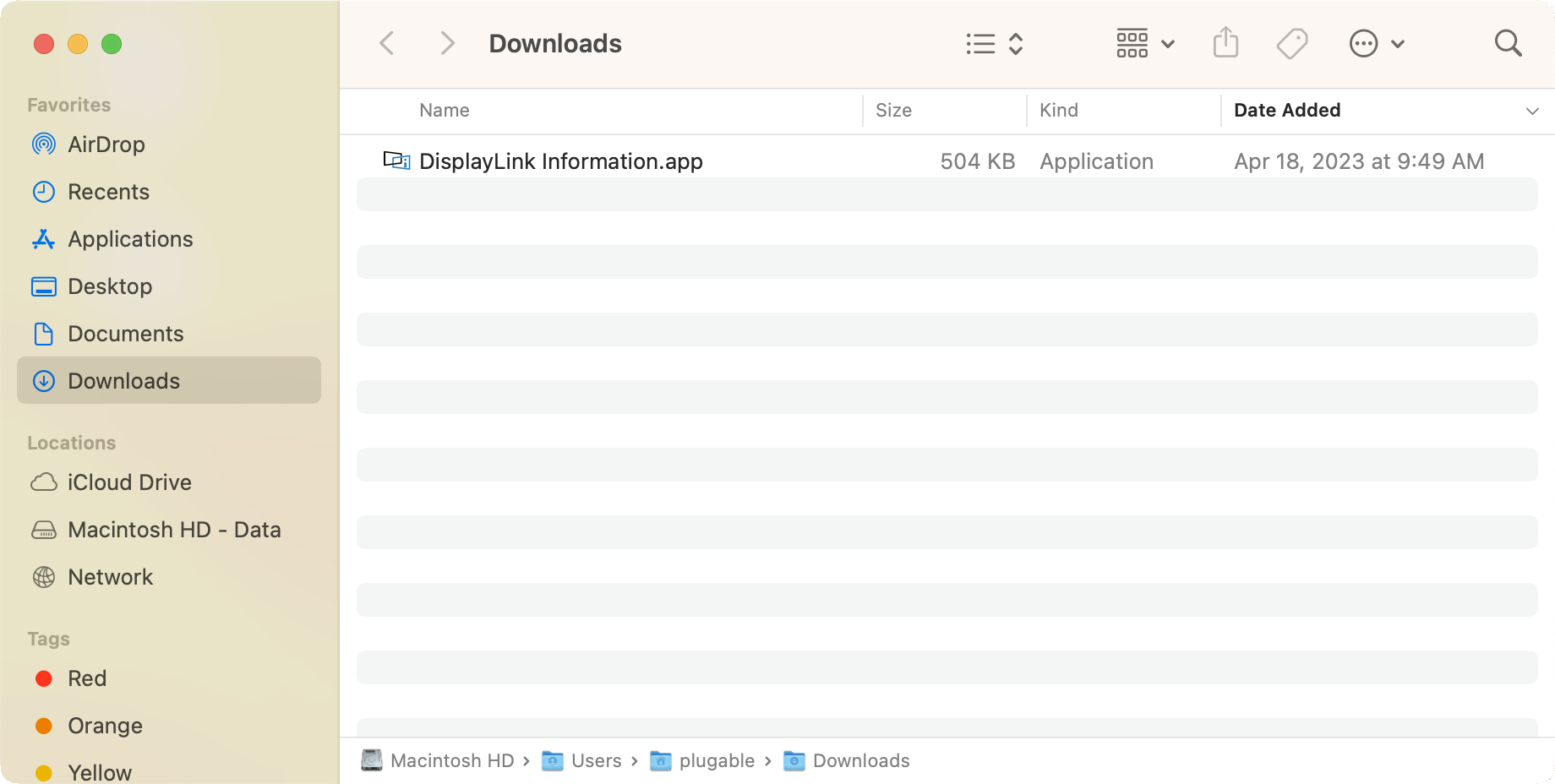
- This will open a window for the DisplayLink Information tool, however we can ignore this for now. From the macOS top bar, next to "DisplayLink Information" select "Advanced" then "Reset screen layout"

- You will be prompted for the account password to proceed, enter your password, then click the "OK" button
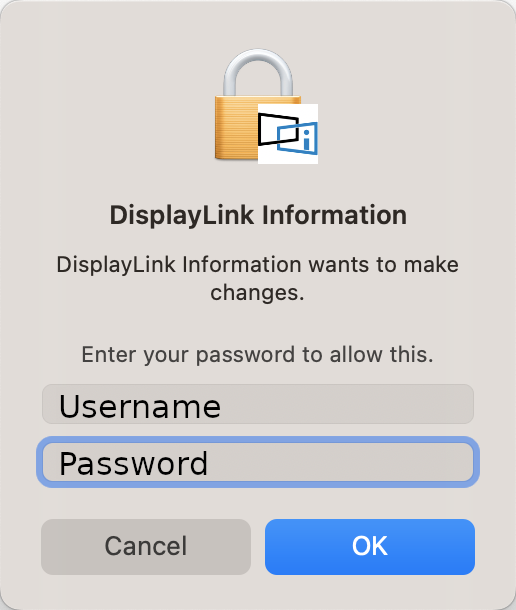
- Next you will be prompted to reboot the computer, save and close any open applications then click on the "Reboot" button to proceed
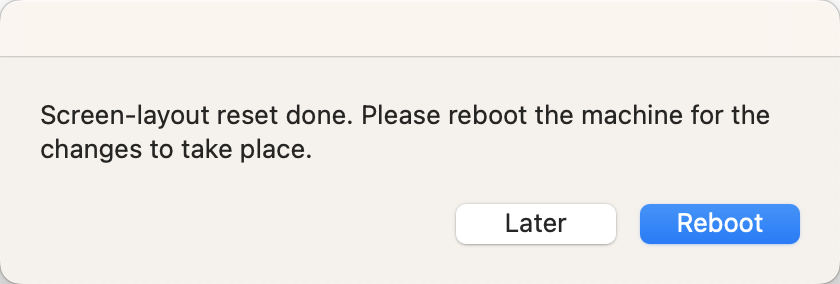
- After rebooting the computer, log into the desktop and reconnect the external display(s), you may need to rearrange the external displays through the Apple Menu > System Settings > Displays > Arrange settings panel
Important Notes
Resetting the screen layout removes saved display arrangement settings. After reconnecting your displays, you may need to arrange them again in Apple menu > System Settings > Displays. This procedure addresses a saved layout issue; a login failure can also have other causes.
Need Assistance?
If the Mac still returns to the login screen or shows a WindowServer error, contact support@plugable.com with your Mac model, macOS version, DisplayLink Manager version, Plugable product model, and the exact error or behavior observed.
Can I Connect a DisplayPort (DP) Monitor to the HDMI Port on This Device Using an Adapter or Cable?
No. Most DisplayPort to HDMI cables and adapters are one-way adapters from a DisplayPort Source (computer or docking station) to a HDMI Sink (television, computer monitor, or projector). These cables do not work in reverse.
Why is DisplayPort to HDMI often a one-way conversion?
DisplayPort uses packet-based data transmission, breaking the video stream into individual packets of data allows for longer cable runs, use in both copper and fiber-optic cables, and allows for higher bandwidth than other video formats. It is relatively easy to convert from DisplayPort to HDMI (computers with HDMI output ports already do this internally) and dual-mode DisplayPort outputs (DP++) have built-in adapters to output a HDMI signal for use with passive DisplayPort to HDMI adapters.
HDMI historically uses a Transmission-Minimized Differential Signaling (TDMS) video signal originally based on DVI's signal, this requires more power to operate at the same cable lengths as DisplayPort and requires significantly more processing power to convert from HDMI to DisplayPort packet-based data. The latest HDMI specifications enable the new Fixed Rate Link (FRL) which is packet based similar to but not directly compatible with DisplayPort.
Externally powered HDMI to DisplayPort adapters do exist, these generally have a USB or small barrel plug for power, and can convert from a HDMI Source to DisplayPort Sink. In most cases they have reduced resolution or refresh rates compared to modern signal sources and can introduce delay in the data connection between the display and computer potentially causing reduced connectivity or display performance problems.
We do not currently recommend using HDMI to DisplayPort adapter with our docking stations. In our testing they have been unreliable compared to a native DisplayPort connection. Many of our newer docking stations include both HDMI and DisplayPort outputs to reduce the need for additional adapters or adapter cables.
If you have any questions please feel free to contact us at support@plugable.com and we'll be happy to help!
How to Configure/Adjust Multiple Monitors Using a Windows System
We have a produced a series of videos that introduce the general concepts of multi-monitor setups in Windows, how to change the way things behave, as well as how to solve common problems. Direct links to some of the videos our customers have found useful are:
Introduction to Multiple Displays in Windows --> LINK
Common Multi-Monitor Problem - Spatial Orientation --> LINK
Multi-Monitor Problem - Spatial Orientation Part Two --> LINK
How to make a Display the 'Main' Display in Windows 10 --> LINK
How to make a Display the 'Main' Display in Windows 11 --> LINK
Introduction to Display Scaling in Windows --> LINK
Quickly change display settings with the Windows+P Shortcut --> LINK
Troubleshooting A Disconnected Display with the UD-3900 --> LINK
How to Set Different Backgrounds on Multiple Monitors in Windows 10 --> LINK
Keyboard Shortcuts for Moving Applications on a Multiple Monitor Windows Setup --> LINK
How to Change Your Display's Refresh Rate in Windows --> LINK
How to Fix a “Phantom Display” on Windows --> LINK
Is my ethernet adapter compatible with iPhone?
Our Plugable ethernet adapters are compatible with USB-C iPhone 15 and 16 / Pro / Pro Max running iOS 17 or newer. Our ethernet adapters are plug-and-play on iPhone, and ethernet connection is identified in the iOS settings app.
These following ethernet adapters from Plugable have been tested and verified to work with iPhone:
Understanding and Troubleshooting Network Performance
How Do I Benchmark and Troubleshoot Network Adapter Performance Using iPerf?
Problem Summary
Network adapter performance issues or unexpected speed throttling are commonly caused by local network bottlenecks, driver configurations, VPN services, or Wi-Fi priority settings rather than adapter hardware defects. Establishing a direct point-to-point connection and running an iPerf benchmark isolates network bottlenecks and confirms whether the adapter is achieving its rated throughput.
Isolating the Issue
We recommend starting by isolating the issue to the lowest OSI layer and working up. The Open Systems Interconnection (OSI) model is a framework for understanding network communications and is divided into seven layers:
- Physical - This is the physical adapters, wires between two points. It can be thought of as each discrete component for example a USB to Ethernet adapter, or Ethernet cable.
- Data Link Layer - This layer handles the direct communications between devices, using the hardware MAC Address. Communications at this layer are blocked by a router. (MAC address) hardware: Ethernet switch
- Network Layer - This layer includes the IP address and allows for transmitting data between routed networks. (IPv4, IPv6) hardware: Router.
- Transport Layer - This layer handles the end-to-end message delivery, and optionally error recovery and flow control, and operates in software. (TCP, UDP). For our purposes this as high as Plugable products really interact, the three next layers are independent of our products.
- Session Layer - Opens, manages, and closes sessions between applications.
- Presentation Layer - This includes SSL/TLS encryption, data formats like JPEG or PNG
- Application Layer - This is the interaction layer for most users and applications, including web pages: HTML, JavaScript etc content.
Physical
When you receive no network connection at all, try a different Ethernet cable, Ethernet switch port, or bypass any devices and connections between the computer's network port and the Ethernet switch. Intermediary devices and connections (like keystone wall sockets, IP telephony systems, etc) can cause reduced network reliability. Check for the Ethernet port Link and Activity LEDs on both the computer's Ethernet adapter, and the switch port.
Data Link and Network
For simplicity these can be combined for testing, check to see if the system is receiving an IP address with terminal commands like ipconfig /all in Windows, or ip -a -br -4 in Linux. We can also check for local network connectivity by "pinging" a local resource like the router ping 192.168.1.1 where "192.168.1.1" is the IP address of the router - this will depend on your specific network configuration.
For performance related issues testing the local network, that is devices connected by one or more Ethernet switches, or even directly connected Ethernet port to Ethernet port is the first step in narrowing down an internet slowdown, to determine if the issue is between the computer and router, or between the router and internet service provider.
Local network performance testing can take a couple of forms, the most common is a utility like iPerf3 that is specifically designed for testing or benchmark a network connection. iPerf3 is designed specifically for Linux and Unix-like operating systems, it has been ported by 3rd parties to both Windows and macOS but has some limitations.
iPerf 3 Basic Benchmark
Testing with iPerf3 requires two computers - a server and a client. Generally we recommend a Linux system for the server, this will be more stable and provide more testing options, however a Windows or macOS server may also be used for basic testing. The client computer can also be Linux, Windows, or macOS, again with some limitations for non-Linux clients that shouldn't impact this this testing.
Installing iPerf3
For Linux install iPerf3 from your package manager: for Fedora (Redhat based distributions): sudo dnf -y install iperf3, or for Ubuntu (Debian based): sudo apt update && sudo apt install iperf3.
For Windows iPerf3 has been maintained by a 3rd party on GitHub and can be downloaded by selecting the Releases on the right column.
For macOS the easiest installation is through homebrew: brew install iperf3.
Configure the Server
Connect the computer to the network - or directly to the client computer - direct connections are not covered here but you can look up how to manually set IP addresses on both computers. Then look up the IP address assigned to the server open a terminal and run the following command
- Windows:
ipconfig /all - Linux:
ip -br -4 addr - Mac: You will need to look up the IP address through the macOS Apple Menu > System Settings > Network settings menu
The server simply needs to run iPerf3 with the -s argument. Open a terminal and navigate to the iPerf3 executable (Windows - for Linux and macOS after installation iPerf3 will be in the PATH), and run the program
- Windows:
iperf3.exe -s - Linux/mac:
iperf3 -s
Running a test
The most basic tests iPerf3 offers are 10-second upload or download tests, however there are many configuration options available to us. Open a terminal and navigate to the iPerf3 executable (Windows - for Linux and macOS after installation iPerf3 will be in the PATH), and run the program:
- Windows:
iperf3.exe -c Server_IP - Linux/mac:
iperf3 -c Server_IP
This will start an upload test to the server and print the result after each second, and a summary result to the terminal.
We can similarly start a download test by adding the -R reverse direction flag with the following:
- Windows:
iperf3.exe -c Server_IP -R - Linux/mac:
iperf3 -c Server_IP -R
Here is the example output of a download test from a local server at 192.168.1.250.
Connecting to host 192.168.1.250, port 5201
Reverse mode, remote host 192.168.1.250 is sending
[  5] local 192.168.1.90 port 39982 connected to 192.168.1.250 port 5201
[ ID] Interval           Transfer     Bitrate
[  5]   0.00-1.00   sec   112 MBytes   935 Mbits/sec
[  5]   1.00-2.00   sec   112 MBytes   936 Mbits/sec
[  5]   2.00-3.00   sec   112 MBytes   937 Mbits/sec
[  5]   3.00-4.00   sec   112 MBytes   936 Mbits/sec
[  5]   4.00-5.00   sec   112 MBytes   936 Mbits/sec
[  5]   5.00-6.00   sec   112 MBytes   936 Mbits/sec
[  5]   6.00-7.00   sec   112 MBytes   937 Mbits/sec
[  5]   7.00-8.00   sec   112 MBytes   936 Mbits/sec
[  5]   8.00-9.00   sec   112 MBytes   936 Mbits/sec
[  5]   9.00-10.00  sec   112 MBytes   936 Mbits/sec
- - - - - - - - - - - - - - - - - - - - - - - - -
[ ID] Interval           Transfer     Bitrate         Retr
[  5]   0.00-10.04  sec  1.09 GBytes   935 Mbits/sec    0             sender
[  5]   0.00-10.00  sec  1.09 GBytes   936 Mbits/sec                  receiver

iperf Done.
Each line shows the amount of data and average speed within a 1-second interval, this is great for catching intermittent issues, brief or transient slowdowns etc.
The summary (below the dashed lines) shows the Bitrate at 935 or 936 Mbits/second - measured by the client and serve respectively, with zero Retr (Re-transmits) from the client. This is pretty typical for a gigabit Ethernet connection (1000Mbps) through a home network (in this case two Ethernet switches).
Longer tests can be run by specifying the number of seconds: -t SECONDS where SECONDS is the time in seconds, for example 600 for 10 minutes. Additional settings and options can be found in the iPerf3 documentation and manual.
What does iPerf3 tell us?
iPerf3 tests the network bandwidth between two computers, by default this uses TCP (up to OSI Layer 4), for a local network segment. If the network performance between the client and server meets the expected bandwidth then performance issues are most likely outside of this scope. Internet speed testing can test the performance from the local network to the internet resource, however internet speeds will generally be less stable than local network speeds, many ISPs (Internet Service Providers) use shared bandwidth for multiple customers which can create slow times of day (for example when people start getting home from school/work), and may have asynchronous upload and download speeds. When comparing internet speed test results we recommend keeping your internet service expectations in mind.
For internet speed tests there are many options from different providers, these generally all operate through the web browser, introducing potential slowdowns from browser extensions and configuration, VPN (Virtual Private Network) connections and more. Here are some of the more common internet-based speed tests we see.
If benchmark speeds remain significantly lower than expected or the test fails to run, verify that both host computers support the targeted Ethernet link rates, test with a Cat 6a or better Ethernet cable, and temporarily disable security software that may filter local network traffic. If performance issues continue, contact Plugable support at support@plugable.com with your product model, host system specifications, and iPerf test results or PlugDebug diagnostic logs.
Applicable To
- Plugable products with Ethernet ports, or Plugable Ethernet adapters
- Systems running Windows, macOS, or Linux
If you have any questions please feel free to contact us at support@plugable.com and we'll be happy to help!
No Sound? How to Change Your Default Audio Device to Your Plugable Product
If your computer is sending audio to the wrong speakers, headphones, microphone, dock, or other audio device, you can change the default audio output or input device in your operating system's sound settings. The steps below cover Windows, macOS, and Linux.
How Do I Set the Default Audio Device?
Common audio devices you may want to switch to include:
- Bluetooth headsets, headphones, and speakers
- Speakers built into a display, such as a TV or monitor
- A USB sound card, digital audio converter (DAC), or analog to digital converter (ADC)
- USB microphones
- Audio jacks on a docking station
These steps don't apply to the Plugable Performance NIX HDMI Capture Card (USBC-CAP60).
Set Audio Output Device
Set Default Playback Device in Windows
- Check that your audio device is properly connected and that any necessary drivers are installed.
- If the audio device has its own power or volume controls, make sure it is turned on and is not muted or set to the minimum volume.
- Open the Windows sound settings.
-
Windows 7/8.x: Right-click the speaker icon in the Windows taskbar and select Playback Devices. The Sound window will open with the Playback tab selected.
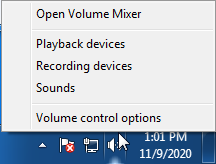
-
Windows 10/11: Right-click the speaker icon in the Windows taskbar and select Sound settings or Open Sound settings.
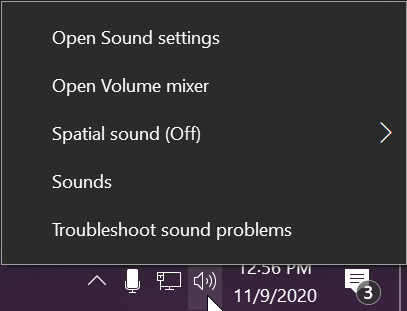
-
Windows 7/8.x: Right-click the speaker icon in the Windows taskbar and select Playback Devices. The Sound window will open with the Playback tab selected.
- In Windows 10 or Windows 11, select your preferred device under Output.
- If you need the classic Sound window, select More sound settings or Sound Control Panel, then select the Playback tab.
- Find the appropriate audio device.
- A Plugable USB 3.0 DisplayLink docking station or sound-enabled display adapter may appear as Plugable Audio.
- A Plugable Silicon Motion docking station or sound-enabled display adapter may appear as SMI USB Audio.
- A Plugable USB 2.0 docking station may appear as USB Multimedia Audio Device.
- A Plugable USB Audio adapter may appear as USB Audio Device.
- If you are using the classic Sound window, right-click the device and select Set as Default Device.
- Select OK to close the window.
Additional Configuration for Bluetooth
For Bluetooth pairing and configuration instructions:
Set Default Playback Device in macOS
- Open System Settings.
- On older versions of macOS, open System Preferences.
- Select Sound.
- Select Output.
- Select the audio device you want to use.
- A Plugable USB Audio adapter may appear as USB Audio Device.
Set Default Playback Device in Linux
- Confirm that the audio device is connected to the computer.
- If the audio device is self-powered, make sure it is powered on and is not muted or set to the minimum volume.
- Open the Settings application for your Linux distribution.
- Select Sound.
- Find the Output Device setting and select your preferred audio device.
- For additional audio controls, consider using PulseAudio Volume Control, package name pavucontrol, if supported by your Linux distribution.
Set Audio Recording Device
Set Default Recording Device in Windows
- Check that your audio device is properly connected and that any necessary drivers are installed.
- If the audio device has its own power or volume controls, make sure it is turned on and is not muted or set to the minimum volume.
- Open the Windows sound settings.
-
Windows 7/8.x: Right-click the speaker icon in the Windows taskbar and select Recording Devices. The Sound window will open with the Recording tab selected.
-
Windows 10/11: Right-click the speaker icon in the Windows taskbar and select Sound settings or Open Sound settings.
-
Windows 7/8.x: Right-click the speaker icon in the Windows taskbar and select Recording Devices. The Sound window will open with the Recording tab selected.
- In Windows 10 or Windows 11, select your preferred device under Input.
- If you need the classic Sound window, select More sound settings or Sound Control Panel, then select the Recording tab.
- Find the appropriate recording device.
- A Plugable USB 3.0 DisplayLink docking station or sound-enabled display adapter may appear as Plugable Audio.
- A Plugable USB 2.0 docking station may appear as USB Multimedia Audio Device.
- A Plugable USB Audio adapter may appear as USB Audio Device.
- If you are using the classic Sound window, right-click the device and select Set as Default Device.
- Select OK to close the window.
Additional Configuration for Bluetooth
For Bluetooth pairing and configuration instructions:
Set Default Recording Device in macOS
- Open System Settings.
- On older versions of macOS, open System Preferences.
- Select Sound.
- Select Input.
- Select the audio device you want to use.
- A Plugable USB Audio adapter may appear as USB Audio Device.
Set Default Recording Device in Linux
- Confirm that the audio device is connected to the computer.
- If the audio device is self-powered, make sure it is powered on and is not muted or set to the minimum volume.
- Open the Settings application for your Linux distribution.
- Select Sound.
- Find the Input Device setting and select your preferred recording device.
- For additional audio controls, consider using PulseAudio Volume Control, package name pavucontrol, if supported by your Linux distribution.
Applicable To
Windows, macOS, Linux, Plugable Docking Stations, USB-AUDIO, Plugable USB Audio Adapters
My Docking Station/Adapter Works Well With My Windows Laptop, but When I Close the Lid the Displays and Laptop Turn Off or Sleep. How Do I Fix This?
Windows defaults to putting the computer to sleep when the lid is closed, even if there are external displays and devices connected, we can change this setting to enable closing the lid while using a docking station.
Recommended Setup
To ensure the computer can reliably function with the lid closed there are some requirements and recommendations:
- The system should be powered: This can be from a USB Type-C Docking Station with host charging, or by connecting the laptop's original power source.
- There should be at least one external display connected, this can be through a docking station, or directly to the computer.
- There should be a keyboard and mouse connected, either through a docking station, USB Hub, or directly to the computer.
Windows 11 24H2 and Newer
- Right-click on the Start menu and select Power Options from the context menu
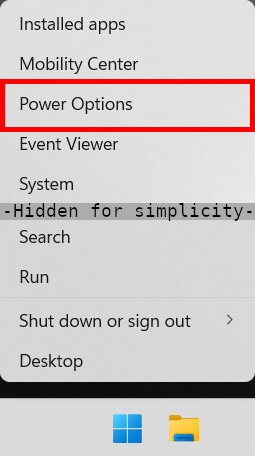
- Expand the Lid, power & sleep button controls sub-section
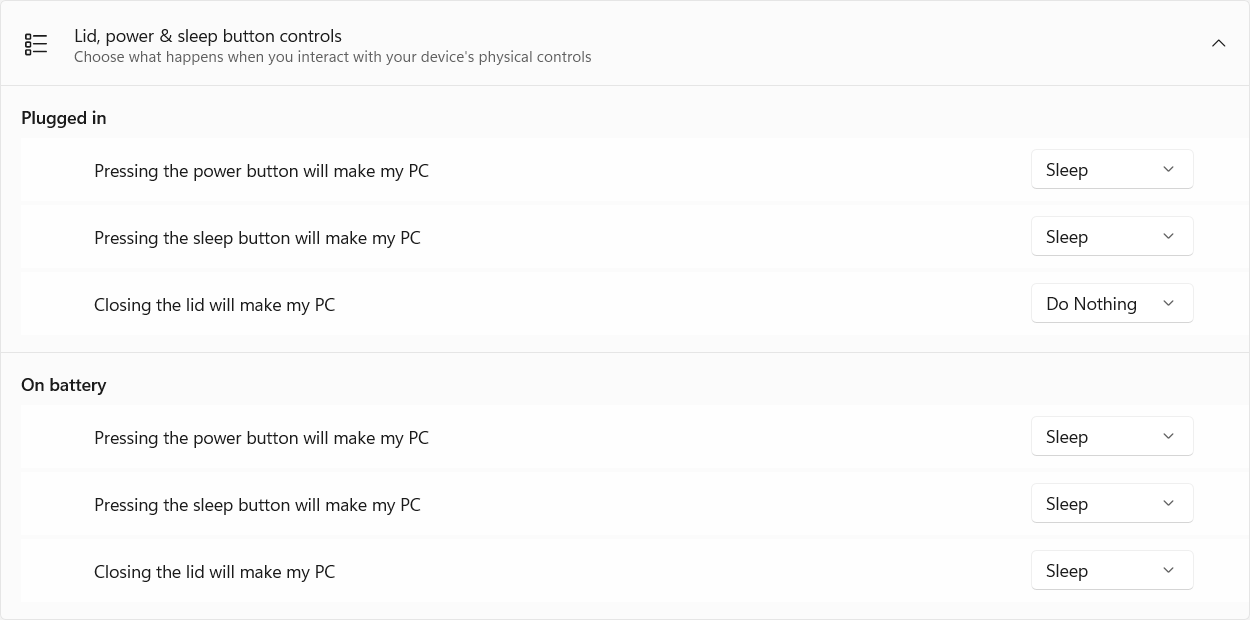
- Under Plugged in select Do Nothing from the Closing the lid will make my PC context menu
Windows 11 23H2 and Earlier
- Right-click on the Start menu and select Power Options from the context menu
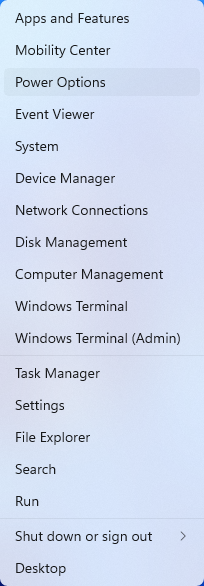
- In the upper left corner of the settings window, in the search box, type "lid" then select Change what closing the lid does from the search results
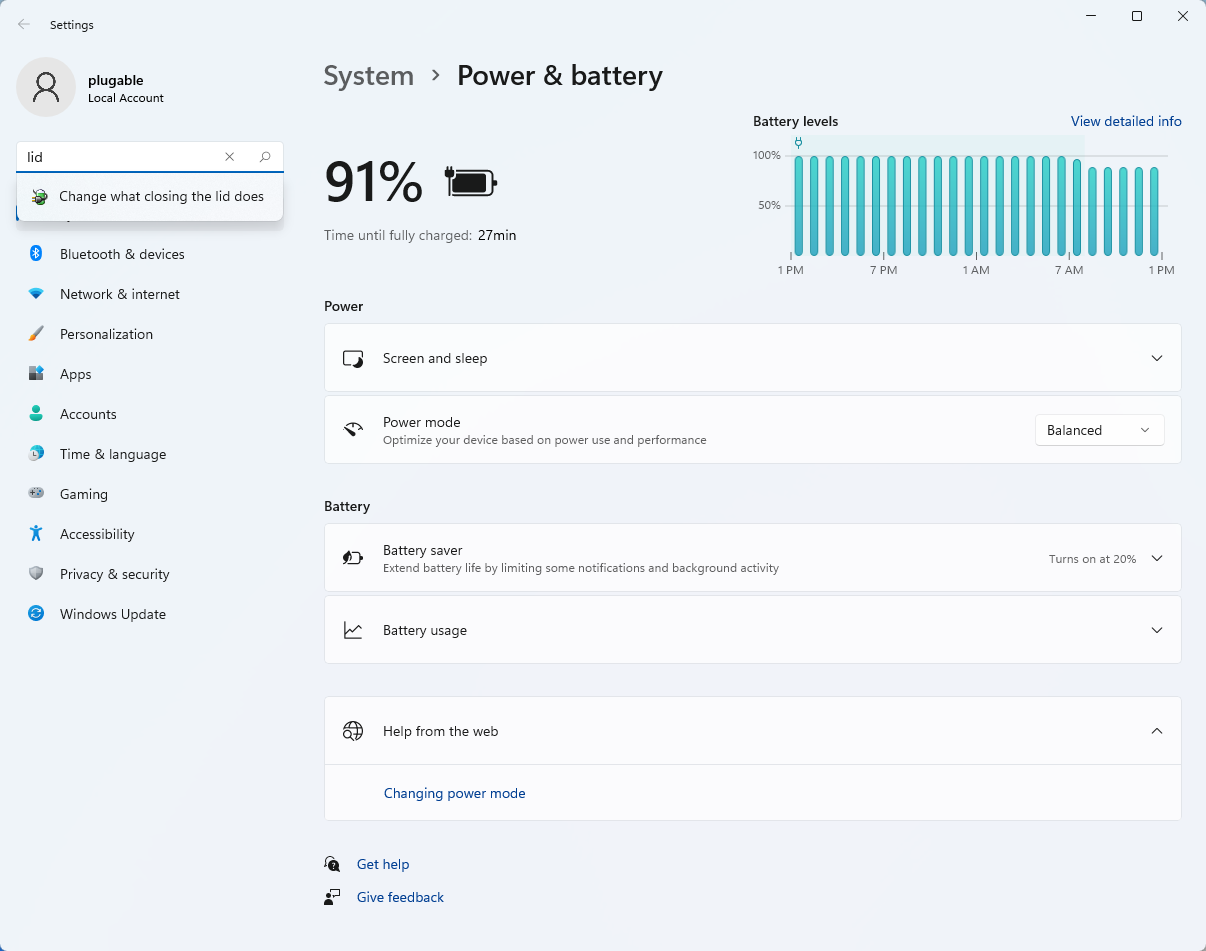
- Make sure the setting for When I close the lid under the Plugged In column is set to Do Nothing
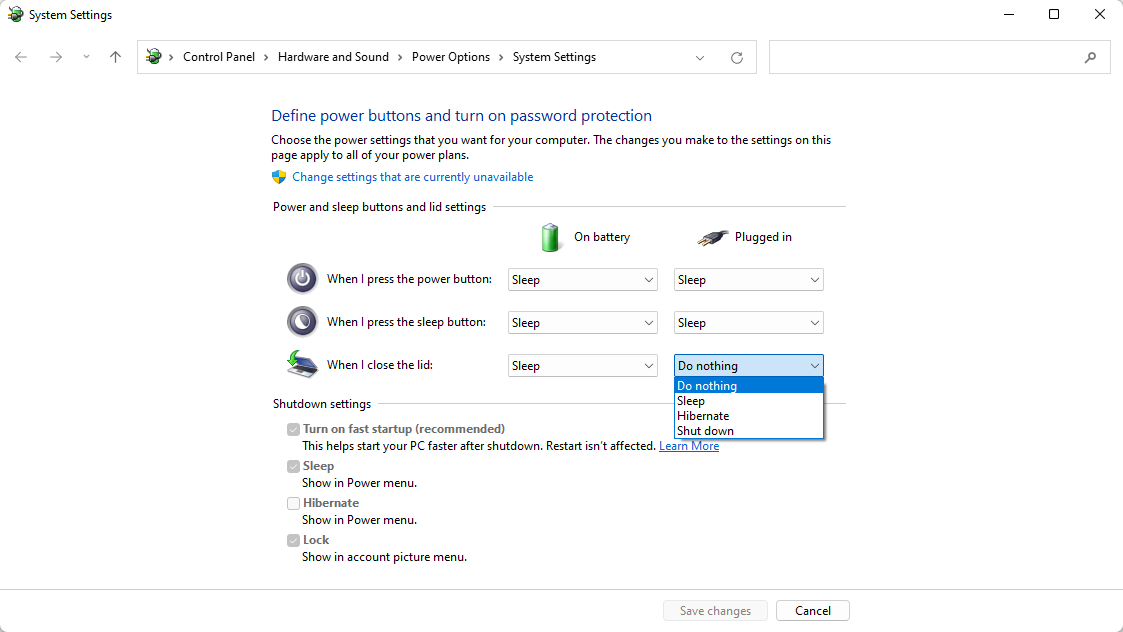
- Click the Save Changes button to apply the new settings.
Windows 10
- Start by right-clicking on the Start button and select Power Options from the menu.
- From the right side of the Power Options settings page, select the blue link for Additional power settings
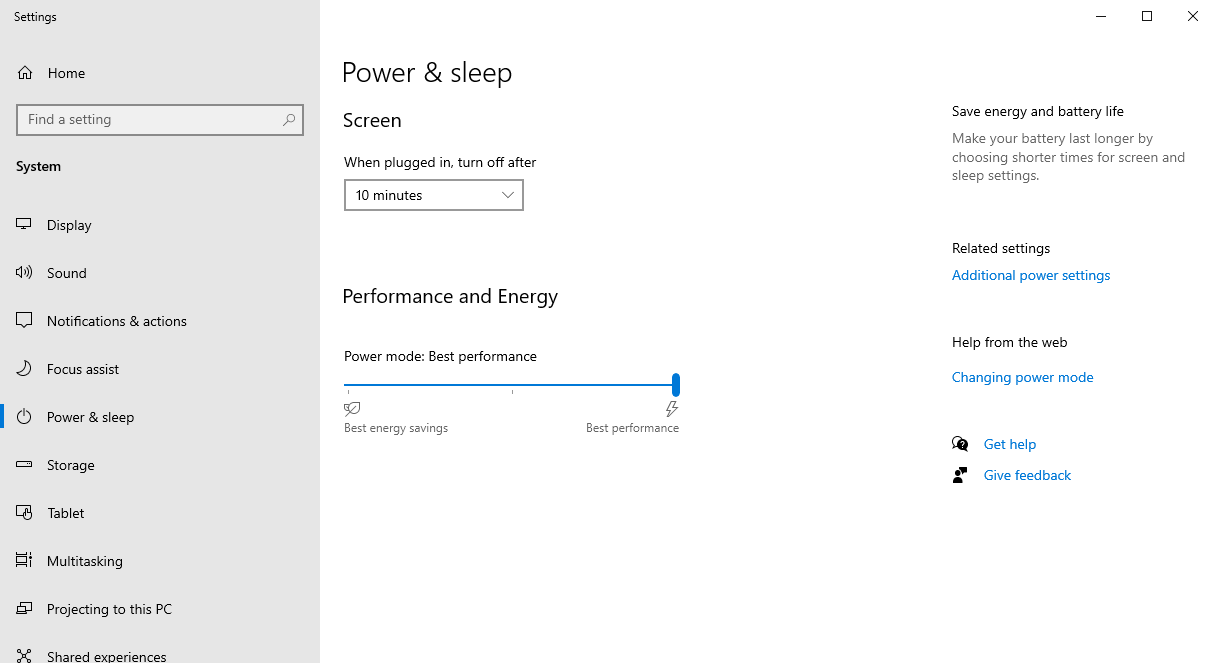
- From the choices present on the left-hand side of the Power Options window, please click on Choose what closing the lid does
- Make sure the setting for When I close the lid under the Plugged In column is set to Do Nothing
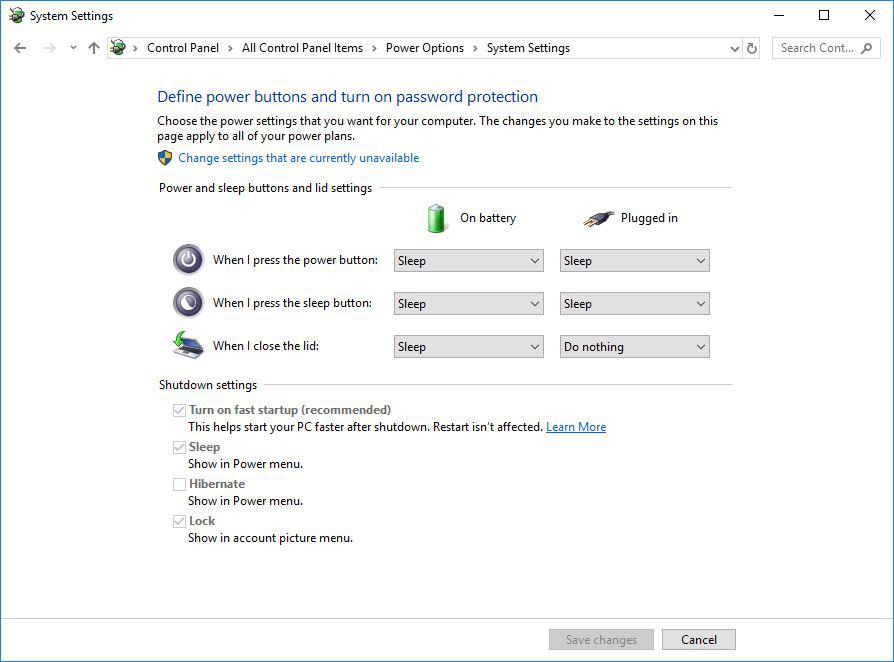
- Click the Save Changes button and restart the system (making sure that the laptop's power adapter is also connected) and test the behavior again.
Closing the lid should no longer put the computer into sleep mode when an external display and power source is connected, instead one of the external displays should now become the Primary display with the desktop icons instead of the laptop's built-in display.
When to open the lid?
The laptop lid may still need to be opened when performing any of the following:
- To power on the computer from a fully powered off state
- To log into the computer if logged out or if the computer is restarted with the lid closed
- To wake the computer from a deep sleep state (hibernation, or Windows hybrid sleep states)
If you have any questions please feel free to contact us at support@plugable.com and we'll be happy to help!
Legacy macOS DisplayLink Driver Installation Instructions for macOS 10.14 Mojave or 10.15 Catalina
Unsure which version of macOS you have installed? Click on the ‘Apple’ icon in the menu bar on your desktop and select ‘About this Mac’. A new window will open and display the system’s macOS version.
'Legacy' DisplayLink Driver installation for macOS 10.15 Catalina
We also have a video that demonstrates this process here –> https://youtu.be/ixWKrd5SLKs
Before you begin
If have installed a previous version of the DisplayLink driver, please uninstall it and then reboot your system before proceeding.
1. Download the latest driver for macOS 10.15 Catalina from here -> Link
2. Navigate to your Downloads folder and double-click on the DisplayLink driver download
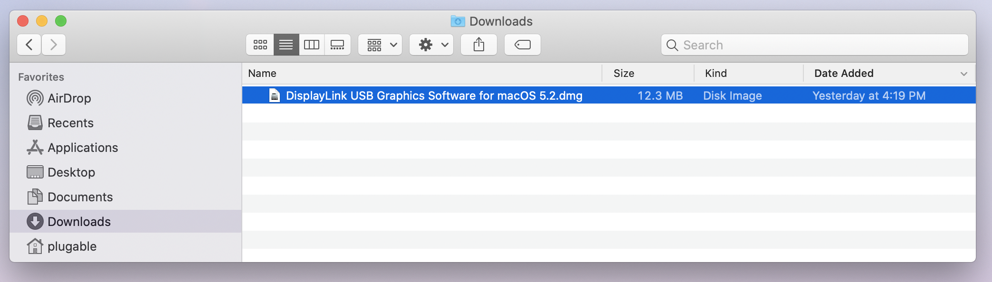
3, The disk image of the driver will mount, and automatically open the DisplayLink Installer main landing page.
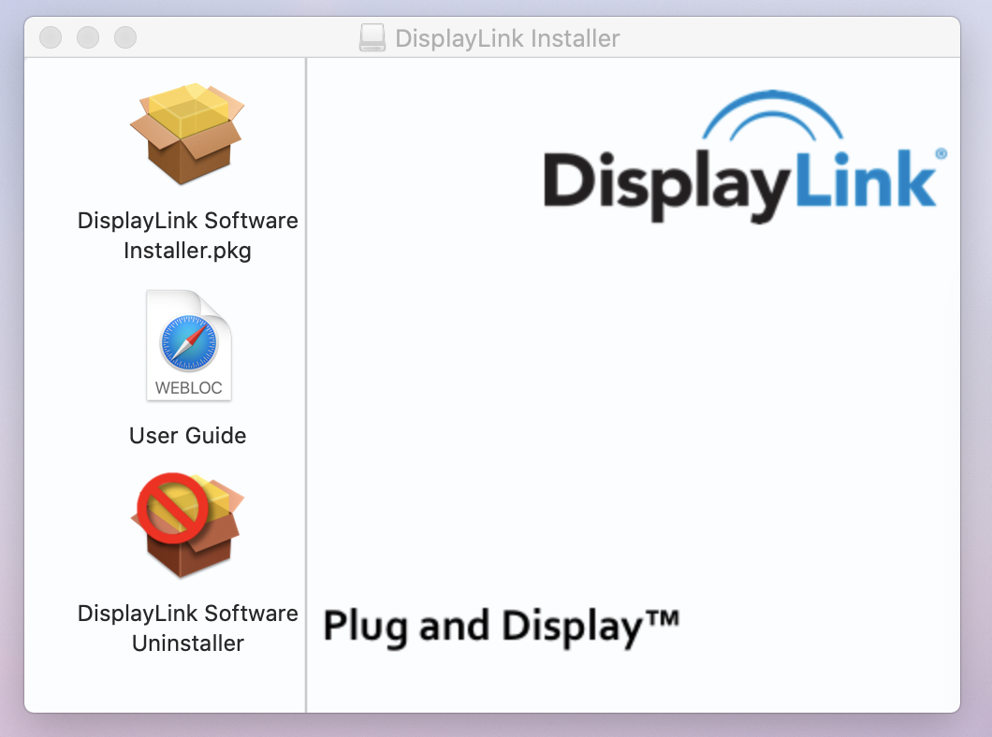
4. Double-click on the ‘DisplayLink Software Installer.pkg’ file. The Install DisplayLink Driver page will open.
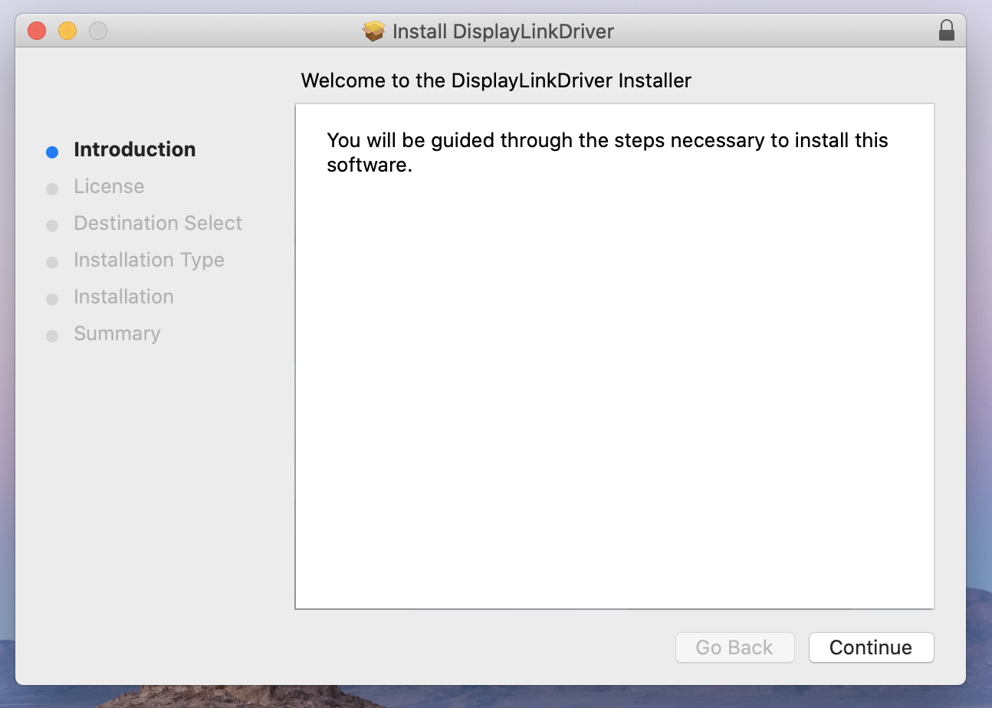
*** Depending on your system’s security settings, the installer may not open and instead present you with a warning ***
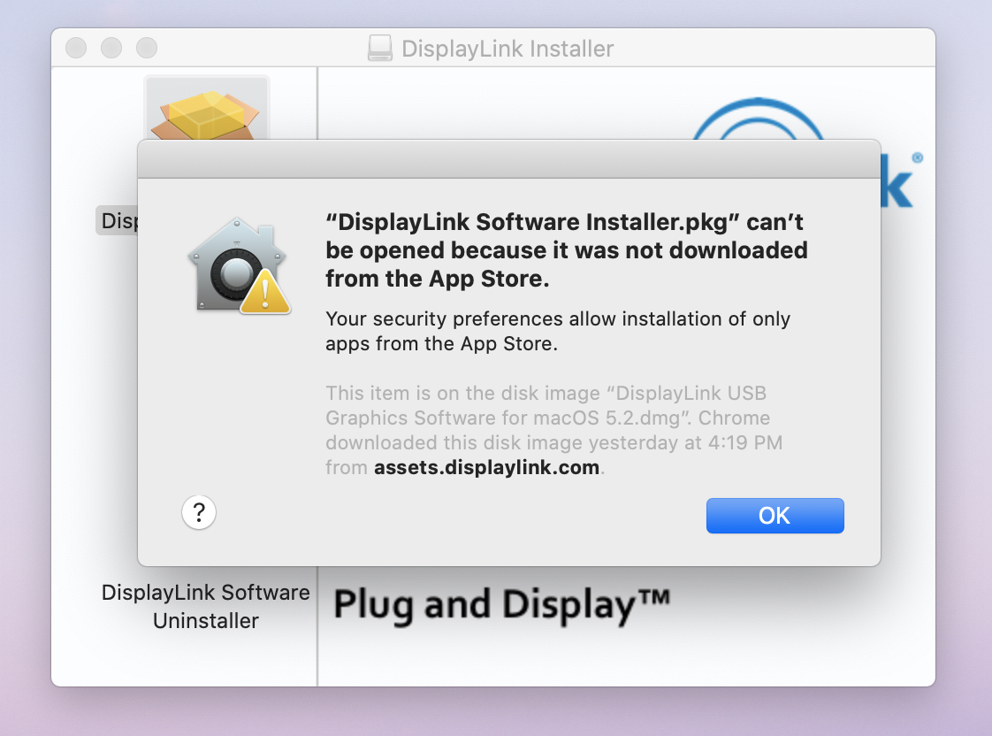
Click on the ‘OK’ button to dismiss the warning, and then open ‘System Preferences’ (gear icon) and then open the ‘Security & Privacy’ application.
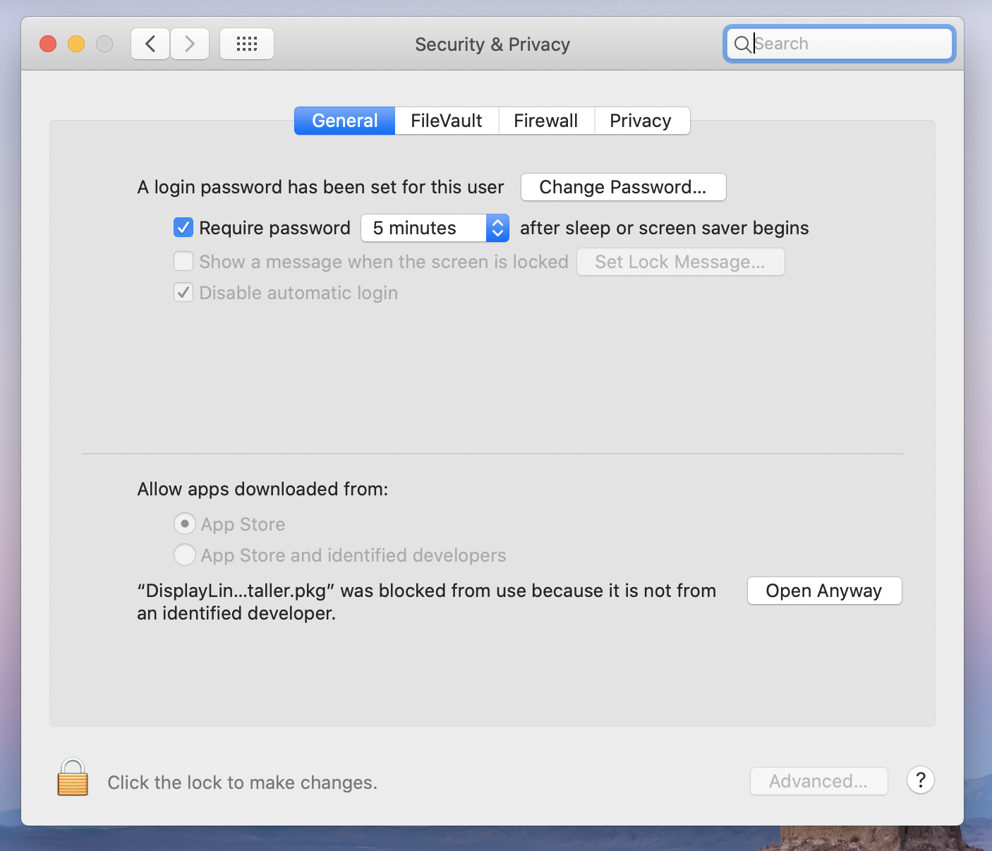
Click on the ‘Open Anyway’ button in the lower right-hand portion of the application window. Then click the ‘Open’ button within the next prompt.
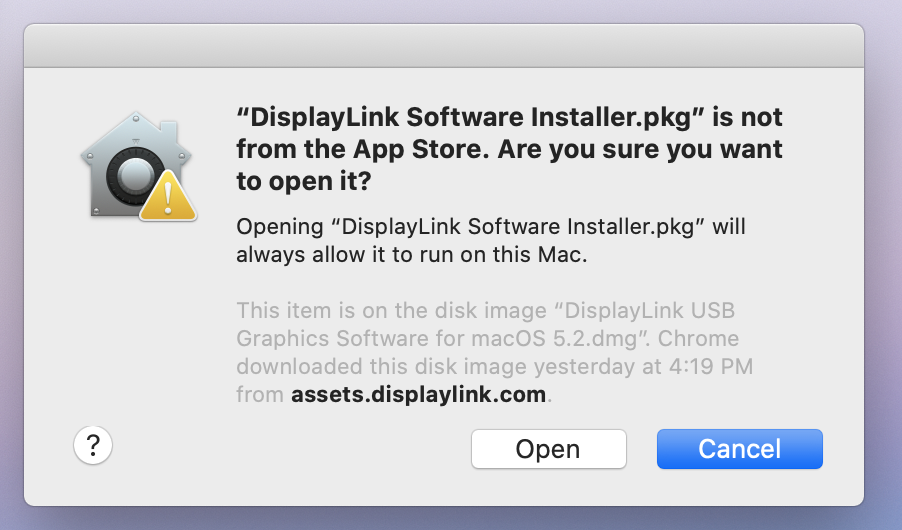
5. Click the ‘Continue’ button shown within the installer’s ‘Introduction’ screen.
6. Click the ‘Agree’ button to accept the license.
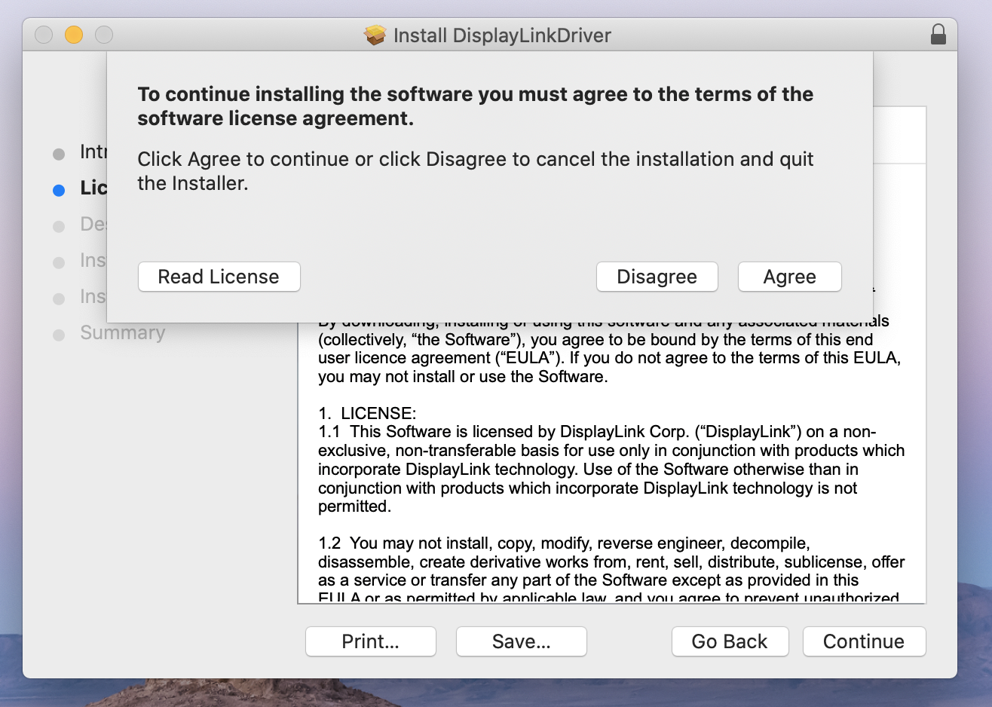
7. Click the ‘Install’ button.
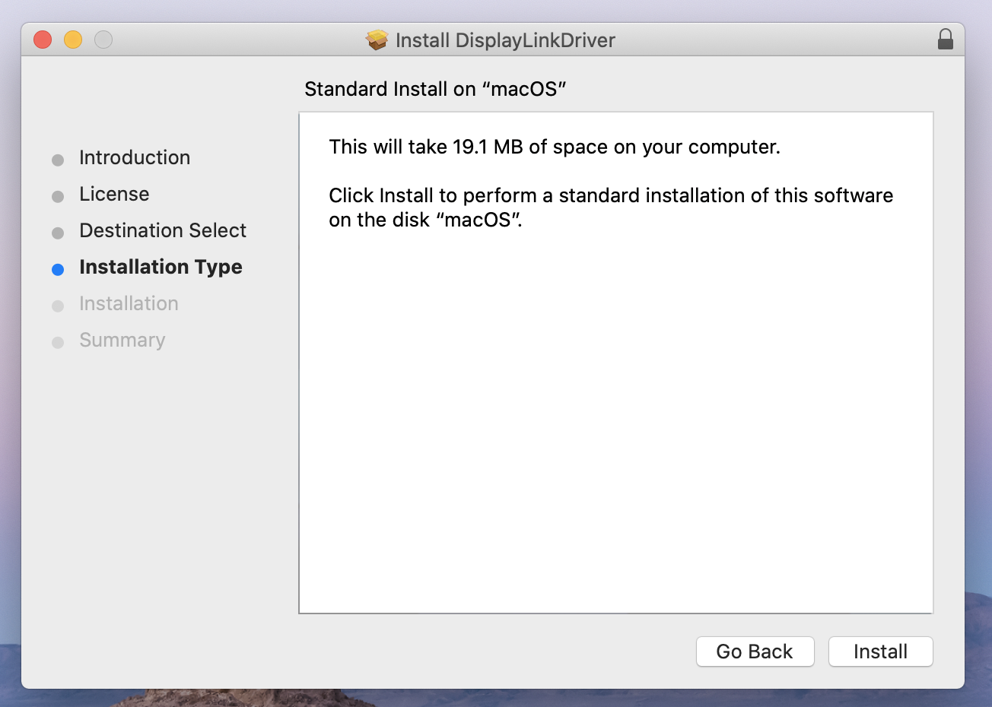
8. Click the ‘Continue Installation’ button. The system will need to be restarted when the installation is complete.
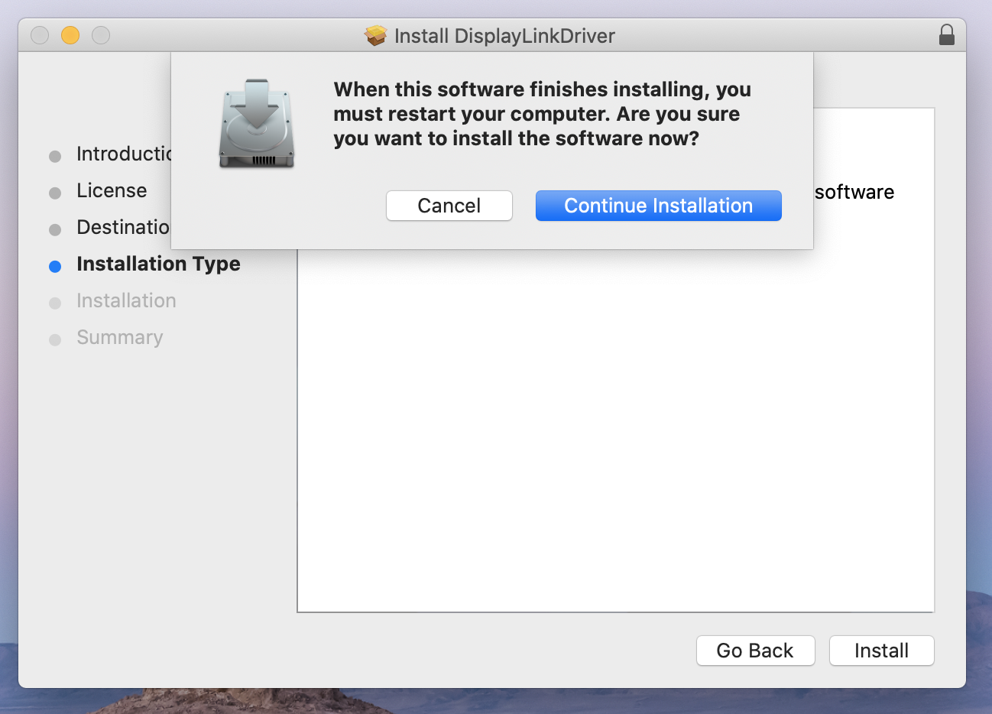
9. Enter your system password and click the ‘Install Software’ button.
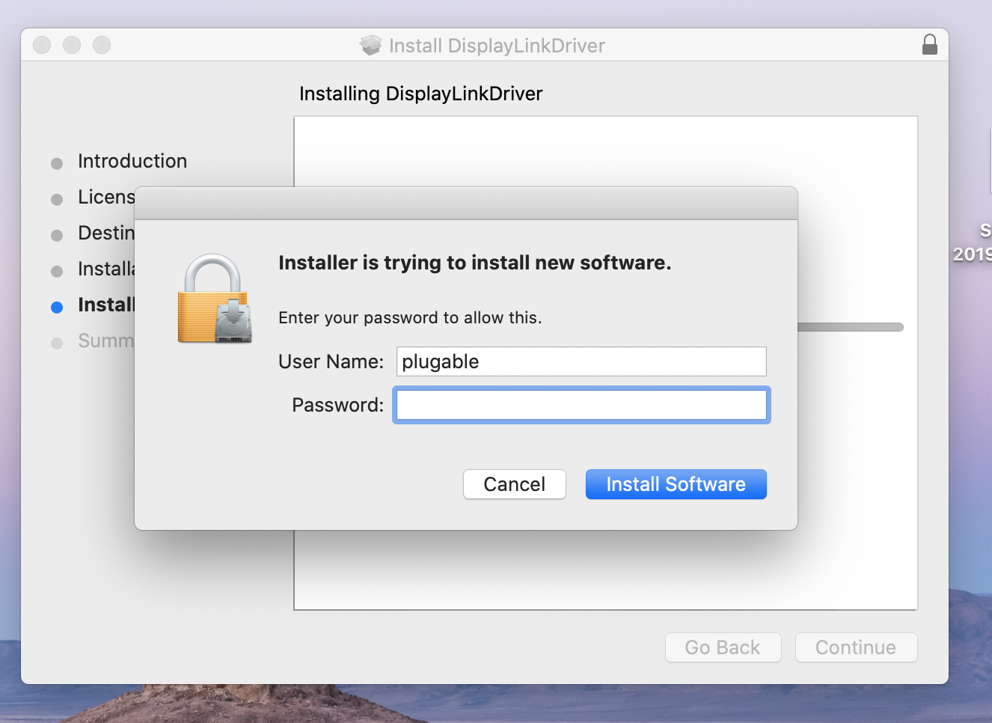
10. After a few moments, the installer should report a successful installation.
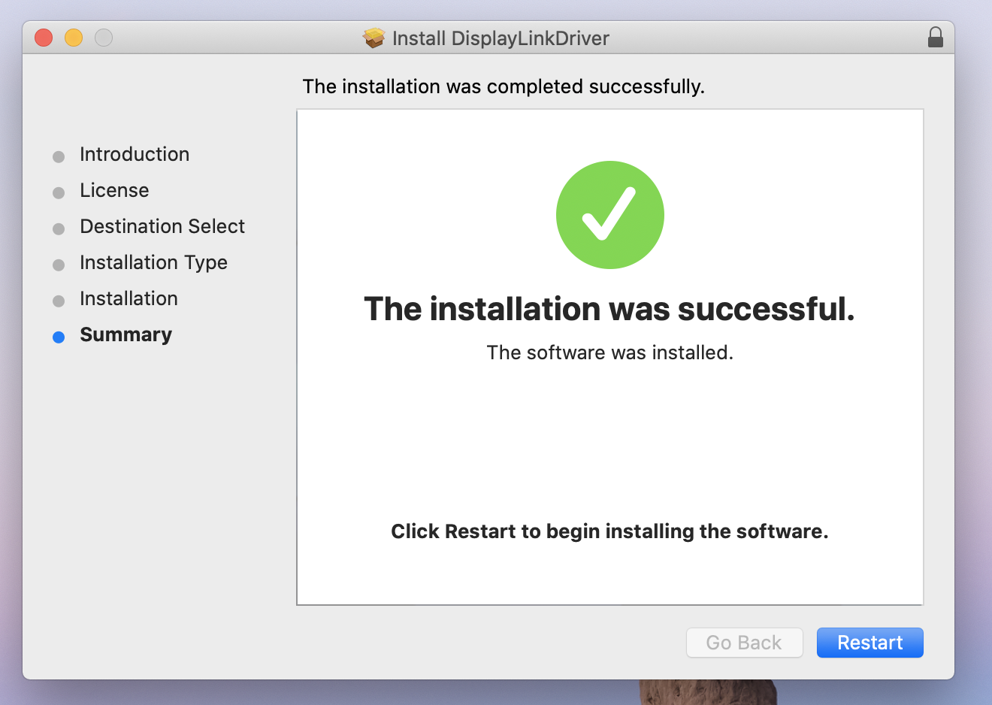
11. The system should also prompt you to access the System Preferences to grant necessary permissions to the DisplayLink driver. Click on the ‘Open System Preferences’ button.
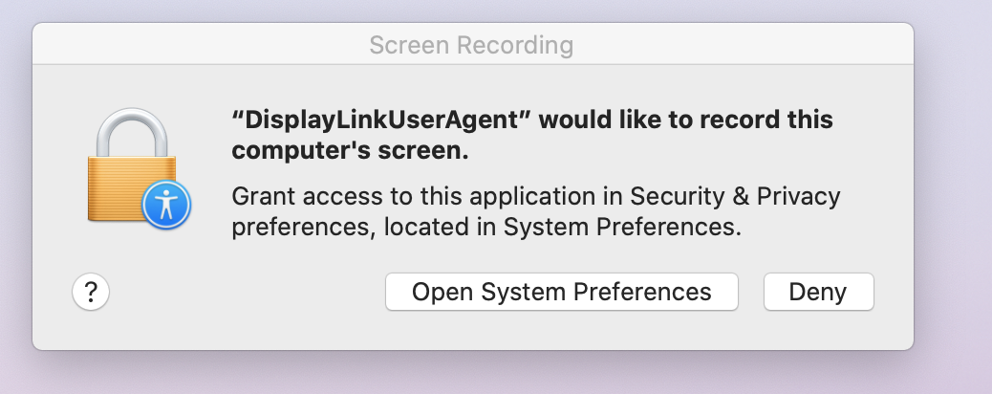
*** If the prompt described above did not appear automatically, manually open the ‘System Preferences’ application (gear icon in the macOS dock at the bottom of the screen) and select the ‘Security & Privacy’ application. Within the ‘Security & Privacy’ application click on the ‘Privacy’ tab. Scroll down in the list of items on the left-hand side of the application window and click to select ‘Screen Recording’. The proceed to the next step ***
12. The ‘Security & Privacy’ application should open and default to showing the ‘Privacy’ tab. On the right-hand side of the application window there should be a single entry entitled, ‘DisplayLinkUserAgent’. Click to place a checkmark next to this entry.
*** Important note – the contents of your screens (displays) are not being recorded. This setting just enables the DisplayLink driver to access the information generated by the system’s built-in graphics adapter to generate the image shown on the DisplayLink-connected displays. ***
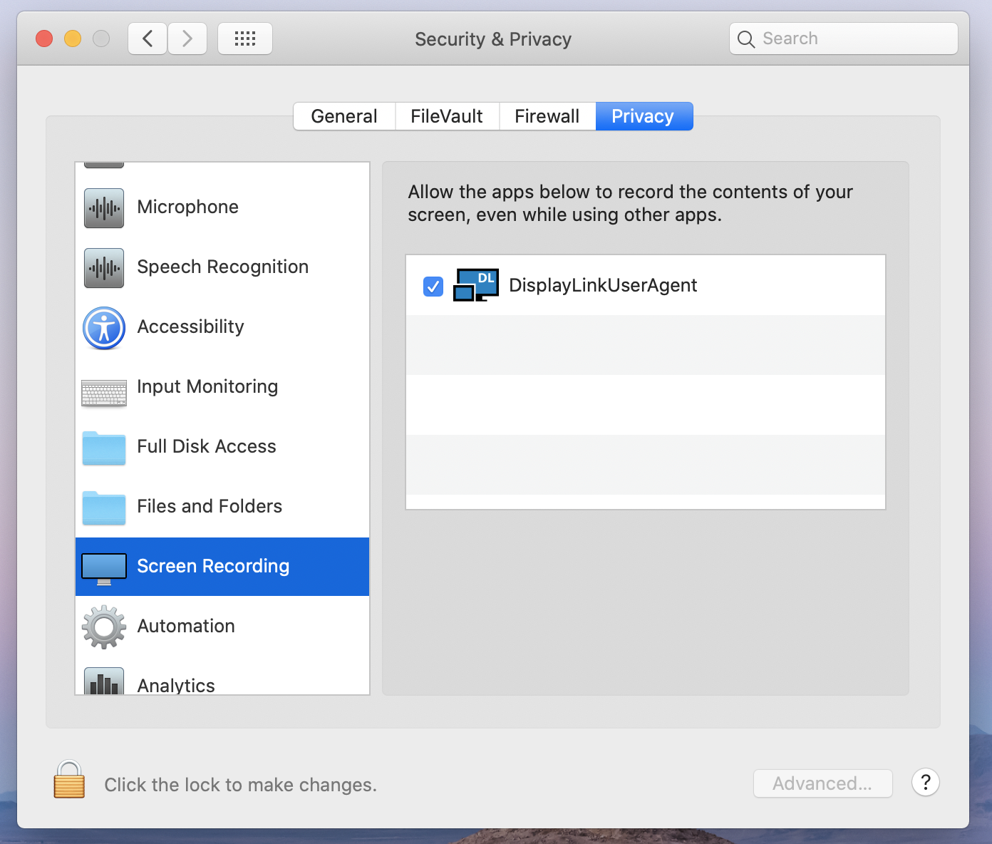
13. After having placed a checkmark next to the ‘DisplayLinkUserAgent’ entry, click the ‘Quit Now’ button in the prompt that appears.
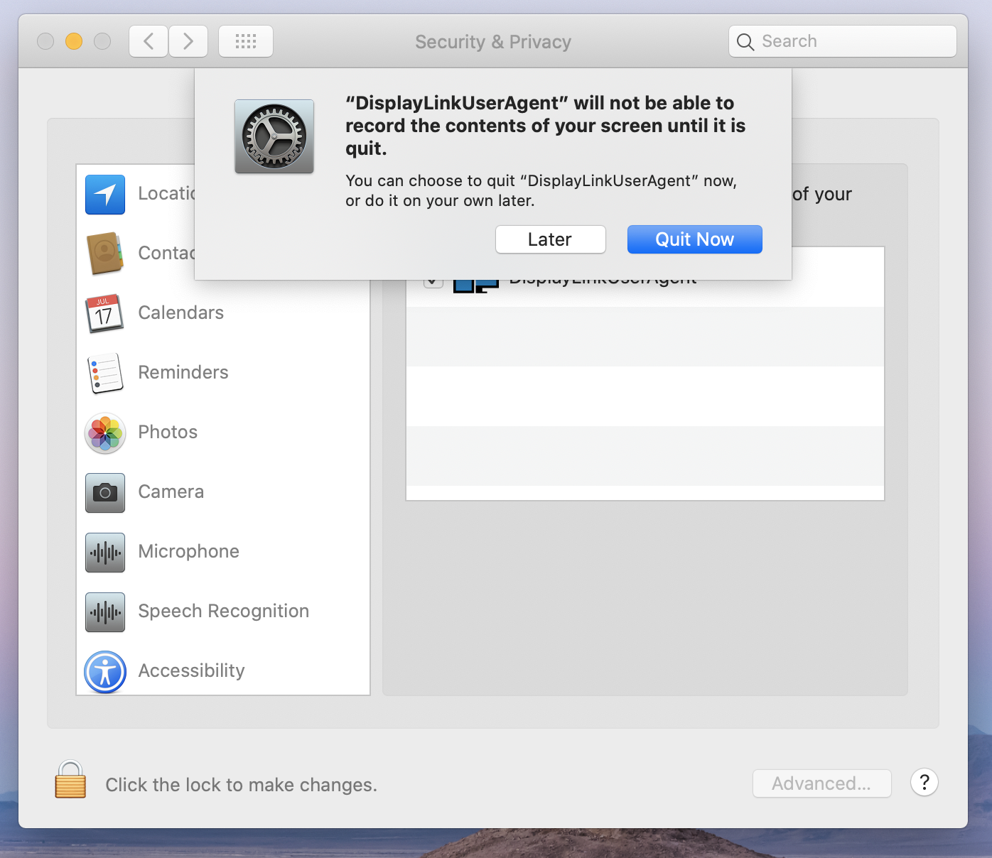
14. Close the ‘Security & Privacy’ application, and then restart your system. The DisplayLink device should start working after the restart is complete.
'Legacy' DisplayLink Driver installation for macOS 10.14 Mojave
** Before you begin **
If have installed a previous version of the DisplayLink driver, please uninstall it and then reboot your system before proceeding.
1. Download the latest driver for macOS 10.14 Mojave from here -> Link
2. Navigate to your Downloads folder and double-click on the DisplayLink driver download
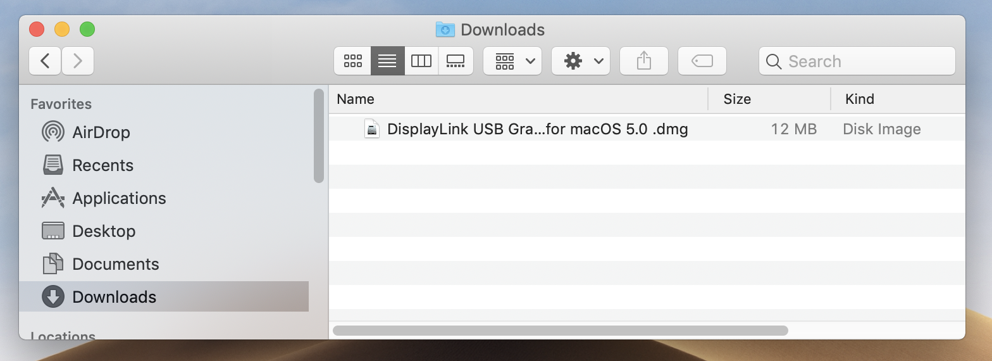
3. The disk image of the driver will mount, and automatically open the DisplayLink Installer main landing page
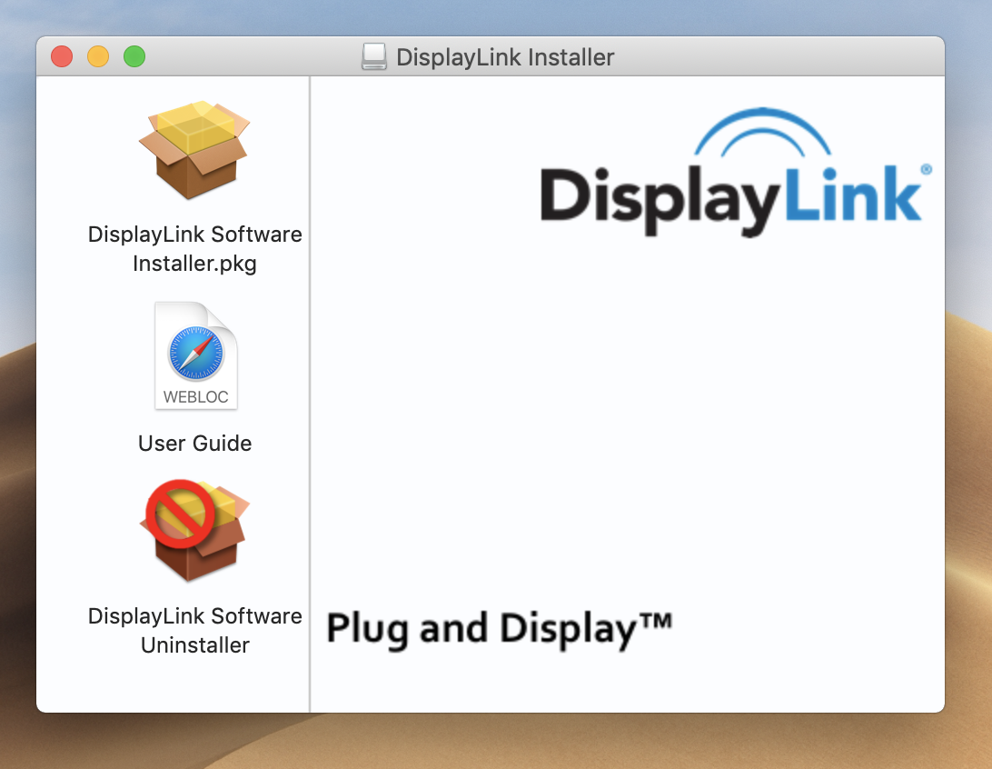
4. Double-click on the ‘DisplayLink Software Installer.pkg’ file. The Install DisplayLink Driver page will open
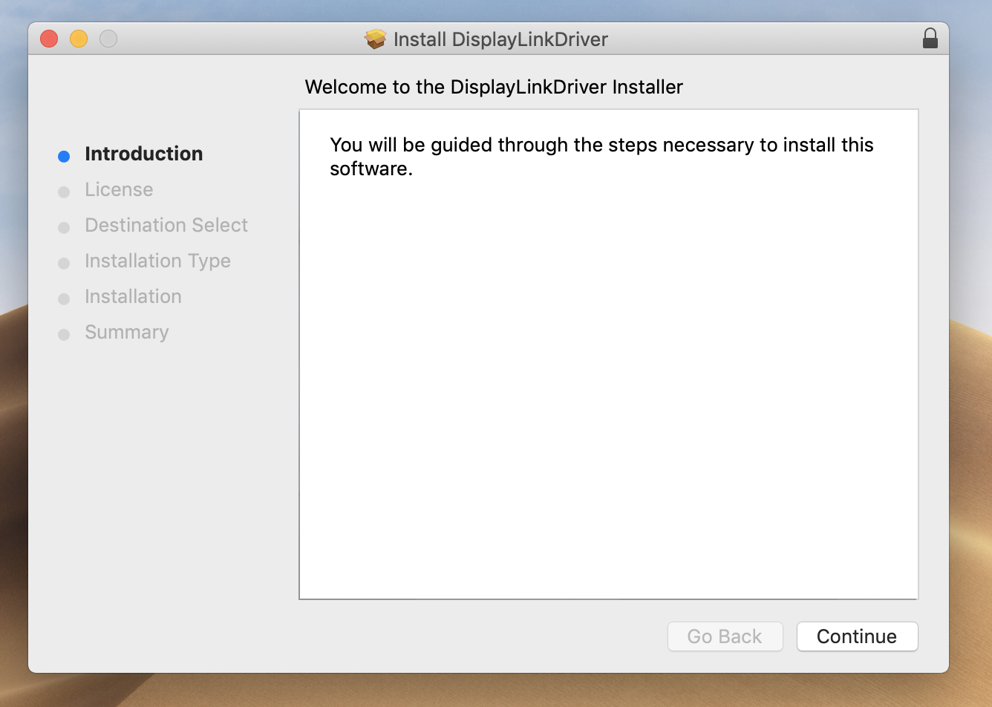
5. Click ‘Continue’
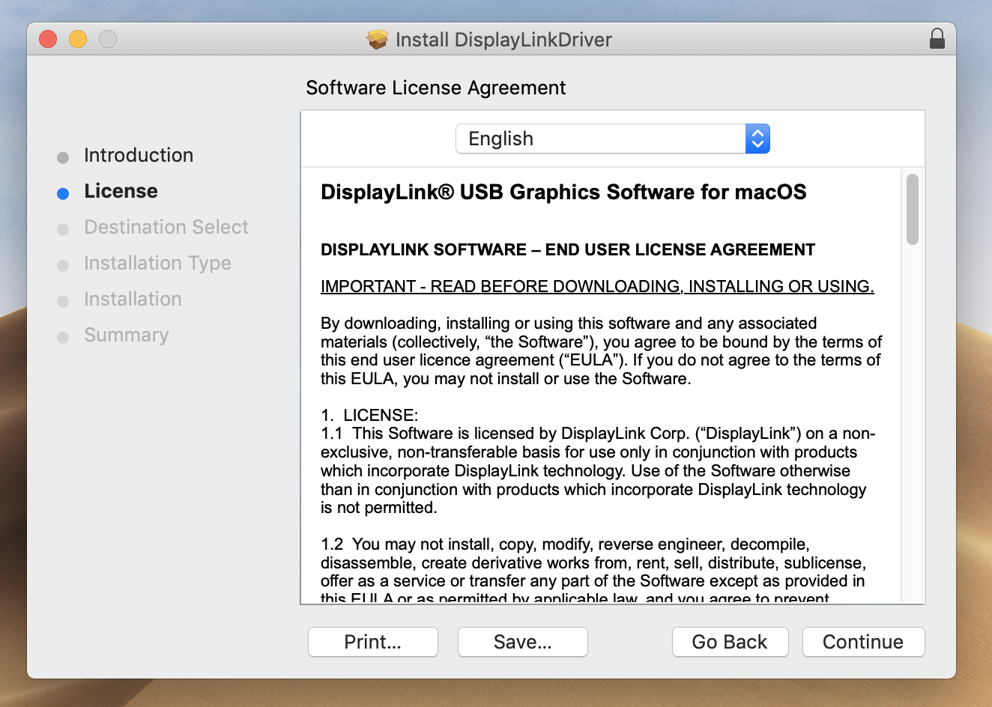
6. Click the ‘Agree’ button
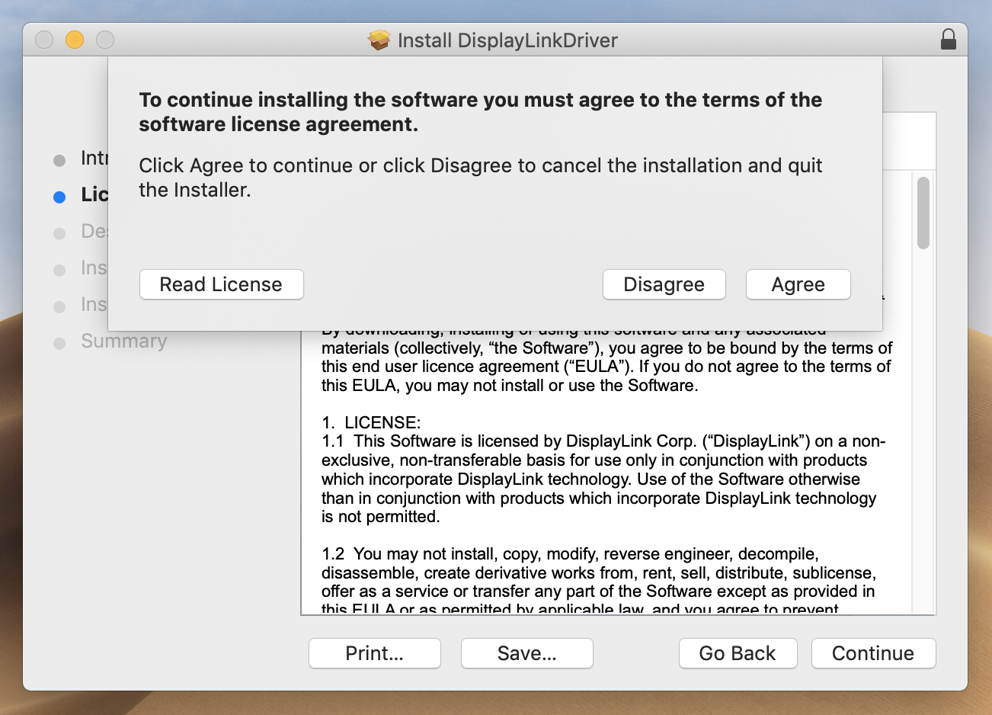
7. Click ‘Install’
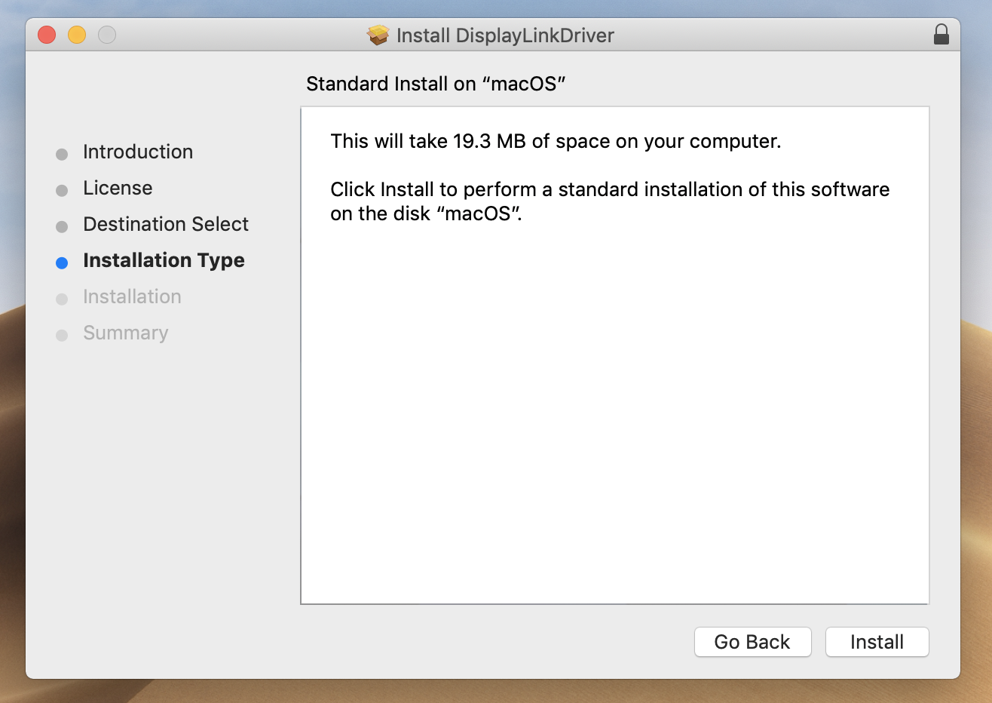
8. Click ‘Continue Installation’ The system will need to be restarted when the installation is complete
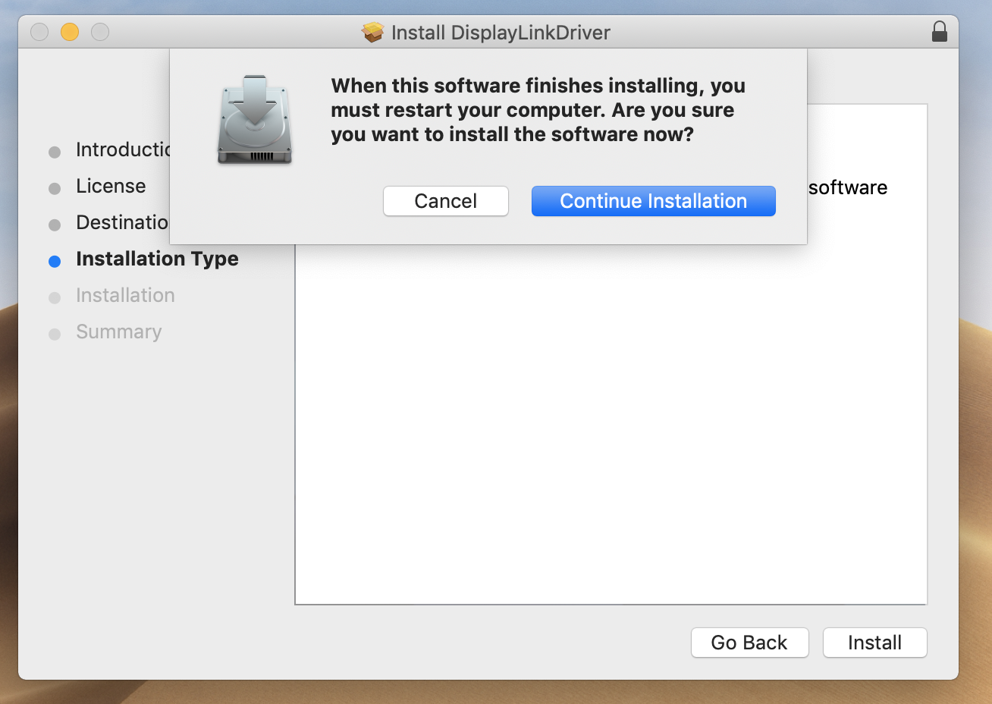
9. Enter your system password and click the ‘Install Software’ button
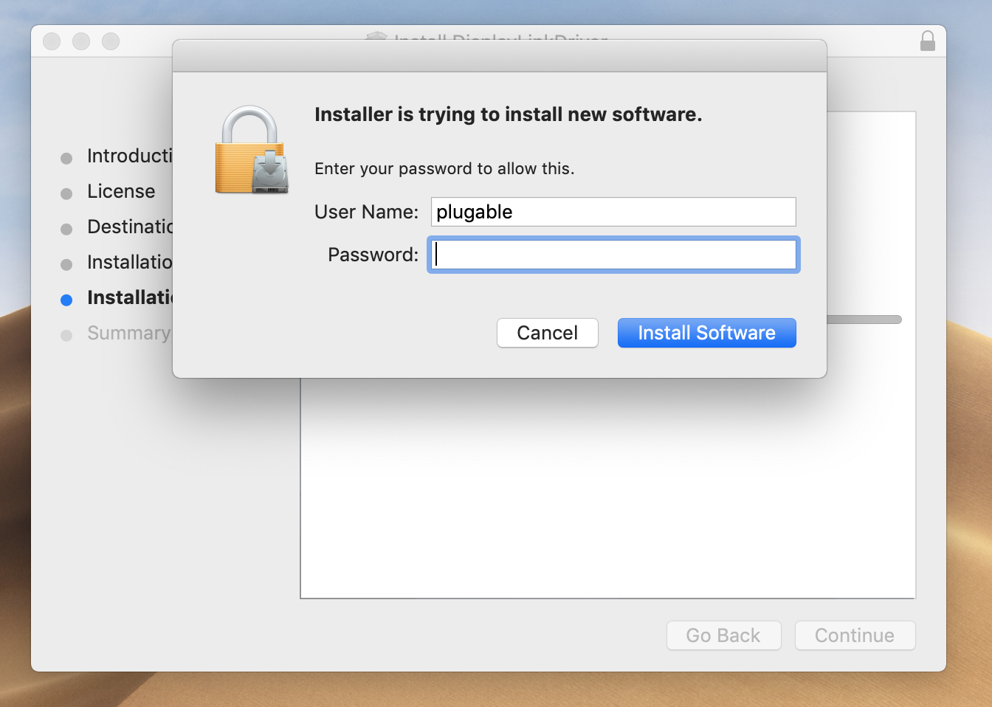
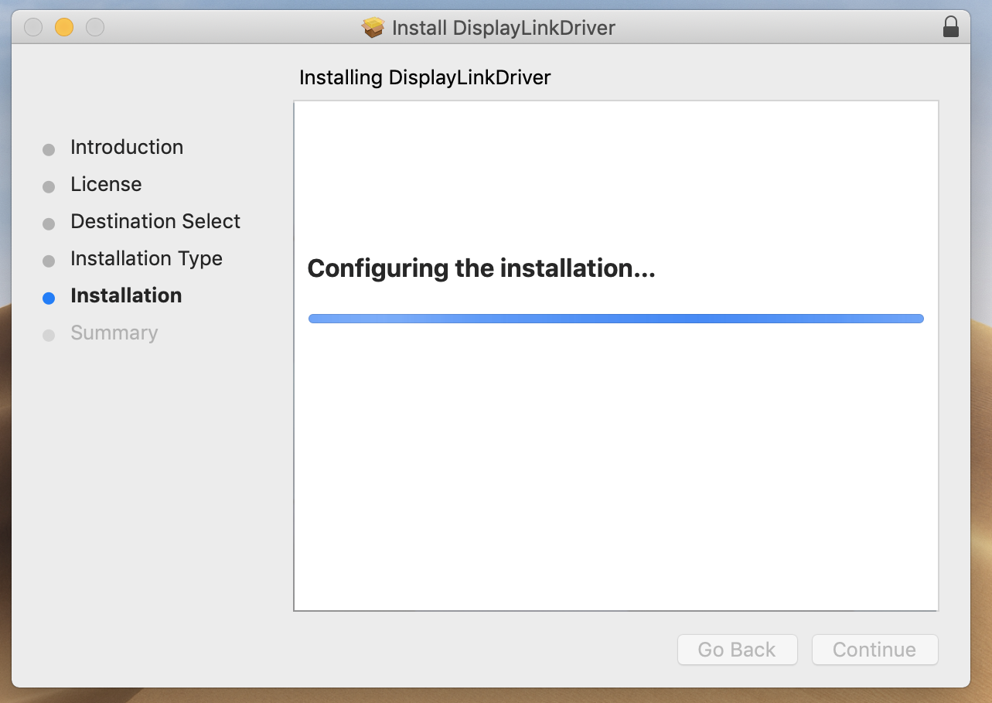
10. There is a chance that the security settings in macOS may block the installation of the DisplayLink extension
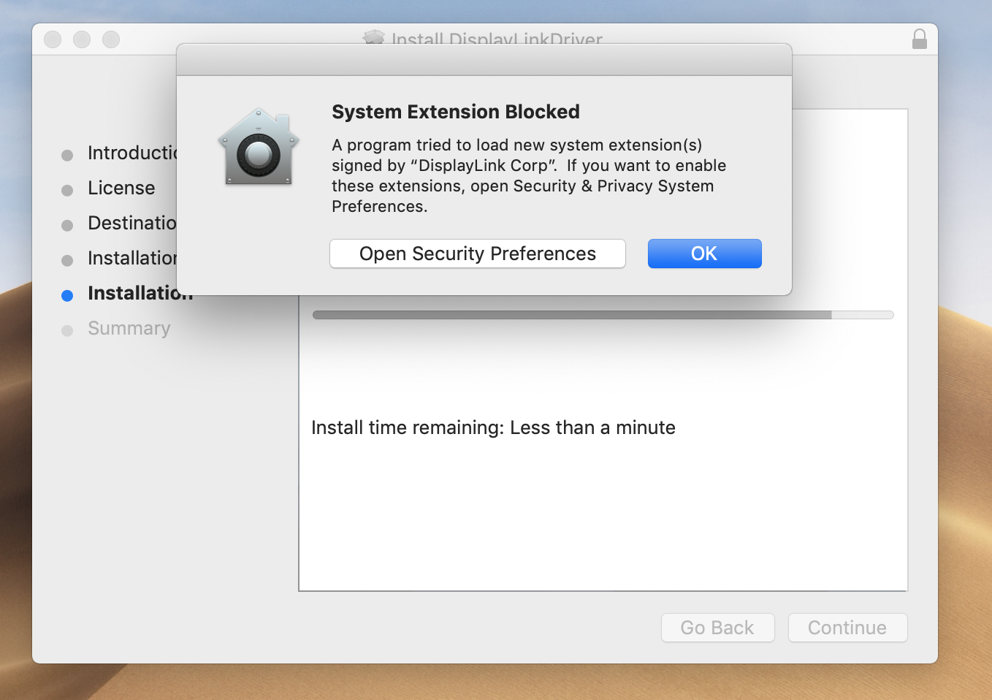
11. If that occurs, click on the ‘Open Security Preferences’ button and click the ‘Allow’ button at the bottom of the window to grant permission for the extension to be loaded. ** Important note – this approval must be granted within 30 minutes of the driver installation or the process will not work. A fresh installation must be performed to reset this timer. **
There is also a chance that the warning message about the blocked System Extension will not appear, but macOS may still block the extension. After the driver installation completes, please double-check that the necessary approval was granted by clicking the ‘System Preferences’ icon (the gear) and then clicking on the ‘Security & Privacy’ icon. From the window that appears please ensure the DisplayLink driver is Approved by clicking the ‘Allow’ button.
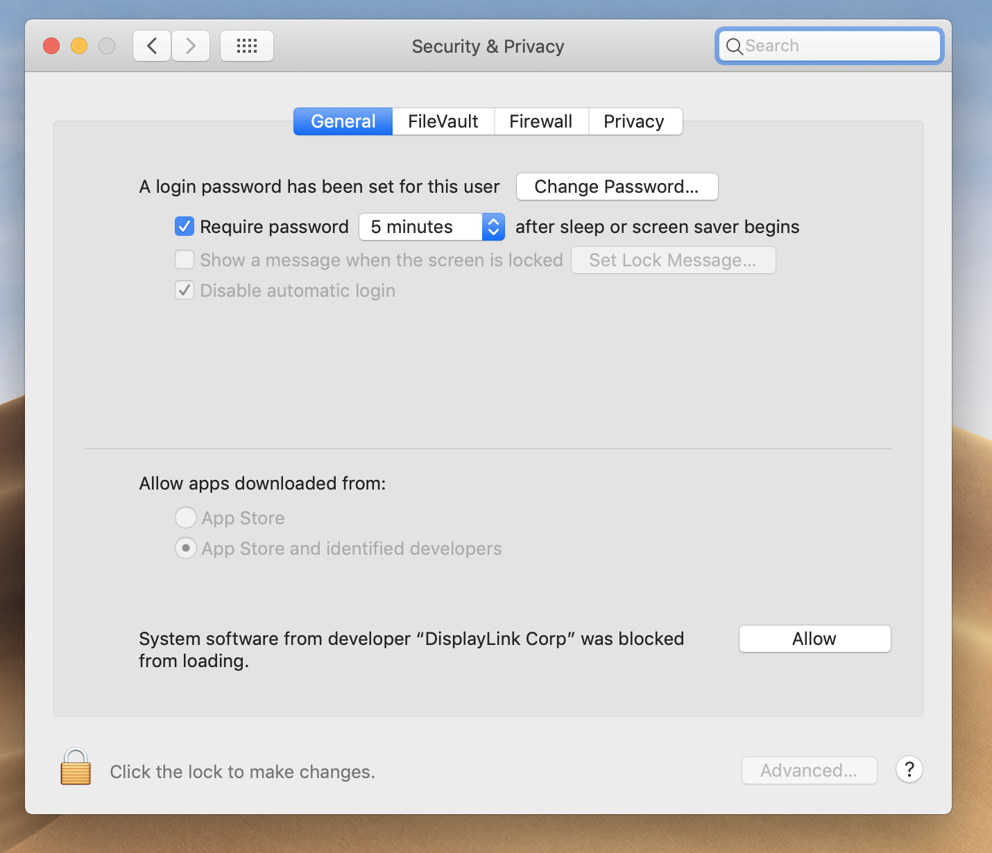
12. Close the ‘Security and Privacy’ window. The DisplayLink installation should now complete
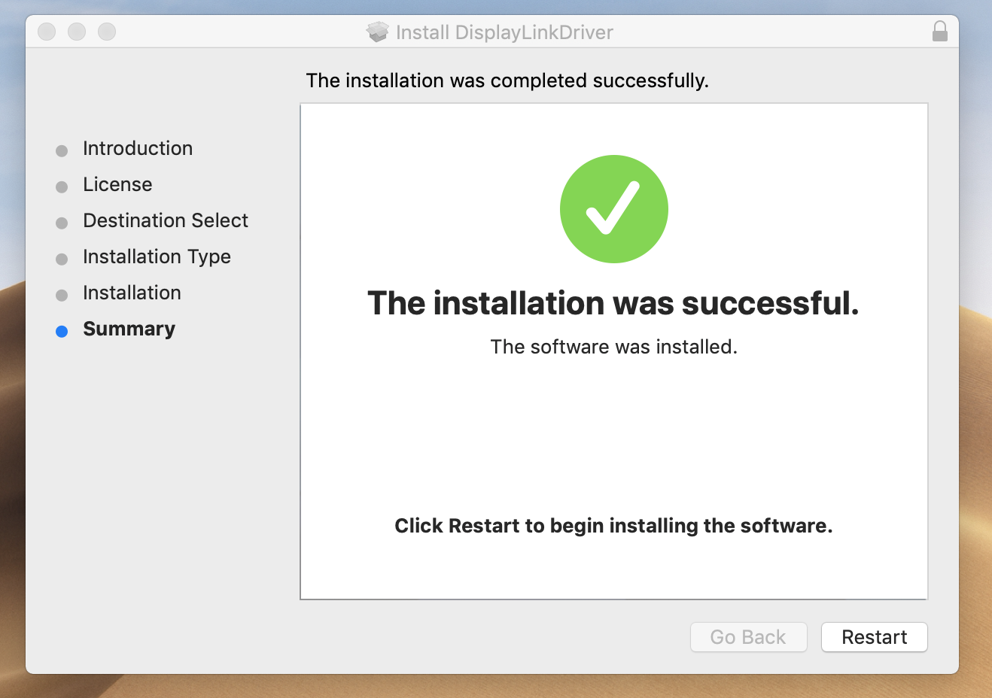
13. Click on the ‘Restart’ button to restart your system. The DisplayLink device should start working after the restart is complete.
'Legacy' DisplayLink Driver removal for macOS 10.14 Mojave and 10.15 Catalina
We also have a video that demonstrates this process here –> https://youtu.be/VRRLJf6D7vc
1. Click the Spotlight magnifying glass icon in the Apple Menu, and search for ‘DisplayLink Software Uninstaller’. Double-click on the result
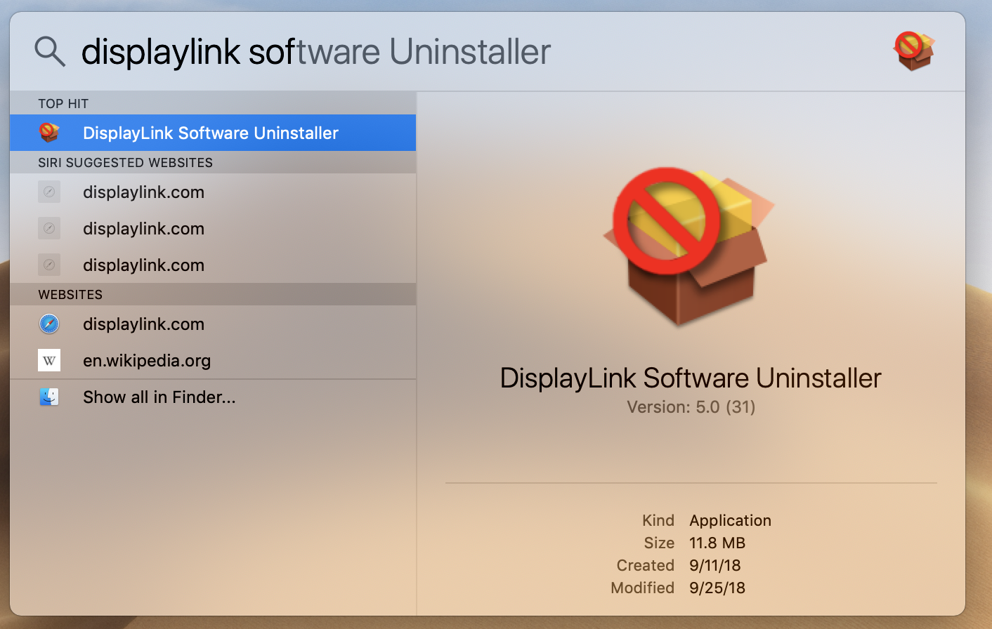
2. The uninstall window will appear
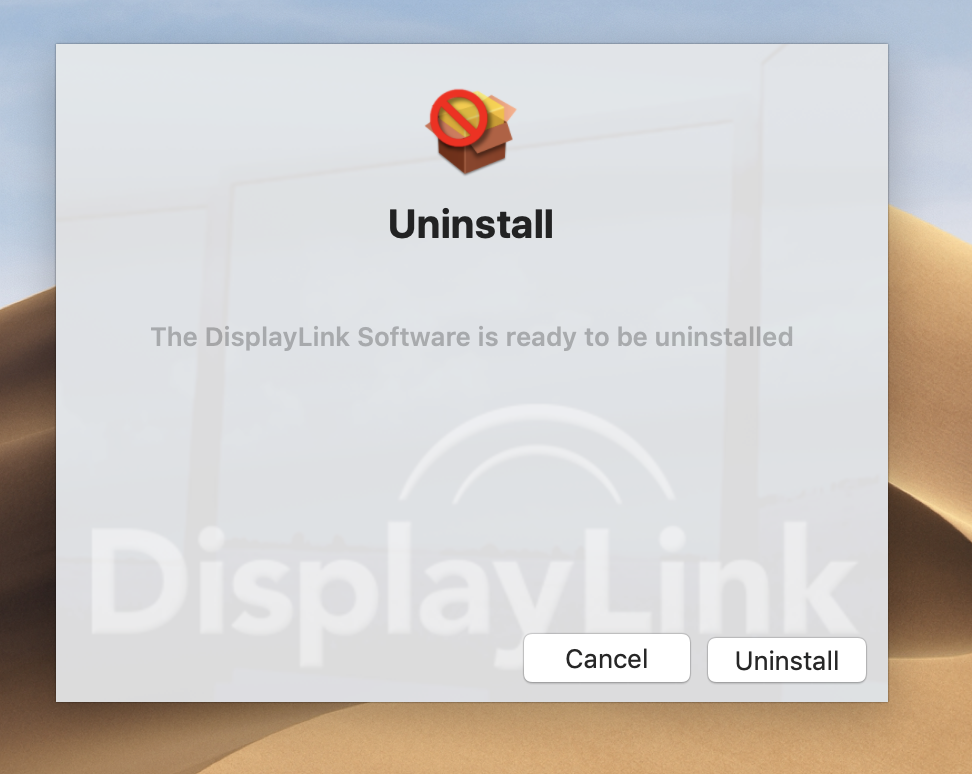
3. Click the ‘Uninstall’ button
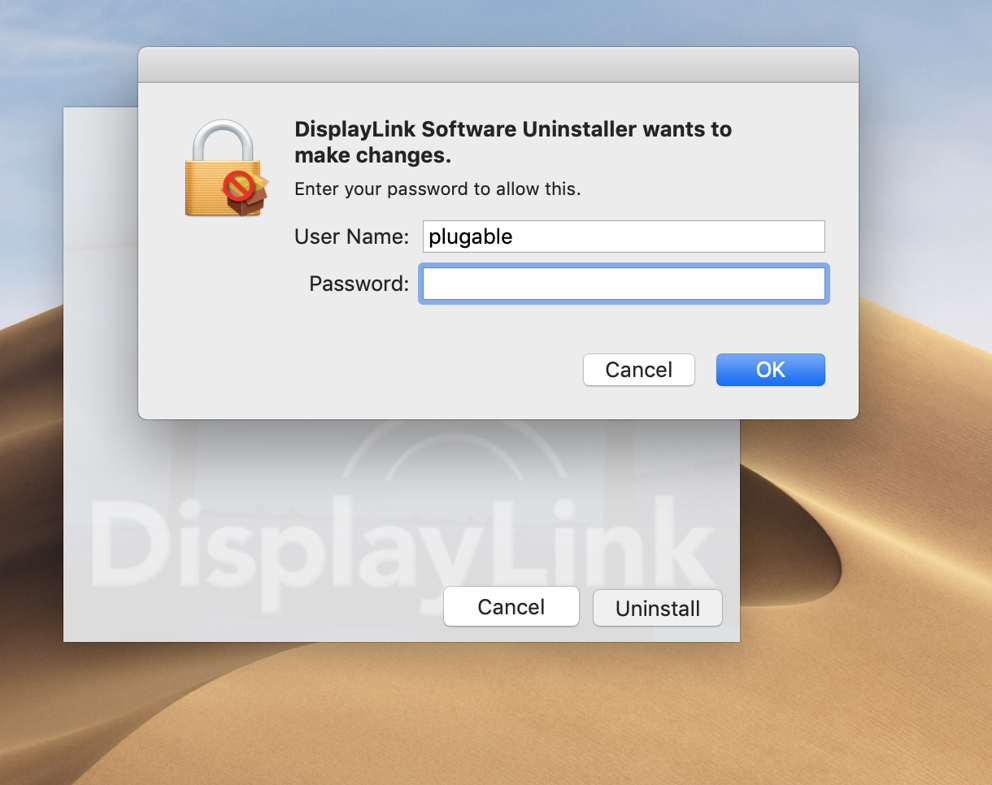
4. Enter your account password and click ‘OK’
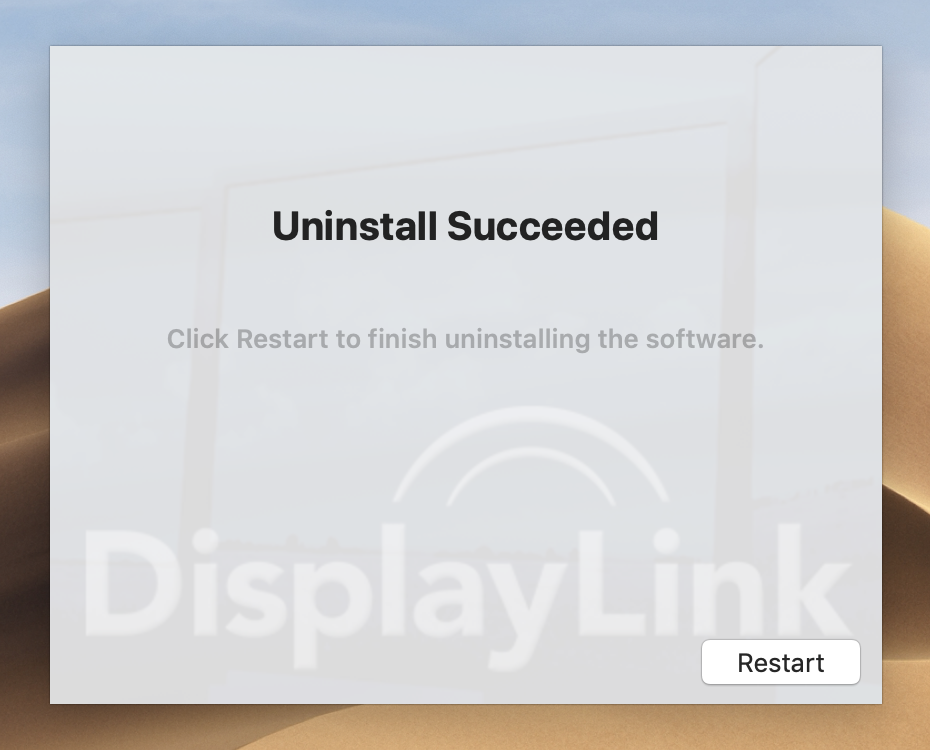
5. After a few moments the process will complete. Click the ‘Restart’ button to complete the removal process.
My Windows Computer Will Not Boot Properly When a Docking Station, USB Hub, USB Adapter, or USB Storage Drive Is Connected
If your Windows computer will not boot properly when a docking station, USB hub, or USB hub adapter is connected, the cause is most often an external device connected to the product rather than the product itself. In some cases, a Windows computer may mistakenly attempt to boot from a non-bootable external storage drive instead of the host computer's built-in storage drive, which can interrupt the boot process.
Instructions
-
Disconnect all external devices from the product, leaving only the product's external power source (if it has one) and the cable connecting the product to the host computer.
-
Reboot the host computer while in this simplified physical configuration in order to test the behaviour.
- Reconnect each external device to the product one at a time and reboot after each connection to test the behaviour again, assuming the host computer boots as expected in the simplified configuration.
-
Disconnect the USB storage device from the host computer and reboot to test the behaviour if only an external USB storage device is in use.
-
Access the host computer's System BIOS (UEFI firmware) and change the boot order settings to ensure the internal storage drive is the first boot option.
- Consult the host computer manual provided by the manufacturer for instructions on how to access the System BIOS and change the settings.
If the Issue Persists
After consulting your computer’s manual, contact the manufacturer directly if you are unsure how to check or change the system BIOS settings, as changing the wrong setting can cause unexpected issues. You can also reach out to us at support@plugable.com with any questions.
Applicable To
- UD-3900
- USBC-HUB7C
- USBC-7IN1E
- USBC-NVME
- External USB storage devices
Applications That Use OpenGL Such As SketchUp or Google Earth Do Not Work As Expected When Connected to a DisplayLink-Based Docking Station
Background Information
Docking stations and video adapters based on DisplayLink USB video technology are in essence a 'virtual' graphics adapter that relies on the host computer's CPU and internal physical graphics processing unit (GPU) to generate the information shown on the attached displays.
In rare instances, Windows applications that use a technology known as OpenGL to draw the image shown on the display will attempt to direct OpenGL related tasks to the DisplayLink-based product's virtual graphics adapter, and not to the 'real' or 'physical' GPU within the host computer.
Since the DisplayLink device is not a physical GPU that supports OpenGL, this can sometimes cause applications that make use of OpenGL (such as Google Earth, SketchUp or AutoCAD) to not work as expected or result in various types of error messages.
The true root cause of this behavior can vary, and ultimately lies outside of the DisplayLink based product or its associated DisplayLink driver. In some cases the root cause lies within the Windows driver for the host system's physical GPU and in rarer cases within the Windows operating system itself.
Possible Workarounds
In some instances updating either the driver for the host system's internal GPU or updating Windows itself can help, however that is unfortunately not always the case.
If updating those components does not help, in most cases there are two possible workarounds:
1. The first is to configure Windows to have the ‘Main’ display set to a display directly connected to the host system's built-in internal GPU, whether that is an internal laptop display or another external display connected to one of the system's built-in video outputs.
A guide to configuring the 'Main' display within Windows 10 is here -> LINK
A guide to configuring the 'Main' display within Windows 11 is here --> LINK
2. If the first option does not prove a suitable workaround, the second option is to boot the host system without the DisplayLink-based device connected, launching the affected application, and then connecting the DisplayLink-based device to the computer. This process can sometimes help direct the OpenGL requests to the host computer's internal physical GPU.
Why Aren’t My Monitors Working Within macOS After Upgrading to a Newer Version of the DisplayLink Manager Graphics Connectivity App?
Summary
During a DisplayLink Manager update, the previous version of the application closes. If the new version does not start automatically, monitors driven by DisplayLink may remain blank until DisplayLink Manager is opened again.
Applicable To
Mac computers using the DisplayLink Manager application with a Plugable DisplayLink-based dock or USB graphics adapter. This article does not cover the older legacy DisplayLink macOS driver.
Start DisplayLink Manager
- Open Finder and select Applications.
- Double-click DisplayLink Manager to start the newly installed application.
- Wait a moment, then check whether the DisplayLink-connected displays appear.
- If macOS asks you to allow the app to run or access your screen, follow the prompts.
If the Displays Are Still Blank
Check Apple menu > System Settings > Privacy & Security > Screen & System Audio Recording and confirm that DisplayLink Manager has permission. Quit and reopen the app if macOS requests it.
- Check that the DisplayLink dock or adapter is connected to the Mac and that the monitors are powered on and set to the correct input.
- If you want the app to start when you log in, open DisplayLink Manager from the menu bar and enable its Automatic app startup setting, if available.
- For full installation and permission steps, see DisplayLink Manager App Installation Instructions for macOS.
Important Notes
- Only displays driven by DisplayLink depend on the DisplayLink Manager application. A display connected through a different video method may continue working while the app is closed.
- The information above is only applicable to the new DisplayLink Manager Graphics Connectivity App. This information does not apply to the older 'legacy' version of the DisplayLink driver for macOS.
Need Assistance?
If the displays remain blank, contact support@plugable.com with your Mac model, macOS version, Plugable product model, DisplayLink Manager version, and a description of what happens when you open the app.
DisplayLink Products Recommended for macOS
Plugable offers several DisplayLink-based docking stations and graphics adapters that are recommended for compatible Mac computers. To use DisplayLink-controlled displays, install DisplayLink Manager and grant it the required macOS permissions.
How Do the Recommended DisplayLink Products Differ?
DisplayLink Docks With USB-A or USB-C Host Connectivity
| Model | Product | Product Page |
|---|---|---|
| UD-3900 | Universal Dual Monitor Docking Station | https://plugable.com/products/ud-3900 |
| UD-3900H | USB 3.0 Dual Monitor Horizontal Docking Station | https://plugable.com/products/ud-3900h |
| UD-3900Z | Dual HDMI USB Universal Docking Station | https://plugable.com/products/ud-3900z |
| UD-6950Z | Universal Docking Station for Dual 4K Monitors | https://plugable.com/products/ud-6950z |
DisplayLink Docks With USB-C Power Delivery
| Model | Product | Product Page |
|---|---|---|
| UD-7400PD | USB-C 5-Display Docking Station with HDMI 2.1 and 140W Charging | https://plugable.com/products/ud-7400pd |
| TBT-6950PD | Thunderbolt 4 Docking Station for 4K Quad Monitors and 100W Laptop Charging | https://plugable.com/products/tbt-6950pd |
| UD-6950PDH | USB-C Docking Station for Mac, Dual 4K Monitors, and 100W Laptop Charging | https://plugable.com/products/ud-6950pdh |
| UD-6950PDZ | USB-C Triple 4K Display Docking Station with 100W Laptop Charging | https://plugable.com/products/ud-6950pdz |
| UD-3900PDZ | USB-C Triple Monitor Docking Station with 100W Laptop Charging | https://plugable.com/products/ud-3900pdz |
| UD-ULTC4K | USB-C Triple 4K Display Docking Station | https://plugable.com/products/ud-ultc4k |
| UD-ULTCDL | USB-C Triple Display Docking Station | https://plugable.com/products/ud-ultcdl |
| UD-3900C4 | USB-C Docking Station for Three Monitors with 96W Laptop Charging (limited to three on macOS) | https://plugable.com/products/ud-3900c4 |
| USBC-6950PDZ | USB-C Dual HDMI Docking Station with 100W Pass-Through Charging | https://plugable.com/products/usbc-6950pdz |
DisplayLink Graphics Adapters
| Model | Product | Product Page |
|---|---|---|
| USBC-6950M | Dual Monitor USB-C to HDMI Adapter, 4K 60Hz | https://plugable.com/products/usbc-6950m |
| USBC-7400H4 | USB-C Quad 4K HDMI Graphics Adapter with up to 100W USB-C PD Pass-Through Charging | https://plugable.com/products/usbc-7400h4 |
How Do I Set Up a DisplayLink Product on macOS?
DisplayLink-based video outputs require the DisplayLink Manager application on macOS. The application must also be granted the required macOS permissions for the connected displays to function.
For the current Plugable-recommended DisplayLink software and installation information:
https://plugable.com/pages/displaylink
For detailed DisplayLink Manager installation instructions for current versions of macOS:
https://kb.plugable.com/en_US/1595423
DisplayLink technology also has limitations that may affect certain workflows, including playback of HDCP-protected or encrypted video content on macOS. For more information:
https://kb.plugable.com/en_US/1339791
Applicable To
- UD-3900, UD-3900H, UD-3900Z, UD-6950Z, UD-7400PD, TBT-6950PD, UD-6950PDH, UD-6950PDZ, UD-3900PDZ, UD-ULTC4K, UD-ULTCDL, UD-3900C4, USBC-6950PDZ, USBC-6950M, USBC-7400H4
Network Prioritization - How to Set Service Order on macOS
If you find that your Plugable Ethernet adapter or docking station is not connecting to the internet or is experiencing slower than expected speeds on your Mac, it may be related the macOS Network Service Order. This is a list of the network connections available to the computer setting the priority for network connections.
macOS attempts to connect to the internet using the network service at the top of your list first. If a wireless network is listed above your Plugable Ethernet adapter, this often leads to users unknowingly using a slower wireless connection when they intended to use a wired one.
To ensure you are getting the full speed and stability of your wired connection, you must prioritize the Plugable Ethernet adapter above Wi-Fi. Normally wired network connections take priority, however if priority has been modified in the past it can affect newly connected devices.
Set the order of network services
Navigate through these steps to Set Service Order:
- Click the Apple Menu in the top-left corner of your screen and select System Settings.
- In the sidebar, click Network.
- Look for the Action Menu (a circle with three dots ...) located at the bottom right of the main window area.
- Click the three dots and select Set Service Order.…
- A list will appear showing all your network interfaces. Click and drag your Ethernet Adapter (often named "USB 10/100/1G/2.5G LAN" or “Plugable Docking Station”) to the very top of the list, above Wi-Fi.
- Click OK to save your changes.
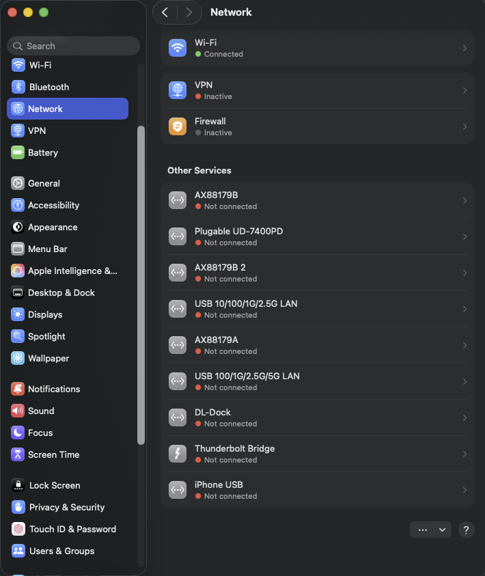
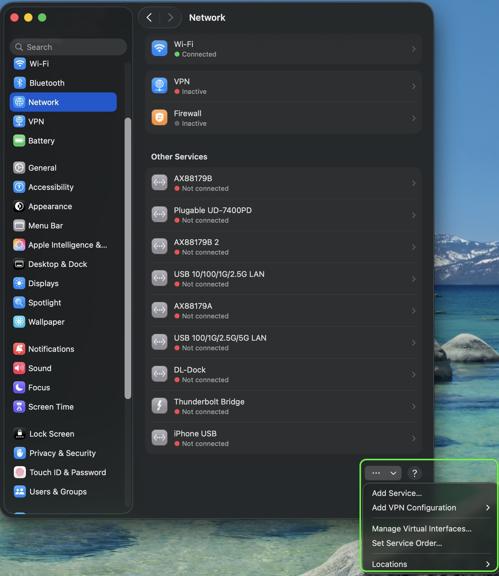
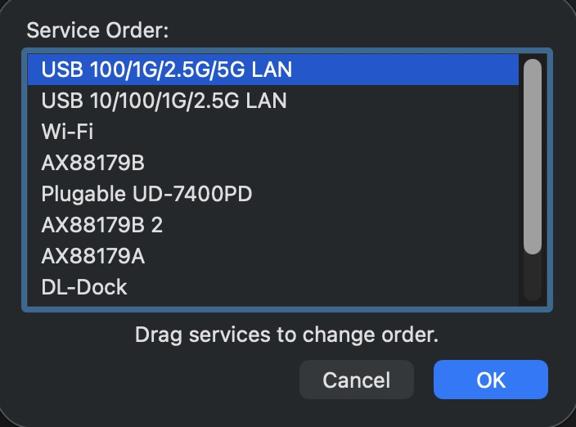
Your network traffic will now automatically prioritize the wired connection, ensuring you receive the best possible speeds and stability from your Plugable adapter.
If you have any questions please feel free to contact us at support@plugable.com and we'll be happy to help!
Docking Station Power Adapters
Below is a list of power adapter models used by Plugable docking stations. We offer refurbished replacement power adapters on eBay as they are available for purchase, however, we may not have replacement power adapters available for all of our docking stations.
If the power adapter for your docking station or region is not listed, out of stock on eBay or if you have any other questions regarding replacement power adapters for our docks please contact us at support@plugable.com and we will be happy to assist further.
We offer a 30-day return period for our replacement power adapters listed on eBay.
| Dock Models | Power Supply Model Number | Replacement Power Supply (if available) |
|---|---|---|
| USB 3.0 / USB-C Docking Stations | ||
| UD-3900 UD-3000 UD-5900 UD-PRO8 UD-3900C |
DSA-24PFS-05 |
|
| UD-3900H | P120W2000U |
|
| UD-3900PDZ - 100W (purchased from March 2025) | A18-135P1B |
|
| UD-3900Z | ADS-26SGP-12 12024E |
|
| UD-6950 | A16-045N3A |
Contact support@plugable.com |
| UD-6950H | P200W2000UG |
Contact support@plugable.com |
| UD-6950Z | ADS-40SGP-19 20040G |
|
| UD-CA1 UD-CA1A |
EA10953D-200 |
Contact support@plugable.com |
| UD-ULTCDL (MK1 original and MK2 updated version) Note: Check here to determine what version of dock you have |
A16-065N2A (MK1 model) A18-135P1B-Rev3 (MK2 model) Note: MK2 model adapters will work with MK1 docks |
|
| UD-ULTC4K (MK1 original and MK2 updated version) Note: Check here to determine what version of dock you have |
A16-100P1A (MK1 model) A18-135P1B-Rev3 (MK2 model) Note: MK2 model adapters will work with MK1 docks |
|
| UD-3900C4 |
A18-135P1B-Rev3 |
North America plug |
| UD-3900PDH UD-3900PDZ - 60W alternative power adapter |
PS200D06500G1 |
North America plug |
| UD-768PDZ |
PA-1131-72 v2 |
North America plug |
| UD-6950PDZ - 100W (purchased from February 2025) |
A18-135P1B |
North America plug |
| UD-MSTH2 |
ADS-110DL-19-1 200110E |
North America plug |
| UD-MSTHDC |
ADS-110DL-19-1 200110E |
North America plug |
| UD-CAM |
A16-100P1A |
Contact support@plugable.com |
| UD-CUBE |
EA1024CR-050 |
Contact support@plugable.com |
| UD-6950PDH |
PS200D06500G1 (v1 of dock*) F-J-SW202720006700 (v2 of dock with serial numbers 4157 or newer*) *For more details about v1 and v2 UD-6950PDH docks visit our Knowledge Base article |
North America plug (v1) North America plug (v2) |
| Thunderbolt / USB4 Docking Stations | ||
| TBT4-UDZ |
PA-1131-72 v2 |
North America plug |
| TBT3-UDC1 | PA-1131-72 v1 |
|
| TBT3-UDV | A18-135P1B-Rev1 |
Contact support@plugable.com |
| TBT3-UDZ | PA-1171-72 |
Contact support@plugable.com |
| TBT3-UDC3 | PA-1171-72 |
Contact support@plugable.com |
| TBT4-HUB3C | ADS-110DL-19-1 200110E |
|
| USB4-HUB3A |
ADS-110DL-19-1-200100E |
North America plug |
| TBT4-UD5 & TBT-UDM | FJ-SW202721006400 |
North America plug |
| TBT4-UDX1 | A18-135P1B-Rev4 A18-135P1B-Rev3 (Large Barrel) |
North America plug |
| TBT-6950PD | YW180A2-2100858 |
North America plug |
| UD-4VPD |
PA-1171-72 |
Contact support@plugable.com |
Can Silicon Motion and DisplayLink-based Docking Stations and Graphics Adapters Work Together?
Can Silicon Motion and DisplayLink-Based Docking Stations and Graphics Adapters Work Together?
Yes, Silicon Motion and DisplayLink-based products can work together and be used at the same time on the same computer. This requires that the software drivers for both types of products are installed on the host system.
How Silicon Motion and DisplayLink Products Work Together
Both Silicon Motion and DisplayLink utilize USB graphics technology that can coexist on a single operating system. To ensure proper functionality, users must download and install the specific drivers associated with each respective chipset.
While Windows limits are typically performance-based recommendations, the actual ceiling of adding external monitors is much higher.
Plugable recommends up to 8 external 4K displays via DisplayLink for productivity workloads, but more is theoretically possible for high-end computers.
With Silicon Motion Plugable recommends up to 4 displays using Silicon Motion based adapters. macOS often enforces a hard limit on the number of addressable displays.
Applicable To
USBC-7400H4
USBC-6950M
USBC-6950UE
USBC-6950U
UGA-4KHDMI
UGA-HDMI-2S
UGA-HDMI-S
USBC-768H4
USBC-MSTH2
UGA-DP-S
USB3-3900DHE
USB-VGA-165
UGA-4KDP
UGA-2KHDMI
UGA-165
USBC-MSTH3
UGA-3000
I Have a Plugable Product That Is Based on DisplayLink USB Video Technology. What Options Are Available To Install the Required DisplayLink Software Within an Enterprise or Corporate Environment?
Summary
DisplayLink publishes deployment guidance for organizations that install its software across multiple computers. The available approach depends on the operating system and your management tools. Plugable can help identify the software required for a Plugable product, while DisplayLink provides the corporate deployment documentation and support for those installation methods.
Applicable To
IT administrators deploying Plugable DisplayLink-based docks or USB graphics adapters in managed Windows or macOS environments.
Deployment Options
DisplayLink maintains a Corporate Deployment knowledge base with guidance for Windows installation packages and management methods, as well as macOS deployment with tools such as Jamf Pro and Munki.
DisplayLink Corporate Deployment documentation
Before Deployment
- Identify the exact Plugable product, operating system versions, and DisplayLink software release you intend to deploy.
- Review DisplayLink's current instructions for the deployment tool and operating system in use. Test with a small group before broader deployment.
- On macOS, plan for the required screen access permission. Installing the software silently does not grant that permission automatically; the end user must approve it.
Important Notes
The DisplayLink software is developed by Synaptics DisplayLink. Plugable does not provide support for configuring or troubleshooting DisplayLink corporate installation methods. For deployment-specific questions, use DisplayLink's documentation and support resources. For Plugable product compatibility questions, contact Plugable Support.
Need Assistance?
For help identifying the correct software for your Plugable product, email support@plugable.com with the product model and operating systems. For a question about an enterprise installation method, consult DisplayLink Support.
Is Copy-Protected or Encrypted Video Supported on DisplayLink-Connected Displays?
No. Plugable USB video adapters and docking stations that use DisplayLink technology do not support HDCP-protected video playback through DisplayLink-connected displays.
What You May Experience
Protected video may show a black screen, play audio without video, display an error, or play at a lower-than-expected resolution.
Examples include:
- HDCP-protected Blu-ray content
- Some protected content from Netflix, Hulu, Prime Video, the Apple TV app, Disney+, YouTube TV, and other streaming services
Availability and behaviour can vary by service, application, browser, operating system, and content.
Workaround and Alternative Options
Connect the display directly to a native video output on the computer, such as HDMI, DisplayPort, or a USB-C port that supports Alt Mode or Thunderbolt. Do not route the display connection through a DisplayLink video output.
On macOS, protected content may remain unavailable on all screens while a DisplayLink-connected display is active. Disconnect all displays using DisplayLink before attempting playback.
If protected-content playback is an important requirement, consider a docking station that uses a native USB-C Alt Mode or Thunderbolt video connection. Display support depends on the computer's capabilities.
Non-protected video files and ordinary desktop applications should continue to work on DisplayLink-connected displays.
Applies To
- TBT-6950PD, UD-3900, UD-3900C, UD-3900C4, UD-3900H, UD-3900PDH, UD-3900PDZ, UD-3900Z, UD-6950, UD-6950H, UD-6950PDH, UD-6950PDZ, UD-6950Z, UD-7400PD, UD-ULTC4K, UD-ULTCDL, UGA-165, UGA-2KHDMI, UGA-3000, UGA-4KDP, UGA-4KHDMI, USB-VGA-165, USB3-3900DHE, USB3-6950-DP, USB3-6950-HDMI, USBC-6950-DP, USBC-6950-HDMI, USBC-6950M, USBC-6950PDZ, USBC-6950U, USBC-6950UE, USBC-7400H4
- All future DisplayLink products
My Plugable Dock Is Missing a Component Such As the Power Supply, USB Cable, or Other Adapter.
If an item that should have been included with your Plugable dock is missing, check the packaging once more, including beneath the insert and inside the corners of the box. If you still cannot find it, contact Plugable Support so we can review what was included and help with the missing part.
Applicable To
Plugable docks or other Plugable products with a missing in-box power supply, host cable, adapter, or other included accessory.
Before You Contact Support
Check the included-items list on the product packaging or product page. Some cables and accessories pictured in setup examples may be sold separately rather than included in the box.
What to Send Us:
- Your Plugable product model and the specific component you cannot find.
- Your Amazon order ID or another proof of purchase.
- The product serial number, if present, or a photo of the product label.
- The full recipient name, shipping address, and a phone number for the shipment, if a replacement part needs to be sent.
Need Assistance?
Email the details above to support@plugable.com, and we will review the package contents and next steps with you.
Can I Connect My High Refresh Rate Monitor (e.g. 120Hz, 144Hz) to a Plugable Dock?
Most Plugable docks do not officially support monitors over 60Hz including 120Hz or 144Hz refresh rate unless otherwise specified on the Plugable product page or listing.
DisplayLink USB Graphics technology and Silicon Motion based docking stations and graphics adapters, like our USB 3.0 dual display and USB Type-C triple display docking stations, are limited to 60Hz refresh rate by the USB graphics controller hardware.
USB Type-C DisplayPort Alternate Mode docking station and ports on our USB Type-C Triple Display Docking Stations can support higher refresh rates, but may be limited by the computer's capability and available bandwidth to the docking station. Additionally, when paired with DisplayLink or Silicon Motion USB graphics, having displays at different refresh rates may reduce overall system performance. Due to this we normally recommend limiting all connected displays to 60Hz refresh rate when using DisplayLink and Silicon Motion graphics technology with directly connected, or USB Type-C DisplayPort Alternate Mode controlled displays.
Monitors with refresh rates higher then 60Hz may be connected to a docking station operating at up to 60Hz, or connected directly on the computer's HDMI or DisplayPort to ensure the display is powered by the system's native GPU.
Applicable To:
All Plugable Docking Stations
Do Plugable products support the Apple SuperDrive?
No, Plugable products do not support the Apple SuperDrive.
Why do Plugable products not support the Apple SuperDrive?
The Apple SuperDrive has stringent power requirements that can only be met by directly connecting the SuperDrive directly to the host computer. As a result at this time Apple recommends only using their USB-C adapter cables. Apple provides more information on this topic here → How to connect the Apple USB SuperDrive
Applicable To
- All Plugable brand products
My Plugable product with wired Ethernet is no longer working on macOS. What can I do?
Please Note
The below guide is an advanced troubleshooting step, and we do not recommend doing so unless you are comfortable manually altering files on your Apple product running macOS. You may not be able to perform the below troubleshooting step if you are unable to execute administrative credentials on your laptop. Please reach out to our support first if you do not wish to attempt the below instructions. You can do so at plugable.com/support
How to delete a specific Ethernet adapter from your Network devices on macOS
- Click on the Apple logo in the top left corner of your primary monitor, and select ‘System Preferences’
- Next select ‘Network’ in the ‘System Preferences' window.
- In the now visible list, please select the Plugable Ethernet, or Thunderbolt Ethernet device that may not be working as expected.
- Once selected click on the minus button in the bottom left of the network window.
- Click on Apply in the bottom right.
- Next click on the plus button in the bottom left of the network window, and add the previously removed device.
- Click on Apply in the bottom right.
- Test to see if this has resolved the unexpected behavior, and assure that your Ethernet is now working.
- If this does not resolve the problem, please proceed to the next section (As noted previously the next section is for advanced users only!)
Manually erase your macOS Network Settings to fully reset the Network configuration
(Advanced! Click to reveal)
- Open the ‘Finder’ app, then in the ‘Go’ menu at the top of your screen select ‘Computer’
- Click on ‘Macintosh HD’ then Library, Preferences, SystemConfiguration
- Copy the file named ‘NetworkInterfaces.plist’ to your desktop as a backup of your current configuration.
- Delete the original version of the ‘NetworkInterfaces.plist’ located in the SystemConfiguration directory.
- Restart your Mac
- Login to your Mac, and return to System Preferences → Network
- If the list is now empty, please re-add the Plugable or Thunderbolt network adapter by clicking on the plus button in the bottom left of the Network window. Once done click on 'Apply'.
- Test to see if this has resolved the unexpected network behavior
I am still unable to get my Ethernet connection working on my Mac
If this is the case please reach out to our support team. When you do please include a diagnostic log gathered using our PlugDebug tool (instructions are provided on the PlugDebug page). If you are not able to gather the PlugDebug diagnostics do not worry we are still here to help! Please reach out to our support team at support@plugable.com or plugable.com/support with a detailed description of your problem, and the model of Plugable product you are using.
DisplayLink Manager App Installation Instructions for macOS 26 Tahoe, macOS 15 Sequoia, and macOS 14 Sonoma
Before you begin
Unsure which version of macOS you have installed on your Mac? Click on the ‘Apple’ icon within the menu bar located at the top of your macOS desktop and select ‘About this Mac’. A new window will open and display the host system’s macOS version.
Please note, this guide describes the DisplayLink Manager installation process using macOS 26 Tahoe. The process is very similar when using macOS 15 Sequoia, and macOS 14 Sonoma, however there may be slight differences due to the specific operating system version in use.
Guided Video Demonstration
For those who prefer, we have a video demonstration of the installation procedure available (an embedded link is below). The video demonstrates the process on macOS 26 Tahoe, however the process is virtually identical in macOS 15 Sequoia and macOS 14 Sonoma.
For those who prefer, a detailed text-based description of the installation process (including screenshots) is available within the sections below.
How to install the DisplayLink Manager application
IMPORTANT NOTE - The screenshots in this article (and the demonstration video) were produced using macOS 26 Tahoe however the process and appearance is virtually identical in macOS 15 Sequoia and macOS 14 Sonoma
1. Download the correct version of the DisplayLink Manager Application for your version of macOS from here → https://plugable.com/pages/displaylink
2. Double-click on the file you downloaded to start the application installer:
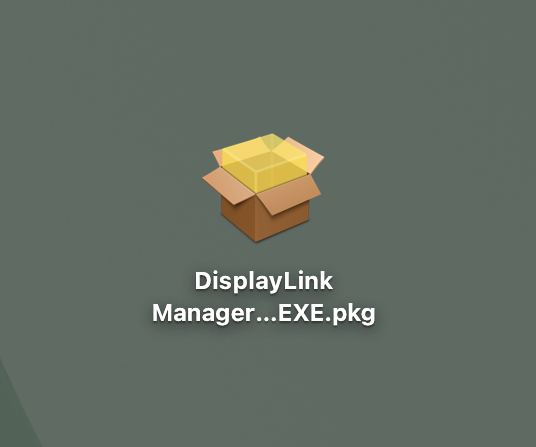
3. From within the ‘Introduction’ section of the application installer, click on the ‘Continue’ button to start the installation process:
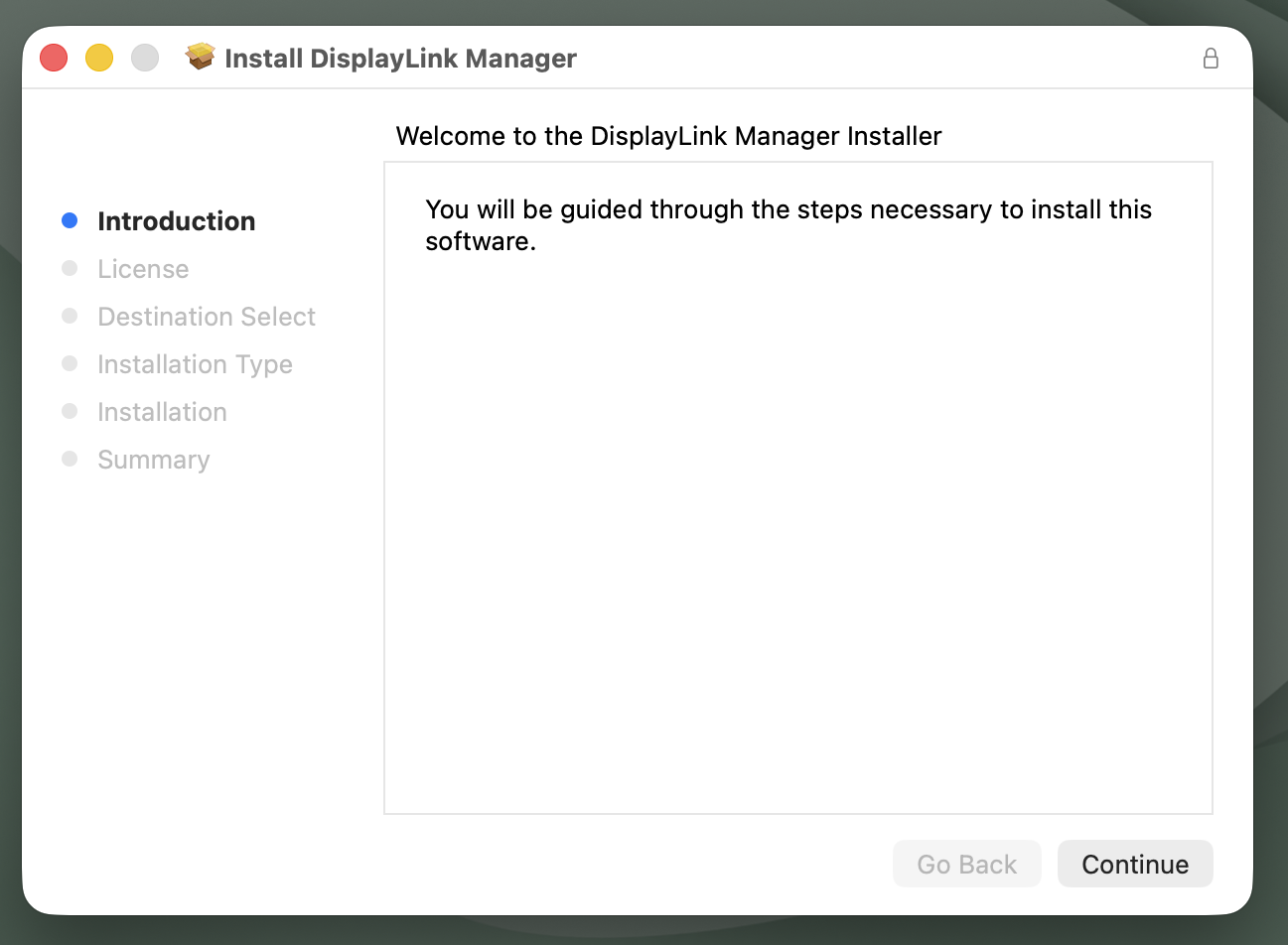
4. After having read the license information from within the ‘License’ section of the application installer, click on the ‘Continue’ button
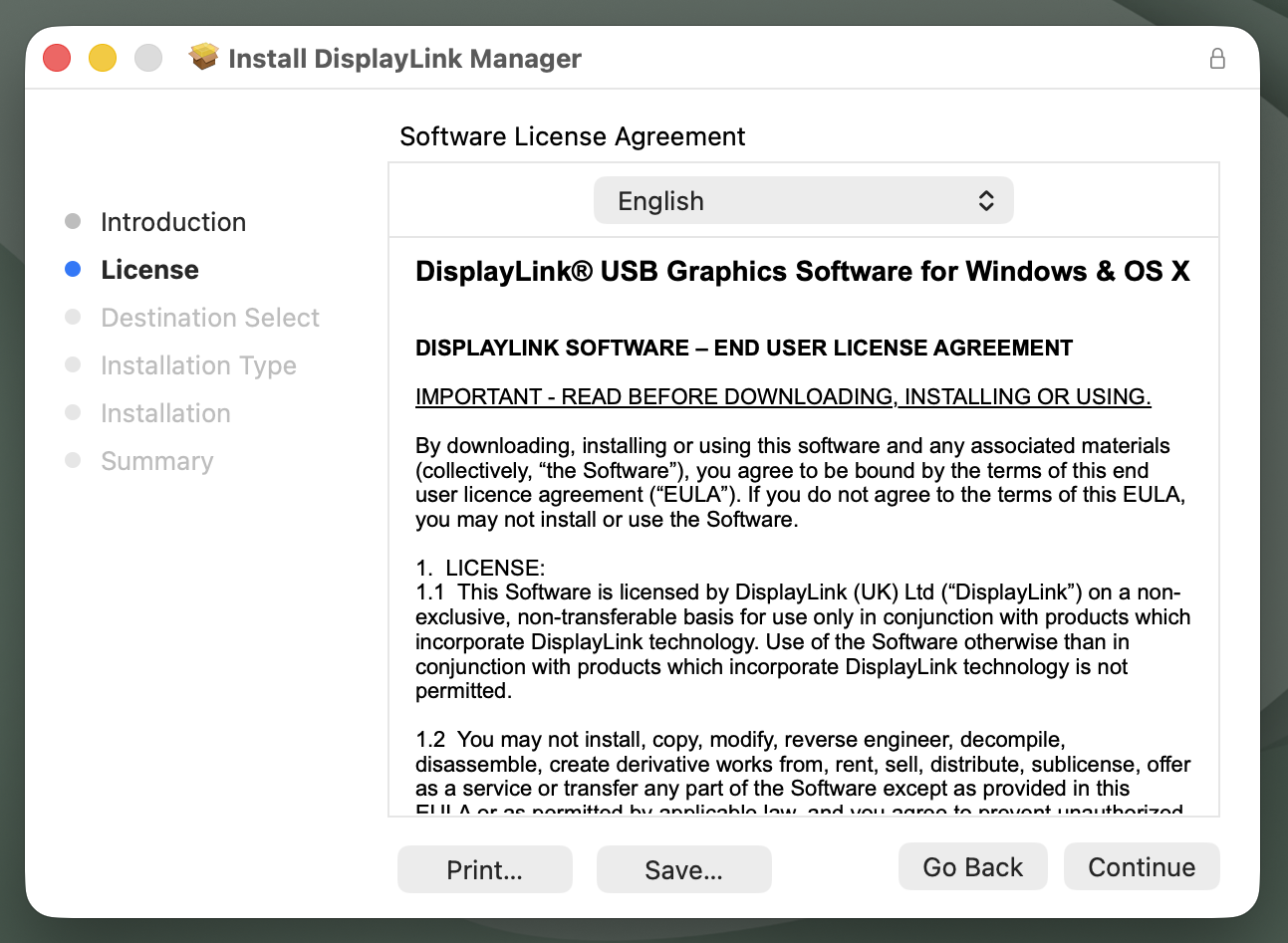
5. Click on the ‘Agree’ button in order to agree to the software license agreement.
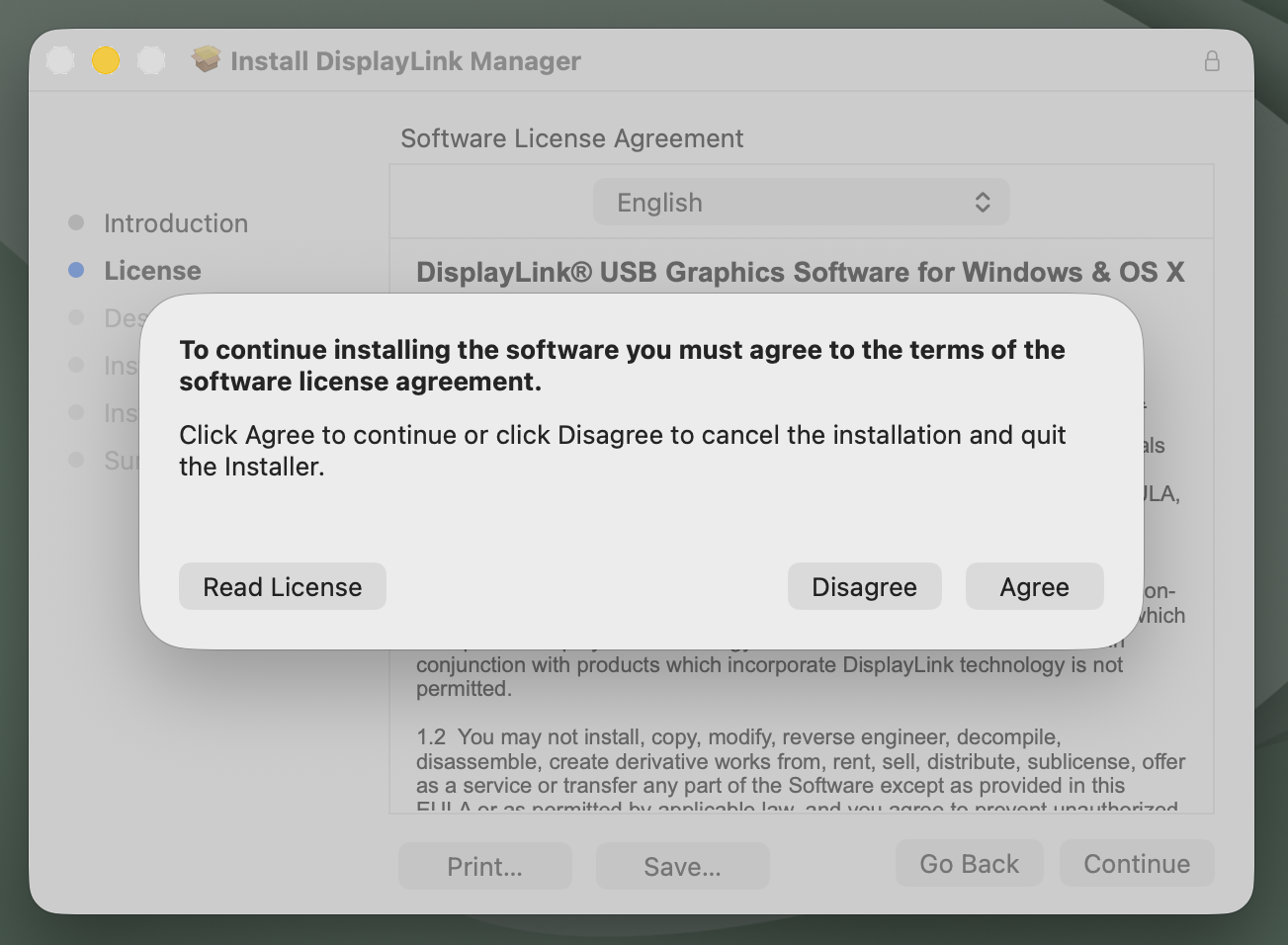
6. From within the ‘Installation Type’ section of the application installer, click on the ‘Install’ button:
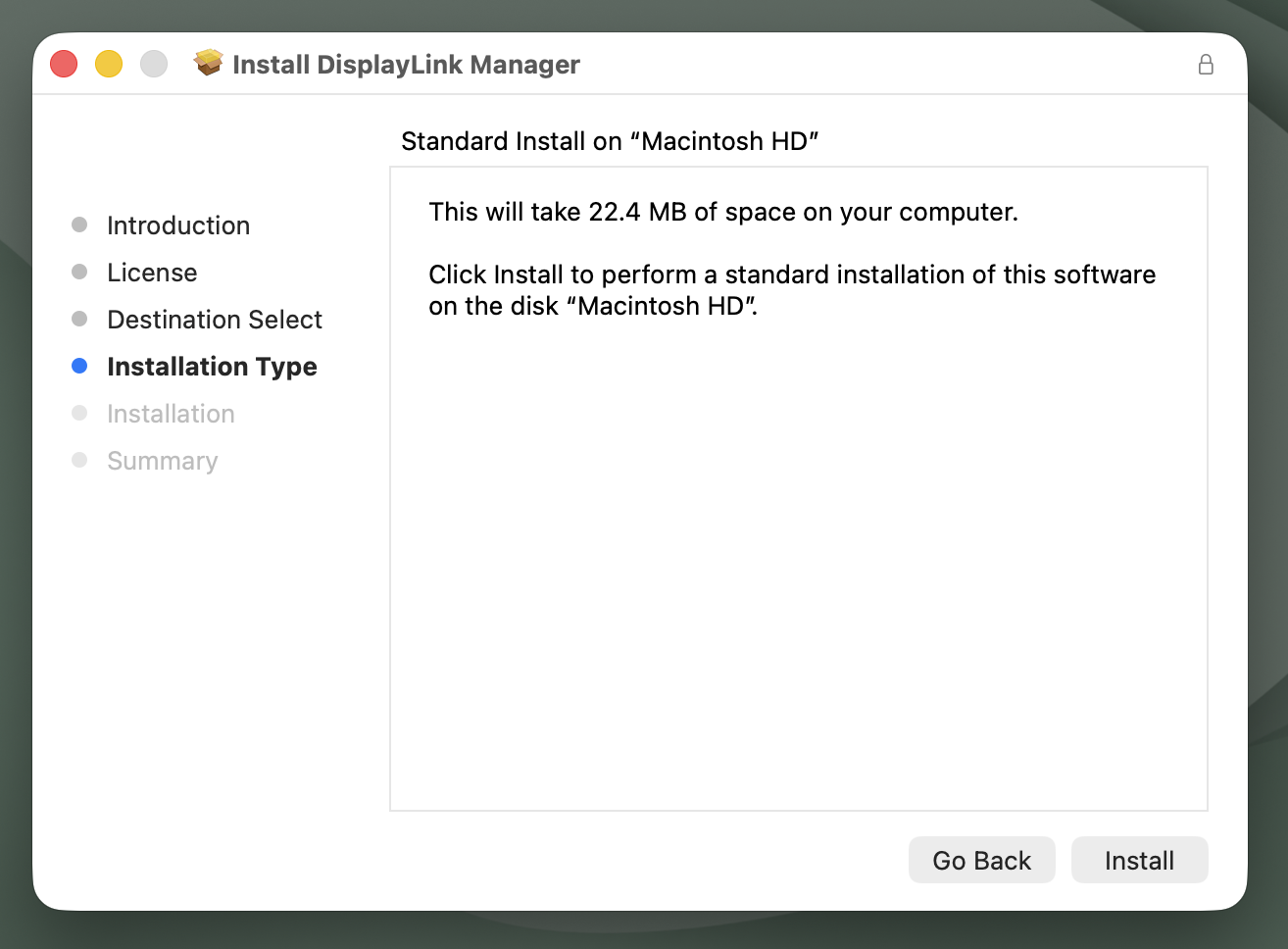
7. When prompted, please enter your system password and click on the ‘Install Software’ button to start the installation. The installation process will begin:
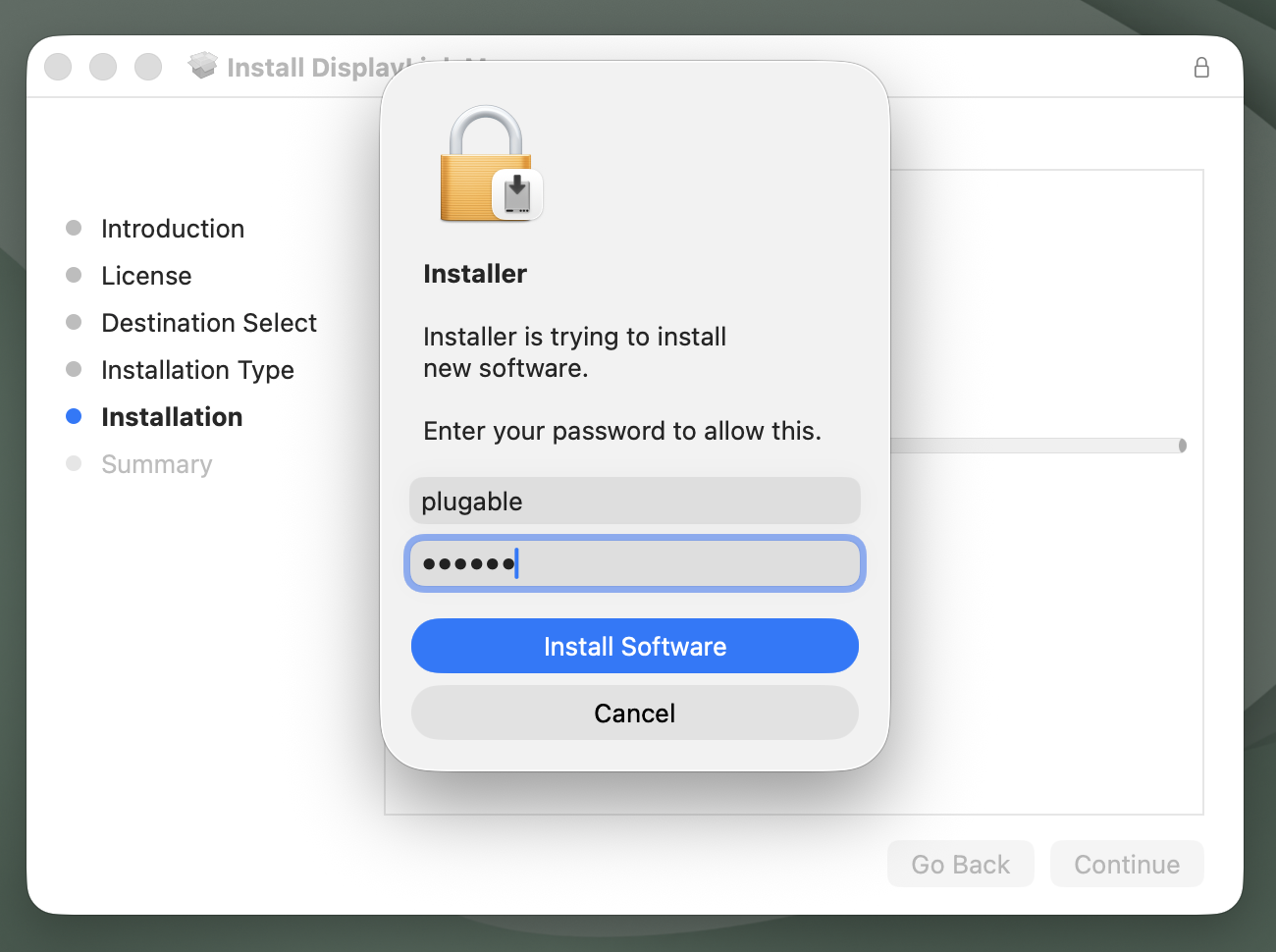
8. The application installer will notify you when the installation process has been completed. Please click on the ‘Close’ button in order to close the application installer.
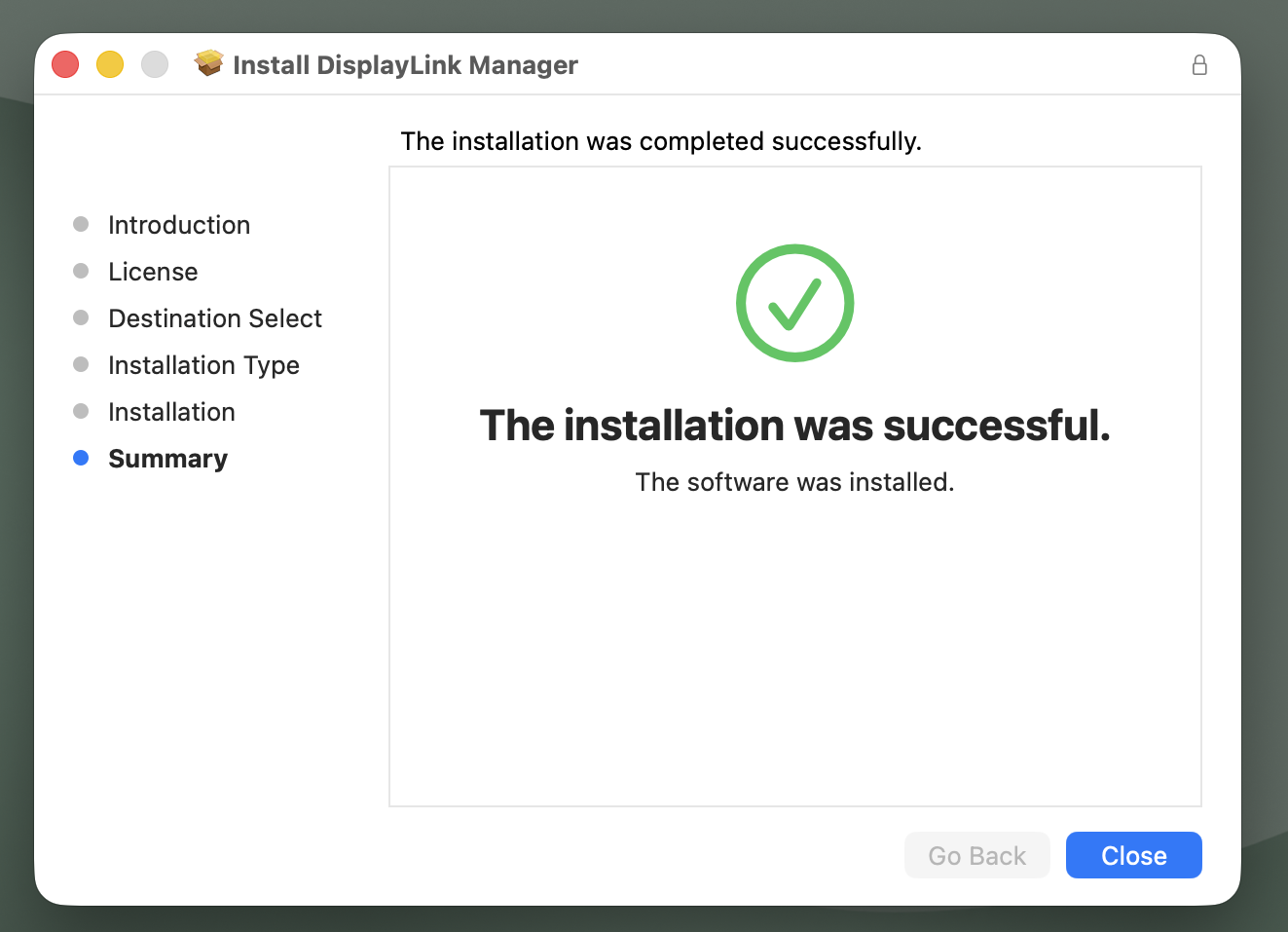
IMPORTANT NOTE - If the installation process does not complete successfully, please see this knowledge base article --> https://kb.plugable.com/question/1807081 for a list of potential causes and possible solutions.
9. Once the initial installation process has been completed, you should see a request from the DisplayLink Manager Application to allow the application to display notifications, when necessary. Click on the ‘Options’ button within the request and click the ‘Allow’ option
Note, we have more information in regard to notifications while using DisplayLink on macOS here → https://kb.plugable.com/question/3137440
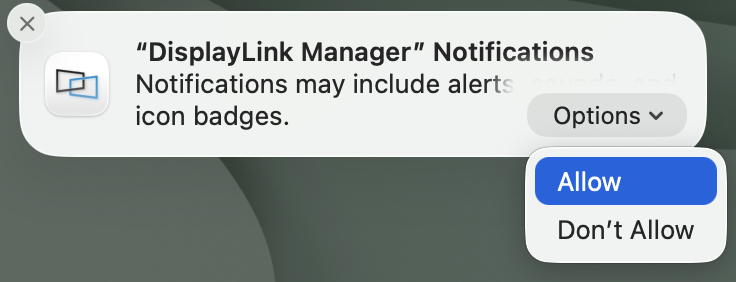
10. You should also see two Login Item notifications from macOS:
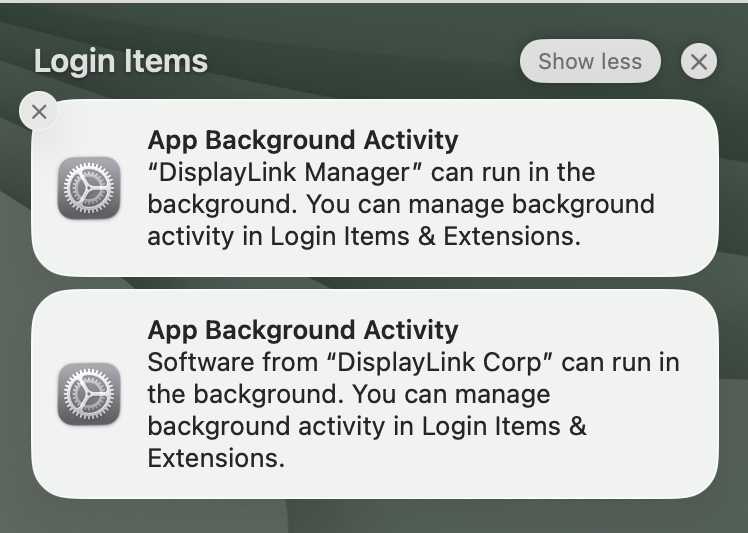
Both notifications are intended to inform that the DisplayLink Manager Application can run in the background once you have logged in to the host Mac.
These notifications are informational only, and can be freely dismissed.
IMPORTANT NOTE - The DisplayLink Manager Application must be running in order for any monitors powered by DisplayLink technology to function.
11. Starting with DisplayLink Manager version 16.0 and later versions, a DisplayLink Installation Wizard will now appear and the DisplayLink Installation Wizard is composed of three steps.
The first step of the Wizard is to ensure that the required Background Activity permissions are in place (as described in step #10) and this step should be completed automatically.
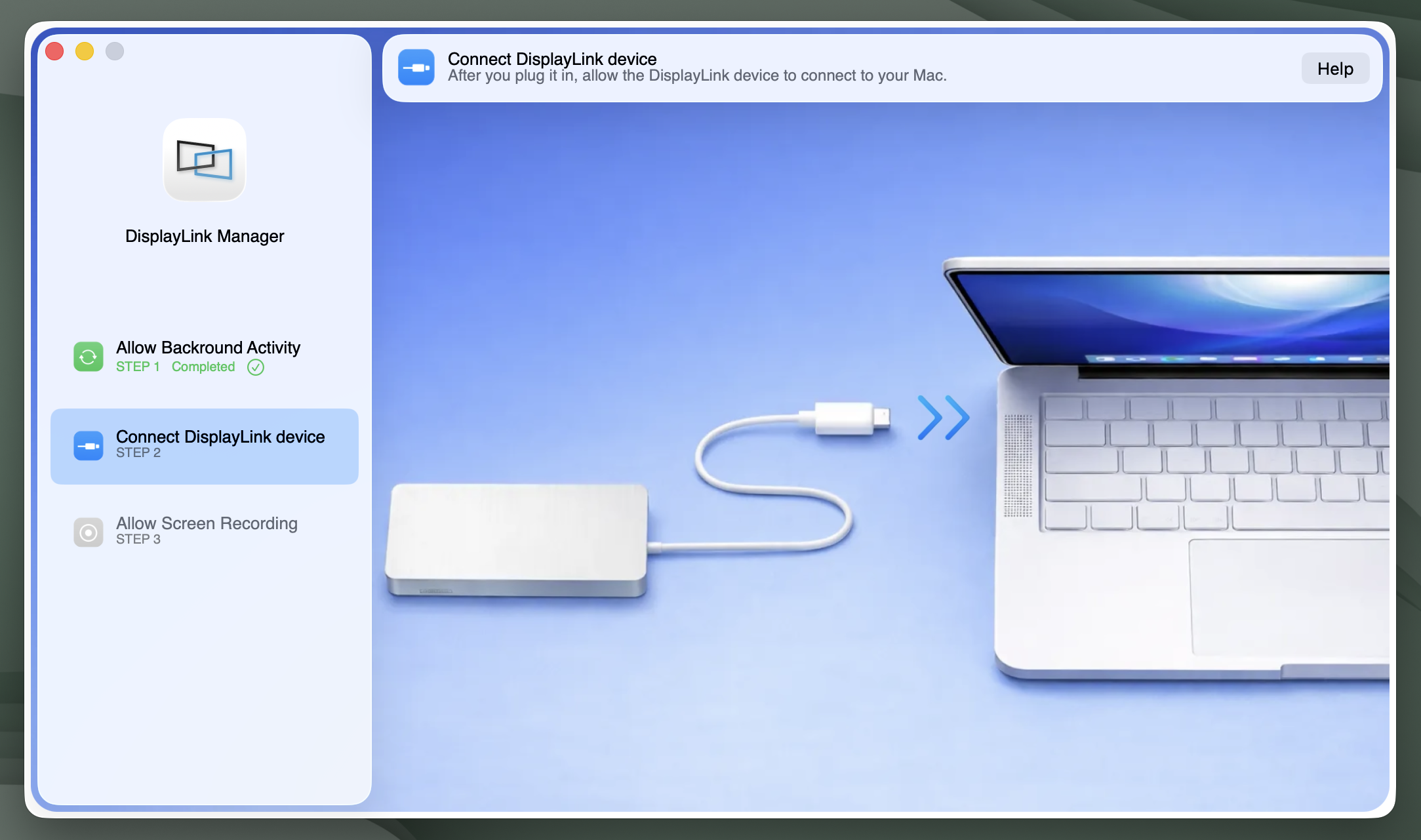
12. The second step of the Wizard is to connect your DisplayLink device to the host Mac. On portable Mac computers (such as laptops), depending on how macOS is configured you may see a prompt to allow the accessory to connect. If prompted, please click ‘Allow’.
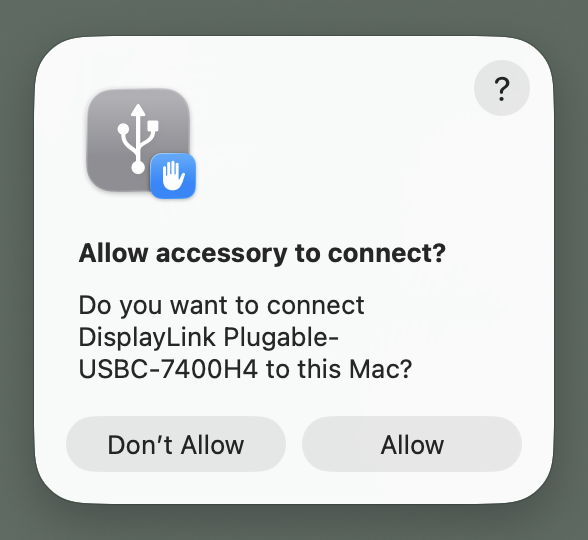
13. Once the DisplayLink device is connected, the third step of the Wizard is to grant permission to the DisplayLink Manager application to record your screen within the macOS System Settings. Click the ‘Open System Settings’ button at the top of the DisplayLink Installation Wizard in order to open the System Settings application.
IMPORTANT NOTE - The DisplayLink Manager Application does NOT in fact record, store or transmit any information. This permission must be granted in order for the DisplayLink Application to access the information it needs in order to generate the image shown on the DisplayLink-connected displays.

14. After clicking on the ‘Open System Settings’ button, the macOS System Settings application will open, with the ‘Screen & System Audio Recording’ section opened by default:

15. Click the toggle switch next to the ‘DisplayLink Manager’ entry in order to grant the required permission. When doing so, you will be prompted to enter your password. Enter your password and click the ‘Modify Settings’ button to continue:

16. You will be prompted to ‘Quit and Reopen’ the DisplayLink Manager application in order for the change to take effect. Please do so:
17. As a result of quitting the DisplayLink Manager Application, the DisplayLink Installation Wizard will disappear momentarily. The DisplayLink Installation Wizard will reappear once the DisplayLink Manager Application has been reopened.
18. You will receive a notification from macOS to allow the DisplayLink Manager application to access your screen and audio. Please click the ‘Allow’ button to continue:
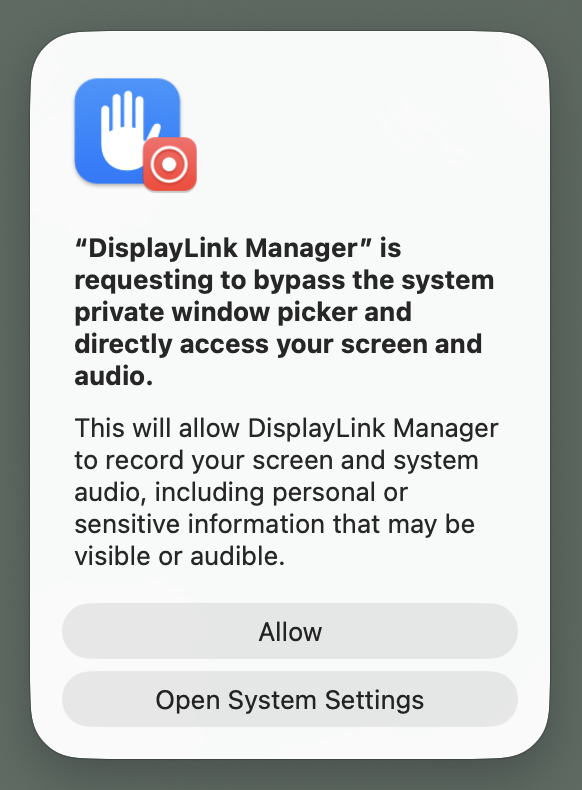
19. When the DisplayLink Installation Wizard reappears, it should indicate that setup has completed successfully. Click the ‘Finish’ button to close the DisplayLink Installation Wizard.
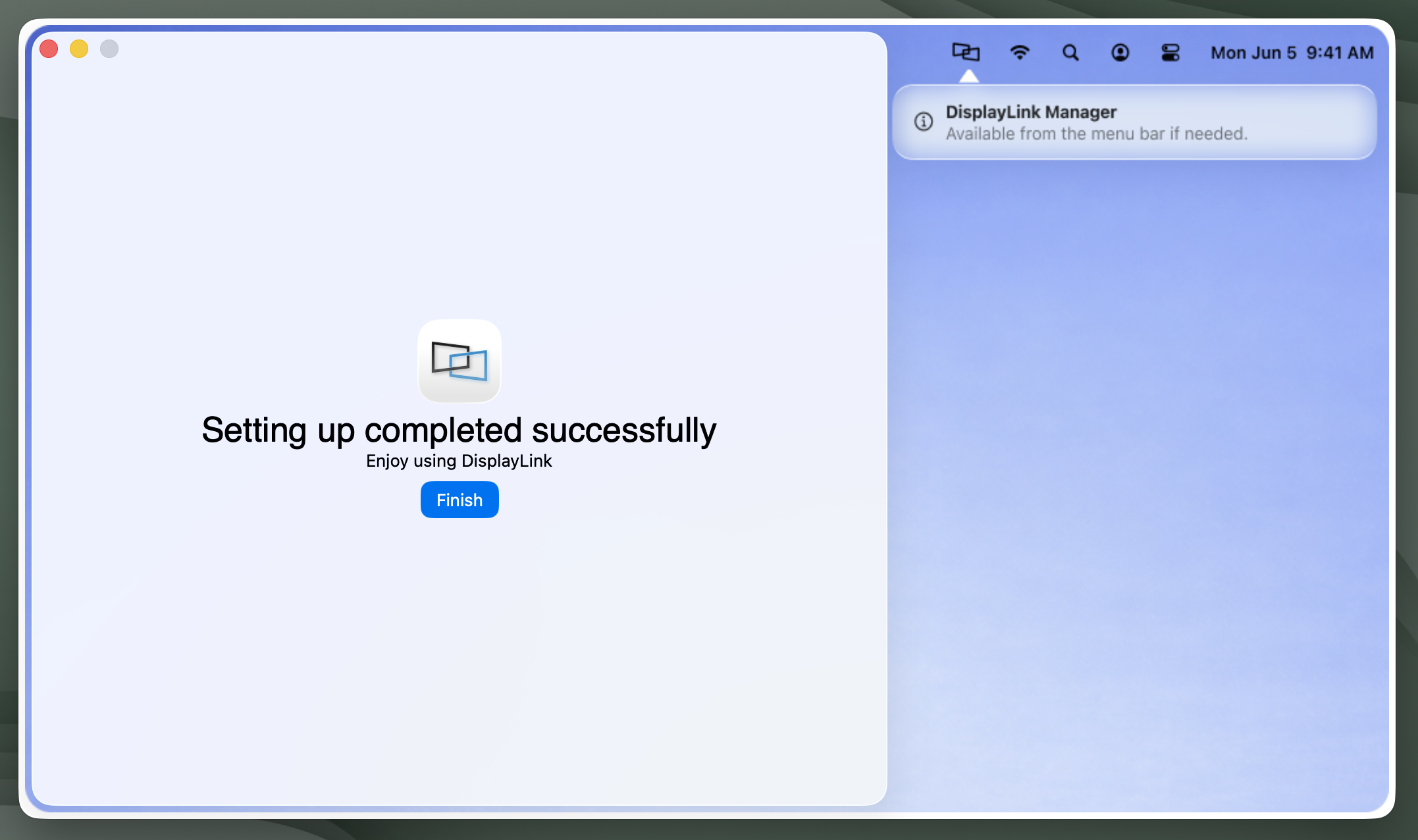
20. Once the DisplayLink Installation Wizard has been completed, the macOS System Settings application window as shown in step #14 may still be visible. If still visible, please close the application window.
21. Once the System Settings application has been closed, a macOS prompt to open the System Settings application window may be visible. If visible, the prompt can be dismissed by clicking on the ‘Deny’ button. No changes will in fact be made, as the necessary changes will have already been completed as of step #15.
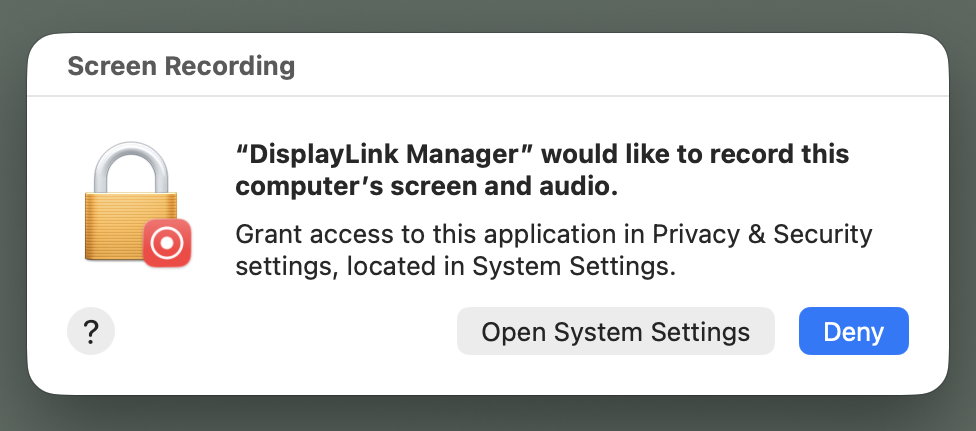
IMPORTANT NOTE - In macOS 26 Tahoe, macOS 15 Sequoia and macOS 14 Sonoma, whenever the DisplayLink Manager Application is running and a DisplayLink device is connected to your computer you will see a notification within the Apple Menu bar that the DisplayLink Manager Application is capturing your screen. This is both normal and expected behavior.
22. Now that the DisplayLink Manager Application is installed and running, a DisplayLink Manager icon will appear within the Apple menu bar at the top of your screen. Click on the DisplayLink Manager icon in order to open the application status window.
23. The first tab of the DisplayLink Manager Application status window is the ‘Displays’ tab. As the name implies, all of the DisplayLink driven displays that are connected to your Mac will be displayed here, similar to the example below:
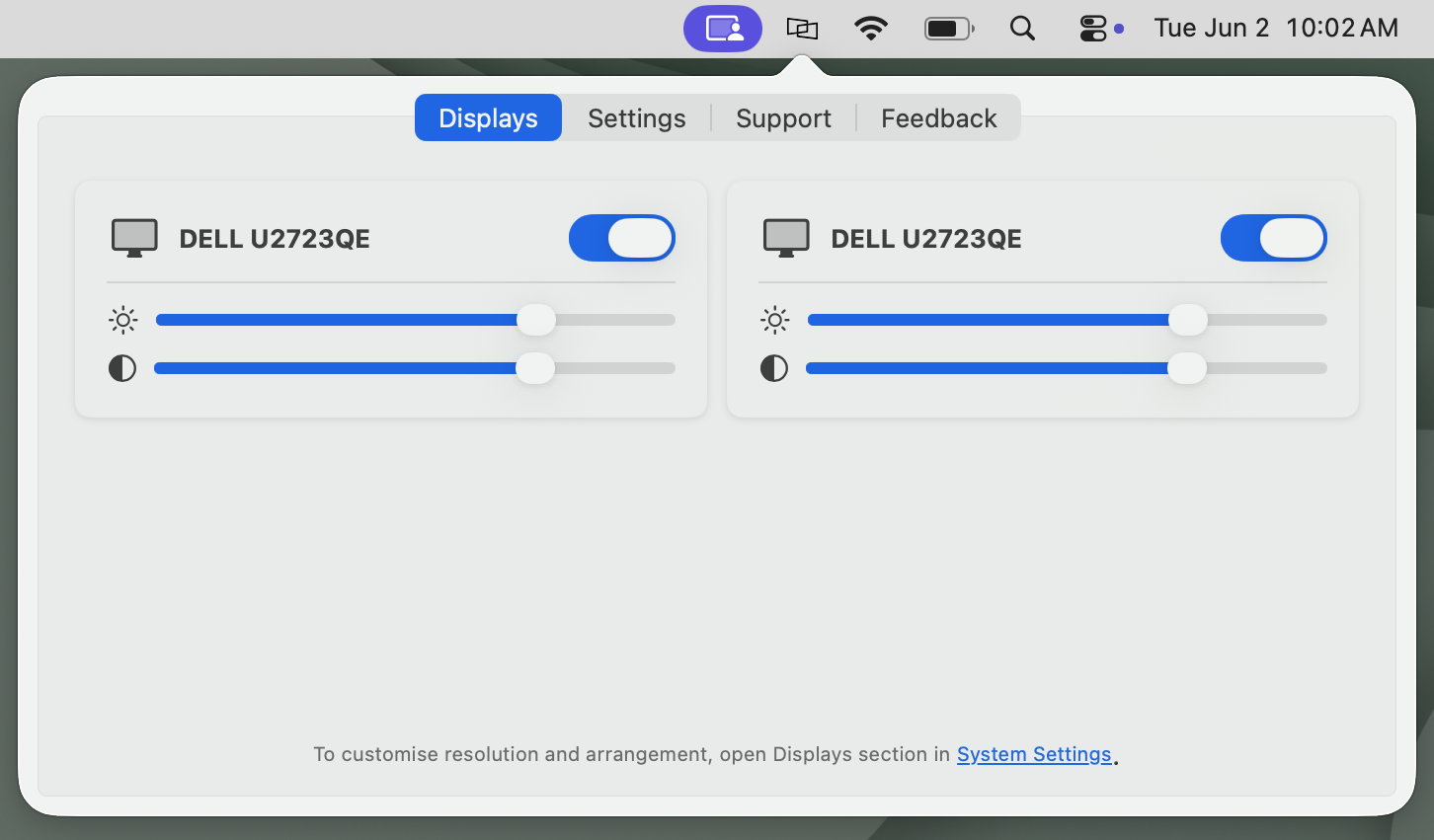
IMPORTANT NOTE - only displays driven by DisplayLink technology will be shown here. Displays driven by other methods (such as USB Type-C or Thunderbolt) will NOT be displayed.
Next to each display is a small toggle switch that will allow you to selectively toggle a display off or on as desired.
Below each display name will be two sliders that allow you to control the brightness or contrast of that display, according to your preference.
If multiple displays with identical names are present, you can differentiate between each display by hovering the mouse pointer over each display name. When doing so, a red identification box will appear on-screen within the selected display.
24. The second tab of the DisplayLink Manager Application status window is the ‘Settings’ tab.
The items listed will vary depending upon which version of the DisplayLink Manager Application that is installed and the type of processor within the host Mac (Intel processor or Apple processor).
An example of the ‘Settings’ tab from DisplayLink Manager version 16.1 running on a Mac with an Apple processor is provided below:
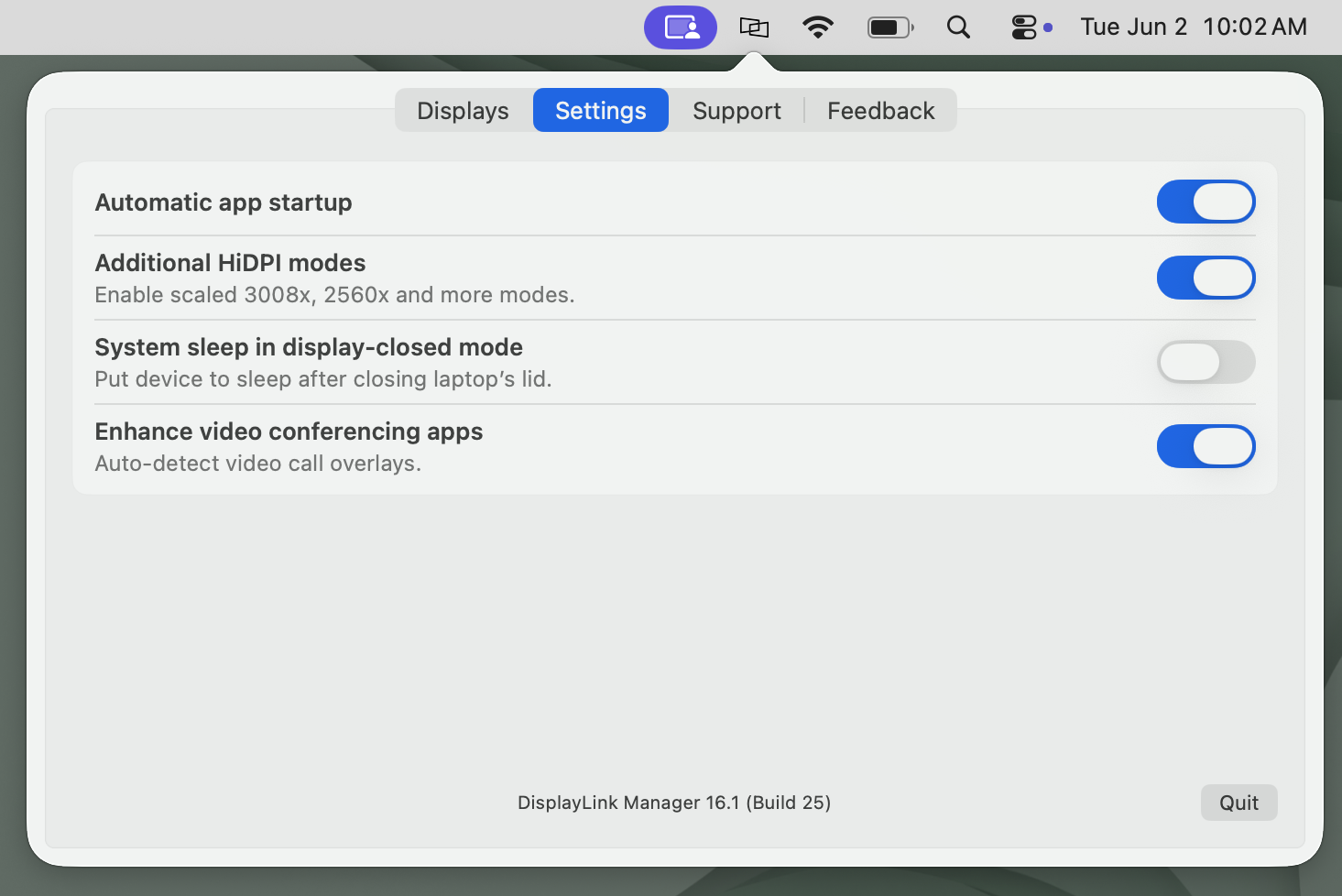
The following list describes the features present within the ‘Settings’ tab while using DisplayLink Manager version 16.1 with a Mac with an Apple processor:
Automatic app startup
As the name suggests, toggling on the ‘Automatic app startup’ option allows the DisplayLink Manager Application to start automatically each time you log on to your Mac. This option should be enabled by default during a standard installation. If not already enabled, we recommend doing so in the interest of efficiency.
Additional HiDPI modes
In brief, HiDPI mode is a feature of macOS that can make images within a display appear sharper. In some cases, the host Mac will not enable HiDPI mode for the displays connected to a DisplayLink-based product.
Clicking the toggle to enable the ‘Additional HiDPI modes’ option will create new resolution choices for the DisplayLink-connected displays within the ‘Displays’ section of the macOS ‘System Settings’ application that may help improve the sharpness of the image.
Synaptics (the creators of DisplayLink technology) have more information on this feature here → https://support.displaylink.com/knowledgebase/articles/1993915-displaylink-manager-app-experimental-hidpi-modes
System sleep in display-closed mode
Mac laptops running macOS 26 Tahoe, macOS 15 Sequoia, macOS 14 Sonoma can be used in one of two ways when used in conjunction with a DisplayLink-based product.
The first way is with the laptop lid open, with the laptop's built-in internal display enabled.
The second way is with the laptop lid closed, with the laptop's built-in internal display disabled. This is known as closed display mode or 'clamshell' mode.
In order to enter closed display mode while connected to a DisplayLink-based product, the host Mac must have an external power source connected and an external keyboard and mouse connected.
Clicking the toggle to enable the 'System sleep in display-closed mode’ option changes this behavior, in that closing the laptop lid will cause the host Mac to go to sleep.
This feature is of course optional, and its use is a matter of personal preference.
Enhance video conferencing apps
The ‘Enhance video conferencing apps’ option, which is enabled by default, helps ensure that screen sharing or content controls while using the Microsoft Teams application appear as expected.
DisplayLink has more information about this feature here → https://support.displaylink.com/knowledgebase/articles/2022489-how-to-fix-missing-screen-sharing-controls-in-micr
Does Plugable support ChromeOS with our DisplayLink-based products?
Summary
Yes. Many Plugable products that use DisplayLink USB graphics technology support ChromeOS and can provide additional external displays without requiring a separate driver installation.
However, ChromeOS compatibility varies by Plugable product. Always confirm that your specific Plugable product lists ChromeOS as a supported operating system before use.
For Plugable products that support ChromeOS, Plugable recommends using ChromeOS version 100 or later with the latest Stable channel updates installed.
Applicable To
This article applies to:
- Plugable DisplayLink-based docking stations and USB graphics adapters that list ChromeOS as a supported operating system
- Chromebooks, Chromeboxes, and other supported computers running ChromeOS
Not every Plugable product that contains DisplayLink technology necessarily supports ChromeOS. Refer to the individual Plugable product page for operating system compatibility.
Answer
DisplayLink support is built directly into ChromeOS, so a separate DisplayLink driver does not normally need to be downloaded or installed.
Synaptics, the developer of DisplayLink technology, has included DisplayLink support in ChromeOS since ChromeOS release R51. Plugable currently recommends ChromeOS version 100 or later for Plugable DisplayLink products that support ChromeOS.
To use a supported Plugable DisplayLink product with ChromeOS:
- Update the Chromebook or ChromeOS device to the latest available Stable channel version of ChromeOS.
- Connect the Plugable dock or graphics adapter directly to a compatible USB port on the ChromeOS device.
- Connect the external display or displays to the Plugable product.
- Open the ChromeOS display settings to arrange, mirror, or extend the connected displays as desired.
No separate DisplayLink software installation is required.
Performance Considerations
DisplayLink USB graphics uses processing resources from the host computer to generate and transmit the image shown on the connected displays. As a result, DisplayLink performance can vary depending on the Chromebook's processor, memory, USB connection, number of connected displays, display resolution, and the applications being used.
Synaptics currently recommends the following minimum system characteristics for Chromebook systems using DisplayLink:
- A 2GHz or faster processor with NEON or SSE2 instruction support
- 4GB of RAM or more when using two or more DisplayLink-connected displays
- A USB 3.0 connection
Systems with more capable processors and additional memory may provide better performance, particularly when using multiple high-resolution displays or playing video.
Intel, AMD, and ARM-Based Chromebooks
DisplayLink support in ChromeOS is not limited to Intel or AMD processors.
Current DisplayLink requirements support processors with either SSE2 or NEON instruction support. SSE2 is commonly associated with x86 processors from Intel and AMD, while NEON is used by ARM-based processors.
As a result, processor architecture alone does not determine DisplayLink compatibility. Performance depends on the capabilities of the specific Chromebook and the workload being performed.
For the best experience, confirm that the Chromebook meets the recommended DisplayLink system requirements and that the specific Plugable product supports ChromeOS.
ChromeOS Version and Updates
Plugable recommends ChromeOS version 100 or later with the latest available updates installed for Plugable DisplayLink products that support ChromeOS.
Plugable recommends using the ChromeOS Stable release channel for normal use and troubleshooting. Beta, Developer, and Canary builds are prerelease versions of ChromeOS and may introduce behavior that has not been validated with Plugable products.
Because the DisplayLink driver is built into ChromeOS, DisplayLink driver updates and fixes are distributed through ChromeOS updates. There is no separate DisplayLink driver package for a user to manually install on ChromeOS.
Important Notes
Product Compatibility Varies
DisplayLink technology being present in a Plugable product does not by itself guarantee that the complete product supports ChromeOS.
Some docks combine DisplayLink with other technologies and features that may have additional operating system or host requirements.
Always check the Compatibility or Supported Operating Systems section of the individual Plugable product page before purchasing or connecting the product to a Chromebook.
Display Performance
Higher resolutions, multiple external displays, video playback, and graphics-intensive applications require more host processing resources.
A configuration that works well for normal office applications may provide lower performance with demanding video or graphics workloads.
No Manual DisplayLink Driver Installation
ChromeOS includes its DisplayLink support within the operating system. Unlike Windows or macOS, there is no DisplayLink software package that needs to be manually downloaded and installed.
PlugDebug Is Not Available for ChromeOS
Plugable's PlugDebug diagnostic utility is available for Windows, macOS, and supported Linux distributions, but it cannot be run on ChromeOS.
When requesting support for a ChromeOS device, please provide the exact Chromebook or ChromeOS device model and ChromeOS version.
For instructions, see:
How to Identify Your Chromebook Model and ChromeOS Version
Need Assistance?
If a supported Plugable DisplayLink product is not working as expected with your Chromebook or ChromeOS device, please contact Plugable Support at support@plugable.com.
When contacting support, please include:
- Your Plugable product model
- The exact Chromebook or ChromeOS device model
- Your ChromeOS version
- The number, make, and model of connected displays
- The display resolution you are attempting to use
- A description of the issue you are experiencing
Does My DisplayLink-Based Product Support Color Adjustment Such as Night Light or Night Shift via the Host Operating System?
Support for color adjustment features on DisplayLink-connected displays varies by operating system. Windows and macOS may require additional DisplayLink-specific configuration or software, while ChromeOS supports its built-in Night Light feature.
How Does Color Adjustment Support Vary by Operating System?
| Operating System | Color Adjustment Feature | DisplayLink Support |
|---|---|---|
| Windows 10 and Windows 11 | Night Light |
Available on supported DisplayLink configurations with additional setup (10.3 M0 or newer) The 3rd-party utility f.lux also has native support for DisplayLink-based devices |
| ChromeOS 100 or newer | Night Light | Supported |
| macOS | Night Shift | Not supported on DisplayLink-driven displays (Experimental support for color adjustment via the 3rd-party utility f.lux is available when using DisplayLink Manager version 1.8.0***) |
For Windows Night Light information:
For DisplayLink-specific Windows Night Light and f.lux setup:
For ChromeOS Night Light information:
https://support.google.com/chromebook/answer/9145848?hl=en
For macOS Night Shift information:
https://support.apple.com/en-us/102191
Applicable To
- UD-3900, UD-3900-EU, UD-3900C4, UD-3900PDZ, UD-3900Z, UD-6950PDH, UD-6950PDZ, UD-6950Z, UD-ULTC4K, UD-ULTCDL, UGA-2KHDMI, UGA-3000, UGA-4KDP, UGA-4KHDMI, USBC-6950M, USBC-6950PDZ, USBC-6950U
I tried to install the DisplayLink Manager Application on my Mac, however the process ended in an ‘Unexpected Error’. How do I fix this?
Summary
The DisplayLink Manager application is required to enable DisplayLink-based video outputs on compatible Plugable docking stations and USB graphics adapters when used with macOS.
In most cases, DisplayLink Manager installs without issue. However, the macOS installer may occasionally report an “Unexpected Error” and fail to complete the installation.
Common causes include insufficient installation permissions, macOS privacy restrictions, an installation file being accessed from an unsuitable location, an incomplete or damaged download, or remnants of a previous DisplayLink installation.
Applicable To
This article applies to:
- Plugable DisplayLink-based docking stations used with macOS
- Plugable DisplayLink-based USB graphics adapters used with macOS
- macOS 10.15 and later when using the DisplayLink Manager application
macOS 10.14 Mojave uses the legacy DisplayLink software and is not covered by these instructions.
Answer
If DisplayLink Manager fails to install with an “Unexpected Error,” first confirm that you are using the correct DisplayLink Manager version for your version of macOS and that your Mac account has permission to install software.
If the error continues, check the macOS Files & Folders privacy permissions for the Installer application, confirm that the installation package is stored locally on the Mac, and remove any existing DisplayLink software before attempting the installation again.
Before You Begin
Before troubleshooting the installation:
- Confirm your version of macOS by selecting Apple menu > About This Mac.
- Download the correct DisplayLink Manager version for your version of macOS from Plugable's DisplayLink driver page:
DisplayLink Drivers and Software
- Make sure the downloaded installation package is completely downloaded before opening it.
- If the Mac is owned or managed by a company, school, or other organization, confirm that you are authorized to install software.
1. Confirm That Your Account Can Install Software
DisplayLink Manager installation requires authorization to make changes to macOS.
During installation, macOS may prompt you to enter an administrator password or authenticate using Touch ID.
If your Mac is managed by an employer, school, or other organization, security policies or Mobile Device Management (MDM) settings may prevent software installation even if you can log in normally.
If you do not have permission to install software, contact your organization's IT administrator for assistance.
2. Run the Installation Package From Local Storage
For troubleshooting, make sure the DisplayLink Manager installation package is stored on the Mac's local storage before opening it.
Avoid running the installer directly from:
- A network drive
- An external storage device
- Microsoft OneDrive
- Dropbox
- Google Drive
- Another cloud-synchronized or remotely mounted location
If necessary, download a new copy from Plugable's DisplayLink driver page and save it to the Mac's Downloads folder.
Also confirm that the Mac has sufficient available storage space for the installation.
3. Check the macOS Files & Folders Permission
The macOS Installer application may need permission to access the folder containing the DisplayLink Manager installation package.
For example, if the installation package is located in the Downloads or Desktop folder, macOS may display a prompt asking whether the Installer application should be allowed to access that folder.
If prompted, click Allow.
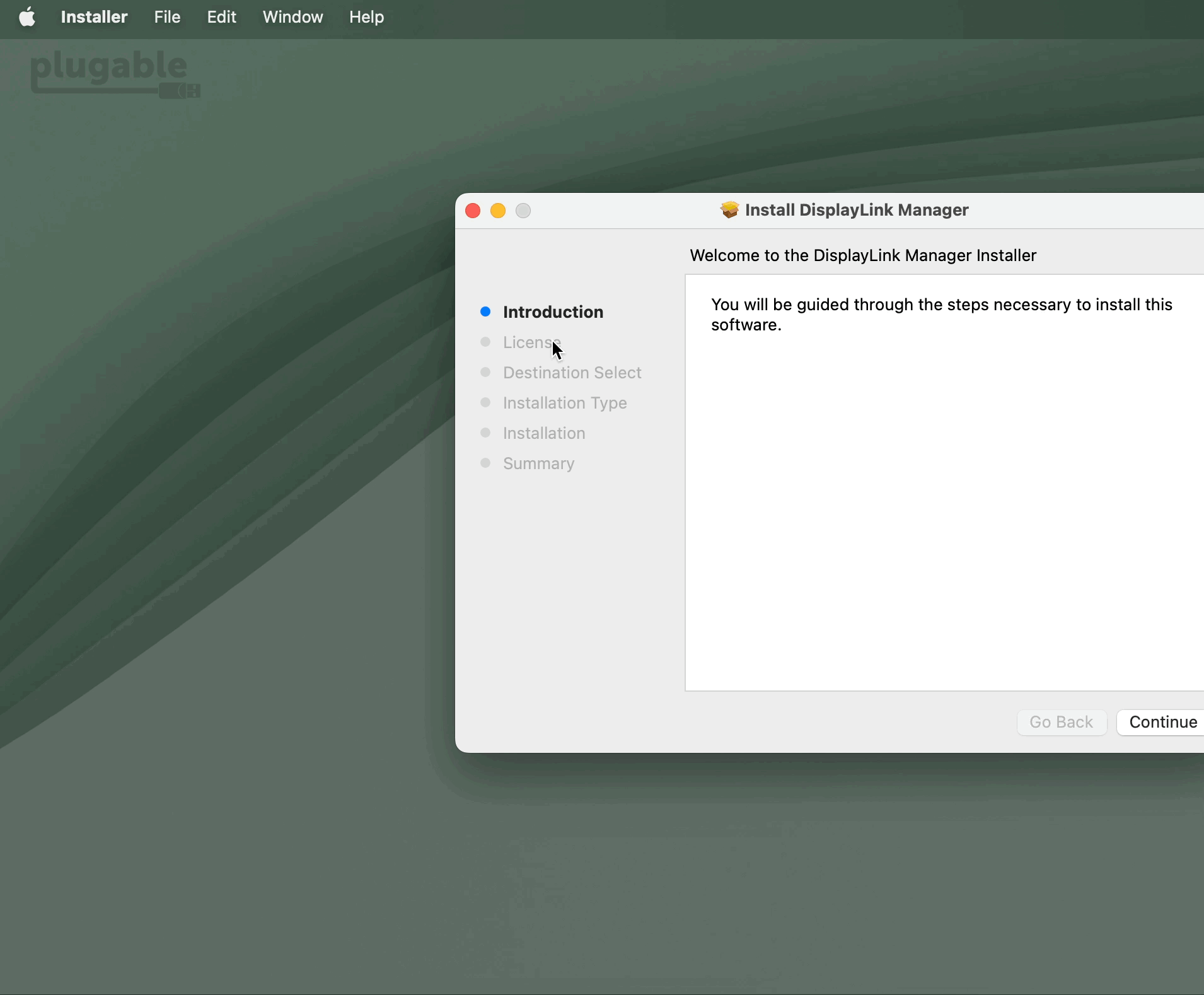
If permission was previously denied, macOS may remember that choice and may not display the same prompt again.
To check the permission manually:
- Open Apple menu > System Settings.
- Select Privacy & Security.
- Scroll down and select Files & Folders.
- Look for Installer in the list.
- If Installer is listed, expand the entry if necessary and enable access to the folder containing the DisplayLink Manager installation package, such as Downloads Folder or Desktop Folder.
- Close System Settings.
- Close the DisplayLink installer if it is still open.
- Open the DisplayLink Manager installation package again and retry the installation.
If Installer is not listed under Files & Folders, continue to the next section.
4. Download a New Copy of DisplayLink Manager
An incomplete or damaged installation package can also prevent the installation from completing.
Delete the existing DisplayLink Manager installation package, then download a new copy appropriate for your version of macOS from Plugable's DisplayLink driver page:
DisplayLink Drivers and Software
Once the download is complete, open the new installation package and attempt the installation again.
5. Remove Existing DisplayLink Software
If DisplayLink Manager or an older DisplayLink driver was previously installed on the Mac, remaining software components may interfere with a new installation.
Plugable recommends completely removing the existing DisplayLink installation before reinstalling.
For instructions, see:
How to Uninstall DisplayLink Manager Software on macOS
When troubleshooting installation problems, the DisplayLink Installation Cleaner can be used to remove DisplayLink Manager and associated components.
After the cleanup is complete:
- Restart the Mac.
- Download the correct DisplayLink Manager version for your version of macOS.
- Run the installation again.
6. Complete the DisplayLink Manager Setup
Once DisplayLink Manager installs successfully, additional macOS permissions are required before DisplayLink-connected displays can operate.
Follow Plugable's DisplayLink Manager installation instructions for your version of macOS. Installation guidance is available from Plugable's DisplayLink Drivers and Software page.
This may include allowing DisplayLink Manager to run in the background and granting the required Screen & System Audio Recording or Screen Recording permission.
Note: Screen Recording permission is required for DisplayLink video functionality after installation. It is separate from the Files & Folders permission used by the macOS Installer during the installation process.
Need Assistance?
If DisplayLink Manager still reports an “Unexpected Error” after completing the steps above, please contact Plugable Support at support@plugable.com.
When contacting support, please include:
- Your Plugable product model
- Your Mac model
- Your macOS version
- The DisplayLink Manager version you are attempting to install
- A screenshot of the “Unexpected Error” message
- Whether the Mac is personally owned or managed by an organization
- The output from Plugable's diagnostic tool, PlugDebug
What is USB PD Pass-Through?
USB Power Delivery (USB PD) pass-through allows a compatible USB-C hub or dock to receive power from an external USB-C charger and supply some of that power to a connected computer. The hub or dock reserves power for its own operation, so the computer may receive less than the charger's rated output.
How Pass-Through Power Works
The charger connects to the hub or dock's designated PD input, and the hub or dock connects to a computer that supports charging through its USB-C port. The devices negotiate a supported power level. How much reaches the computer depends on the charger, cable, hub or dock, computer, and connected devices.
Example
The Plugable USBC-6950PDZ accepts up to 100W from a compatible USB-C charger and can provide up to 82W to the connected computer. These are two different ratings. A lower-wattage charger leaves less power available for the dock and computer to share.
Important Notes
- A 100W PD input rating does not mean the computer receives 100W. Check the maximum host charging output for the specific product.
- If the computer requires more power than the setup can provide, charging may be slow or the battery may discharge under heavy use.
- USB PD specifications allow up to 240W with compatible equipment. That is a specification maximum, not a capability shared by every USB-C product.
Need Assistance?
If you are unsure how much power a Plugable product can supply to your computer, contact support@plugable.com with the Plugable model, computer model, and charger wattage.
Can I Leave My Notebook Computer Connected to a Charging Dock Overnight, or Should I Discharge and Recharge the Notebook Battery Regularly?
Yes. Modern notebook computers can safely remain connected to a charging dock for extended periods without damaging the battery or requiring regular discharge and recharge cycles. Leaving the laptop connected is functionally equivalent to leaving it connected to the manufacturer's original power adapter.
Why Modern Laptops Do Not Require Battery Cycling
Lithium-ion (Li-ion) batteries are used in a wide range of consumer electronics, including notebook computers, cell phones, electric vehicles, power tools, and wireless earbuds. They offer fast charging, high-current discharge, a relatively long service life, and a comparatively low cost.
The lifespan of a rechargeable battery depends on factors such as age, temperature history, charging patterns, chemical composition, and usage. For example, batteries stored at 100% charge generally degrade faster than those stored at around 50%, which is why many consumer electronics arrive with a partial charge.
Although Li-ion batteries are consumable components, they’re typically not user-serviceable in modern computers, phones, and tablets. These devices include built-in charging and protection circuits that prevent overcharging and monitor factors such as battery temperature, voltage, current draw, and overall health. Charging systems can range from simple preset charging rates to advanced software-controlled management designed to balance charging speed with battery longevity.
Modern notebook computers can remain connected to their original power adapter or a compatible docking station for extended periods and don’t benefit from regular discharge and recharge cycles. Plugable docking stations with charging capability use USB Type-C Power Delivery, a negotiated protocol that allows the computer to request only the power and voltage it requires. Together with the computer’s built-in battery management system, this helps maintain the battery appropriately while connected to power. Disconnecting power simply forces the laptop to operate from its battery, which may trigger reduced-power modes that can affect system performance and connected devices.
Legacy Laptop Battery Behavior
Older laptops from the 1990s and early 2000s, some consumer electronics, and many rechargeable AA and AAA batteries used Nickel-Cadmium (NiCad) or Nickel-Metal Hydride (NiMH) technology. These batteries generally charged and discharged more slowly than lithium-ion batteries and used relatively simple charge controllers. Some could also be trickle-charged using a continuous, very low current.
Because these older batteries often lacked smart charging controllers, manufacturers sometimes recommended “training” them by fully charging and discharging the battery periodically, including two or three full cycles when a laptop was new. Modern lithium-ion batteries don’t have this requirement and don’t benefit from periodic manual discharging.
Applicable To
Plugable docking stations with USB Power Delivery (PD)
How can I rotate the displays connected to my DisplayLink-based USB Docking Station or USB Graphics Adapter in macOS?
Summary
Most DisplayLink-connected monitors can be rotated in macOS, but the correct setting location depends on your macOS version, DisplayLink Manager version, and Mac processor type.
For current macOS installations using newer versions of DisplayLink Manager, display rotation is normally adjusted in System Settings > Displays. Older Apple silicon systems using earlier DisplayLink Manager versions may instead need to use the rotation controls inside the DisplayLink Manager application.
This article explains which method to use and how to rotate a DisplayLink-connected monitor to Standard, 90°, 180°, or 270°.
Applicable To
- Plugable DisplayLink-based docking stations
- Plugable DisplayLink-based USB graphics adapters
- Mac computers using DisplayLink Manager for macOS
- macOS 11 Big Sur and newer, with notes for unsupported older configurations
This article applies to displays connected through DisplayLink technology. It does not apply to displays connected directly through native USB-C DisplayPort Alternate Mode, Thunderbolt, USB4, HDMI, or DisplayPort video outputs unless the product also uses DisplayLink for that specific display output.
Answer
For most current setups, rotate the DisplayLink-connected display from the macOS Displays settings:
- Open the Apple menu.
- Select System Settings.
- Select Displays.
- Select the external display you want to rotate.
- Use the Rotation or Rotate menu to choose the correct orientation.
- Select Confirm if macOS asks you to confirm the change.
If the Rotation option does not appear, review the compatibility table and troubleshooting section below.
Which Method Should I Use?
| Mac and macOS configuration | Where to rotate the DisplayLink-connected display |
|---|---|
| macOS 13 Ventura or newer with DisplayLink Manager 1.12.0 or newer | Use System Settings > Displays. This is the preferred method for current macOS and DisplayLink Manager versions. |
| Intel-based Mac running macOS 11 Big Sur or macOS 12 Monterey | Use the built-in macOS Displays settings. |
| Apple silicon Mac running macOS 12 Monterey with DisplayLink Manager 1.6 through 1.11.x | Use the DisplayLink Manager application. Rotation is handled within DisplayLink Manager on these older Apple silicon configurations. |
| Apple silicon Mac running macOS 11 Big Sur | Display rotation is not supported for DisplayLink-connected displays in this configuration. |
| macOS 10.15 Catalina | Display rotation is not supported for DisplayLink-connected displays in this configuration. |
For best results, Plugable recommends using the latest DisplayLink Manager version available for your version of macOS. Current DisplayLink Manager installers are available here: Plugable DisplayLink Driver and Software Downloads.
Before You Begin
Confirm the following before changing display rotation:
- The DisplayLink Manager application is installed.
- DisplayLink Manager is running. A DisplayLink Manager icon should appear in the Apple menu bar when the application is active.
- The Plugable DisplayLink-based product is connected to the Mac.
- The monitor is connected to a DisplayLink-controlled video output on the Plugable product.
- The monitor itself can safely be used in the physical orientation you plan to use.
If you are using macOS 14 Sonoma, macOS 15 Sequoia, macOS 26 Tahoe, or newer, DisplayLink Manager also needs the required macOS screen recording permission in order for DisplayLink-connected displays to work.

Rotate a Display in macOS 13 Ventura or Newer
Use these steps for current macOS versions, including macOS 13 Ventura, macOS 14 Sonoma, macOS 15 Sequoia, and macOS 26 Tahoe, when using DisplayLink Manager 1.12.0 or newer.
- Open the Apple menu in the upper-left corner of the screen.
- Select System Settings.

- In the System Settings sidebar, select Displays. You may need to scroll down to find it.
- Select the display you want to rotate from the display thumbnails at the top of the window.
- Find the Rotation or Rotate option.
- Open the rotation menu and select the desired orientation, such as Standard, 90°, 180°, or 270°.

- If macOS displays a confirmation prompt, select Confirm to keep the new rotation setting.

Rotate a Display in macOS 11 Big Sur or macOS 12 Monterey on an Intel-based Mac
On Intel-based Macs running macOS 11 Big Sur or macOS 12 Monterey, DisplayLink-connected displays can be rotated from the built-in macOS display settings.
- Open the Apple menu.
- Select System Preferences.

- Select Displays.
- Select Display Settings....
 Select Display Settings to configure each connected display.
- Select the external display you want to rotate.
- Use the Rotation or Rotate menu to choose the desired orientation.
 Select the display, then choose the desired rotation.
- If macOS asks you to confirm the change, select Confirm.

Legacy Apple Silicon Method: DisplayLink Manager 1.6 through 1.11.x
Use this section only if you are using an Apple silicon Mac on macOS 12 Monterey with DisplayLink Manager 1.6 through 1.11.x. On these older configurations, rotation is adjusted from within the DisplayLink Manager application instead of the macOS Displays settings.
For current macOS versions and current DisplayLink Manager versions, use the macOS System Settings > Displays method above instead.
- Click the DisplayLink Manager icon in the Apple menu bar to open the DisplayLink Manager window.

- Find the display you want to rotate in the Display rotation and toggle section.
- If multiple displays are listed with the same name, move your pointer over a display name. A red border should appear on the matching physical display.
- Open the rotation menu next to the display and choose the desired orientation.

If You Do Not See the Rotation Option
If the Rotation or Rotate option does not appear, check the following:
- Make sure the monitor is connected to a DisplayLink-controlled video output on the Plugable product.
- Make sure DisplayLink Manager is installed and running.
- Make sure the DisplayLink-connected display is active and not toggled off in DisplayLink Manager.
- Install the latest DisplayLink Manager version available for your version of macOS.
- Confirm that the monitor is not being mirrored in a way that prevents separate rotation controls from appearing.
- Confirm that the display supports rotation in macOS. Apple notes that the Rotation option appears only when a compatible external display is connected.
- If you are using an Apple silicon Mac running macOS 11 Big Sur, DisplayLink display rotation is not supported in that configuration.
- If you are using macOS 10.15 Catalina, DisplayLink display rotation is not supported in that configuration.
Troubleshooting
1. The DisplayLink display is not listed in System Settings
If the DisplayLink-connected display does not appear in System Settings > Displays, first confirm that DisplayLink Manager is installed, running, and allowed in macOS privacy settings.
For full setup steps, see Plugable’s current DisplayLink Manager installation guide: DisplayLink Manager App Installation Instructions for macOS.
2. The display rotates, but the image looks sideways or upside down
Try a different rotation value. The correct selection depends on how the physical monitor is positioned. For example, a monitor physically rotated clockwise may need a different setting than a monitor physically rotated counterclockwise.
3. The display goes blank after choosing a rotation value
Wait for the macOS confirmation timer to expire, or choose Revert if the confirmation prompt is visible. Then try another rotation value or return the display to Standard.
4. The rotation option only appears for some displays
Rotation support can depend on the display, macOS version, DisplayLink Manager version, and how the display is connected. Confirm that the display is connected through a DisplayLink-controlled output and that your macOS and DisplayLink Manager versions support rotation.
Important Notes
- The rotation setting location has changed across DisplayLink Manager versions. Current versions normally use macOS System Settings > Displays.
- The older DisplayLink Manager rotation controls are included here only for legacy Apple silicon configurations using DisplayLink Manager 1.6 through 1.11.x.
- macOS may ask you to confirm a rotation change. If you do not confirm, macOS may automatically revert to the previous setting.
- Some displays may not expose a rotation control in macOS.
- Always confirm that your physical monitor stand or mount supports portrait or rotated operation before rotating the monitor.
Need Assistance?
If you are unable to rotate a DisplayLink-connected display after following the steps above, contact Plugable Support at support@plugable.com. Please include the Plugable product model, your Mac model, your macOS version, your DisplayLink Manager version, and a brief description of how each monitor is connected.
For the fastest assistance, please also include the output from Plugable’s PlugDebug diagnostic utility: PlugDebug.
Why Does macOS Say “DisplayLink Manager Is Capturing Your Screen”?
Summary
When using a Plugable DisplayLink-based docking station or USB graphics adapter with macOS, you may see a notification in the Apple menu bar stating that DisplayLink Manager is capturing your screen.
This message is normal and expected when the DisplayLink Manager application is running and a DisplayLink-based device is connected. DisplayLink Manager requires macOS screen recording permission in order to generate the image shown on monitors connected through DisplayLink technology.
DisplayLink Manager is not recording, storing, or sending your screen contents to Plugable. DisplayLink also states that DisplayLink Manager does not send data or pixels back to DisplayLink or Synaptics.
Applicable To
- Plugable DisplayLink-based docking stations
- Plugable DisplayLink-based USB graphics adapters
- Mac computers running macOS 14 Sonoma or newer, including macOS 15 Sequoia and macOS 26 Tahoe
- Systems with the DisplayLink Manager application installed and running
This article applies to products that use DisplayLink technology. It does not apply to Plugable products that use only native USB-C DisplayPort Alternate Mode, Thunderbolt, USB4, or HDMI/DisplayPort video without DisplayLink.
Answer
This notification appears because macOS is informing you that DisplayLink Manager is actively using screen capture access.
DisplayLink-based products use an indirect display technology. Instead of the external monitor being driven directly by the Mac’s built-in graphics output, DisplayLink Manager helps create the display image in software and sends the required display data over USB to the DisplayLink hardware.
Because DisplayLink Manager must access the screen image in order to create the output shown on the DisplayLink-connected monitors, macOS requires the application to be granted screen recording permission. Starting with macOS 14 Sonoma and newer versions of macOS, Apple also shows a visible menu bar notification when this type of screen access is active.
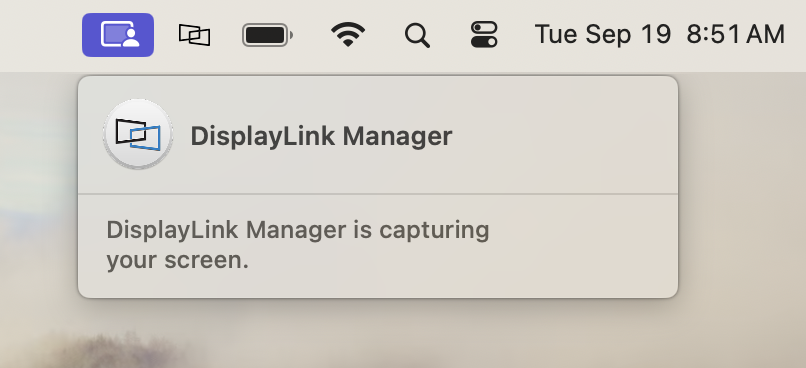
As long as your DisplayLink-connected monitors are working normally, no corrective action is required.
Why This Happens
macOS includes privacy controls for applications that can access screen contents. Apple uses this permission category for screen sharing, screen recording, and applications that need screen access to provide a display-related function.
DisplayLink Manager uses this access so it can generate the pixels shown on monitors connected to a DisplayLink-based dock or adapter. This is required for DisplayLink video output on macOS.
The wording used by macOS can sound concerning because it uses terms such as capturing or recording. In this context, the permission allows DisplayLink Manager to access the screen information needed to render the external display. It does not mean that DisplayLink Manager is saving a video recording of your screen.
What the Notification Means
The notification means that DisplayLink Manager is currently running and using the macOS screen access permission needed for DisplayLink video output.
This is expected when:
- The DisplayLink Manager application is open or running in the background
- A Plugable DisplayLink-based dock or adapter is connected to the Mac
- One or more monitors are connected through the DisplayLink-based product
The notification may disappear if DisplayLink Manager is quit, if the DisplayLink device is disconnected, or if the required permission is removed. However, DisplayLink-connected monitors will not work correctly if DisplayLink Manager is not running or does not have the required permission.
Do I Need to Change Any Settings?
No. If your DisplayLink-connected monitors are working normally, this notification can be ignored.
Plugable recommends leaving the required permission enabled if you want to continue using monitors connected through a DisplayLink-based product.
If you want to confirm that the required permission is enabled:
- Open the Apple menu.
- Select System Settings.
- Select Privacy & Security.
- Select Screen & System Audio Recording.
On some older macOS versions, this may appear as Screen Recording. - Confirm that DisplayLink Manager is enabled.
- If macOS asks you to quit and reopen DisplayLink Manager, follow the prompt so the change can take effect.
Can I Disable the Notification?
The notification is generated by macOS as part of Apple’s privacy and security design. There is not a Plugable setting that removes this notification while DisplayLink Manager is actively using the required screen access permission.
If you quit DisplayLink Manager, disconnect the DisplayLink-based product, or remove the screen recording permission, the notification may stop. However, monitors connected through DisplayLink technology will also stop working or may not work correctly.
If Your DisplayLink Displays Are Not Working
If you see the notification but your DisplayLink-connected monitors are not working as expected, check the following:
- Make sure the latest DisplayLink Manager application for macOS is installed. The latest DisplayLink Manager installer is available here: Plugable DisplayLink Driver and Software Downloads.
- Make sure DisplayLink Manager is running. A DisplayLink Manager icon should appear in the Apple menu bar when the application is active.
- Confirm that DisplayLink Manager is enabled under System Settings > Privacy & Security > Screen & System Audio Recording.
- If prompted by macOS, choose the option to quit and reopen DisplayLink Manager after changing the permission.
- Disconnect the Plugable DisplayLink device from the Mac, reconnect it, and allow any macOS accessory approval prompt that appears.
- Restart the Mac if the displays do not begin working after the permission has been granted.
For full installation steps, please see Plugable’s DisplayLink Manager installation guide: DisplayLink Manager App Installation Instructions for macOS.
Important Notes
- The message is expected behavior in macOS 14 Sonoma and newer when DisplayLink Manager is running and a DisplayLink device is connected.
- The required permission is a macOS privacy requirement, not a defect with the Plugable dock or adapter.
- DisplayLink Manager must be running for DisplayLink-connected monitors to function on macOS.
- Removing the screen recording permission may cause DisplayLink-connected monitors to stop working.
- DisplayLink states that DisplayLink Manager does not record or store screen content, and does not send data or pixels back to DisplayLink or Synaptics.
Need Assistance?
If your DisplayLink-connected monitors are not working after confirming the items above, contact Plugable Support at support@plugable.com. Please include the Plugable product model, your Mac model, your macOS version, the DisplayLink Manager version installed, and a brief description of what appears in the DisplayLink Manager application.
For the fastest assistance, please also include the output from Plugable’s PlugDebug diagnostic utility: PlugDebug.
What Can I Do If My Dock or Connected USB Devices Are Not Detected by My Computer?
Applicable To
Plugable Docking Stations
Problem Summary
The internal USB hub in a docking station may occasionally stop working correctly, leading to your computer not detecting connected USB devices or failing to recognize the dock entirely. This can often be resolved by performing a power-cycle of the dock in a specific order to fully reset its internal hub chipset.
Instructions
- Disconnect all USB peripherals connected to the dock.
- Disconnect the docking station from the host computer.
- Disconnect the dock's power adapter from power.
- Leave the dock unplugged for at least 1 minute to allow power to dissipate.
- Connect the docking station initially into power only.
- Connect the docking station to the host computer.
- Reconnect your USB peripherals and test them for functionality.
Expected Result
Your computer should successfully recognize the docking station and detect all connected USB peripherals.
If the Issue Persists
Reach out to Plugable support by email at support@plugable.com
When using a Plugable DisplayLink docking station in conjunction with a desktop computer running Windows, my displays are not working as expected. How do I fix this?
Note, for those who prefer a visual answer to this question, Plugable has produced a video that demonstrates how to fix this issue:
For those that prefer a written explanation and solution, please continue reading.
Summary
When a Windows desktop computer is used with a Plugable DisplayLink-based docking station or USB graphics adapter, and no monitor is connected directly to the desktop computer’s built-in video output, Windows may list an extra display in Display Settings even though no monitor is physically connected to that output. Plugable refers to this as a phantom display.
If Windows sets the phantom display as the main display, desktop icons, application windows, or the Windows sign-in screen may appear to be missing because Windows is placing them on a display that is not actually present.
This can usually be resolved by moving the Windows Display Settings window onto a visible monitor, setting one of the Plugable-connected displays as the main display, and setting the phantom display to Disconnect this display.
Applicable To
- Plugable DisplayLink-based USB docking stations
- Plugable DisplayLink-based USB graphics adapters
- Windows desktop computers
- Setups where the only connected monitors are attached through the Plugable DisplayLink device
- Setups where desktop icons, application windows, or the Windows sign-in screen appear missing, off-screen, or on the wrong display
Answer
This behavior is usually caused by a phantom display being configured as the Windows main display.
In Windows Display Settings, each detected display appears as a numbered box. In this scenario, one numbered display may represent a video output on the desktop computer’s built-in graphics adapter even though no monitor is actually connected to that output. If Windows treats that non-visible display as the main display, Windows may place desktop icons, the sign-in screen, and new application windows there.
To resolve the issue:
- Bring the Windows Display Settings window onto a visible monitor.
- Use Identify to determine which display number does not appear on any physical monitor.
- Select a real display connected through the Plugable DisplayLink device and enable Make this my main display.
- Select the phantom display and change it to Disconnect this display.
Why This Happens
DisplayLink-based docking stations and USB graphics adapters transmit display data over a USB data connection. This is different from connecting a monitor directly to the computer’s built-in HDMI, DisplayPort, DVI, or VGA output.
Because the monitors connected through DisplayLink are not connected directly to the desktop computer’s built-in graphics output, some Windows desktop systems may still show an additional display associated with the system’s native graphics hardware. This display may remain listed even though no physical monitor is connected to it.
If Windows makes this phantom display the main display, desktop icons and application windows can become difficult to find because they are being opened on a display that is not visible.
Before You Begin
The steps below are written for Windows 11 and assume the following example setup:
- The desktop computer is already running Windows.
- No monitors are connected directly to the video outputs built in to the desktop computer.
- A Plugable DisplayLink-based docking station or USB graphics adapter is connected to the computer.
- Two external displays are connected to the Plugable DisplayLink device.
- At least one Plugable-connected display is visible enough to use the Windows taskbar, mouse, and keyboard.
The same general process applies if your display numbers or number of connected displays are different from the example shown below.
Optional Video Reference
Before starting, you may want to review Plugable’s short video on using Windows keyboard shortcuts to move application windows between displays. This is useful if the Display Settings window opens on the phantom display and is not visible.
How to move application windows using keyboard shortcuts in Windows
How To Fix the Phantom Display in Windows
1) Right-click on an empty area of the Windows desktop on one of the visible displays connected to the Plugable DisplayLink device.
2) Select Display settings.
In many cases, the Display Settings window will open on the phantom display and will not be visible. However, you may see the Display Settings icon on the Windows taskbar.
3) Select the Display Settings icon on the Windows taskbar to make sure the Display Settings window is active.
4) Press Windows key + Shift + Right Arrow to move the active window to another display.
If the Display Settings window does not appear, press the shortcut again. You can also try Windows key + Shift + Left Arrow. Repeat until the Display Settings window appears on a visible display.
5) At the top of Display Settings, look for the numbered display boxes. Select Identify.
Windows will briefly show a number on each physical display. Make a note of the display number that does not appear on any physical monitor. That number represents the phantom display.
For example, if Windows shows display numbers 1, 2, and 3, but only numbers 2 and 3 appear on your real monitors, display 1 is the phantom display.
6) Select one of the real displays connected through the Plugable DisplayLink device. In this example, display 2 is selected.
7) Under Multiple displays, place a check mark next to Make this my main display.
This sets the selected real display as the Windows main display. The Windows sign-in screen, desktop icons, and newly opened application windows should now appear on that display.
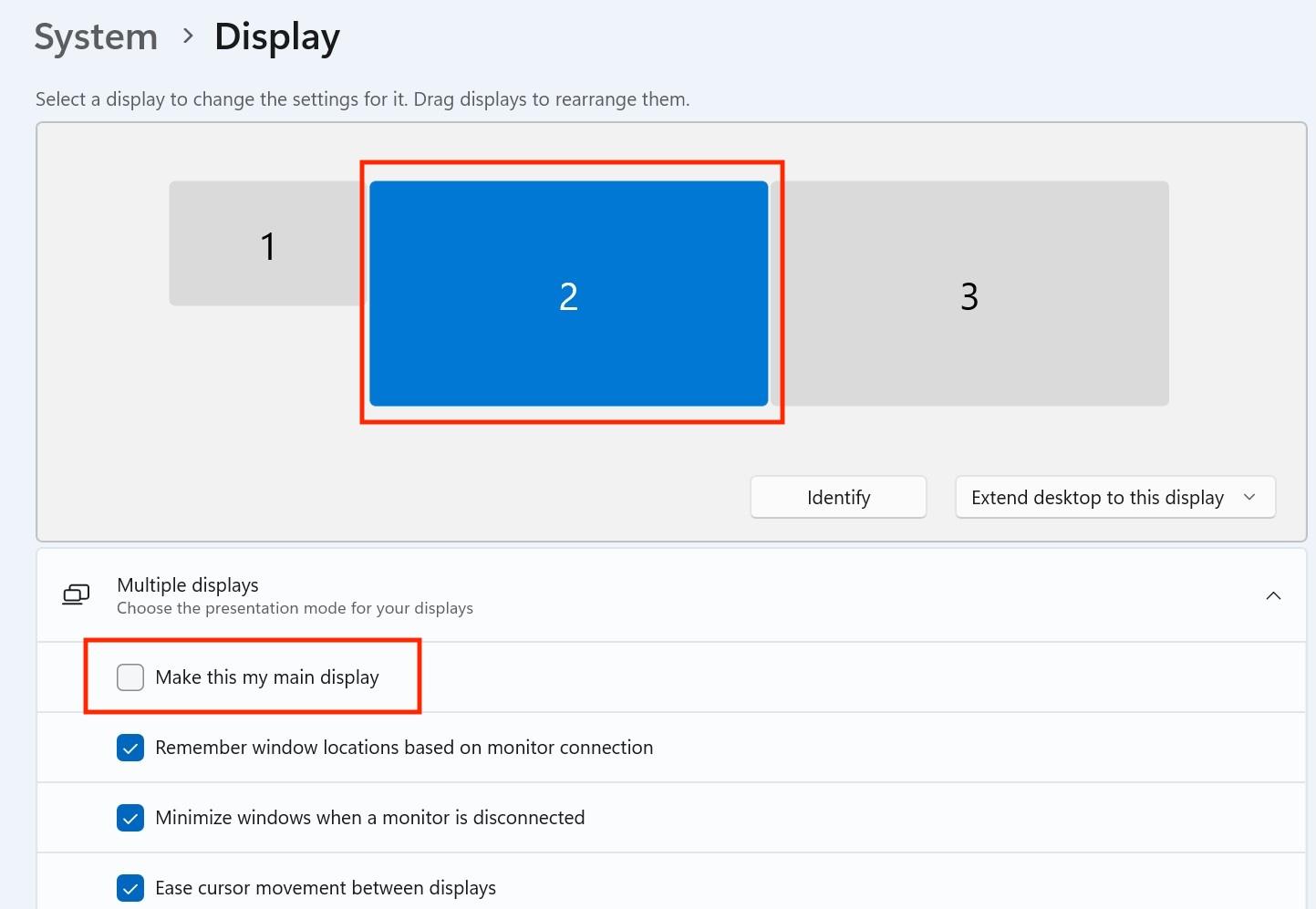
8) Next, select the numbered display box for the phantom display. In this example, display 1 is the phantom display.
9) Under Multiple displays, open the display mode drop-down menu and select Disconnect this display.
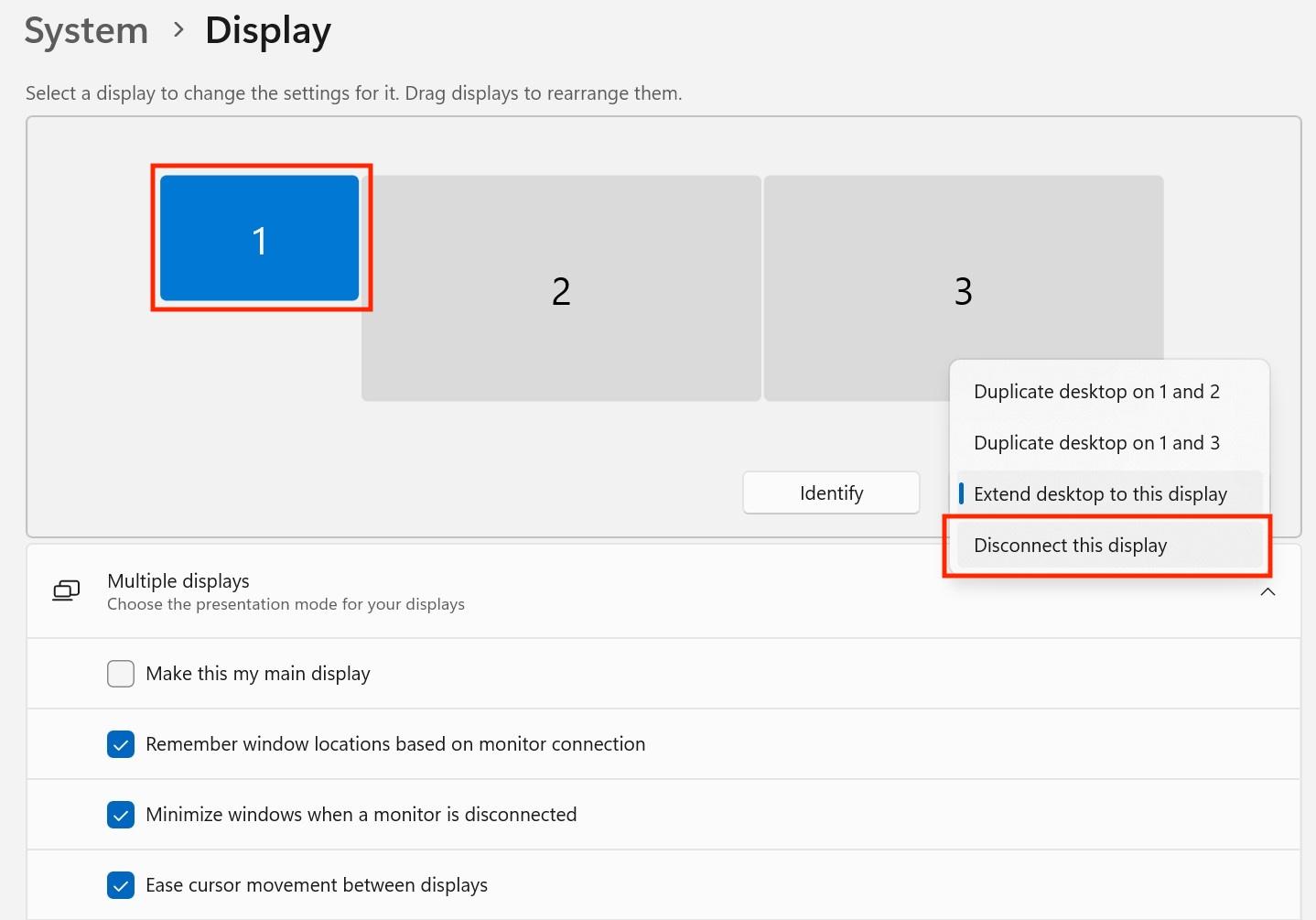
After this change, the phantom display will be disabled. One of the real displays connected to the Plugable DisplayLink device should now be configured as the main display, and desktop icons and application windows should appear on the visible displays.
Important Notes
- Even after the phantom display is disconnected, its display number may still appear in Windows Display Settings. This is expected. The disconnected display may appear smaller than the active displays.
- Windows does not provide a way to completely hide the disconnected display from the Display Settings page.
- Do not disconnect a display number if that number appears on a real physical monitor that you want to use.
- When possible, Plugable recommends connecting at least one monitor directly to a desktop computer’s native graphics output, such as HDMI, DisplayPort, DVI, or VGA, and using DisplayLink-connected displays as additional monitors.
- If none of the displays connected to the Plugable DisplayLink device are working, or if the Plugable device is not detected at all, follow Plugable’s DisplayLink driver clean installation process instead: My DisplayLink-based USB Docking Station or USB Video Adapter Is Not Working As Expected with a Windows computer.
Troubleshooting
Display Settings does not appear on a visible monitor
Select the Display Settings icon in the Windows taskbar, then press Windows key + Shift + Right Arrow or Windows key + Shift + Left Arrow. Repeat the shortcut until the Display Settings window appears on one of the visible displays.
I cannot tell which display is the phantom display
Use the Identify button in Windows Display Settings. The display number that does not appear on any physical monitor is the phantom display. If every display number appears on a real monitor, do not disconnect any of them.
The display changes do not save
When Windows asks you to confirm the display change, make sure to keep or confirm the new setting before the timer expires. If the setting does not save, restart the computer and repeat the steps.
Displays are still not working correctly after disconnecting the phantom display
Try the following:
- Restart the computer.
- Disconnect and reconnect the Plugable DisplayLink device.
- If possible, connect one monitor directly to the desktop computer’s native graphics output and confirm that Windows is using that display as the main display.
- Perform a clean installation of the DisplayLink driver using Plugable’s DisplayLink troubleshooting guide.
- If the issue continues, collect logs with Plugable’s PlugDebug diagnostic utility and contact Plugable Support.
Need Assistance?
If the issue continues after following the steps above, contact Plugable Support at support@plugable.com. Please include the Plugable product model, your Windows version, the desktop computer make and model, the number of connected displays, how each display is connected, and whether any monitor is connected directly to the desktop computer’s built-in video output.
For the fastest assistance, please also include the output from Plugable’s PlugDebug diagnostic utility: PlugDebug.
Why did my displays stop working after my Mac updated or rebooted?
Summary
The most common reason a Plugable DisplayLink-based docking station or USB graphics adapter stops outputting video after a Mac is updated or restarted is that the DisplayLink Manager application is not running, did not reopen after login, or no longer has the required macOS screen recording permission.
DisplayLink Manager is the software component that allows DisplayLink-based video outputs to work in macOS. If the application is not running, or if macOS is blocking the required permission, the displays connected through the DisplayLink-based device may remain blank, not appear in macOS Display Settings, or stop working until the application and permissions are restored.
Applicable To
- Plugable DisplayLink-based docking stations used with macOS
- Plugable DisplayLink-based USB graphics adapters used with macOS
- Mac systems where DisplayLink-connected displays stopped working after a macOS update, restart, shutdown, or login
- Mac systems where the DisplayLink Manager icon is missing from the macOS menu bar
This article applies only to products that use DisplayLink technology. It does not apply to Plugable USB-C DisplayPort Alternate Mode adapters, Thunderbolt-only docks, or MST-based adapters that do not use DisplayLink Manager.
Answer
First, confirm whether DisplayLink Manager is running. When DisplayLink Manager is running, its icon should appear in the macOS menu bar at the top of the screen.
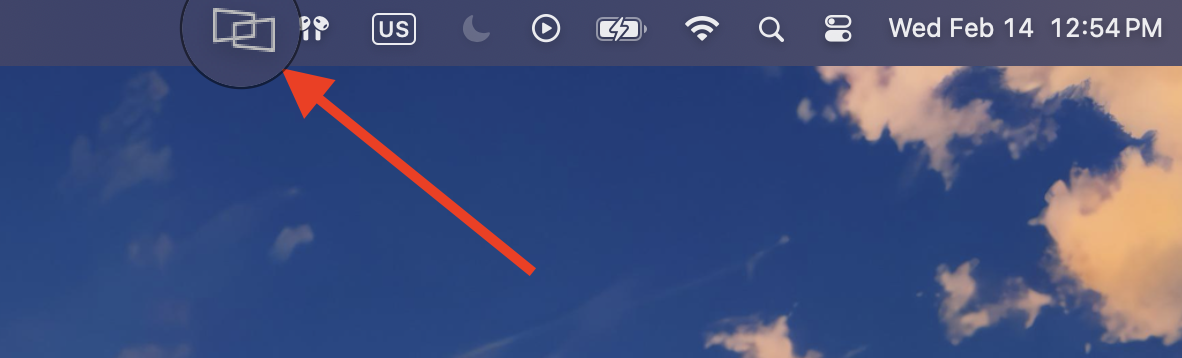
If the DisplayLink Manager icon is not present, the application is not currently running. Open DisplayLink Manager from the Applications folder, then enable the setting that allows DisplayLink Manager to start automatically after you log in.
How To Reopen DisplayLink Manager
- Open Finder.
- Select Applications in the left sidebar.
- Locate DisplayLink Manager.
- Double-click DisplayLink Manager to open it.
- Confirm that the DisplayLink Manager icon appears in the macOS menu bar.
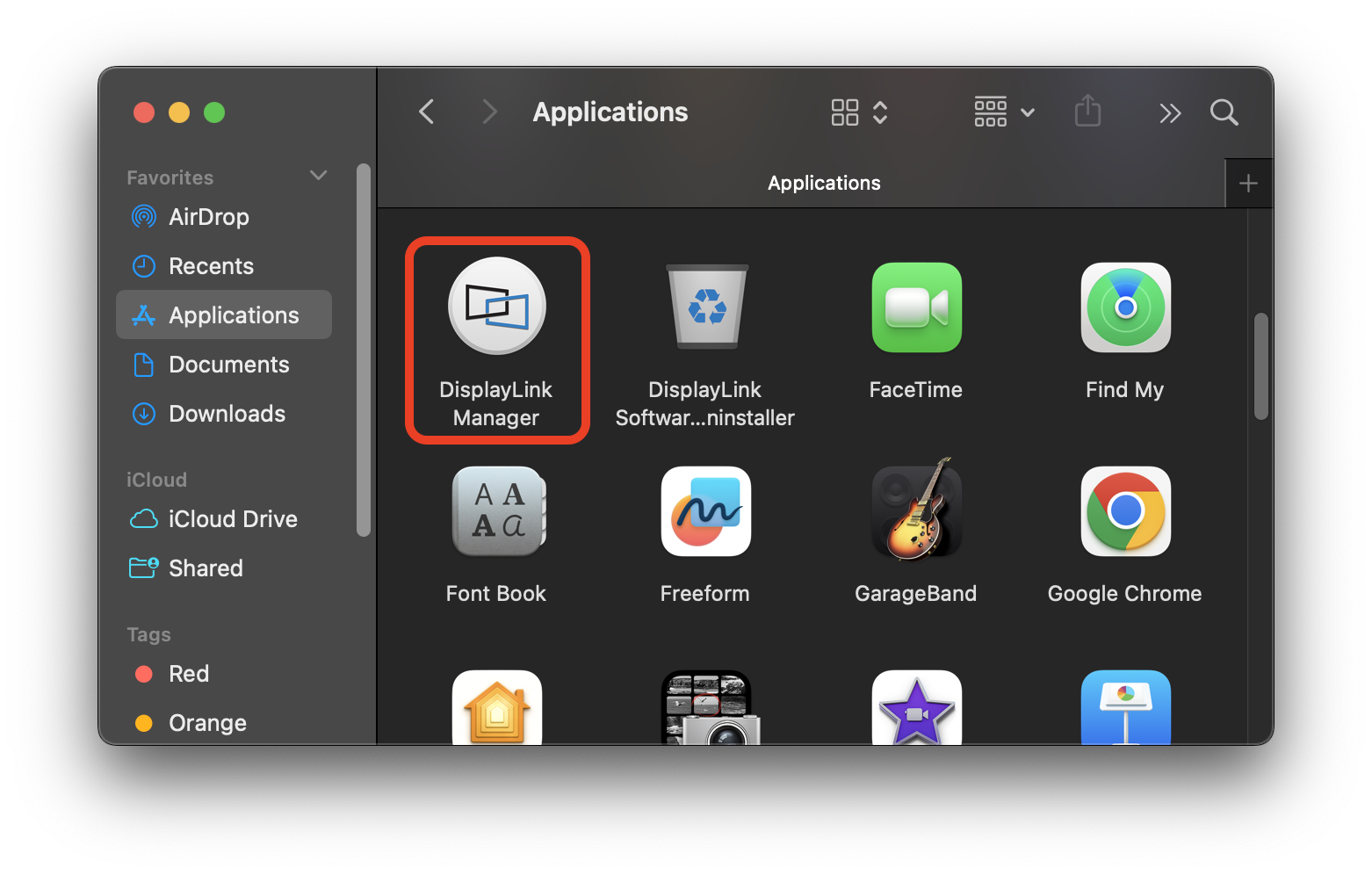
After DisplayLink Manager opens, the displays connected through the Plugable DisplayLink-based device should begin working again if the only issue was that the application was not running.
Enable DisplayLink Manager to Start Automatically
After a restart or macOS update, DisplayLink-connected displays may not work until DisplayLink Manager starts. We recommend enabling DisplayLink Manager to start automatically after login.
- Click the DisplayLink Manager icon in the macOS menu bar.
- Open the Settings tab.
- Enable Automatic app startup.
Older versions of DisplayLink Manager may show this setting as Launch automatically after login instead.
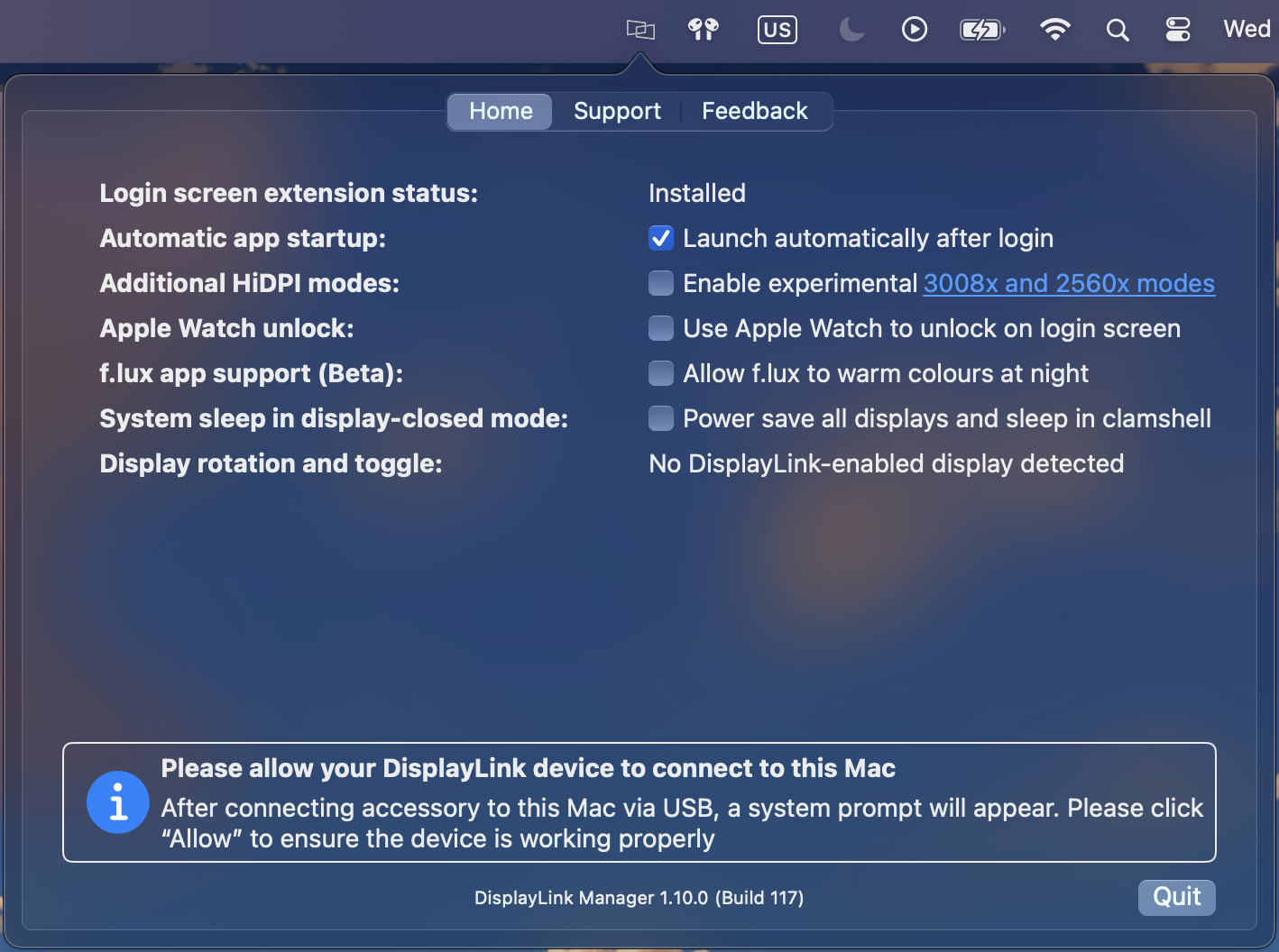
Confirm macOS Screen Recording Permission
If DisplayLink Manager is running but the displays are still not working, confirm that macOS is allowing DisplayLink Manager to access the screen. macOS requires this permission in order for DisplayLink Manager to generate the image shown on DisplayLink-connected displays.
Important: DisplayLink Manager does not record, store, or send your screen content to DisplayLink or Synaptics. The macOS permission is required because DisplayLink technology needs access to the screen image in order to send display data over USB to the connected monitor.
- Open the Apple menu and select System Settings.
- Select Privacy & Security.
- Select Screen & System Audio Recording.
- Find DisplayLink Manager in the list and enable the toggle.
- Enter your Mac password or use Touch ID if prompted.
- When macOS asks, select Quit & Reopen so the permission change can take effect.
On some older macOS versions, this setting may be listed as Screen Recording instead of Screen & System Audio Recording.
Allow the Accessory to Connect When Prompted
On Mac laptops with Apple silicon, macOS may ask for permission before allowing a newly connected USB or Thunderbolt accessory to pass data. If this prompt appears when connecting your Plugable DisplayLink-based product, select Allow.
If Don’t Allow is selected, the device may receive power but data may not pass through correctly. This can prevent DisplayLink Manager from detecting the Plugable device and connected displays.
Why This Happens
Plugable DisplayLink-based products use a USB data connection to drive external displays. On macOS, this requires the DisplayLink Manager application to be installed, open, and granted the required macOS permissions.
After a macOS update, restart, shutdown, or login, one or more of the following may occur:
- DisplayLink Manager may not reopen automatically.
- The DisplayLink Manager icon may be missing from the macOS menu bar.
- macOS screen recording permission may need to be confirmed again.
- An Apple silicon Mac laptop may require the Plugable device to be allowed as a USB accessory.
- A DisplayLink software update or clean reinstall may be needed if the system was recently updated.
Important Notes
- DisplayLink Manager must be running for displays connected through DisplayLink technology to work in macOS.
- Enabling Automatic app startup starts DisplayLink Manager after you log in. It does not necessarily make DisplayLink-connected displays available before login.
- If you need DisplayLink-connected displays available at the macOS login screen, DisplayLink provides a separate Login Screen Extension. DisplayLink notes that DisplayLink screens will not display the login screen when FileVault is enabled, even when the Login Screen Extension is installed.
- macOS may show a menu bar notification indicating that DisplayLink Manager is capturing the screen while a DisplayLink display is active. This is expected behavior in current macOS versions.
Troubleshooting
1. The DisplayLink Manager icon is missing from the menu bar
Open DisplayLink Manager manually from the Applications folder. Then enable Automatic app startup in the DisplayLink Manager Settings tab so the application starts after you log in.
2. DisplayLink Manager is running, but the displays are still blank
Check the macOS screen recording permission under System Settings > Privacy & Security > Screen & System Audio Recording. Make sure DisplayLink Manager is enabled, then select Quit & Reopen if macOS prompts for it.
3. The Mac asks whether to allow the accessory to connect
Select Allow. If the prompt was missed or Don’t Allow was selected, disconnect the Plugable device, reconnect it, and allow the accessory when prompted. You can also review the Allow accessories to connect setting under System Settings > Privacy & Security.
4. The displays stopped after a macOS update and these steps did not resolve the issue
Recommend perform a clean reinstall of DisplayLink Manager. Plugable's current DisplayLink Manager installation guide is available here: DisplayLink Manager App Installation Instructions for macOS 26 Tahoe, macOS 15 Sequoia, and macOS 14 Sonoma.
5. A message says the screens have been stopped by the system
On macOS 15 Sequoia and later, DisplayLink notes that macOS may stop DisplayLink screen streaming if available disk space falls below a required threshold. Free additional disk space, restart the Mac, and try the DisplayLink-connected displays again.
6. The Plugable device is not detected by DisplayLink Manager
Disconnect all cables from the Plugable device, reconnect power if the device uses an external power adapter, and then reconnect the USB cable to the Mac. If possible, test a different USB port, a different USB cable, and another computer. Also confirm that macOS has allowed the accessory to connect and that the DisplayLink Manager App is running.
Need Assistance?
If the displays still do not work after completing the steps above, Plugable Support will be happy to help.
Please contact us at support@plugable.com
Why Do Plugable Electronics Generate Heat During Operation?
Yes, heat generation is a normal byproduct of operation for electronic devices and Plugable products as electrical energy is consumed and transferred. Power delivery, high-speed data transfers, and active peripheral usage naturally convert electrical energy into thermal energy. Plugable designs its products with thermal safety margins to ensure operational temperatures remain within safe limits.
Why Plugable Electronics Generate Heat
Electrical components generate heat as current flows through them, with higher power usage-such as charging host laptops or conducting fast data transfers-increasing thermal output. Many Plugable products, such as the TBT3-UDZ and TBT4-UDZ docking stations, feature aluminum enclosures engineered with internal thermal pads to function as heat sinks. This design transfers internal heat outward to radiate into the room. This protects internal components, however can cause the external surface to feel warm or hot. Higher ambient room temperatures, direct sunlight, and obstructions to air currents around the device may also contribute to increased surface heat. While Underwriters Laboratories (UL) sets a thermal safety threshold of 77°C (170.6°F), Plugable targets a lower operational ceiling of approximately 71°C (160°F) under the heaviest of loads.
How to Manage Heat Generation in Plugable Products
To keep operating temperatures as low as possible, ensure Plugable devices have sufficient ventilation around them and are not placed in enclosed spaces. Avoid connecting an excessive number of power-hungry USB accessories that exceed the power limits of your dock or hub, as higher power draw causes the unit to run warmer (for example USB fans, heaters, cup warmers etc). Expect temporary increases in surface temperature during intensive workloads such as simultaneous multi-device charging and high-bandwidth data transfer.
Conclusion
Experiencing heat from Plugable products is a normal aspect of the operation of high-performance devices. Users can rest assured that we prioritize the safety and efficiency of our devices. By understanding the factors influencing heat generation and following simple usage guidelines, users can make the most of their Plugable products while ensuring a reliable and efficient user experience.
Applicable To
- Plugable docking stations, including TBT3-UDZ and TBT4-UDZ models
- Plugable USB hubs, video adapters, and electronic accessories
- Electronic devices utilizing metal heat-dissipating enclosures
If you have any questions please feel free to contact us at support@plugable.com and we'll be happy to help!
Adding Additional Monitors to Expand Any Docking Station or Hub Using Plugable USB Graphics Adapters
Applicable To
Supported Plugable DisplayLink or Silicon Motion USB graphics adapters connected directly to a computer or through a compatible USB data port on a dock or hub.
Before You Connect
- Check the USB graphics adapter's product page for supported operating systems, monitor count, maximum resolution, and required software.
- Use a USB data port that meets the adapter's requirements. The port does not need to support DisplayPort Alt Mode because the USB graphics adapter receives data over USB.
- Make sure the dock or hub has enough power and USB bandwidth for the adapter and other attached devices. A direct connection to the computer can help isolate hub-related issues.
- On macOS, install the software required for the adapter technology and grant the macOS permissions it requests. DisplayLink Manager and Silicon Motion InstantView are different applications.
A productive work space for technology professionals has much to benefit from adding multiple screens for increased productivity by as much as 42%. Our blog post “Can Multiple Monitors Really Double Productivity” highlights several ways to add additional monitors using our USB graphics adapters, docking stations, and USB hubs.
Most docking stations are limited to adding 1, 2, or up to 4 displays, depending on the model. But what if you want to add more monitors without replacing your docking station? Whether you have a Plugable dock or a dock from Dell, HP, Belkin, Anker, or virtually any other brand, adding USB graphics adapters lets you connect more displays than your current setup would otherwise support.
Both DisplayLink and Silicon Motion, with its unique graphics transport technology, enable users to add additional monitors via USB and with minimal use of your computer's resources. All you need is an open USB port on your existing docking station or hub and a USB graphics adapter from Plugable.
No matter what type of connection your monitor uses, Plugable offers several different types of USB Graphics Adapters with HDMI, DisplayPort, DVI, and VGA, including models with multiple outputs and port types. Our USB Graphics Adapters are available in options for single-, dual-, and quad-display configurations.
For Windows and Mac users, the Plugable USBC-6950U, which uses DisplayLink technology, can do precisely this by enabling you to easily add two 4K HDMI or DisplayPort monitors to your computer. The adapter can connect to either a USB 3.0 or USB-C connector. At this time, Plugable recommends only a maximum of 8 external monitors on Windows if using 4K resolution monitors with DisplayLink, and a maximum of 4 external monitors with Silicon Motion. This setup is ideal for adding screens for day traders, spreadsheets, and productivity use cases.
On macOS, there are limitations to how many external monitors can be supported natively, and this can vary depending on the model of the Mac. With the popular base M1 / M2 / M3* MacBooks, those laptops are limited to supporting only a single external monitor. Our Plugable USBC-768H4 Quad-HDMI adapter is a great option to exceed this limitation by adding up to four 1080p monitors for MacBooks that would otherwise only support a single monitor for a total of 5 monitors.
Curious to see this expandability in action? As a proof of concept, Plugable has tested using as many as 14 external monitors using a combination of our DisplayLink graphics adapters and our USB hubs, featured on our YouTube channel.
Important Notes
Adding an adapter does not guarantee a particular total number of external displays. The practical limit varies with the computer, operating system, adapter models, display resolutions, USB bandwidth, and workload. On macOS, a USB graphics adapter may add displays beyond a Mac's native display limit, but its software must be running and permissions enabled. Avoid assuming that a dock's native video outputs and USB graphics outputs work through the same technology.
For example, the Plugable USBC-6950U is a DisplayLink adapter with two video outputs; check its product specifications and host compatibility before choosing it for a setup.
Additional Notes
- Base M3 can output to 2 external displays when the built-in screen is disabled, or the lid is closed (clamshell mode). This feature is planned for a later date on the base M3 MacBook Pro and is currently available on the M3 MacBook Air.
- Additional SKUs: USBC-6950M, USB3-3900DHE, USBC-6950UE, UGA-HDMI-S, USBC-768H4, UGA-HDMI-2S, UGA-DP-S, USB-VGA-165, UGA-4KHDMI, UGA-4KDP, UGA-3000, UGA-2KHDMI, UGA-165
Need Assistance?
For help planning a multi-monitor setup, email support@plugable.com with your computer and operating system, dock or hub model, adapter model, monitor models, and desired display count and resolution.
My Monitors Are Not Detected When My Mac Wakes from Sleep or Boots. What Can I Do?
Summary
If an external monitor is not detected after your Mac wakes from sleep or starts up, the monitor's automatic input-source detection feature may be contributing to the issue.
Setting the monitor to use the specific HDMI, DisplayPort, or USB-C input connected to your Plugable product can help the monitor reconnect more reliably.
Applicable To
This article applies to:
- Macs using external displays
- Plugable docking stations and video adapters used with macOS
- Monitors that support automatic input-source detection
Depending on the monitor manufacturer, automatic input detection may be called Auto Select, Auto Detect, Auto Source, Input Auto Switch, or something similar.
Answer
Some monitors automatically scan their available video inputs when waking from sleep or when a connected computer starts.
In certain configurations, this additional input-switching behavior can interfere with the timing of display detection, resulting in the monitor remaining blank or not appearing in macOS Display Settings.
If this occurs, disable automatic input-source detection and manually select the input connected to the Plugable product.
Disable Automatic Input-Source Detection
The exact steps vary by monitor model, but the setting is typically available through the monitor's built-in on-screen display (OSD).
- Open the monitor's on-screen display menu.
- Locate the Input, Source, or similar settings menu.
-
Disable any automatic input-selection option, such as:
- Auto Select
- Auto Detect
- Auto Source
- Input Auto Switch
-
Manually select the input being used with the Plugable product, such as:
- HDMI
- DisplayPort
- USB-C
- Put the Mac to sleep and wake it again to test the connection.
For instructions specific to your monitor, refer to the monitor manufacturer's documentation.
If the Display Is Still Not Detected
If disabling automatic input detection does not resolve the issue:
- Open Apple menu > System Settings > Displays.
- Press and hold the Option key. The Detect Displays button should appear.
- Select Detect Displays.
You can also try:
- Disconnecting and reconnecting the Plugable product
- Power cycling the monitor
- Trying a different video cable
- Restarting the Mac
- Installing the latest available macOS updates
DisplayLink Products and the macOS Login Screen
If you are using a Plugable DisplayLink-based docking station or USB graphics adapter and the displays work after you log in but remain blank before login, this is a different issue.
DisplayLink Manager normally begins running after you log in to macOS. DisplayLink provides an optional Login Screen Extension for users who need DisplayLink-connected displays available before login.
For more information, see:
Why Don't My DisplayLink-Connected Screens Show Anything Before Logging Into macOS?
Need Assistance?
If your external displays are still not detected after completing the steps above, please contact Plugable Support at support@plugable.com.
- When contacting support, please include:
- Your Plugable product model
- Your Mac model
- Your macOS version
- The make and model of each connected monitor
- How each monitor is connected to the Plugable product
- A description of what happens after waking or starting the Mac
- The output from Plugable's diagnostic tool, PlugDebug
How To - Set a Network to Private or Public in Windows 10 & 11
The Windows Firewall may block some networking features when the local network is not set to Private. This article will describe the process for setting the local network, either wired Ethernet or Wi-Fi to be a Private network.
Windows 11
1 - Connect the computer to the network, either wired or wireless
2 - Open the Windows Settings: right-click on the Start Menu and select Settings from the pop-up menu
3 - On the left column select Network & internet
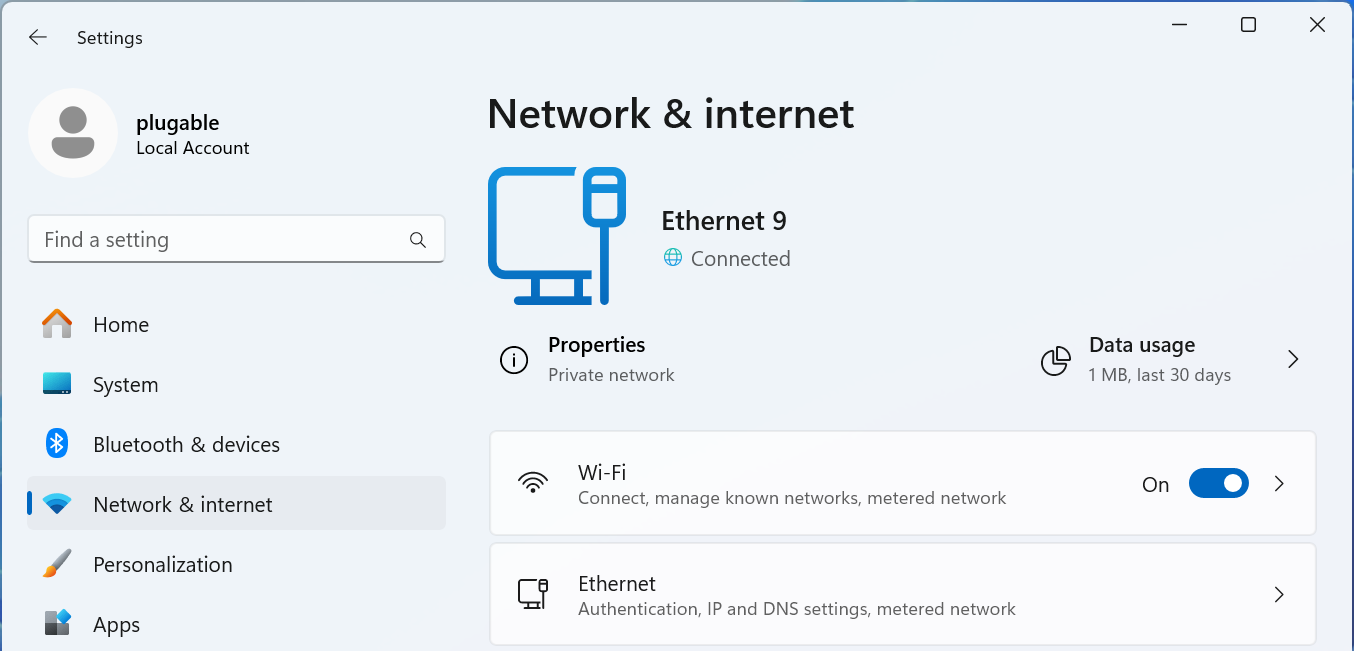
For Wired Networks
4 - Select the Ethernet option
5 - The connected network should be expanded, if not click on Network Connected to expand the section
6 - Select the Network profile type either Public network or Private network to suite your needs
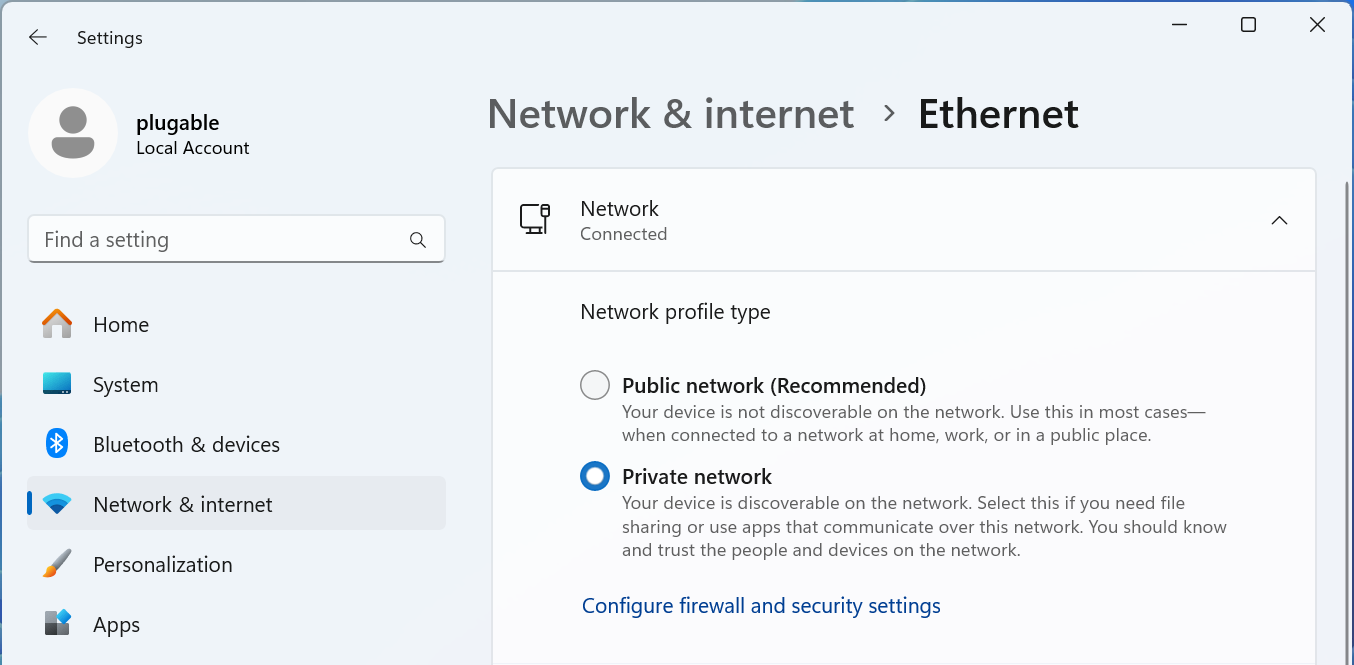
For Wi-Fi Networks
4 - Select the Wi-Fi option
5 - Select your Wi-Fi network name properties
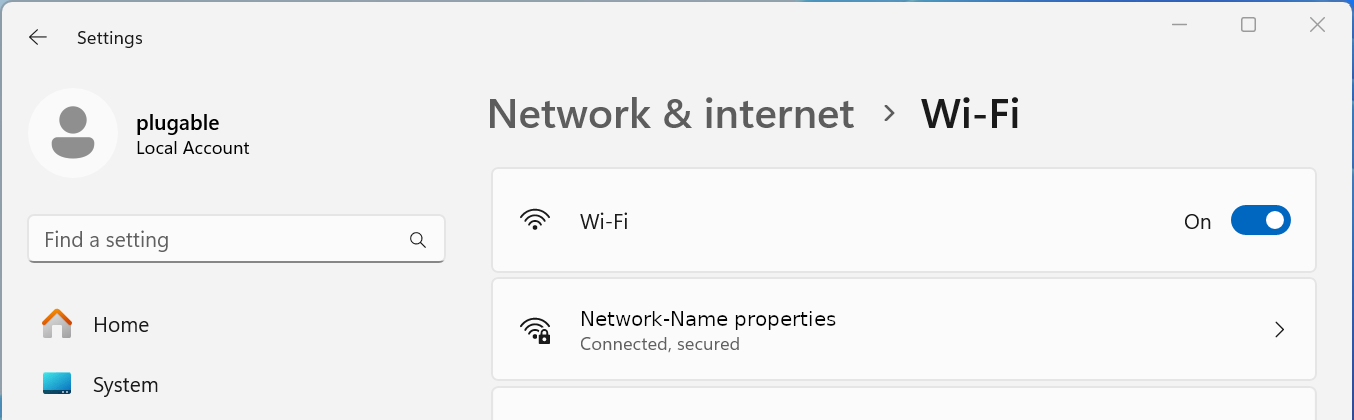
6 - Select the Network profile type either Public network or Private network to suite your needs
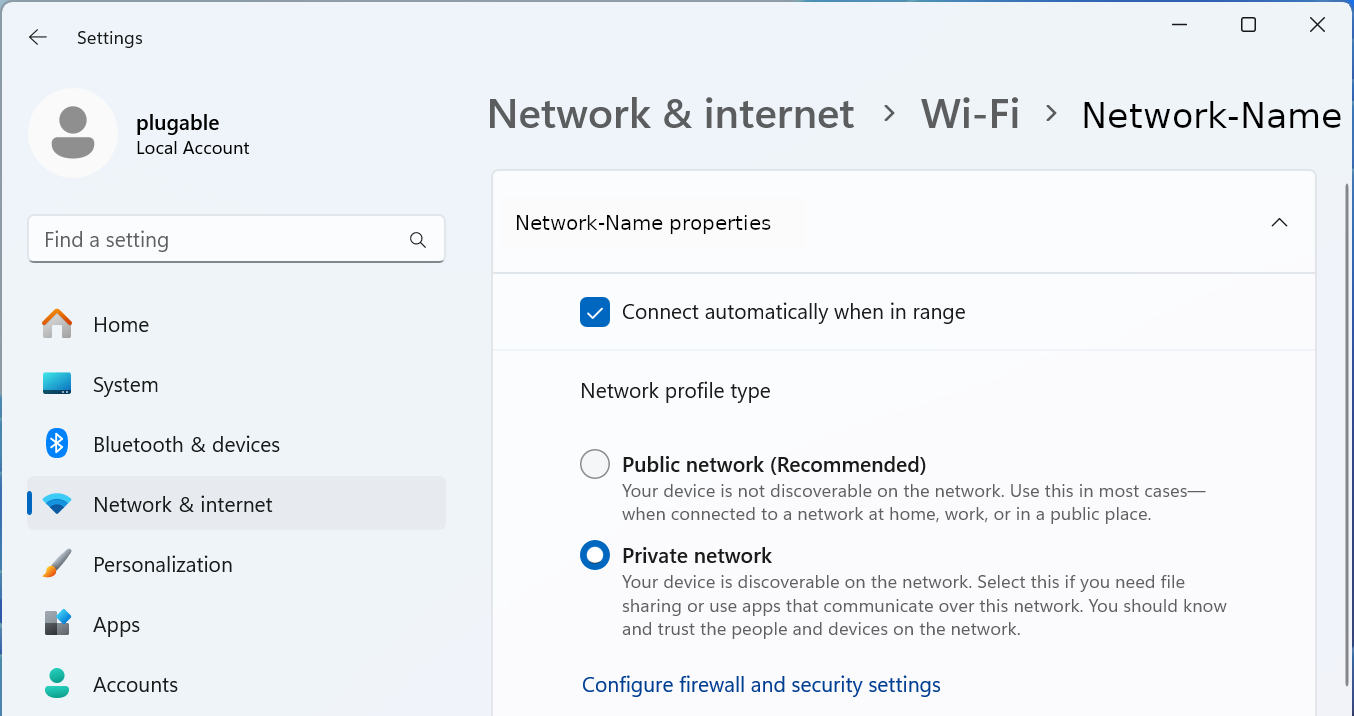
Windows 10
1 - Connect the computer to the network, either wired or wireless
2 - Open the Windows Settings - right-click on the Start Menu and select Settings from the pop-up menu
3 - Select Network & Internet fro the bottom section
4 - Select the Ethernet option from the left pane
5 - Select the Connected network from the right pane
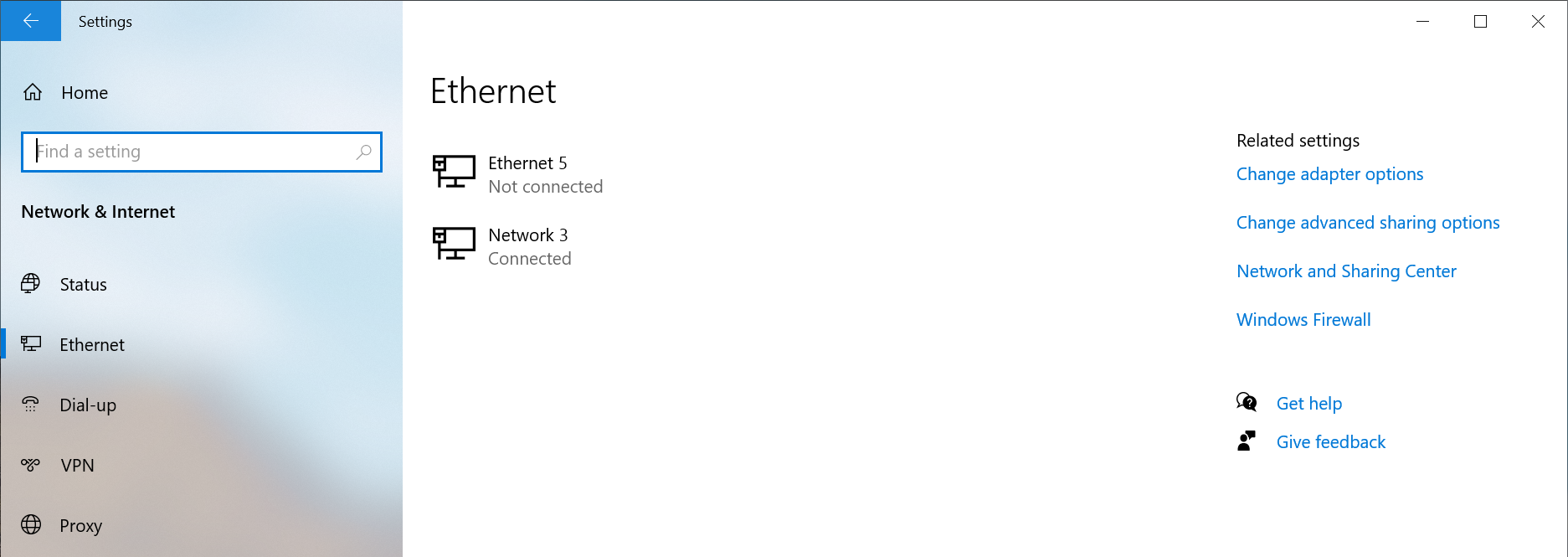
6 - Select the Network profile type either Public network or Private network to suite your needs
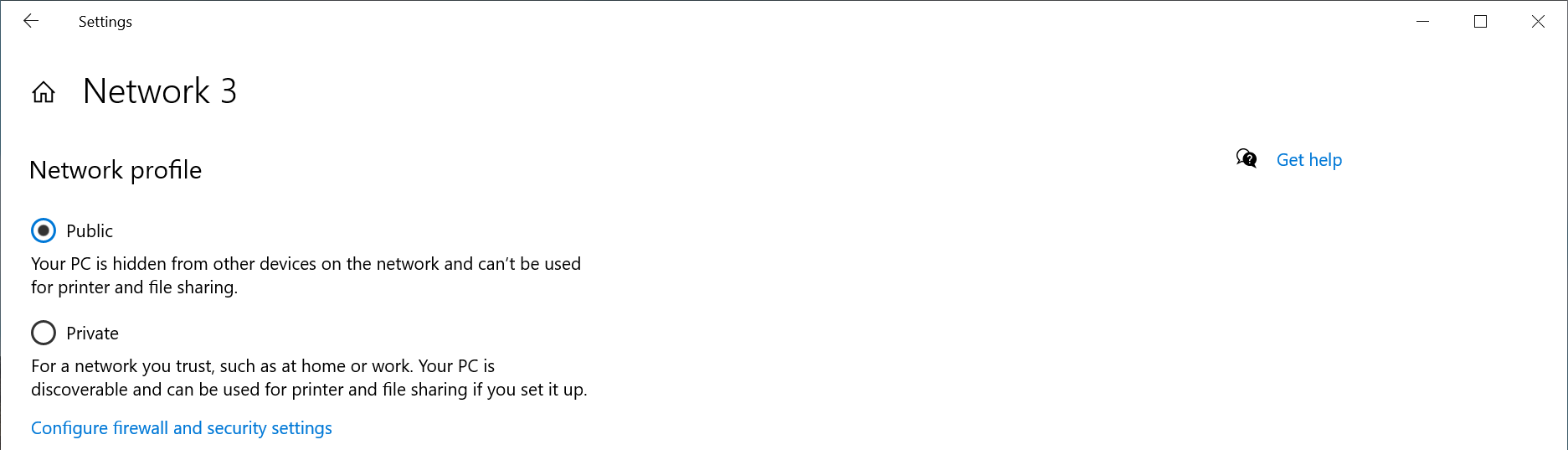
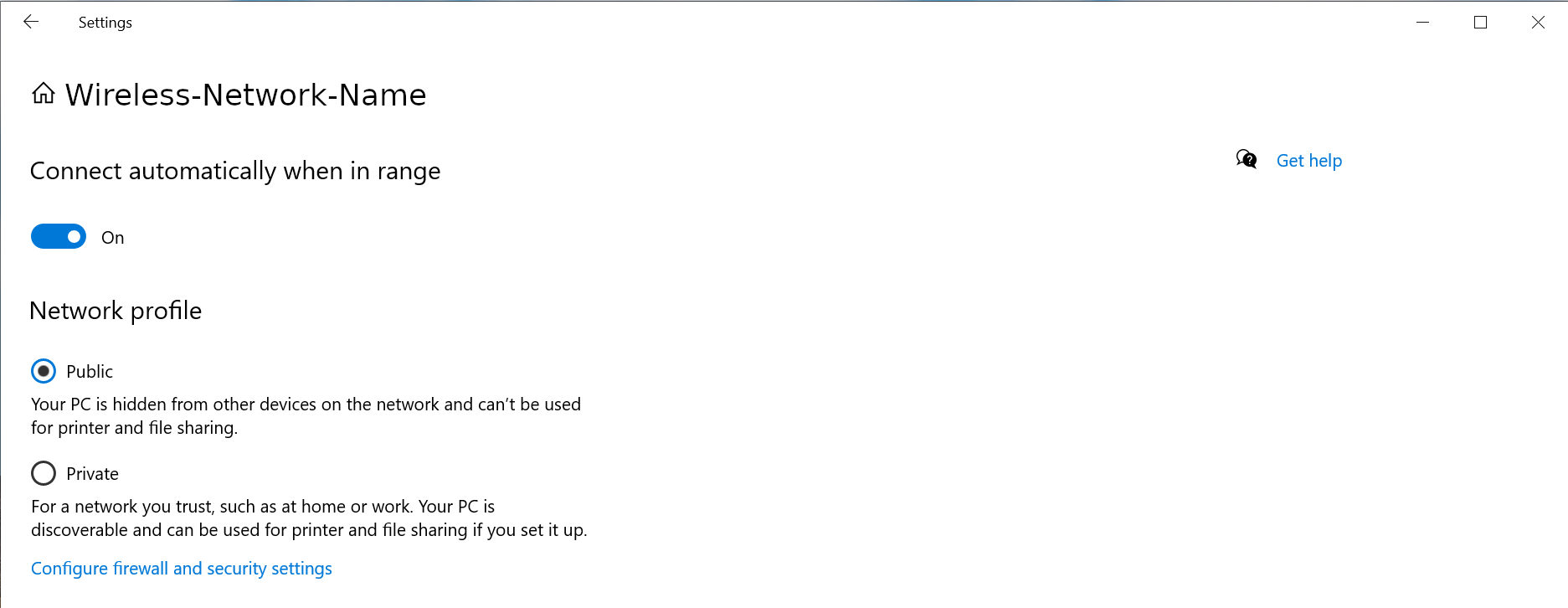
Windows PowerShell
If the option does not show up in the Windows Settings GUI, for example if the network is not connected to the internet, or if you prefer to use the terminal.
1 - Open a new terminal: Right-click on the Start Menu and select Terminal
2 - Run the following command to list the available networks
Get-NetConnectionProfile
PS C:\Users\plugable> Get-NetConnectionProfile
Name                     : Network
InterfaceAlias           : Ethernet Instance 0
InterfaceIndex           : 7
NetworkCategory          : Private
DomainAuthenticationKind : None
IPv4Connectivity         : Internet
IPv6Connectivity         : NoTraffic
3 - Run the following command to set the network to Private
Set-NetConnectionProfile -Name Network -NetworkCategory Private
Where Network is the network name from step #2 and Private can be either Public or Private
If you have any questions please feel free to contact us at support@plugable.com and we'll be happy to help!
How Can I Use Two External Displays With the Lid Closed on MacBook Air and MacBook Pro M3?
Base MacBook Air and MacBook Pro systems with M3 chips can natively host two external displays in clamshell mode when running macOS Sonoma 14.3 or 14.6 respectively. Connect your external displays, a power source, and an external keyboard and mouse, then close the laptop lid to switch to this mode. Plugable Thunderbolt docks can also be used to expand connectivity with dual displays, USB ports, audio, and ethernet without requiring additional software.
Requirements
Before getting started, ensure you have the following:
- MacBook Air or MacBook Pro with an Apple M3 chip.
- macOS Sonoma 14.3 or later for an M3 MacBook Air or macOS Sonoma 14.6 or later for an M3 MacBook Pro.
- Two external displays with compatible video inputs (e.g., HDMI, DisplayPort, USB-C).
- A dock or graphics adapter can be used as well.
- External keyboard and mouse (wired or wireless).
- Power adapter or power source for your MacBook
- A docking station that provides adequate charge can be used in place of the native power adapter, be sure to check the wattage your dock provides.
How to Set Up Dual External Displays With the Lid Closed
- Set Up Your External Keyboard and Mouse
- If you’re using a wired keyboard and mouse, connect them directly to your MacBook or Plugable dock.
- For wireless peripherals, ensure they are paired with your MacBook and functioning properly.
- Ensure the MacBook is charging from an external power source to prevent it from entering sleep mode.
- A docking station that provides adequate charge can be used in place of the native power adapter, be sure to check the wattage your dock provides.
- A docking station that provides adequate charge can be used in place of the native power adapter, be sure to check the wattage your dock provides.
- Connect your displays through the Plugable dock using the appropriate cable (e.g., HDMI, DisplayPort, USB-C, etc.)
- Ensure both displays are powered on and set to the correct input source.
- Enable "Clamshell Mode" (Lid Closed Mode)
- With your external displays connected and set up, close the lid of your MacBook.
- Your MacBook will automatically switch to "Clamshell Mode," where the internal display turns off, and the external displays become your primary screens.
- Configure Display Settings
- Open System Settings on your MacBook.
- Go to Displays.
- You should see both external displays listed. Arrange them according to your preference by dragging the display icons.
- Adjust the resolution, refresh rate, and other settings as needed.
5. Check the Display Arrangement
- With the lid closed, check that the external displays are functioning as expected.
- If necessary, re-open the Displays settings to adjust the arrangement, resolution, or other preferences.
Troubleshooting Tips
- No Display on External Monitors: If the external displays are not showing anything, open the lid of your MacBook and check the connections.
- MacBook Sleeps When Lid Is Closed: Make sure your MacBook is connected to a power adapter. Clamshell Mode requires the MacBook to be plugged into an external power source.
- Performance Issues: If you experience lag or performance drops, try lowering the resolution or refresh rate of the external displays.
Applicable To
- Plugable Thunderbolt Docking Stations
Why Does macOS 15 Ask Me to Allow DisplayLink Manager for One Month?
The 'Allow For One Month' prompt is a macOS 15 Sequoia security reminder for applications that access screen content. DisplayLink Manager requires this access to generate the image shown on monitors connected through a DisplayLink dock or USB graphics adapter.
Applicable To
Mac computers running macOS 15 Sequoia with DisplayLink Manager and a Plugable DisplayLink-based dock or USB graphics adapter.
What Should I Do?
If this macOS prompt appears while you are using a DisplayLink product, select 'Allow For One Month'. If macOS presents the reminder again later, allow access again to continue using your DisplayLink-connected displays.
Example of the macOS 15 prompt:
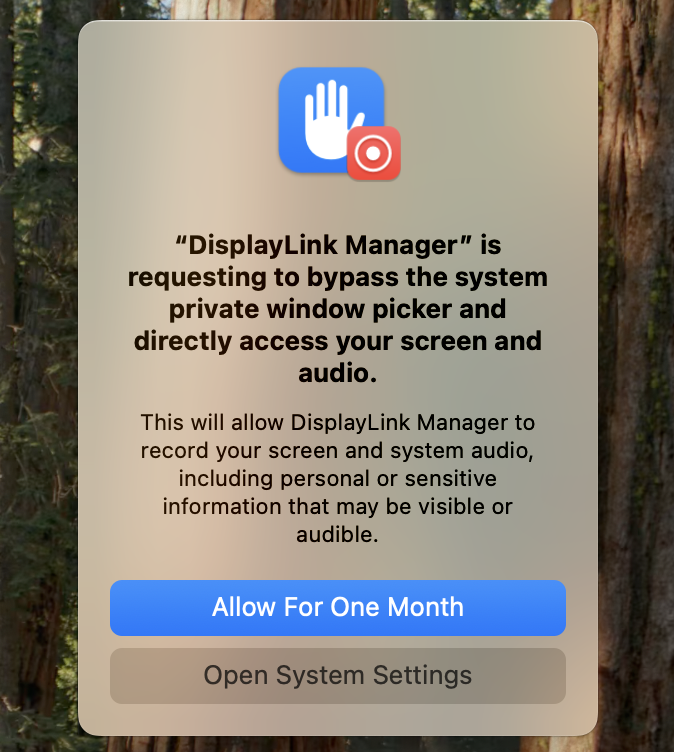
Why Is This Permission Needed?
DisplayLink Manager needs macOS screen access to send the desktop image to DisplayLink-connected displays. DisplayLink Manager does not record or store screen content as part of this display function. The permission prompt comes from macOS.
Need Assistance?
If your DisplayLink-connected displays do not return after allowing access, email support@plugable.com with your Mac model, macOS version, Plugable product model, and a screenshot of the prompt or permission setting.
How many displays can be added to a computer via USB?
Overview
Modern computers are limited in regard to the number of external displays that can be directly connected or “natively supported.” These limitations are determined by the capabilities of the host computer’s internal graphics processing unit (GPU) and the number of physical video connection ports available.
Products available from Plugable that use technology from DisplayLink or Silicon Motion provide the ability to connect multiple external displays to a computer via USB once the required software driver is installed, which allows one to workaround the host computer’s internal limitations.
Such technologies are typically referred to as ‘indirect display’ technologies because the USB connection means that the displays are NOT connected directly to the host computer’s GPU.
The total number of external displays possible via an indirect display technology can vary due to a number of factors:
- The technical specifications of the host system
- Limitations of the host operating system in regard to how many displays can be addressed
- Limitations of the USB subsystem, in regard to how many devices can be physically connected and recognized by the host system
- The capabilities of the specific indirect display technology in use
Speaking in general, with most modern computers at least four external displays can be added via USB graphics technologies and in some instances up to eight displays are possible. Note these are in addition to the number of native external displays your system supports, which ranges from 1-4 on most modern systems.
Number of indirect displays supported by Plugable
| Windows | macOS | ChromeOS | |
| DisplayLink | 8 - 1920x1080 4 - 3840x2160 |
4 - 3840x2160A | 8 - 1920x1080 4 - 3840x2160B |
| Silicon Motion | 8 - 1920x1080 4 - 3840x2160 |
4 - 3840x2160 | 8 - 1920x1080 4 - 3840x2160 |
A. Total includes any displays added via Apple’s Sidecar feature → https://support.apple.com/en-us/102597
B. Performance is dependent upon the specifications of the host system. Chromebooks using lower-spec CPUs and GPUs may support fewer displays
*** Please see important information within the ‘Performance and Technical Limitations section below ***
Performance and Technical Limitations
When using products based an indirect technology, the number of external displays that can be added to a computer (and are supported by Plugable) will vary depending upon which operating system is in use and certain technical limitations:
Host resource use
An indirect display device is in essence a ‘virtual’ GPU that relies on the capabilities of the host computer’s CPU and physical internal GPU in order to generate the image shown on the attached displays.
With each indirectly connected display added to the host, more CPU and GPU resources are required. As more displays are added, the amount of resource use may impact both the performance and stability of the computer and displays. It should be noted that the resource load will vary depending on the type of content being shown within the indirectly connected displays. For example, static content (such as an office application) will require less resources as compared to dynamic content (such as a video).
USB device connection limit
Modern computers have practical limits in regard to the maximum number of devices that can be connected to the host’s USB subsystem.
These limits will prevent USB devices from being recognized by the host when a certain number of devices are connected.
The total number of USB devices that can be connected can vary from system to system, as well as the specification of the USB protocol in use.
Speaking in general, host computers that supported only USB 2.0 could recognize and use a large number of external USB devices.
Host computers that support USB 3.0 or later versions of the specification have limitations in regard to the number of external devices that can be connected to ensure the level of performance does not drop below a certain threshold.
Why Does the KeePassXC Application Window Disappear on My Mac?
To solve this issue, click on the "View" option within the KeePassXC application's menu bar and enable the "Allow Screen Capture" option
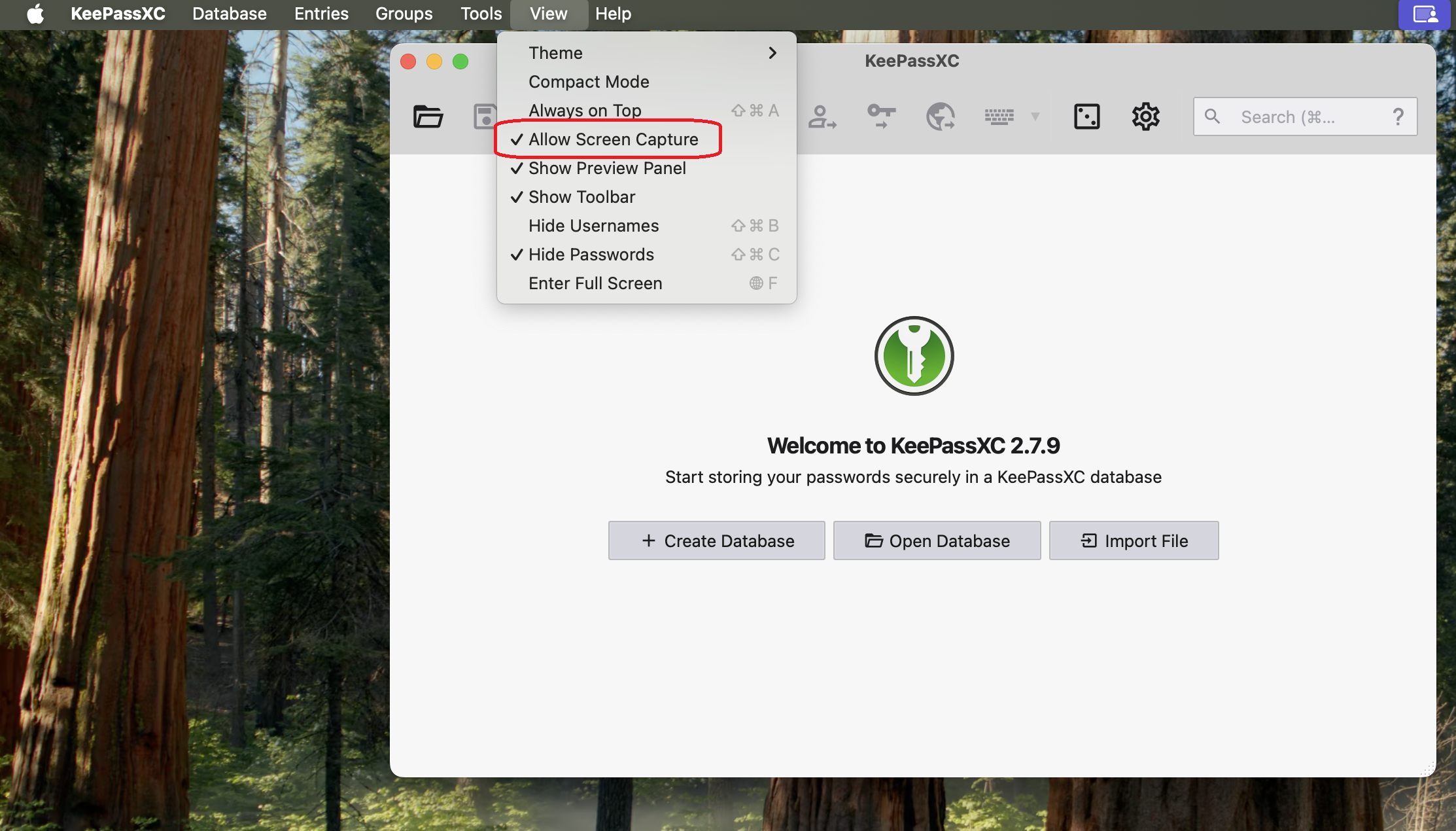
Why the KeePassXC Window Disappears
In order for DisplayLink-based video adapters or docking stations to work with modern versions of macOS, the DisplayLink Manager application must be granted "Screen Recording" permission. The KeePassXC application hides its window when it believes the screen is being recorded. Even though the DisplayLink software only uses this permission to generate the image for connected displays and does not record, store, or send any information externally, the application hides the window as a precaution.
Applicable To
- Plugable DisplayLink-based video adapters and docking stations
How To: Set the Display Refresh Rate in Windows 11
Summary
Many modern displays support refresh rates higher than 60Hz. In some cases, the desired refresh rate may need to be selected manually in Windows 11. The resolutions and refresh rates available depend on the capabilities of the display, computer, graphics hardware, docking station or adapter, and the connection between them.
Applicable To
Windows 11 computers using built-in or external displays, including displays connected through compatible Plugable docking stations, video adapters, and cables.
Setting the Display Refresh Rate in Windows 11
1. Right-click on the desktop and select Display Settings from the drop-down menu
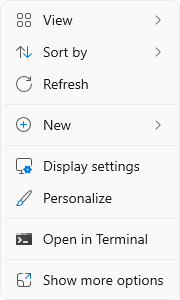
2. Scroll down to the Related settings subsection and select Advanced display

3. At the top of the Advanced display window, select the display you want to configure from the drop-down menu.

4. From the Choose a refresh rate drop-down menu select the desired refresh rate
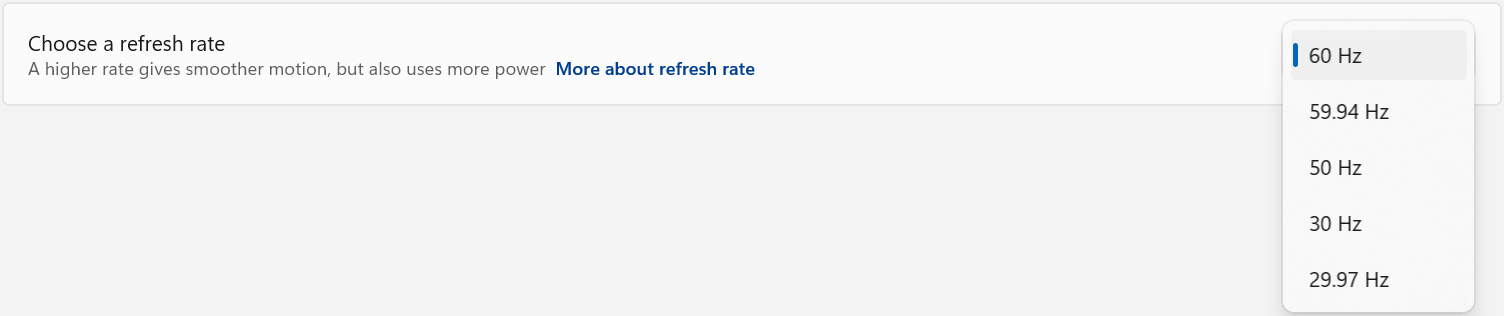
If the Desired Refresh Rate Is Not Listed
If the desired refresh rate is not available, confirm that the display, computer or graphics hardware, docking station or adapter, and video cable all support the desired resolution and refresh rate combination.
Some devices may support a higher refresh rate only at a lower display resolution. Check the specifications for each component in the display connection to confirm the supported resolution and refresh rate combinations.
Refresh Rate Limitations
Windows 11 may display an asterisk (*) next to certain refresh rates in Settings > System > Display > Advanced display. The asterisk indicates that the selected refresh rate is not supported at the display's current resolution. Selecting one of these refresh rates will cause Windows to change the display resolution in order to achieve the selected refresh rate.
In the example below, the display supports 3840 × 2160 (4K UHD) at 60Hz and 2560 × 1440 (1440p) at 120Hz through the connected hardware. After selecting “120 Hz*”, Windows changes the display resolution from 3840 × 2160 to 2560 × 1440 so that the higher refresh rate can be used. Because the display is now operating at a lower resolution, the image may appear less sharp than when using the display's native 4K resolution. After selecting a lower refresh rate, Windows may retain the reduced display resolution. If the original resolution is not restored automatically, return to Settings > System > Display and manually select the desired resolution.
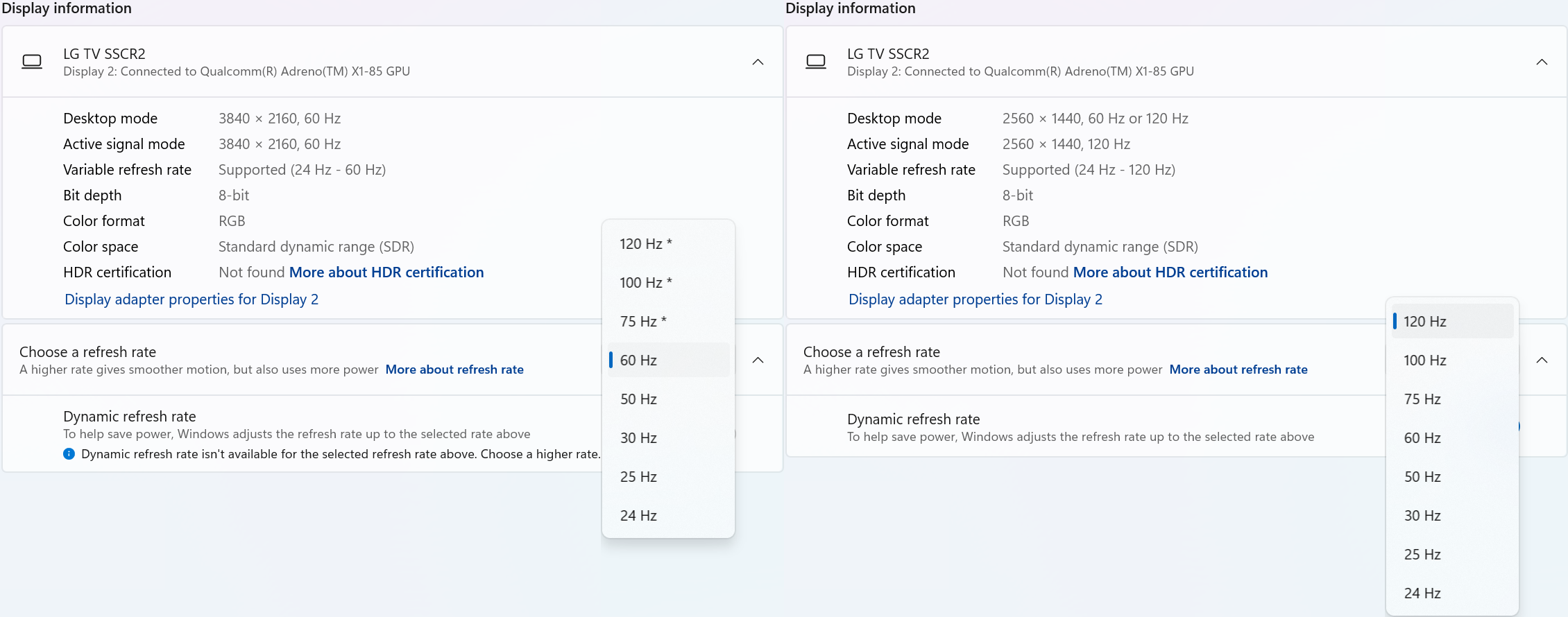
Dynamic Refresh Rate
Windows 11 also supports Dynamic Refresh Rate (DRR) on compatible hardware. When enabled, Windows can automatically adjust the display refresh rate based on what you are doing to provide smoother motion when needed while helping reduce power consumption at other times.
DRR requires a display that supports Variable Refresh Rate (VRR) and a refresh rate of at least 120Hz. If supported by the computer and display, DRR can be enabled or disabled under Settings > System > Display > Advanced display.
Need Assistance?
If the desired refresh rate is still unavailable after following the steps above, please contact Plugable Support at support@plugable.com.
When contacting support, please include:
- The Plugable product model
- Your computer model
- Your display model
- The resolution and refresh rate you are trying to use
- How the display is connected to the Plugable product
- The output from Plugable's diagnostic tool, PlugDebug
Is this safe to use if my computer doesn't support USB-C Power Delivery?
USB-C Power Delivery (PD) is negotiated between the power-sourcing equipment (e.g., a dock or multiport hub) and the connected host device. During this negotiation, the device offering power communicates its capabilities, and the host determines whether it can accept the power. If the host does not support Power Delivery, no power will be sent to the computer over the USB-C connection. This will allow you to take advantage of other capabilities such as data transfer or video output without risking damage to the computer.
Is there a way to add more displays to my dock?
Extra displays can be added to your docking station by using USB graphics adapters. This allows you to expand your workspace beyond the number of displays natively supported by your dock or computer.
Here’s how it works:
- Ensure your dock has open USB-A or USB-C ports to connect the USB graphics adapter(s).
- Select a Plugable USB graphics adapter compatible with your operating system and monitor specifications. Feel free to contact Plugable support (support@plugable.com) for assistance in selecting the appropriate adapter for your setup.
- Download and install the driver from the "Downloads" section of the product page for the USB graphics adapter on Plugable's website.
- Plug the adapter into an available USB port on your docking station.
- Use an appropriate video cable (e.g., HDMI, DisplayPort) to connect the adapter to your monitor.
Important Considerations:
- Windows supports up to 8 DisplayLink/SiliconMotion-based monitors.
- macOS has a hard limit of 4 DisplayLink/SiliconMotion-based monitors.
- USB graphics adapters use bandwidth and system resources. Connecting multiple adapters can reduce performance.
What technology drives each of the displays outputs within the TBT-6950PD?
The TBT-6950PD docking station can drive up to a maximum of four external displays using a combination of two different technologies.
The dock provides two HDMI video outputs, labelled ‘HDMI 1’ and ‘HDMI 2’. The two HDMI outputs are driven by a DisplayLink DL-6950 chipset. DisplayLink technology is compatible with almost all modern Windows and macOS computers. The result is that both HDMI outputs will function so long as the required DisplayLink software is installed on the host computer.
The dock also provides three 'downstream' Thunderbolt/USB-C ports labelled with the Thunderbolt logo (which looks like a lightning bolt). These ports are driven by the Intel Goshen Ridge Thunderbolt chipset. The capability of these ports in regard to video output is ultimately determined by the capabilities of the host computer.
When using a host computer that supports two external displays via Thunderbolt, it will be possible to connect up to two additional displays to the dock's downstream Thunderbolt ports by using either USB Type-C cables or USB Type-C to video adapters.
When using a host computer that supports one external display via Thunderbolt or USB Type-C, it will be possible to connect one additional display to the dock's downstream Thunderbolt ports by using either a USB Type-C cable or a USB Type-C to video adapter.
NOTE - It is NOT possible to connect three external displays to the TBT-6950PD via the Thunderbolt/USB-C ports. The maximum number of displays that can be connected via the Thunderbolt/USB-C ports is two.
Why don’t my DisplayLink-connected screens show anything before logging into macOS?
DisplayLink enabled external displays require the DisplayLink Manager App to be running before the displays will light up. This application starts only after logging into the desktop. But fear not, there is an extension to enable the displays before logging in to the system.
DisplayLink Login Screen Extension
The login screen extension can be installed after logging into the desktop, directly from the DisplayLink Manager App.
- Expand the DisplayLink Manager by clicking on its icon in the menu bar at the top of your screen
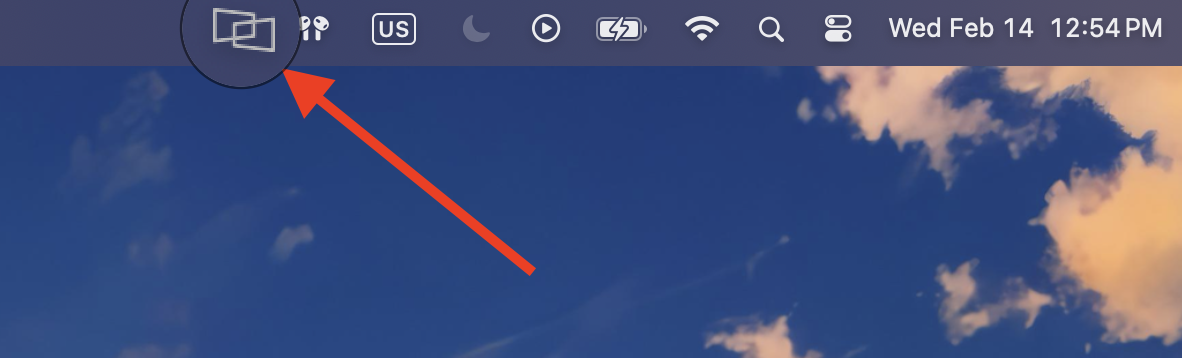
- In the app, click the download button in the DisplayLink Manager to download the Login Screen Extension.
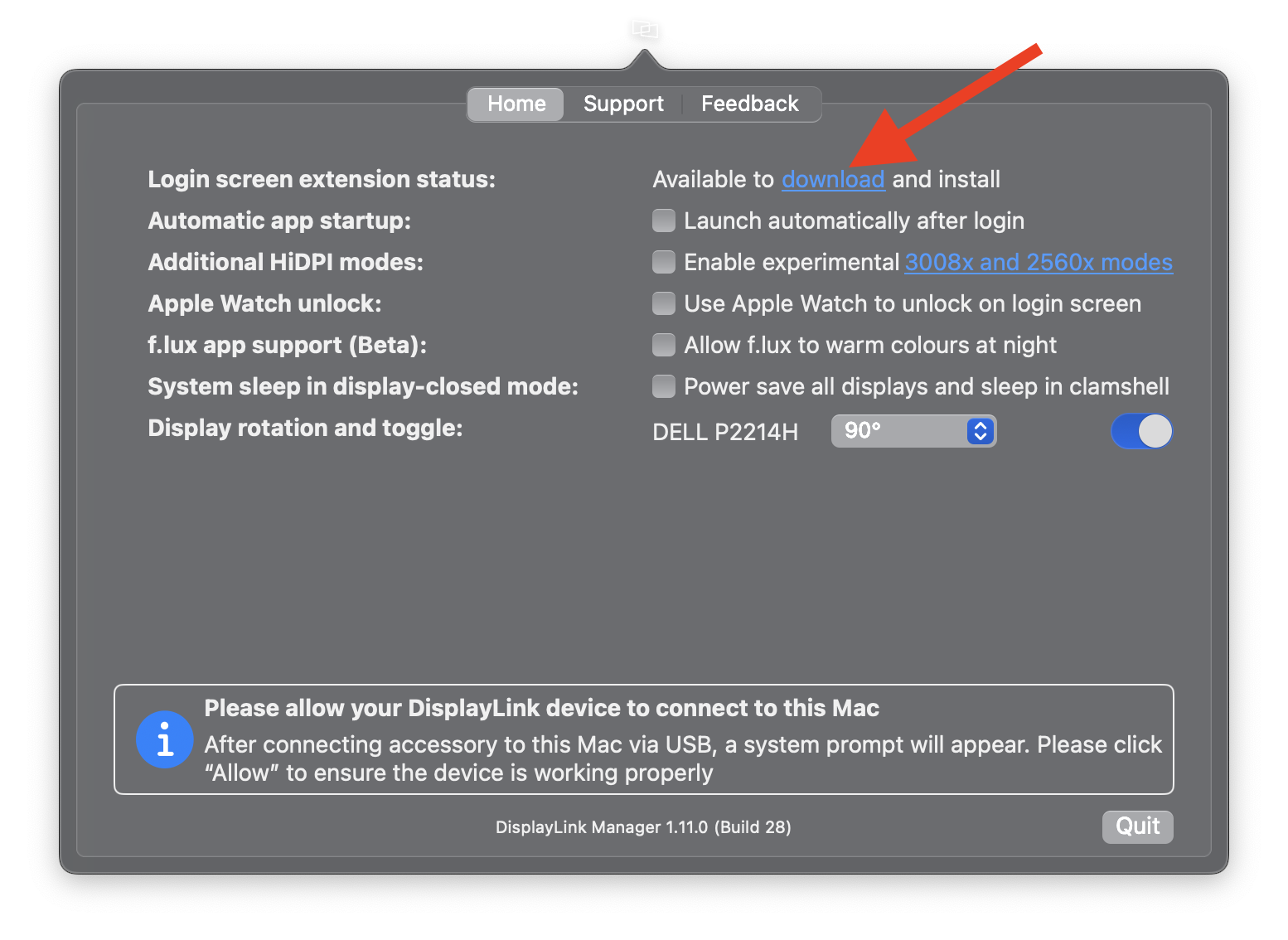
- The Login Screen Extension will download. Open the downloaded file to begin the installation.
- Follow on-screen instructions and grant any necessary permissions.
- After installation, your connected displays should show video output once your Mac is rebooted, even before login.
If you have any questions please feel free to contact us at support@plugable.com and we'll be happy to help!
Can I replace the original power adapter included in the box with my Plugable product with a different, 3rd-party power adapter?
Barrel-Type Power Supplies for Hubs and Docks
Plugable recommends and supports using only the external power adapter originally included in the box with a Plugable product to power the device.
Plugable does NOT normally recommend or support using any type of alternate or 3rd-party power adapters in conjunction with our products that originally included a power adapter in the box.
This is because 3rd-party power adapters may not work as expected, and in some cases can potentially cause damage to the Plugable product if they do not match the specifications of the original power adapter. Counterfeit and incorrectly labeled power supplies are also a concern as these may not meet the specifications on their labels or may have inferior safety features.
Should you require a replacement for an original Plugable provided power adapter, Plugable offers a multitude of power adapters for purchase separately → https://kb.plugable.com/question/1081115
USB Type-C Powered Devices
Please also note, this provision does not apply to Plugable products that rely on a computer's original power supply or recommend using a separate USB Type-C power source.
For example, the PS-10CC → https://plugable.com/products/ps-10cc does not include a power adapter in the box with the product. The intention with the PS-10CC (and other similar products like the USBC-9IN1E → https://plugable.com/products/usbc-9in1e) is to use a USB Type-C power adapter that supports USB Power Delivery that you already have in conjunction with the product most often these are included with a computer and provided by a reputable brand.
This works because USB Power Delivery is an industry standard while barrel-type power adapters are not well standardized. Products that support USB Power Delivery are intended to work with a variety of different USB Type-C power adapters that support the USB Power Delivery standard.
If you have any questions please feel free to contact us at support@plugable.com and we'll be happy to help!
How Can I Check the Ethernet Adapter Link Rate on my Mac?
Apple's macOS Network Settings can identify the network link rate - this isn't necessarily the Internet speed, but the link rate negotiated between the computer's Ethernet adapter and the first network switch.
How is the link rate helpful?
When troubleshooting a network performance issue, or when purchasing new network equipment it can help to ensure the computer, Ethernet adapter, and Ethernet switch are negotiating the correct data rate.
In this example, we will be analyzing our USBC-E2500, which is a 2.5Gbps Ethernet adapter. This method applies to all of our Ethernet adapters, such as:
Open the Apple Menu and select System Settings from the drop-down menu, then Network from the left column. Select the entry named “USB 10/100/1G/2.5G LAN” with the Green - Connected icon. Expand the Details button, and go to Hardware.
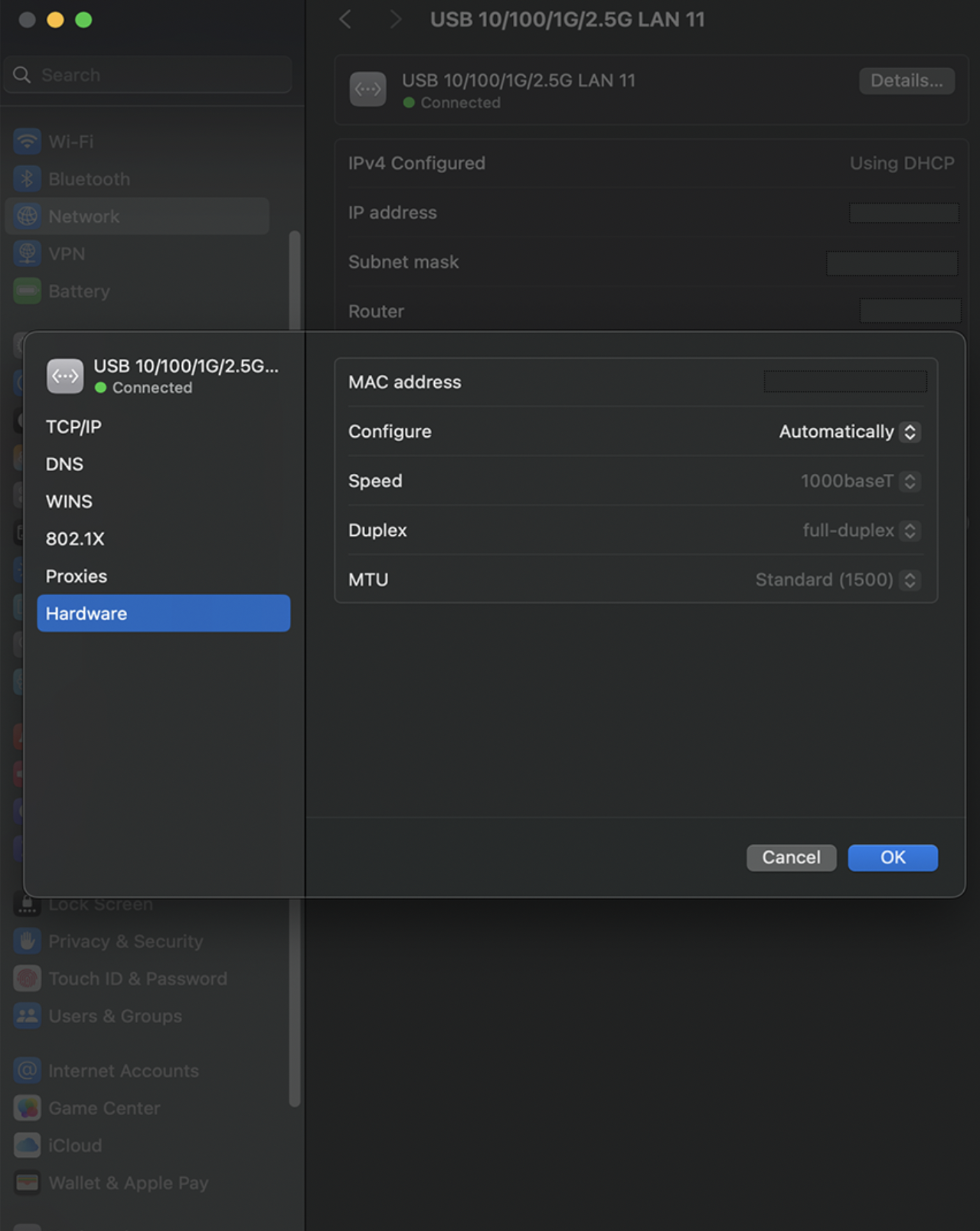
In the field that says Speed, you should see 2500Base-T if the Ethernet adapter is connected to a 2.5G Ethernet LAN port on your router. If you see 1000Base-T, this means the adapter is connected to a 1G Ethernet LAN port. If you are expecting faster network speeds, please see your router's documentation on its multi-gig LAN port.
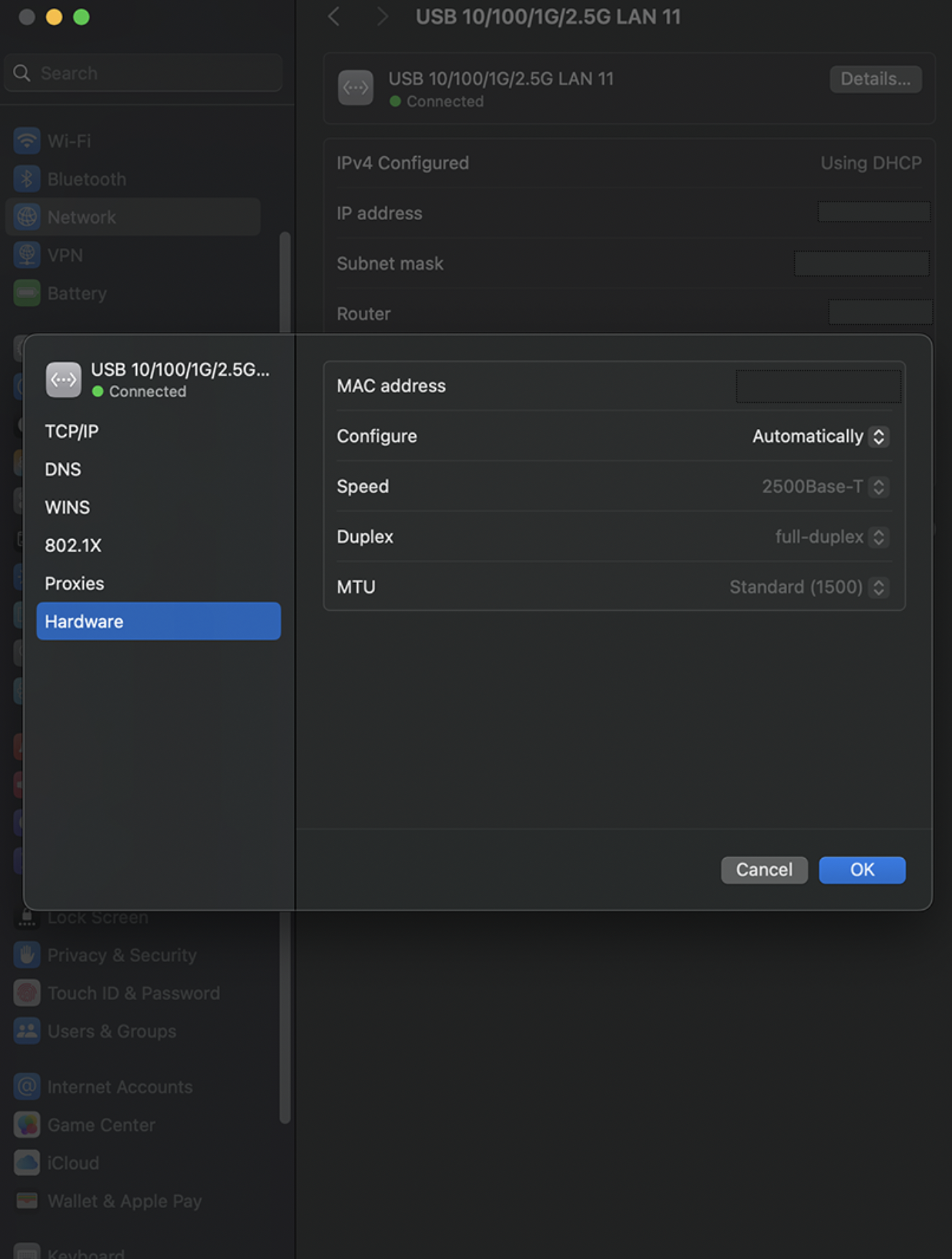
If you have any questions please feel free to contact us at support@plugable.com and we'll be happy to help!
Choosing the Right USB Type-C Cable for Your Docking Station
Applicable To
Plugable USB 3.1/3.2 Type-C, Thunderbolt, and USB4 docking stations.
Using an incorrect USB Type-C cable, such as a charging-only cable, can prevent your docking station from transmitting high-speed data or outputting video. Replacing an incompatible cable with a fully featured data cable or the original cable included with your Plugable dock typically resolves these functionality issues.
Instructions
Inspect your current cable to determine if it is a charging cable, which is generally thinner, lacks electronic markers, and is advertised for 480Mbps data rates rather than for laptops.
Identify a fully featured data cable or Thunderbolt cable by looking for thicker wiring and labels such as "USB 3.0/3.1", "USB4", "5Gbps", or a Thunderbolt logo.
Verify the length of your fully featured data cable is 1 meter (3.3 feet) or less, as they are typically limited to this length to comply with USB Type-C specifications.
Connect your docking station to the host system using the original USB Type-C or Thunderbolt cable that came in the box with your Plugable dock.
Replace your cable with a certified USB Type-C 10Gbps 1m cable or a Thunderbolt 4 40Gbps 1m cable if you require a longer or replacement cable.
Expected Result
Your docking station will be fully enabled to support high-speed data transfer, Power Delivery for charging, and video output to external displays.
If the Issue Persists
If you are unsure what type of cable you have and if there are potential cable issues with your setup, please reach out to us directly via support@plugable.com with the output of our PlugDebug diagnostic utility and we will be happy to help.
Why am I not receiving notifications when using a DisplayLink-based product on macOS?
Summary
When a Plugable DisplayLink-based docking station or USB graphics adapter is active on macOS, notifications may not appear because macOS treats DisplayLink Manager as sharing or capturing the screen.
To allow notifications while using DisplayLink, enable notifications while mirroring or sharing the display in macOS Notifications settings.
Applicable To
This article applies to:
- Plugable DisplayLink-based docking stations
- Plugable DisplayLink-based USB graphics adapters
- Macs using the DisplayLink Manager application
- macOS 12 Monterey and later
Answer
DisplayLink Manager requires permission to access the screen information needed to generate the image shown on DisplayLink-connected displays.
Because macOS treats this activity similarly to screen sharing, macOS may suppress notifications while DisplayLink-connected displays are active.
To allow notifications:
- Open Apple menu > System Settings.
- Select Notifications in the sidebar.
- Locate the setting for notifications when mirroring or sharing the display.
- Set this option to Allow Notifications.

Depending on your version of macOS, the wording or appearance of this setting may vary slightly.
After changing the setting, notifications from applications that are otherwise allowed to send notifications should appear normally while your DisplayLink-connected displays are active.
Important Note
Allowing notifications while mirroring or sharing the display also allows notifications to appear during other screen-sharing or mirroring activities.
This may cause private notification content to appear while presenting, sharing your screen during a meeting, or mirroring your Mac to another display.
DisplayLink Manager does not record or store the contents of your screen. macOS requires screen access so DisplayLink Manager can generate the image displayed on DisplayLink-connected monitors.
Need Assistance?
If notifications are still not appearing after enabling this setting, confirm that notifications are also enabled for the individual application under System Settings > Notifications.
If you continue to experience issues while using a Plugable DisplayLink-based product, please contact Plugable Support at support@plugable.com.
When contacting support, please include:
- Your Plugable product model
- Your Mac model
- Your macOS version
- Your DisplayLink Manager version
Do Plugable Docking Stations Support Automatic Ethernet Hardware Address (also known as Media Access Control or MAC address) Pass Through from the Host Computer?
Plugable does not officially support automatic or automated MAC address pass-through functionality from the host computer. As of this writing, the only exception is the UD-7400PD docking station which natively supports this capability and is discussed in more detail here → LINK
How to Approximate MAC Address Pass-Through in Windows
When our docking station products are used within a Windows environment, MAC address pass-through behavior can be approximated, though Plugable does not officially support these solutions. The specific method depends on the Ethernet network chipset used within the product, which is listed in the 'Specifications' tab of the docking station's product page.
For DisplayLink-based Ethernet network adapters, you can manually enter a hexadecimal value in the 'MAC Address' field within the adapter's 'Advanced' settings tab within Windows Device Manager will override the MAC address stored in the Ethernet chipset (in so far as it is presented to the Windows operating system).
For products based on Realtek, Intel, and ASIX Ethernet network chipsets, a virtual MAC address can be manually configured in a similar manner within Device Manager, but the option name will vary. For Intel Ethernet chipsets, the option is called 'Locally Administered Address', and for Realtek Ethernet chipsets, the option is called 'Network Address'.
Manually entering this value overrides the MAC address presented to the Windows operating system but does not change the physical MAC address stored within the dock itself.
Alternative Options for DisplayLink Docks
Synaptics, the creator of DisplayLink technology, offers additional options for configuring a DisplayLink-based MAC address. Some of these options provide a certain level of automation, while others require manual inputs. The available options are outlined within the DisplayLink Corporate Deployment knowledge base → LINK and the article specific to the topic is here → LINK
Because Synaptics develops the DisplayLink technology and software, it is Synaptics that supports these Corporate Deployment options directly, and you should contact DisplayLink directly for further assistance regarding these methods.
Applicable To
- Plugable DisplayLink-based docking stations
- Plugable docking stations with Realtek, Intel, or ASIX Ethernet chipsets
How to Improve Performance on Slow DisplayLink-Based Displays
Applicable To
Plugable DisplayLink-based docking stations and USB graphics adapters.
Summary
Various factors, such as connection quality, USB bandwidth, driver versions, and display settings, can cause displays connected via DisplayLink to run slowly or perform sub-optimally. The details below highlight some common causes of poor performance, but this is not an exhaustive list. If you are experiencing sub-optimal performance, try the following steps as a starting point.
Instructions
- Ensure you are using the original detachable host cable that came with your Plugable product, as third-party cables may lack the necessary speed or quality.
- Plug your DisplayLink device into a USB port on your computer that matches its required speed. The required USB speed for each Plugable product is listed as the Version and Link Rate in the Connection to Host section of the product specifications on Plugable’s website.
- Ensure that you have installed the latest DisplayLink driver from Plugable's website. While Windows Update can provide DisplayLink drivers automatically, they may not always be the latest version. If your driver was installed some time ago, a newer version that includes performance optimizations may be available.
- The latest DisplayLink drivers are available on the Downloads tab of the product page for your Plugable product, or at www.plugable.com/displaylink
- It’s recommended that you update the DisplayLink driver through a “clean” reinstallation. This involves removing the existing driver from the system using a specialized cleaning tool from Synaptics before installing the updated driver.
- Adjust your connected display refresh rates to a maximum of 60Hz within your operating system's display settings (via Display Settings in Windows or System Settings in macOS) to avoid reduced performance.
While other refresh rates may appear as options in your operating system, selecting them may lead to reduced performance. We recommend keeping refresh rates for connected displays set to 60Hz.
How to Change Display Refresh Rates in Windows:- Right-click on the desktop and select Display settings.
- Select the display you want to adjust from the display arrangement diagram at the top of the window.
- Click Advanced display settings.
- Under Refresh rate select 60Hz from the dropdown menu.
- A prompt will appear asking if you want to save the setting change. Select Keep changes
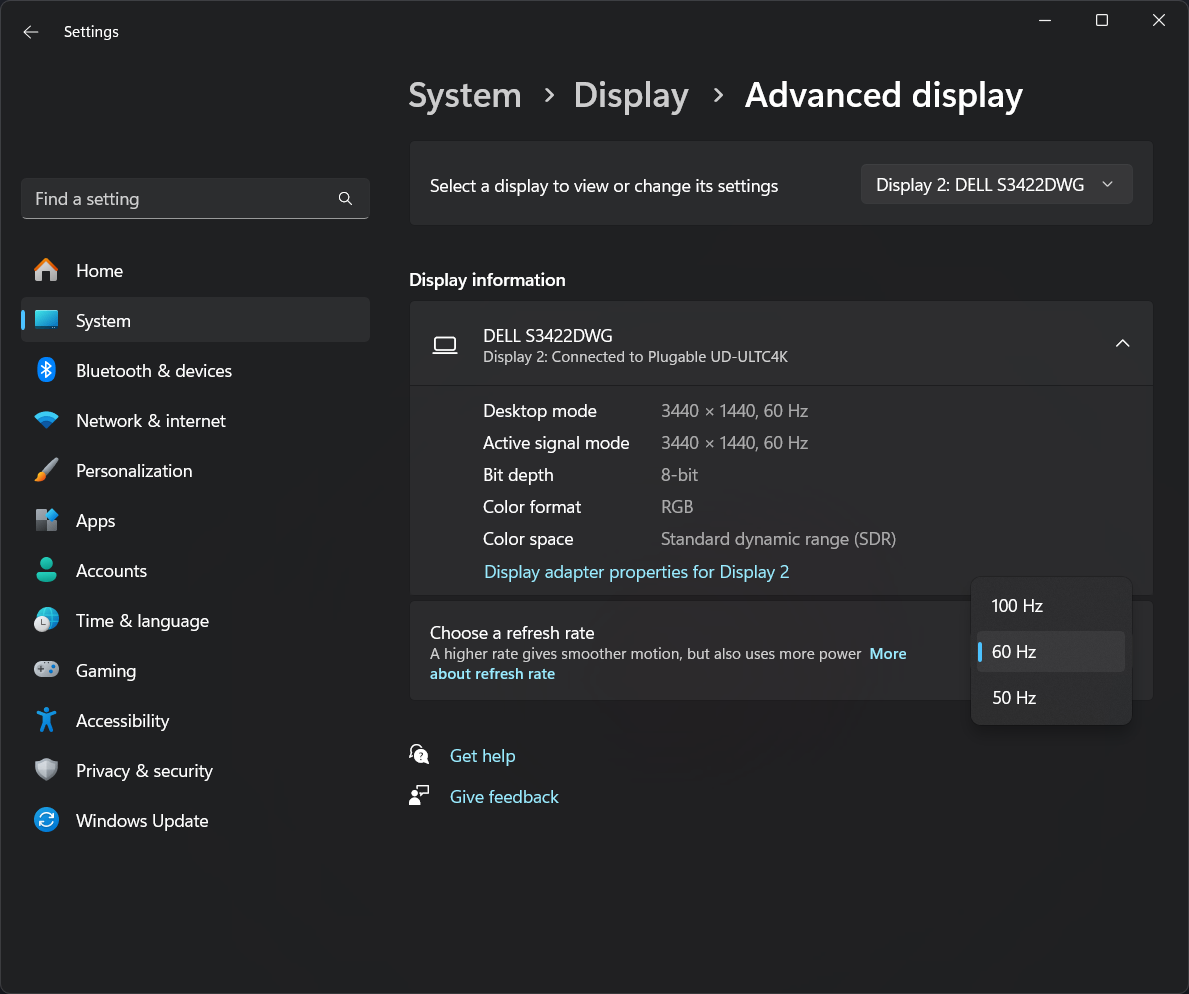
How to Change Display Refresh Rates in macOS:
- Click on the Apple menu and select System Settings.
- Click Displays in the sidebar.
- Select the display you want to adjust from the available options.
- Click the Refresh Rate dropdown and select 60Hz.
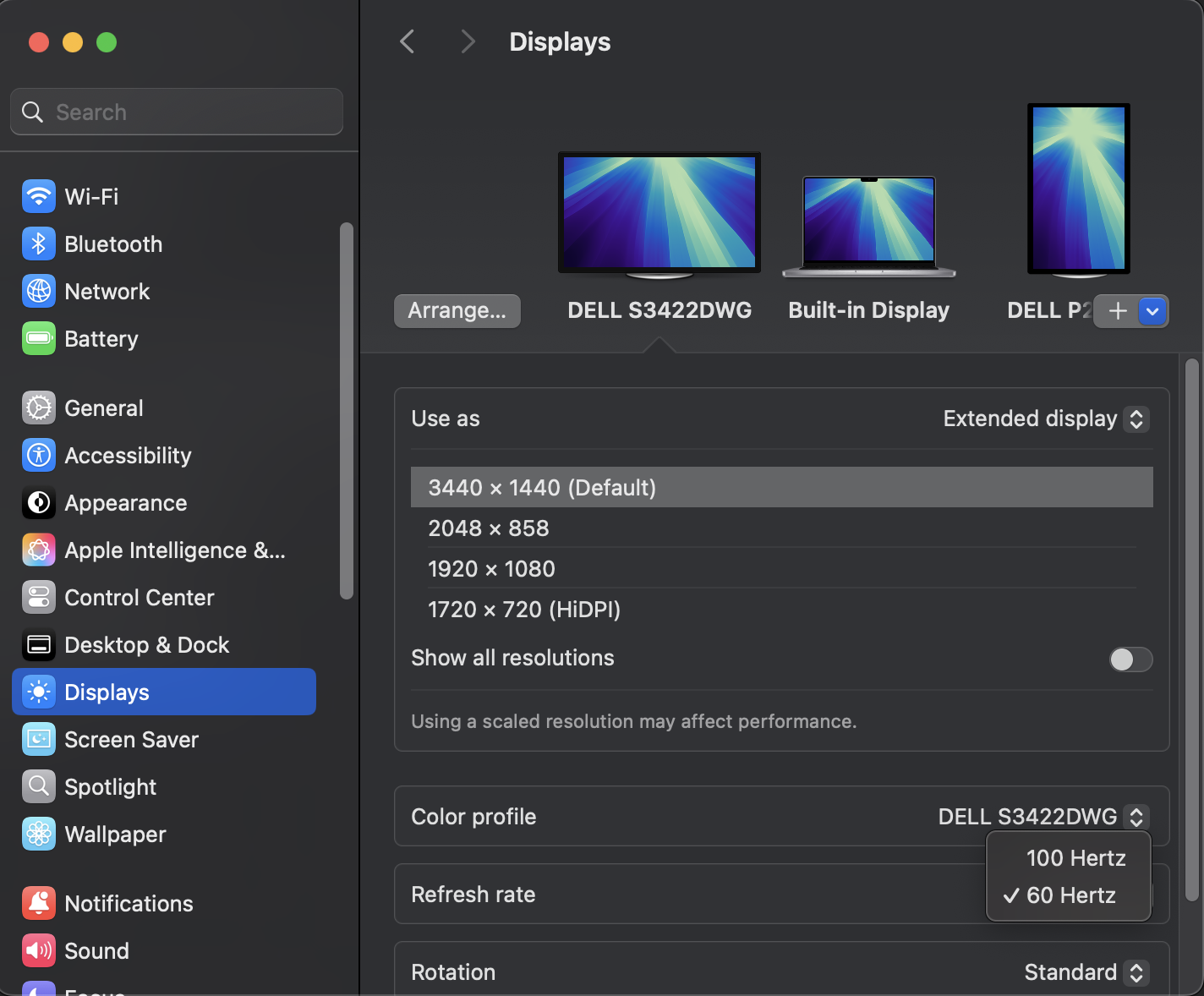
- Connect your laptop to a dedicated power supply if your dock does not support USB-C Power Delivery, as running on battery power can throttle CPU performance.
- Update your system's BIOS, graphics drivers, and operating system to the latest versions provided by the manufacturer.
- Keep static content like documents or emails on your DisplayLink-powered screens, and reserve dynamic applications like video games or CAD software for displays connected directly to your system's native graphics output.
Expected Result
Your external monitors connected to the DisplayLink-based device should run smoothly without latency or lagging performance during standard productivity tasks.
If the Issue Persists
If your DisplayLink-based displays are still performing poorly after completing these steps, please reach out to our support team at support@plugable.com for further assistance.
Understanding Power Delivery vs. Pass-Through Power Delivery
Power Delivery (PD) docking stations use their own included power adapter to directly charge your connected laptop while simultaneously powering peripherals. In contrast, Pass-Through Power Delivery hubs do not generate their own power; they require you to plug a separate charger (like your laptop's original power adapter) into the hub, which then passes the power through to your computer.
How Power Delivery (PD) Works
USB Power Delivery (PD) is a fast-charging standard that allows devices to dynamically negotiate power levels to ensure efficient charging. Docking stations with dedicated PD support come with their own AC to DC power adapter, enabling high power transfer directly to laptops, tablets, and smartphones. An example is the Plugable UD-7400PD, which provides its own power to deliver up to 140W of charge to the host while supporting five external displays.
How Pass-Through Power Delivery Works
A hub with pass-through charging relies entirely on an external USB-C power adapter (such as your laptop's original USB-C PD charger) being plugged directly into it. The hub allocates a portion of this incoming power (typically around 7.5W to 15W) to run its own functionality (like data transfer and peripheral connections) and sends the remaining power to the connected laptop. Because of this operating requirement, the total wattage reaching the laptop will be slightly reduced compared to plugging the charger directly into the computer. Examples include the Plugable USBC-9IN1E (up to 140W pass-through) and the USBC-4IN1 (up to 100W pass-through).
How to Choose the Right Option
If you need an all-in-one docking station that can directly charge your laptop without needing extra cables, look for one with dedicated Power Delivery support. If your laptop already has a high-wattage charger and you want to maintain power while expanding connectivity (often ideal for portable setups), a pass-through PD hub may be a better choice. If you have any questions or would like a recommendation for your specific setup, feel free to reach out to our support team at support@plugable.com.
Applicable To
USB-C and Thunderbolt docking stations or hubs with PD
The DisplayLink Manager is running on my Mac but my monitors are still blank. What can I do?
If DisplayLink Manager is running but a DisplayLink-connected monitor remains blank or does not appear in macOS Displays settings, the monitor may have been turned off within DisplayLink Manager. Check the display toggle before changing other settings.
Applicable To
Mac computers using DisplayLink Manager with a Plugable DisplayLink-based dock or USB graphics adapter.
Check the Display Toggle
- Click the DisplayLink Manager icon in the macOS menu bar.
- Open the Displays tab in the DisplayLink Manager status window.
- Locate each connected DisplayLink monitor and make sure its toggle is set to On.
- Check whether the monitor becomes active and appears in Apple menu > System Settings > Displays.
If the Display Is Already On
If the toggle is already on, or the monitor is not listed in DisplayLink Manager, this specific setting is unlikely to explain the blank display. Check the DisplayLink Manager screen access permission and the physical dock, cable, and monitor connections using our broader macOS setup guide.
DisplayLink Manager App Installation Instructions for macOS
Need Assistance?
If the monitor is still blank, contact support@plugable.com with your Mac model, macOS version, Plugable product model, DisplayLink Manager version, and whether the monitor appears in the app and in macOS Displays settings.
USB-C vs. Thunderbolt: Understanding the Differences
While USB-C and Thunderbolt share the same physical rounded rectangle connector they operate in fundamentally different ways.
The Main Differences Aren't Physical
USB 3 at 5Gbps and 10Gbps with Type-C - often simplified to USB-C - is both the hardware connector standard, and the included data types: USB 5Gbps or 10Gbps data rates, as well as optionally DisplayPort Alternate Mode video and USB Power Delivery for powering and charging both host computers, and downstream devices.
Thunderbolt, specifically Thunderbolt 3 and newer and USB4 use the same physical USB Type-C port, and support a backwards compatibility with USB-C devices, however the signaling and data structure is completely different. Both Thunderbolt and USB4 operate at between four to sixteen times the speed of USB 3. While USB offers optional display and charging, these are mandatory for Thunderbolt hosts. The way display data is transmitted is also different.
DisplayPort Alternate Mode for USB 3 occupies two or four of the physical data lanes in the USB Type-C connector and cable. Tunneled DisplayPort video in Thunderbolt (and USB4) packetizes the DisplayPort video data and transmits it within Thunderbolt/USB4 data packets. Tunneled DisplayPort allows for more native DisplayPort streams enabling multiple external displays at higher resolutions and refresh rates.
Power Delivery is the USB Type-C (as in the port) charging and power standard - this allows a power source and device to negotiate a voltage and maximum amperage both devices can support. For example a phone might negotiate a 9V 3A charge rate which is close to optimal for a phone size battery, while a notebook computer is more likely to negotiate 20V 5A both for improved battery charging and to power the system under moderate to heavy workloads.
Why USB-C and Thunderbolt Capabilities Differ
USB Type-C is a connector standard where features such as video output (DisplayPort Alt Mode) and USB Power Delivery (PD) are optional and depend on the host device manufacturer. In contrast, Thunderbolt sets mandatory performance and hardware requirements across data, video, and power protocols.
- USB 3.0 / 3.1 Gen 1: Up to 5Gbps data transfer speed.
- USB 3.2 Gen 2: Up to 10Gbps data transfer speed.
- USB 3.2 Gen 2x2: Up to 20Gbps data transfer speed. This is very rarely implemented and most computers do not support it.
- Thunderbolt 3: Up to 40Gbps data transfer speed, supports dual DisplayPort 1.2 enabling two 4K or a single 5K displays, USB, DisplayPort, PCIe over a single cable, and up to 100W Power Delivery.
- USB4: Up to 40Gbps data transfer speed, supports DisplayPort 1.4 either one or two external displays, PCIe, and optional Thunderbolt 3 compatibility, USB 3.2 Gen 2 10Gbps, and Power Delivery.
- Thunderbolt 4: Up to 40Gbps data transfer speed, supports dual 4K or single 8K displays, USB4 compatibility, USB 3.2 Gen 2 10Gbps, and Power Delivery.
- Thunderbolt 5: Up to 80Gbps bi-directional bandwidth (DisplayPort up to 120Gbps using Bandwidth Boost), supports dual 6K or single high-refresh-rate 8K displays, PCIe, and backward compatibility with Thunderbolt 4 and USB4, USB 3.2 Gen 2 10Gbps.
Effectively each tier from this list supports all of the features of the tier above as well as some new features. Thunderbolt 4 is Intel's implementation of USB4 with all optional features enabled.
How to Identify Ports and Ensure Compatibility
- Port Identification: Thunderbolt ports are usually marked with a lightning bolt symbol with a downward pointing triangle at the bottom point, this should be next to the port, while USB-C ports may be unmarked or feature symbols indicating power delivery (a simple lightning bolt is common) or DisplayPort capabilities ("DP" logo is often used). Always refer to device technical specifications for confirmation.
- Connecting Thunderbolt Devices to USB-C Ports: Thunderbolt 3, 4, or 5 devices connected to standard USB-C ports typically operate at reduced capabilities, such as lower speeds or fewer display outputs.
- Connecting USB-C Devices to Thunderbolt Ports: USB-C devices connected to Thunderbolt ports function normally, but cannot take advantage of full Thunderbolt features.
Applicable To
- Plugable docking stations, hubs, and video adapters
- USB-C standards (USB 3.0, 3.1 Gen 1, 3.2 Gen 2, 3.2 Gen 2x2, USB4)
- Thunderbolt standards (Thunderbolt 3, Thunderbolt 4, Thunderbolt 5)
If you have any questions please feel free to contact us at support@plugable.com and we'll be happy to help!
My Monitors Occasionally Swap Positions on macOS. How Do I Fix This? (BetterDisplay)
Applicable To
- Apple Silicon Mac, macOS, Identical External Displays, Native Display Connections, BetterDisplay
macOS may occasionally restore identical external displays in the wrong arrangement after the Mac wakes from sleep or the displays reconnect. This can happen when macOS has difficulty distinguishing between two displays of the same model.
BetterDisplay is a third-party application that may help macOS distinguish between identical displays and maintain the correct display arrangement.
Troubleshooting Steps
- Download BetterDisplay from the developer's website: https://github.com/waydabber/BetterDisplay
- Select Download app for macOS and follow the installation instructions.
- Open BetterDisplay when macOS prompts you to confirm that you want to open an application downloaded from the internet.

- Open BetterDisplay from the Applications folder, Launchpad, or Spotlight.

- Confirm that the displays are arranged correctly in macOS before changing the BetterDisplay settings.
- Select one of the affected displays in BetterDisplay.
- Open Additional settings under the display's general settings.
- Locate the Display identification method setting.
- Select an identification method that uses additional hardware identifiers to help BetterDisplay distinguish between the two identical displays.
Depending on the version of BetterDisplay, the available identification methods and their names may differ from the screenshot below.

Expected Result
BetterDisplay should be better able to distinguish between the identical displays, helping macOS maintain their correct positions after sleep or display reconnection.
This is a workaround for macOS display-identification behavior and may not resolve the issue in every configuration.
If the Issue Persists
BetterDisplay is a third-party application and is not developed or officially supported by Plugable. If you experience issues with the application or the available settings differ from those shown above, refer to the BetterDisplay documentation:
https://github.com/waydabber/BetterDisplay
This workaround is primarily intended for displays connected through the Mac's native display connections. DisplayLink-connected displays are presented differently to macOS, so the same identification method may not resolve display-position swapping in a DisplayLink configuration.
If the display arrangement issue continues with a Plugable docking station or adapter, contact Plugable Support at support@plugable.com.
What are the external display capabilities of Apple Mac laptops with an Apple M4 processor as compared to the previous M3, M2 and M1 generations?
Apple divides their M-Series processors into numerical generations: M1, M2, M3 etc., each generation has offered three variations, a 'base' model (without a suffix) and 'Pro' and 'Max' models.
Mac laptops based on Apple CPUs have varying native external display capabilities via Thunderbolt/USB-C connections and/or HDMI.
Each generation offers different capabilities depending upon which generation and variation of Apple processor is in use.
Typical Host Ports
Apple MacBook Air and Pro 13-inch systems typically only include two USB Type-C ports, with some later models also including a HDMI output.
Typically a USB Type-C port can support a single USB Type-C external display, or up to two displays via Thunderbolt 4+ connections. The system can either output two or four lanes (one stream) of DisplayPort data - on the four USB SuperSpeed connections - for USB Type-C connected displays and USB Type-C docking stations. Alternatively, USB4 and Thunderbolt 4+ docking stations and graphics adapters support DisplayPort tunneling, this allows the system to packetize and transmit multiple DisplayPort video streams from a single port. Historically this has been used to enable up to two external displays from a single port, however M5 Pro & Max processors can enable up to three or four streams respectively.
Apple 14-inch and larger systems generally include a HDMI output and either two or three USB Type-C ports. Depending on the model a direct HDMI connection may be required to enable one of the system's supported displays.
The MacBook Neo includes two USB Type-C ports, however one only supports USB 2.0 and charging. This limited function port does not support video output and should display an incompatible accessory message if a display or display capable adapter is connected to this port.
Apple M1 & M2
Apple Mac laptops with base M1 and M2 processors natively support one external display connected via USB Type-C.
Apple Mac laptops with M1 Pro and M2 Pro processors natively support up to two external displays.
Apple Mac laptops with M1 Max and M2 Max processors can support up to four external displays in total using the integrated HDMI and USB Type-C ports.
Apple M3
Apple Mac laptops with base M3 processors can support one external display when the laptop lid is open and the laptop's internal display is enabled. They can support up to two external displays when the laptop lid is closed and the laptop's internal display is disabled.
Apple Mac laptops with M3 Pro can support up to two external displays via USB Type-C or USB Type-C and HDMI in addition the built-in display.
Apple Mac laptops with M3 Pro or M3 Max processors can support up to four external displays in total, regardless of the state of the laptop lid.
Apple M4
Apple Mac laptops with a base M4 processor or M4 Pro processor can support up to two external displays regardless of the state of the laptop lid.
Apple Mac laptops with a M4 Max processor can support up to a total of four external displays regardless of the state of the laptop lid.
Apple M5
Apple Mac laptops with the M5 base model processor may enable up to two external displays in addition to the built-in display.
Apple Mac laptops with M5 Pro may enable up to three external displays.
Apple Mac laptops with M5 Max may enable up to four external displays. Additionally with compatible graphics adapters or docking stations the M5 Max can support up to four external displays from a single USB Type-C port.
If you have any questions please feel free to contact us at support@plugable.com and we'll be happy to help!
What Information Is Helpful to Provide When Contacting Plugable Support for Assistance?
When you contact Plugable Support, a few key details can help us better understand the issue and reduce back-and-forth during troubleshooting.
You do not need to provide everything listed below before contacting us. If you are unsure what information is relevant, please reach out, and we will be happy to help.
What Information Should I Provide?
- A clear description of the issue
Describe what is happening, what you expected to happen, and when the issue occurs.
If the problem is repeatable, please include the steps necessary to reproduce it. This helps our support engineers understand the situation without making assumptions about your setup.
- The model number of your Plugable product
All Plugable products have a model number, also known as a stock keeping unit or SKU, printed or etched somewhere on the product. Examples include UD-3900 and TBT4-UDZ.
Providing the model number helps us identify the exact product and route your request appropriately.
For help locating the model number or serial number:
https://kb.plugable.com/3597472
- Your purchase information
If available, include the order number or other purchase information for your Plugable product.
This helps us confirm exactly which product you purchased and, when necessary, verify its warranty status.
- A PlugDebug diagnostic file
PlugDebug is Plugable's diagnostic utility for Windows and macOS. It automatically collects system and device information that can help our support team troubleshoot hardware, driver, display, networking, and other issues.
When possible, run PlugDebug while the issue is actively occurring or shortly after it occurs, with the affected Plugable device connected to the computer.
Download PlugDebug and review the instructions here:
https://plugable.com/pages/plugdebug
- Photos or video of the issue, if helpful
Photos or video aren't always necessary, but they can help with issues involving display behaviour, physical connections, indicator lights, error messages, or other problems that are easier to understand visually.
Do I Need to Provide All of This Information?
No. You are not required to provide all of the information above before contacting Plugable Support.
However, providing as much relevant information as possible helps us understand the issue faster and may reduce the number of troubleshooting steps or follow-up questions needed.
How Do I Contact Plugable Support?
You can contact Plugable Support at:
Additional support options are available here:
What kind of power adapters come with Plugable products, and how can they be used in different parts of the world?
Introduction
At Plugable, we make a lot of different products that can help make your computing efforts more efficient and productive.
Many of those products (such as our extensive line of docking stations → LINK) require an external power adapter in order to function.
In the course of helping our customers, we often receive questions in regard to what type of power adapter is included with the product and how those power adapters can be used in different parts of the world.
This knowledge base article will help answer those questions.
Power Adapter Types
To put it simply, in general there are two types of power adapters included with a Plugable product.
WALL PLUG
The first type is typically referred to as a ‘wall plug’ or in some cases as a ‘wall wart’ due to its size being larger than that of a standard electrical plug.
This is a small AC to DC power adapter that is completely self contained and plugs directly into an electrical power outlet.
For example, here are photos of the ‘wall plug’ included in the box with the Plugable UD-6950Z docking station.
UD-6950Z U.S. Style Wall Plug Power Adapter:
UD-6950Z U.S Style Wall Plug Power Adapter with Prong removed:
Most ‘wall plug’ style power adapters included with Plugable products support all of the electrical voltages and electrical frequencies used throughout the world.
Note, you can double-check the specifications by looking at the label printed on the wall plug power adapter, or by reviewing the ‘Power’ specifications located on each Plugable product page.
However, the electrical ‘prong’ (the small plastic piece that provides the blades that insert into the electrical power outlet) included with the wall plug will only be for the country in which the product was sold.
To put that another way and using the aforementioned UD-6950Z as an example, if the UD-6950Z is purchased from Amazon.com within the United States, the electrical prong included with the wall plug power adapter will be for a United States style power outlet only.
If the wall plug power adapter needs to be used in a different part of the world, a small inexpensive ‘travel style’ adapter that converts the United States style plug to the local plug type is required.
POWER ADAPTER BRICK
The second type is typically referred to simply as a ‘power adapter’ or by some as a ‘power adapter brick’.
The power adapter is a combination of two separate components. One component is the power adapter itself, which is typically rectangular in shape and why some people refer to it as a ‘brick’.
The second component is the power cable that connects to the power brick. This cable has an electrical wall plug on one end and an industry standard connector on the opposite end.
Looking at two different example power adapters will allow us to expand further.
Let’s look at the power adapter and power cable for our TBT4-UDZ Thunderbolt 4 docking station:
Within the power adapter brick, there is a female inlet:
On one end of the power cable, there is an electrical wall plug.
On the opposite end of the power cable, there is a male connector. This connector will be inserted into the power brick.
There is an international standard that governs the shapes and sizes of the connectors in use, specifically IEC 60320 → LINK
In this example, the male connector on the end of the power cable is known as a ‘C5’ connector:
In this example, the female inlet is known as a ‘C6’ connector.
Some refer to this type of connection as a ‘Mickey Mouse’ connection, because the overall shape of the connector visually resembles the outline of a silhouette of the cartoon character Mickey Mouse.
Now, let’s look at the power adapter and power cable for our USB4-HUB3A Thunderbolt 4 hub.
Within the power adapter brick, there is a female inlet:
On one end of the power cable, there is an electrical wall plug.
On the opposite end of the power cable, there is a male connector. This connector will be inserted into the power brick.
Note that the shapes on the inlet and connector are different as compared to the TBT4-UDZ example we looked at previously, however as was the case before the IEC 60320 standard governs the design.
In this example, the male connector on the end of the power cable is known as a ‘C13’ connector.
In this example, the female inlet is known as a ‘C14’ connector.
While the cables are different, the benefit of both cables being based on a common standard is that replacement cables for use in different parts of the world can typically be sourced locally.
Most Plugable power adapters support the electrical frequency and electrical voltages used throughout the world.
Note, you can double-check the specifications by looking at the label printed on the wall plug power adapter, or by reviewing the ‘Power’ specifications located on each Plugable product page.
If necessary, the power cable can be replaced with a different one with the necessary wall plug in order to use the product in different parts of the world.
Note, when replacing the cable with a different one please be sure to purchase a cable from a reputable brand and that also meets the electrical specifications printed on the power adapter.
Summary
In summary, there are two different types of power adapters included with Plugable products and the power adapters support the electrical voltage and frequency used throughout the world.
However, the plug that inserts into the power outlet will be specific to the region in which the product was sold.
If a wall plug type power adapter is in use, then a ‘travel style’ adapter is needed to convert the power adapter for use in a different part of the world.
If a power adapter brick is in use, then an industry standard replacement power cable can be used to convert the power adapter brick for use in a different part of the world.
Should you have any additional questions, please reach out to us via support@plugable.com and we will be happy to assist you further.
Can I use a DisplayLink-based Dock or USB Graphics Adapter with my Desktop computer?
Yes, DisplayLink-based docking stations and USB graphics adapters can be used with desktop computers. However, for reliable performance, there's an important setup recommendation to follow.
Best Practice: Connect at Least One Monitor Directly to the Desktop
DisplayLink relies in part on your computer’s graphics processor (GPU) to function properly. On desktop systems, the GPU may not fully engage unless a display is connected directly to a native graphics output (e.g., HDMI, DisplayPort, DVI, or VGA).
If no direct connection exists, DisplayLink displays may show issues such as monitors not lighting up consistently.
Why This Happens
DisplayLink compresses and transmits display data over USB, but still depends on the system GPU to render content. When no monitor is connected directly to the GPU, the system may not initialize it correctly, leading to DisplayLink driver issues.
For a full technical overview, check out our Blog post: What is DisplayLink Technology, and How Does It Work?
Check Port Compatibility
Before connecting your DisplayLink product, make sure your desktop has the appropriate ports to support it:
- USB-C docks that require DisplayPort Alt Mode (e.g., some triple-display docks) need a USB-C port with video output capability.
- USB 3.0 graphics adapters or docks should be connected to a USB 3.0 port for best performance.
- If using older USB 2.0 ports, video performance will be limited.
Check your product and computer’s specifications to confirm port type and capabilities before setup.
Recommended Setup for Desktop Use
DO:
- Connect at least one monitor directly to the desktop’s native GPU output.
- Use DisplayLink displays as additional screens for expanding your workspace.
AVOID:
- Using only DisplayLink-connected displays with no direct GPU connection.
This setup ensures your graphics hardware is active and that DisplayLink drivers can function as intended.
Why Isn’t My Plugable Dock Charging My Laptop?
If your Plugable docking station isn’t charging your laptop, it’s usually due to one of a few common causes. This guide offers some diagnostic checks you can perform to help pinpoint the issue.
Check if Your Dock Supports USB-C Power Delivery
Not all docks charge laptops. Docks fall into three categories:
- Built-in Power Delivery (PD): These include an AC power adapter and can provide 60W, 85W, or 100W to your laptop. A list of Plugable docking stations with built-in Power Delivery can be found here.
- PD Passthrough: These compact docks require a separate USB-C charger plugged into the dock to pass power through to your laptop. A list of Plugable docking stations with PD Passthrough can be found here.
- Host Charging Unsupported: Some docks do not offer any host charging functionality. These are designed solely for display expansion, data, or peripherals.
Tip: Check your Plugable dock’s product specifications for Power Delivery or charging support. If no charging is listed, the dock may not charge your laptop, and the system would need to be powered separately.
Verify the Dock’s Power Source
For your dock to charge your laptop, it needs to be adequately powered itself.
Check:
- Are you using the original Plugable AC adapter for a built-in PD dock?
- For PD passthrough docks, is your USB-C charger powerful enough for your laptop?
- Are you using a reputable, certified charger - not a low-wattage third-party adapter?
Use a Compatible USB-C to USB-C Host Cable
Cable issues can be a common cause of charging problems.
Check:
- Are you using the USB-C to USB-C cable that came with your Plugable dock? This can be identified through its included cable tag.
- If not, does your replacement cable explicitly support USB PD or Thunderbolt?
- Are you accidentally using a USB-C to USB-A cable, which cannot deliver charging to laptops?
- Could the cable be data-only or rated for lower wattage?
Confirm Your Laptop Supports USB-C or Thunderbolt Charging
Even with a PD-capable dock and cable, your laptop must support charging over the USB-C or Thunderbolt port in use.
Common compatibility issues:
- Some USB-C ports are data/video-only.
- Some laptops support charging only through a specific USB-C port.
- Gaming and enterprise laptops often use proprietary power adapters.
Tip: Check your laptop’s specifications or user manual for “USB-C charging” or “Power Delivery (PD) input” support.
Try a Hard Reset
Sometimes, a failed handshake between the dock and laptop prevents charging.
To reset the connection:
- Disconnect the dock from both your laptop and its power source.
- Wait 30–60 seconds.
- Reconnect power to the dock first, then reconnect it to your laptop.
This often resolves temporary communication issues that block charging.
Update Drivers and Firmware
System-level software can directly impact charging behavior - especially on newer laptops and docks.
Update:
- Your laptop’s BIOS or UEFI
- USB-C and Thunderbolt controller firmware and drivers
Tip: Visit your laptop manufacturer’s support site and search by model for the latest system updates.
Compare Power Requirements
If your laptop demands more power than the dock can supply, it may not charge - or may charge very slowly.
Check:
- What wattage does your original laptop charger provide? (Usually printed on the power adapter.)
- What is the maximum PD output your Plugable dock can provide?
- Does your laptop still slowly discharge while docked under heavy use?
Tip: For especially power-hungry laptops (like gaming or workstation models), consider connecting the laptop’s original charger along with the dock to ensure the laptop charges at full speed
Related: Overcoming Power Challenges: Efficiently Charging High-Demand Laptops While Docking
Do I need to approve or authenticate Thunderbolt devices when I connect them to my Windows or Mac computer?
For most modern Windows and Mac systems, Thunderbolt devices are automatically approved and will ‘just work’ once connected. Apple Mac laptops with Apple CPUs running macOS Ventura (13) or newer, will prompt you to manually approve the device the first time you connect it.
The summary table below provides the specific details at a glance, and the text that follows explains the table in more detail.
Thunderbolt Approval / Authentication Summary Table
| Platform | CPU Type | OS Version | Approval Needed? |
|---|---|---|---|
| Windows 11 | Intel CPU (Thunderbolt 4 or 5 host) | Windows 11 version 21H2 or newer | No - automatically approved |
| macOS (Laptop) | Apple CPU | macOS 13 Ventura or newer | Yes - manual approval required |
| macOS (Desktop) | Apple CPU | macOS 13 Ventura or newer | No - automatically approved |
| macOS (Laptop or Desktop) | Apple CPU | macOS 11 Big Sur, macOS 12 Monterey | No - automatically approved |
| macOS (Laptop or Desktop) | Intel CPU (Thunderbolt 3 host) | macOS 13 Ventura or newer | No - automatically approved |
| Windows 10 / Early Windows 11 versions | Intel CPU (Thunderbolt 3 or 4 host) | Windows 11 versions prior to 21H2 | Sometimes - depends on host system configuration |
Why Authentication Exists
To expand further, Thunderbolt 3, 4 and 5 are in essence external connections to the host computer’s internal PCI Express bus. This type of low-level and high speed connection warranted security protocols to prevent unauthorized access to user data.
Windows: From Intel Software to Native OS Support
When Thunderbolt 3 Windows systems were first introduced in late 2015 it was necessary to use Intel Thunderbolt software to manually authenticate and approve external Thunderbolt devices.
With the introduction of Thunderbolt 4 Windows systems in 2020, it was still necessary to have Intel Thunderbolt software installed on the host computer. However, in most cases the authentication and approval process would happen automatically greatly simplifying the process.
Starting with Windows 11 version 21H2 released in October of 2021, Microsoft integrated support for both USB4 and Thunderbolt into the Windows operating system → Microsoft USB 4 connection manager introduction
This means that with most modern Thunderbolt 4 and Thunderbolt 5 computers running the latest version of Windows 11 it is no longer necessary to install Intel Thunderbolt software on the host computer in order to manage Thunderbolt devices. In most cases, the authentication and approval process will still happen automatically.
macOS: From Intel CPUs to Apple CPUs
When Thunderbolt 3 Mac systems with Intel CPUs were first introduced in 2016, the authentication and approval mechanism was built-in to macOS and was transparent to the end user.
Apple introduced Mac computers based on Apple CPUs in 2020. Macs based on Apple CPUs running macoS 11 Big Sur or macOS 12 Monterey would automatically approve and authenticate Thunderbolt devices when connected.
macOS 13 Ventura was released in 2022 and for portable Macs with Apple CPUs Apple introduced a feature known as ‘Accessory Security’ (also known as ‘Restricted Mode’) → Manage accessory access to Apple devices
By default, portable Macs (i.e. laptops) with an Apple CPU running macOS 13 Ventura or newer version of macOS will require the end user to authenticate and approve a Thunderbolt device when initially connected.
Stationary Macs (i.e. desktops) with an Apple CPU running macOS 13 Ventura or newer version of macOS do NOT implement the ‘Accessory Security’ feature. As a result, Thunderbolt devices will be automatically approved and authenticated when initially connected.
Apple Macs with Intel CPUs (both laptop and desktops) running macOS 13 Ventura or newer do NOT implement the ‘Accessory Security’ feature. As a result, Thunderbolt devices will be automatically approved and authenticated when initially connected.
If you have any questions please feel free to contact us at support@plugable.com and we'll be happy to help!
Can I connect my laptop charger to my laptop at the same time as my Plugable USB-C or Thunderbolt dock?
Yes, you can safely connect your laptop charger to your laptop at the same time a Plugable USB-C or Thunderbolt docking station is connected.
To expand further, all Plugable USB-C or Thunderbolt docking stations use a protocol known as USB Power Delivery (aka USB PD) in order to provide power to the host computer.
An external device using USB PD (such as a docking station) will provide power to the host computer only if the host computer requests it.
In cases where there are two external devices that can potentially provide power connected to the laptop, the host laptop will automatically determine the preferred source of power from which to charge.
If your laptop’s power adapter provides a higher rate of power than the Plugable docking station, then the laptop will only charge from the laptop’s power adapter and the Plugable docking station will not provide any power.
For example, let’s say your Plugable docking station can provide up to 96W of power to charge the host laptop. Let’s also say that the power adapter included with your laptop can provide 140W of power.
In this specific case, via the USB Power Delivery protocol the laptop will automatically determine that the 140W power source is preferable to the 96W power source. As a result, the laptop will only accept power from the 140W power source and the docking station will not provide any power.
Why Higher Voltage Power Supplies Are Included with USB 5V Hubs and Docks
Maybe you are looking for a replacement power supply, or maybe you are just curious, but why would a USB hub - which provides 5V to USB devices - would include a power adapter rated at 12V or potentially higher?
Improved Voltage Regulation Under Load
When multiple USB devices are connected - especially high-draw peripherals like external drives or charging phones - the demand on the dock’s internal power can spike. If the power supply were delivering only 5V, any load increase might cause voltage "sag," potentially leading to unstable or unreliable performance.
By starting with a higher voltage like 12V or 20V, the internal voltage regulators within the dock or hub can more reliably and efficiently step down that voltage to a consistent 5V, even under heavy load. It’s similar to having a reservoir or water tower above a village - you’ll have more reliable water pressure regardless of demand.
Greater Power Efficiency Over Distance
Transmitting power at higher voltage and lower current reduces energy loss due to resistance in the wires (which causes heat). By increasing the voltage we can decrease the amperage for the same power, and power loss in the line is directly proportional to amperage squared so even a small decrease in the amperage adds up quickly. Once the power reaches the dock, it's stepped down to the voltages needed for USB ports. This not only enhances efficiency but also makes compact, cooler-running designs possible.
Special Consideration for USB-C Docks
USB-C docks commonly include 20V power supplies, which serve a dual purpose:
- Supplying 5V for downstream USB devices
- Delivering up to 100W (or more) to host laptops via USB-C Power Delivery
With USB Power Delivery 3.1 (EPR), even higher voltages (up to 48V) are supported, enabling future docks and laptops to handle even more powerful devices like desktop replacement laptops or external GPUs.
Will Future Docks Use 48V Power Supplies?
It's likely. While 20V is common now (especially for consumer devices), 24V+ power supplies are widespread in industrial and telecom applications. As high-performance laptops and workstations demand more power, consumer docks may start including 24V, 36V, or even 48V adapters. These would align with USB PD 3.1 specs and simplify designs that support extended power ranges.
However, for now, 12V and 20V remains as sweet spots for cost, availability, and compatibility across a wide range of devices.
In Summary
Higher voltages like 12V or 20V are used for better regulation and more efficient power delivery.
USB-C docks use 20V to support Power Delivery charging host computers or downstream devices (up to 100W).
USB PD 3.1 EPR opens the door to 48V systems, and while uncommon now, future docking stations may shift to 48V as demand grows.
If you have any questions please feel free to contact us at support@plugable.com and we'll be happy to help!
Can I Use My Thunderbolt Dock With an iPad?
Yes, iPads with USB-C can connect to Plugable Thunderbolt docks, though the exact functionality will depend on the specifications of the iPad's USB-C port. All USB-C iPads will be able to be charged when connected to a dock that supports power delivery.
How Thunderbolt Docks Function With an iPad
In general, iPads can support up to one external display when connected to a Thunderbolt dock. The supported resolutions and refresh rates will depend on the specific model of the iPad and the docking station being used. iPad-compatible USB devices and peripherals—such as a mouse, keyboard, storage, or Ethernet—can also be used with the dock.
The USB-C port on an iPad can vary from USB 2.0 speeds up to 40Gbps Thunderbolt. As a result, transfer speeds on the dock's downstream USB ports will be limited by the maximum capabilities of the iPad's host port. iPad Pro models equipped with an M-Series chipset support 40Gbps Thunderbolt, which means you will get the most functionality out of a Thunderbolt dock when connected to these specific iPads.
Applicable To
- Plugable Thunderbolt docking stations
How To - Set a Custom MAC Address in Windows
What is the MAC address?
The MAC address (Medium Access Control address) is a unique network address for each Network Interface Controller to identify the hardware on the network segment. The address is generally expressed as six hexadecimal digits, sometimes separated by a '-', ':', or without a separator.
The MAC address is assigned by the hardware manufacturer during production, however many network controllers allow the operating system (via the drivers) to override the MAC address, this is handled at the operating system level and does not change the address stored in the adapter.
The first three octets (first three hexadecimal values, six characters) identify the network hardware manufacturer while the last three octets should be unique within each hardware manufacturer's product line. For example Plugable's MAC addresses all begin with "8CAE4C", with lower values typically representing older companies, "000000" belongs to Xerox for example, some companies have multiple ranges of MAC addresses.
Why it can be useful to override the manufacturer's address?
Setting a custom MAC address can provide anonymity when connecting to public networks. It can also be used by an IT Network Administrator to provide specific access rights to computers based on the connection.
It can also be useful for Network Administrators for testing, troubleshooting, and maintenance to simulate different devices without having access to that specific device.
Changing the Mac Address in Windows
The MAC address can be manually set from the Device Manager:
1. Right-click on the Start Menu and select Device Manager from the pop-up window
2. Expand the Network adapters section and double-click on the network adapter to be modified
3. From the network adapter properties pop-up window, select the Advanced tab
4. Under the Property: category, scroll down to and select "Network Address"
5. In the Value: field, enter the new MAC Address in hexadecimal format, the field has a maximum of 12 characters so do not use any separators between octets
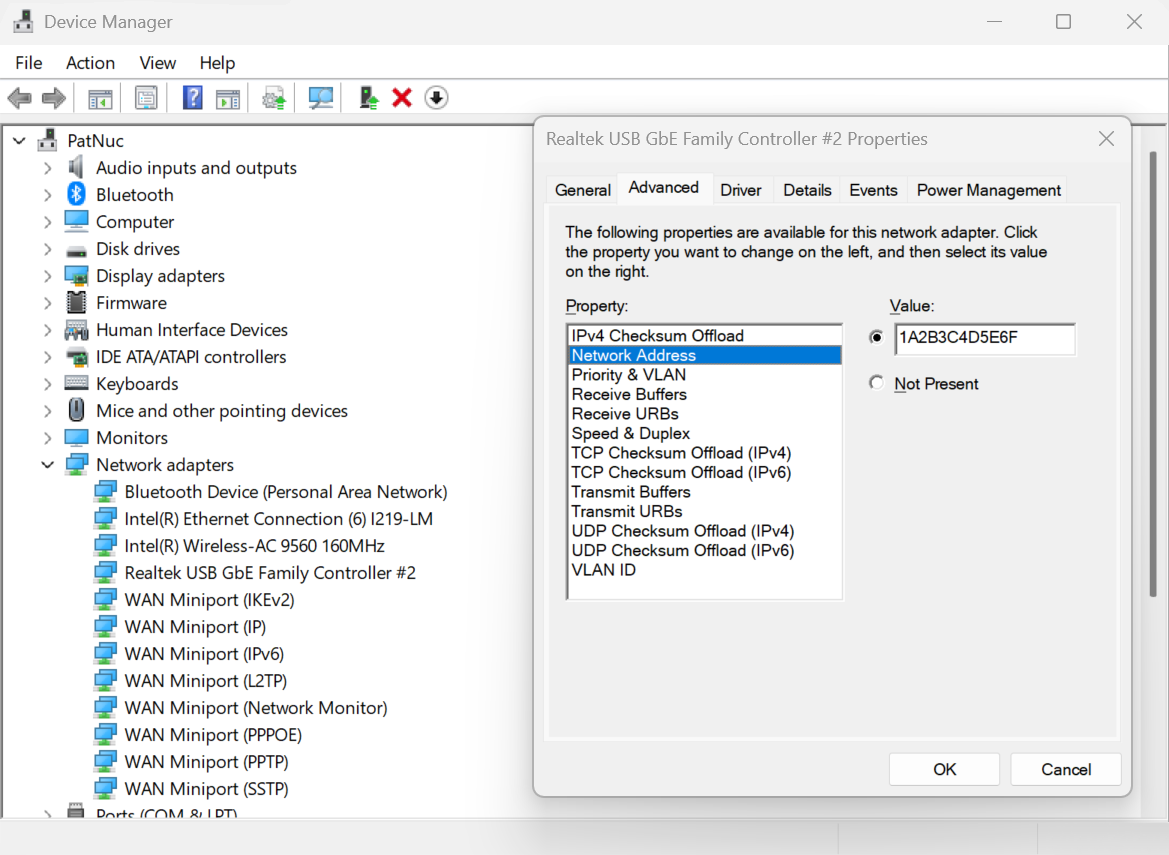
6. Select the OK button to proceed
You can also check the MAC Address from the command line
1. Right-click on the Start Menu and select Terminal or Windows PowerShell
2. Type in the following command ipconfig /all or ipconfig /all | findstr C:/"Physical Address" to filter just the Physical Address lines.
3. Scroll through the output to find the target network adapter and Physical Address
If you have any questions, please feel free to contact our support team via email at support@plugable.com and we will be happy to help!
How To - Set a Custom MAC Address in Linux
What is the MAC address?
The MAC address (Medium Access Control address) is a unique network address for each Network Interface Controller to identify the hardware on the network segment. The address is generally expressed as six hexadecimal digits, sometimes separated by a '-', ':', or without a separator.
The MAC address is assigned by the hardware manufacturer during production, however many network controllers allow the operating system (via the drivers) to override the MAC address, this is handled at the operating system level and does not change the address stored in the adapter.
The first three octets (first three hexadecimal values, six characters) identify the network hardware manufacturer while the last three octets should be unique within each hardware manufacturer's product line. For example Plugable's MAC addresses all begin with "8CAE4C", with lower values typically representing older companies, "000000" belongs to Xerox for example, some companies have multiple ranges of MAC addresses.
Why it can be useful to override the manufacturer's address?
Setting a custom MAC address can provide anonymity when connecting to public networks. It can also be used by an IT Network Administrator to provide specific access rights to computers based on the connection.
It can also be useful for Network Administrators for testing, troubleshooting, and maintenance to simulate different devices without having access to that specific device.
Checking the MAC Address in Linux
The MAC Address can be checked from the terminal:
1. Open a bash shell
2. Read the address from the /sys directory:
cat /sys/class/net//address
or from the ip command to print out all of the hardware MAC Addresses
ip -o link | awk '$2 != "lo:" {print $2, $17}'Changing the MAC Address in Linux
Temporary change until system reboot
1. Open a bash shell
2. Run the following command to set the MAC Address for a specific network device.
sudo ip link set dev <devicename> down
sudo ip link set dev <devicename> address <mac address>
sudo ip link set dev <devicename> up
3. Confirm the new MAC address
Permanently change the MAC Address
This can depend on your distribution specific network services and settings. This example will create a new systemd unit file to change the MAC Address on startup.
1. Open a bash shell
2. Create a new systemd unit file "/etc/systemd/system/changemac@.service with the following contents the mac address should be colon separated:
[Unit]
Description=Change MAC Address %i
Wants=network-pre.target
Before=network-pre.target

[Service]
Type=oneshot
ExecStart=/usr/bin/ip link set dev %i down
ExecStart=/usr/bin/ip link set dev %i address <mac address>
ExecStart=/usr/bin/ip link set dev %i up
RemainAfterExit=yes
User=root

[Install]
wantedBy=multi-user.target
3. Enable the service with the following command
sudo systemctl enable --now changemac@<interface_name>
4. Reboot the computer, the MAC address should be set to the new address
If you have any questions, please feel free to contact our support team via email at support@plugable.com and we will be happy to help!
Resolving Display Lag or Jitter on macOS with DisplayLink Docks and Adapters
After updating to macOS, some users may notice slower mouse movement, display lag, or jitter on external monitors connected through a DisplayLink-based dock or graphics adapter. This behavior is typically related to driver compatibility or display configuration changes introduced with major macOS updates.
The steps below outline the most common ways to restore smooth performance.
1. Install the Latest DisplayLink Manager
Typically speaking, you will want to keep yourself updated with the most recent DisplayLink drivers. The most recent version of DisplayLink that we’ve tested with our devices can be found below.
However, in some instances, this will not be the most up to date version of DisplayLink. In instances where the version above does not help, you can look for a potentially newer version on DisplayLink’s website here: https://www.synaptics.com/products/displaylink-graphics/downloads/macos
Action:
- Visit the Plugable DisplayLink Drivers page
- Download and install the latest version of DisplayLink Manager for macOS (guides can be found for your specific version of macOS on the download page linked above)
- Restart your Mac after installation
2. Perform a Clean Installation of the DisplayLink Driver
If you upgraded macOS without removing the previous DisplayLink driver, leftover files can interfere with the new version.
Action:
- Download the DisplayLink Installation Cleaner from the Synaptics support site
- Run the cleaner tool to fully remove all DisplayLink components
- Restart your Mac
- Install the latest version of DisplayLink Manager
This clean installation process resolves the majority of display jitter and lag issues reported after macOS upgrades.
3. Verify External Display Refresh Rates
Many modern monitors default to high refresh rates such as 120Hz or 144Hz. While useful for gaming, higher refresh rates require more processing power when using USB-based video solutions like DisplayLink.
Action:
- Open System Settings
- Select Displays
- Choose each external monitor and set the refresh rate to 60Hz
Lowering the refresh rate significantly reduces CPU load and improves overall smoothness for office and productivity workloads.
4. Test with the Laptop Lid Open
On some MacBook models, closing the lid changes how macOS manages graphics resources. This can reduce available performance for external displays.
Action:
- Keep the MacBook lid open while using external monitors
- Check whether display responsiveness improves
If performance is better with the lid open, this configuration is recommended when using multiple external displays.
If Issues Continue
If you still experience lag or jitter after completing these steps, contact our support team with the following information:
- Mac model
- Plugable dock or adapter model
- A readout of our PlugDebug tool
You can reach our team via direct email at support@plugable.com or via our support page at https://plugable.com/pages/support
Update Graphics Drivers in Windows
Up to date graphics drivers are necessary for ensuring the best performance of your computer's built-in display, as well as the capability and compatibility with external displays and docking stations.
Windows has a built-in system update service: Windows Update, however this may not provide up to date drivers or timely updates. We often see systems with out of date drivers, in some cases systems may not receive updated graphics drivers for months or even years, leaving the computer with drivers incompatible with the installed version of Windows 11.
However, we can manually update the graphics drivers to ensure the best possible performance, reliability, and compatibility.
The first step is to identify the graphics hardware, then downloading, and installing the latest drivers.
Identifying Graphics Controller
For notebooks and many desktop computers, the primary graphics controller is embedded in the processor, both AMD and Intel provide graphics driver updates based on the processor model, as well as for discrete graphics controllers. Our first step is to identify up the processor or graphics hardware model details:
- Right-click on the Start Menu and select Settings from the pop-up menu
- From the left column select System and from the bottom of the right side select About
- From the top of the about page the processor details will be on the right side, and duplicated lower down on the page.

- In this example the processor is a 12th Gen Intel(R) Core(TM) i7-1260P, we'll keep that detail for the next step.
If your computer has two graphics controllers (it may show "Multiple GPUs Installed" under Graphics Card) then we can get the graphics card model details from the Windows System Information Utility.
- Open the Start menu and search for "msinfo32"
- Select the first result
- From the left-column expand the Components section, then select Display

- In this example the Intel Iris(R) Xe Graphics is enabled by the processor, while the Intel(R) Arc(TM) Pro B60 Graphics is a discrete graphics controller.
Downloading the Drivers
Intel Graphics
- In a web browser navigate to the Intel Driver Download Page
- In the "Search Drivers & Software" field, search for the Intel graphics card model or CPU model, "Arc Pro B60" in this example

- Select the appropriate "Intel Arc Pro Graphics - Windows" or similar entry from the search results, for modern hardware Intel will normally have at least one release per month, the list should return recent results within the last month
- Select the Download button to save the installer to your Downloads folder or selected location
AMD Graphics
AMD provides an Auto-Detect utility, this works relatively well and can be used to update the system available from the AMD Drivers and Support page.
This page also provides a search and browse option for finding drivers and specific compatibility details, we'll look up the drivers for an AMD Ryzen Pro 5650U processor with Radeon Graphics:
- Navigate to AMD Drivers and Support page
- From the Browse section, fill out the processor details and click the Submit button
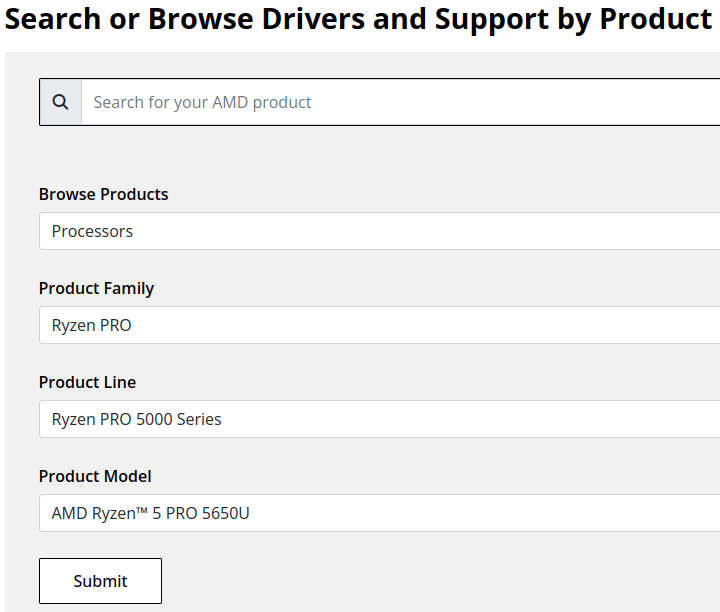
- Expand the "Windows 11 - 64-Bit Edition" section and select the Download button for the latest graphics drivers
NVIDIA Graphics
Like AMD, NVIDIA provides an automatic installation utility, as well as a Manual Driver Search on the NVIDIA Drivers support page. We will look up the drivers for an NVIDIA RTX 5080 graphics card.
- Navigate to NVIDIA Drivers support page
- Fill out the Manual Driver Search drop-downs and select the "Find" button when complete
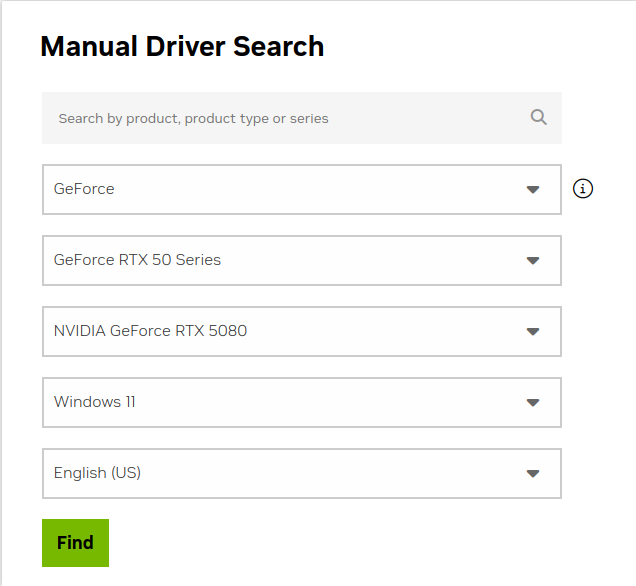
- From the search results, select the "View" button for the GeForce Game Ready Driver or NVIDIA Studio Driver (if you need the studio driver features)
- Select the green Download button for the latest graphics drivers
Installing the Graphics Drivers
For the most part this is relatively simple, we recommend disconnecting any external docking stations or devices that are not necessary for the driver installation, and for notebook computers connecting the system's original power supply.
Double-click on the downloaded driver installation executable and follow the on screen steps.
For more in-depth details on Intel, AMD, and NVIDIA's driver installation processes check out our step-by-step guides here:
- Intel Driver Installation In Detail
- AMD Driver Installation In Detail
- NVIDIA Driver Installation In Detail
If you have any questions or would like a recommendation, feel free to reach out to our support at support@plugable.com
How-To: Install the latest Intel Graphics Drivers
For a step-by-step guide to identify your graphics hardware and download the appropriate drivers, check out our KB article here
Download the drivers for your GPU or Processor Graphics
- In a web browser navigate to the Intel Driver Download Page
- In the Search Drivers & Software field, search for the Intel graphics card model or CPU model, "Arc Pro B60" in this example
- Select the appropriate Intel Arc Pro Graphics - Windows or similar entry from the search results, for modern hardware Intel will normally have at least one release per month, the list should return recent results within the last month
- Select the Download button to save the installer to your Downloads folder or selected location
Install the Intel Graphics Driver
To update the Intel Graphics Drivers to the latest version from Intel's website:
- Save and close any open applications
- Navigate to the downloaded graphics driver, then right-click on the saved driver installation file and select Run as administrator to start the installation process
- Allow the Intel driver installation through the User account control window, the drivers will be extracted
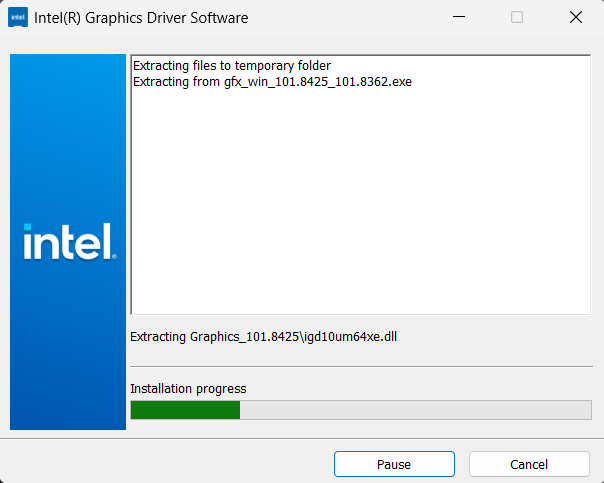
- When the extraction is complete select the Begin installation button

- Agree to the Intel Software License Agreement by selecting the I agree button
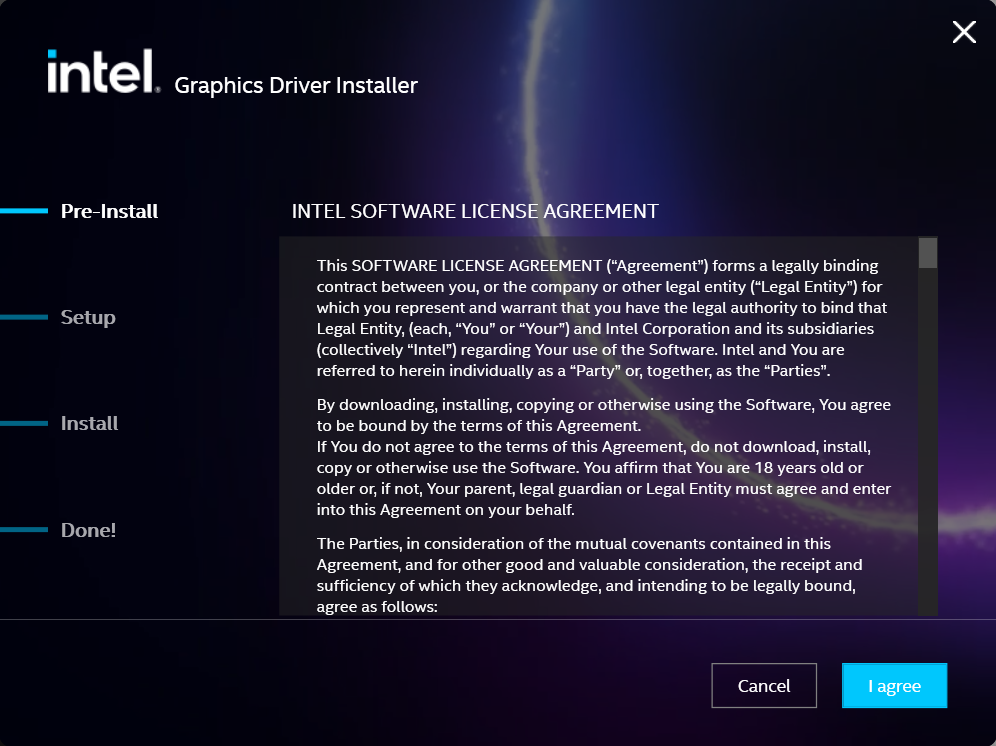
- Ensure all applications are saved and closed before selecting the I agree button
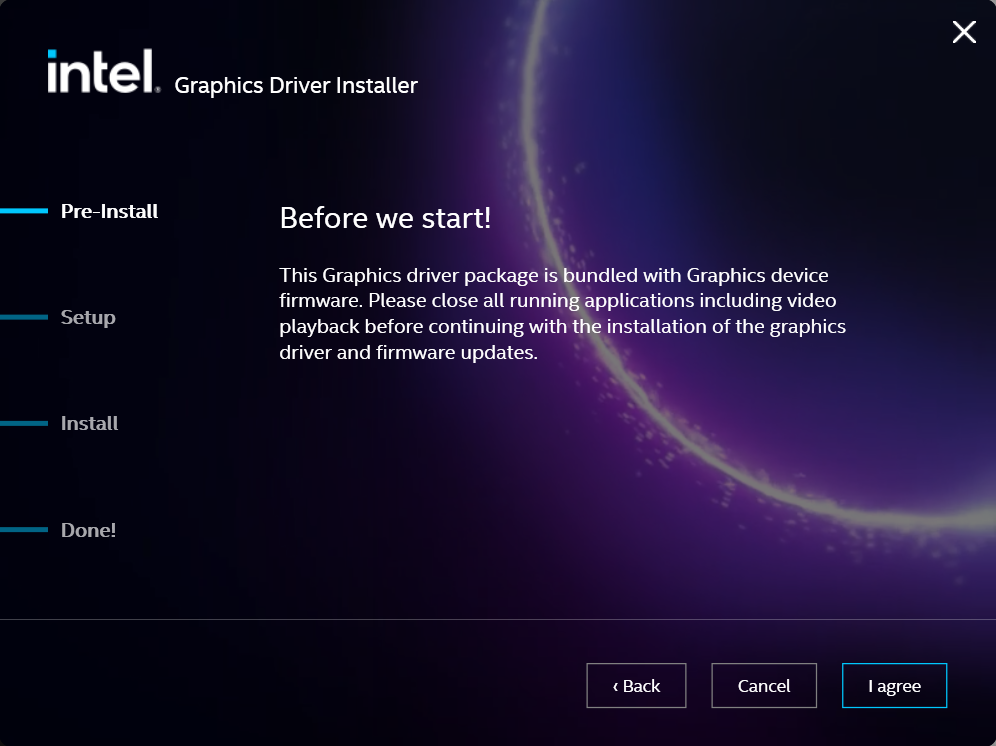
- For most installations, we recommend not selecting the Execute a clean installation checkbox. This option will remove previous driver versions and can lead to Windows Update reverting to an even older graphics driver. Select the Start button to proceed
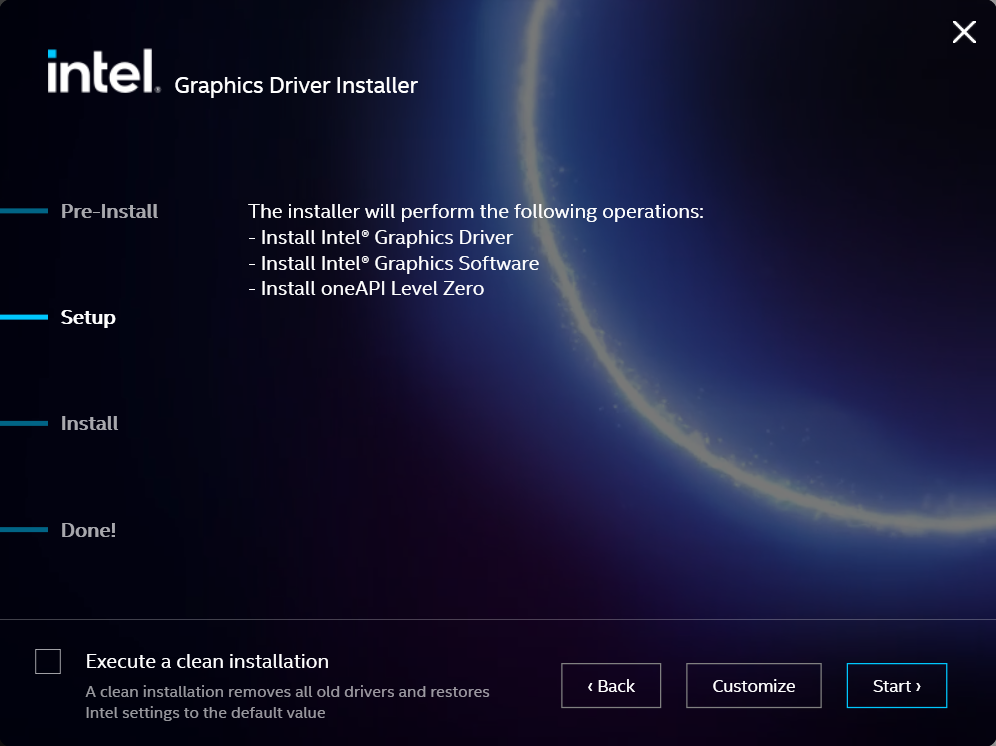
- The installation process will proceed, but can take some time to complete
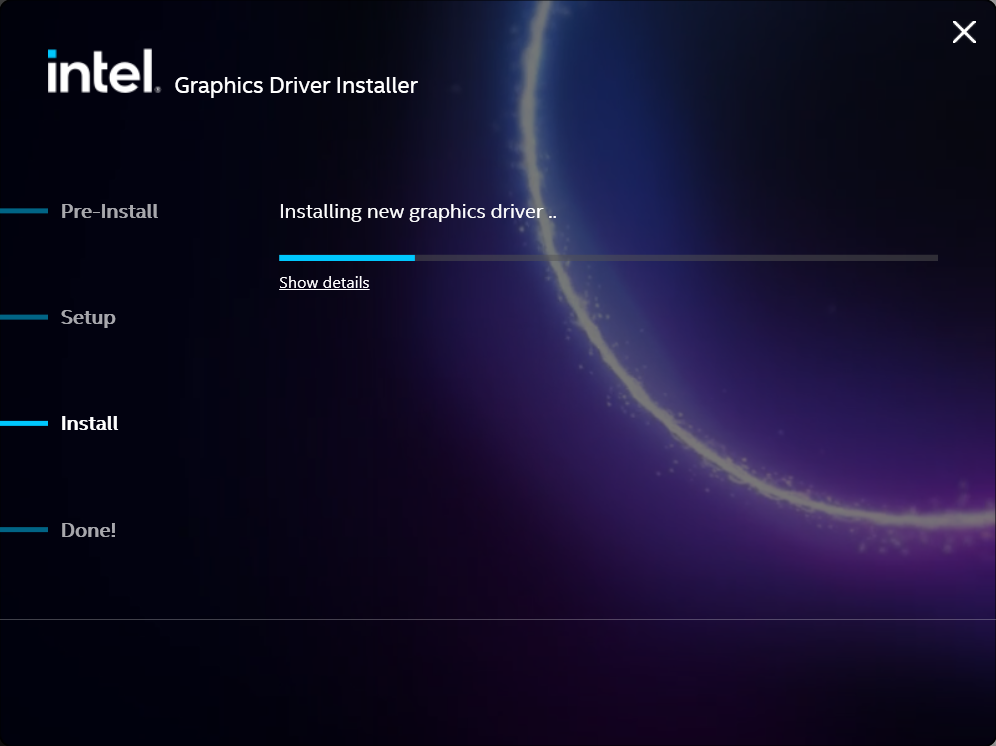
- When the installation has completed, deselect the Launch Intel Graphics Software checkbox - we don't need that right now, select the Reboot Now button to restart the computer applying the new graphics drivers
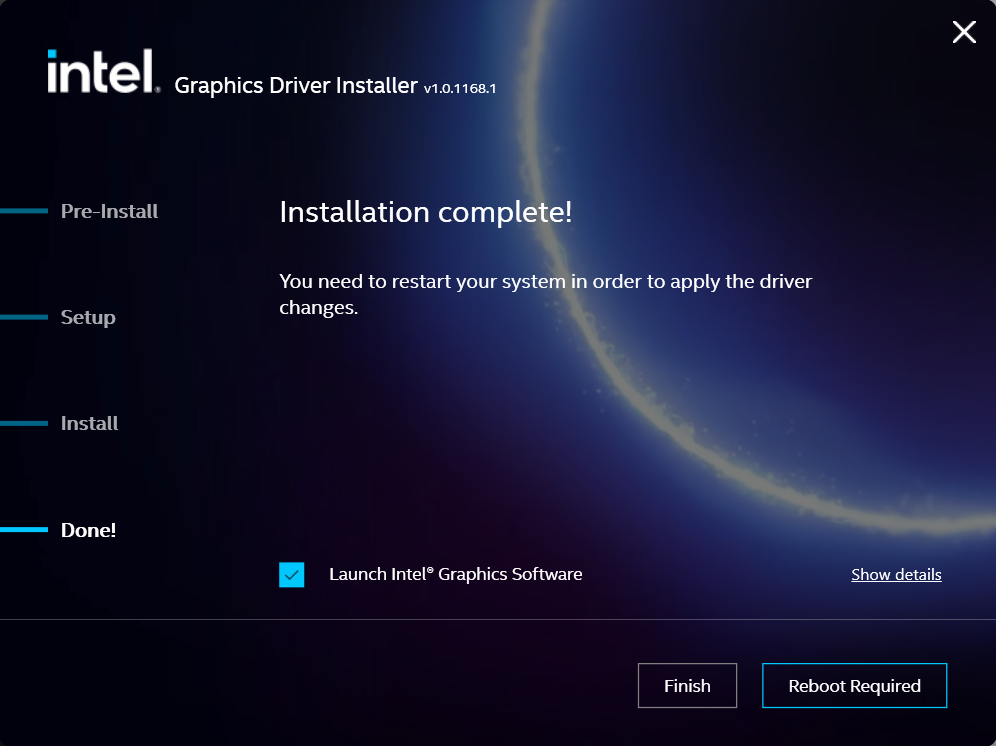
Windows should now detect the Intel Graphics Controller in the Device Manager and show the latest drivers.
If you have any questions or would like a recommendation, feel free to reach out to our support at support@plugable.com
How-To: Install the latest AMD Graphics Drivers
For a step-by-step guide to identify your graphics hardware and download the appropriate drivers, check out our KB article here
Download the drivers for your GPU or Processor Graphics
- In a web browser navigate to the AMD Drivers and Support page
- In the Search for your AMD product field, type in the model name, for example “RX 5600XT” for the AMD Radeon RX 5600 XT graphics controller, or a processor model like "AI 9 365", then select the best fitting result and select the Search button - note: Searching for a processor the "™" is required, so I recommend searching for the text after that symbol.
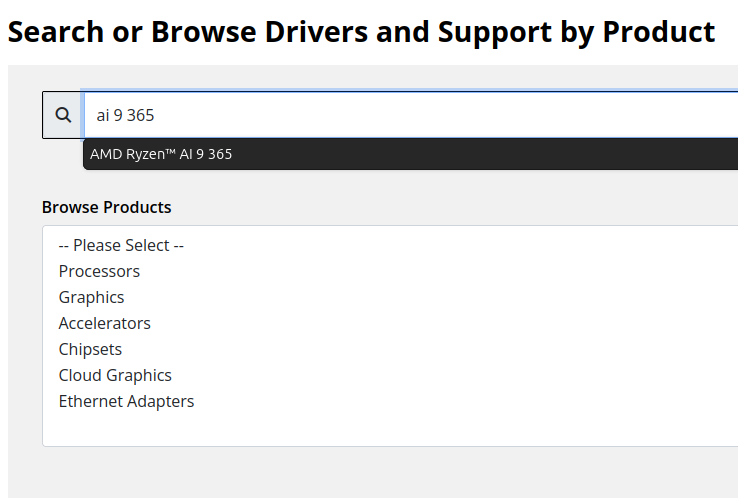
- On the results page, expand the section for Windows 11 64-bit then select the Download button for the latest AMD Software: Adrenalin Edition drivers, AMD may not provide a direct download for all hardware, in that case use the Auto-Detect and Install option
- Save the installer to your Downloads folder or selected location
Install the AMD Graphics Driver
To update the AMD Graphics Drivers to the latest version from AMD’s website:
- Save and close any open applications
- Navigate to the downloaded graphics driver, then right-click on the saved driver installation file and select Run as administrator to start the installation process
- Allow the Intel driver installation through the User account control window, the drivers will be extracted

- For most users the express installation is fine, ensure all applications are saved and closed selecting the Accept & Express Install button. If you have been having issues with older graphics drivers causing crashes or errors the Factory Reset (Optional) checkbox may be selected, but it isn’t necessary for most installations.

- The installation will proceed, the displays may flicker or flash off/on while the drivers are installing.
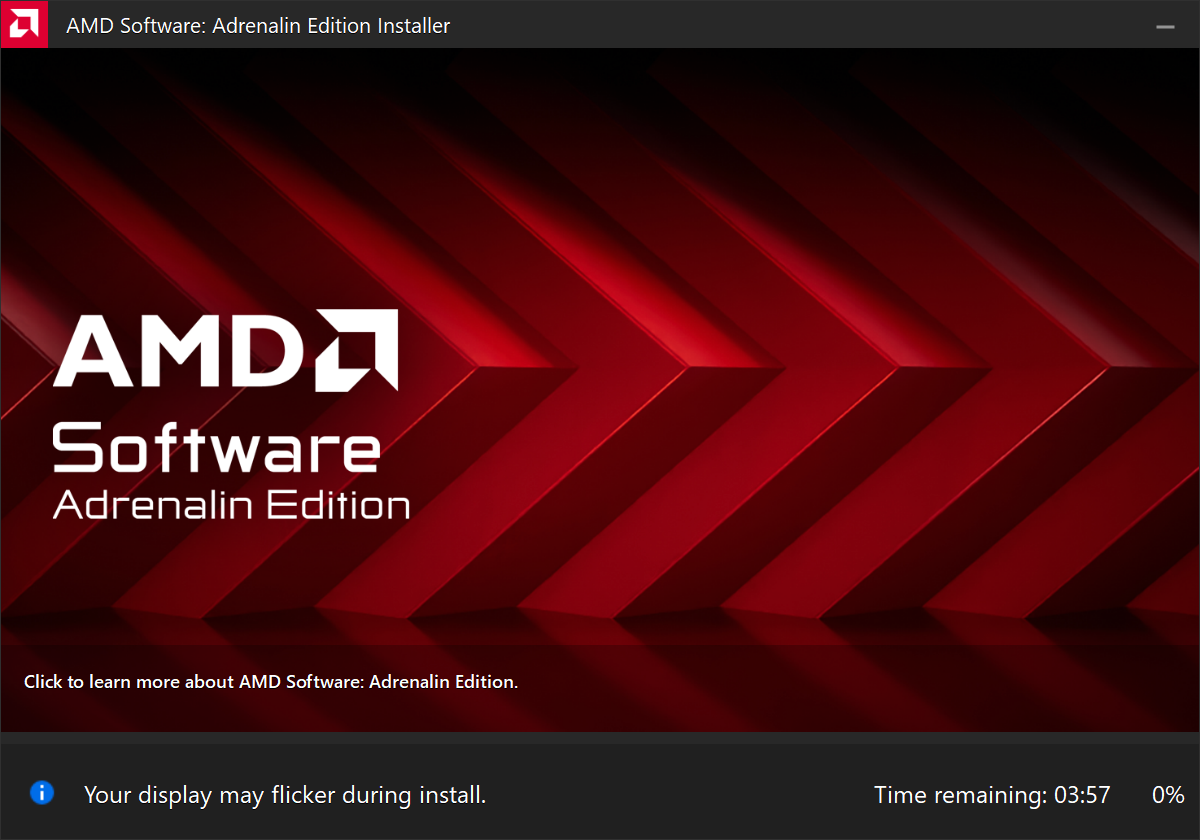
- When complete you will be prompted to Launch AMD Software: Adrenalin Edition and Keep AMD software up to date, you can uncheck the Launch AMD Software option
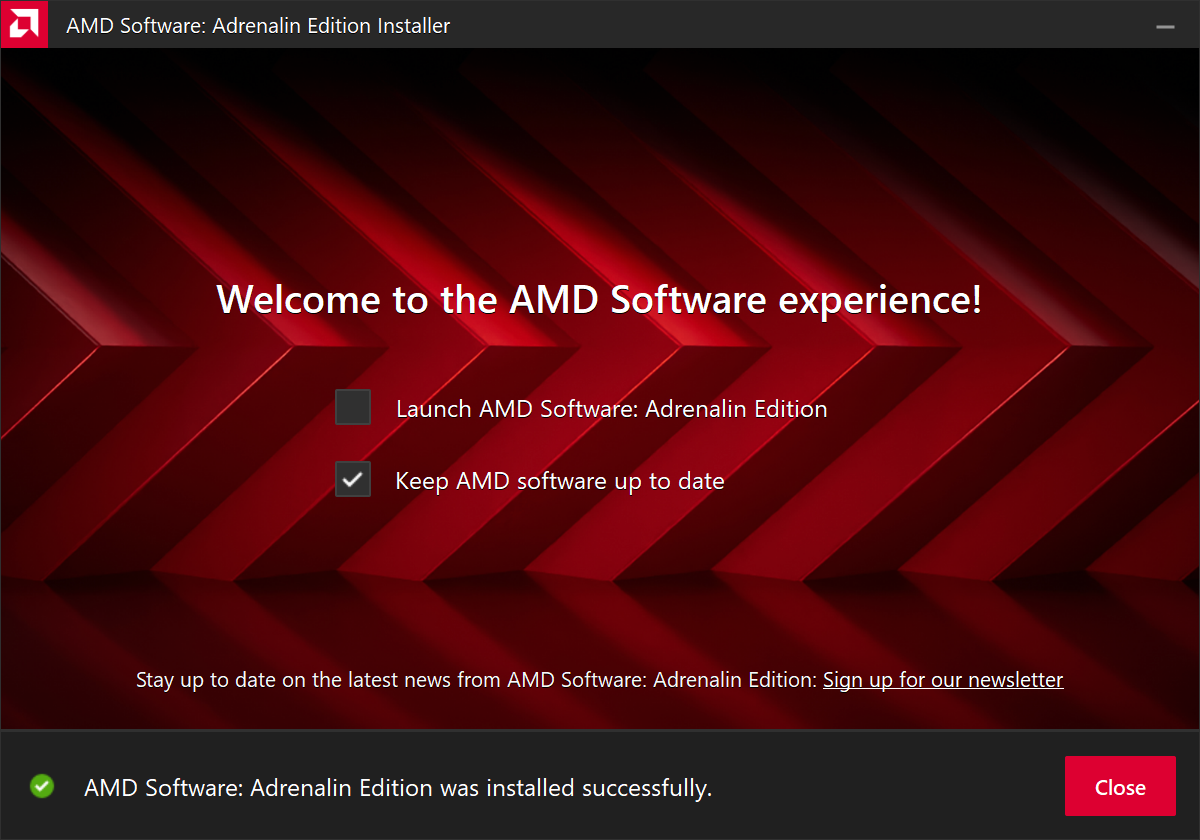
- Restart the computer to ensure the latest drivers are loaded from boot Start Menu > Power Icon > Restart
Windows should now detect the Intel Graphics Controller in the Device Manager and show the latest drivers.
If you have any questions or would like a recommendation, feel free to reach out to our support at support@plugable.com
How-To: Install the latest NVIDIA Graphics Drivers
For a step-by-step guide to identify your graphics hardware and download the appropriate drivers, check out our KB article here
Download the drivers for your GPU
Check your invoice for the specific model of NVIDIA graphics card, for this example we will use the RTX 5080 (the manufacturer is not relevant).
- In a web browser navigate to the NVIDIA Driver Download Page
- In the Manual Driver Search field, search for the NVIDIA graphics card model, "RTX 5080" in this example
- Select the GeForce RTX 50 Series | NVIDIA GeForce RTX 5080 | Windows 11 entry from the list
- Left-click the Find button
- Select either View buttons from the GeForce Game Ready Driver or NVIDIA Studio Driver
- Select the Download button to save the installer to your Downloads folder or selected location
Install the NVIDIA Graphics Driver
To update the NVIDIA Graphics Drivers to the latest version from NVIDIA's website:
- Save and close any open applications
- Navigate to the downloaded graphics driver, then right-click on the saved driver installation file and select Run as administrator to start the installation process
- Allow the NVIDIA driver installation through the User account control window
- Click OK to extract the NVIDIA Display Driver package contents
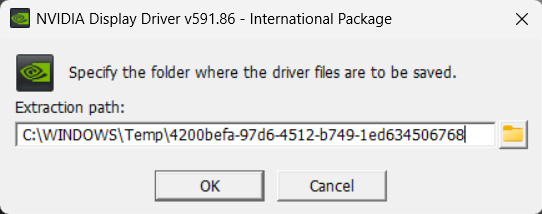
- At the System Check step, select either the NVIDIA Graphics Driver with NVIDIA App or the NVIDIA Graphics Driver alone, the NVIDIA App is gaming oriented and unnecessary for most users. Select AGREE AND CONTINUE
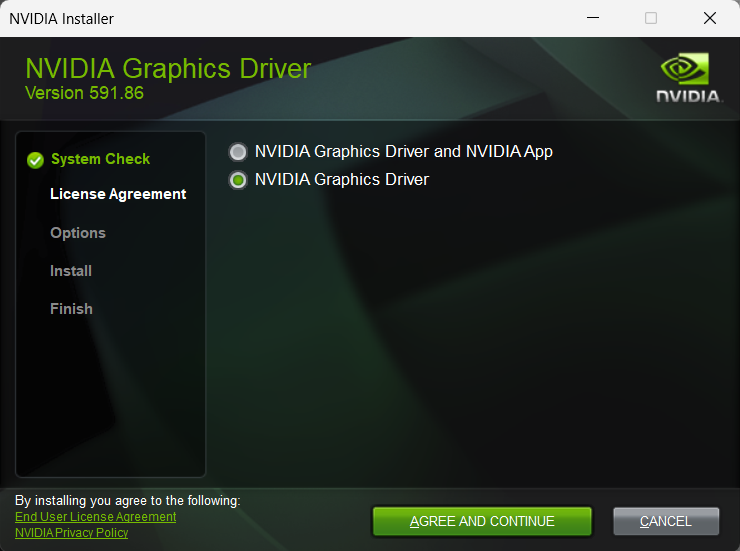
- At the License Agreement step, select the Express (Recommended) radio button then select NEXT to continue

- The installation will take some time to complete
- When complete please restart the computer Start > Power > Restart
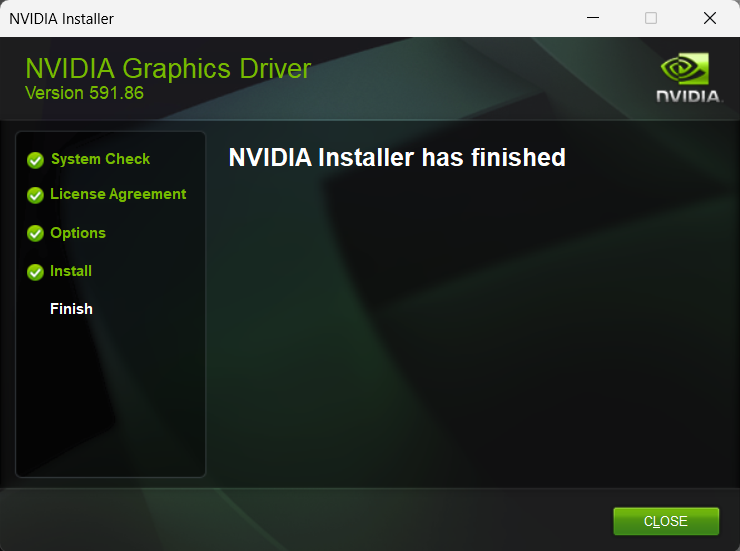
Windows should now detect the NVIDIA Graphics Controller in the Device Manager and show the latest drivers.
If you have any questions or would like a recommendation, feel free to reach out to our support at support@plugable.com
Is Target Display Mode Available With Plugable Docks and Adapters?
No, target display mode generally requires a direct Thunderbolt connection from a compatible MacBook or Mac Mini to a compatible iMac. Graphics adapters and docking stations do not pass the required Thunderbolt video data.
Why Target Display Mode Is Not Compatible With Docks or Adapters
Target Display Mode is a legacy feature that allows certain older Mac systems to use an older model iMac as an external display via a Mini DisplayPort or Thunderbolt data cable. Most Plugable docking stations and graphics adapters are USB devices that do not meet the specific Thunderbolt data requirements for 2011 through mid-2014 iMac systems. While Thunderbolt 3 or newer docks may provide video capability, they are generally recommended for Apple M-Series systems which do not support this feature.
iMac Models as Display
Apple provides system compatibility here but we can summarize it in the following:
24-inch and 27-inch iMac (2009 and 2010)
- macOS 10.13 “High Sierra” or earlier
- Compatible with Macs from 2019 or earlier with macOS 10.15 “Catalina” or earlier
- NOTE: some MacBooks in this range do not include a Mini DisplayPort output and may not be compatible
- Connected with a Mini DisplayPort cable
iMac models (2011 through mid-2014)
- macOS 10.13 “High Sierra” or earlier
- Compatible with Macs from 2019 or earlier with macOS 10.15 “Catalina” or earlier
- NOTE: some MacBooks in this range do not include a Mini DisplayPort output and may not be compatible
- Connected with a Thunderbolt or Thunderbolt 2 cable - these use the Mini DisplayPort connector
- NOTE: This is not compatible with Thunderbolt 3 (USB Type-C) cables
Alternative Options
For earlier 2009-2010 iMacs, it may be possible to use a USB Type-C to DisplayPort adapter paired with a DisplayPort to Mini DisplayPort cable. However, this configuration is untested and we do not support this configuration.
Our research has shown mixed results using these early model iMac systems with adapters, modern unsupported Apple hosts, or Windows computers. Because Target Display Mode is no longer supported by modern Apple hardware and software, there is no guaranteed workaround for newer systems.
Modern displays offer higher resolutions, multiple connection options: both DisplayPort and HDMI, and newer features like High Dynamic Range (HDR) and higher refresh rates than iMac systems. Many modern displays can support multiple host computers either by switching between inputs or with picture-by-picture or picture-in-picture modes.
Applicable To
- 24-inch and 27-inch iMac (2009 and 2010)
- iMac models (2011 through mid-2014)
- macOS 10.13 “High Sierra” or earlier
If you have any questions please feel free to contact us at support@plugable.com and we'll be happy to help!
Can I Connect My Host to Any USB-C Port on My Thunderbolt Dock?
Despite having multiple USB-C and/or Thunderbolt ports, all our Thunderbolt docks will have a single host port that can connect to the host laptop. This port will be indicated by a laptop symbol, similar to the one below:

Troubleshooting Dock Detection Issues
If you connect a host to a downstream USB-C port, instead of the upstream host port, you will not be able to connect to the dock and access the functionalities. Sometimes, these ports will still charge your laptop if the port supports Power Delivery. This can be a misleading indication that you are connected to the host port, but you still will not be able to utilize the dock. If you are running into issues with dock detection, ensure that you are connecting to the correct host port.
Applicable to:
USB-C Docking Stations
Thunderbolt Docking Stations
Why does my MacBook battery only charge to 80 percent?
If you routinely discharge your MacBook battery and fully recharge the battery often, macOS may set a battery charge limit to 80% to "reduce battery aging". In most cases this is a good option to have, however if you need the battery to be fully charged this setting can be disabled.
Disable the battery charge limiter
- Select System Settings the Apple menu
- Select Battery from the left column in System Settings
- Select the Info button ("I" inside a circle) on the Charging line near the top of the right panel
- Toggle off the Optimize Battery Charging option
A bit more detail
Time
Lithium-Ion batteries used in modern notebook computers are significantly more reliable and predictable than previous battery technologies, however like all batteries they both degrade over time regardless of use.
All battery technologies will begin to degrade after production, when in storage, or in active use. When storing a Lithium-Ion battery normally it is recommended to partially discharge the battery to help minimize degradation in storage.
Cycles
Battery life spans are often described in discharge/charge cycles, by limiting the top-end charge (often limiting the charge to 80%) system manufacturers seek to reduce the degradation with each charge cycle. One method is to simply over-spec the battery and set the operating system's 100% threshold to 80% of the battery's maximum capacity, this has the added benefit that over time as the battery degrades the charge controller could allocate more of the top-end charge potential to shift the reported 100% capacity maintaining the same power capacity over a longer period of time. Apple doesn't seem to use this approach, instead using the full capacity of the battery and implementing the battery charge limiter to help maintain that full capacity.
Apple macOS has a battery health report in the System Settings > Battery panel there is an info button for Battery Health which shows the Battery Condition and Maximum Capacity.
Our recommendation
We recommend sticking with the system's default battery charge settings, unless you specifically need to charge the battery to 100%.
The default setting helps to maintain the battery lifespan of the system, however could cause reduced work time while on battery. Batteries are no longer a user serviceable component of MacBook or most modern notebook computers, increasing the cost of battery replacement in both time and labor fees compared to older systems where batteries could easily be removed with one or two locking latches/levers.
If you have any questions please feel free to contact us at support@plugable.com and we'll be happy to help!
What do the LEDs Indicate?
Many of Plugable's products have LED indicators, some are common across many devices like Ethernet port LEDs, while others may be specific to an individual product.
Common LED behaviors
Ethernet port LEDs
Ethernet ports generally have two LEDs, one (generally green) indicates a "Link" while the other (generally amber) flashes off indicating network transfer or "Activity".
Power LEDs
Many of our products have a single power LED indicating the device is powered on or receiving power, however in some cases this LED may only illuminate when the device also has a data connection to the host computer.
More Details
For all of our products we are updating our Specifications page to include additional details. For example with the Plugable USB Type-C Triple HDMI Docking Station UD-3900PDZ under the "LEDs" section we provide the following details:

Additionally, any products with more advanced LED behavior will be documented in the Get Started tab.
Legacy Products
For many of our legacy products the LED behavior was documented in separate KB articles, we are in the process of updating these to link here to provide additional details and context, so even if you found this from a different product hopefully this will help to answer your questions about our products!
If you have any questions please feel free to contact us at support@plugable.com and we'll be happy to help!


