


Hassle free, 2-Year Warranty
Fast, Free Shipping on Orders $35+
Lifetime Technical Support
30-Day Money Back Guarantee
Plugable USB-C 4-Port Hub
$17.95 USD
SKU: USBC-HUB4AAmazon Rating : (169 Reviews)
Features
- 4x USB 3.0 Ports from a Single USB-C Connection— Instantly add four USB 3.0 ports to any USB-C laptop or desktop. Connect keyboards, mice, flash drives, barcode scanners, and other USB peripherals. At your desk, in a clinical workspace, or on the go.
- No Drivers, No Setup, No Admin Rights Required— Plug it in and it works, instantly. No software to install, no IT tickets needed. Each port supports up to 5Gbps SuperSpeed data transfer. Note: this hub is designed for data only and will not charge connected devices.
- Compact, Durable, Built for Daily Use— Slim enough to fit in a laptop bag and sturdy enough to live on a desk permanently. Rigid housing resists scuffs and holds up to the wear of daily use in the office, clinic, or classroom.
- Universal Compatibility— Works with Windows, macOS, ChromeOS, and Linux. Connects through any USB-C, Thunderbolt 3/4, or USB4 port. No adapters, no special configuration, works right out of the box.
- 2-Year Coverage, Lifetime Support— Every Plugable product, including this USB C to USB adapter hub, is covered against defects for 2 years and comes with lifetime support. If you ever have questions, contact our North American-based team - even before purchase
For volume orders or business inquiries contact sales@plugable.com
Free 3-Day Continental U.S. Shipping on Orders Over $35!





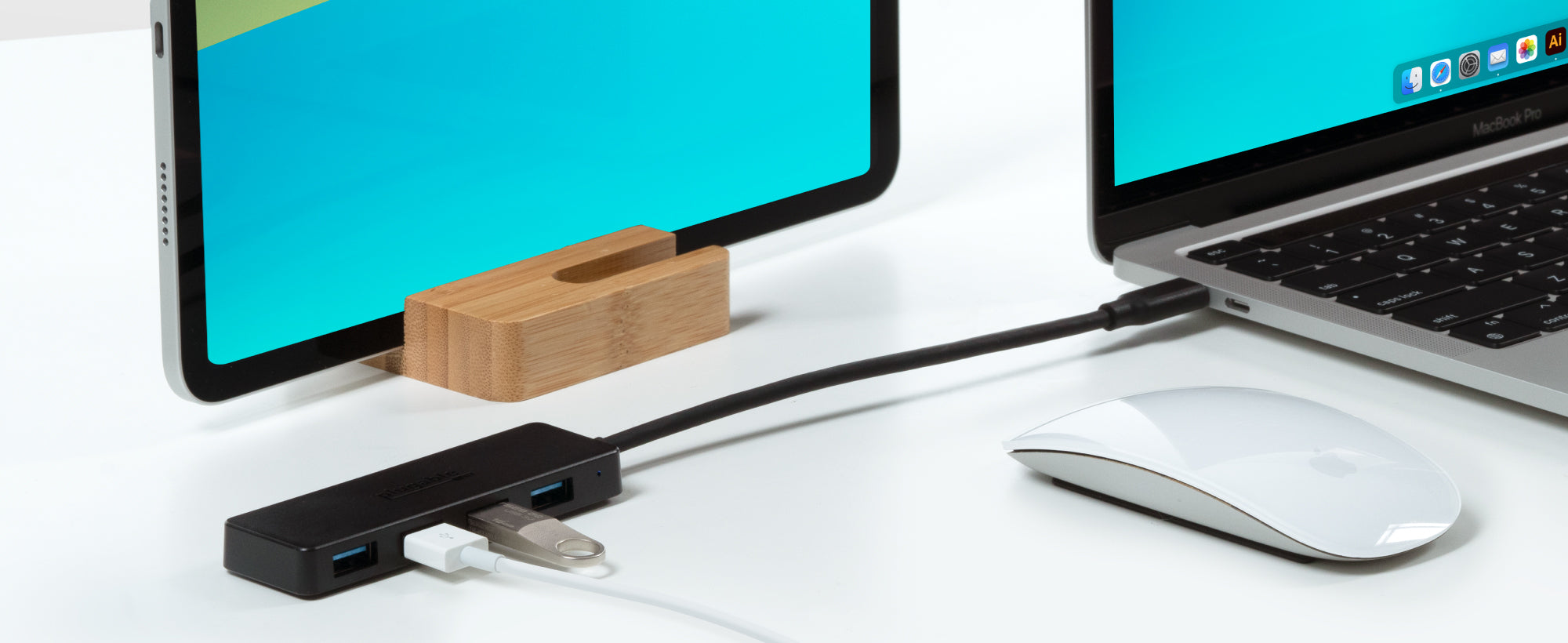
The Plugable USBC-HUB4A might look pretty simple, and that’s because it is. Simply plug it in and sprout 4x USB 3.0 data ports. For MacBook Air. For Dell XPS. For just about anything with a USB-C port.
Each port can transfer data up to 5Gbps. At that speed it would only take about 21 seconds to transfer the entirety of the 1984 science fiction hit, The Last Star Fighter. So, yeah, it’s pretty fast. That means you can be transferring files from a flash drive on USB port 1, connecting a keyboard to port 2, a mouse in 3, and downloading clips from your camera on 4.
Sure, these hubs are quite handy to have on your desk, but they’re just as happy to hit the road. Lightweight and compact, the hubs are encased in black plastic with a matte finish to resist scuffs and scratches. The plastic case also helps to avoid damaging the other gadgets in your bag. It is worth mentioning, however, that the hub is only designed for data. This USB port expander will not charge.
Some Android OS devices with USB-C ports are compatible for allowing the connection of thumb drives, keyboard and mouse, along with some web cams.
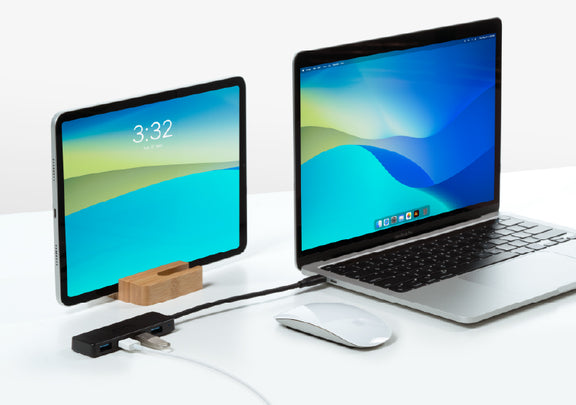
Plug-and-Play
Plug it in and go. No driver downloads required.
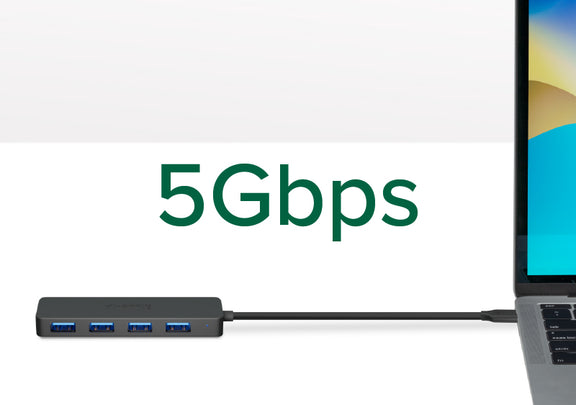
SuperSpeed USB
This data hub transfers data at up to 5Gbps.
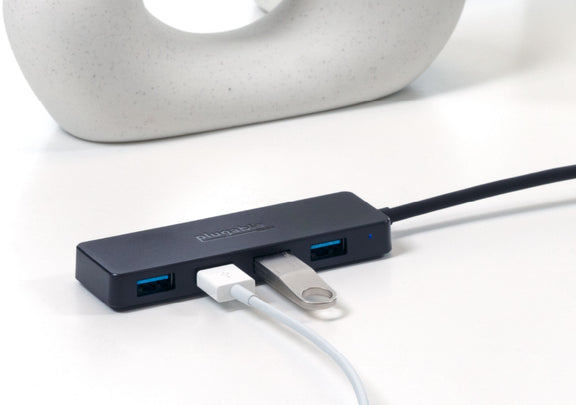
Travel Ready
Small and durable with an integrated 15cm flexible cord, this hub is handy to have on your desk, but it’s just as happy to hit the road.
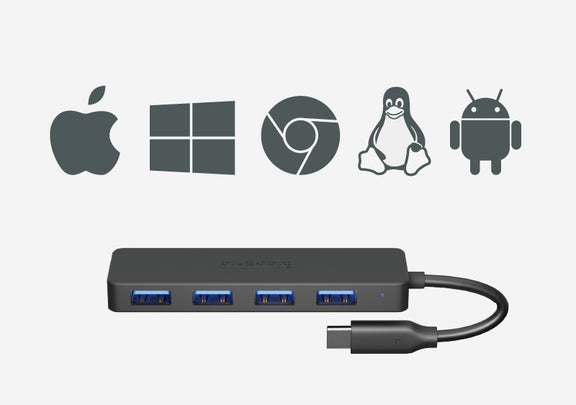
Compatibility
Compatible with Windows, macOS, ChromeOS, and Linux systems with a USB-C port. Designed for data, this device doesn’t charge.
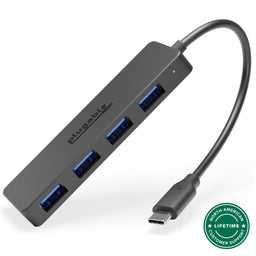 |
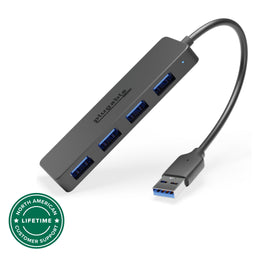 |
 |
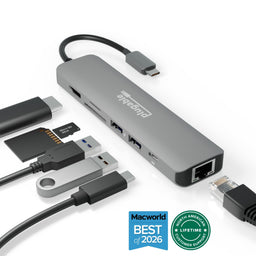 |
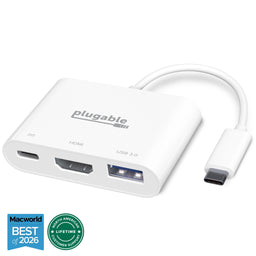 |
|
|---|---|---|---|---|---|
Number of USB 3.0 Ports |
4 |
4 |
3 |
2 |
1 |
Connection to Host |
USB4, Thunderbolt, USB-C |
USB 3.0 |
USB4, Thunderbolt, USB-C |
USB4, Thunderbolt, USB-C |
USB-C (USB4/ Thunderbolt) |
Data Transfer Rates |
5Gbps |
5Gbps |
5Gbps |
5Gbps |
5Gbps |
USB-C Charging* |
X |
X |
Up to 87W |
Up to 87W |
Up to 60W |
Video Output |
X |
X |
HDMI |
1x HDMI |
1x HDMI |
SD/microSD Card Reader |
X |
X |
✓ |
✓ |
X |
Ethernet Port |
X |
X |
X |
✓ |
X |
Filter Help Articles and Frequent Questions by Category
Choose one or more filters within each category to narrow down the articles. Each selection will result in only displaying articles that include all of your choices.
Articles
Well how about that, it looks like we don't have any articles matching your filters! Try removing one of your choices or clear the filters to show all articles.
You can always contact support if you need help too!
Do Plugable products support the Apple SuperDrive?
No, Plugable products do not support the Apple SuperDrive.
Why do Plugable products not support the Apple SuperDrive?
The Apple SuperDrive has stringent power requirements that can only be met by directly connecting the SuperDrive directly to the host computer. As a result at this time Apple recommends only using their USB-C adapter cables. Apple provides more information on this topic here → How to connect the Apple USB SuperDrive
Applicable To
- All Plugable brand products
Why does my wireless mouse or keyboard appear sluggish or not work properly when used with the hub?
Most USB receivers for wireless mice and keyboards operate in the 2.4Ghz band. When connecting the receiver to any USB 3.0 port there is potential for interference that can affect the devices performance. The most effective method is to add a short USB 2.0 extension cable between the hub and the receiver to mitigate the effect, and many wireless keyboards and mice come with such a cable for this reason.
What is the 2.4GHz ISM Band and why is it "crowded"?
This is a range of radio frequencies from 2.400 to 2.4835 GHz set aside for industrial, scientific, and medical equipment. It is most commonly used for Wi-Fi, Bluetooth, and other consumer radio electronics. Many devices sharing the same narrow radio frequency range has caused this to become very noisy, imagine being in a small room with 20 other people having their own conversations, some are screaming, others are whispering. Like you in that room, consumer wireless devices have to be close to, and speak loud enough to be heard over the din.
USB 3 devices can also emit radio noise in the same band, this is created by data streaming through the USB host controller in a computer, or hubs in docking station, and emitted generally from the USB 3 port where shielding is limited by the need to connect a device. This noise is like turning on a high velocity fan in the room full of people, now there is a background hum that everyone has to talk over, those who can't speak loud enough are simply drowned out.
This can occur with wireless mouse and keyboards, they generally don't have very powerful radios for communication and require direct line of sight with the transceiver in order to provide a strong enough signal to be responsive.
What is the recommended setup?
We recommend using a USB 2.0 extension cable to connect the wireless transceiver to the docking station, and placing the transceiver as close as possible to the mouse an keyboard, normally with direct line of sight about 3ft is a good maximum distance. If the mouse and keyboard are on a pull-out tray under a desk it can be helpful to put the transceiver over the back end of the desk for better line of sight.
If the transceiver is on the opposite side of the computer from the mouse/keyboard this can cause reduced performance, similarly placing it behind a power supply, or radio source ( like a Wi-Fi access point ) can cause connectivity issues. We generally recommend keeping any radio sources away from the work area as much as possible. Just as USB 3 devices can emit Radio interference, they are also susceptible to radio interference from other devices.
If you have any questions please feel free to contact us at support@plugable.com and we'll be happy to help!
Self-Powered vs Bus-Powered USB Devices
What Is the Difference Between Self-Powered and Bus-Powered USB Devices?
Self-powered USB device - A device that takes all of its power from an external power supply
Bus-powered USB device - A device that takes all of its power from the host computer's USB interface.
Why High-Current Devices Require External Power
While all USB ports provide some amount of power for attached devices, the available power may not be enough for certain high-current devices such as USB hubs or external hard drives. Bus-powered devices can cause issues if they need more power than is available from the host machine, as each additional device attached to the host computer reduces the total available bus power. If the power runs out, any USB device attached to the computer may suddenly disconnect, which could result in permanent data loss for a USB storage device.
How to Use Devices with Included Power Adapters
Many devices that include power adapters, especially USB hubs, will function in either self-powered or bus-powered mode. If a device comes with a power adapter, it should stay connected at all times, otherwise the device may not function as designed.
Applicable To
USBC-11IN1E, USBC-10IN1E, USBC-9IN1E, USBC-7IN1E, USBC-7IN1, AD-6IN1, USBC-4IN1, USB3-HUB4A, USBC-HUB4A, AMS-5IN1E, USB4-HUB3A, TBT4-HUB3C, USBC-HUB7BC, USB3-HUB7C, USB3-HUB3ME
USB Port Types
USB-A

pietz, CC BY-SA 3.0 , via Wikimedia Commons
This is the standard USB connection that most computers offered prior to the introduction of USB Type-C (USB-C). Even after the introduction of USB Type-C, this is still quite common.
It can provide data transfer rates up to the USB 3.1 Gen 2 (10 gbps) specification depending on the host and device, but does not directly support video in the way that USB-C Alternate Mode does. This limitation makes DisplayLink USB graphics adapters and docking stations ideal on systems that do not have USB-C, or in instances where more displays are needed beyond available video outputs of a PC.
USB-B

Fred the Oyster, CC BY-SA 4.0 , via Wikimedia Commons

IngenieroLoco, CC BY-SA 4.0, via Wikimedia Commons
This type of connection comes in a couple different styles depending on whether USB 3.0 and higher transfer rates are supported (bottom graphic). Usually this type of connection is used to plug into USB devices that do not have a fixed cable connected, such as USB docking stations, USB hubs, printers, and others.
USB Mini-B
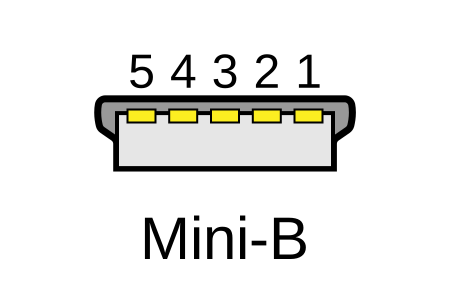
Fred the Oyster, CC BY-SA 4.0 , via Wikimedia Commons
One of the first connectors for charging a smartphone, wireless game controller (such as the Sixaxis and DualShock 3), and other small devices such as external hard drives. Not commonly used today, but is still used in some cases. Most devices using USB Mini B are using USB 2.0, though a USB 3.0 variant does exist. This specification also added USB On-The-Go (OTG) functionality, though it is more commonly implemented with Micro USB.
USB Micro-B

Fred the Oyster, CC BY-SA 4.0, via Wikimedia Commons
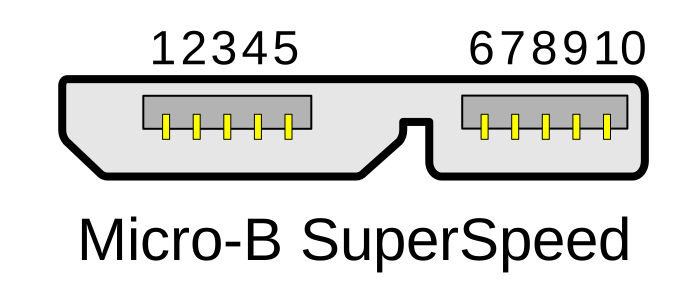
IngenieroLoco, CC BY-SA 4.0 , via Wikimedia Commons
A smaller connector that serves many of the same uses as the Mini B connector, with added optional features such as Mobile High-Definition Link (MHL) to allow devices like smartphones to output video to larger displays without requiring a dedicated port for video output.
The larger variant of USB-B is most commonly used for external hard drives for higher 5Gbps transfer rates.
USB-C, Thunderbolt™ 3, and Thunderbolt™ 4
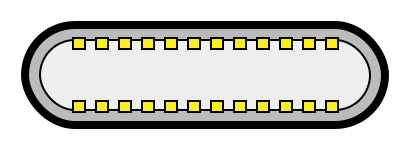
Niridya , CC0, via Wikimedia Commons
The most recent USB connection, USB Type-C (USB-C), represents a major change in what USB can do. The connector is smaller, can be connected in two orientations, is able to carry substantially more power and data, and can directly carry video signals of multiple types (HDMI, DisplayPort, etc.) Intel has also adapted the USB-C connector for use with Thunderbolt 3 and Thunderbolt 4.
It is important to note that while all Thunderbolt 3 and Thunderbolt 4 connections are USB-C, not all USB-C connections can be used with Thunderbolt 3 or Thunderbolt 4 devices.
More details regarding physical USB connections can be found on Wikipedia . The graphics depicted here are adapted from Wikimedia Commons by various artists under the Creative Commons Attribution-Share Alike 3.0 Unported license.
Can I use this hub with a USB-C to USB 3.0 adapter?
Yes, you can use this USB hub with an adapter. However, we do also have two different versions of this Hub so that you can get a version that best suits your needs.
Can I charge my phone or tablet with this USB Hub?
Please note that this USB hub pulls power from the host computer that it is connected to. The Hub acts as a splitter to share the USB data connection with multiple devices.
We do not recommend the use of this USB hub with devices that draw a large amount of power like USB hard drives or charging mobile devices.
Will this work when connected to my Smart TV or Car?
The USB hub itself should work just fine when connected to most smart tv's. However, it is dependent upon the car or TV's ability to support the individual USB devices connected to the 4 port hub. Note that not all USB devices are supported by cars or smart TV’s.
Does this USB 3.0 hub require drivers or a software download?
There are no drivers to be installed for the USB hub to function. However, individual devices connected through the USB hub may require the installation of drivers or support software.
Like most USB hubs, this device utilizes the internal capability of a computer to access USB devices. Most computer OS distributions have some sort of support drivers built in for handling this type of USB hub automatically.
What are the recommended use-cases for this device?
People who will find this device most useful are those who require the connection of USB 3.0 devices such as a keyboard, mouse, thumb drive, or webcam.
Particularly for laptop users this device can help extend the limited amount of USB ports that typical modern laptops have. The compact form factor of this USB hub also makes it highly portable and ideal for business trips or working on the go.
Understanding Heat Generation in Electronics
It's not uncommon for users to notice a certain level of heat generation from electronics and by extension, Plugable products during operation. In this knowledge base article, we'll explore the reasons behind this heat generation and why it is considered a normal experience within reasonable limits.
Electronics, by their nature, generate heat during operation. This is primarily a result of the electrical current flowing through various components, such as integrated circuits, transistors, and other electronic elements. As Plugable products are designed to efficiently process and transfer data (among other functionality), some level of heat generation is inherent.
Factors Influencing Heat Generation:
- Power Consumption: The power consumption of a device directly influences the amount of heat it generates. Higher power usage, especially during data transfer or charging processes, can lead to increased heat.
- Enclosure Design: The design of the product's enclosure and its ability to dissipate heat play a crucial role. Adequate ventilation and heat sinks are often incorporated to manage and disperse generated heat effectively. This is evident in our TBT3-UDZ and TBT4-UDZ designs. The metal case in these docks are designed to function as a heatsink with thermal pads placed throughout the enclosure. This allows heat dissipation from inside to the outside, but will also make it feel as if the device is “too hot”.
- Ambient Temperature: The external environment may also play a role. Higher ambient temperatures can contribute to increased perceived heat from the product. This means that summer temperatures may increase the heat generation of not just Plugable products, but many other electronic devices.
Normal Heat Levels: While it is normal for electronic devices to generate heat, Plugable products are engineered to operate within safe temperature ranges. We conduct rigorous testing to ensure that the heat generated during normal operation falls within industry-standard safety parameters. While not all products are or need to be UL certified, we try to go by UL guidelines for thermal readings. The UL threshold is 77C/170.6F, and we aim for around 71C/160F.
Tips for Users:
- Ventilation: Ensure that Plugable products have sufficient ventilation around them. Avoid placing them in enclosed spaces where heat dissipation may be impeded.
- Usage Patterns: Intensive tasks such as high-speed data transfer or charging multiple devices simultaneously may result in increased heat generation. This is generally normal but may be more noticeable in such scenarios.
- Accessories: A number of our devices will allow for the connection of USB accessories and as such, these will require power. If too many “power-hungry” devices are connected, this will cause the device to run much hotter than expected. Be sure to keep in mind the power limits of your dock/device.
In conclusion, experiencing heat from Plugable products is a normal aspect of their operation. Users can rest assured that we prioritize the safety and efficiency of our devices. By understanding the factors influencing heat generation and following simple usage guidelines, users can make the most of their Plugable products while ensuring a reliable and efficient user experience.
USB-C vs. Thunderbolt: Understanding the Differences
At first glance, USB-C and Thunderbolt ports may look the same, but their capabilities can vary significantly. Understanding these differences is key to ensuring compatibility and getting the most out of your Plugable devices.
What is USB-C?

USB-C is a type of connector that supports a range of protocols including data transfer, video output, and charging. It's widely adopted across modern laptops, smartphones, tablets, and more.
Common USB-C Standards:
- USB 3.0 / 3.1 Gen 1: Up to 5Gbps data transfer.
- USB 3.2 Gen 2: Up to 10Gbps data transfer.
- USB 3.2 Gen 2x2: Up to 20Gbps data transfer.
- USB4: Up to 40Gbps data transfer, supports DisplayPort 1.4 and optional Thunderbolt 3 compatibility.
Note: USB-C ports may or may not support features like video output (DisplayPort Alt Mode) or USB Power Delivery (PD). Always check your device's specs.
What is Thunderbolt?

Thunderbolt is a hardware interface developed by Intel (in collaboration with Apple for earlier versions) that builds on USB-C, but adds advanced features and higher performance.
Thunderbolt Versions:
Thunderbolt 3:
- Up to 40Gbps data transfer
- Supports two 4K displays or one 5K display
- Supports USB, DisplayPort, and PCIe over a single cable
- Provides up to 100w of Power Delivery (PD)
Thunderbolt 4:
- Maintains Thunderbolt 3's speeds (40Gbps)
- Support for dual 4K or one 8K display
- Can be used with USB4 ports
- Provides up to 100w of PD
Thunderbolt 5:
- Up to 80Gbps bi-directional bandwidth, and up to 120Gbps in one direction for high-bandwidth applications (using Bandwidth Boost)
- Supports dual 6K displays or a single high-refresh-rate 8K display
- Backward compatible with Thunderbolt 4 and USB4
- Enhanced PCIe support and improved power efficiency
- Ideal for advanced gaming setups, content creation, and future-proof professional workflows
USB-C vs. Thunderbolt: Key Differences
How to Identify Each Port
- Thunderbolt ports often have a lightning bolt symbol next to the port.
- USB-C ports may be unmarked or show a symbol for power or DisplayPort.
- Refer to your laptop or device’s technical specifications for confirmation.
Compatibility Tips
- Thunderbolt 3/4/5 devices can typically connect to USB-C ports, but they will function at reduced capabilities (e.g., lower speeds, fewer display outputs).
- USB-C devices can connect to Thunderbolt ports and work normally, but won’t take advantage of Thunderbolt’s full capabilities.
Understanding whether your device supports USB-C, Thunderbolt, or both can help you choose the right Plugable docking station or adapter for your needs. If you run into any questions, feel free to reach out to our support team at support@plugable.com
Can I connect this product to a computer's Thunderbolt/Thunderbolt 2 port?
Many users assume that USB-C devices can work with older Thunderbolt 2 Macs if they use a Thunderbolt 3 to Thunderbolt 2 adapter, such as the one made by Apple. However, this is not the case. These adapters are specifically designed to support Thunderbolt devices only - not standard USB-C peripherals.
While Thunderbolt 3 and USB-C share the same connector type, they use different underlying data protocols. Non-Thunderbolt USB-C devices, rely on USB standards for data and power. The Thunderbolt 3 to Thunderbolt 2 adapter does not carry USB signals; it only passes Thunderbolt data. Because of this, plugging a USB-C device into a Thunderbolt 2 Mac using this adapter will not work - the computer will not detect or communicate with the device.
If you need to connect peripherals to a Thunderbolt 2 system, we recommend using a USB-A dock or hub (if available on your system). This ensures compatibility without relying on unsupported adapter chains.
In short, even though the connectors may fit, USB-C devices are not compatible with Thunderbolt 2 Macs via Thunderbolt adapters - only Thunderbolt devices will work in that setup.
Why Higher Voltage Power Supplies Are Included with USB 5V Hubs and Docks
Improved Voltage Regulation Under Load
When multiple USB devices are connected - especially high-draw peripherals like external drives or charging phones - the demand on the dock’s internal power can spike. If the power supply were delivering only 5V, any load increase might cause voltage “sag,” potentially leading to unstable or unreliable performance.
By starting with a higher voltage like 12V or 20V, the internal voltage regulators within the dock or hub can more reliably and efficiently step down that voltage to a consistent 5V, even under heavy load. It’s similar to having a reservoir above a village - you’ll have more reliable water pressure regardless of demand.
Greater Power Efficiency Over Distance
Transmitting power at higher voltage and lower current reduces energy loss due to resistance in the wires (which causes heat). By increasing the voltage we can decrease the amperage for the same power, and power loss in the line is directly proportional to amperage squared so even a small decrease in the amperage adds up quickly. Once the power reaches the dock, it's stepped down to the voltages needed for USB ports. This not only enhances efficiency but also makes compact, cooler-running designs possible.
Special Consideration for USB-C Docks
USB-C docks commonly include 20V power supplies, which serve a dual purpose:
- Supplying 5V for downstream USB devices
- Delivering up to 100W (or more) to host laptops via USB-C Power Delivery
With USB Power Delivery 3.1 (EPR), even higher voltages (up to 48V) are supported, enabling future docks and laptops to handle even more powerful devices like desktop replacement laptops or external GPUs.
Will Future Docks Use 48V Power Supplies?
It's likely. While 20V is common now (especially for consumer devices), 24V+ power supplies are widespread in industrial and telecom applications. As high-performance laptops and workstations demand more power, consumer docks may start including 24V, 36V, or even 48V adapters. These would align with USB PD 3.1 specs and simplify designs that support extended power ranges.
However, for now, 20V remains a sweet spot for cost, availability, and compatibility across a wide range of devices.
TL;DR
Higher voltages like 12V or 20V are used for better regulation and more efficient power delivery.
USB-C docks use 20V to support Power Delivery charging (up to 100W+).
USB PD 3.1 EPR opens the door to 48V systems, and while uncommon now, future docking stations may shift to 48V as demand grows.


