


Hassle free, 2-Year Warranty
Fast, Free Shipping on Orders $35+
Lifetime Technical Support
30-Day Money Back Guarantee
Plugable Rotating 4-Port USB 3.0 Portable Bus Powered Hub
$19.95 USD
SKU: USB3-HUB4RAmazon Rating : (422 Reviews)
Features
- Expand Connectivity— Expand your USB functionality by connecting up to 4 USB 3.0, 2.0, or 1.1 devices to any USB 2.0 or 3.0 capable computer. Silver aluminum finish with three front facing ports and one side port
- 180 Degree Rotation— Compact design and a rotating USB connection to the host system can help to accommodate tight spaces and keep other ports unobstructed using a variety of orientations
- USB Powered— Power is provided by the host computer's USB port and shared by all USB devices connected to the hub. (900mA total when attached to USB 3.0 systems, 500mA total on USB 2.0)
- Compatibility— Compatible with Windows 11, 8.x, 7, Vista, and XP, macOS, and Linux. Bluetooth and Wi-Fi adapters, may not work in close proximity to USB 3.0 devices or hubs
- 2-Year Coverage, Lifetime Support— Every Plugable product, including this USB hub, is covered against defects for 2 years and comes with lifetime support. If you ever have questions, contact our North American-based team - even before purchase
For volume orders or business inquiries contact sales@plugable.com


Filter Help Articles and Frequent Questions by Category
Choose one or more filters within each category to narrow down the articles. Each selection will result in only displaying articles that include all of your choices.
Articles
Well how about that, it looks like we don't have any articles matching your filters! Try removing one of your choices or clear the filters to show all articles.
You can always contact support if you need help too!
USB Port Types
USB-A

pietz, CC BY-SA 3.0 , via Wikimedia Commons
This is the standard USB connection that most computers offered prior to the introduction of USB Type-C (USB-C). Even after the introduction of USB Type-C, this is still quite common.
It can provide data transfer rates up to the USB 3.1 Gen 2 (10 gbps) specification depending on the host and device, but does not directly support video in the way that USB-C Alternate Mode does. This limitation makes DisplayLink USB graphics adapters and docking stations ideal on systems that do not have USB-C, or in instances where more displays are needed beyond available video outputs of a PC.
USB-B

Fred the Oyster, CC BY-SA 4.0 , via Wikimedia Commons

IngenieroLoco, CC BY-SA 4.0, via Wikimedia Commons
This type of connection comes in a couple different styles depending on whether USB 3.0 and higher transfer rates are supported (bottom graphic). Usually this type of connection is used to plug into USB devices that do not have a fixed cable connected, such as USB docking stations, USB hubs, printers, and others.
USB Mini-B
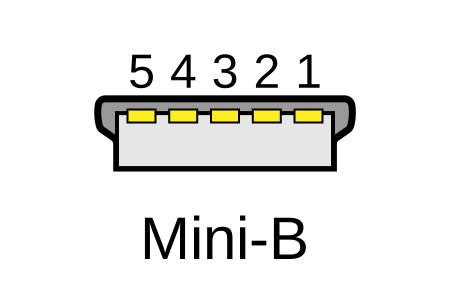
Fred the Oyster, CC BY-SA 4.0 , via Wikimedia Commons
One of the first connectors for charging a smartphone, wireless game controller (such as the Sixaxis and DualShock 3), and other small devices such as external hard drives. Not commonly used today, but is still used in some cases. Most devices using USB Mini B are using USB 2.0, though a USB 3.0 variant does exist. This specification also added USB On-The-Go (OTG) functionality, though it is more commonly implemented with Micro USB.
USB Micro-B

Fred the Oyster, CC BY-SA 4.0, via Wikimedia Commons
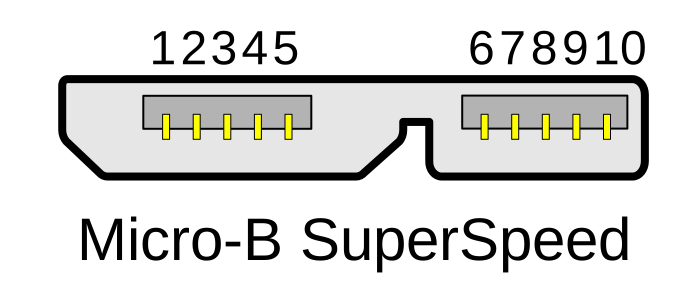
IngenieroLoco, CC BY-SA 4.0 , via Wikimedia Commons
A smaller connector that serves many of the same uses as the Mini B connector, with added optional features such as Mobile High-Definition Link (MHL) to allow devices like smartphones to output video to larger displays without requiring a dedicated port for video output.
The larger variant of USB-B is most commonly used for external hard drives for higher 5Gbps transfer rates.
USB-C, Thunderbolt™ 3, and Thunderbolt™ 4
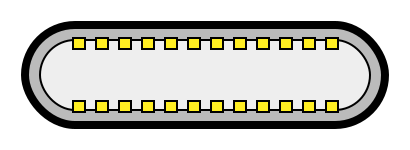
Niridya , CC0, via Wikimedia Commons
The most recent USB connection, USB Type-C (USB-C), represents a major change in what USB can do. The connector is smaller, can be connected in two orientations, is able to carry substantially more power and data, and can directly carry video signals of multiple types (HDMI, DisplayPort, etc.) Intel has also adapted the USB-C connector for use with Thunderbolt 3 and Thunderbolt 4.
It is important to note that while all Thunderbolt 3 and Thunderbolt 4 connections are USB-C, not all USB-C connections can be used with Thunderbolt 3 or Thunderbolt 4 devices.
More details regarding physical USB connections can be found on Wikipedia . The graphics depicted here are adapted from Wikimedia Commons by various artists under the Creative Commons Attribution-Share Alike 3.0 Unported license.
Self-Powered vs Bus-Powered USB Devices
What Is the Difference Between Self-Powered and Bus-Powered USB Devices?
Self-powered USB device - A device that takes all of its power from an external power supply
Bus-powered USB device - A device that takes all of its power from the host computer's USB interface.
Why High-Current Devices Require External Power
While all USB ports provide some amount of power for attached devices, the available power may not be enough for certain high-current devices such as USB hubs or external hard drives. Bus-powered devices can cause issues if they need more power than is available from the host machine, as each additional device attached to the host computer reduces the total available bus power. If the power runs out, any USB device attached to the computer may suddenly disconnect, which could result in permanent data loss for a USB storage device.
How to Use Devices with Included Power Adapters
Many devices that include power adapters, especially USB hubs, will function in either self-powered or bus-powered mode. If a device comes with a power adapter, it should stay connected at all times, otherwise the device may not function as designed.
Applicable To
USBC-11IN1E, USBC-10IN1E, USBC-9IN1E, USBC-7IN1E, USBC-7IN1, AD-6IN1, USBC-4IN1, USB3-HUB4A, USBC-HUB4A, AMS-5IN1E, USB4-HUB3A, TBT4-HUB3C, USBC-HUB7BC, USB3-HUB7C, USB3-HUB3ME
Is this hub a good match for my Raspberry Pi?
Because the Raspberry Pi is a USB 2.0 device and can’t take advantage of USB 3.0 functionality as well as mixed results from users, we do not recommend this hub for use with the Raspberry Pi. The hub we do recommend is our 7 port USB 2.0 hub.
Why does my wireless mouse or keyboard appear sluggish or not work properly when used with the hub?
Most USB receivers for wireless mice and keyboards operate in the 2.4Ghz band. When connecting the receiver to any USB 3.0 port there is potential for interference that can affect the devices performance. The most effective method is to add a short USB 2.0 extension cable between the hub and the receiver to mitigate the effect, and many wireless keyboards and mice come with such a cable for this reason.
What is the 2.4GHz ISM Band and why is it "crowded"?
This is a range of radio frequencies from 2.400 to 2.4835 GHz set aside for industrial, scientific, and medical equipment. It is most commonly used for Wi-Fi, Bluetooth, and other consumer radio electronics. Many devices sharing the same narrow radio frequency range has caused this to become very noisy, imagine being in a small room with 20 other people having their own conversations, some are screaming, others are whispering. Like you in that room, consumer wireless devices have to be close to, and speak loud enough to be heard over the din.
USB 3 devices can also emit radio noise in the same band, this is created by data streaming through the USB host controller in a computer, or hubs in docking station, and emitted generally from the USB 3 port where shielding is limited by the need to connect a device. This noise is like turning on a high velocity fan in the room full of people, now there is a background hum that everyone has to talk over, those who can't speak loud enough are simply drowned out.
This can occur with wireless mouse and keyboards, they generally don't have very powerful radios for communication and require direct line of sight with the transceiver in order to provide a strong enough signal to be responsive.
What is the recommended setup?
We recommend using a USB 2.0 extension cable to connect the wireless transceiver to the docking station, and placing the transceiver as close as possible to the mouse an keyboard, normally with direct line of sight about 3ft is a good maximum distance. If the mouse and keyboard are on a pull-out tray under a desk it can be helpful to put the transceiver over the back end of the desk for better line of sight.
If the transceiver is on the opposite side of the computer from the mouse/keyboard this can cause reduced performance, similarly placing it behind a power supply, or radio source ( like a Wi-Fi access point ) can cause connectivity issues. We generally recommend keeping any radio sources away from the work area as much as possible. Just as USB 3 devices can emit Radio interference, they are also susceptible to radio interference from other devices.
If you have any questions please feel free to contact us at support@plugable.com and we'll be happy to help!
Do Plugable products support the Apple SuperDrive?
No, Plugable products do not support the Apple SuperDrive.
Why do Plugable products not support the Apple SuperDrive?
The Apple SuperDrive has stringent power requirements that can only be met by directly connecting the SuperDrive directly to the host computer. As a result at this time Apple recommends only using their USB-C adapter cables. Apple provides more information on this topic here → How to connect the Apple USB SuperDrive
Applicable To
- All Plugable brand products
Why Do Plugable Electronics Generate Heat During Operation?
Yes, heat generation is a normal byproduct of operation for electronic devices and Plugable products as electrical energy is consumed and transferred. Power delivery, high-speed data transfers, and active peripheral usage naturally convert electrical energy into thermal energy. Plugable designs its products with thermal safety margins to ensure operational temperatures remain within safe limits.
Why Plugable Electronics Generate Heat
Electrical components generate heat as current flows through them, with higher power usage-such as charging host laptops or conducting fast data transfers-increasing thermal output. Many Plugable products, such as the TBT3-UDZ and TBT4-UDZ docking stations, feature aluminum enclosures engineered with internal thermal pads to function as heat sinks. This design transfers internal heat outward to radiate into the room. This protects internal components, however can cause the external surface to feel warm or hot. Higher ambient room temperatures, direct sunlight, and obstructions to air currents around the device may also contribute to increased surface heat. While Underwriters Laboratories (UL) sets a thermal safety threshold of 77°C (170.6°F), Plugable targets a lower operational ceiling of approximately 71°C (160°F) under the heaviest of loads.
How to Manage Heat Generation in Plugable Products
To keep operating temperatures as low as possible, ensure Plugable devices have sufficient ventilation around them and are not placed in enclosed spaces. Avoid connecting an excessive number of power-hungry USB accessories that exceed the power limits of your dock or hub, as higher power draw causes the unit to run warmer (for example USB fans, heaters, cup warmers etc). Expect temporary increases in surface temperature during intensive workloads such as simultaneous multi-device charging and high-bandwidth data transfer.
Conclusion
Experiencing heat from Plugable products is a normal aspect of the operation of high-performance devices. Users can rest assured that we prioritize the safety and efficiency of our devices. By understanding the factors influencing heat generation and following simple usage guidelines, users can make the most of their Plugable products while ensuring a reliable and efficient user experience.
Applicable To
- Plugable docking stations, including TBT3-UDZ and TBT4-UDZ models
- Plugable USB hubs, video adapters, and electronic accessories
- Electronic devices utilizing metal heat-dissipating enclosures
If you have any questions please feel free to contact us at support@plugable.com and we'll be happy to help!
Why Higher Voltage Power Supplies Are Included with USB 5V Hubs and Docks
Maybe you are looking for a replacement power supply, or maybe you are just curious, but why would a USB hub - which provides 5V to USB devices - would include a power adapter rated at 12V or potentially higher?
Improved Voltage Regulation Under Load
When multiple USB devices are connected - especially high-draw peripherals like external drives or charging phones - the demand on the dock’s internal power can spike. If the power supply were delivering only 5V, any load increase might cause voltage "sag," potentially leading to unstable or unreliable performance.
By starting with a higher voltage like 12V or 20V, the internal voltage regulators within the dock or hub can more reliably and efficiently step down that voltage to a consistent 5V, even under heavy load. It’s similar to having a reservoir or water tower above a village - you’ll have more reliable water pressure regardless of demand.
Greater Power Efficiency Over Distance
Transmitting power at higher voltage and lower current reduces energy loss due to resistance in the wires (which causes heat). By increasing the voltage we can decrease the amperage for the same power, and power loss in the line is directly proportional to amperage squared so even a small decrease in the amperage adds up quickly. Once the power reaches the dock, it's stepped down to the voltages needed for USB ports. This not only enhances efficiency but also makes compact, cooler-running designs possible.
Special Consideration for USB-C Docks
USB-C docks commonly include 20V power supplies, which serve a dual purpose:
- Supplying 5V for downstream USB devices
- Delivering up to 100W (or more) to host laptops via USB-C Power Delivery
With USB Power Delivery 3.1 (EPR), even higher voltages (up to 48V) are supported, enabling future docks and laptops to handle even more powerful devices like desktop replacement laptops or external GPUs.
Will Future Docks Use 48V Power Supplies?
It's likely. While 20V is common now (especially for consumer devices), 24V+ power supplies are widespread in industrial and telecom applications. As high-performance laptops and workstations demand more power, consumer docks may start including 24V, 36V, or even 48V adapters. These would align with USB PD 3.1 specs and simplify designs that support extended power ranges.
However, for now, 12V and 20V remains as sweet spots for cost, availability, and compatibility across a wide range of devices.
In Summary
Higher voltages like 12V or 20V are used for better regulation and more efficient power delivery.
USB-C docks use 20V to support Power Delivery charging host computers or downstream devices (up to 100W).
USB PD 3.1 EPR opens the door to 48V systems, and while uncommon now, future docking stations may shift to 48V as demand grows.
If you have any questions please feel free to contact us at support@plugable.com and we'll be happy to help!


