Hassle free, 90-Day Warranty
Fast, Free Shipping on Orders $35+
Lifetime Technical Support
30-Day Money Back Guarantee
Give Tech a Second Life
This refurbished Plugable product is fully tested, supported, and ready for use. Buying refurbished helps reduce e-waste while offering a lower-cost option for dependable tech.
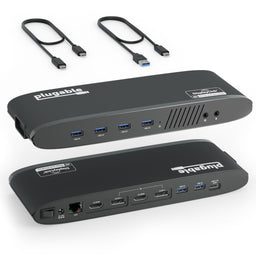
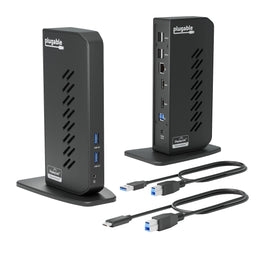
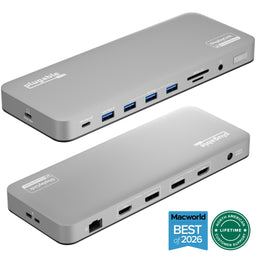
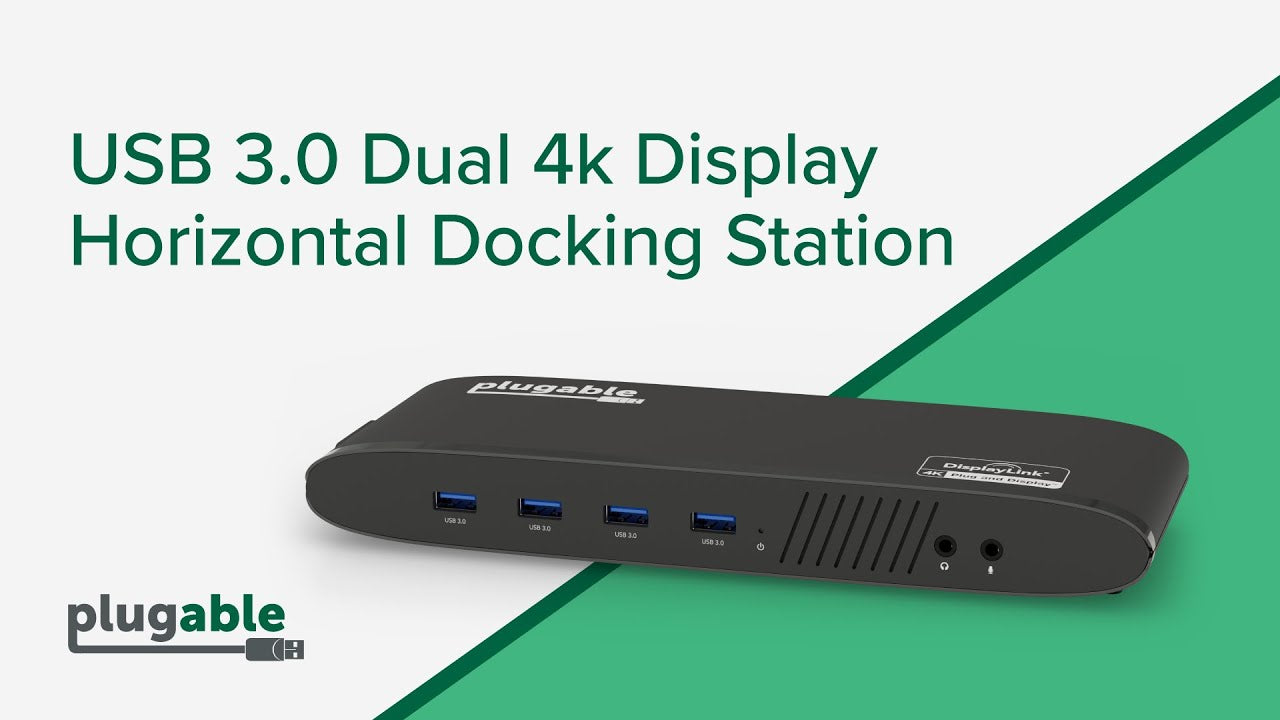
Plugable Universal Dual HDMI Monitor Docking Station for Dell, HP, Lenovo, Macbook (B-Stock)
$104.99
$62.99
USD
SKU: UD-3900H-BSTOCKFeatures
- Universal Docking Station— This USB and USB C docking station (UD-3900H) offers flexible expandability for modern and legacy laptops. With 12 port expansion including dual video outputs, and broad compatibility, this DisplayLink docking station is great in mixed laptop environments
- Dual HDMI Displays— Docking station dual monitor supports 2x displays up to 1920x1200 @ 60Hz refresh rate, even if your computer only supports one output, like an M1, M2, or M3. Compatible with all newer Apple Silicon systems, including M4 and M5. First output is HDMI, second output can support HDMI, DVI, or VGA display with included adapters
- Universal Compatibility— Laptop docking station ideal for mixed laptop environments, compatible with Windows 7 through 11, macOS 10.14+, and ChromeOS 100.x or later laptops. Auto driver installation via Windows Update; manual on macOS. Supports DisplayLink corporate installer deployment. Doesn’t charge laptop; includes its own power adapter so it won't drain your laptop's battery
- Recommended Use— Windows, Chromebook, and MacBook docking station is suited for environments with multiple operating systems. Not recommended for gaming. Ideal for use with web and productivity software. Does not support HDCP for streaming services like Netflix or Hulu
- Lifetime Support— This device has been designed with reliability at its core and was built to meet the deployment demands of IT departments and the ease of use necessary for home offices. Includes lifetime support from our North American team of connectivity experts
- 90-Day Warranty— All Plugable B-Stock products are covered by a 90-day limited warranty against any defects in materials or workmanship.
For volume orders or business inquiries contact sales@plugable.com
Tech Specs
| Dual Display Support | Two 1920 x 1200 60Hz HDMI displays with options to expand to DVI or VGA with included adapters |
| Universal Compatibility | Ideal for mixed laptop environments—seamlessly compatible with Windows 7–11, macOS 10.14+, and ChromeOS 100.x or later. Connect to the host device via the included USB-A or USB-C cable. |
| Streamline Connectivity | Boost productivity with 2 USB 3.0 ports for fast 5Gbps transfers and 4 USB 2.0 ports for seamless peripheral connections. High-speed wired networking via Gigabit Ethernet and crystal-clear audio through dedicated headphone and mic jacks. |
| Intended Use | Ideal for web browsing and productivity software such as word processing, spreadsheets and web browsing. Not recommended for gaming, video editing, or rendering |
A: Yes, the UD-3900H is compatible with MacBooks and iMacs running macOS 10.14 or later. You'll need to install DisplayLink drivers, and we provide step-by-step instructions on the Plugable website to guide you through the process.
A: No, the UD-3900H does not provide power to the laptop
A: Yes, driver installation is required. On Windows, the drivers can install automatically via Windows Update, while on macOS, you'll need to manually install the DisplayLink Manager Application.
A: macOS requires "Screen Recording" for the DisplayLink driver to work properly. Approving it enables the driver to send data over USB from your computer to the DisplayLink-powered display. No data, images, or pixels are being stored or recorded.
A: While DisplayLink drivers are usually automatically installed, for corporate or restricted environments, manual installation may be required.
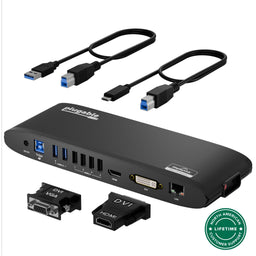
In The Box
| Item and Quantity | Item Notes |
|---|---|
| 1x USB 3.0 Universal Horizontal Docking Station | |
| 1x Power Adapter | Region-specific power outlet adapters are included for purchases in the UK, EU and AUS. |
| 1x Passive DVI to HDMI adapter | |
| 1x Passive DVI to VGA adapter | |
| 1x USB 3.0 A to B Cable | |
| 1x USB 3.0 C to B Cable | |
| 1x Quick Start Guide |
Included Cables
| Port Type (Side 1) | Cable Specification | Port Type (Side 2) | Cable Length | External Power for Cable |
|---|---|---|---|---|
| Male USB-A | USB 3.0 (5Gbps) | USB-B (3.0) | 0.84m/2.76ft | No |
| Male USB-C | USB 3.0 (5Gbps) | USB-B (3.0) | 0.84m/2.76ft | No |
LEDs
| LED Number | Shape | Color | Status | Definition | Notes |
|---|---|---|---|---|---|
| 1 | Dot | Blue | Solid | Powered on |
Video
| Port | Placement | Specification | Max Resolution and Refresh Rate | HDCP | Chipset |
|---|---|---|---|---|---|
| 1x DVI (HDMI or VGA with Bundled Adapters) (Output) |
Rear | DVI-I (Single Link) | 1920x1200 @ 60Hz 1920x1200 @ 60Hz1920x1080 @ 60Hz 1600x900 @ 60Hz 1280x1024 @ 60Hz 1280x800 @ 60Hz 1280x720 @ 60Hz 1152x864 @ 60Hz 1024x768 @ 60Hz 800x600 @ 60Hz 640x480 @ 60Hz |
Not Supported | DL-3900 DisplayLink |
| 1x HDMI (Output) |
Rear | HDMI 1.3 | 2560x1080 @ 60Hz 2560x1440 @ 50Hz1920x1080 @ 60Hz 1600x900 @ 60Hz 1280x1024 @ 60Hz 1280x800 @ 60Hz 1280x720 @ 60Hz 1152x864 @ 60Hz 1024x768 @ 60Hz 800x600 @ 60Hz 640x480 @ 60Hz |
Not Supported | DL-3900 DisplayLink |
Audio
Power
| Port | Placement | Power Host / Device | Connection Type | Notes | Voltage | Amperage | Wattage |
|---|---|---|---|---|---|---|---|
| Power Supply | Rear | Device | Region-specific Power Adapter | UL 60950-1 Certified | 12.0V | 2.0A | 24.0W |
USB To Devices
| Port | Placement | Version and Link Rate | Features | Voltage | Amperage | Wattage |
|---|---|---|---|---|---|---|
| 2x USB-A | Front | USB 3.0 (5Gbps) | 5V | 900mA | 4.5W | |
| 4x USB-A | Rear | USB 2.0 (480Mbps) | 5V | 500mA | 2.5W |
Connection To Host
| Port | Placement | Version and Link Rate | Features |
|---|---|---|---|
| 1x USB-A or USB-C | Rear | USB 3.0 (5Gbps) |
Wired Network
| Port | Placement | Version and Link Rate | Features | Chipset |
|---|---|---|---|---|
| DisplayLink Gigabit Ethernet | Rear | 1000BASE-T | DL-3900 DisplayLink |
Physical Stats
| Item | Size (H x W x D) or Length | Weight | SKU or Part Number |
|---|---|---|---|
| USB 3.0 Docking Station | 3 x 24 x 8 centimeters 1.2 x 9.4 x 3.1 inches |
323.2 grams 11.4 ounces |
UD-3900H |
| Laptop Compatibility | Compatible with most modern laptops and desktops running Windows 11 / 10 / 8.x / 7, Macs with macOS 11+, and ChromeOS version 100 or newer. The box includes a USB-C and USB-A host connection cable to connect the dock to your laptop or desktop. |
| Monitor Compatibility | Supports two high-resolution monitors up to 1920x1200 @ 60Hz. Compatible with HDMI DVI and VGA displays. Dual HDMI displays supported with included adapter. Conversion to Dual-Link DVI (DL-DVI) is not supported. DisplayPort displays are not supported. |
| Software Compatibility | DisplayLink is a flexible and versatile technology that’s great for most users’ workflow. But there are a few scenarios where it’s not the right fit such as gaming and HDCP (copy-protected) content playback from Blu-ray/Netflix/Prime/ iTunes/Hulu/etc. |
| Power and Charging | This dock does not provide power to the connected laptop. The laptop will still require a separate charger. |
macOS Installation and Setup
- Download and install the DisplayLink Manager for macOS.
- Detailed installation and configuration instructions can be found by clicking on the "INFO" button, or in the next step.
- Please follow the detailed instructions below to install and configure the DisplayLink software for your version of macOS:
- Connect the power supply to your wall socket or power strip, and then to the docking station.
- Connect the displays to the docking station.
- Using the USB cable provided with the docking station, connect the dock to the computer through the dock's host USB port labelled with a Laptop icon .
Windows Installation and Setup
- Download and install the DisplayLink software.
- Connect the power supply to your wall socket or power strip, and then to the docking station.
- Connect the displays to the docking station.
- Using the USB cable provided with the docking station, connect the dock to the computer through the dock's host USB port labelled with a Laptop icon .
ChromeOS Installation and Setup
- No driver download is necessary, through ChromeOS version 100 or later is required.
- Connect the power supply to your wall socket or power strip, and then to the docking station.
- Connect the displays to the docking station.
- Using the USB cable provided with the docking station, connect the dock to the computer through the dock's host USB port labelled with a Laptop icon .
Current Drivers and Software
macOS users, please click the 'INFO' button in the table below for important installation instructions.
| Platform | Important Notes | Date | Version and Download |
|---|---|---|---|
| Windows 11 and 10 | Drivers will typically install automatically through Windows Update. See the following article for more information about installing the DisplayLink driver. |
January 26, 2026 | DisplayLink Software 12.2 M0 |
| macOS 26, 15, and 14 | macOS 14, 15, and 26 installation instructions for the DisplayLink Manager App available on our knowledge base. |
February 19, 2026 | DisplayLink Manager App 15.1 |
| ChromeOS | ChromeOS supported with latest software updates installed (version 100 or later) See the following article for more information on using DisplayLink products on ChromeOS. |
No driver installation needed |
Legacy Drivers for Older Systems
| Platform | Important Notes | Date | Version and Download |
|---|---|---|---|
| Windows 8.x and 7 | Drivers often install automatically through Windows Update. See the following article for more details about installing the DisplayLink driver. |
September 22, 2022 | DisplayLink Software 10.3 M0 |
| Windows Vista | January 7, 2015 | DisplayLink Software 7.7 M3 | |
| Windows XP | July 18, 2014 | DisplayLink Software 7.6 M2 | |
| macOS 13 | macOS 13 installation instructions for the DisplayLink Manager App available on our knowledge base. |
November 18, 2025 | DisplayLink Manager App version 14.2 |
| macOS 12 | macOS 12 installation instructions for the DisplayLink Manager App available on our knowledge base. |
August 27, 2024 | DisplayLink Manager App version 1.10.3 |
| macOS 11 | macOS 11 installation instructions for the DisplayLink Manager App available on our knowledge base. |
September 8, 2021 | DisplayLink Manager App version 1.9 |
| macOS 10.15 | DisplayLink Manager App Installation Instructions See the following article for more information about the macOS DisplayLink Manager app. |
September 8, 2021 | DisplayLink Manager App version 1.5 |
| macOS 10.14 | It is highly recommended to follow along our instructions on installing the legacy driver to ensure the driver loads properly. See the following article for more information about the macOS Legacy driver. |
August 13, 2020 | DisplayLink Software 5.2.5 |
Filter Help Articles and Frequent Questions by Category
Choose one or more filters within each category to narrow down the articles. Each selection will result in only displaying articles that include all of your choices.
Articles
Well how about that, it looks like we don't have any articles matching your filters! Try removing one of your choices or clear the filters to show all articles.
You can always contact support if you need help too!