


Hassle free, 2-Year Warranty
Fast, Free Shipping on Orders $35+
Lifetime Technical Support
30-Day Money Back Guarantee
Plugable Thunderbolt™ 3 HDMI 2.0 デュアル グラフィック変換アダプター Windows、Mac 用
$119.00 USD
SKU: TBT3-HDMI2X-83Amazon Rating : (174 Reviews)
機能
- Two 4K Displays— Add two HDMI displays up to 4K 60Hz to your Thunderbolt 3 Apple Mac at full native GPU performance. Supports popular display modes such as 3840x2160 @ 60Hz (4K) and 1920x1080 (1080p)
- HDMI Only— Adapter video output ports are HDMI only, DisplayPort displays are not supported. If DisplayPort outputs are required, please search for TBT3-DP2X-83
- Windows Compatibility— Compatible with select Windows Thunderbolt 3 systems. Not all Windows systems support dual video output. Please see important compatibility details below prior to purchase
- Apple Compatibility— Requires a Thunderbolt 3 Apple Mac with an Intel processor. Macs with an Apple M1 processor and ‘USB-C only’ systems are not supported
- 2-Year Coverage, Lifetime Support— Every Plugable product, including this thunderbolt 3 to HDMI adapter, is covered against defects for 2 years and comes with lifetime support. If you ever have questions, contact our North American-based team - even before purchase
For volume orders or business inquiries contact sales@plugable.com
Plugable's Thunderbolt 3 to Dual HDMI Display Adapter
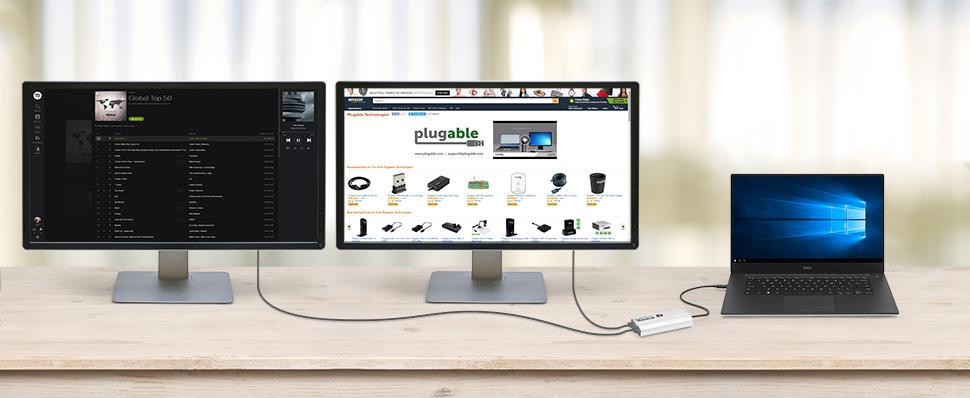
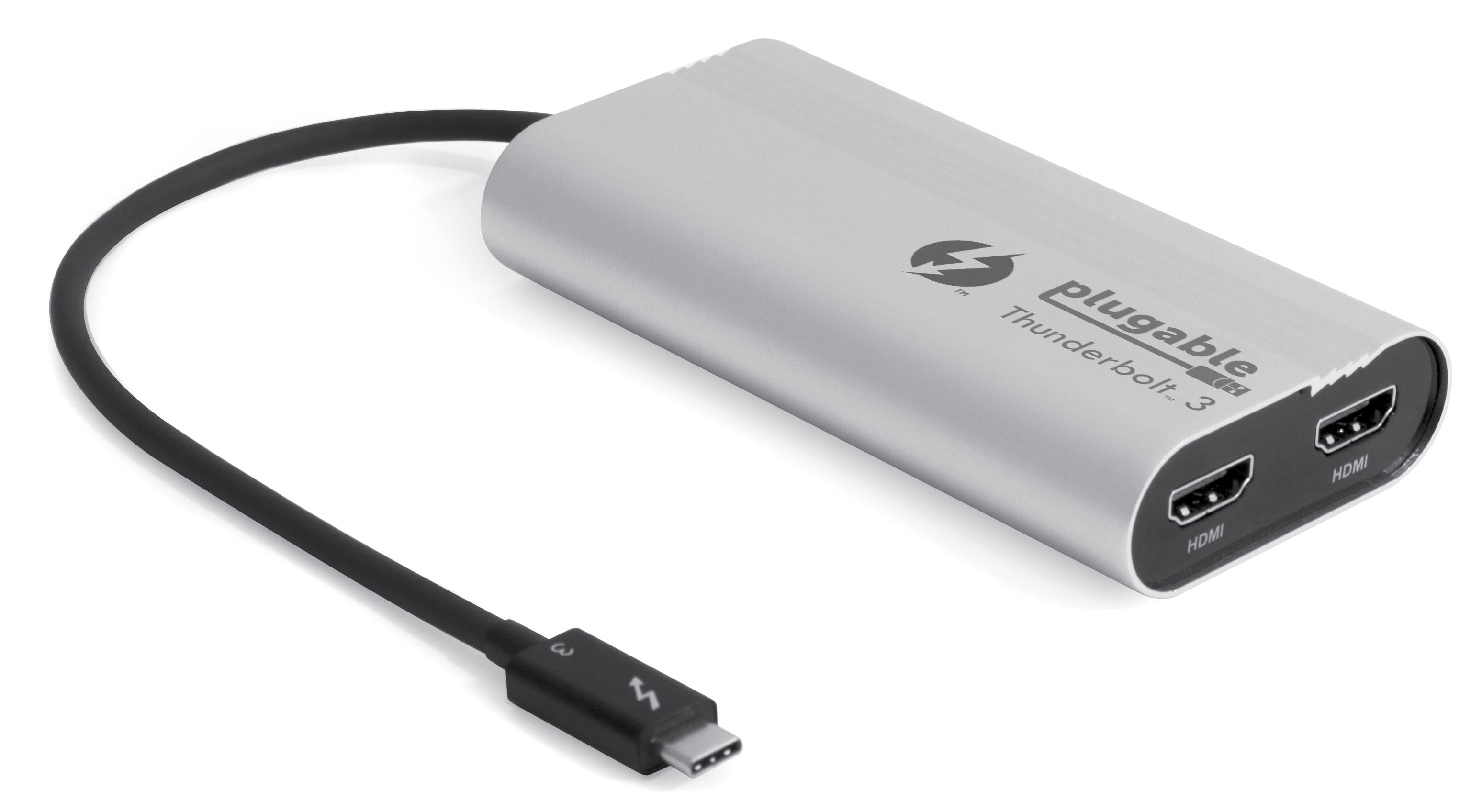
Leveraging 40Gbps of bandwidth made possible by Intel's Thunderbolt 3 technology, Plugable's Thunderbolt 3 Dual DisplayPort Display Adapter (TBT3-HDMI2X-83) enables content creators and power users to connect two additional displays to their Thunderbolt 3 enabled laptop with uncompromising graphics performance. The adapter housing is made from sleek, lightweight aluminum allowing for easy expansion of your Thunderbolt 3 laptop or tablet on-the-go.
Thunderbolt 3 のすべてのシステムが、2 台のモニター接続に対応しているわけではありません。システムの互換性に関する重要な詳細は「互換性」タブを参照してください。
1 つで 2 台までの外部モニタを接続
Thunderbolt 3-attached displays tap directly into the power of your system's graphics processor to enable high-performance, low-latency output without utilizing additional system resources. Supports two HDMI displays up to 3840x2160 @ 60Hz (4K/UHD). Backward compatible with 1920x1080 (1080p) displays as well.
Thunderbolt 3 is a powerful technology, and system manufacturers have substantial discretion in how they implement various Thunderbolt 3 technical elements and features. As a result, compatibility information is complex and some currently available Thunderbolt 3 systems aren't compatible with our dual graphics adapters. To work as expected with our Dual HDMI Adapter, the host Thunderbolt 3-enabled system must meet the following requirements:
- コンピュータの Thunderbolt 3 ポートに、物理的に 2 本の DisplayPort 信号ラインが接続されていること。 Apple 社、Dell 社、HP 社、Lenovo 社の一部の Thunderbolt 3 対応システムなどが、この要件を満たしています。(M1 チップ搭載の MacBook システムは、1 台の外部モニタしかサポートしていません。)
- Thunderbolt 3 システムメーカーの最新のホストファームウェア(「NVM」)をシステムに適用する必要があります。
- コンピュータ・メーカーが提供する最新の UEFI BIOS、Thunderbolt 3 ドライバ、グラフィックス(GPU)用ドライバを適用済みであること
- Please note this adapter connects to monitors using the HDMI standard, which is different from DisplayPort. A separate DisplayPort version of the adapter is available if connectivity to DisplayPort displays is needed
The following systems are fully compatible with our Thunderbolt 3 Dual DisplayPort Display Adapter (TBT3-HDMI2X-83):
- Apple MacBook Pro 2016/2017/2018/2019、Apple MacBook Air 2018/2019/2020(Intel CPU 採用モデル)
- Dell XPS 13 9350、XPS 13 9360、XPS 13 9730、XPS 13 9380
- Dell XPS 15 9550、Dell XPS 15 9560、Dell XPS 15 9570
- Intel NUC models NUC8i7HNK, NUC8i7HVKIntel NUC models NUC9VXQNX, NUC9V7QNX,NUC9i9QNX, NUC9i7QNX, NUC9i5QNX
- 他社製の Thunderbolt 3 対応の USB-C ポートを搭載した Windows システムでも使用できますが、システムによっては 2 台のモニター接続をサポートしていない場合があります(詳細は下記をご覧ください)。
1 台のモニタのみサポートする PC システム
マザーボード設計において、Thunderbolt 3 ポートに接続されている DisplayPort 信号レーンが 1 つのシステムは、2 台のモニター分のグラフィック出力ができません。したがって、当グラフィック変換アダプターのご使用はお勧めしていません。例えば、下記のようなシステムがこれに該当します。
- Intel NUC:NUC10i7FN、NUC10i5FN、NUC10i3FN
- Intel NUC: NUC8v7PN、NUC8v5PN、NUCi3PN
- Intel NUC: NUC8i3BEH、NUC8i3BEK、NUC8i5BEH、NUC8i5BEK、NUC8i7BEH、NUC8i7BEK
- Intel NUC:NUC7i5BNH、NUC7i5BNK、NUC7i7BNH
- Intel NUC:NUC6i7KYK
PC システム要件
Windows 10, 8.1, and 7 systems with Thunderbolt 3 support built-in. Apple systems running macOS 10.12 or later with Thunderbolt 3 support built-in. Adapter will not function if attached to a non-Thunderbolt 3 capable USB-C port. Thunderbolt 3 port required for operation.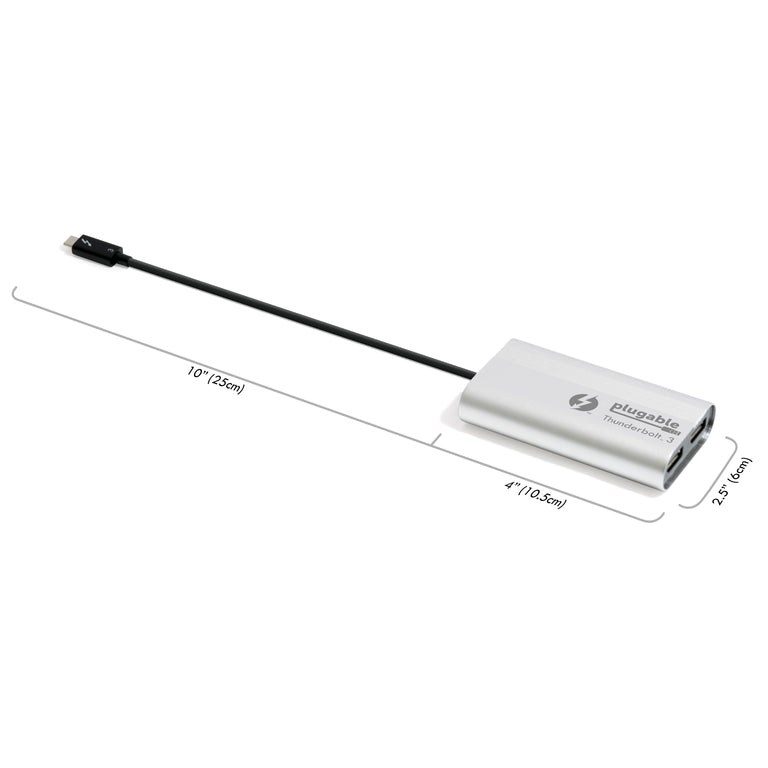
システム互換性
- ホストシステム側で、最新状態に更新された NVM ファームウェア、システム BIOS、Thunderbolt / GPU ドライバが必要です。
- 2 台のモニタを接続するためには、コンピュータのマザーボードがそのように設計されている必要があります。システムによっては、 1 台のモニタしかサポートしない Thunderbolt 3 ポートを搭載しています。
- macOS および Windowsシステムに対応しています。Linux システムでは使用できません。
- Thunderbolt 3 に対応していない USB Type-C ポートでは稼働しません。
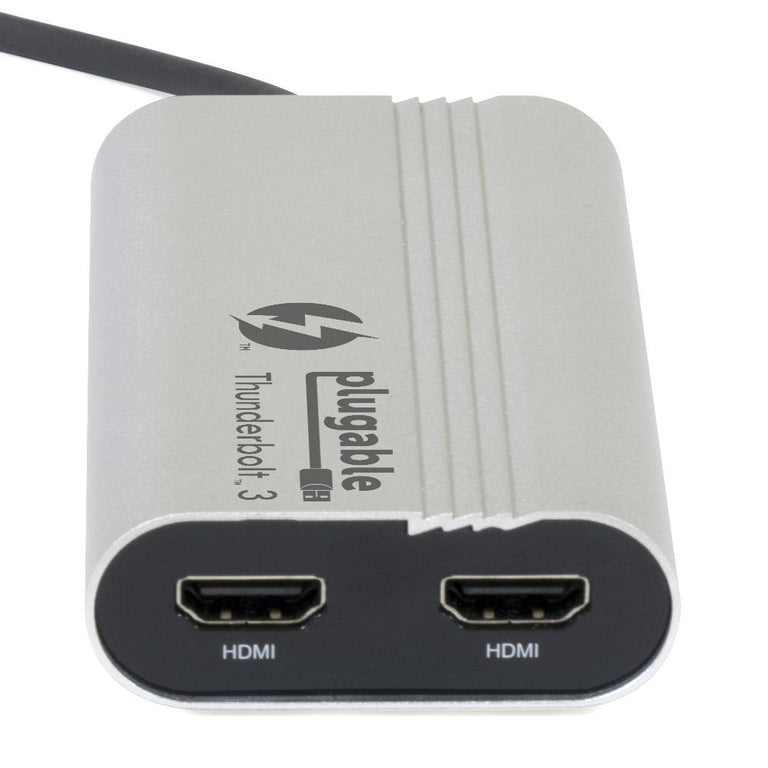
- Made for HDMI displays only (not DisplayPort)
対応する解像度
720p~4K までの下記のような解像度に対応します。ただし、接続するモニタが対応している解像度であることが必要です。
- 3840x2160 @ 60Hz
- 3440x1080 @ 60Hz
- 2560x1600 @ 60Hz
- 2560x1440 @ 60Hz
- 1920x1080 (1080p) @ 60Hz
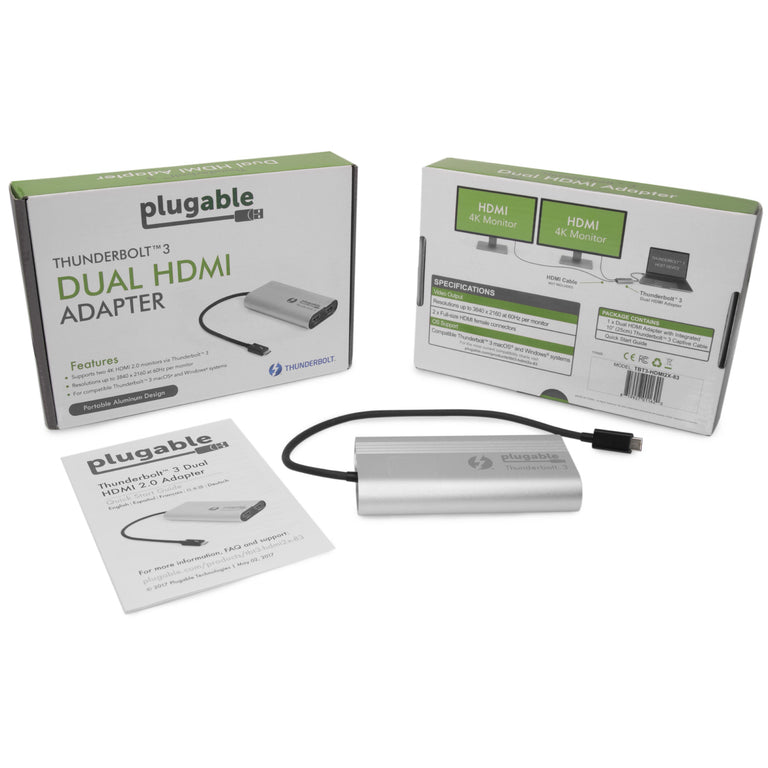
パッケージ内容
- 1x Plugable TBT3-HDMI2X-83 w/ built-in 10in (25cm) Thunderbolt 3 USB-C cable
- クイック・スタート・ガイド
Filter Help Articles and Frequent Questions by Category
Choose one or more filters within each category to narrow down the articles. Each selection will result in only displaying articles that include all of your choices.
Articles
Well how about that, it looks like we don't have any articles matching your filters! Try removing one of your choices or clear the filters to show all articles.
You can always contact support if you need help too!
Can I Connect a DisplayPort (DP) Monitor to the HDMI Port on This Device Using an Adapter or Cable?
No. Most DisplayPort to HDMI cables and adapters are one-way adapters from a DisplayPort Source (computer or docking station) to a HDMI Sink (television, computer monitor, or projector). These cables do not work in reverse.
Why is DisplayPort to HDMI often a one-way conversion?
DisplayPort uses packet-based data transmission, breaking the video stream into individual packets of data allows for longer cable runs, use in both copper and fiber-optic cables, and allows for higher bandwidth than other video formats. It is relatively easy to convert from DisplayPort to HDMI (computers with HDMI output ports already do this internally) and dual-mode DisplayPort outputs (DP++) have built-in adapters to output a HDMI signal for use with passive DisplayPort to HDMI adapters.
HDMI historically uses a Transmission-Minimized Differential Signaling (TDMS) video signal originally based on DVI's signal, this requires more power to operate at the same cable lengths as DisplayPort and requires significantly more processing power to convert from HDMI to DisplayPort packet-based data. The latest HDMI specifications enable the new Fixed Rate Link (FRL) which is packet based similar to but not directly compatible with DisplayPort.
Externally powered HDMI to DisplayPort adapters do exist, these generally have a USB or small barrel plug for power, and can convert from a HDMI Source to DisplayPort Sink. In most cases they have reduced resolution or refresh rates compared to modern signal sources and can introduce delay in the data connection between the display and computer potentially causing reduced connectivity or display performance problems.
We do not currently recommend using HDMI to DisplayPort adapter with our docking stations. In our testing they have been unreliable compared to a native DisplayPort connection. Many of our newer docking stations include both HDMI and DisplayPort outputs to reduce the need for additional adapters or adapter cables.
If you have any questions please feel free to contact us at support@plugable.com and we'll be happy to help!
No Sound? How to Change Your Default Audio Device to Your Plugable Product
Whether you're on Windows, macOS, or Linux, it's common to add new audio devices to your computer.
Some examples of additional audio devices you may want to switch to include:
- Bluetooth headsets, headphones, and speakers
- Speakers built into a display, such as a TV or monitor
- A USB sound card, digital audio converter (DAC), or analog to digital converter (ADC)
- USB microphones
- Audio jacks on a docking station
These steps don't apply to the Plugable Performance NIX HDMI Capture Card (USBC-CAP60).
Here are the steps that you need to set a new default audio recording or output device on different operating systems.
Set Audio Output Device
Set Audio Recording Device
Set Default Playback Device in Windows
- Check that your device is properly connected, and that any necessary drivers are installed
- It is also a good idea to make sure that your sound device is turned on, and that the device's volume control is not at the absolute minimum setting
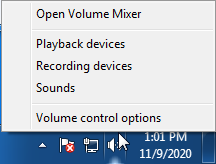
- Right-click on the speaker symbol in the Windows taskbar/system tray
-
Windows 7/8.x—Select Playback Devices. The Sound window will open with the Playback tab highlighted
-
Windows 10/11—Select Open Sound Settings then click the link under 'Related Settings' for Sound Control Panel, then click the Playback tab
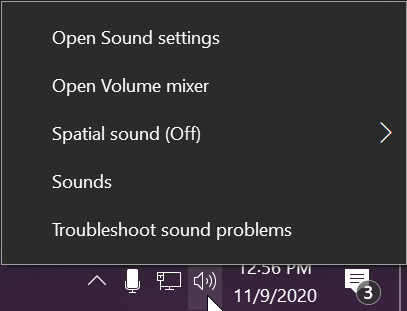
- Alternatively, after selecting Open Sound Settings, use the dropdowns under the Output header
-
Windows 7/8.x—Select Playback Devices. The Sound window will open with the Playback tab highlighted
- Find your device in the window
- A Plugable USB 3.0 docking station or sound-enabled display adapter will appear as Plugable Audio
- A Plugable USB 3.0 Silicon Motion docking station or sound-enabled display adapter will appear as SMI USB Audio
- A Plugable USB 2.0 docking station will appear as USB Multimedia Audio Device
- A Plugable USB Audio adapter will appear as USB Audio Device
- Right-click on the device you found in step 3 and select Set as Default Device. A check mark should appear next to your device, and sound should now play through it
- Click OK to exit the window
Additional Configuration for Bluetooth
Please see our pairing and configuration guide for Bluetooth devices.
Set Default Playback Device in macOS
- Open System Preferences
- Click Sound
- Select Output
- Select the most appropriate device
- A Plugable USB Audio adapter will appear as USB Audio Device
Set Default Playback Device in Linux
- Ensure that you audio device is connected to the PC
- If the audio device is self-powered, it is a good idea to make sure that it is powered on, and that the device's volume control is not at the absolute minimum setting
- Launch the 'Settings' application in your distro
- Go to the 'Sound' option
- Find the dropdown for your 'Output Device', and change it to your preferred output device
- For additional sound device controls, you may want to consider using Pulseaudio Volume Controls (package name pavucontrol)
Set Default Recording Device in Windows
- Check that your device is properly connected, and that any necessary drivers are installed
- It is also a good idea to make sure that your sound device is turned on, and that the device's volume control is not at the absolute minimum setting
- Right-click on the speaker symbol in the Windows taskbar/system tray
-
Windows 7/8.x—Select Recording Devices. The Sound window will open with the Recording tab highlighted
-
Windows 10/11—Select Open Sound Settings then click the link under 'Related Settings' for Sound Control Panel, then click the Recording tab
- Alternatively, after selecting Open Sound Settings, use the dropdowns under the Input header
-
Windows 7/8.x—Select Recording Devices. The Sound window will open with the Recording tab highlighted
- Find your device in the window
- A Plugable USB 3.0 DisplayLink docking station or sound-enabled display adapter will appear as Plugable Audio
- A Plugable USB 2.0 docking station will appear as USB Multimedia Audio Device
- A Plugable USB Audio adapter will appear as USB Audio Device
- Right-click on the device you found in step 3 and select Set as Default Device. A check mark should appear next to your device, and sound should now play through it
- Click OK to exit the window
Additional Configuration for Bluetooth
Please see our pairing and configuration guide for Bluetooth devices.
Set Default Recording Device in macOS
- Open System Preferences
- Click Sound
- Select Input
- Select the most appropriate device
- A Plugable USB Audio adapter will appear as USB Audio Device
Set Default Recording Device in Linux
- Ensure that you audio device is connected to the PC
- If the audio device is self-powered, it is a good idea to make sure that it is powered on, and that the device's volume control is not at the absolute minimum setting
- Launch the 'Settings' application in your distro
- Go to the 'Sound' option
- Find the dropdown for your 'Input Device', and change it to your preferred input device
- For additional sound device controls, you may want to consider using Pulseaudio Volume Controls (package name pavucontrol)
My Docking Station/Adapter Works Well With My Windows Laptop, but When I Close the Lid the Displays and Laptop Turn Off or Sleep. How Do I Fix This?
Windows defaults to putting the computer to sleep when the lid is closed, even if there are external displays and devices connected, we can change this setting to enable closing the lid while using a docking station.
Recommended Setup
To ensure the computer can reliably function with the lid closed there are some requirements and recommendations:
- The system should be powered: This can be from a USB Type-C Docking Station with host charging, or by connecting the laptop's original power source.
- There should be at least one external display connected, this can be through a docking station, or directly to the computer.
- There should be a keyboard and mouse connected, either through a docking station, USB Hub, or directly to the computer.
Windows 11 24H2 and Newer
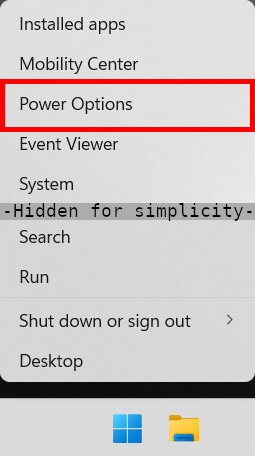
- Right-click on the Start menu and select Power Options from the context menu
- Expand the Lid, power & sleep button controls sub-section
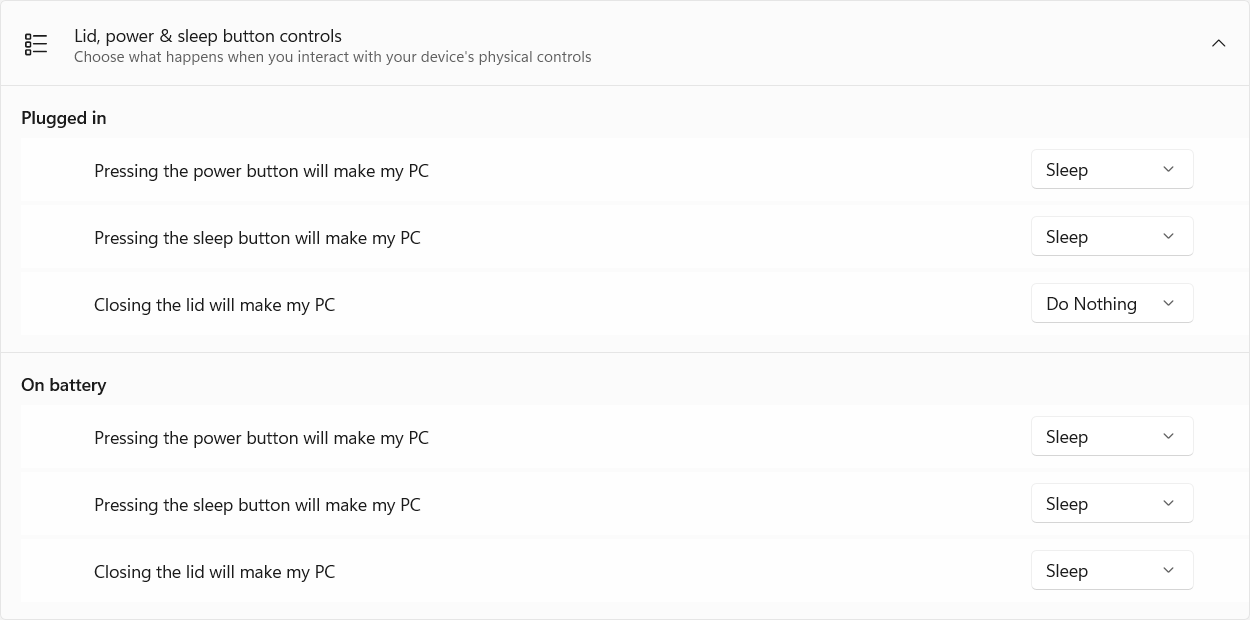
- Under Plugged in select Do Nothing from the Closing the lid will make my PC context menu
Windows 11 23H2 and Earlier
- Right-click on the Start menu and select Power Options from the context menu
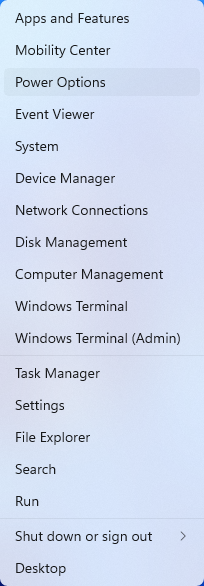
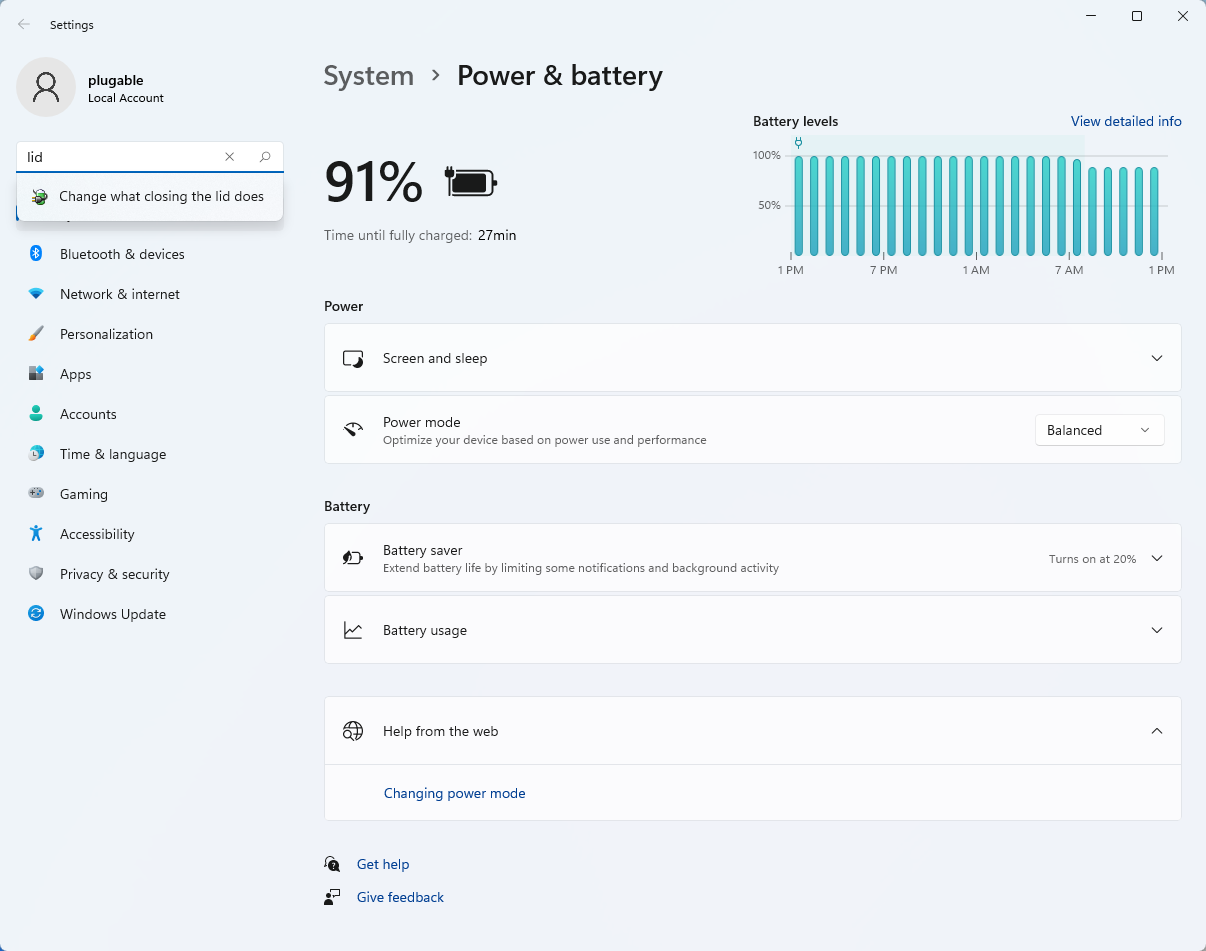
- In the upper left corner of the settings window, in the search box, type "lid" then select Change what closing the lid does from the search results
- Make sure the setting for When I close the lid under the Plugged In column is set to Do Nothing
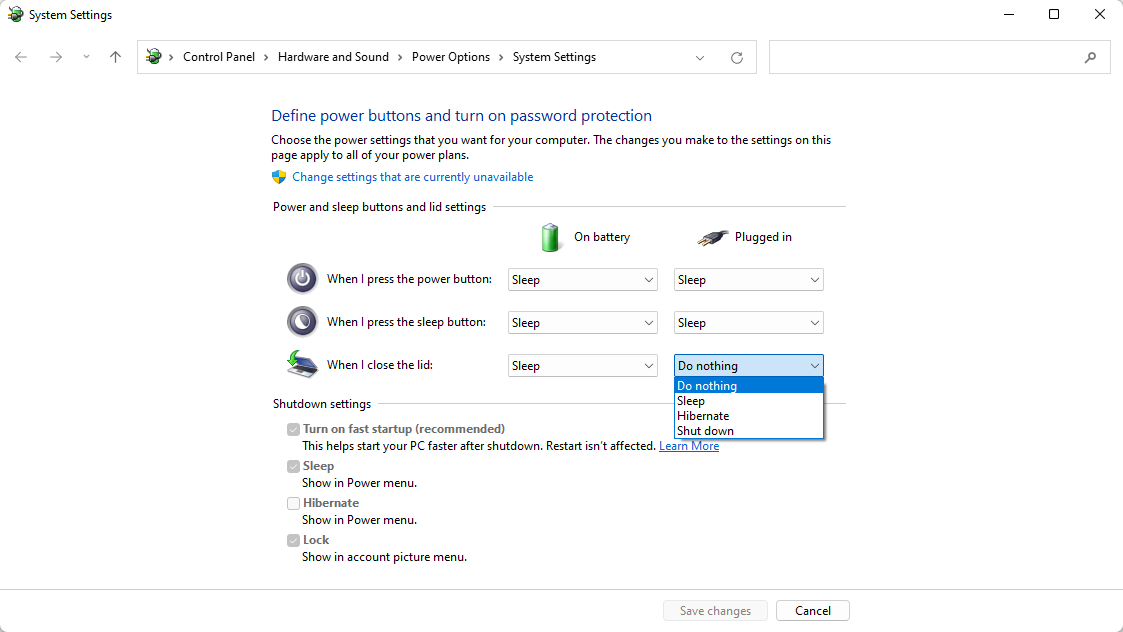
- Click the Save Changes button to apply the new settings.
Windows 10
- Start by right-clicking on the Start button and select Power Options from the menu.
- From the right side of the Power Options settings page, select the blue link for Additional power settings
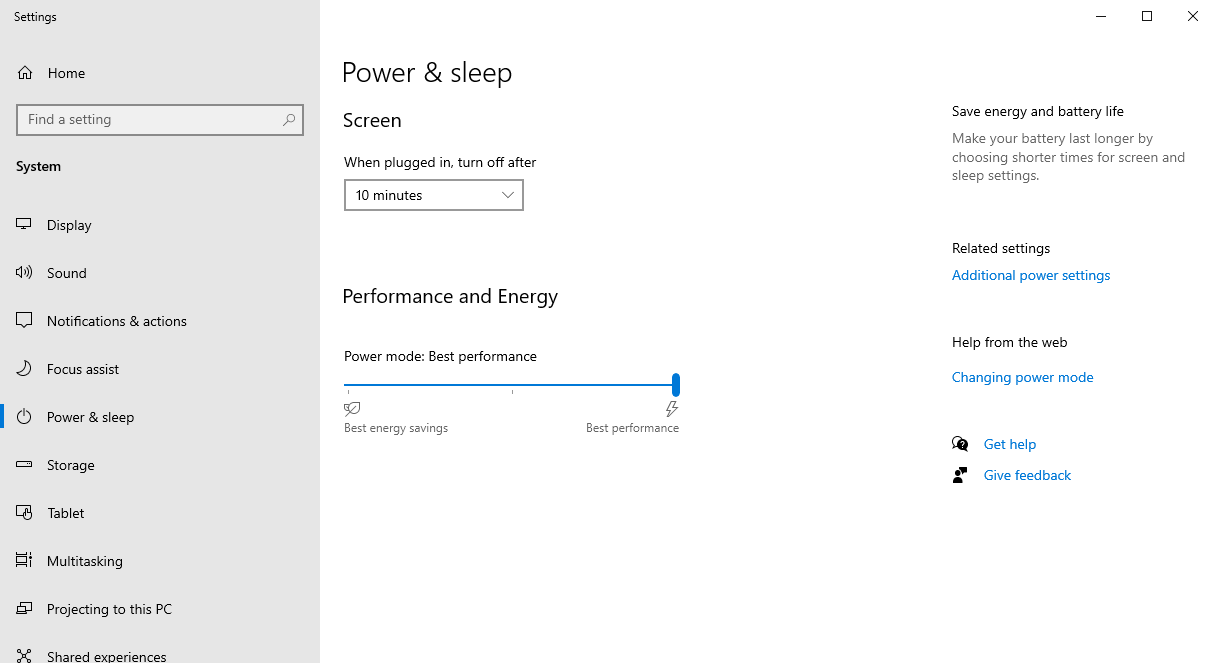
- From the choices present on the left-hand side of the Power Options window, please click on Choose what closing the lid does
- Make sure the setting for When I close the lid under the Plugged In column is set to Do Nothing
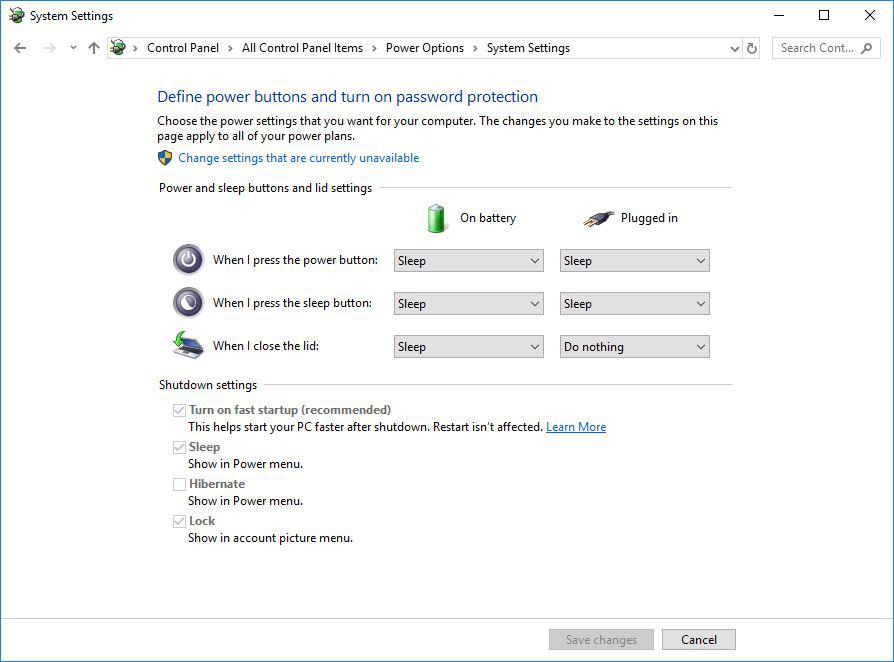
- Click the Save Changes button and restart the system (making sure that the laptop's power adapter is also connected) and test the behavior again.
Closing the lid should no longer put the computer into sleep mode when an external display and power source is connected, instead one of the external displays should now become the Primary display with the desktop icons instead of the laptop's built-in display.
When to open the lid?
The laptop lid may still need to be opened when performing any of the following:
- To power on the computer from a fully powered off state
- To log into the computer if logged out or if the computer is restarted with the lid closed
- To wake the computer from a deep sleep state (hibernation, or Windows hybrid sleep states)
If you have any questions please feel free to contact us at support@plugable.com and we'll be happy to help!
Understanding Heat Generation in Electronics
It's not uncommon for users to notice a certain level of heat generation from electronics and by extension, Plugable products during operation. In this knowledge base article, we'll explore the reasons behind this heat generation and why it is considered a normal experience within reasonable limits.
Electronics, by their nature, generate heat during operation. This is primarily a result of the electrical current flowing through various components, such as integrated circuits, transistors, and other electronic elements. As Plugable products are designed to efficiently process and transfer data (among other functionality), some level of heat generation is inherent.
Factors Influencing Heat Generation:
- Power Consumption: The power consumption of a device directly influences the amount of heat it generates. Higher power usage, especially during data transfer or charging processes, can lead to increased heat.
- Enclosure Design: The design of the product's enclosure and its ability to dissipate heat play a crucial role. Adequate ventilation and heat sinks are often incorporated to manage and disperse generated heat effectively. This is evident in our TBT3-UDZ and TBT4-UDZ designs. The metal case in these docks are designed to function as a heatsink with thermal pads placed throughout the enclosure. This allows heat dissipation from inside to the outside, but will also make it feel as if the device is “too hot”.
- Ambient Temperature: The external environment may also play a role. Higher ambient temperatures can contribute to increased perceived heat from the product. This means that summer temperatures may increase the heat generation of not just Plugable products, but many other electronic devices.
Normal Heat Levels: While it is normal for electronic devices to generate heat, Plugable products are engineered to operate within safe temperature ranges. We conduct rigorous testing to ensure that the heat generated during normal operation falls within industry-standard safety parameters. While not all products are or need to be UL certified, we try to go by UL guidelines for thermal readings. The UL threshold is 77C/170.6F, and we aim for around 71C/160F.
Tips for Users:
- Ventilation: Ensure that Plugable products have sufficient ventilation around them. Avoid placing them in enclosed spaces where heat dissipation may be impeded.
- Usage Patterns: Intensive tasks such as high-speed data transfer or charging multiple devices simultaneously may result in increased heat generation. This is generally normal but may be more noticeable in such scenarios.
- Accessories: A number of our devices will allow for the connection of USB accessories and as such, these will require power. If too many “power-hungry” devices are connected, this will cause the device to run much hotter than expected. Be sure to keep in mind the power limits of your dock/device.
In conclusion, experiencing heat from Plugable products is a normal aspect of their operation. Users can rest assured that we prioritize the safety and efficiency of our devices. By understanding the factors influencing heat generation and following simple usage guidelines, users can make the most of their Plugable products while ensuring a reliable and efficient user experience.
How To: Set the Display Refresh Rate in Windows 11
Summary
Many modern displays support refresh rates higher than 60Hz. In some cases, the desired refresh rate may need to be selected manually in Windows 11. The resolutions and refresh rates available depend on the capabilities of the display, computer, graphics hardware, docking station or adapter, and the connection between them.
Applicable To
Windows 11 computers using built-in or external displays, including displays connected through compatible Plugable docking stations, video adapters, and cables.
Setting the Display Refresh Rate in Windows 11
1. Right-click on the desktop and select Display Settings from the drop-down menu
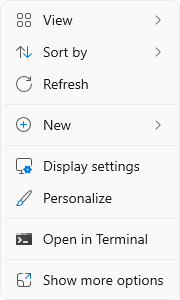
2. Scroll down to the Related settings subsection and select Advanced display

3. At the top of the Advanced display window, select the display you want to configure from the drop-down menu.

4. From the Choose a refresh rate drop-down menu select the desired refresh rate
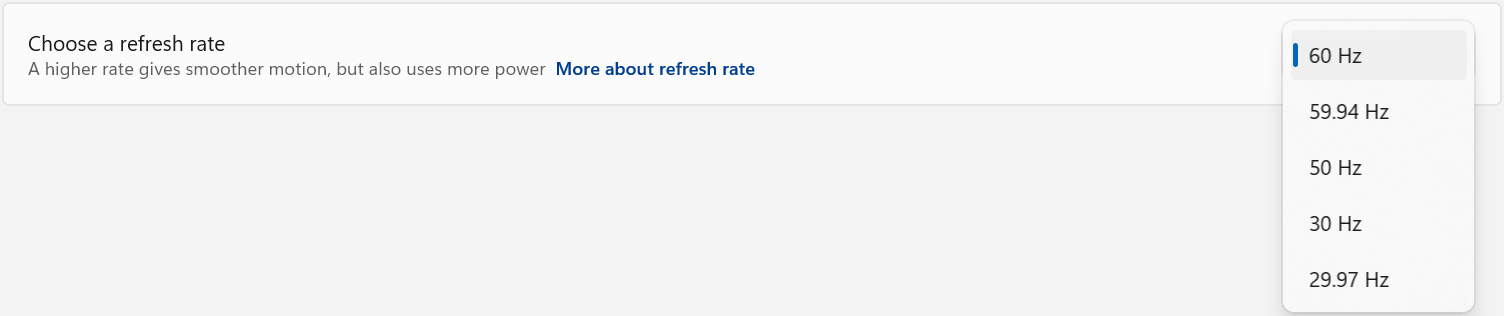
If the Desired Refresh Rate Is Not Listed
If the desired refresh rate is not available, confirm that the display, computer or graphics hardware, docking station or adapter, and video cable all support the desired resolution and refresh rate combination.
Some devices may support a higher refresh rate only at a lower display resolution. Check the specifications for each component in the display connection to confirm the supported resolution and refresh rate combinations.
Refresh Rate Limitations
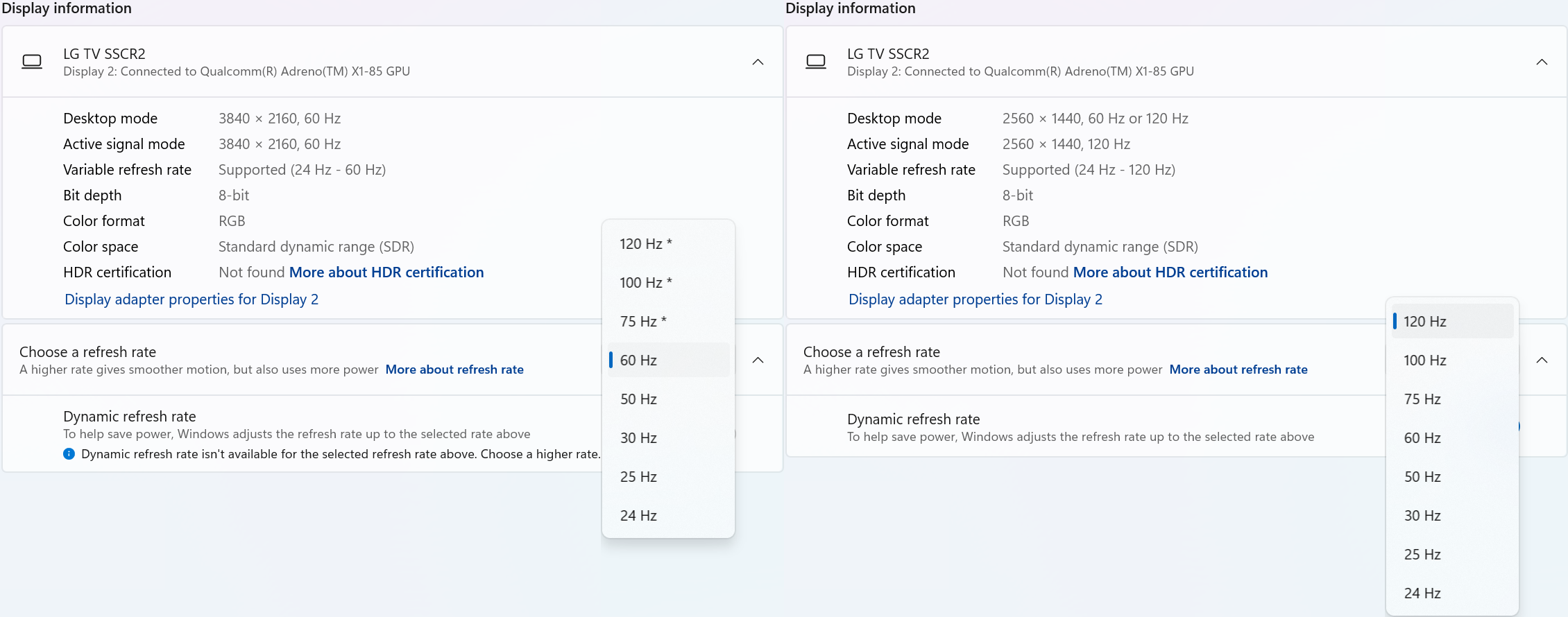
Windows 11 may display an asterisk (*) next to certain refresh rates in Settings > System > Display > Advanced display. The asterisk indicates that the selected refresh rate is not supported at the display's current resolution. Selecting one of these refresh rates will cause Windows to change the display resolution in order to achieve the selected refresh rate.
In the example below, the display supports 3840 × 2160 (4K UHD) at 60Hz and 2560 × 1440 (1440p) at 120Hz through the connected hardware. After selecting “120 Hz*”, Windows changes the display resolution from 3840 × 2160 to 2560 × 1440 so that the higher refresh rate can be used. Because the display is now operating at a lower resolution, the image may appear less sharp than when using the display's native 4K resolution. After selecting a lower refresh rate, Windows may retain the reduced display resolution. If the original resolution is not restored automatically, return to Settings > System > Display and manually select the desired resolution.
Dynamic Refresh Rate
Windows 11 also supports Dynamic Refresh Rate (DRR) on compatible hardware. When enabled, Windows can automatically adjust the display refresh rate based on what you are doing to provide smoother motion when needed while helping reduce power consumption at other times.
DRR requires a display that supports Variable Refresh Rate (VRR) and a refresh rate of at least 120Hz. If supported by the computer and display, DRR can be enabled or disabled under Settings > System > Display > Advanced display.
Need Assistance?
If the desired refresh rate is still unavailable after following the steps above, please contact Plugable Support at support@plugable.com.
When contacting support, please include:
- The Plugable product model
- Your computer model
- Your display model
- The resolution and refresh rate you are trying to use
- How the display is connected to the Plugable product
- The output from Plugable's diagnostic tool, PlugDebug
USB-C vs. Thunderbolt: Understanding the Differences
At first glance, USB-C and Thunderbolt ports may look the same, but their capabilities can vary significantly. Understanding these differences is key to ensuring compatibility and getting the most out of your Plugable devices.
What is USB-C?

USB-C is a type of connector that supports a range of protocols including data transfer, video output, and charging. It's widely adopted across modern laptops, smartphones, tablets, and more.
Common USB-C Standards:
- USB 3.0 / 3.1 Gen 1: Up to 5Gbps data transfer.
- USB 3.2 Gen 2: Up to 10Gbps data transfer.
- USB 3.2 Gen 2x2: Up to 20Gbps data transfer.
- USB4: Up to 40Gbps data transfer, supports DisplayPort 1.4 and optional Thunderbolt 3 compatibility.
Note: USB-C ports may or may not support features like video output (DisplayPort Alt Mode) or USB Power Delivery (PD). Always check your device's specs.
What is Thunderbolt?

Thunderbolt is a hardware interface developed by Intel (in collaboration with Apple for earlier versions) that builds on USB-C, but adds advanced features and higher performance.
Thunderbolt Versions:
Thunderbolt 3:
- Up to 40Gbps data transfer
- Supports two 4K displays or one 5K display
- Supports USB, DisplayPort, and PCIe over a single cable
- Provides up to 100w of Power Delivery (PD)
Thunderbolt 4:
- Maintains Thunderbolt 3's speeds (40Gbps)
- Support for dual 4K or one 8K display
- Can be used with USB4 ports
- Provides up to 100w of PD
Thunderbolt 5:
- Up to 80Gbps bi-directional bandwidth, and up to 120Gbps in one direction for high-bandwidth applications (using Bandwidth Boost)
- Supports dual 6K displays or a single high-refresh-rate 8K display
- Backward compatible with Thunderbolt 4 and USB4
- Enhanced PCIe support and improved power efficiency
- Ideal for advanced gaming setups, content creation, and future-proof professional workflows
USB-C vs. Thunderbolt: Key Differences
How to Identify Each Port
- Thunderbolt ports often have a lightning bolt symbol next to the port.
- USB-C ports may be unmarked or show a symbol for power or DisplayPort.
- Refer to your laptop or device’s technical specifications for confirmation.
Compatibility Tips
- Thunderbolt 3/4/5 devices can typically connect to USB-C ports, but they will function at reduced capabilities (e.g., lower speeds, fewer display outputs).
- USB-C devices can connect to Thunderbolt ports and work normally, but won’t take advantage of Thunderbolt’s full capabilities.
Understanding whether your device supports USB-C, Thunderbolt, or both can help you choose the right Plugable docking station or adapter for your needs. If you run into any questions, feel free to reach out to our support team at support@plugable.com
What are the external display capabilities of Apple Mac laptops with an Apple M4 processor as compared to the previous M3, M2 and M1 generations?
As of this writing, there have been four generations of Apple CPUs, the M1, the M2, the M3, and the M4. Each generation has offered three variations, a ‘base’ model (without a suffix) and ‘Pro’ and ‘Max’ models.
Mac laptops based on Apple CPUs have varying native external display capabilities via Thunderbolt/USB-C connections.
Each generation offers different capabilities depending upon which generation and variation of Apple processor is in use.
As of this writing, the M4 generation is the most capable CPU in regard to native external display capabilities as compared to all previous generations and variations.
Apple Mac laptops with a base M4 processor or M4 Pro processor can support up to two external displays regardless of the state of the laptop lid.
Apple Mac laptops with a M4 Max processor can support up to a total of four external displays regardless of the state of the laptop lid.
Apple Mac laptops with base M3 processors can support one external display when the laptop lid is open and the laptop’s internal display is enabled. They can support up to two external displays when the laptop lid is closed and the laptop's internal display is disabled.
Apple Mac laptops with M3 Pro or M3 Max processors can support up to four external displays in total, regardless of the state of the laptop lid.
Apple Mac laptops with base M1 and M2 processors support one external display only.
Apple Mac laptops with M1 Pro and M2 Pro processors support up to two external displays.
Apple Mac laptops with M1 Max and M2 Max processors can support up to four external displays in total.
Do I need to approve or authenticate Thunderbolt devices when I connect them to my Windows or Mac computer?
Overview
For most modern Windows and Mac systems, Thunderbolt devices are automatically approved and will ‘just work’ once connected.
The main exception is Apple Mac laptops with Apple CPUs running macOS Ventura (13) or newer, where you’ll be prompted to manually approve the device the first time you connect it.
The summary table below provides the specific details at a glance, and the text that follows explains the table in more detail.
Thunderbolt Approval / Authentication Summary Table
Why Authentication Exists
To expand further, Thunderbolt 3, 4 and 5 are in essence external connections to the host computer’s internal PCI Express bus. This type of low-level and high speed connection warranted security protocols to prevent unauthorized access to user data.
Windows: From Intel Software to Native OS Support
When Thunderbolt 3 Windows systems were first introduced in late 2015 it was necessary to use Intel Thunderbolt software to manually authenticate and approve external Thunderbolt devices.
With the introduction of Thunderbolt 4 Windows systems in 2020, it was still necessary to have Intel Thunderbolt software installed on the host computer. However, in most cases the authentication and approval process would happen automatically greatly simplifying the process.
Starting with Windows 11 version 21H2 released in October of 2021, Microsoft integrated support for both USB4 and Thunderbolt into the Windows operating system → LINK
This means that with most modern Thunderbolt 4 and Thunderbolt 5 computers running the latest version of Windows 11 it is no longer necessary to install Intel Thunderbolt software on the host computer in order to manage Thunderbolt devices. In most cases, the authentication and approval process will still happen automatically.
macOS: From Intel CPUs to Apple CPUs
When Thunderbolt 3 Mac systems with Intel CPUs were first introduced in 2016, the authentication and approval mechanism was built-in to macOS and was transparent to the end user.
Apple introduced Mac computers based on Apple CPUs in 2020. Macs based on Apple CPUs running macoS 11 Big Sur or macOS 12 Monterey would automatically approve and authenticate Thunderbolt devices when connected.
macOS 13 Ventura was released in 2022 and for portable Macs with Apple CPUs Apple introduced a feature known as ‘Accessory Security’ (also known as ‘Restricted Mode’) → LINK
By default, portable Macs (i.e. laptops) with an Apple CPU running macOS 13 Ventura or newer version of macOS will require the end user to authenticate and approve a Thunderbolt device when initially connected.
Stationary Macs (i.e. desktops) with an Apple CPU running macOS 13 Ventura or newer version of macOS do NOT implement the ‘Accessory Security’ feature. As a result, Thunderbolt devices will be automatically approved and authenticated when initially connected.
Apple Macs with Intel CPUs (both laptop and desktops) running macOS 13 Ventura or newer do NOT implement the ‘Accessory Security’ feature. As a result, Thunderbolt devices will be automatically approved and authenticated when initially connected.
Update Graphics Drivers in Windows
Up to date graphics drivers are necessary for ensuring the best performance of your computer's built-in display, as well as the capability and compatibility with external displays and docking stations.
Windows has a built-in system update service: Windows Update, however this may not provide up to date drivers or timely updates. We often see systems with out of date drivers, in some cases systems may not receive updated graphics drivers for months or even years, leaving the computer with drivers incompatible with the installed version of Windows 11.
However, we can manually update the graphics drivers to ensure the best possible performance, reliability, and compatibility.
The first step is to identify the graphics hardware, then downloading, and installing the latest drivers.
Identifying Graphics Controller
For notebooks and many desktop computers, the primary graphics controller is embedded in the processor, both AMD and Intel provide graphics driver updates based on the processor model, as well as for discrete graphics controllers. Our first step is to identify up the processor or graphics hardware model details:
- Right-click on the Start Menu and select Settings from the pop-up menu
- From the left column select System and from the bottom of the right side select About
- From the top of the about page the processor details will be on the right side, and duplicated lower down on the page.

- In this example the processor is a 12th Gen Intel(R) Core(TM) i7-1260P, we'll keep that detail for the next step.
If your computer has two graphics controllers (it may show "Multiple GPUs Installed" under Graphics Card) then we can get the graphics card model details from the Windows System Information Utility.
- Open the Start menu and search for "msinfo32"
- Select the first result
- From the left-column expand the Components section, then select Display

- In this example the Intel Iris(R) Xe Graphics is enabled by the processor, while the Intel(R) Arc(TM) Pro B60 Graphics is a discrete graphics controller.
Downloading the Drivers
Intel Graphics
- In a web browser navigate to the Intel Driver Download Page
- In the "Search Drivers & Software" field, search for the Intel graphics card model or CPU model, "Arc Pro B60" in this example

- Select the appropriate "Intel Arc Pro Graphics - Windows" or similar entry from the search results, for modern hardware Intel will normally have at least one release per month, the list should return recent results within the last month
- Select the Download button to save the installer to your Downloads folder or selected location
AMD Graphics
AMD provides an Auto-Detect utility, this works relatively well and can be used to update the system available from the AMD Drivers and Support page.
This page also provides a search and browse option for finding drivers and specific compatibility details, we'll look up the drivers for an AMD Ryzen Pro 5650U processor with Radeon Graphics:
- Navigate to AMD Drivers and Support page
- From the Browse section, fill out the processor details and click the Submit button
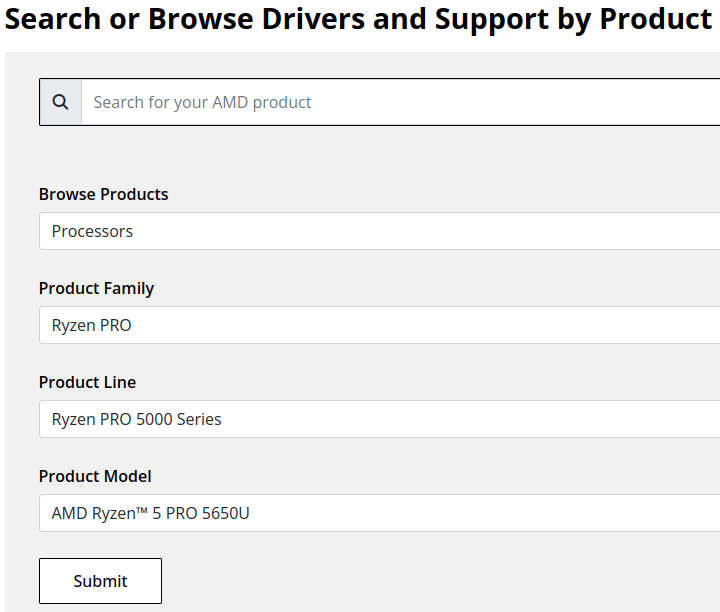
- Expand the "Windows 11 - 64-Bit Edition" section and select the Download button for the latest graphics drivers
NVIDIA Graphics
Like AMD, NVIDIA provides an automatic installation utility, as well as a Manual Driver Search on the NVIDIA Drivers support page. We will look up the drivers for an NVIDIA RTX 5080 graphics card.
- Navigate to NVIDIA Drivers support page
- Fill out the Manual Driver Search drop-downs and select the "Find" button when complete
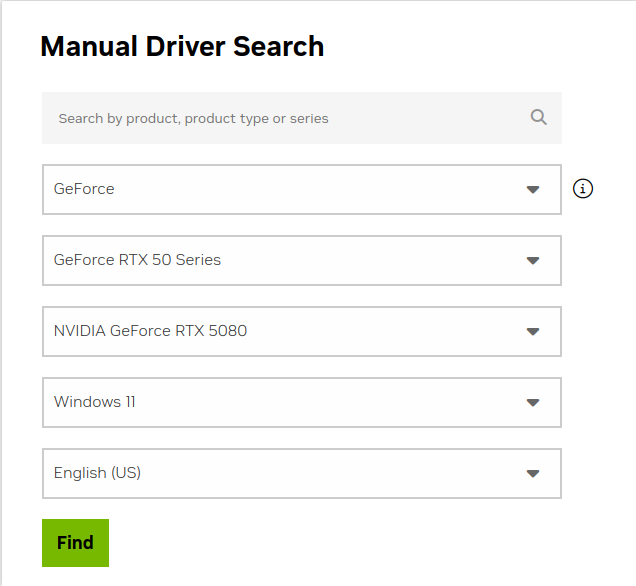
- From the search results, select the "View" button for the GeForce Game Ready Driver or NVIDIA Studio Driver (if you need the studio driver features)
- Select the green Download button for the latest graphics drivers
Installing the Graphics Drivers
For the most part this is relatively simple, we recommend disconnecting any external docking stations or devices that are not necessary for the driver installation, and for notebook computers connecting the system's original power supply.
Double-click on the downloaded driver installation executable and follow the on screen steps.
For more in-depth details on Intel, AMD, and NVIDIA's driver installation processes check out our step-by-step guides here:
- Intel Driver Installation In Detail
- AMD Driver Installation In Detail
- NVIDIA Driver Installation In Detail
If you have any questions or would like a recommendation, feel free to reach out to our support at support@plugable.com
How-To: Install the latest Intel Graphics Drivers
For a step-by-step guide to identify your graphics hardware and download the appropriate drivers, check out our KB article here
Download the drivers for your GPU or Processor Graphics
- In a web browser navigate to the Intel Driver Download Page
- In the Search Drivers & Software field, search for the Intel graphics card model or CPU model, "Arc Pro B60" in this example
- Select the appropriate Intel Arc Pro Graphics - Windows or similar entry from the search results, for modern hardware Intel will normally have at least one release per month, the list should return recent results within the last month
- Select the Download button to save the installer to your Downloads folder or selected location
Install the Intel Graphics Driver
To update the Intel Graphics Drivers to the latest version from Intel's website:
- Save and close any open applications
- Navigate to the downloaded graphics driver, then right-click on the saved driver installation file and select Run as administrator to start the installation process
- Allow the Intel driver installation through the User account control window, the drivers will be extracted
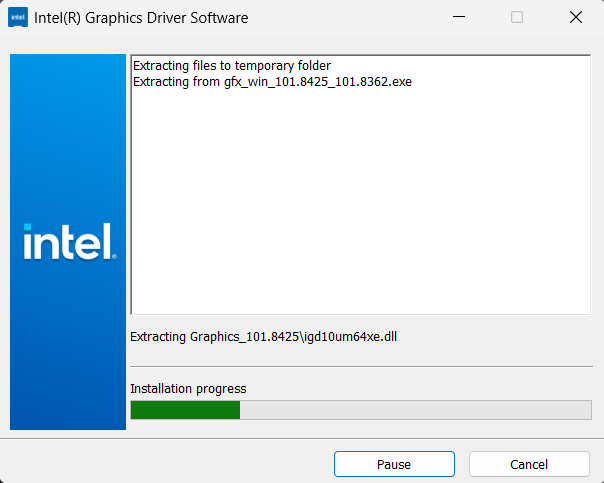
- When the extraction is complete select the Begin installation button

- Agree to the Intel Software License Agreement by selecting the I agree button
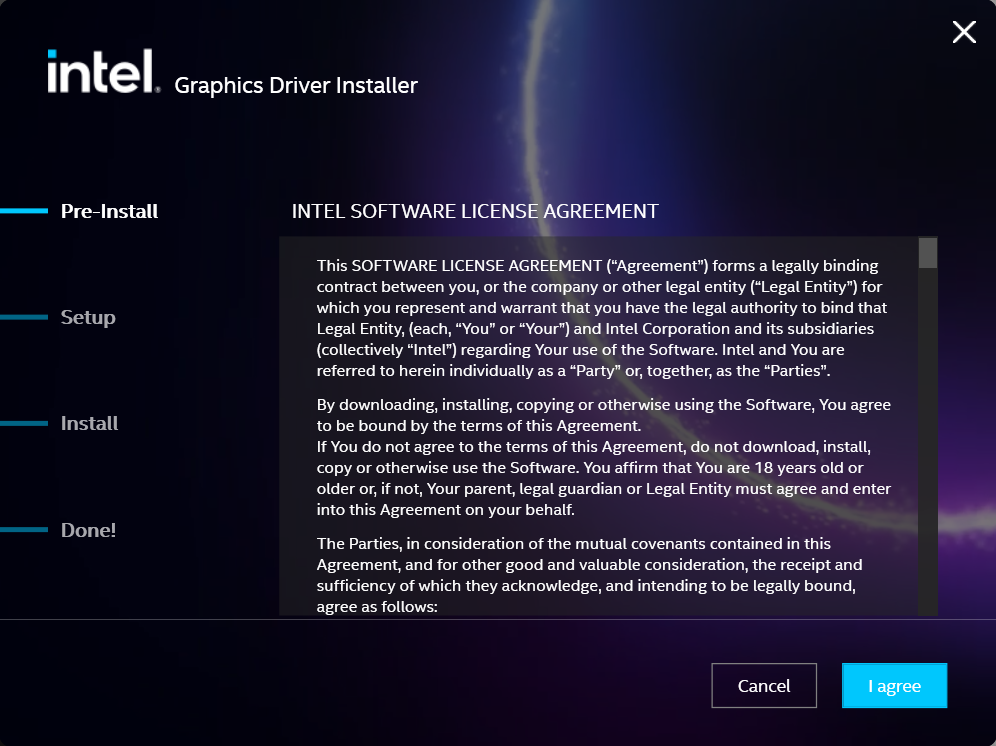
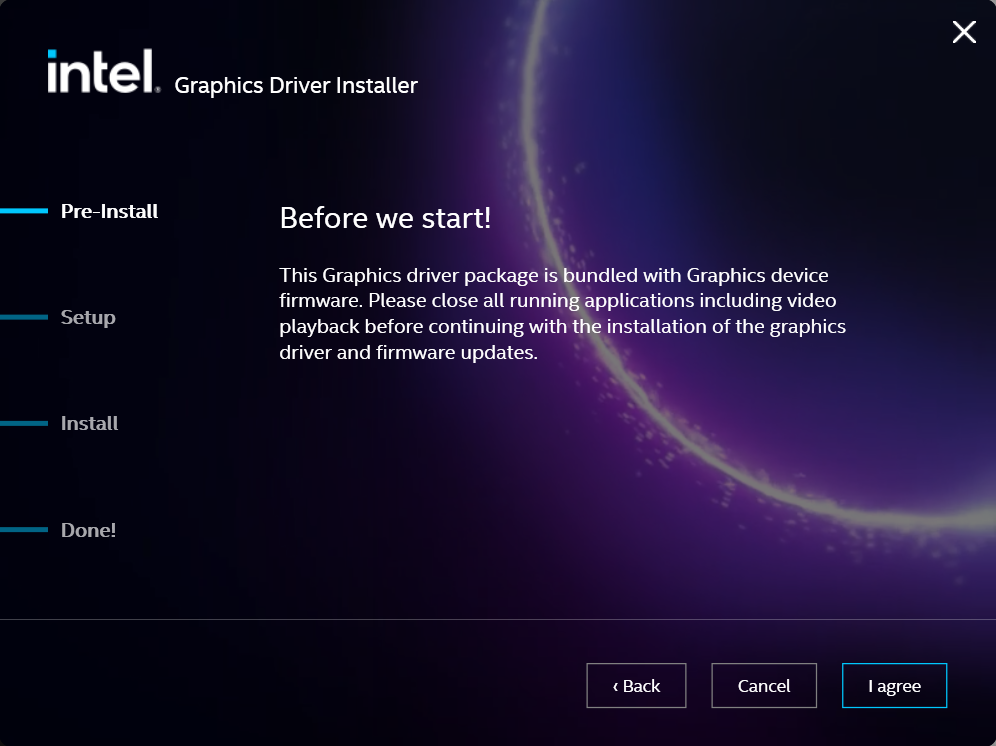
- Ensure all applications are saved and closed before selecting the I agree button
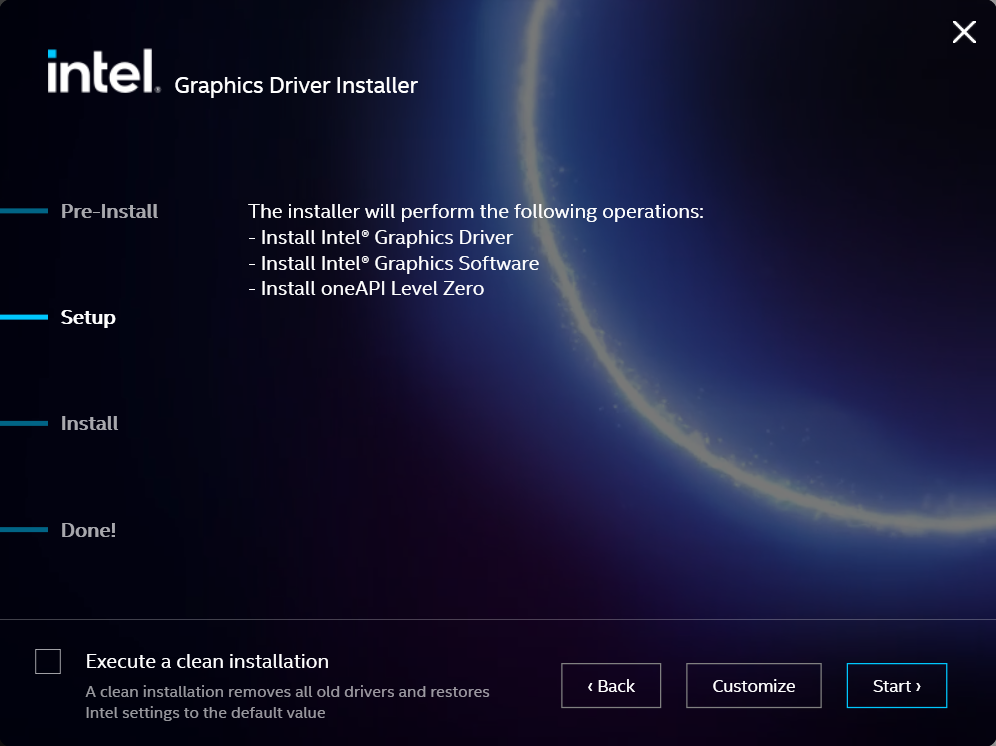
- For most installations, we recommend not selecting the Execute a clean installation checkbox. This option will remove previous driver versions and can lead to Windows Update reverting to an even older graphics driver. Select the Start button to proceed
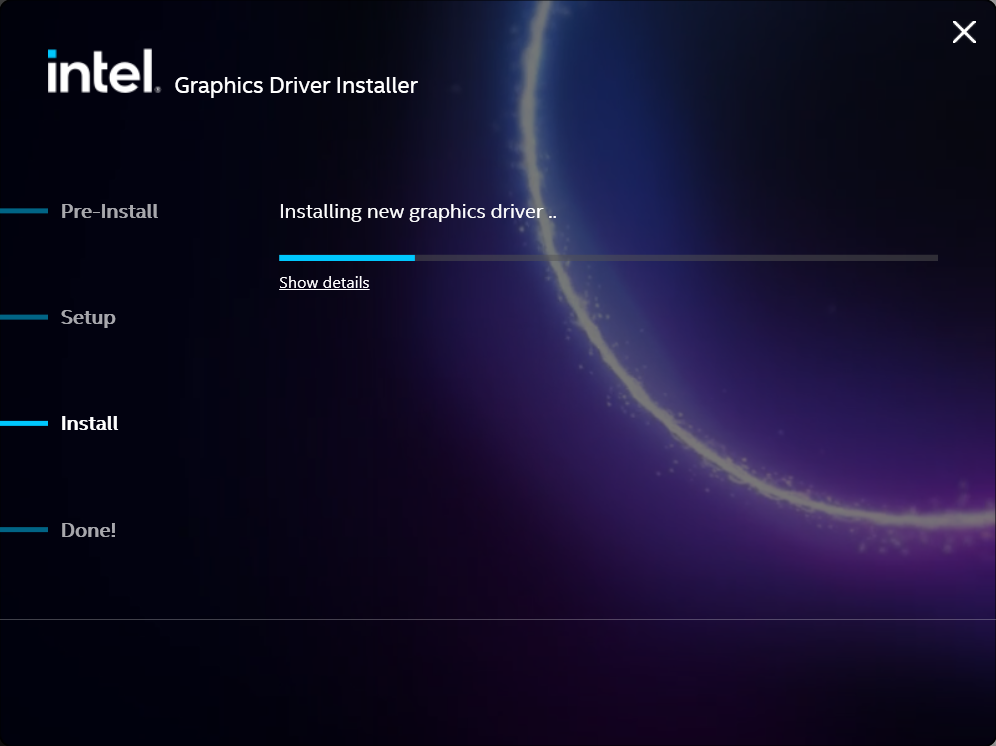
- The installation process will proceed, but can take some time to complete
- When the installation has completed, deselect the Launch Intel Graphics Software checkbox - we don't need that right now, select the Reboot Now button to restart the computer applying the new graphics drivers
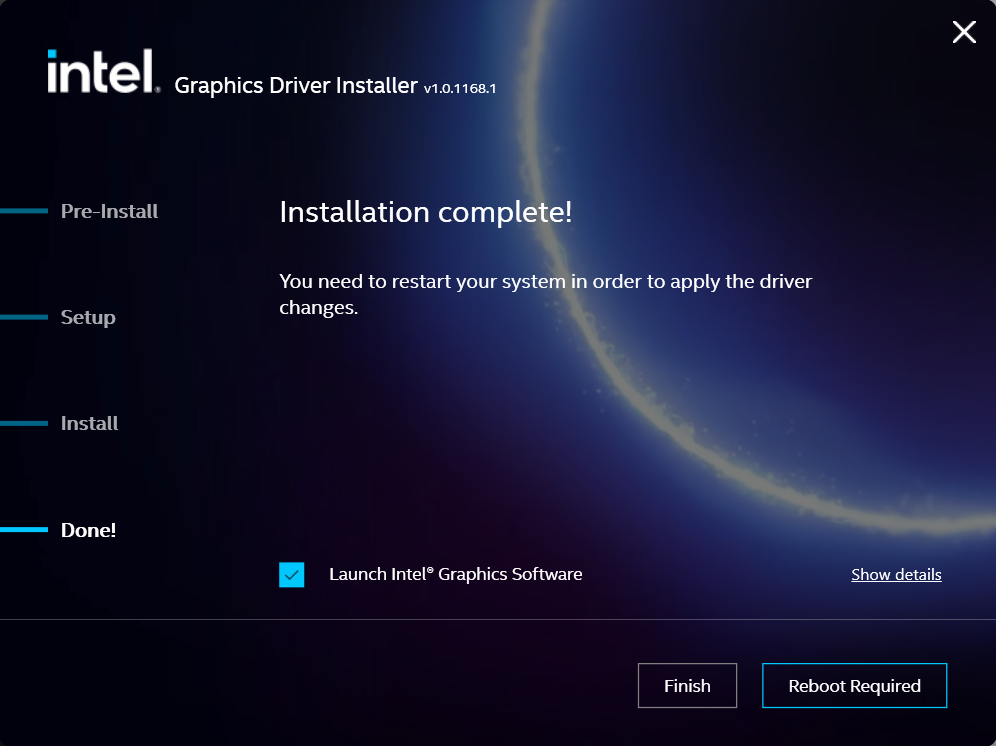
Windows should now detect the Intel Graphics Controller in the Device Manager and show the latest drivers.
If you have any questions or would like a recommendation, feel free to reach out to our support at support@plugable.com
How-To: Install the latest AMD Graphics Drivers
For a step-by-step guide to identify your graphics hardware and download the appropriate drivers, check out our KB article here
Download the drivers for your GPU or Processor Graphics
- In a web browser navigate to the AMD Drivers and Support page
- In the Search for your AMD product field, type in the model name, for example “RX 5600XT” for the AMD Radeon RX 5600 XT graphics controller, or a processor model like "AI 9 365", then select the best fitting result and select the Search button - note: Searching for a processor the "™" is required, so I recommend searching for the text after that symbol.
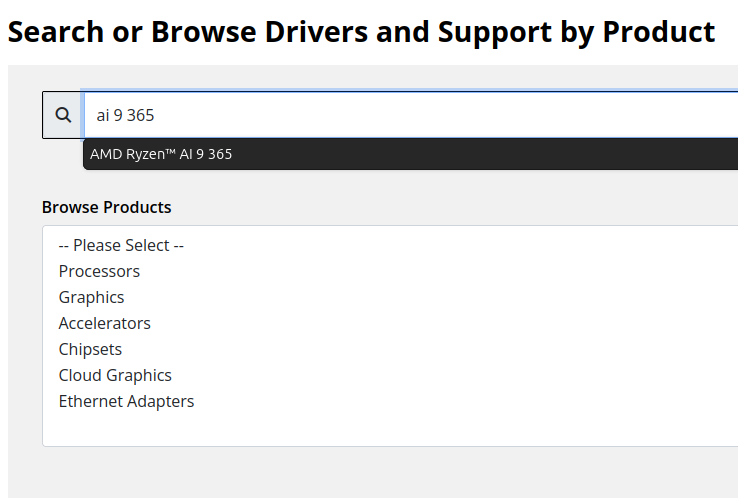
- On the results page, expand the section for Windows 11 64-bit then select the Download button for the latest AMD Software: Adrenalin Edition drivers, AMD may not provide a direct download for all hardware, in that case use the Auto-Detect and Install option
- Save the installer to your Downloads folder or selected location
Install the AMD Graphics Driver
To update the AMD Graphics Drivers to the latest version from AMD’s website:
- Save and close any open applications
- Navigate to the downloaded graphics driver, then right-click on the saved driver installation file and select Run as administrator to start the installation process
- Allow the Intel driver installation through the User account control window, the drivers will be extracted
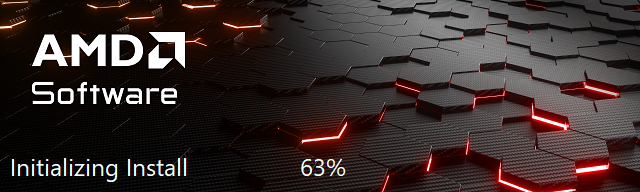
- For most users the express installation is fine, ensure all applications are saved and closed selecting the Accept & Express Install button. If you have been having issues with older graphics drivers causing crashes or errors the Factory Reset (Optional) checkbox may be selected, but it isn’t necessary for most installations.

- The installation will proceed, the displays may flicker or flash off/on while the drivers are installing.
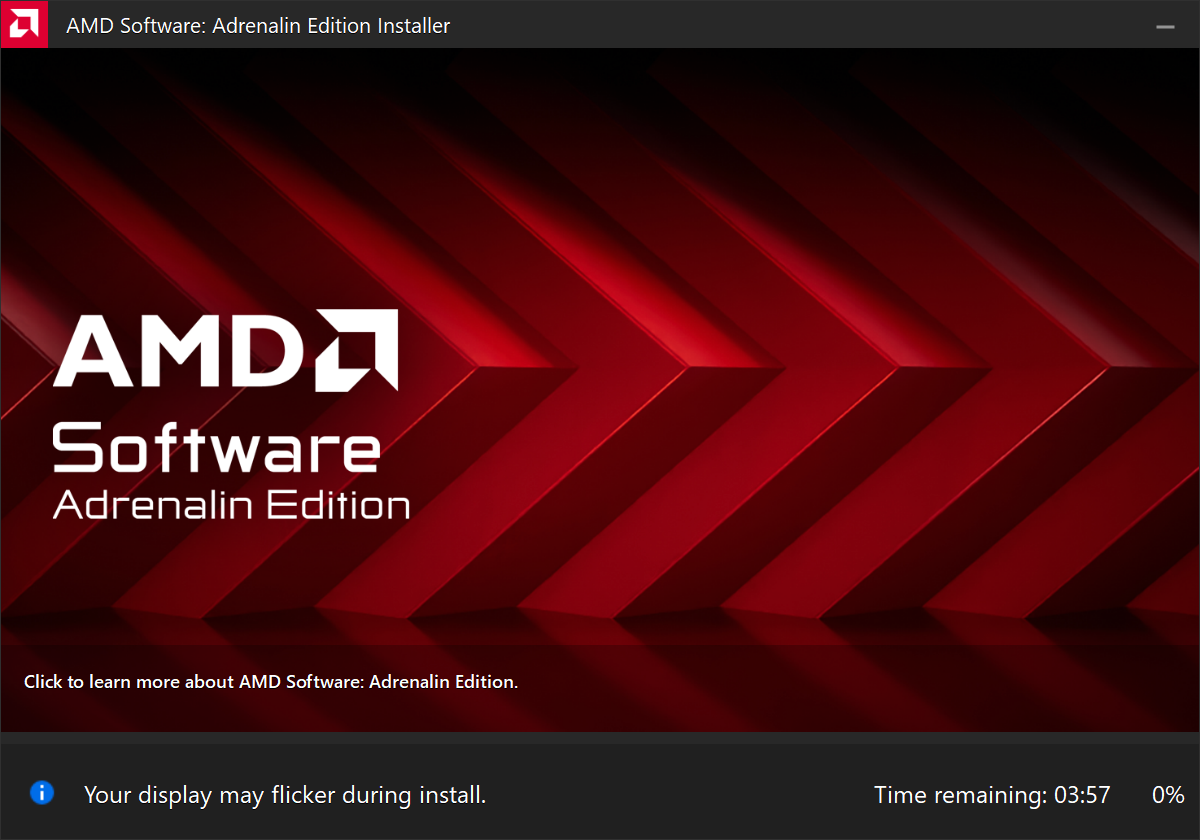
- When complete you will be prompted to Launch AMD Software: Adrenalin Edition and Keep AMD software up to date, you can uncheck the Launch AMD Software option
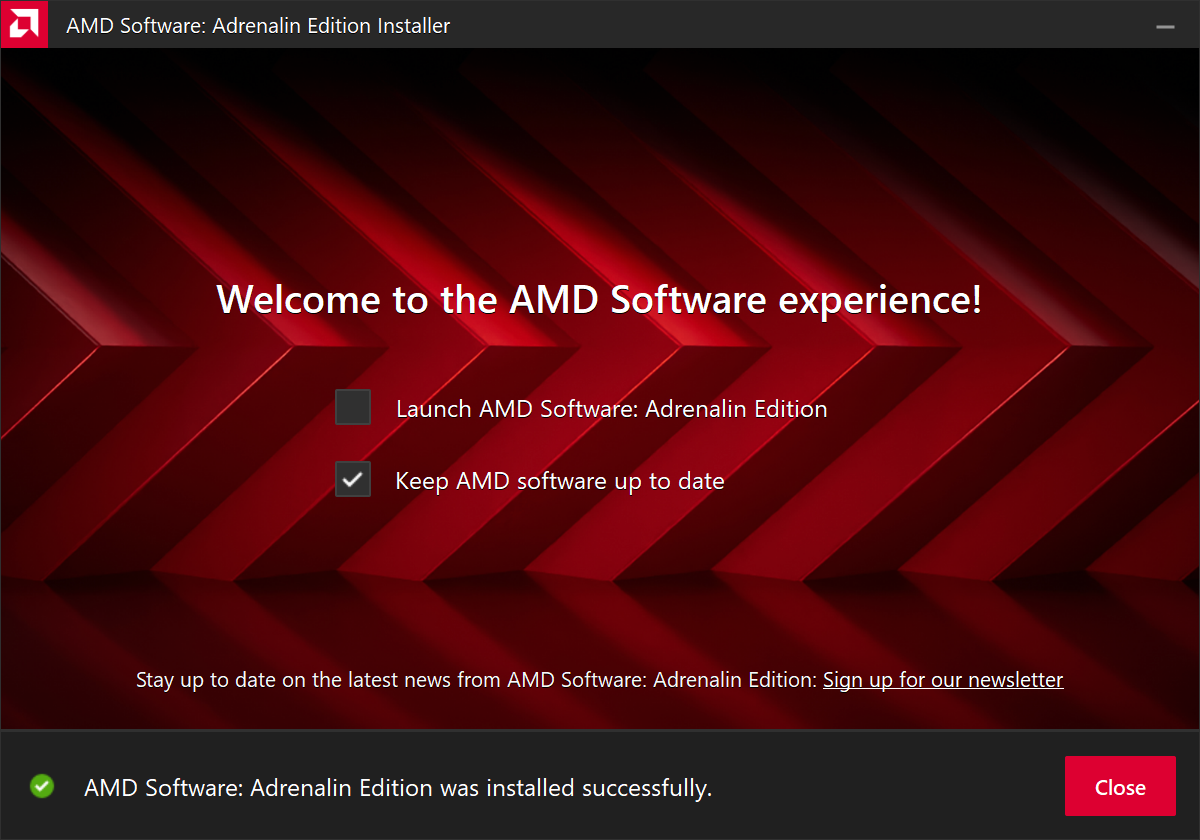
- Restart the computer to ensure the latest drivers are loaded from boot Start Menu > Power Icon > Restart
Windows should now detect the Intel Graphics Controller in the Device Manager and show the latest drivers.
If you have any questions or would like a recommendation, feel free to reach out to our support at support@plugable.com
How-To: Install the latest NVIDIA Graphics Drivers
For a step-by-step guide to identify your graphics hardware and download the appropriate drivers, check out our KB article here
Download the drivers for your GPU
Check your invoice for the specific model of NVIDIA graphics card, for this example we will use the RTX 5080 (the manufacturer is not relevant).
- In a web browser navigate to the NVIDIA Driver Download Page
- In the Manual Driver Search field, search for the NVIDIA graphics card model, "RTX 5080" in this example
- Select the GeForce RTX 50 Series | NVIDIA GeForce RTX 5080 | Windows 11 entry from the list
- Left-click the Find button
- Select either View buttons from the GeForce Game Ready Driver or NVIDIA Studio Driver
- Select the Download button to save the installer to your Downloads folder or selected location
Install the NVIDIA Graphics Driver
To update the NVIDIA Graphics Drivers to the latest version from NVIDIA's website:
- Save and close any open applications
- Navigate to the downloaded graphics driver, then right-click on the saved driver installation file and select Run as administrator to start the installation process
- Allow the NVIDIA driver installation through the User account control window
- Click OK to extract the NVIDIA Display Driver package contents
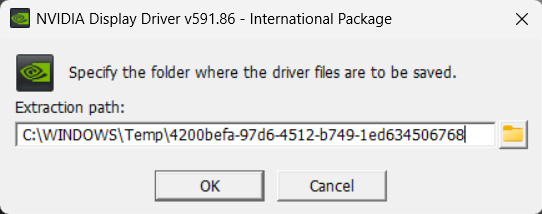
- At the System Check step, select either the NVIDIA Graphics Driver with NVIDIA App or the NVIDIA Graphics Driver alone, the NVIDIA App is gaming oriented and unnecessary for most users. Select AGREE AND CONTINUE
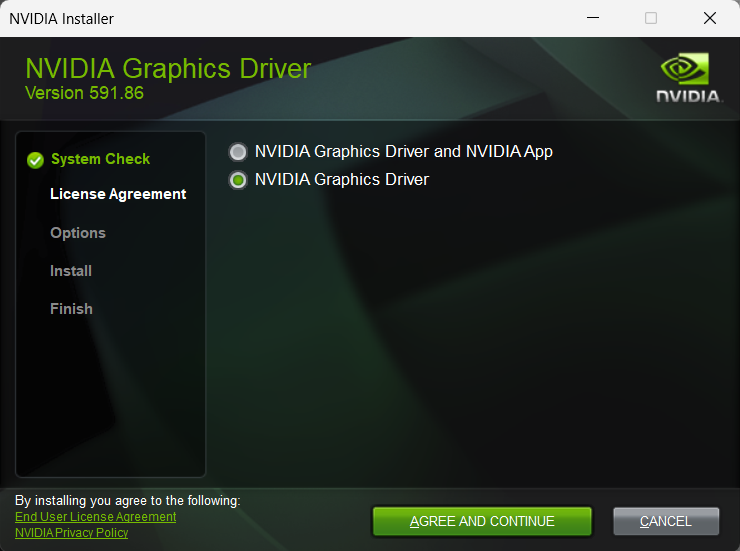
- At the License Agreement step, select the Express (Recommended) radio button then select NEXT to continue

- The installation will take some time to complete
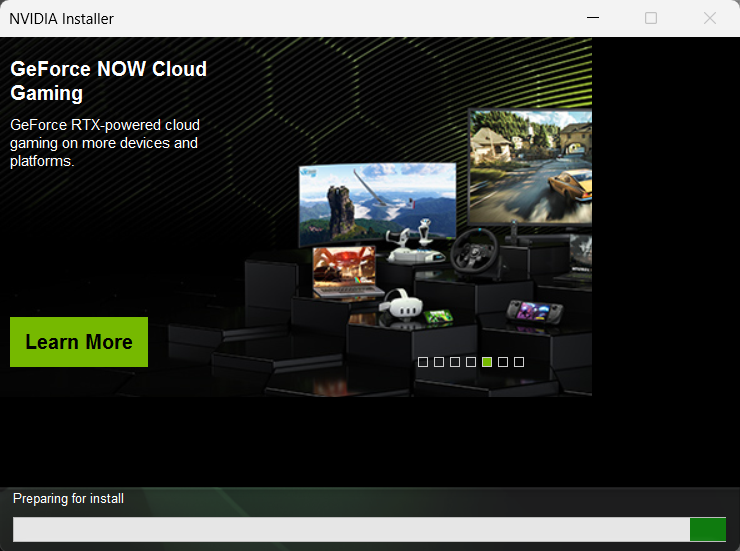
- When complete please restart the computer Start > Power > Restart
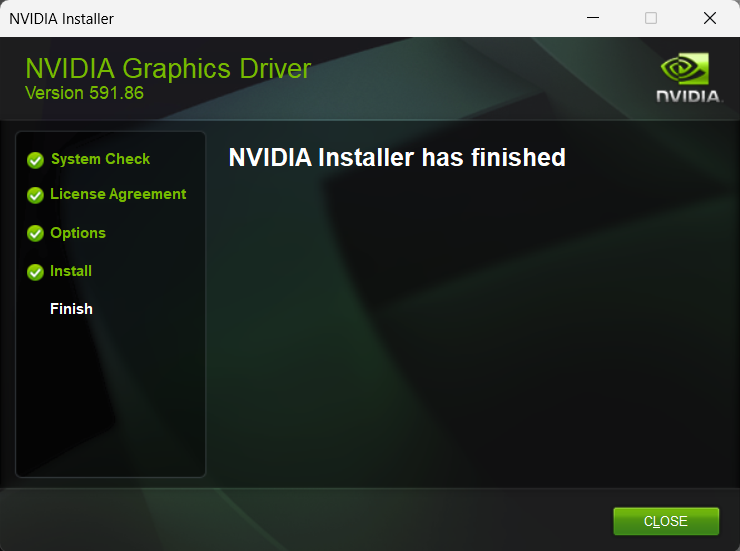
Windows should now detect the NVIDIA Graphics Controller in the Device Manager and show the latest drivers.
If you have any questions or would like a recommendation, feel free to reach out to our support at support@plugable.com


