YouTube embed placeholder image

Updated for macOS Sequoia

Apple’s Mac Mini, MacBook Air, and MacBook Pro 13″, the first Macs to feature the Apple-designed M1 CPU, have a lot of potential across the board in comparison to their Intel-based counterparts. But there is one problem: a reduction in the number of external displays you can connect.

技術仕様によると、Mac Mini はネイティブで最大 2 台(1 台は HDMI ポート経由、もう 1台は USB-C 経由で)の外部モニターをサポートできます。しかし、MacBook AirMacBook Pro 13 インチは外部ディスプレイを 1 台しかサポートしません。そこで私たちは、本当にそうなのかを確認してみました。

書いてある通りに、これらのシステムは、上記にある通りの動作をしました。Intel 社製 CPU 搭載 Mac システムであれば最大 2 台の外部モニターをサポートできる Plugable 社製 Thunderbolt 3 ドッキングステーション経由で、M1 システムの場合は 1 台の追加モニタしか表示できません。しかし、一部のユーザーの方々にはこのような制限は許容できないかもしれません。

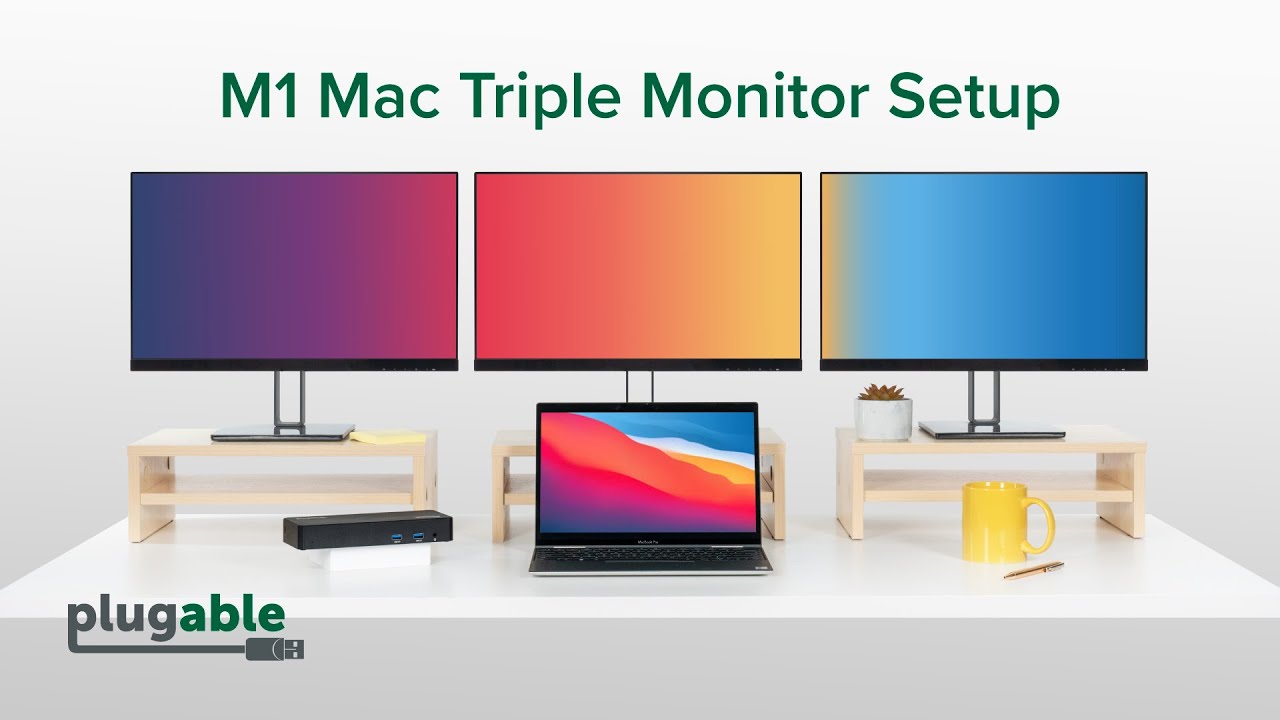
We found the trick for connecting multiple displays to your M1-powered Mac is a Plugable DisplayLink docking station.

With the release of Secoia, we've tested and updated our pick for the best docks for the M1 MacBook. 

The absolute best dock for the M1 MacBook is the Plugable UD-6950PDH. It brings 14-port expansion, including dual HDMI at 4K 60Hz. Plenty of ports. Plenty of productivity. 

Our other favorite dock for the M1 MacBook is the Plugable UD-ULTCDL. With 13 ports, including the ability to add three displays to M1 Macs, it's no wonder How-To Geek named it The Best of 2025. 

注意: これらのマルチディスプレイドッキングステーション は、USB-C 代替モード(内蔵 GPU 直接出力の「グラフィック出力」)と、DisplayLink 技術(専用デバイス・ドライバのインストールが必要)の組み合わせでトリプルモニタを実現します。このような技術の組み合わせは、M1 プラットフォームが USB-C を介して外部ディスプレイ 1 台のみをサポートしている制限の回避策となります。DisplayLink と macOS についての詳細は、こちらの記事を参照してください。

モニタ接続方法などに関する質問やご意見などがありましたら、この記事へのコメントでお知らせください。

How many monitors can an M1 Mac support natively?

The base M1 chip natively supports only one external display with up to 6K resolution at 60Hz. While the hardware includes powerful processing capabilities, the internal display controller in the entry-level M1 (found in the MacBook Air and 13" MacBook Pro) is limited to a single external video output over Thunderbolt. To connect more than one monitor, users must utilize "indirect" display technologies like DisplayLink.

What is the best docking station for M1 Mac dual monitors?

The Plugable UD-6950PDH is the ideal docking station for M1 Macs because it provides dual 4K 60Hz display support and 100W Power Delivery. This dock leverages DisplayLink technology to bypass the M1's single-display limit, allowing two independent HDMI or DisplayPort monitors to function through a single USB-C cable. For users who also need to charge their laptop while expanding their screen real estate, this "all-in-one" solution offers the best balance of performance and utility.

How to connect two external monitors to M1 MacBook Air?

To connect two external monitors to an M1 MacBook Air, you must use a DisplayLink-certified docking station or adapter and install the DisplayLink Manager software. 

  • Step 1: Connect a Plugable DisplayLink dock (like the UD-3900PDZ) to your MacBook Air.
  • Step 2: Download and install the latest DisplayLink Manager for macOS.
  • Step 3: Enable "Screen Recording" permissions in System Settings to allow the driver to render the pixels for the additional displays.

Do I need to keep my MacBook lid closed to use two monitors?

No, when using a Plugable DisplayLink docking station, you can use two external monitors while keeping your MacBook lid open for a triple-display experience. Unlike the newer M3 base models, which require "clamshell mode" to support two native displays, DisplayLink-powered setups work independently of the laptop's lid state.

Will DisplayLink affect the performance of my M1 Mac?

DisplayLink uses a small amount of CPU and GPU resources to compress and send video data, but the impact is negligible for standard office and productivity tasks. While it is not recommended for high-end gaming or professional color-grading, it is perfect for spreadsheets, web browsing, and video conferencing.


Loading Comments

記事ID: 395803066533